Instant Connection for Pixel Streaming
— New Feature Automated Setup

How to Build a Unity Game With GPT-6 Astra (2026)
How to Build a Unity Game With GPT-6 Astra (2026)
GameDevelopment
How to Build a Unity Game With GPT-6 Astra (2026)
Table of Contents
GPT-6 Astra can help you inspect a Unity project, arrange a scene, write C# scripts, connect components, enter Play Mode, and correct visible problems when it has the tools and permissions required to access the project. It is not a native button inside Unity, and selecting Astra in an ordinary chat does not automatically give it control of the Unity Editor.
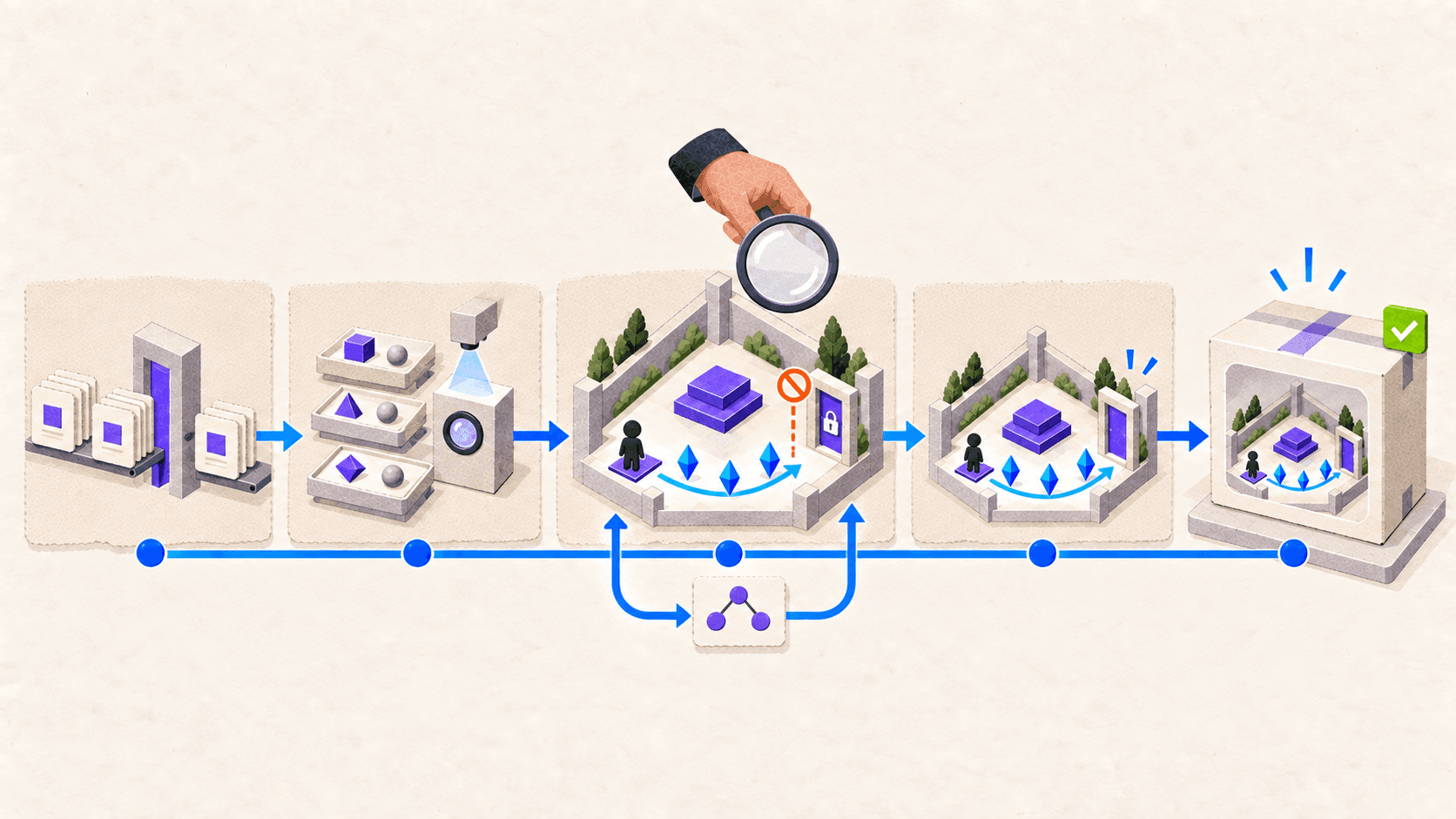
The practical approach is to connect Astra to a protected Unity project through an agent environment such as Codex, give it Unity-specific tools, define a very small game, and approve each implementation stage separately. This guide uses a compact prototype with one player, three collectibles, a locked exit, a win condition, and a restart path.
Can GPT-6 Astra Actually Build a Unity Game?
Astra combines software engineering capabilities with computer use. OpenAI says the model can work with codebases, install and test software, troubleshoot visible problems, and complete multistep computer tasks. Those capabilities make it more useful for game development than an assistant that can only return C# snippets in a chat window.
However, the model still needs a way to communicate with Unity.
In one workflow shared by Unity, the creator used Codex to build a Unity plugin with Unity’s published skills and Unity CLI. They then started Codex from the project directory, enabled computer use, and provided existing Unity Asset Store assets. Astra used the available tools to construct a city environment and computer use to inspect the scene and make adjustments. You can read Unity’s explanation of the Astra workflow for the original sequence.
That setup matters more than the prompt alone. It gave Astra access to:
The Unity project directory
Unity-specific commands
A connected Editor
Existing assets
Visual feedback from the scene
A way to make and verify changes
OpenAI has also published a game-prototyping case study with Playco. Playco’s Playbot environment allows models to edit scenes, play games, run tests, and validate changes inside engines such as Unity and Godot.
Playbot is Playco’s own system. It is not a feature that appears automatically when you open Astra, Codex, or Unity. Playco’s reported results should therefore be treated as evidence of what a well-designed agent harness can support, not a promise that every user will reproduce the same outcome.
For an independent developer, the realistic target is a small prototype with explicit acceptance criteria. Astra can help implement and test that prototype, while the developer remains responsible for scope, project safety, asset licensing, architecture, gameplay judgment, and final approval.
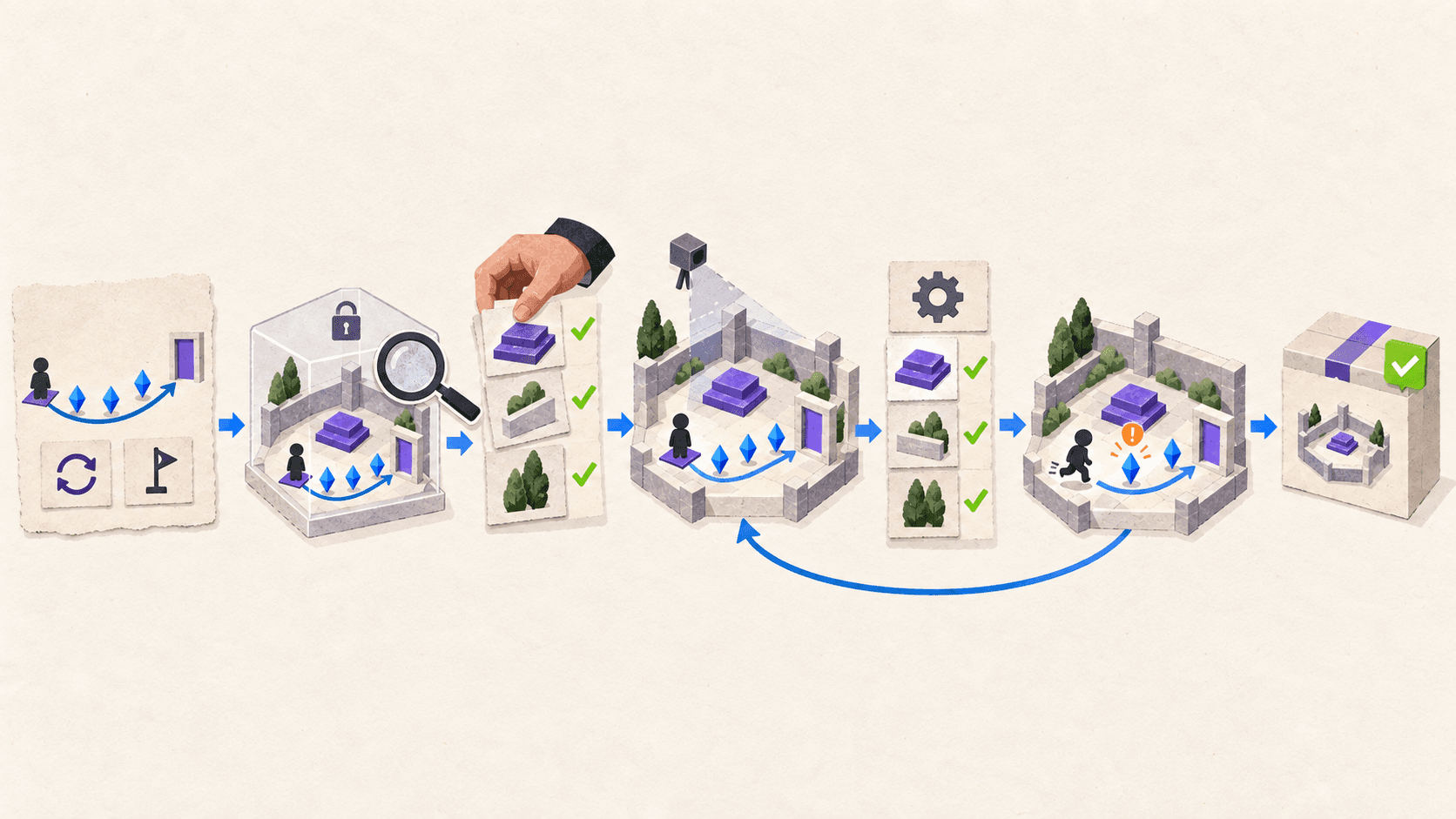
What Do You Need Before Astra Opens the Project?
Start by freezing the technical context. Astra should not decide your Unity version, render pipeline, input system, packages, and target platform while it is already modifying the game.
As of September 2026, Unity 6.6 is the latest Supported release, while Unity 6.3 is the current Long-Term Support version. Unity recommends LTS releases for projects approaching production lock and Supported releases for new or mid-cycle work that needs newer features. This guide uses Unity 6.3 LTS as its reproducible baseline unless the project specifically requires a Unity 6.6 feature. Check the current status on Unity’s release and support page before starting.
Prepare the following:
Unity Hub and Unity 6.3 LTS
The module required for your intended build platform
A new or duplicated Unity project
A Git repository or another version-control checkpoint
GPT-6 Astra access through Codex
Computer use enabled where available
Unity’s published agent skills
Unity CLI and the required project-side pipeline package
Licensed or user-created assets
A defined input solution
One approved build target
Unity publishes a collection of skills for AI coding agents. These skills cover areas such as project creation, Unity CLI, package management, builds, tests, and Unity Gaming Services.
Unity CLI can control a connected Editor, inspect available commands, enter Play Mode, read logs, run tests, and initiate builds. It can also expose Unity commands to compatible agent clients through MCP. The current CLI and related pipeline tooling should be treated as beta components, so verify the latest installation and compatibility instructions in the official Unity CLI documentation.
For this prototype, decide between a top-down controller and a third-person controller. A third-person setup is visually easier to evaluate, but it also introduces camera and movement complexity. Unity’s Character Controller is intended for first-person and third-person movement that does not rely on Rigidbody physics.
Unity recommends the newer Input System package for most projects. Do not let Astra mix the legacy Input Manager and Input System without a specific reason.
Before granting modification permission, ask Astra to confirm the environment:
Check the report yourself. If Astra identifies the wrong project directory, Editor version, branch, or build target, correct that before continuing.
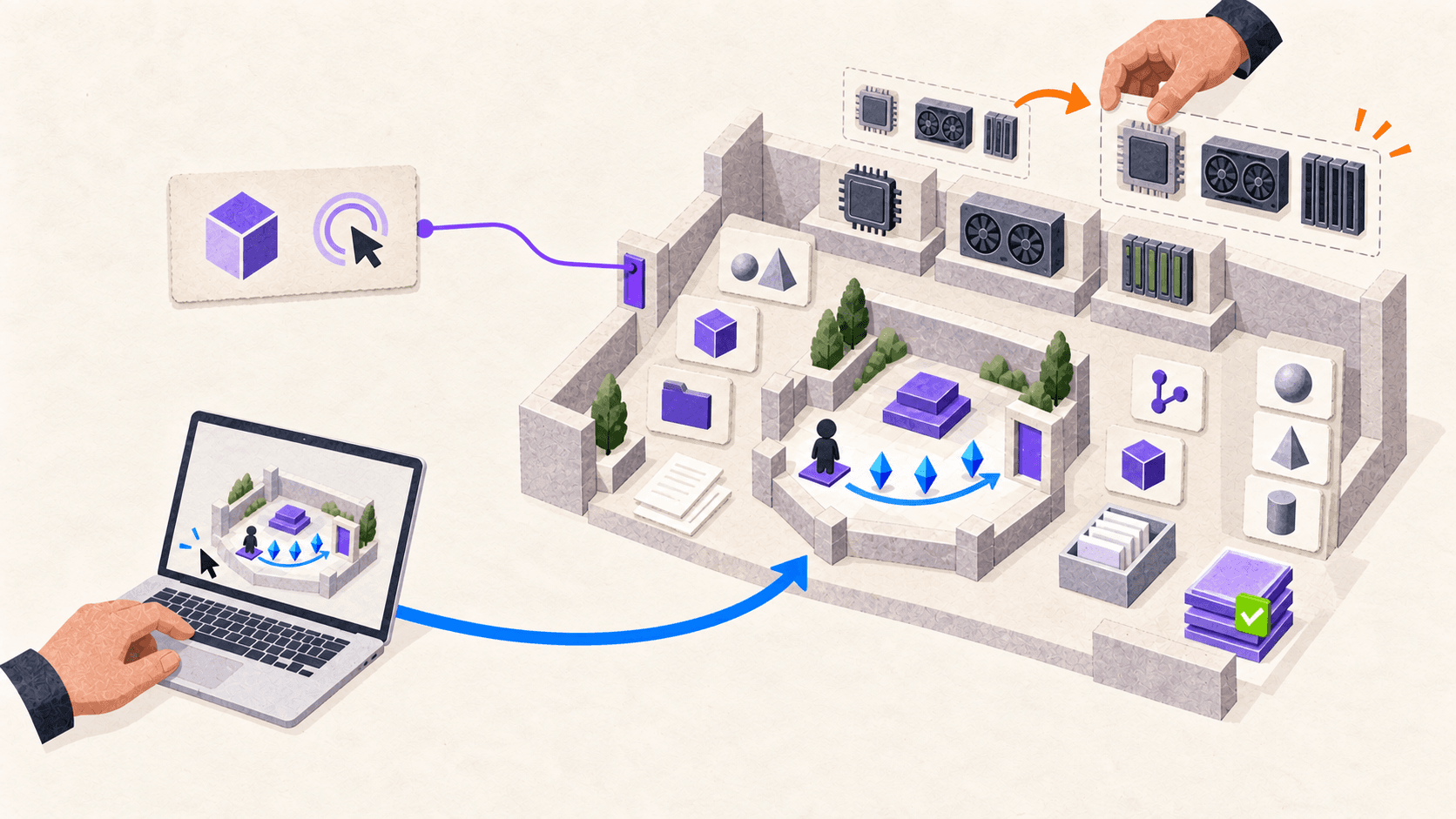
How Should You Define the Prototype?
“Make me a Unity game” is not a usable production brief. It leaves the genre, controls, mechanics, assets, scene structure, completion state, and acceptable scope open to interpretation.
A better contract defines one route through one compact scene:
The player starts at a marked location.
The player can move and control the camera.
Three collectibles are reachable.
Each collectible registers only once.
The exit remains locked until all three are collected.
Collecting the third object unlocks the exit.
Entering the open exit triggers a win state.
Restarting restores the original scene state.
The contract should also establish exclusions. For this project, Astra must not add combat, enemies, inventory, multiplayer, procedural generation, monetization, backend services, or unrelated packages.
Use a planning prompt before allowing any implementation:
Review whether the proposal matches the size of the prototype. An agent may suggest managers, event systems, service layers, or new packages that are unnecessary for a five-minute demonstration.
Ask for the smallest structure that remains understandable and reusable. A collectible prefab, a simple collection-state component, an exit component, and a restart flow may be sufficient. The exact structure should follow the project’s existing conventions rather than an invented universal architecture.
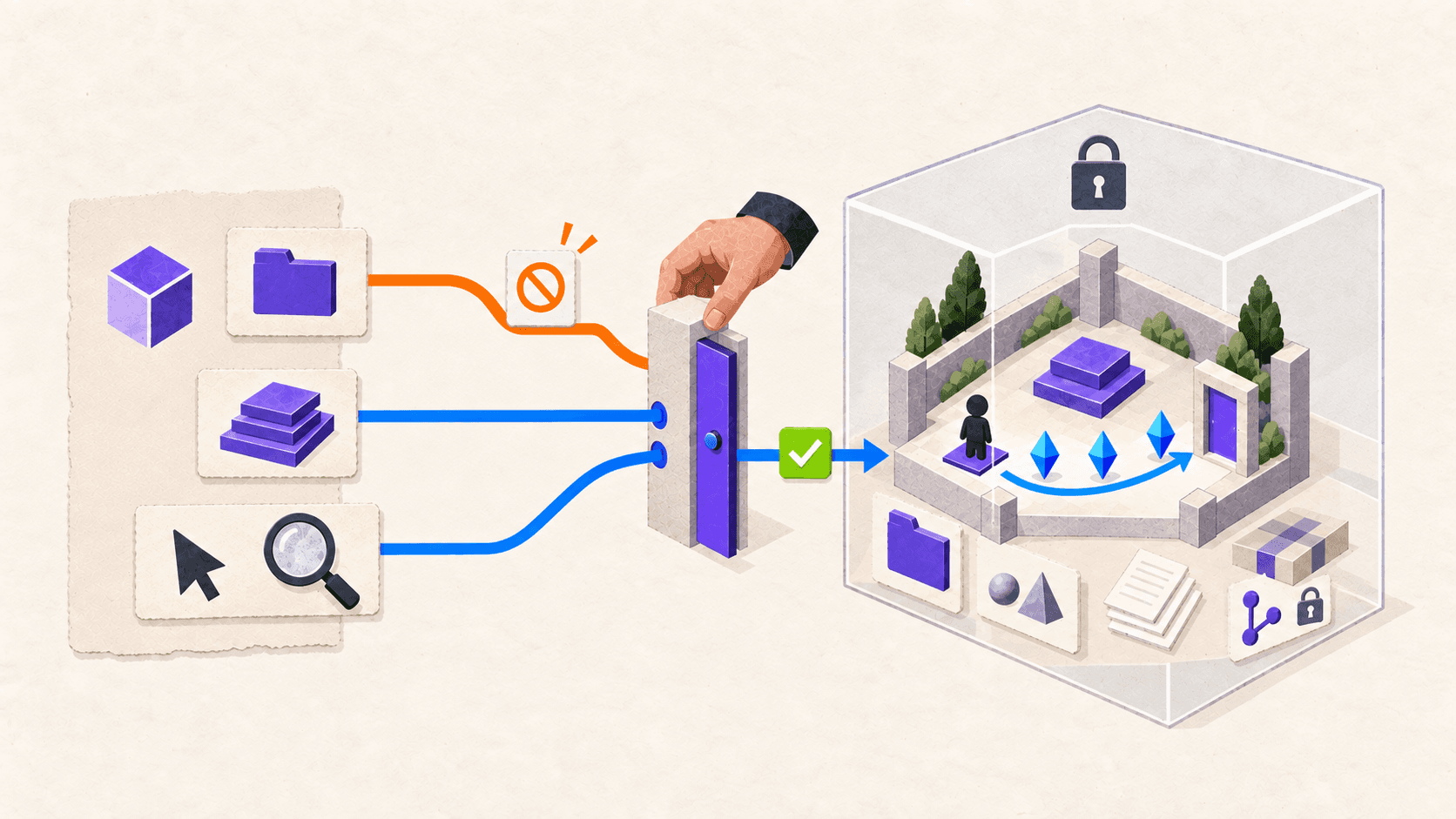
How Should Astra Inspect the Unity Project?
Even a new Unity project contains assumptions. It has a specific Editor version, package manifest, input configuration, render pipeline, default scene, folder structure, and build profile. An existing project may already contain a player controller, camera system, tags, layers, prefabs, and scripts that solve part of the problem.
Astra should inventory those elements before creating anything.
The inspection should cover:
Scenes and their current purpose
Hierarchy structure
Existing prefabs
Runtime and Editor scripts
Input configuration
Tags, layers, and collision settings
Installed packages
Render pipeline
Build Profiles
Current Console errors and warnings
Existing tests
Existing player or camera systems
Version-control status
This first pass must be report-only. Separating inspection from modification lets you catch false assumptions before they become project changes.
Perform a report-only audit of this Unity project.

Permitted scope:
[APPROVED PROJECT DIRECTORY]
Perform a report-only audit of this Unity project.

Permitted scope:
[APPROVED PROJECT DIRECTORY]
Compare the proposed change manifest with the actual Project window and version-control status. Pay particular attention to any proposed package installation, Project Settings change, or modification to an existing controller.
Where a connected Editor command is available, prefer it over manually editing serialized Unity scene or asset files. Unity scenes contain references and identifiers that are easy to damage or direct toward the wrong object when edited without the Editor’s context.
Approve the plan only after every proposed change has a clear reason.
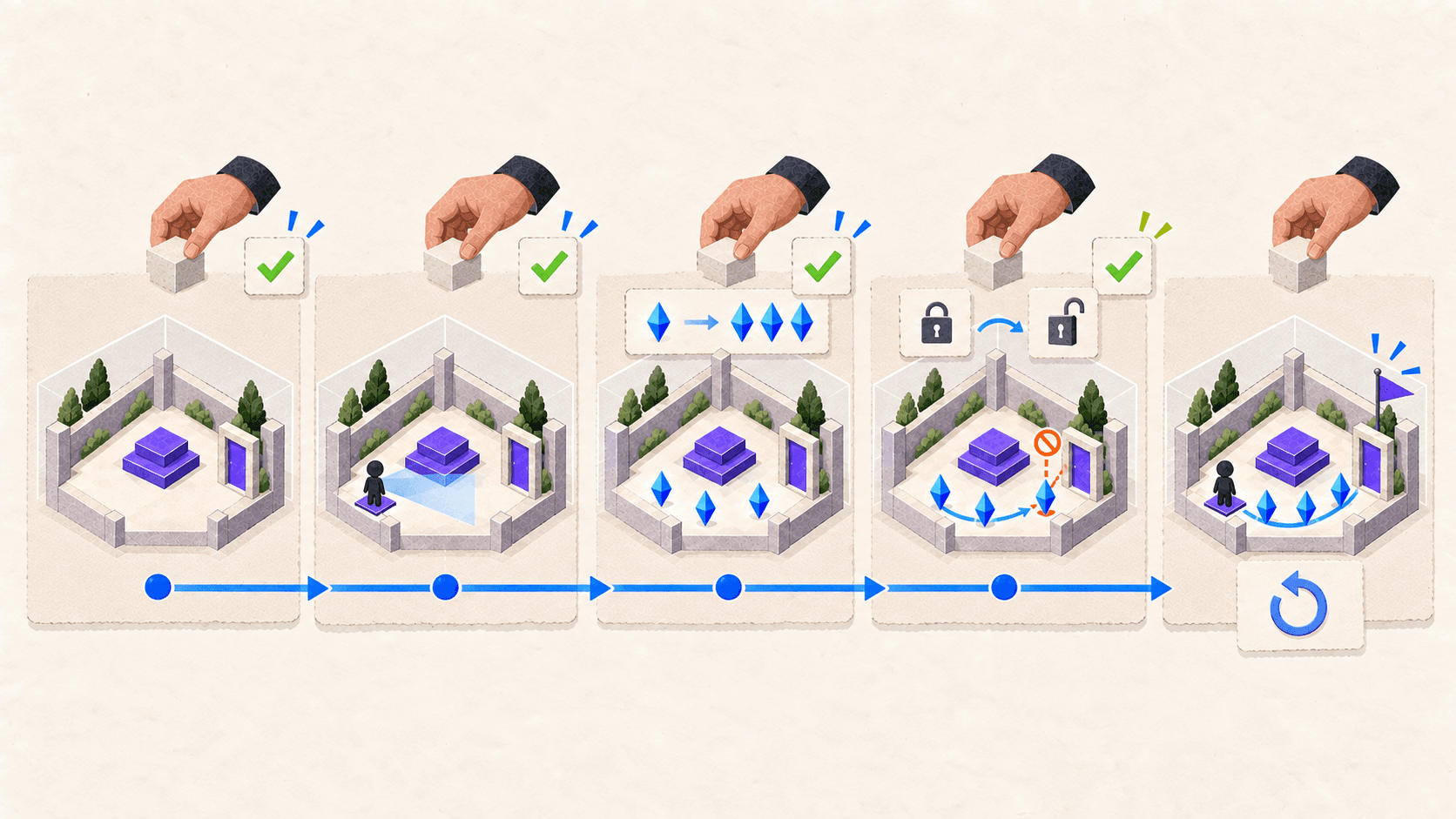
How Do You Build the Game in Controlled Stages?
Do not approve the whole implementation at once. Build the prototype as a sequence of small operations that can be compiled and tested independently.
Stage 1: Scene and collision
Create or approve the compact environment first. The player route, collectibles, and exit should be reachable without requiring polished art.
Check:
Ground collision
Walls and boundaries
Player scale
Collectible positions
Exit location
Starting position
Camera clearance
This stage establishes whether the level works spatially before gameplay logic is added.
Stage 2: Player and camera
Ask Astra to use the approved input system and existing controller where possible. If the project has no controller, define whether it should use Character Controller, Rigidbody movement, or an approved first-party controller.
Implement only the approved player and camera checkpoint.

Permitted changes:
[APPROVED SCENE, OBJECTS, AND SCRIPT LOCATIONS]
Implement only the approved player and camera checkpoint.

Permitted changes:
[APPROVED SCENE, OBJECTS, AND SCRIPT LOCATIONS]
The developer should personally test movement and camera behavior. A controller can technically move while still feeling unpleasant, clipping through the environment, or producing a camera angle that hides the objective.
Stage 3: One collectible
Create one collectible before duplicating it. The player must be able to enter its trigger, register it once, and receive visible feedback.
A good collectible test verifies:
The required collider is present
Trigger configuration is correct
The player is recognized
The collectible registers once
The object is removed or disabled
The state count changes
No unrelated object triggers the event
Once the first instance passes, turn it into a prefab and create the remaining two instances.
Stage 4: Exit and win condition
The exit needs at least two observable states: locked and open. Before the final collectible, reaching the exit should not trigger completion. After the third collectible, the exit should change state and allow the player to finish.
Implement only the approved collectible and exit checkpoint.

Permitted changes:
[APPROVED PREFABS, SCENE OBJECTS, AND SCRIPT LOCATIONS]
Implement only the approved collectible and exit checkpoint.

Permitted changes:
[APPROVED PREFABS, SCENE OBJECTS, AND SCRIPT LOCATIONS]
Stage 5: Restart
Restarting should restore the player position, collectibles, gate state, counter, and win state. Test this more than once. A reset that works only after the first playthrough is not complete.
At the end of each stage, inspect the actual Git diff. Astra’s written summary is useful, but it is not a substitute for reviewing what changed.
How Do You Validate the Prototype and Final Build?
A script compiling successfully proves only that the compiler accepted it. It does not prove that scene references are assigned, triggers work, objects are reachable, the camera behaves correctly, or the build contains the correct scene.
Validation should proceed through four layers.
1. Compilation and Console
Confirm that the project finishes compiling and that the Console contains no unexplained errors. Review warnings rather than automatically deleting or suppressing them.
2. Automated tests
Unity Test Framework supports Edit Mode and Play Mode testing. Edit Mode tests can cover isolated state logic, while Play Mode tests can evaluate runtime behavior that requires frames, GameObjects, or physics.
Useful tests for this prototype might cover:
Collection count cannot exceed three
One collectible cannot register twice
Exit remains locked below the required count
Exit opens at the approved count
Restart restores the initial game state
Do not claim these tests passed unless the real test results are available.
3. Human Play Mode test
A person should follow the intended route and deliberately try incorrect sequences:
Visit the exit before collecting anything
Collect only one or two objects
Approach collectibles from different directions
Attempt to trigger the same collectible twice
Reach the exit after collecting all three
Restart from the win state
Complete a second full run
This is where you evaluate movement, camera behavior, visibility, feedback, pacing, and whether the objective is understandable.
4. Build verification
Unity’s Build Profiles determine the platform configuration and scenes included in a build. Unity also supports building a player from the command line, which can be useful when the agent has verified CLI access.
The built application must be launched and tested separately. A prototype that works in the Editor can still fail because of a missing scene, package difference, platform setting, input configuration, or build-only behavior.
If performance becomes part of the evaluation, use the Unity Profiler and measured project evidence. Do not ask Astra to judge performance from how smooth the Editor merely appears. Vagon’s guide to improving Unity game performance covers the wider optimization process.
When Should You Run This Workflow on Vagon Cloud Computer?
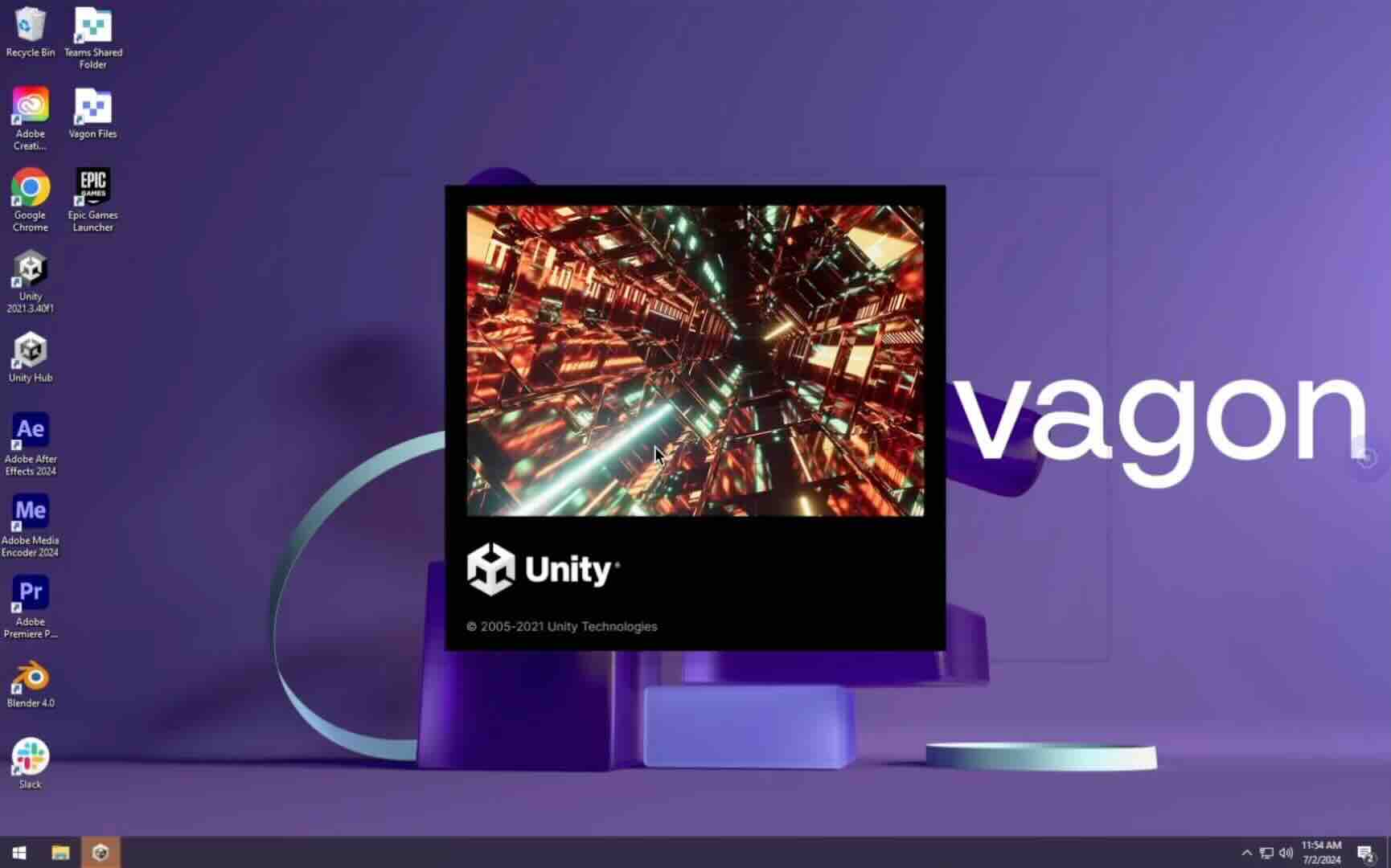
A Unity and Astra workflow still needs a computer that runs the Unity Editor, imports assets, compiles scripts, enters Play Mode, stores the project, and creates builds. Vagon Cloud Computer provides a configurable remote Windows workspace that you can access from your existing computer.
You can install Unity and the supporting Windows applications used in your pipeline, then keep your project files, packages, source assets, scripts, caches, tests, and builds together in the same environment. This is useful when you want to work from a lightweight laptop while the Unity workload runs on a separate NVIDIA GPU-equipped computer.
Vagon Cloud Computer can also support workflows that move between Unity and applications such as Blender, Maya, Houdini, Substance 3D, Visual Studio, and source-control clients. Instead of rebuilding the project environment whenever you change devices, you return to the same remote computer and continue working with the installed applications and files already in place.
You can select scalable performance options around the work in front of you. One configuration may suit project organization and scripting, while a more capable configuration can support graphics-heavy scene work, Play Mode testing, asset processing, profiling, or build preparation.
Vagon Files helps move and organize project assets around the remote workspace. Vagon also provides preinstallation options for supported applications, reducing the setup required before starting the Unity project.
Vagon’s role is technically separate from Astra. Vagon supplies the Windows production computer running Unity. It does not provide Astra access, process Astra inference, increase ChatGPT or Codex allowances, supply Unity licenses, or include paid Asset Store content.
If you want a dedicated, configurable Windows environment for this workflow, create your Vagon Cloud Computer, install Unity, and test the prototype from the device you already own.
Frequently Asked Questions
Can GPT-6 Astra build a complete Unity game?
Astra can assist with code, scene setup, component configuration, testing, and iterative corrections when it has suitable Unity tools. A small playable prototype is a reasonable target. A production game still requires game design, architecture, art direction, optimization, QA, security review, platform compliance, and human playtesting.
Does GPT-6 Astra integrate directly with Unity?
Not universally. The publicly described Unity workflow used Codex, Unity’s published skills, Unity CLI, a project-specific plugin, and computer use. Tool availability depends on your Astra product surface and Unity setup.
Can Astra write and debug Unity C# scripts?
Yes, Astra can generate and modify C# code when it has project access. Generated code must still be compiled, reviewed, connected to the correct Unity objects, tested in Play Mode, and validated in a build.
Can Astra enter Play Mode and test gameplay?
It can when the connected toolchain exposes the relevant Unity Editor commands and computer use provides visual access. Playco has also demonstrated this pattern through its own Playbot environment. Neither example means every Astra session automatically controls Play Mode.
Do I need Unity CLI or MCP?
You need some verified way for Astra to interact with the project and Unity Editor. Unity CLI with Unity’s agent skills is the strongest publicly documented option. MCP can expose connected Editor commands to compatible agents, but it is part of a specific setup rather than a native Astra feature.
Should Astra edit an existing production project?
Only after the project is protected by version control, the permitted scope is explicit, and the proposed changes have been reviewed. A separate branch, duplicate project, or disposable prototype is safer for the first workflow.
Can Unity run on Vagon Cloud Computer?
Yes. Vagon Cloud Computer provides a remote Windows environment where you can install Unity and keep the supporting applications and project files together. Vagon’s existing guide explains how to use Unity on Cloud Computer.
Does Vagon provide GPT-6 Astra access?
No. Vagon provides the remote computer running Unity and the surrounding development workspace. Astra access, subscriptions, API usage, and inference are provided separately by OpenAI or another supported provider.
GPT-6 Astra can help you inspect a Unity project, arrange a scene, write C# scripts, connect components, enter Play Mode, and correct visible problems when it has the tools and permissions required to access the project. It is not a native button inside Unity, and selecting Astra in an ordinary chat does not automatically give it control of the Unity Editor.
The practical approach is to connect Astra to a protected Unity project through an agent environment such as Codex, give it Unity-specific tools, define a very small game, and approve each implementation stage separately. This guide uses a compact prototype with one player, three collectibles, a locked exit, a win condition, and a restart path.
Can GPT-6 Astra Actually Build a Unity Game?
Astra combines software engineering capabilities with computer use. OpenAI says the model can work with codebases, install and test software, troubleshoot visible problems, and complete multistep computer tasks. Those capabilities make it more useful for game development than an assistant that can only return C# snippets in a chat window.
However, the model still needs a way to communicate with Unity.
In one workflow shared by Unity, the creator used Codex to build a Unity plugin with Unity’s published skills and Unity CLI. They then started Codex from the project directory, enabled computer use, and provided existing Unity Asset Store assets. Astra used the available tools to construct a city environment and computer use to inspect the scene and make adjustments. You can read Unity’s explanation of the Astra workflow for the original sequence.
That setup matters more than the prompt alone. It gave Astra access to:
The Unity project directory
Unity-specific commands
A connected Editor
Existing assets
Visual feedback from the scene
A way to make and verify changes
OpenAI has also published a game-prototyping case study with Playco. Playco’s Playbot environment allows models to edit scenes, play games, run tests, and validate changes inside engines such as Unity and Godot.
Playbot is Playco’s own system. It is not a feature that appears automatically when you open Astra, Codex, or Unity. Playco’s reported results should therefore be treated as evidence of what a well-designed agent harness can support, not a promise that every user will reproduce the same outcome.
For an independent developer, the realistic target is a small prototype with explicit acceptance criteria. Astra can help implement and test that prototype, while the developer remains responsible for scope, project safety, asset licensing, architecture, gameplay judgment, and final approval.
What Do You Need Before Astra Opens the Project?
Start by freezing the technical context. Astra should not decide your Unity version, render pipeline, input system, packages, and target platform while it is already modifying the game.
As of September 2026, Unity 6.6 is the latest Supported release, while Unity 6.3 is the current Long-Term Support version. Unity recommends LTS releases for projects approaching production lock and Supported releases for new or mid-cycle work that needs newer features. This guide uses Unity 6.3 LTS as its reproducible baseline unless the project specifically requires a Unity 6.6 feature. Check the current status on Unity’s release and support page before starting.
Prepare the following:
Unity Hub and Unity 6.3 LTS
The module required for your intended build platform
A new or duplicated Unity project
A Git repository or another version-control checkpoint
GPT-6 Astra access through Codex
Computer use enabled where available
Unity’s published agent skills
Unity CLI and the required project-side pipeline package
Licensed or user-created assets
A defined input solution
One approved build target
Unity publishes a collection of skills for AI coding agents. These skills cover areas such as project creation, Unity CLI, package management, builds, tests, and Unity Gaming Services.
Unity CLI can control a connected Editor, inspect available commands, enter Play Mode, read logs, run tests, and initiate builds. It can also expose Unity commands to compatible agent clients through MCP. The current CLI and related pipeline tooling should be treated as beta components, so verify the latest installation and compatibility instructions in the official Unity CLI documentation.
For this prototype, decide between a top-down controller and a third-person controller. A third-person setup is visually easier to evaluate, but it also introduces camera and movement complexity. Unity’s Character Controller is intended for first-person and third-person movement that does not rely on Rigidbody physics.
Unity recommends the newer Input System package for most projects. Do not let Astra mix the legacy Input Manager and Input System without a specific reason.
Before granting modification permission, ask Astra to confirm the environment:
Check the report yourself. If Astra identifies the wrong project directory, Editor version, branch, or build target, correct that before continuing.
How Should You Define the Prototype?
“Make me a Unity game” is not a usable production brief. It leaves the genre, controls, mechanics, assets, scene structure, completion state, and acceptable scope open to interpretation.
A better contract defines one route through one compact scene:
The player starts at a marked location.
The player can move and control the camera.
Three collectibles are reachable.
Each collectible registers only once.
The exit remains locked until all three are collected.
Collecting the third object unlocks the exit.
Entering the open exit triggers a win state.
Restarting restores the original scene state.
The contract should also establish exclusions. For this project, Astra must not add combat, enemies, inventory, multiplayer, procedural generation, monetization, backend services, or unrelated packages.
Use a planning prompt before allowing any implementation:
Review whether the proposal matches the size of the prototype. An agent may suggest managers, event systems, service layers, or new packages that are unnecessary for a five-minute demonstration.
Ask for the smallest structure that remains understandable and reusable. A collectible prefab, a simple collection-state component, an exit component, and a restart flow may be sufficient. The exact structure should follow the project’s existing conventions rather than an invented universal architecture.
How Should Astra Inspect the Unity Project?
Even a new Unity project contains assumptions. It has a specific Editor version, package manifest, input configuration, render pipeline, default scene, folder structure, and build profile. An existing project may already contain a player controller, camera system, tags, layers, prefabs, and scripts that solve part of the problem.
Astra should inventory those elements before creating anything.
The inspection should cover:
Scenes and their current purpose
Hierarchy structure
Existing prefabs
Runtime and Editor scripts
Input configuration
Tags, layers, and collision settings
Installed packages
Render pipeline
Build Profiles
Current Console errors and warnings
Existing tests
Existing player or camera systems
Version-control status
This first pass must be report-only. Separating inspection from modification lets you catch false assumptions before they become project changes.
Perform a report-only audit of this Unity project.

Permitted scope:
[APPROVED PROJECT DIRECTORY]
Compare the proposed change manifest with the actual Project window and version-control status. Pay particular attention to any proposed package installation, Project Settings change, or modification to an existing controller.
Where a connected Editor command is available, prefer it over manually editing serialized Unity scene or asset files. Unity scenes contain references and identifiers that are easy to damage or direct toward the wrong object when edited without the Editor’s context.
Approve the plan only after every proposed change has a clear reason.
How Do You Build the Game in Controlled Stages?
Do not approve the whole implementation at once. Build the prototype as a sequence of small operations that can be compiled and tested independently.
Stage 1: Scene and collision
Create or approve the compact environment first. The player route, collectibles, and exit should be reachable without requiring polished art.
Check:
Ground collision
Walls and boundaries
Player scale
Collectible positions
Exit location
Starting position
Camera clearance
This stage establishes whether the level works spatially before gameplay logic is added.
Stage 2: Player and camera
Ask Astra to use the approved input system and existing controller where possible. If the project has no controller, define whether it should use Character Controller, Rigidbody movement, or an approved first-party controller.
Implement only the approved player and camera checkpoint.

Permitted changes:
[APPROVED SCENE, OBJECTS, AND SCRIPT LOCATIONS]
The developer should personally test movement and camera behavior. A controller can technically move while still feeling unpleasant, clipping through the environment, or producing a camera angle that hides the objective.
Stage 3: One collectible
Create one collectible before duplicating it. The player must be able to enter its trigger, register it once, and receive visible feedback.
A good collectible test verifies:
The required collider is present
Trigger configuration is correct
The player is recognized
The collectible registers once
The object is removed or disabled
The state count changes
No unrelated object triggers the event
Once the first instance passes, turn it into a prefab and create the remaining two instances.
Stage 4: Exit and win condition
The exit needs at least two observable states: locked and open. Before the final collectible, reaching the exit should not trigger completion. After the third collectible, the exit should change state and allow the player to finish.
Implement only the approved collectible and exit checkpoint.

Permitted changes:
[APPROVED PREFABS, SCENE OBJECTS, AND SCRIPT LOCATIONS]
Stage 5: Restart
Restarting should restore the player position, collectibles, gate state, counter, and win state. Test this more than once. A reset that works only after the first playthrough is not complete.
At the end of each stage, inspect the actual Git diff. Astra’s written summary is useful, but it is not a substitute for reviewing what changed.
How Do You Validate the Prototype and Final Build?
A script compiling successfully proves only that the compiler accepted it. It does not prove that scene references are assigned, triggers work, objects are reachable, the camera behaves correctly, or the build contains the correct scene.
Validation should proceed through four layers.
1. Compilation and Console
Confirm that the project finishes compiling and that the Console contains no unexplained errors. Review warnings rather than automatically deleting or suppressing them.
2. Automated tests
Unity Test Framework supports Edit Mode and Play Mode testing. Edit Mode tests can cover isolated state logic, while Play Mode tests can evaluate runtime behavior that requires frames, GameObjects, or physics.
Useful tests for this prototype might cover:
Collection count cannot exceed three
One collectible cannot register twice
Exit remains locked below the required count
Exit opens at the approved count
Restart restores the initial game state
Do not claim these tests passed unless the real test results are available.
3. Human Play Mode test
A person should follow the intended route and deliberately try incorrect sequences:
Visit the exit before collecting anything
Collect only one or two objects
Approach collectibles from different directions
Attempt to trigger the same collectible twice
Reach the exit after collecting all three
Restart from the win state
Complete a second full run
This is where you evaluate movement, camera behavior, visibility, feedback, pacing, and whether the objective is understandable.
4. Build verification
Unity’s Build Profiles determine the platform configuration and scenes included in a build. Unity also supports building a player from the command line, which can be useful when the agent has verified CLI access.
The built application must be launched and tested separately. A prototype that works in the Editor can still fail because of a missing scene, package difference, platform setting, input configuration, or build-only behavior.
If performance becomes part of the evaluation, use the Unity Profiler and measured project evidence. Do not ask Astra to judge performance from how smooth the Editor merely appears. Vagon’s guide to improving Unity game performance covers the wider optimization process.
When Should You Run This Workflow on Vagon Cloud Computer?
A Unity and Astra workflow still needs a computer that runs the Unity Editor, imports assets, compiles scripts, enters Play Mode, stores the project, and creates builds. Vagon Cloud Computer provides a configurable remote Windows workspace that you can access from your existing computer.
You can install Unity and the supporting Windows applications used in your pipeline, then keep your project files, packages, source assets, scripts, caches, tests, and builds together in the same environment. This is useful when you want to work from a lightweight laptop while the Unity workload runs on a separate NVIDIA GPU-equipped computer.
Vagon Cloud Computer can also support workflows that move between Unity and applications such as Blender, Maya, Houdini, Substance 3D, Visual Studio, and source-control clients. Instead of rebuilding the project environment whenever you change devices, you return to the same remote computer and continue working with the installed applications and files already in place.
You can select scalable performance options around the work in front of you. One configuration may suit project organization and scripting, while a more capable configuration can support graphics-heavy scene work, Play Mode testing, asset processing, profiling, or build preparation.
Vagon Files helps move and organize project assets around the remote workspace. Vagon also provides preinstallation options for supported applications, reducing the setup required before starting the Unity project.
Vagon’s role is technically separate from Astra. Vagon supplies the Windows production computer running Unity. It does not provide Astra access, process Astra inference, increase ChatGPT or Codex allowances, supply Unity licenses, or include paid Asset Store content.
If you want a dedicated, configurable Windows environment for this workflow, create your Vagon Cloud Computer, install Unity, and test the prototype from the device you already own.
Frequently Asked Questions
Can GPT-6 Astra build a complete Unity game?
Astra can assist with code, scene setup, component configuration, testing, and iterative corrections when it has suitable Unity tools. A small playable prototype is a reasonable target. A production game still requires game design, architecture, art direction, optimization, QA, security review, platform compliance, and human playtesting.
Does GPT-6 Astra integrate directly with Unity?
Not universally. The publicly described Unity workflow used Codex, Unity’s published skills, Unity CLI, a project-specific plugin, and computer use. Tool availability depends on your Astra product surface and Unity setup.
Can Astra write and debug Unity C# scripts?
Yes, Astra can generate and modify C# code when it has project access. Generated code must still be compiled, reviewed, connected to the correct Unity objects, tested in Play Mode, and validated in a build.
Can Astra enter Play Mode and test gameplay?
It can when the connected toolchain exposes the relevant Unity Editor commands and computer use provides visual access. Playco has also demonstrated this pattern through its own Playbot environment. Neither example means every Astra session automatically controls Play Mode.
Do I need Unity CLI or MCP?
You need some verified way for Astra to interact with the project and Unity Editor. Unity CLI with Unity’s agent skills is the strongest publicly documented option. MCP can expose connected Editor commands to compatible agents, but it is part of a specific setup rather than a native Astra feature.
Should Astra edit an existing production project?
Only after the project is protected by version control, the permitted scope is explicit, and the proposed changes have been reviewed. A separate branch, duplicate project, or disposable prototype is safer for the first workflow.
Can Unity run on Vagon Cloud Computer?
Yes. Vagon Cloud Computer provides a remote Windows environment where you can install Unity and keep the supporting applications and project files together. Vagon’s existing guide explains how to use Unity on Cloud Computer.
Does Vagon provide GPT-6 Astra access?
No. Vagon provides the remote computer running Unity and the surrounding development workspace. Astra access, subscriptions, API usage, and inference are provided separately by OpenAI or another supported provider.
Get Beyond Your Computer Performance
Run applications on your cloud computer with the latest generation hardware. No more crashes or lags.
Trial includes 1 hour usage + 7 days of storage.
Summarize with AI

Ready to focus on your creativity?
Vagon gives you the ability to create & render projects, collaborate, and stream applications with the power of the best hardware.

Vagon Blog


Run heavy applications on any device with
your personal computer on the cloud.
San Francisco, California
Solutions
Vagon Teams
Vagon Streams
Use Cases
Resources
Vagon Blog
How to Build a 3D Environment in Unity With GPT-6 Astra
How to Build a Unity Game With GPT-6 Astra (2026)
Best Laptop for Unreal Engine 5.8 in 2026: Top 10 Picks
Best PC for Unreal Engine 5.8 in 2026: 10 Top Picks
Best Freelance Platforms 2026: 9 Sites for Contracts
How to Generate B-Roll and Sound Effects in Premiere Pro
How to Automate Blender Tasks With GPT-6 Astra
GPT-6 Astra Blender Unreal Engine Workflow: Playable 3D
Reference Image to 3D Scene With GPT-6 Astra & Blender
Vagon Blog
Run heavy applications on any device with
your personal computer on the cloud.
San Francisco, California
Solutions
Vagon Teams
Vagon Streams
Use Cases
Resources
Vagon Blog
How to Build a 3D Environment in Unity With GPT-6 Astra
How to Build a Unity Game With GPT-6 Astra (2026)
Best Laptop for Unreal Engine 5.8 in 2026: Top 10 Picks
Best PC for Unreal Engine 5.8 in 2026: 10 Top Picks
Best Freelance Platforms 2026: 9 Sites for Contracts
How to Generate B-Roll and Sound Effects in Premiere Pro
How to Automate Blender Tasks With GPT-6 Astra
GPT-6 Astra Blender Unreal Engine Workflow: Playable 3D
Reference Image to 3D Scene With GPT-6 Astra & Blender
Vagon Blog
Run heavy applications on any device with
your personal computer on the cloud.
San Francisco, California
Solutions
Vagon Teams
Vagon Streams
Use Cases
Resources
Vagon Blog