Instant Connection for Pixel Streaming
— New Feature Automated Setup

How to Use AutoCAD With Claude Code: MCP Guide
Architecture
-
How to Use AutoCAD With Claude Code: MCP Guide
Architecture
How to Use AutoCAD With Claude Code: MCP Guide
Architecture
-
Table of Contents
Claude Code can work with AutoCAD through a Model Context Protocol (MCP) connector that links Claude Code to a live AutoCAD session. Once connected, Claude Code can inspect the active drawing, read layers and entity data, run AutoCAD commands, evaluate AutoLISP expressions, and, where the connector supports write operations, create or modify drawing objects with your approval.
This is different from asking Claude Code to generate an AutoLISP file and loading it manually. With MCP, AutoCAD remains open while Claude Code communicates with the application through structured tools exposed by the connector. For example, you could ask Claude Code to list the layers in the current drawing, identify empty layers, draw a circle, inspect the last-created entity, or move approved objects to another layer.
The connection does not come built into Claude Code. You need an AutoCAD MCP connector or an open-source server such as AUTOCAD-MCP. The available commands, read and write permissions, supported AutoCAD versions, and licensing requirements depend on the connector you choose.
Before changing a live drawing, use a copy, begin with read-only queries, and require confirmation for destructive operations.
What Can Claude Code Do With AutoCAD Through MCP?
MCP gives Claude Code a structured way to communicate with an open AutoCAD session. Instead of working only with text files on disk, Claude Code can call tools exposed by the connector and receive information from the active drawing.
The exact capabilities depend on the MCP server, but a compatible connector may allow Claude Code to:
List open AutoCAD documents
Identify the active drawing
Read layer names and properties
Count entities by layer or object type
Inspect entity data
Read drawing variables such as the current layer or drawing name
Send commands to AutoCAD’s command line
Execute AutoLISP expressions
Create geometry
Change object properties
Select objects or change the current view
Manage layers, blocks, annotations, and layouts
For example, the open-source AUTOCAD-MCP project exposes tools such as list_documents, get_active_document, send_command, and eval_lisp. Its documentation shows how Claude Code can send a command to draw a circle and then query the resulting entity through AutoLISP.
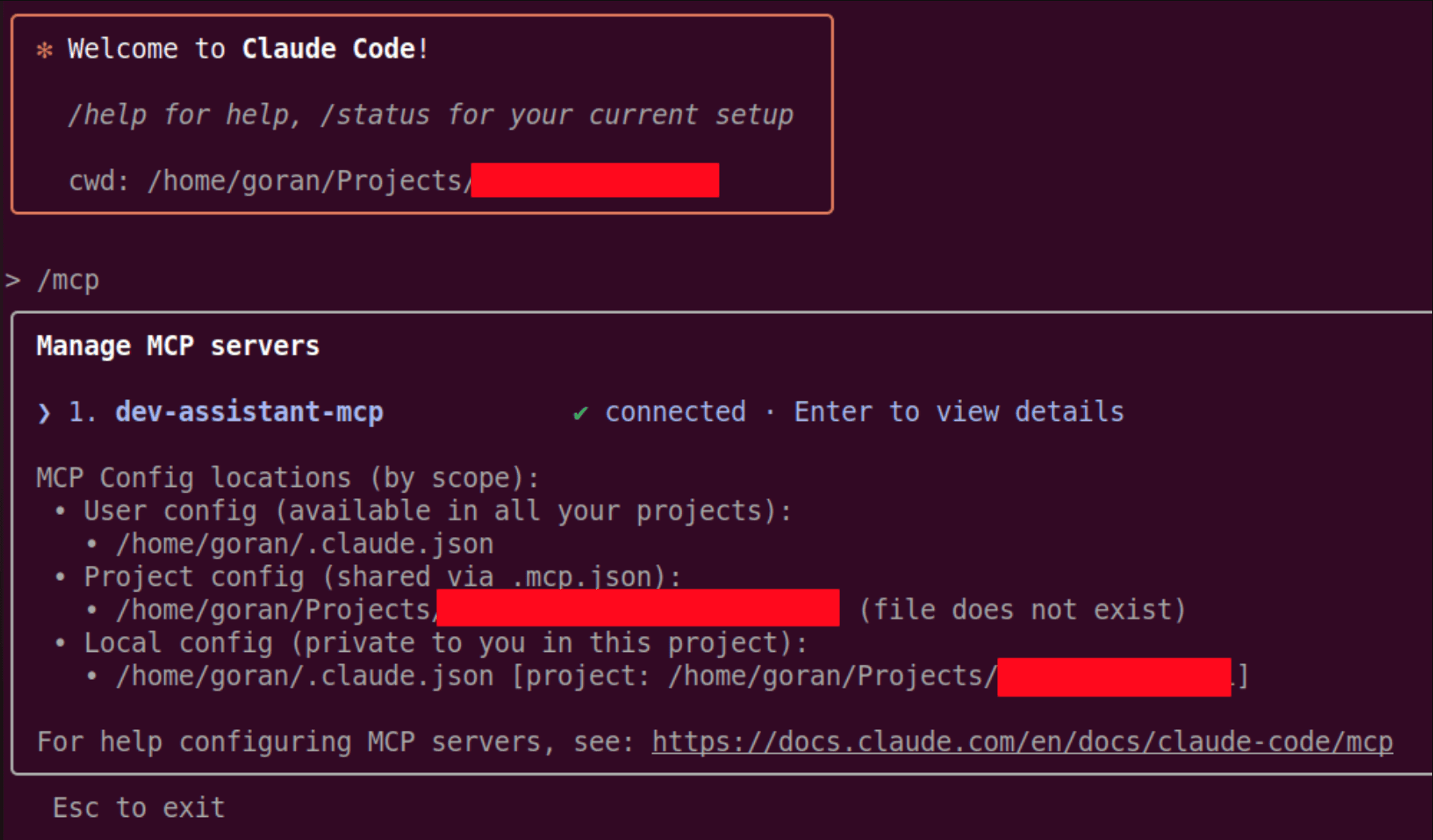
Source: Goran Nikolovski, “Building a Custom MCP Server”
A typical request might look like this:
After reviewing the response, you could continue with a controlled instruction:
This inspection-first workflow is important because Claude Code should not guess what is inside a drawing. It can query information through the available tools, explain the proposed action, and wait for approval before making changes.
MCP control is also different from computer-use automation. Claude Code does not need to click AutoCAD’s ribbon or visually operate every dialog when the connector exposes a structured tool for the task. It communicates with AutoCAD through the connector and the application’s programming interface. GUI control may still be useful for actions that the connector does not support, but it is a separate workflow with different permissions and risks.
Which AutoCAD MCP Connection Should You Use?
There is no single AutoCAD MCP setup. Different servers expose different tools, support different AutoCAD versions, and offer different levels of access.
Autodesk’s official AutoCAD MCP Server
Autodesk’s AutoCAD and Civil 3D MCP Server is a public beta that runs locally inside AutoCAD or Civil 3D. It can inspect, analyze, navigate, and query objects in an open drawing.
However, Autodesk currently documents Autodesk Assistant as the supported AI client. Its AutoCAD toolset is primarily focused on reading and analyzing drawings, while the documented write capabilities are associated mainly with Civil 3D. It should not be presented as a ready-made Claude Code integration without additional verification.
An open-source AutoCAD MCP server
The AUTOCAD-MCP project is a developer-oriented option. Its documented tools include:
send_commandeval_lisplist_documentsget_active_document
It can send command sequences to an active AutoCAD document and evaluate AutoLISP expressions to read drawing information. The project currently targets AutoCAD 2026 and uses a local HTTP connection. It is released under the MIT license, but users still need to review the code and understand the security implications before connecting it to production drawings.
A connector with documented Claude Code support
The MCP Connector for AutoCAD explicitly lists Claude Code as a supported client. Its documentation describes tools for querying entities, creating and modifying geometry, managing layers and blocks, working with annotations and layouts, and accessing other AutoCAD features.
The connector requires full AutoCAD on Windows and does not support AutoCAD LT. It also includes read-only options, which makes it more suitable for a controlled first test.
For this guide, the connector with explicit Claude Code support is the clearest main setup. The open-source server is a useful alternative for developers, while Autodesk’s official server should be discussed as an important public beta and comparison point. Always verify the connector’s current version, supported AutoCAD release, licensing model, and available write tools before following the installation steps.
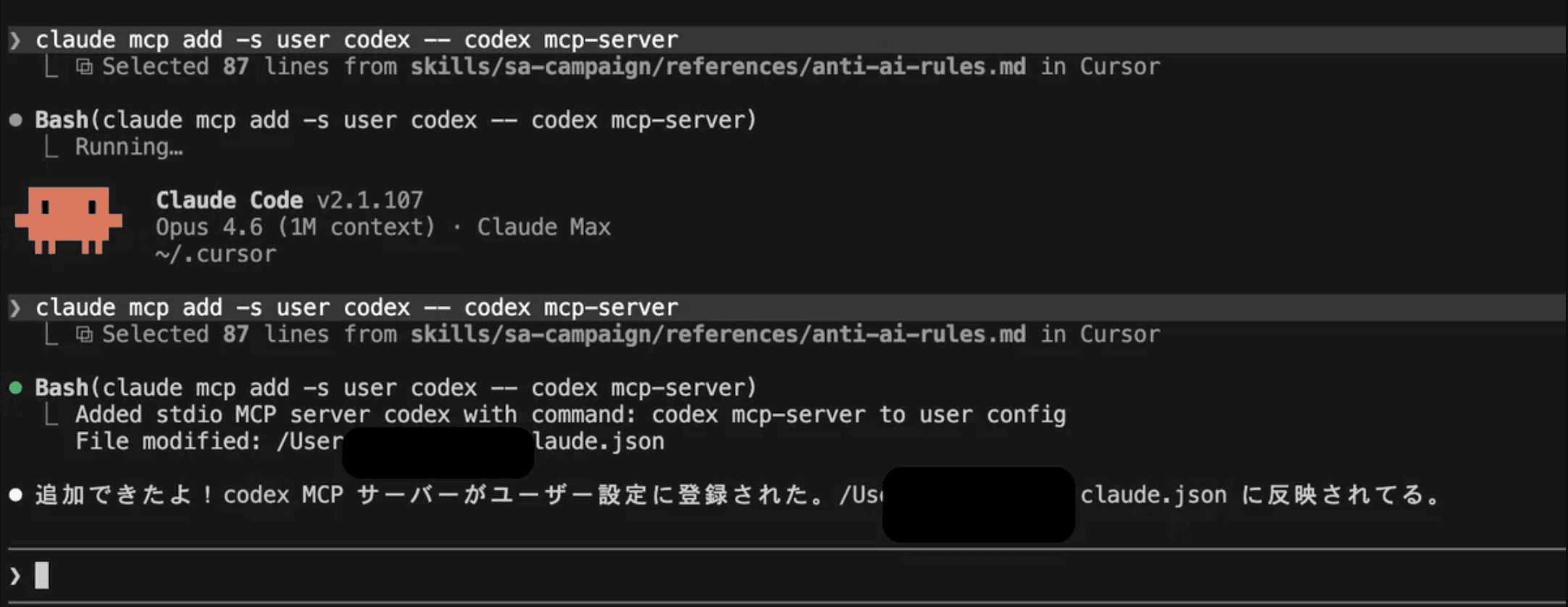
Source: Note.com, “Claude Code MCP Integration”
What Do You Need Before Connecting Claude Code to AutoCAD?
A live Claude Code and AutoCAD workflow needs more than Claude Code and an open DWG file. The connector must run alongside AutoCAD and expose the application through a local MCP connection.
For the connector used in this guide, you need:
A Windows 10 or Windows 11 computer
A supported version of full AutoCAD
Claude Code installed and authenticated
The AutoCAD MCP connector or server
A test DWG file
Permission to install an AutoCAD plugin and configure an MCP server
The MCP Connector for AutoCAD documentation lists support for AutoCAD 2022 through AutoCAD 2027. It requires full AutoCAD and does not support AutoCAD LT because the connector loads as a plugin inside the application.
The open-source AUTOCAD-MCP project has a narrower documented target. Its plugin is designed for AutoCAD 2026 and uses a local HTTP endpoint, so its setup and compatibility requirements are different from the commercial connector.
You should also understand which account and license each component requires. Claude Code access depends on your Anthropic plan or API configuration. AutoCAD requires its own Autodesk license or subscription. A third-party connector may have free read-only tools and paid write tools, depending on the product.
Keep AutoCAD and Claude Code on the same Windows machine whenever possible. The connector communicates with the local AutoCAD session, so separating Claude Code and AutoCAD across different computers can require additional networking and authentication setup.
Finally, prepare a copy of a non-critical drawing. Your first test should only query the drawing, such as listing layers or identifying the active document. Do not begin by connecting an important production file or enabling unrestricted write access. This gives you a safe way to confirm that the connector is reading the correct AutoCAD session before it can make changes.
Install the AutoCAD MCP Connector and Add It to Claude Code
The exact setup depends on the connector you choose. The steps below use the connector with documented Claude Code support. If you choose the open-source alternative, follow its repository instructions instead of combining configuration files from both projects.
First, close all AutoCAD sessions. Download and install the connector, then open AutoCAD and load a test drawing. The connector should appear in the AutoCAD Add-ins tab. Its documentation uses MCPCONNECTOR_STATUS to check whether the plugin is running and MCPCONNECTOR_START to start it when necessary.
Next, open the connector panel and enable MCP. The connector should detect the AI applications installed on the computer. If Claude Code is already installed, the connector can provide the local bridge executable that Claude Code needs to launch.
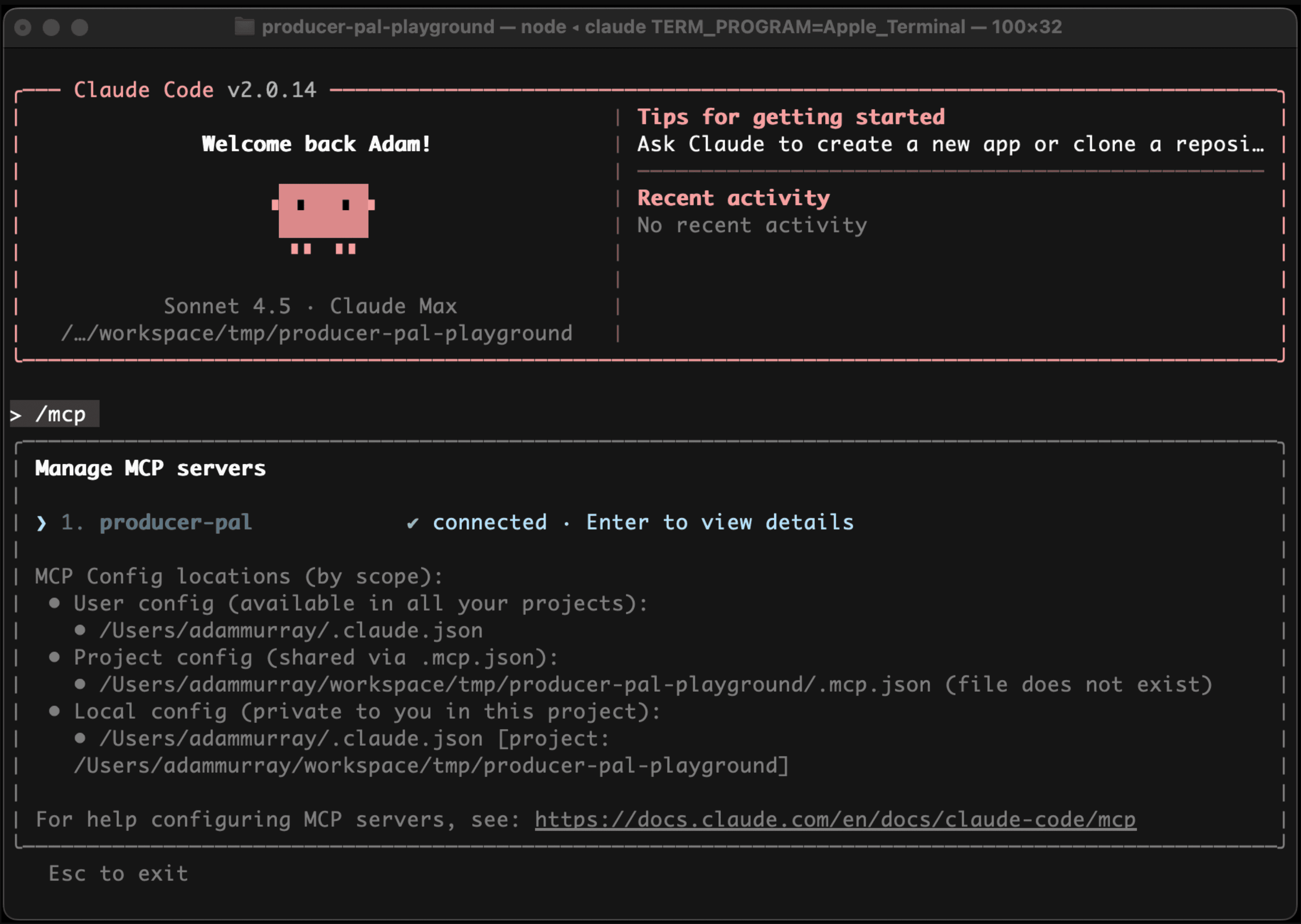
Source: Producer Pal, “Claude Code Installation”
Open a Windows terminal and register the connector with Claude Code:
The executable path may change if the connector is installed in a different folder. Copy the path from the connector’s installation directory rather than typing a guessed path.
You can also add the server manually to the Claude Code MCP configuration:
{
  "mcpServers": {
    "AUTOM8LABS_AutoCAD": {
      "command": "C:\\Program Files\\Autodesk\\ApplicationPlugins\\AUTOM8LABS.MCPConnectorAutoCAD.bundle\\Contents\\Bridge\\
{
  "mcpServers": {
    "AUTOM8LABS_AutoCAD": {
      "command": "C:\\Program Files\\Autodesk\\ApplicationPlugins\\AUTOM8LABS.MCPConnectorAutoCAD.bundle\\Contents\\Bridge\\
Restart Claude Code after adding the server. MCP tools may not appear in an existing session because Claude Code needs to refresh the server connection and tool list.
If you are using the open-source AUTOCAD-MCP server, its documented setup uses a local HTTP endpoint instead:
That configuration is specific to the open-source server. It will not connect to the third-party connector described above.
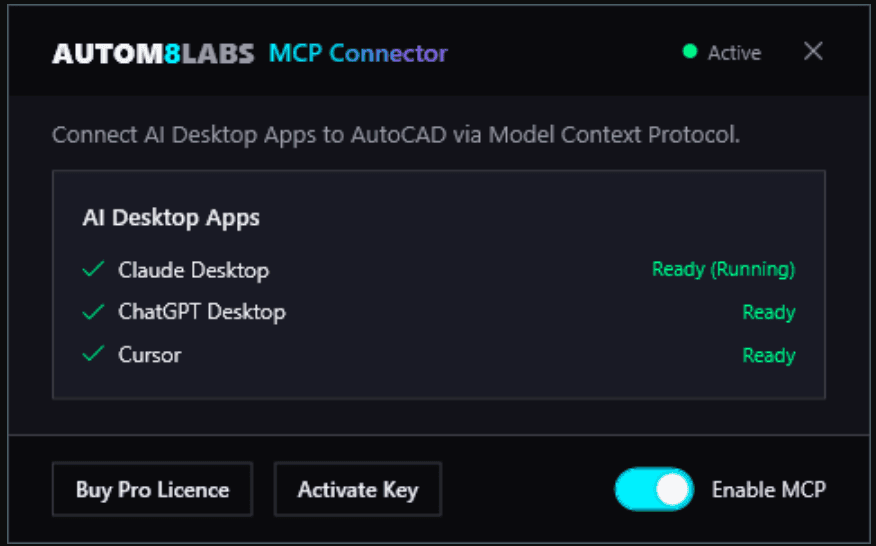
Source: AUTOM8LABS, “Enabling MCP Connector for AutoCAD”
Once Claude Code restarts, ask it to list the available AutoCAD tools or run the connector’s connection test. Do not begin with a drawing modification. Use a read-only prompt such as:
A successful response should identify the open AutoCAD document or confirm the connection. If Claude Code cannot see the tools, fully quit and restart it, confirm that AutoCAD is open with a drawing loaded, and check the connector status inside AutoCAD. The connector’s installation and configuration guide should be the final reference for version-specific paths and setup changes.
Read and Analyze an Open AutoCAD Drawing With Claude Code
Once the MCP connection is active, begin with read-only questions. This confirms that Claude Code is connected to the correct AutoCAD session before you allow it to run commands or modify objects.
Start by checking the open documents:
You can then ask Claude Code to inspect the drawing without changing it:
Depending on the connector, these requests may use document, layer, entity, and analysis tools behind the scenes. The open-source AUTOCAD-MCP server also supports eval_lisp, which can read AutoCAD system variables and entity data.
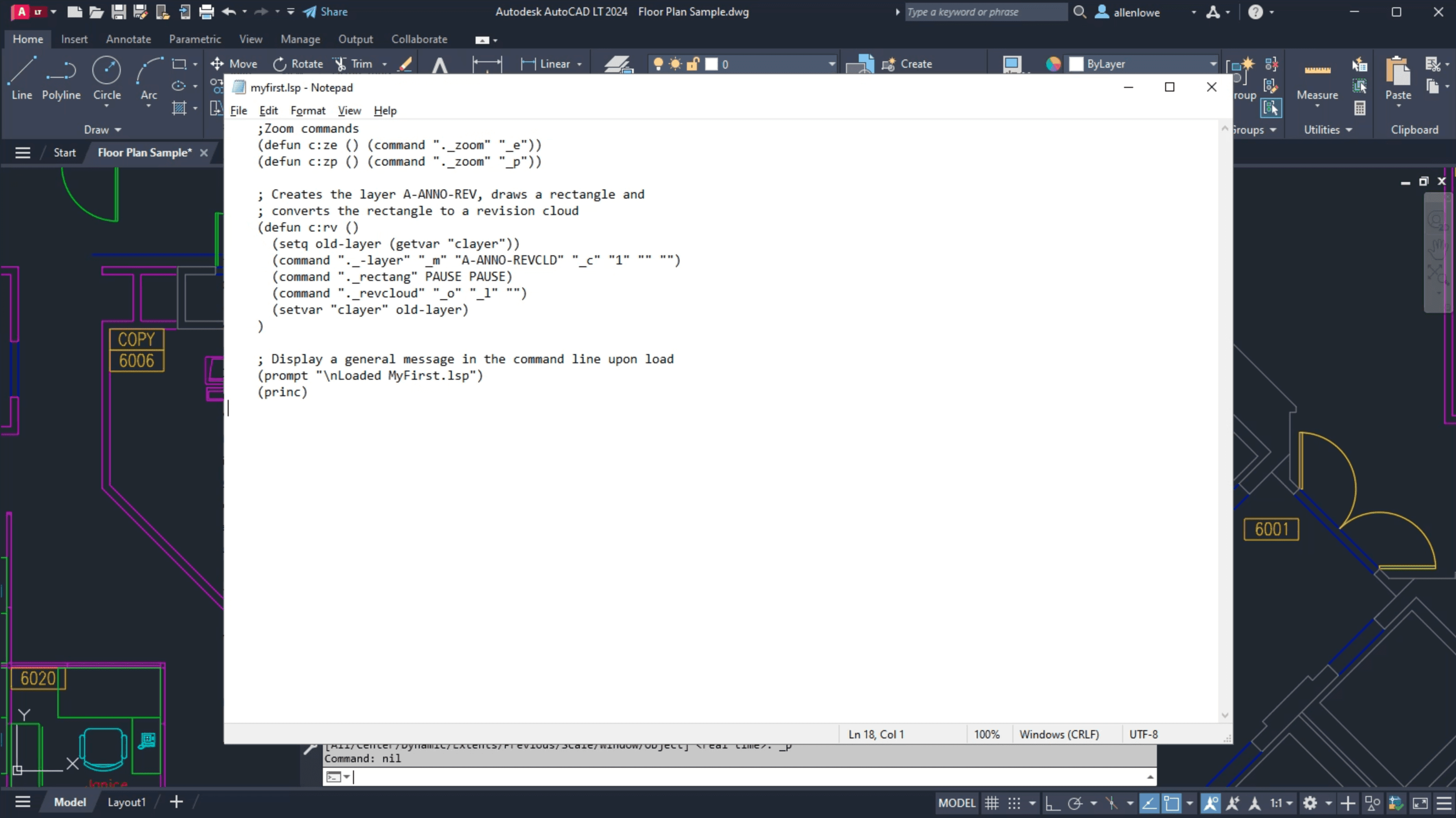
Source: Autodesk, “AutoLISP Script for AutoCAD”
For example, Claude Code can evaluate expressions such as:
These expressions can return the current drawing name, active layer, or DXF data for the most recently created entity. You can ask Claude Code to explain the result in plain language:
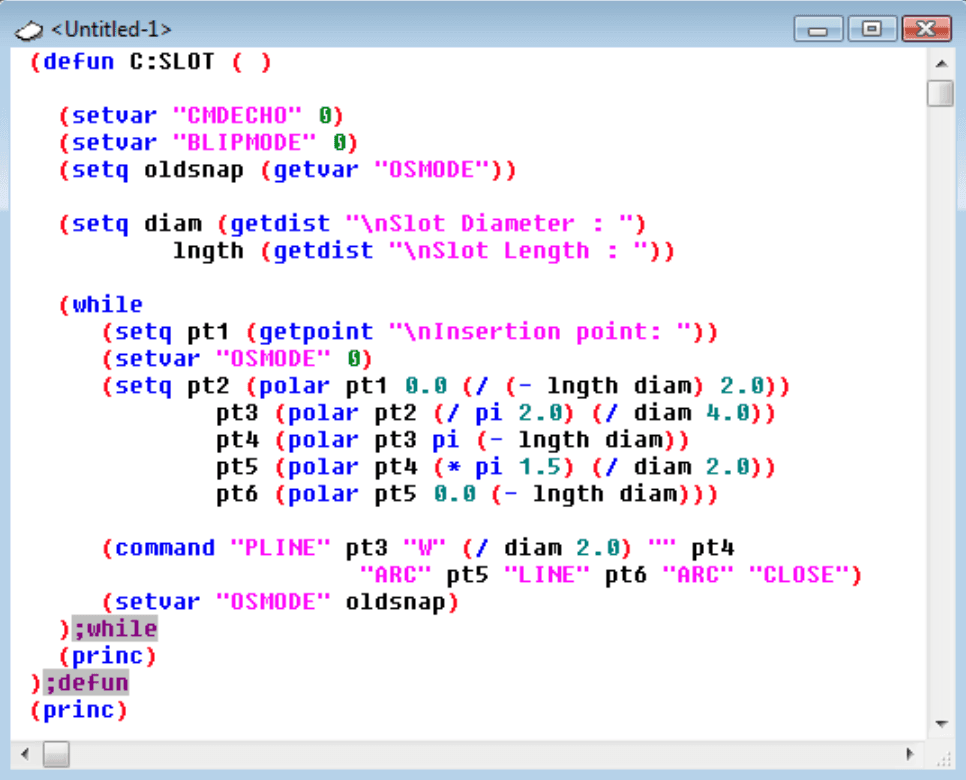
Source: AfraLISP, “The Visual LISP Editor”
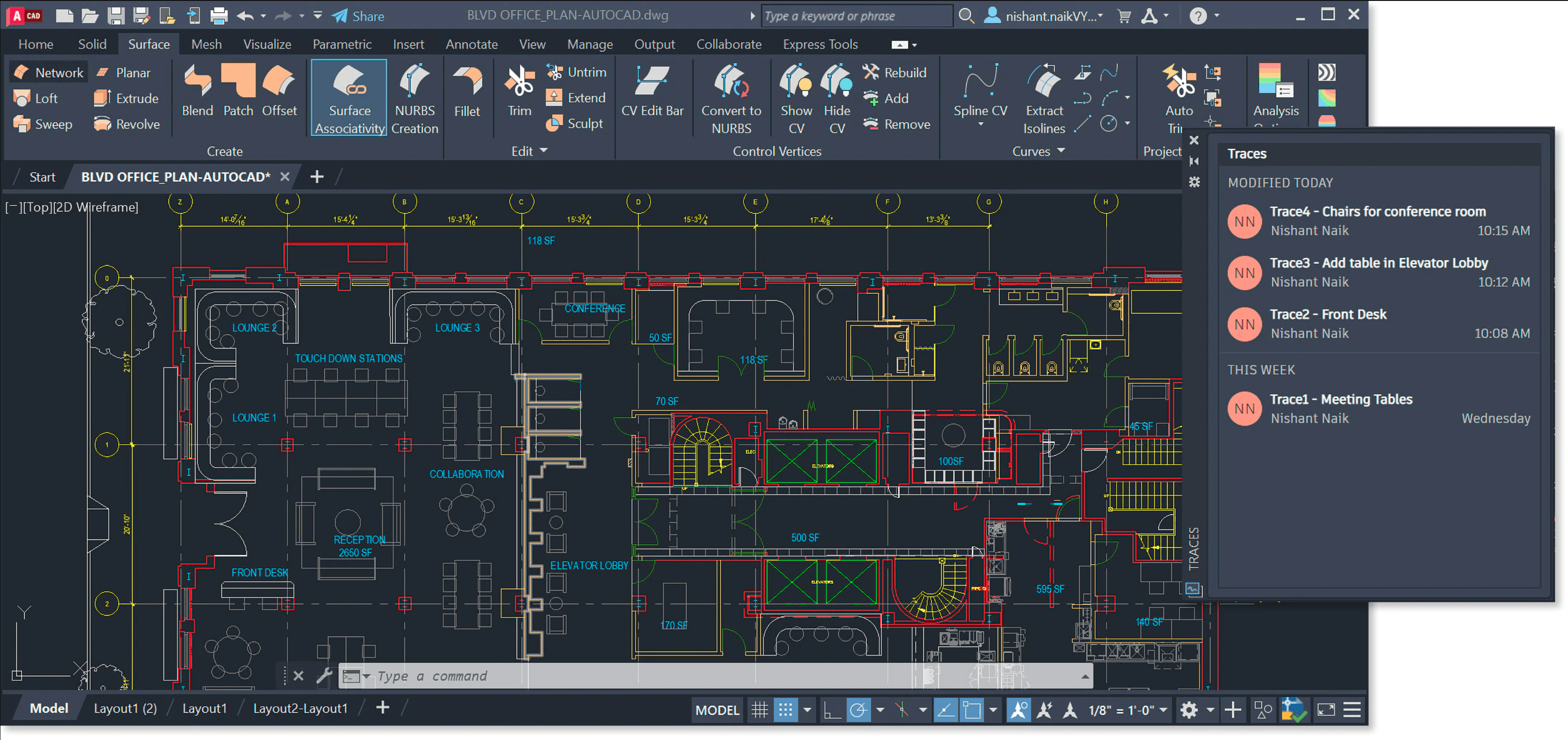
A connector with broader drawing tools may also let Claude Code inspect selected entities, query object properties, search for text, identify blocks, and analyze layouts. The MCP Connector for AutoCAD tool reference groups these capabilities into areas such as drawing documents, entities and selection, layers, blocks, annotation, views, layouts, and measurement.
The quality of the response depends on how clearly you define the scope. “Analyze this drawing” is too vague for a safe production workflow. Instead, specify the drawing, object type, layer, property, and whether the request is read-only.
For example:
This read-first step gives you a useful checkpoint. If Claude Code returns the correct drawing name, layer information, and entity data, you can move to controlled command execution. If the result is incorrect, stop and resolve the connection or query scope before enabling write operations.
Source: Nick Arner, “LLM-Powered Assistants for Complex Interfaces”
Run Commands, Execute AutoLISP, and Modify the Drawing
After Claude Code can read the active drawing, you can use the MCP connection to perform controlled actions in AutoCAD. The available operations depend on the connector, but most live workflows fall into three categories: sending commands, evaluating AutoLISP, and modifying drawing objects through structured tools.
Send an AutoCAD command
With a connector that exposes command execution, you can ask Claude Code to run a normal AutoCAD command:
The connector may translate the request into a command sequence similar to:
The open-source AUTOCAD-MCP server documents this workflow through its send_command tool. It waits for AutoCAD to finish processing the command before returning a response.
Execute AutoLISP expressions
AutoLISP is useful when you need to inspect drawing data or perform an operation that is easier to express through AutoCAD’s programming interface.
For example:
Claude Code can send expressions such as:
You can also ask it to inspect an entity:
For safety, begin with expressions that only read data. Once you understand the result, ask Claude Code to propose a change and explain which objects it will affect.
Modify drawing objects
Connectors with write tools may support actions such as:
Creating or deleting geometry
Changing object properties
Moving objects between layers
Creating and updating layers
Editing blocks and annotations
Changing selections and views
Modifying layouts or external references
Use a two-step prompt for every meaningful change:
After reviewing the response:
The MCP Connector for AutoCAD tool reference documents a broader set of entity, geometry, layer, block, annotation, and layout tools. However, not every connector offers the same write operations. Some tools may require a paid license or an explicit opt-in setting for raw command execution.
Claude Code should not be allowed to make broad changes based on an unclear request. Specify the active drawing, object type, layer, property, and expected result. Ask for a count before and after the operation so you can verify that the change affected the intended objects..finish.
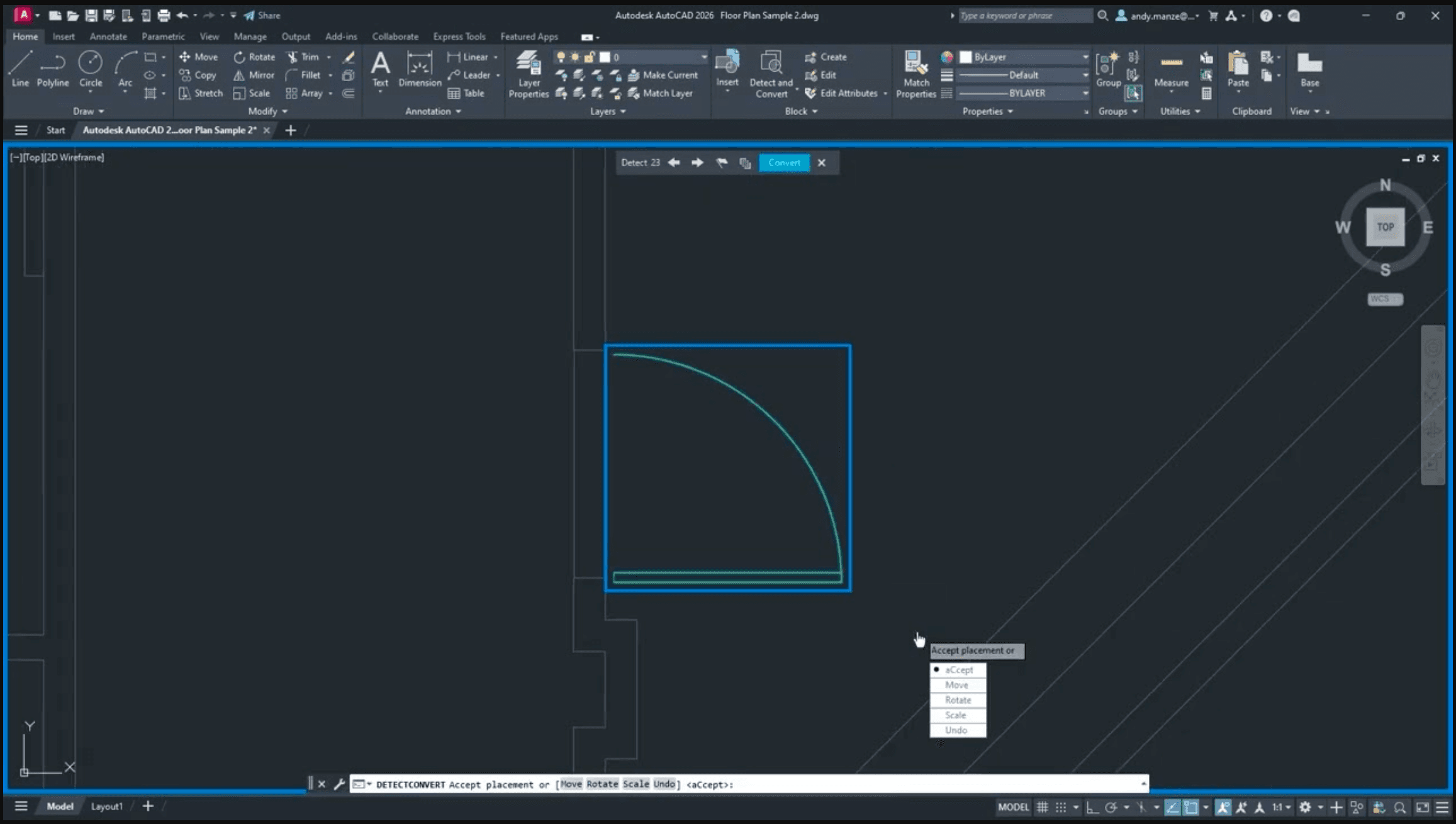
Source: Autodesk AutoCAD 2026 Floor Plan Editing
Safety, Permissions, and Validation for Live CAD Changes
Connecting Claude Code to a live AutoCAD session gives it more power than a normal code-generation workflow. A prompt can trigger changes in the open drawing, so the connection should be treated like any other tool with write access to production data.
Start with a copy of the DWG file and use read-only queries first. Ask Claude Code to identify the active drawing, list the objects it intends to change, and explain the planned operation before enabling write actions.
A safe prompt sequence looks like this:
Then:
Only after reviewing the response should you approve the modification.
Use extra caution with operations that:
Delete entities
Overwrite or save DWG files
Modify many objects at once
Change layers, blocks, layouts, or external references
Run raw AutoCAD commands
Execute AutoLISP that writes to the drawing
Change units, coordinate systems, or drawing standards
After every write operation, ask Claude Code to report what it changed. Verify the result directly in AutoCAD by checking the object count, layer assignments, geometry, selection state, and command history. If the connector supports transactions, previews, or rollback, use them for larger operations.
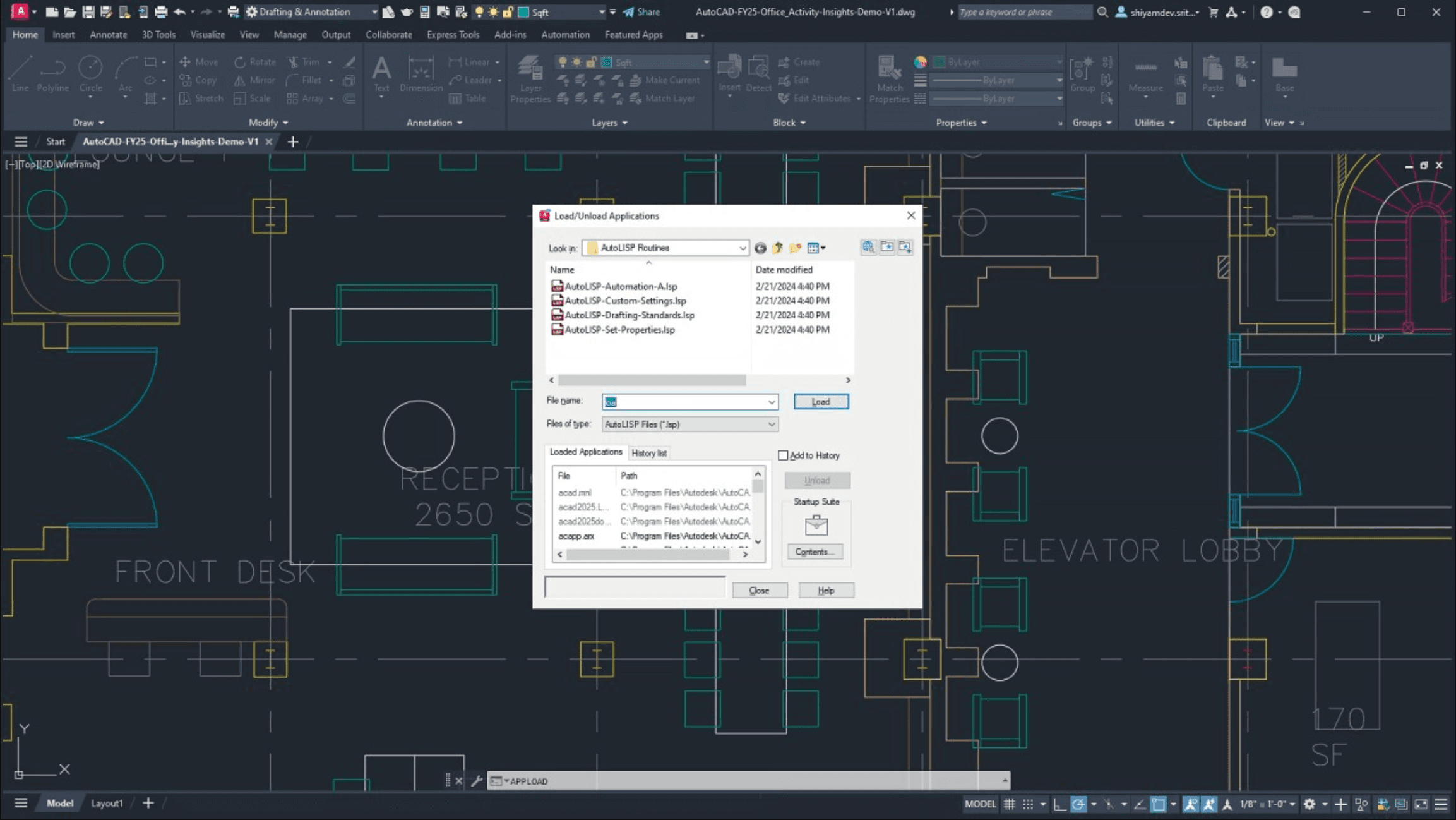
Source: AutoCAD Load/Unload Applications dialog
Keep the MCP connection local whenever possible. The open-source AUTOCAD-MCP documentation states that its server binds to localhost and should not be exposed to other machines without authentication. A local connection reduces the attack surface, but it does not remove the risks of granting a tool write access to AutoCAD.
You should also review the connector’s permissions and licensing options. The MCP Connector for AutoCAD documentation describes read-only mode and optional command-execution tools. Start with read-only access, enable write tools only when necessary, and avoid connecting an untrusted MCP server to sensitive drawings.
Treat every connector, plugin, and MCP configuration as software that can act on your workstation. Review its source or vendor documentation, keep backups, and test the workflow on non-critical files before using it in production.
Run Claude Code and AutoCAD Together on Vagon Cloud Computer
A live AutoCAD MCP workflow needs Claude Code, AutoCAD, and the connector to run in a compatible environment. For users working on a Mac or a computer that cannot handle AutoCAD and development tools comfortably, Vagon Cloud Computer can provide the Windows workstation where the entire setup runs together.
Vagon Cloud Computer lets users access a Windows AutoCAD environment from a Mac or another device. This matters because the connectors covered in this guide require Windows and full AutoCAD. Running the applications on the same Windows machine also avoids trying to connect Claude Code on one computer to an AutoCAD session on another.
A typical setup looks like this:
To set up the workflow:
Install full AutoCAD and sign in with your Autodesk account.
Install and authenticate Claude Code.
Install the AutoCAD MCP connector you want to use.
Open AutoCAD and load a copy of a test drawing.
Enable the connector inside AutoCAD.
Register the connector with Claude Code.
Start with a read-only connection test.
For example, ask Claude Code:
If Claude Code returns information from the open drawing, the local connection is working. You can then continue with entity queries, command execution, and approved drawing changes.
Vagon does not provide the MCP connection itself. The connector remains responsible for linking Claude Code to AutoCAD. Vagon provides the Windows environment in which the applications and local connector can run together. This makes it a practical option for Mac users, remote designers, and teams that want a consistent AutoCAD automation setup. Vagon’s AutoCAD cloud workflow describes running the full AutoCAD desktop environment on a remote cloud computer.
The main trade-off is that the experience depends on your internet connection and the latency between your device and the cloud computer. You should also confirm that the selected connector supports the AutoCAD version and Windows image available in your Vagon environment. The connector vendors reviewed here document Windows requirements, but compatibility with every cloud configuration should be verified before deployment.
Frequently Asked Questions
Can Claude Code control AutoCAD directly?
Yes, but Claude Code needs an MCP server or connector that exposes a live AutoCAD session. The connection is not included by default in Claude Code.
Can Claude Code read a DWG file?
Through a compatible AutoCAD MCP connector, Claude Code can query information from an open drawing, including layers, entities, object properties, system variables, and document details. This is different from uploading a DWG directly to Claude Code and expecting native file interpretation.
Can Claude Code draw in AutoCAD?
Yes. A connector may send standard AutoCAD commands or execute AutoLISP expressions that create geometry. For example, Claude Code can request a circle, line, polyline, or other supported object through the connector.
Can Claude Code modify existing AutoCAD objects?
Some connectors support write tools for changing entities, layers, blocks, annotations, layouts, and other drawing data. The available operations depend on the connector, AutoCAD version, and license. Always inspect the target objects and approve the change before execution.
Is there an official Claude Code AutoCAD plugin?
There is no general native Claude Code AutoCAD plugin documented by Anthropic. Autodesk provides an AutoCAD and Civil 3D MCP Server in public beta, but its documented AI client is Autodesk Assistant. Claude Code users need a compatible third-party or open-source MCP connector.
Does AutoCAD MCP work on Mac?
The connector workflows covered in this guide require Windows and full AutoCAD. Mac users can run the setup inside a Windows cloud computer such as Vagon Cloud Computer.
Does AutoCAD LT support MCP connectors?
Support depends on the connector, but the connector used in this guide requires full AutoCAD and does not support AutoCAD LT. Check the connector’s supported-version documentation before installing it.
Is MCP safer than GUI automation?
MCP can be more structured because it exposes defined tools for reading and changing drawing data. However, it can still modify a live drawing when write tools are enabled. Use read-only mode, backups, approval prompts, local connections, and post-change validation.
Can Claude Code click AutoCAD’s interface?
MCP does not normally require Claude Code to click the AutoCAD interface. It sends structured commands or tool calls through the connector. Visual computer-use automation is a separate method and should only be used when a structured MCP tool is unavailable.
Claude Code can work with AutoCAD through a Model Context Protocol (MCP) connector that links Claude Code to a live AutoCAD session. Once connected, Claude Code can inspect the active drawing, read layers and entity data, run AutoCAD commands, evaluate AutoLISP expressions, and, where the connector supports write operations, create or modify drawing objects with your approval.
This is different from asking Claude Code to generate an AutoLISP file and loading it manually. With MCP, AutoCAD remains open while Claude Code communicates with the application through structured tools exposed by the connector. For example, you could ask Claude Code to list the layers in the current drawing, identify empty layers, draw a circle, inspect the last-created entity, or move approved objects to another layer.
The connection does not come built into Claude Code. You need an AutoCAD MCP connector or an open-source server such as AUTOCAD-MCP. The available commands, read and write permissions, supported AutoCAD versions, and licensing requirements depend on the connector you choose.
Before changing a live drawing, use a copy, begin with read-only queries, and require confirmation for destructive operations.
What Can Claude Code Do With AutoCAD Through MCP?
MCP gives Claude Code a structured way to communicate with an open AutoCAD session. Instead of working only with text files on disk, Claude Code can call tools exposed by the connector and receive information from the active drawing.
The exact capabilities depend on the MCP server, but a compatible connector may allow Claude Code to:
List open AutoCAD documents
Identify the active drawing
Read layer names and properties
Count entities by layer or object type
Inspect entity data
Read drawing variables such as the current layer or drawing name
Send commands to AutoCAD’s command line
Execute AutoLISP expressions
Create geometry
Change object properties
Select objects or change the current view
Manage layers, blocks, annotations, and layouts
For example, the open-source AUTOCAD-MCP project exposes tools such as list_documents, get_active_document, send_command, and eval_lisp. Its documentation shows how Claude Code can send a command to draw a circle and then query the resulting entity through AutoLISP.
Source: Goran Nikolovski, “Building a Custom MCP Server”
A typical request might look like this:
After reviewing the response, you could continue with a controlled instruction:
This inspection-first workflow is important because Claude Code should not guess what is inside a drawing. It can query information through the available tools, explain the proposed action, and wait for approval before making changes.
MCP control is also different from computer-use automation. Claude Code does not need to click AutoCAD’s ribbon or visually operate every dialog when the connector exposes a structured tool for the task. It communicates with AutoCAD through the connector and the application’s programming interface. GUI control may still be useful for actions that the connector does not support, but it is a separate workflow with different permissions and risks.
Which AutoCAD MCP Connection Should You Use?
There is no single AutoCAD MCP setup. Different servers expose different tools, support different AutoCAD versions, and offer different levels of access.
Autodesk’s official AutoCAD MCP Server
Autodesk’s AutoCAD and Civil 3D MCP Server is a public beta that runs locally inside AutoCAD or Civil 3D. It can inspect, analyze, navigate, and query objects in an open drawing.
However, Autodesk currently documents Autodesk Assistant as the supported AI client. Its AutoCAD toolset is primarily focused on reading and analyzing drawings, while the documented write capabilities are associated mainly with Civil 3D. It should not be presented as a ready-made Claude Code integration without additional verification.
An open-source AutoCAD MCP server
The AUTOCAD-MCP project is a developer-oriented option. Its documented tools include:
send_commandeval_lisplist_documentsget_active_document
It can send command sequences to an active AutoCAD document and evaluate AutoLISP expressions to read drawing information. The project currently targets AutoCAD 2026 and uses a local HTTP connection. It is released under the MIT license, but users still need to review the code and understand the security implications before connecting it to production drawings.
A connector with documented Claude Code support
The MCP Connector for AutoCAD explicitly lists Claude Code as a supported client. Its documentation describes tools for querying entities, creating and modifying geometry, managing layers and blocks, working with annotations and layouts, and accessing other AutoCAD features.
The connector requires full AutoCAD on Windows and does not support AutoCAD LT. It also includes read-only options, which makes it more suitable for a controlled first test.
For this guide, the connector with explicit Claude Code support is the clearest main setup. The open-source server is a useful alternative for developers, while Autodesk’s official server should be discussed as an important public beta and comparison point. Always verify the connector’s current version, supported AutoCAD release, licensing model, and available write tools before following the installation steps.
Source: Note.com, “Claude Code MCP Integration”
What Do You Need Before Connecting Claude Code to AutoCAD?
A live Claude Code and AutoCAD workflow needs more than Claude Code and an open DWG file. The connector must run alongside AutoCAD and expose the application through a local MCP connection.
For the connector used in this guide, you need:
A Windows 10 or Windows 11 computer
A supported version of full AutoCAD
Claude Code installed and authenticated
The AutoCAD MCP connector or server
A test DWG file
Permission to install an AutoCAD plugin and configure an MCP server
The MCP Connector for AutoCAD documentation lists support for AutoCAD 2022 through AutoCAD 2027. It requires full AutoCAD and does not support AutoCAD LT because the connector loads as a plugin inside the application.
The open-source AUTOCAD-MCP project has a narrower documented target. Its plugin is designed for AutoCAD 2026 and uses a local HTTP endpoint, so its setup and compatibility requirements are different from the commercial connector.
You should also understand which account and license each component requires. Claude Code access depends on your Anthropic plan or API configuration. AutoCAD requires its own Autodesk license or subscription. A third-party connector may have free read-only tools and paid write tools, depending on the product.
Keep AutoCAD and Claude Code on the same Windows machine whenever possible. The connector communicates with the local AutoCAD session, so separating Claude Code and AutoCAD across different computers can require additional networking and authentication setup.
Finally, prepare a copy of a non-critical drawing. Your first test should only query the drawing, such as listing layers or identifying the active document. Do not begin by connecting an important production file or enabling unrestricted write access. This gives you a safe way to confirm that the connector is reading the correct AutoCAD session before it can make changes.
Install the AutoCAD MCP Connector and Add It to Claude Code
The exact setup depends on the connector you choose. The steps below use the connector with documented Claude Code support. If you choose the open-source alternative, follow its repository instructions instead of combining configuration files from both projects.
First, close all AutoCAD sessions. Download and install the connector, then open AutoCAD and load a test drawing. The connector should appear in the AutoCAD Add-ins tab. Its documentation uses MCPCONNECTOR_STATUS to check whether the plugin is running and MCPCONNECTOR_START to start it when necessary.
Next, open the connector panel and enable MCP. The connector should detect the AI applications installed on the computer. If Claude Code is already installed, the connector can provide the local bridge executable that Claude Code needs to launch.
Source: Producer Pal, “Claude Code Installation”
Open a Windows terminal and register the connector with Claude Code:
The executable path may change if the connector is installed in a different folder. Copy the path from the connector’s installation directory rather than typing a guessed path.
You can also add the server manually to the Claude Code MCP configuration:
{
  "mcpServers": {
    "AUTOM8LABS_AutoCAD": {
      "command": "C:\\Program Files\\Autodesk\\ApplicationPlugins\\AUTOM8LABS.MCPConnectorAutoCAD.bundle\\Contents\\Bridge\\
Restart Claude Code after adding the server. MCP tools may not appear in an existing session because Claude Code needs to refresh the server connection and tool list.
If you are using the open-source AUTOCAD-MCP server, its documented setup uses a local HTTP endpoint instead:
That configuration is specific to the open-source server. It will not connect to the third-party connector described above.
Source: AUTOM8LABS, “Enabling MCP Connector for AutoCAD”
Once Claude Code restarts, ask it to list the available AutoCAD tools or run the connector’s connection test. Do not begin with a drawing modification. Use a read-only prompt such as:
A successful response should identify the open AutoCAD document or confirm the connection. If Claude Code cannot see the tools, fully quit and restart it, confirm that AutoCAD is open with a drawing loaded, and check the connector status inside AutoCAD. The connector’s installation and configuration guide should be the final reference for version-specific paths and setup changes.
Read and Analyze an Open AutoCAD Drawing With Claude Code
Once the MCP connection is active, begin with read-only questions. This confirms that Claude Code is connected to the correct AutoCAD session before you allow it to run commands or modify objects.
Start by checking the open documents:
You can then ask Claude Code to inspect the drawing without changing it:
Depending on the connector, these requests may use document, layer, entity, and analysis tools behind the scenes. The open-source AUTOCAD-MCP server also supports eval_lisp, which can read AutoCAD system variables and entity data.
Source: Autodesk, “AutoLISP Script for AutoCAD”
For example, Claude Code can evaluate expressions such as:
These expressions can return the current drawing name, active layer, or DXF data for the most recently created entity. You can ask Claude Code to explain the result in plain language:
Source: AfraLISP, “The Visual LISP Editor”
A connector with broader drawing tools may also let Claude Code inspect selected entities, query object properties, search for text, identify blocks, and analyze layouts. The MCP Connector for AutoCAD tool reference groups these capabilities into areas such as drawing documents, entities and selection, layers, blocks, annotation, views, layouts, and measurement.
The quality of the response depends on how clearly you define the scope. “Analyze this drawing” is too vague for a safe production workflow. Instead, specify the drawing, object type, layer, property, and whether the request is read-only.
For example:
This read-first step gives you a useful checkpoint. If Claude Code returns the correct drawing name, layer information, and entity data, you can move to controlled command execution. If the result is incorrect, stop and resolve the connection or query scope before enabling write operations.
Source: Nick Arner, “LLM-Powered Assistants for Complex Interfaces”
Run Commands, Execute AutoLISP, and Modify the Drawing
After Claude Code can read the active drawing, you can use the MCP connection to perform controlled actions in AutoCAD. The available operations depend on the connector, but most live workflows fall into three categories: sending commands, evaluating AutoLISP, and modifying drawing objects through structured tools.
Send an AutoCAD command
With a connector that exposes command execution, you can ask Claude Code to run a normal AutoCAD command:
The connector may translate the request into a command sequence similar to:
The open-source AUTOCAD-MCP server documents this workflow through its send_command tool. It waits for AutoCAD to finish processing the command before returning a response.
Execute AutoLISP expressions
AutoLISP is useful when you need to inspect drawing data or perform an operation that is easier to express through AutoCAD’s programming interface.
For example:
Claude Code can send expressions such as:
You can also ask it to inspect an entity:
For safety, begin with expressions that only read data. Once you understand the result, ask Claude Code to propose a change and explain which objects it will affect.
Modify drawing objects
Connectors with write tools may support actions such as:
Creating or deleting geometry
Changing object properties
Moving objects between layers
Creating and updating layers
Editing blocks and annotations
Changing selections and views
Modifying layouts or external references
Use a two-step prompt for every meaningful change:
After reviewing the response:
The MCP Connector for AutoCAD tool reference documents a broader set of entity, geometry, layer, block, annotation, and layout tools. However, not every connector offers the same write operations. Some tools may require a paid license or an explicit opt-in setting for raw command execution.
Claude Code should not be allowed to make broad changes based on an unclear request. Specify the active drawing, object type, layer, property, and expected result. Ask for a count before and after the operation so you can verify that the change affected the intended objects..finish.
Source: Autodesk AutoCAD 2026 Floor Plan Editing
Safety, Permissions, and Validation for Live CAD Changes
Connecting Claude Code to a live AutoCAD session gives it more power than a normal code-generation workflow. A prompt can trigger changes in the open drawing, so the connection should be treated like any other tool with write access to production data.
Start with a copy of the DWG file and use read-only queries first. Ask Claude Code to identify the active drawing, list the objects it intends to change, and explain the planned operation before enabling write actions.
A safe prompt sequence looks like this:
Then:
Only after reviewing the response should you approve the modification.
Use extra caution with operations that:
Delete entities
Overwrite or save DWG files
Modify many objects at once
Change layers, blocks, layouts, or external references
Run raw AutoCAD commands
Execute AutoLISP that writes to the drawing
Change units, coordinate systems, or drawing standards
After every write operation, ask Claude Code to report what it changed. Verify the result directly in AutoCAD by checking the object count, layer assignments, geometry, selection state, and command history. If the connector supports transactions, previews, or rollback, use them for larger operations.
Source: AutoCAD Load/Unload Applications dialog
Keep the MCP connection local whenever possible. The open-source AUTOCAD-MCP documentation states that its server binds to localhost and should not be exposed to other machines without authentication. A local connection reduces the attack surface, but it does not remove the risks of granting a tool write access to AutoCAD.
You should also review the connector’s permissions and licensing options. The MCP Connector for AutoCAD documentation describes read-only mode and optional command-execution tools. Start with read-only access, enable write tools only when necessary, and avoid connecting an untrusted MCP server to sensitive drawings.
Treat every connector, plugin, and MCP configuration as software that can act on your workstation. Review its source or vendor documentation, keep backups, and test the workflow on non-critical files before using it in production.
Run Claude Code and AutoCAD Together on Vagon Cloud Computer
A live AutoCAD MCP workflow needs Claude Code, AutoCAD, and the connector to run in a compatible environment. For users working on a Mac or a computer that cannot handle AutoCAD and development tools comfortably, Vagon Cloud Computer can provide the Windows workstation where the entire setup runs together.
Vagon Cloud Computer lets users access a Windows AutoCAD environment from a Mac or another device. This matters because the connectors covered in this guide require Windows and full AutoCAD. Running the applications on the same Windows machine also avoids trying to connect Claude Code on one computer to an AutoCAD session on another.
A typical setup looks like this:
To set up the workflow:
Install full AutoCAD and sign in with your Autodesk account.
Install and authenticate Claude Code.
Install the AutoCAD MCP connector you want to use.
Open AutoCAD and load a copy of a test drawing.
Enable the connector inside AutoCAD.
Register the connector with Claude Code.
Start with a read-only connection test.
For example, ask Claude Code:
If Claude Code returns information from the open drawing, the local connection is working. You can then continue with entity queries, command execution, and approved drawing changes.
Vagon does not provide the MCP connection itself. The connector remains responsible for linking Claude Code to AutoCAD. Vagon provides the Windows environment in which the applications and local connector can run together. This makes it a practical option for Mac users, remote designers, and teams that want a consistent AutoCAD automation setup. Vagon’s AutoCAD cloud workflow describes running the full AutoCAD desktop environment on a remote cloud computer.
The main trade-off is that the experience depends on your internet connection and the latency between your device and the cloud computer. You should also confirm that the selected connector supports the AutoCAD version and Windows image available in your Vagon environment. The connector vendors reviewed here document Windows requirements, but compatibility with every cloud configuration should be verified before deployment.
Frequently Asked Questions
Can Claude Code control AutoCAD directly?
Yes, but Claude Code needs an MCP server or connector that exposes a live AutoCAD session. The connection is not included by default in Claude Code.
Can Claude Code read a DWG file?
Through a compatible AutoCAD MCP connector, Claude Code can query information from an open drawing, including layers, entities, object properties, system variables, and document details. This is different from uploading a DWG directly to Claude Code and expecting native file interpretation.
Can Claude Code draw in AutoCAD?
Yes. A connector may send standard AutoCAD commands or execute AutoLISP expressions that create geometry. For example, Claude Code can request a circle, line, polyline, or other supported object through the connector.
Can Claude Code modify existing AutoCAD objects?
Some connectors support write tools for changing entities, layers, blocks, annotations, layouts, and other drawing data. The available operations depend on the connector, AutoCAD version, and license. Always inspect the target objects and approve the change before execution.
Is there an official Claude Code AutoCAD plugin?
There is no general native Claude Code AutoCAD plugin documented by Anthropic. Autodesk provides an AutoCAD and Civil 3D MCP Server in public beta, but its documented AI client is Autodesk Assistant. Claude Code users need a compatible third-party or open-source MCP connector.
Does AutoCAD MCP work on Mac?
The connector workflows covered in this guide require Windows and full AutoCAD. Mac users can run the setup inside a Windows cloud computer such as Vagon Cloud Computer.
Does AutoCAD LT support MCP connectors?
Support depends on the connector, but the connector used in this guide requires full AutoCAD and does not support AutoCAD LT. Check the connector’s supported-version documentation before installing it.
Is MCP safer than GUI automation?
MCP can be more structured because it exposes defined tools for reading and changing drawing data. However, it can still modify a live drawing when write tools are enabled. Use read-only mode, backups, approval prompts, local connections, and post-change validation.
Can Claude Code click AutoCAD’s interface?
MCP does not normally require Claude Code to click the AutoCAD interface. It sends structured commands or tool calls through the connector. Visual computer-use automation is a separate method and should only be used when a structured MCP tool is unavailable.
Get Beyond Your Computer Performance
Run applications on your cloud computer with the latest generation hardware. No more crashes or lags.

Trial includes 1 hour usage + 7 days of storage.
Summarize with AI

Ready to focus on your creativity?
Vagon gives you the ability to create & render projects, collaborate, and stream applications with the power of the best hardware.

Vagon Blog
Run heavy applications on any device with
your personal computer on the cloud.
San Francisco, California
Solutions
Vagon Teams
Vagon Streams
Use Cases
Resources
Vagon Blog
How to Use AutoCAD With Claude Code: MCP Guide
How to Use Codex With Maya: Python, MEL & Cloud Workflow
How to Use Claude Code With Maya: MCP Setup Guide (2026)
How to Use Codex With Photoshop: Step-by-Step Guide
How to Use Claude Code With Photoshop: Step-by-Step Guide
How to Use Codex With Figma: Step-by-Step Guide
How to Use Claude Code With Figma: Step-by-Step Guide
How to Use Claude Code With After Effects in 2026
How to Build a 3D Environment in Unity With GPT-6 Astra
Vagon Blog
Run heavy applications on any device with
your personal computer on the cloud.
San Francisco, California
Solutions
Vagon Teams
Vagon Streams
Use Cases
Resources
Vagon Blog
How to Use AutoCAD With Claude Code: MCP Guide
How to Use Codex With Maya: Python, MEL & Cloud Workflow
How to Use Claude Code With Maya: MCP Setup Guide (2026)
How to Use Codex With Photoshop: Step-by-Step Guide
How to Use Claude Code With Photoshop: Step-by-Step Guide
How to Use Codex With Figma: Step-by-Step Guide
How to Use Claude Code With Figma: Step-by-Step Guide
How to Use Claude Code With After Effects in 2026
How to Build a 3D Environment in Unity With GPT-6 Astra
Vagon Blog
Run heavy applications on any device with
your personal computer on the cloud.
San Francisco, California
Solutions
Vagon Teams
Vagon Streams
Use Cases
Resources
Vagon Blog