Instant Connection for Pixel Streaming
— New Feature Automated Setup

How to Use AutoCAD With Codex: Live MCP Setup Guide
Architecture
-
How to Use AutoCAD With Codex: Live MCP Setup Guide
Architecture
How to Use AutoCAD With Codex: Live MCP Setup Guide
Architecture
-
Table of Contents
Codex can generate AutoCAD commands, AutoLISP routines, and automation scripts without ever opening AutoCAD. In that workflow, Codex produces code, while you manually copy, run, and verify it inside the application.
An MCP-based integration works differently. By connecting Codex to a live AutoCAD session through a local AutoCAD MCP connector, Codex can communicate with the active drawing and use the tools exposed by the connector. It can read drawing information, inspect layers, entities, blocks, layouts, and object properties, then report its findings in natural language.
With the required permissions enabled, Codex can also run AutoCAD commands, evaluate AutoLISP expressions, create new geometry, and modify existing drawing objects. For sensitive actions, you can instruct Codex to explain the proposed change and wait for your approval before applying it.
This is not a native AutoCAD feature. The workflow requires Codex, a compatible local MCP server, a supported full version of AutoCAD, and a Windows environment. The connection follows this path:
Codex → MCP Server → AutoCAD Plugin → Live DWG
What Can Codex Do With AutoCAD Through MCP?
When Codex is connected to AutoCAD through MCP, it can work with the active drawing through a set of exposed tools. The exact capabilities depend on the connector you install, the AutoCAD version you use, and whether read-only or write permissions are enabled.
The first and safest use case is drawing inspection. Codex can request information about the current file, including its name, units, current layer, drawing limits, and system variables. It can also inspect the structure of the drawing by listing layers, blocks, layouts, viewports, external references, and entities.
For example, you can ask:
Codex can then organize the returned information into a readable report instead of requiring you to search through multiple AutoCAD dialogs.
MCP can also expose object-level information. Codex may be able to identify an entity’s type, layer, handle, coordinates, dimensions, color, linetype, or other properties. This makes it useful for locating repeated objects, checking drawing standards, counting blocks, and finding text or attributes that need review. The AUTOM8LABS AutoCAD tool documentation includes examples for layer lists, block references, entity properties, layouts, and external references.
With additional permissions, Codex can send commands to AutoCAD as if they were entered in the command line. It can also evaluate AutoLISP expressions such as:
Write-enabled tools extend the workflow further. Depending on the connector, Codex can create geometry, move or copy entities, change layer properties, update text, insert blocks, create dimensions, and modify existing objects.
These actions should remain user-controlled. A practical instruction is:
This allows Codex to assist with live CAD work while keeping the final decision with the person reviewing the drawing.

Source: Autodesk AutoCAD Blog
Which AutoCAD MCP Connection Should You Use?
Before connecting Codex to AutoCAD, choose an MCP implementation that matches your operating system, AutoCAD version, and required level of access. MCP is a communication standard, not a single AutoCAD integration. Different servers and connectors may expose different tools, transports, and permissions.
For this guide, the primary option is the AUTOM8LABS MCP Connector for AutoCAD. It runs through a plugin inside AutoCAD and provides tools for reading drawing information, inspecting entities, working with layers and blocks, managing layouts, creating geometry, modifying objects, and capturing drawing views. It also supports direct AutoCAD command execution and AutoLISP evaluation when those features are explicitly enabled.
The connector currently supports full AutoCAD versions from 2022 through 2027 on 64-bit Windows 10 or Windows 11. AutoCAD LT is not supported because LT does not run the type of add-ins required by the connector. Write operations may also depend on the connector edition and license level.
Open-source alternatives are available as well. For example, AUTOCAD-MCP exposes tools such as send_command, eval_lisp, list_documents, and get_active_document. These projects may be useful for developers who want to inspect or customize the integration, but they can have different AutoCAD version requirements and installation steps.
Autodesk also provides an AutoCAD MCP Server technology preview. However, it is a separate Autodesk Assistant workflow and should not be presented as the standard Codex integration.
Regardless of which option you choose, the architecture remains similar:
For a stable step-by-step tutorial, use one connector throughout the article instead of mixing commands from different MCP projects.
How Do You Set Up Codex and AutoCAD MCP?
The setup requires three components: Codex, a local MCP server, and the AutoCAD plugin that connects the server to the active drawing. Complete the setup on a Windows machine that has a supported version of full AutoCAD installed.

Source: Roam MCP Integration Documentation
1. Check the system requirements
The current connector documentation lists the following requirements:
64-bit Windows 10 or Windows 11
Full AutoCAD 2022 through 2027
AutoCAD LT is not supported
Codex CLI, Codex Desktop, or the Codex IDE extension
A local MCP connector compatible with AutoCAD
A test DWG file that can be safely modified
The connector must run on the same Windows environment as AutoCAD. If AutoCAD is installed on a remote Windows computer, Codex and the MCP connector should be configured there as well.
2. Install the AutoCAD connector
Close AutoCAD before installing the connector. Download and install the connector, then open AutoCAD and load a test drawing.
After installation, confirm that the connector plugin is available inside AutoCAD. Depending on the version, this may appear as an AUTOM8LABS panel or an AutoCAD command supplied by the connector. The documentation also describes status commands such as:
Use the available status command or connector panel to confirm that the bridge is running. If the connector requires manual activation, enable it before moving to Codex.
3. Add the MCP server to Codex
Codex supports local MCP servers through its CLI and configuration file. The official Codex MCP documentation uses this general syntax for a local STDIO server:
codex mcp add <server-name> -- <stdio-server-command>
codex mcp add <server-name> -- <stdio-server-command>
For the AutoCAD connector, replace the placeholder with the executable path installed on your computer. A typical command may look like this:
The exact path may differ between installations, so copy it from the current connector documentation or verify it in the installation folder.
You can check the registered servers with:
Codex also stores local MCP configuration in:
%USERPROFILE%\.%USERPROFILE%\.The connector documentation notes that this configuration is shared with the Codex CLI. If you edit the file manually, keep the server name, executable path, and environment variables correctly formatted.
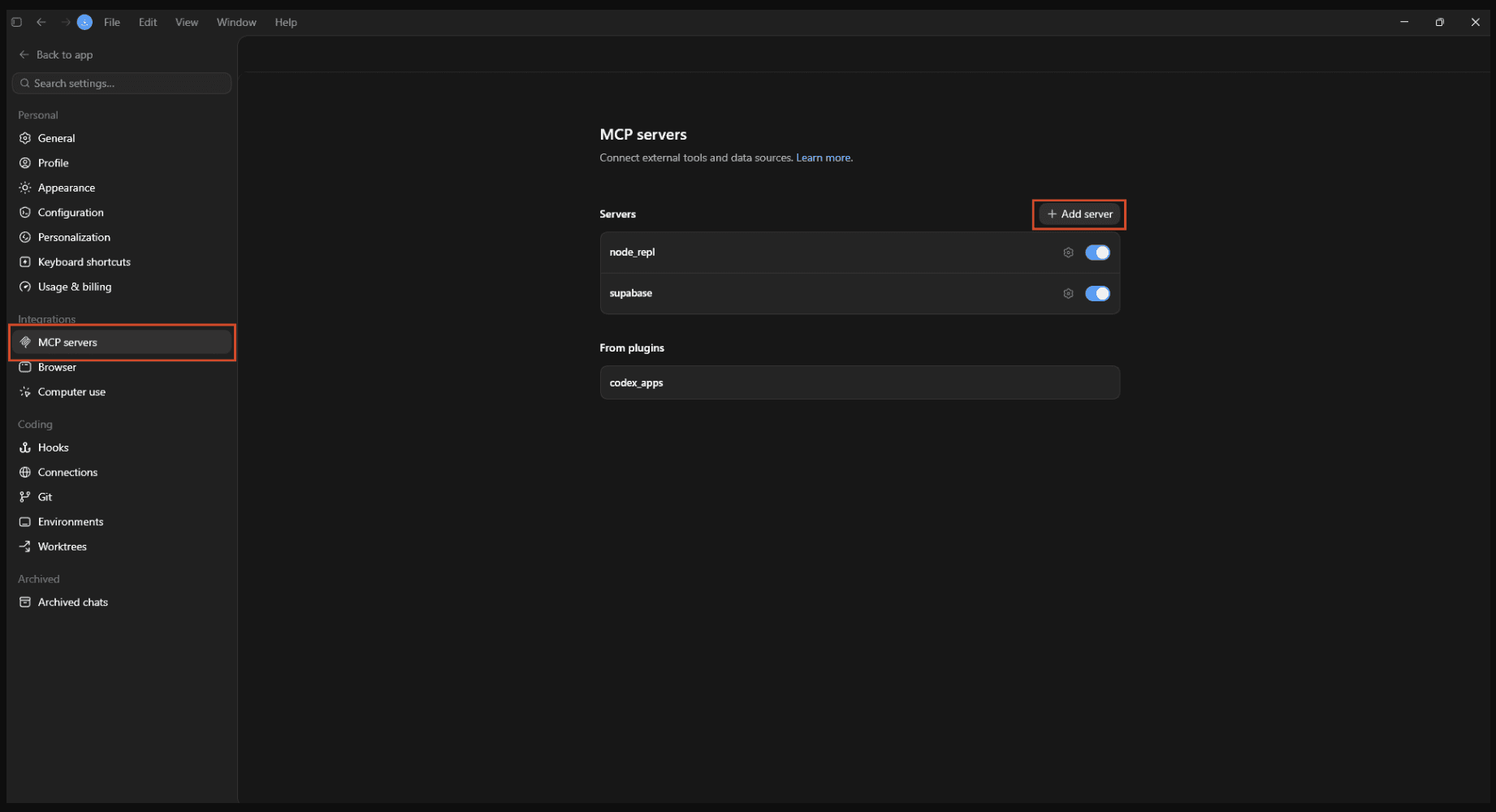
Source: Matagi, Codex MCP Setup Guide
4. Confirm the connection
Open AutoCAD with a drawing loaded, then start Codex and check the available MCP servers. In the Codex terminal interface, you can also use:
The AutoCAD server should appear as an available connection.
Test the integration with a read-only request:
If the connection is working, Codex should call the MCP tool and return information from the active AutoCAD session.
5. Enable command and AutoLISP execution only when needed
Direct command execution and AutoLISP evaluation are disabled by default in the connector. To enable them, the documentation specifies the following environment variable:
Add it to the MCP server configuration, then fully quit and restart Codex. Test the feature with a harmless request such as:
Enable these tools only for trusted projects. Start with read-only inspection, use a copy of the DWG file, and review every command or expression before allowing Codex to execute it.

Source: Composio, How to Set Up MCPs With Codex
How Do You Read and Analyze a Live AutoCAD Drawing?
Once Codex is connected to the active AutoCAD session, begin with read-only inspection. This lets you confirm that the MCP connection is working and gives Codex the context it needs before any drawing changes are requested.
You can start with general drawing information:
Depending on the connector, Codex can retrieve information through tools such as get_drawing_info, get_system_variable, and get_entity_count. It can use this data to explain the current state of the drawing in plain language.
You can then inspect the drawing structure. For example:
This type of request can help identify empty layers, inconsistent layer settings, or layers that should not be edited. The AutoCAD MCP tool reference also includes tools for listing blocks, layouts, viewports, annotation scales, text styles, dimension styles, and external references.
Codex can inspect specific objects when you provide an entity handle, selection, or filtering criteria:
You can also use it to check text and attributes:
For external references, ask Codex to identify missing or unloaded files:
The most important rule is to separate analysis from modification. Ask Codex to inspect the drawing first, review its report, and confirm that it identified the correct objects. Only then should you request an edit.
A useful inspection prompt is:
This read-first workflow reduces accidental edits and creates a clear before-state for later validation.

Source: Autodesk AutoCAD Quick Start Guide
How Do You Run AutoCAD Commands, Execute AutoLISP, and Modify Objects?
After inspecting the drawing, you can use Codex to perform controlled actions in the active AutoCAD session. These actions generally fall into three categories: running AutoCAD commands, evaluating AutoLISP expressions, and using dedicated MCP tools to create or modify drawing objects.
Run AutoCAD commands
A connector that exposes command execution can send a command to AutoCAD as if it were entered in the command line. For example:
You can also ask Codex to run commands after describing their expected effect:
The connector’s execute_command tool is intended for direct command execution, but it is disabled by default because raw commands can affect the entire drawing. The AutoCAD MCP documentation also notes that certain code-loading and shell-related commands remain restricted.

Source: AfraLISP, The Visual LISP Editor
Evaluate AutoLISP expressions
The execute_lisp tool can evaluate an AutoLISP expression inside the active AutoCAD session. This is different from asking Codex to write a .lsp file for you to load manually.
For example:
You can use AutoLISP for read-only checks:
Or inspect the last-created entity:
For more complex operations, ask Codex to explain the expression before executing it:

Source: Autodesk AutoLISP Tutorial
Modify drawing objects
Dedicated MCP tools provide a more structured way to make changes than raw command execution. Depending on the connector and license, Codex may be able to:
Create lines, circles, polylines, rectangles, text, and dimensions
Move, copy, rotate, mirror, scale, trim, extend, or offset entities
Change object layers, colors, linetypes, and lineweights
Create or update blocks and attributes
Modify layouts, viewports, and page setups
Add revision clouds, tables, and annotations
Create or modify 3D solids
Use an approval-based prompt for every meaningful change:
After reviewing the result:
You can also limit the scope explicitly:
Codex can perform the requested action, but it does not automatically understand design intent, construction standards, or project requirements. Always review the proposed operation, approve it deliberately, and verify the result inside AutoCAD.

Source: Autodesk AutoCAD 2027 Help
How Do You Keep Live CAD Automation Safe?
Connecting Codex to a live AutoCAD session gives it access to real drawing data and, when enabled, the ability to make changes. Treat the integration as an assistant that requires supervision, not as an autonomous drafting system.
Work on a copy first
Before testing commands, AutoLISP expressions, or write-enabled tools, create a duplicate of the DWG file. Use a separate working folder and save important milestones as new files instead of overwriting the original drawing.
For example:
This makes it easier to compare results and recover from an unwanted modification.
Start with read-only inspection
Begin every workflow by asking Codex to analyze the active drawing without making changes. Confirm the file name, current layer, units, object types, and affected entity handles before allowing a write operation.
A useful instruction is:
This prevents Codex from acting on the wrong drawing, layer, layout, or selection.
Require an approval step
For sensitive operations, ask Codex to describe:
Which entities will be affected
Which properties will change
Which AutoCAD command or AutoLISP expression will run
What the expected result should be
Then require it to wait:
This is especially important for deletion, layer changes, block replacement, text replacement, external reference operations, and batch processing.
Keep powerful tools disabled by default
The AutoCAD MCP connector documentation states that direct command execution and AutoLISP evaluation are disabled by default. They require explicit opt-in through:
Enable this only when the workflow requires it. After changing the configuration, restart Codex and test the connection with a harmless read-only expression before running a modification.
Validate after every change
After an approved operation, ask Codex to report the affected entities:
Then verify the result visually in AutoCAD. Zoom to the affected area, check the layer state, review dimensions and text, and save the result as a new file.
The connector’s security documentation describes transaction-based write tools and undo support, but these features should supplement, not replace, manual review and file backups.
Run Codex and AutoCAD Together on Vagon Cloud Computer
A live Codex and AutoCAD MCP workflow needs more than an AI assistant. It requires a compatible Windows environment where full AutoCAD, the AutoCAD MCP connector, Codex, and the project files can run together. For users working on macOS, lightweight laptops, or older devices, Vagon Cloud Computer provides a practical way to create that environment without purchasing or upgrading a local workstation.
With Vagon, you can access a high-performance Windows cloud computer through a browser or the Vagon app. You can then install the full desktop version of AutoCAD, sign in with your Autodesk license, and configure the MCP connector and Codex inside the same remote machine. Because AutoCAD and the connector run together in the Windows environment, Codex can communicate with the active AutoCAD session through the local MCP bridge.
A typical setup looks like this:
This setup is useful when your local device cannot run the Windows version of AutoCAD or does not provide enough GPU, CPU, or memory for large drawings. Vagon handles the computing workload in the cloud, while your local device acts as the access point. You can work with complex DWG files, AutoCAD add-ins, MCP tools, and Codex without installing the entire workflow on your personal computer.
Vagon also makes it easier to adjust resources as project requirements change. You can choose a cloud computer configuration for your workload and use Vagon’s File Manager to move project files to and from the cloud workspace.
For Mac users, Vagon can provide access to the full Windows version of AutoCAD without requiring a Windows partition or a virtual machine. The Vagon AutoCAD on macOS guide explains how the cloud workflow can support full AutoCAD access from a Mac.
Vagon provides the cloud workstation. The MCP connector remains responsible for connecting Codex to the live AutoCAD application.
FAQs
Can Codex control AutoCAD directly?
Codex cannot control AutoCAD natively by default. It needs a compatible local MCP server and an AutoCAD plugin that exposes tools to the active session. Once connected, Codex can request drawing information and use the tools provided by the connector.
Can Codex read a DWG file without AutoCAD?
The workflow in this guide uses a live AutoCAD session. Codex communicates with AutoCAD through MCP rather than opening and interpreting a DWG file independently. A standalone DWG parser would be a separate integration with different capabilities and limitations.
Can Codex run AutoCAD commands?
Yes, if the selected connector provides command execution. The execute_command tool can send supported commands to AutoCAD as if they were entered in the command line. Direct command execution is disabled by default in the AUTOM8LABS connector and requires explicit opt-in.
Can Codex execute AutoLISP?
Yes. When the connector supports it and the feature is enabled, Codex can evaluate AutoLISP expressions inside the active AutoCAD session. For example, it can evaluate (getvar "DWGNAME") to retrieve the current drawing name. Always review an expression before allowing it to run.
Can Codex modify an AutoCAD drawing?
Yes, when write-enabled MCP tools are available. Depending on the connector, Codex may create geometry, move or copy entities, change layer properties, update text, insert blocks, or modify layouts. Use a backup copy and require Codex to identify the affected objects before approving the operation.
Does this work with AutoCAD LT?
The current connector requirements state that AutoCAD LT is not supported. The workflow requires full AutoCAD because the connector operates through an in-application plugin.
Does Codex work with AutoCAD on macOS?
The current connector documentation specifies 64-bit Windows 10 or Windows 11. Mac users can run the workflow through a Windows cloud computer such as Vagon Cloud Computer, provided AutoCAD, Codex, and the MCP connector are installed in the same remote environment.
Is Autodesk’s AutoCAD MCP Server the same as a Codex integration?
No. Autodesk’s AutoCAD MCP Server is a separate technology preview designed around Autodesk Assistant. It should not automatically be treated as a Codex-compatible connector.
Can Codex create a complete architectural drawing automatically?
Codex can automate supported CAD operations, but it does not replace professional design judgment, project standards, code compliance, coordination, or final quality assurance. Use it for controlled analysis and repetitive operations, then review every result inside AutoCAD before delivery.
Codex can generate AutoCAD commands, AutoLISP routines, and automation scripts without ever opening AutoCAD. In that workflow, Codex produces code, while you manually copy, run, and verify it inside the application.
An MCP-based integration works differently. By connecting Codex to a live AutoCAD session through a local AutoCAD MCP connector, Codex can communicate with the active drawing and use the tools exposed by the connector. It can read drawing information, inspect layers, entities, blocks, layouts, and object properties, then report its findings in natural language.
With the required permissions enabled, Codex can also run AutoCAD commands, evaluate AutoLISP expressions, create new geometry, and modify existing drawing objects. For sensitive actions, you can instruct Codex to explain the proposed change and wait for your approval before applying it.
This is not a native AutoCAD feature. The workflow requires Codex, a compatible local MCP server, a supported full version of AutoCAD, and a Windows environment. The connection follows this path:
Codex → MCP Server → AutoCAD Plugin → Live DWG
What Can Codex Do With AutoCAD Through MCP?
When Codex is connected to AutoCAD through MCP, it can work with the active drawing through a set of exposed tools. The exact capabilities depend on the connector you install, the AutoCAD version you use, and whether read-only or write permissions are enabled.
The first and safest use case is drawing inspection. Codex can request information about the current file, including its name, units, current layer, drawing limits, and system variables. It can also inspect the structure of the drawing by listing layers, blocks, layouts, viewports, external references, and entities.
For example, you can ask:
Codex can then organize the returned information into a readable report instead of requiring you to search through multiple AutoCAD dialogs.
MCP can also expose object-level information. Codex may be able to identify an entity’s type, layer, handle, coordinates, dimensions, color, linetype, or other properties. This makes it useful for locating repeated objects, checking drawing standards, counting blocks, and finding text or attributes that need review. The AUTOM8LABS AutoCAD tool documentation includes examples for layer lists, block references, entity properties, layouts, and external references.
With additional permissions, Codex can send commands to AutoCAD as if they were entered in the command line. It can also evaluate AutoLISP expressions such as:
Write-enabled tools extend the workflow further. Depending on the connector, Codex can create geometry, move or copy entities, change layer properties, update text, insert blocks, create dimensions, and modify existing objects.
These actions should remain user-controlled. A practical instruction is:
This allows Codex to assist with live CAD work while keeping the final decision with the person reviewing the drawing.
Source: Autodesk AutoCAD Blog
Which AutoCAD MCP Connection Should You Use?
Before connecting Codex to AutoCAD, choose an MCP implementation that matches your operating system, AutoCAD version, and required level of access. MCP is a communication standard, not a single AutoCAD integration. Different servers and connectors may expose different tools, transports, and permissions.
For this guide, the primary option is the AUTOM8LABS MCP Connector for AutoCAD. It runs through a plugin inside AutoCAD and provides tools for reading drawing information, inspecting entities, working with layers and blocks, managing layouts, creating geometry, modifying objects, and capturing drawing views. It also supports direct AutoCAD command execution and AutoLISP evaluation when those features are explicitly enabled.
The connector currently supports full AutoCAD versions from 2022 through 2027 on 64-bit Windows 10 or Windows 11. AutoCAD LT is not supported because LT does not run the type of add-ins required by the connector. Write operations may also depend on the connector edition and license level.
Open-source alternatives are available as well. For example, AUTOCAD-MCP exposes tools such as send_command, eval_lisp, list_documents, and get_active_document. These projects may be useful for developers who want to inspect or customize the integration, but they can have different AutoCAD version requirements and installation steps.
Autodesk also provides an AutoCAD MCP Server technology preview. However, it is a separate Autodesk Assistant workflow and should not be presented as the standard Codex integration.
Regardless of which option you choose, the architecture remains similar:
For a stable step-by-step tutorial, use one connector throughout the article instead of mixing commands from different MCP projects.
How Do You Set Up Codex and AutoCAD MCP?
The setup requires three components: Codex, a local MCP server, and the AutoCAD plugin that connects the server to the active drawing. Complete the setup on a Windows machine that has a supported version of full AutoCAD installed.
Source: Roam MCP Integration Documentation
1. Check the system requirements
The current connector documentation lists the following requirements:
64-bit Windows 10 or Windows 11
Full AutoCAD 2022 through 2027
AutoCAD LT is not supported
Codex CLI, Codex Desktop, or the Codex IDE extension
A local MCP connector compatible with AutoCAD
A test DWG file that can be safely modified
The connector must run on the same Windows environment as AutoCAD. If AutoCAD is installed on a remote Windows computer, Codex and the MCP connector should be configured there as well.
2. Install the AutoCAD connector
Close AutoCAD before installing the connector. Download and install the connector, then open AutoCAD and load a test drawing.
After installation, confirm that the connector plugin is available inside AutoCAD. Depending on the version, this may appear as an AUTOM8LABS panel or an AutoCAD command supplied by the connector. The documentation also describes status commands such as:
Use the available status command or connector panel to confirm that the bridge is running. If the connector requires manual activation, enable it before moving to Codex.
3. Add the MCP server to Codex
Codex supports local MCP servers through its CLI and configuration file. The official Codex MCP documentation uses this general syntax for a local STDIO server:
codex mcp add <server-name> -- <stdio-server-command>
For the AutoCAD connector, replace the placeholder with the executable path installed on your computer. A typical command may look like this:
The exact path may differ between installations, so copy it from the current connector documentation or verify it in the installation folder.
You can check the registered servers with:
Codex also stores local MCP configuration in:
%USERPROFILE%\.The connector documentation notes that this configuration is shared with the Codex CLI. If you edit the file manually, keep the server name, executable path, and environment variables correctly formatted.
Source: Matagi, Codex MCP Setup Guide
4. Confirm the connection
Open AutoCAD with a drawing loaded, then start Codex and check the available MCP servers. In the Codex terminal interface, you can also use:
The AutoCAD server should appear as an available connection.
Test the integration with a read-only request:
If the connection is working, Codex should call the MCP tool and return information from the active AutoCAD session.
5. Enable command and AutoLISP execution only when needed
Direct command execution and AutoLISP evaluation are disabled by default in the connector. To enable them, the documentation specifies the following environment variable:
Add it to the MCP server configuration, then fully quit and restart Codex. Test the feature with a harmless request such as:
Enable these tools only for trusted projects. Start with read-only inspection, use a copy of the DWG file, and review every command or expression before allowing Codex to execute it.
Source: Composio, How to Set Up MCPs With Codex
How Do You Read and Analyze a Live AutoCAD Drawing?
Once Codex is connected to the active AutoCAD session, begin with read-only inspection. This lets you confirm that the MCP connection is working and gives Codex the context it needs before any drawing changes are requested.
You can start with general drawing information:
Depending on the connector, Codex can retrieve information through tools such as get_drawing_info, get_system_variable, and get_entity_count. It can use this data to explain the current state of the drawing in plain language.
You can then inspect the drawing structure. For example:
This type of request can help identify empty layers, inconsistent layer settings, or layers that should not be edited. The AutoCAD MCP tool reference also includes tools for listing blocks, layouts, viewports, annotation scales, text styles, dimension styles, and external references.
Codex can inspect specific objects when you provide an entity handle, selection, or filtering criteria:
You can also use it to check text and attributes:
For external references, ask Codex to identify missing or unloaded files:
The most important rule is to separate analysis from modification. Ask Codex to inspect the drawing first, review its report, and confirm that it identified the correct objects. Only then should you request an edit.
A useful inspection prompt is:
This read-first workflow reduces accidental edits and creates a clear before-state for later validation.
Source: Autodesk AutoCAD Quick Start Guide
How Do You Run AutoCAD Commands, Execute AutoLISP, and Modify Objects?
After inspecting the drawing, you can use Codex to perform controlled actions in the active AutoCAD session. These actions generally fall into three categories: running AutoCAD commands, evaluating AutoLISP expressions, and using dedicated MCP tools to create or modify drawing objects.
Run AutoCAD commands
A connector that exposes command execution can send a command to AutoCAD as if it were entered in the command line. For example:
You can also ask Codex to run commands after describing their expected effect:
The connector’s execute_command tool is intended for direct command execution, but it is disabled by default because raw commands can affect the entire drawing. The AutoCAD MCP documentation also notes that certain code-loading and shell-related commands remain restricted.
Source: AfraLISP, The Visual LISP Editor
Evaluate AutoLISP expressions
The execute_lisp tool can evaluate an AutoLISP expression inside the active AutoCAD session. This is different from asking Codex to write a .lsp file for you to load manually.
For example:
You can use AutoLISP for read-only checks:
Or inspect the last-created entity:
For more complex operations, ask Codex to explain the expression before executing it:
Source: Autodesk AutoLISP Tutorial
Modify drawing objects
Dedicated MCP tools provide a more structured way to make changes than raw command execution. Depending on the connector and license, Codex may be able to:
Create lines, circles, polylines, rectangles, text, and dimensions
Move, copy, rotate, mirror, scale, trim, extend, or offset entities
Change object layers, colors, linetypes, and lineweights
Create or update blocks and attributes
Modify layouts, viewports, and page setups
Add revision clouds, tables, and annotations
Create or modify 3D solids
Use an approval-based prompt for every meaningful change:
After reviewing the result:
You can also limit the scope explicitly:
Codex can perform the requested action, but it does not automatically understand design intent, construction standards, or project requirements. Always review the proposed operation, approve it deliberately, and verify the result inside AutoCAD.
Source: Autodesk AutoCAD 2027 Help
How Do You Keep Live CAD Automation Safe?
Connecting Codex to a live AutoCAD session gives it access to real drawing data and, when enabled, the ability to make changes. Treat the integration as an assistant that requires supervision, not as an autonomous drafting system.
Work on a copy first
Before testing commands, AutoLISP expressions, or write-enabled tools, create a duplicate of the DWG file. Use a separate working folder and save important milestones as new files instead of overwriting the original drawing.
For example:
This makes it easier to compare results and recover from an unwanted modification.
Start with read-only inspection
Begin every workflow by asking Codex to analyze the active drawing without making changes. Confirm the file name, current layer, units, object types, and affected entity handles before allowing a write operation.
A useful instruction is:
This prevents Codex from acting on the wrong drawing, layer, layout, or selection.
Require an approval step
For sensitive operations, ask Codex to describe:
Which entities will be affected
Which properties will change
Which AutoCAD command or AutoLISP expression will run
What the expected result should be
Then require it to wait:
This is especially important for deletion, layer changes, block replacement, text replacement, external reference operations, and batch processing.
Keep powerful tools disabled by default
The AutoCAD MCP connector documentation states that direct command execution and AutoLISP evaluation are disabled by default. They require explicit opt-in through:
Enable this only when the workflow requires it. After changing the configuration, restart Codex and test the connection with a harmless read-only expression before running a modification.
Validate after every change
After an approved operation, ask Codex to report the affected entities:
Then verify the result visually in AutoCAD. Zoom to the affected area, check the layer state, review dimensions and text, and save the result as a new file.
The connector’s security documentation describes transaction-based write tools and undo support, but these features should supplement, not replace, manual review and file backups.
Run Codex and AutoCAD Together on Vagon Cloud Computer
A live Codex and AutoCAD MCP workflow needs more than an AI assistant. It requires a compatible Windows environment where full AutoCAD, the AutoCAD MCP connector, Codex, and the project files can run together. For users working on macOS, lightweight laptops, or older devices, Vagon Cloud Computer provides a practical way to create that environment without purchasing or upgrading a local workstation.
With Vagon, you can access a high-performance Windows cloud computer through a browser or the Vagon app. You can then install the full desktop version of AutoCAD, sign in with your Autodesk license, and configure the MCP connector and Codex inside the same remote machine. Because AutoCAD and the connector run together in the Windows environment, Codex can communicate with the active AutoCAD session through the local MCP bridge.
A typical setup looks like this:
This setup is useful when your local device cannot run the Windows version of AutoCAD or does not provide enough GPU, CPU, or memory for large drawings. Vagon handles the computing workload in the cloud, while your local device acts as the access point. You can work with complex DWG files, AutoCAD add-ins, MCP tools, and Codex without installing the entire workflow on your personal computer.
Vagon also makes it easier to adjust resources as project requirements change. You can choose a cloud computer configuration for your workload and use Vagon’s File Manager to move project files to and from the cloud workspace.
For Mac users, Vagon can provide access to the full Windows version of AutoCAD without requiring a Windows partition or a virtual machine. The Vagon AutoCAD on macOS guide explains how the cloud workflow can support full AutoCAD access from a Mac.
Vagon provides the cloud workstation. The MCP connector remains responsible for connecting Codex to the live AutoCAD application.
FAQs
Can Codex control AutoCAD directly?
Codex cannot control AutoCAD natively by default. It needs a compatible local MCP server and an AutoCAD plugin that exposes tools to the active session. Once connected, Codex can request drawing information and use the tools provided by the connector.
Can Codex read a DWG file without AutoCAD?
The workflow in this guide uses a live AutoCAD session. Codex communicates with AutoCAD through MCP rather than opening and interpreting a DWG file independently. A standalone DWG parser would be a separate integration with different capabilities and limitations.
Can Codex run AutoCAD commands?
Yes, if the selected connector provides command execution. The execute_command tool can send supported commands to AutoCAD as if they were entered in the command line. Direct command execution is disabled by default in the AUTOM8LABS connector and requires explicit opt-in.
Can Codex execute AutoLISP?
Yes. When the connector supports it and the feature is enabled, Codex can evaluate AutoLISP expressions inside the active AutoCAD session. For example, it can evaluate (getvar "DWGNAME") to retrieve the current drawing name. Always review an expression before allowing it to run.
Can Codex modify an AutoCAD drawing?
Yes, when write-enabled MCP tools are available. Depending on the connector, Codex may create geometry, move or copy entities, change layer properties, update text, insert blocks, or modify layouts. Use a backup copy and require Codex to identify the affected objects before approving the operation.
Does this work with AutoCAD LT?
The current connector requirements state that AutoCAD LT is not supported. The workflow requires full AutoCAD because the connector operates through an in-application plugin.
Does Codex work with AutoCAD on macOS?
The current connector documentation specifies 64-bit Windows 10 or Windows 11. Mac users can run the workflow through a Windows cloud computer such as Vagon Cloud Computer, provided AutoCAD, Codex, and the MCP connector are installed in the same remote environment.
Is Autodesk’s AutoCAD MCP Server the same as a Codex integration?
No. Autodesk’s AutoCAD MCP Server is a separate technology preview designed around Autodesk Assistant. It should not automatically be treated as a Codex-compatible connector.
Can Codex create a complete architectural drawing automatically?
Codex can automate supported CAD operations, but it does not replace professional design judgment, project standards, code compliance, coordination, or final quality assurance. Use it for controlled analysis and repetitive operations, then review every result inside AutoCAD before delivery.
Get Beyond Your Computer Performance
Run applications on your cloud computer with the latest generation hardware. No more crashes or lags.

Trial includes 1 hour usage + 7 days of storage.
Summarize with AI

Ready to focus on your creativity?
Vagon gives you the ability to create & render projects, collaborate, and stream applications with the power of the best hardware.

Vagon Blog
Run heavy applications on any device with
your personal computer on the cloud.
San Francisco, California
Solutions
Vagon Teams
Vagon Streams
Use Cases
Resources
Vagon Blog
How to Use Revit With Claude: MCP & Computer Use
How to Use CATIA With Claude: MCP & Computer Use
How to Use CATIA With Codex: MCP & Computer Use Guide
How to Use Autodesk Fusion With Claude: MCP & Computer Use
How to Use Fusion With Codex: MCP and Computer Use Guide
How to Use AutoCAD With Codex: Live MCP Setup Guide
How to Use AutoCAD With Claude Code: MCP Guide
How to Use Codex With Maya: Python, MEL & Cloud Workflow
How to Use Claude Code With Maya: MCP Setup Guide (2026)
Vagon Blog
Run heavy applications on any device with
your personal computer on the cloud.
San Francisco, California
Solutions
Vagon Teams
Vagon Streams
Use Cases
Resources
Vagon Blog
How to Use Revit With Claude: MCP & Computer Use
How to Use CATIA With Claude: MCP & Computer Use
How to Use CATIA With Codex: MCP & Computer Use Guide
How to Use Autodesk Fusion With Claude: MCP & Computer Use
How to Use Fusion With Codex: MCP and Computer Use Guide
How to Use AutoCAD With Codex: Live MCP Setup Guide
How to Use AutoCAD With Claude Code: MCP Guide
How to Use Codex With Maya: Python, MEL & Cloud Workflow
How to Use Claude Code With Maya: MCP Setup Guide (2026)
Vagon Blog
Run heavy applications on any device with
your personal computer on the cloud.
San Francisco, California
Solutions
Vagon Teams
Vagon Streams
Use Cases
Resources
Vagon Blog