Instant Connection for Pixel Streaming
— New Feature Automated Setup

How to Use Blender With Claude: MCP & Computer Use Guide
DigitalArt
-
How to Use Blender With Claude: MCP & Computer Use Guide
DigitalArt
How to Use Blender With Claude: MCP & Computer Use Guide
DigitalArt
-
Table of Contents
Using Claude with Blender involves more than asking an AI model to generate bpy scripts or explain Blender’s Python API. With a compatible Model Context Protocol (MCP) connector, Claude can communicate with an open Blender scene and work with structured information from the application.
Through this connection, Claude can inspect objects, collections, materials, modifiers, cameras, lights, and Geometry Nodes setups. It can explain how a complex scene is organized, identify unused or misleading data, create and modify objects, apply materials, configure cameras, and run Python code inside Blender. The Blender connector for Claude also supports practical workflows such as batch changes across multiple objects and scene cleanup.
Computer Use adds a visual layer to the process. Claude can navigate Blender’s workspaces, open the Scripting workspace, run a script, read errors from the Info Editor, inspect the viewport, and verify whether the result looks correct. MCP provides structured access to the scene, while Computer Use helps Claude interact with and review the visible application.
This is not a native one-click Blender feature. You need a compatible Blender version, an MCP server or connector, a Blender add-on, a supported Claude client, and a running local or cloud computer environment. Changes should always be reviewed before saving the .blend file.
What Can Claude Do With Blender Through MCP and Computer Use?
When connected to Blender through MCP, Claude can work with the current scene at the level of structured application data. Instead of relying only on screenshots, it can inspect objects, collections, materials, modifiers, cameras, lights, and scene settings through the available Blender tools.
Claude can use this information to answer practical questions about a .blend file. For example, it can list all objects in a collection, identify which meshes use a specific material, report the modifiers applied to an active object, or explain how a Geometry Nodes setup processes data. It can also find unused materials, duplicate names, default object names, and assets that may be increasing scene complexity.
Depending on the connector, Claude may be able to create and modify objects, apply materials, configure lighting, set camera positions, run Blender Python code, start renders, and export assets. The community Blender MCP project documents capabilities such as object manipulation, material control, scene inspection, Python execution, and asset generation. These capabilities are connector-dependent, so the same prompt may produce different results with another MCP implementation.
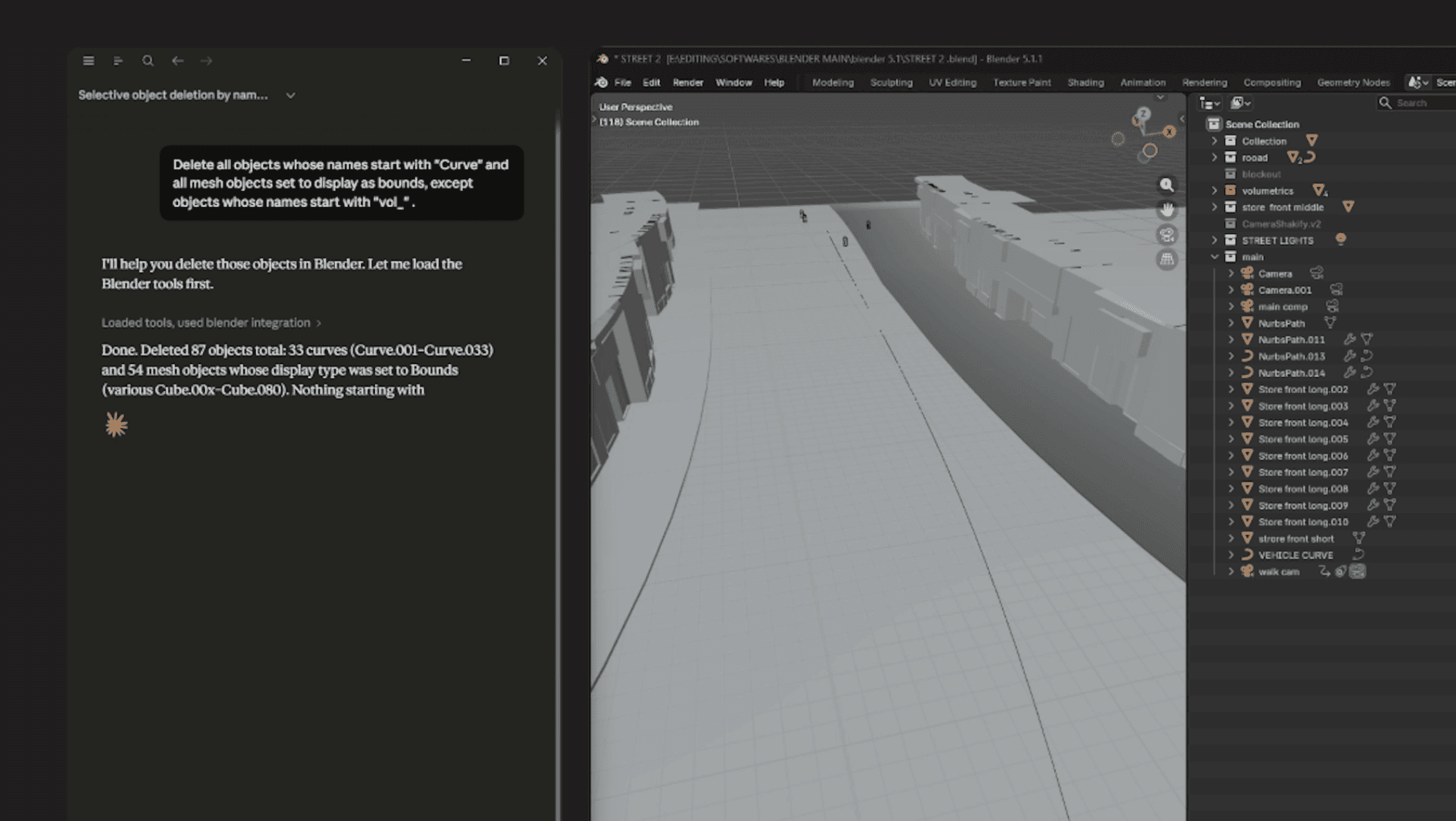
Source: Anthropic, Claude Academy – Using the Blender Connector in Claude.
Computer Use provides a different type of access. It allows Claude to interact with Blender’s visible interface by changing workspaces, opening the Outliner, selecting a collection, focusing the Text Editor, running a script, reading a traceback, or inspecting a rendered result. This is valuable when the task depends on visual context or when a particular Blender control is not exposed through MCP.
The two methods can be compared as follows:
Task | MCP | Computer Use |
|---|---|---|
Read scene and object data | Strong | Limited |
Create or modify objects | Strong | Possible through the interface |
Run Blender Python | Strong | Possible through the Scripting workspace |
Inspect viewport composition | Limited | Strong |
Review node layouts visually | Connector-dependent | Strong |
Change camera or lighting settings | Connector-dependent | Strong |
Check render output | Limited | Strong |
Perform destructive actions | Requires approval | Requires approval |
Used together, MCP can determine what needs to change, while Computer Use can open Blender and verify the visible result before Claude continues.
MCP vs. Computer Use: Which Blender Connection Should You Use?
MCP and Computer Use provide different ways for Claude to work with Blender. MCP is designed for structured communication between Claude and Blender tools, while Computer Use allows Claude to interact with the application’s visible interface. The best method depends on whether the task is primarily data-driven, visual, or a combination of both.
MCP is the better choice when Claude needs to inspect or process a large amount of scene information. A Blender connector can expose tools for listing objects, reading materials, checking modifiers, analyzing collections, running Python, and applying repeatable changes. For example, Claude can find every object using a specific material, identify meshes with high polygon counts, or rename objects that still have default names.
This structured approach is also useful for procedural workflows. Claude can generate a Python script that creates a scene, assigns materials, places cameras, or builds repeated geometry. Because the operation is expressed through Blender’s API, it is usually more consistent than asking Computer Use to drag and position every object manually.
Computer Use is more appropriate when the task depends on Blender’s interface or visual output. Claude can open the Scripting workspace, focus the Text Editor, run a script, inspect the Info Editor for errors, switch to Camera View, change viewport shading, or review a rendered image. It can also interact with controls that the MCP connector does not expose.
A practical rule is:
Use MCP to inspect scene data, execute structured operations, and automate repeatable tasks.
Use Computer Use to navigate Blender, operate interface controls, inspect the viewport, and verify visual results.
Use both when a workflow requires structured scene changes followed by visual review.
For example, Claude could use MCP to locate all objects with a high subdivision level. It could then open Blender’s viewport with Computer Use, inspect representative objects, and show how the scene looks before suggesting an optimization. Only after approval should Claude apply a batch change.
The Model Context Protocol documentation describes MCP as a standardized way for applications to provide tools and context to language models. In Blender, its main advantage is structured access; Computer Use complements it by adding visual awareness and interface control.
How Do You Connect Claude to a Blender MCP Server?
Connecting Claude to Blender requires a communication bridge between the Claude client and the running Blender application. This bridge may be provided by the official Blender connector available through Claude, a community MCP server, or a custom Blender add-on. In each case, Claude sends a request through MCP, the server passes it to Blender, and Blender returns scene information or performs an approved operation.
The overall architecture usually looks like this:
Claude → MCP server → Blender add-on → Blender Python API → open .blend scene
The MCP server does not replace Blender or expose every Blender feature automatically. It provides a defined set of tools. One connector may support scene inspection and Python execution, while another may also provide object creation, material editing, rendering, asset downloads, or export tools. Review the connector’s supported Blender versions and capabilities before configuring it.

Source: Anthropic, Claude Academy – Using the Blender Connector in Claude.
Requirements
A typical setup includes:
Blender 4.2 or a compatible version
Claude Desktop or another Claude client with MCP support
A Blender MCP connector or server
The corresponding Blender add-on
Python or
uv, depending on the connectorA local or cloud computer where Claude and Blender can run
A test
.blendfileA backup of any production scene
The Claude Blender connector guide describes a setup based on Claude Desktop, a Blender add-on, and an open Blender project. Community implementations may use a local socket server, a terminal process, or a different configuration file.
Basic Connection Process
Install Blender and confirm that the version is supported.
Add the Blender connector to Claude or configure the MCP server manually.
Install the Blender add-on supplied by the connector.
Open Blender and enable the add-on from Edit → Preferences → Add-ons.
Open a test
.blendfile.Display the BlenderMCP panel from the 3D View sidebar by pressing
N.Start the MCP server or click the connector’s connection button.
Restart Claude if the client requires a configuration reload.
Confirm that the Blender tools are available.
Run a read-only request before attempting any changes.
A community Blender MCP implementation uses a local server configuration and a Blender add-on. Its documented connection flow includes installing the server, enabling the add-on, opening the BlenderMCP tab, and starting the server from the 3D viewport.

Source: teamipc/blender-mcp community project.
First Read-Only Test
Begin with a request that does not alter the scene:
“Inspect the current Blender scene and list all objects, collections, materials, cameras, and lights. Do not modify anything.”You can then test a more specific query:
“Which objects use the material named Glass_Tinted, and which modifiers are applied to them?”If Claude returns information from the open .blend file, the connection is working. Only after this verification should you test scene creation, Python execution, material changes, or rendering operations. Save a separate version of the file before approving any workflow that can modify or delete scene data.

Source: teamipc/blender-mcp GitHub repository.
How Do You Use Claude Computer Use With Blender?
Computer Use allows Claude to interact with Blender through its visible interface. Instead of relying only on MCP tools, Claude can observe the current screen, identify workspaces and panels, and perform actions such as clicking, typing, switching views, running scripts, and reviewing the updated result.
In Blender, the most reliable Computer Use workflow is not manual pixel-based modeling. It is a controlled scripting loop:
Claude observes the current Blender interface.
It switches to the Scripting workspace.
It focuses the Text Editor.
It enters or updates a Blender Python script.
It runs the script.
It reads the output or traceback in the Info Editor or Console.
It checks the updated scene in the viewport.
It revises the script if the result is incorrect.
This write–run–observe cycle is described in a practical Computer Use and Blender experiment. It shows why Blender’s scripting interface can be a more dependable automation target than asking an agent to drag individual vertices or precisely manipulate gizmos with the mouse.
You can give Claude a narrowly defined instruction such as:
“Open the Scripting workspace, run the prepared Blender Python script, inspect the Info Editor for errors, and stop before saving the file.”Other useful Computer Use actions include opening the Outliner, expanding a collection, switching to Camera View, changing viewport shading, opening the Shader Editor, checking modifier panels, viewing a render, or confirming that an object is visible in the expected position.

Source: Blender Foundation, Blender Manual – Workspaces.
Computer Use is less reliable for pixel-perfect work such as manual sculpting, placing individual vertices, or dragging a transform gizmo to an exact screen coordinate. Whenever possible, express these operations through Blender Python or an MCP tool and use Computer Use for navigation and verification. Anthropic’s Computer Use documentation also recommends treating interface content as untrusted and requiring approval for consequential actions.
Before allowing Claude to continue, confirm that the correct Blender file, scene, collection, and editor are active. Require approval before running scripts that delete objects, overwrite files, export assets, download external content, or change a large number of scene elements. This keeps Computer Use useful as a visual control layer without giving it uncontrolled access to the entire Blender environment.
What Blender Workflows Can You Automate With Claude?
The most useful Blender workflows combine MCP for structured scene operations with Computer Use for visual inspection. Claude can analyze the .blend file, propose a change, apply it through Blender’s Python API, and then use the viewport or render window to check the result. This creates a reviewable workflow instead of treating every generated script as automatically correct.
Scene Cleanup and Naming Standards
Claude can scan objects, collections, and materials for default or misleading names. It can identify names such as Cube.001, Material.003, or a collection whose contents do not match its label. MCP can return the relevant data, while Computer Use can open the Outliner and confirm the scene structure before Claude proposes a rename operation.
Example prompt:
“Find objects, collections, and materials with default names. Suggest descriptive replacements based on their contents, but do not rename anything yet.”
Source: Blender Foundation, Blender Manual – Outliner.
Geometry Nodes and Modifier Review
Claude can inspect a Geometry Nodes modifier or a complex modifier stack and explain how data flows through it. It can also add explanatory frame labels inside the Node Editor so that the documentation remains part of the Blender file. This is useful when taking over a scene created by another artist or reviewing a procedural asset before making changes.

Source: Blender Foundation, Blender Manual – Node Editor.
Material and Shader Audits
Claude can identify which objects use a particular material, inspect shader nodes, and locate unused materials. It can propose changes such as replacing a material across a collection, correcting a color or roughness value, or identifying objects that should use a different shader. Computer Use can open the Shader Editor and viewport to confirm that the visual result matches the intended change.

Source: Blender Foundation, Blender Manual – Shader Editor.
Procedural Scene Generation
Claude can create repeatable scenes through Blender Python or exposed MCP tools. Practical examples include a low-poly environment, a product visualization setup, a studio scene, a procedural city block, or a layout containing repeated architectural elements. The advantage is that the scene can be regenerated from parameters rather than modeled manually each time.
A useful instruction might be:
“Create a small studio scene with a floor, backdrop, three area lights, one camera, and a product pedestal. Use named collections and stop before rendering.”Camera and Lighting Setup
Claude can inspect existing cameras and lights, create a new camera, aim it at a selected object, and configure a basic lighting setup. Computer Use is useful for checking framing, object visibility, shadows, and composition in Camera View or Rendered View. This makes Claude useful for product previews, isometric illustrations, and early camera blocking.
Render and Export Preparation
Claude can prepare render settings, resolution, output paths, active cameras, and export options. Some Blender MCP implementations also expose tools for rendering or exporting scenes. Before execution, Claude should show the selected camera, file format, destination, and whether an existing file will be overwritten. External asset sources such as Poly Haven should also be enabled only when required.

Source: Blender Foundation, Blender Manual – Output Properties.
Scene Performance Review
Claude can inspect polygon counts, subdivision levels, heavy modifiers, large textures, and unused data blocks. It can flag meshes that are expensive relative to how small they appear in the active camera view. The official Blender connector examples describe a similar workflow that compares polygon count with camera visibility to identify inefficient objects.
Error-Driven Script Iteration
When a Blender Python script fails, Claude can read the traceback from the Info Editor or Console, explain the error, and produce a corrected version. Computer Use can run the updated script and check whether the scene changes as expected.
For each workflow, use the same sequence:
Inspect → Explain → Propose → Approve → Execute → Verify
This keeps Claude useful for scene generation and automation while preserving control over changes to the Blender project.
How Do You Use MCP and Computer Use Safely With Blender?
A Blender scene can contain valuable modeling work, external asset references, scripts, textures, credentials, and project-specific data. Connecting Claude to Blender should therefore be treated as a controlled automation workflow rather than unrestricted access to the application.
Start with a duplicate .blend file or a dedicated test scene. Use read-only prompts first to confirm that Claude is connected to the correct file, active scene, collection, and Blender instance. Before running any script, ask Claude to explain which objects, materials, collections, or files will be affected.
A reliable workflow separates the process into clear stages:
Inspect: read scene information and current interface state.
Analyze: identify the requested change and possible risks.
Propose: list the planned operations and affected data.
Approve: wait for user confirmation.
Execute: run the MCP tool or Blender Python code.
Verify: inspect the scene, viewport, render, or output file.
Save: create a new version only after the result is accepted.
Approval should be required before Claude:
Deletes objects, collections, materials, or data blocks
Runs arbitrary Python code
Overwrites a
.blendfileSaves over an existing render or export
Downloads external assets
Sends data to an external service
Changes many objects or materials at once
Modifies credentials or API settings
This is especially important because the Blender MCP server documentation warns that LLM-generated code may run without built-in protections against data removal or remote data transmission. Community implementations also note that Python execution is powerful but potentially dangerous.

Source: Konadu.dev, “Computer Use MCP + Blender: What Works, What Breaks”.
Computer Use requires additional safeguards. Confirm that Claude is interacting with the intended Blender window and stop if it encounters an unexpected file dialog, popup, render window, scene, or editor. Short action sequences are easier to review than long chains of clicks.
Keep external asset integrations disabled unless they are necessary. Limit file access to the project directory where possible, and avoid placing sensitive credentials inside prompts or scripts. Finally, compare the scene before and after each significant operation by checking object counts, collections, materials, modifiers, camera settings, and visible geometry. This preserves a recoverable version of the project while allowing Claude to automate repetitive Blender work.
Run Blender and Claude Together on Vagon Cloud Computer
Running Blender, Claude, the MCP server, and Computer Use on the same Vagon Cloud Computer can provide a persistent environment for AI-assisted 3D workflows. Instead of reinstalling Blender add-ons, reconnecting the MCP server, or transferring large .blend files between devices, you can keep the complete setup in one configurable Windows cloud computer.
This is useful for tasks that take longer than a single interaction. Procedural scene generation, large asset imports, render preparation, batch exports, scene audits, and script iteration may require Blender to remain open while Claude processes information and checks the result. A persistent environment allows the Blender installation, add-on settings, MCP configuration, scripts, asset libraries, and project files to remain available between sessions.
Performance is particularly important for Blender. Large scenes, high-resolution textures, Geometry Nodes systems, rendered viewport previews, and Cycles rendering can require considerable GPU memory and system RAM. Choose a Vagon configuration that matches the complexity of the project. GPU resources are especially relevant when Claude uses Computer Use to inspect rendered previews or when Blender must display detailed 3D scenes interactively.
A practical Vagon setup can include:
Blender and the required MCP add-on installed on the cloud computer
Claude and the MCP server configured in the same environment
A dedicated project directory for
.blendfiles, scripts, textures, and exportsSeparate test and production versions of each scene
Versioned output folders for renders and exported assets
Enough GPU, CPU, RAM, and storage for the target Blender workflow
Before connecting a production scene, test the complete workflow on a copy. Ask Claude to inspect the current scene, run a harmless query, and verify that Computer Use can navigate Blender. Then test a small object or material change before approving a larger batch operation.
Vagon does not turn Blender into a native AI application. It provides the persistent cloud computer where Blender, Claude, MCP, Python, and Computer Use can run together. This can reduce setup friction and give artists, designers, and teams a consistent environment for testing and operating Blender automation workflows.
FAQs
Can Claude directly control Blender?
Yes, when Blender is connected through a compatible MCP connector or add-on. Claude can inspect and modify the open scene through Blender’s Python API or the tools exposed by the MCP server.
Do I need Blender MCP to use Claude with Blender?
MCP is the structured connection method for reading scene data and executing Blender operations. Computer Use can interact with the Blender interface separately, but MCP provides more reliable access to objects, materials, modifiers, collections, and scene settings.
Does Claude edit the .blend file directly?
Claude generally operates on the open Blender scene through Blender’s Python API. Changes apply to the active session and are written to the .blend file when the user saves it.
Can Claude create 3D models in Blender?
Yes. Claude can generate Python code or use MCP tools to create objects, materials, cameras, lighting, and procedural scenes. The result should be reviewed in Blender before it is saved or exported.
Can Claude work with Geometry Nodes?
A compatible connector may allow Claude to inspect Geometry Nodes setups, explain node flow, add labels, or modify nodes. The available capabilities depend on the connector and the complexity of the node tree.
Can Claude change Blender materials?
Yes. Claude can inspect materials, modify shader values, assign materials to objects, and apply changes across a collection when the MCP server exposes those tools. Visual verification is recommended after large batch changes.
Can Claude render Blender scenes?
Some Blender MCP servers expose render and camera tools. Claude can configure render settings and start a render, but output paths, file formats, overwrite behavior, and external asset use should require user confirmation.
Is Computer Use reliable for Blender modeling?
Computer Use is useful for navigating workspaces, running scripts, reading errors, and verifying viewport or render results. Pixel-perfect tasks such as sculpting, manual vertex placement, or precise gizmo dragging are less reliable than operations expressed through Blender Python or MCP tools.
Is it safe to let Claude run Blender Python?
Only in a controlled environment. Arbitrary Python execution can modify or delete scene data and may interact with local files or external services. Use backups, limited permissions, small scripts, and explicit approval before running code that changes the project.
Can Blender and Claude run on Vagon?
Yes, provided the Vagon Cloud Computer has a compatible Windows environment, Blender, Claude, the required MCP server, Python runtime, and suitable GPU resources installed.
Can Claude optimize Blender scenes?
Claude can identify high polygon counts, unnecessary subdivision levels, heavy modifiers, unused materials, large textures, and inefficient scene structures. Optimization suggestions should be reviewed visually and technically before being applied across the project.
Is the Blender connector an official Blender feature?
The connector described in the Claude Blender guide is presented as being built by Blender developers. Other projects, including community Blender MCP servers, are third-party integrations and should be identified as such.
Can Claude work without Blender being open?
A connected MCP workflow generally requires Blender to be running with the relevant project open. Some connectors may support headless or background automation, but the available features and setup depend on the specific implementation.
Using Claude with Blender involves more than asking an AI model to generate bpy scripts or explain Blender’s Python API. With a compatible Model Context Protocol (MCP) connector, Claude can communicate with an open Blender scene and work with structured information from the application.
Through this connection, Claude can inspect objects, collections, materials, modifiers, cameras, lights, and Geometry Nodes setups. It can explain how a complex scene is organized, identify unused or misleading data, create and modify objects, apply materials, configure cameras, and run Python code inside Blender. The Blender connector for Claude also supports practical workflows such as batch changes across multiple objects and scene cleanup.
Computer Use adds a visual layer to the process. Claude can navigate Blender’s workspaces, open the Scripting workspace, run a script, read errors from the Info Editor, inspect the viewport, and verify whether the result looks correct. MCP provides structured access to the scene, while Computer Use helps Claude interact with and review the visible application.
This is not a native one-click Blender feature. You need a compatible Blender version, an MCP server or connector, a Blender add-on, a supported Claude client, and a running local or cloud computer environment. Changes should always be reviewed before saving the .blend file.
What Can Claude Do With Blender Through MCP and Computer Use?
When connected to Blender through MCP, Claude can work with the current scene at the level of structured application data. Instead of relying only on screenshots, it can inspect objects, collections, materials, modifiers, cameras, lights, and scene settings through the available Blender tools.
Claude can use this information to answer practical questions about a .blend file. For example, it can list all objects in a collection, identify which meshes use a specific material, report the modifiers applied to an active object, or explain how a Geometry Nodes setup processes data. It can also find unused materials, duplicate names, default object names, and assets that may be increasing scene complexity.
Depending on the connector, Claude may be able to create and modify objects, apply materials, configure lighting, set camera positions, run Blender Python code, start renders, and export assets. The community Blender MCP project documents capabilities such as object manipulation, material control, scene inspection, Python execution, and asset generation. These capabilities are connector-dependent, so the same prompt may produce different results with another MCP implementation.
Source: Anthropic, Claude Academy – Using the Blender Connector in Claude.
Computer Use provides a different type of access. It allows Claude to interact with Blender’s visible interface by changing workspaces, opening the Outliner, selecting a collection, focusing the Text Editor, running a script, reading a traceback, or inspecting a rendered result. This is valuable when the task depends on visual context or when a particular Blender control is not exposed through MCP.
The two methods can be compared as follows:
Task | MCP | Computer Use |
|---|---|---|
Read scene and object data | Strong | Limited |
Create or modify objects | Strong | Possible through the interface |
Run Blender Python | Strong | Possible through the Scripting workspace |
Inspect viewport composition | Limited | Strong |
Review node layouts visually | Connector-dependent | Strong |
Change camera or lighting settings | Connector-dependent | Strong |
Check render output | Limited | Strong |
Perform destructive actions | Requires approval | Requires approval |
Used together, MCP can determine what needs to change, while Computer Use can open Blender and verify the visible result before Claude continues.
MCP vs. Computer Use: Which Blender Connection Should You Use?
MCP and Computer Use provide different ways for Claude to work with Blender. MCP is designed for structured communication between Claude and Blender tools, while Computer Use allows Claude to interact with the application’s visible interface. The best method depends on whether the task is primarily data-driven, visual, or a combination of both.
MCP is the better choice when Claude needs to inspect or process a large amount of scene information. A Blender connector can expose tools for listing objects, reading materials, checking modifiers, analyzing collections, running Python, and applying repeatable changes. For example, Claude can find every object using a specific material, identify meshes with high polygon counts, or rename objects that still have default names.
This structured approach is also useful for procedural workflows. Claude can generate a Python script that creates a scene, assigns materials, places cameras, or builds repeated geometry. Because the operation is expressed through Blender’s API, it is usually more consistent than asking Computer Use to drag and position every object manually.
Computer Use is more appropriate when the task depends on Blender’s interface or visual output. Claude can open the Scripting workspace, focus the Text Editor, run a script, inspect the Info Editor for errors, switch to Camera View, change viewport shading, or review a rendered image. It can also interact with controls that the MCP connector does not expose.
A practical rule is:
Use MCP to inspect scene data, execute structured operations, and automate repeatable tasks.
Use Computer Use to navigate Blender, operate interface controls, inspect the viewport, and verify visual results.
Use both when a workflow requires structured scene changes followed by visual review.
For example, Claude could use MCP to locate all objects with a high subdivision level. It could then open Blender’s viewport with Computer Use, inspect representative objects, and show how the scene looks before suggesting an optimization. Only after approval should Claude apply a batch change.
The Model Context Protocol documentation describes MCP as a standardized way for applications to provide tools and context to language models. In Blender, its main advantage is structured access; Computer Use complements it by adding visual awareness and interface control.
How Do You Connect Claude to a Blender MCP Server?
Connecting Claude to Blender requires a communication bridge between the Claude client and the running Blender application. This bridge may be provided by the official Blender connector available through Claude, a community MCP server, or a custom Blender add-on. In each case, Claude sends a request through MCP, the server passes it to Blender, and Blender returns scene information or performs an approved operation.
The overall architecture usually looks like this:
Claude → MCP server → Blender add-on → Blender Python API → open .blend scene
The MCP server does not replace Blender or expose every Blender feature automatically. It provides a defined set of tools. One connector may support scene inspection and Python execution, while another may also provide object creation, material editing, rendering, asset downloads, or export tools. Review the connector’s supported Blender versions and capabilities before configuring it.
Source: Anthropic, Claude Academy – Using the Blender Connector in Claude.
Requirements
A typical setup includes:
Blender 4.2 or a compatible version
Claude Desktop or another Claude client with MCP support
A Blender MCP connector or server
The corresponding Blender add-on
Python or
uv, depending on the connectorA local or cloud computer where Claude and Blender can run
A test
.blendfileA backup of any production scene
The Claude Blender connector guide describes a setup based on Claude Desktop, a Blender add-on, and an open Blender project. Community implementations may use a local socket server, a terminal process, or a different configuration file.
Basic Connection Process
Install Blender and confirm that the version is supported.
Add the Blender connector to Claude or configure the MCP server manually.
Install the Blender add-on supplied by the connector.
Open Blender and enable the add-on from Edit → Preferences → Add-ons.
Open a test
.blendfile.Display the BlenderMCP panel from the 3D View sidebar by pressing
N.Start the MCP server or click the connector’s connection button.
Restart Claude if the client requires a configuration reload.
Confirm that the Blender tools are available.
Run a read-only request before attempting any changes.
A community Blender MCP implementation uses a local server configuration and a Blender add-on. Its documented connection flow includes installing the server, enabling the add-on, opening the BlenderMCP tab, and starting the server from the 3D viewport.
Source: teamipc/blender-mcp community project.
First Read-Only Test
Begin with a request that does not alter the scene:
“Inspect the current Blender scene and list all objects, collections, materials, cameras, and lights. Do not modify anything.”You can then test a more specific query:
“Which objects use the material named Glass_Tinted, and which modifiers are applied to them?”If Claude returns information from the open .blend file, the connection is working. Only after this verification should you test scene creation, Python execution, material changes, or rendering operations. Save a separate version of the file before approving any workflow that can modify or delete scene data.
Source: teamipc/blender-mcp GitHub repository.
How Do You Use Claude Computer Use With Blender?
Computer Use allows Claude to interact with Blender through its visible interface. Instead of relying only on MCP tools, Claude can observe the current screen, identify workspaces and panels, and perform actions such as clicking, typing, switching views, running scripts, and reviewing the updated result.
In Blender, the most reliable Computer Use workflow is not manual pixel-based modeling. It is a controlled scripting loop:
Claude observes the current Blender interface.
It switches to the Scripting workspace.
It focuses the Text Editor.
It enters or updates a Blender Python script.
It runs the script.
It reads the output or traceback in the Info Editor or Console.
It checks the updated scene in the viewport.
It revises the script if the result is incorrect.
This write–run–observe cycle is described in a practical Computer Use and Blender experiment. It shows why Blender’s scripting interface can be a more dependable automation target than asking an agent to drag individual vertices or precisely manipulate gizmos with the mouse.
You can give Claude a narrowly defined instruction such as:
“Open the Scripting workspace, run the prepared Blender Python script, inspect the Info Editor for errors, and stop before saving the file.”Other useful Computer Use actions include opening the Outliner, expanding a collection, switching to Camera View, changing viewport shading, opening the Shader Editor, checking modifier panels, viewing a render, or confirming that an object is visible in the expected position.
Source: Blender Foundation, Blender Manual – Workspaces.
Computer Use is less reliable for pixel-perfect work such as manual sculpting, placing individual vertices, or dragging a transform gizmo to an exact screen coordinate. Whenever possible, express these operations through Blender Python or an MCP tool and use Computer Use for navigation and verification. Anthropic’s Computer Use documentation also recommends treating interface content as untrusted and requiring approval for consequential actions.
Before allowing Claude to continue, confirm that the correct Blender file, scene, collection, and editor are active. Require approval before running scripts that delete objects, overwrite files, export assets, download external content, or change a large number of scene elements. This keeps Computer Use useful as a visual control layer without giving it uncontrolled access to the entire Blender environment.
What Blender Workflows Can You Automate With Claude?
The most useful Blender workflows combine MCP for structured scene operations with Computer Use for visual inspection. Claude can analyze the .blend file, propose a change, apply it through Blender’s Python API, and then use the viewport or render window to check the result. This creates a reviewable workflow instead of treating every generated script as automatically correct.
Scene Cleanup and Naming Standards
Claude can scan objects, collections, and materials for default or misleading names. It can identify names such as Cube.001, Material.003, or a collection whose contents do not match its label. MCP can return the relevant data, while Computer Use can open the Outliner and confirm the scene structure before Claude proposes a rename operation.
Example prompt:
“Find objects, collections, and materials with default names. Suggest descriptive replacements based on their contents, but do not rename anything yet.”Source: Blender Foundation, Blender Manual – Outliner.
Geometry Nodes and Modifier Review
Claude can inspect a Geometry Nodes modifier or a complex modifier stack and explain how data flows through it. It can also add explanatory frame labels inside the Node Editor so that the documentation remains part of the Blender file. This is useful when taking over a scene created by another artist or reviewing a procedural asset before making changes.
Source: Blender Foundation, Blender Manual – Node Editor.
Material and Shader Audits
Claude can identify which objects use a particular material, inspect shader nodes, and locate unused materials. It can propose changes such as replacing a material across a collection, correcting a color or roughness value, or identifying objects that should use a different shader. Computer Use can open the Shader Editor and viewport to confirm that the visual result matches the intended change.
Source: Blender Foundation, Blender Manual – Shader Editor.
Procedural Scene Generation
Claude can create repeatable scenes through Blender Python or exposed MCP tools. Practical examples include a low-poly environment, a product visualization setup, a studio scene, a procedural city block, or a layout containing repeated architectural elements. The advantage is that the scene can be regenerated from parameters rather than modeled manually each time.
A useful instruction might be:
“Create a small studio scene with a floor, backdrop, three area lights, one camera, and a product pedestal. Use named collections and stop before rendering.”Camera and Lighting Setup
Claude can inspect existing cameras and lights, create a new camera, aim it at a selected object, and configure a basic lighting setup. Computer Use is useful for checking framing, object visibility, shadows, and composition in Camera View or Rendered View. This makes Claude useful for product previews, isometric illustrations, and early camera blocking.
Render and Export Preparation
Claude can prepare render settings, resolution, output paths, active cameras, and export options. Some Blender MCP implementations also expose tools for rendering or exporting scenes. Before execution, Claude should show the selected camera, file format, destination, and whether an existing file will be overwritten. External asset sources such as Poly Haven should also be enabled only when required.
Source: Blender Foundation, Blender Manual – Output Properties.
Scene Performance Review
Claude can inspect polygon counts, subdivision levels, heavy modifiers, large textures, and unused data blocks. It can flag meshes that are expensive relative to how small they appear in the active camera view. The official Blender connector examples describe a similar workflow that compares polygon count with camera visibility to identify inefficient objects.
Error-Driven Script Iteration
When a Blender Python script fails, Claude can read the traceback from the Info Editor or Console, explain the error, and produce a corrected version. Computer Use can run the updated script and check whether the scene changes as expected.
For each workflow, use the same sequence:
Inspect → Explain → Propose → Approve → Execute → Verify
This keeps Claude useful for scene generation and automation while preserving control over changes to the Blender project.
How Do You Use MCP and Computer Use Safely With Blender?
A Blender scene can contain valuable modeling work, external asset references, scripts, textures, credentials, and project-specific data. Connecting Claude to Blender should therefore be treated as a controlled automation workflow rather than unrestricted access to the application.
Start with a duplicate .blend file or a dedicated test scene. Use read-only prompts first to confirm that Claude is connected to the correct file, active scene, collection, and Blender instance. Before running any script, ask Claude to explain which objects, materials, collections, or files will be affected.
A reliable workflow separates the process into clear stages:
Inspect: read scene information and current interface state.
Analyze: identify the requested change and possible risks.
Propose: list the planned operations and affected data.
Approve: wait for user confirmation.
Execute: run the MCP tool or Blender Python code.
Verify: inspect the scene, viewport, render, or output file.
Save: create a new version only after the result is accepted.
Approval should be required before Claude:
Deletes objects, collections, materials, or data blocks
Runs arbitrary Python code
Overwrites a
.blendfileSaves over an existing render or export
Downloads external assets
Sends data to an external service
Changes many objects or materials at once
Modifies credentials or API settings
This is especially important because the Blender MCP server documentation warns that LLM-generated code may run without built-in protections against data removal or remote data transmission. Community implementations also note that Python execution is powerful but potentially dangerous.
Source: Konadu.dev, “Computer Use MCP + Blender: What Works, What Breaks”.
Computer Use requires additional safeguards. Confirm that Claude is interacting with the intended Blender window and stop if it encounters an unexpected file dialog, popup, render window, scene, or editor. Short action sequences are easier to review than long chains of clicks.
Keep external asset integrations disabled unless they are necessary. Limit file access to the project directory where possible, and avoid placing sensitive credentials inside prompts or scripts. Finally, compare the scene before and after each significant operation by checking object counts, collections, materials, modifiers, camera settings, and visible geometry. This preserves a recoverable version of the project while allowing Claude to automate repetitive Blender work.
Run Blender and Claude Together on Vagon Cloud Computer
Running Blender, Claude, the MCP server, and Computer Use on the same Vagon Cloud Computer can provide a persistent environment for AI-assisted 3D workflows. Instead of reinstalling Blender add-ons, reconnecting the MCP server, or transferring large .blend files between devices, you can keep the complete setup in one configurable Windows cloud computer.
This is useful for tasks that take longer than a single interaction. Procedural scene generation, large asset imports, render preparation, batch exports, scene audits, and script iteration may require Blender to remain open while Claude processes information and checks the result. A persistent environment allows the Blender installation, add-on settings, MCP configuration, scripts, asset libraries, and project files to remain available between sessions.
Performance is particularly important for Blender. Large scenes, high-resolution textures, Geometry Nodes systems, rendered viewport previews, and Cycles rendering can require considerable GPU memory and system RAM. Choose a Vagon configuration that matches the complexity of the project. GPU resources are especially relevant when Claude uses Computer Use to inspect rendered previews or when Blender must display detailed 3D scenes interactively.
A practical Vagon setup can include:
Blender and the required MCP add-on installed on the cloud computer
Claude and the MCP server configured in the same environment
A dedicated project directory for
.blendfiles, scripts, textures, and exportsSeparate test and production versions of each scene
Versioned output folders for renders and exported assets
Enough GPU, CPU, RAM, and storage for the target Blender workflow
Before connecting a production scene, test the complete workflow on a copy. Ask Claude to inspect the current scene, run a harmless query, and verify that Computer Use can navigate Blender. Then test a small object or material change before approving a larger batch operation.
Vagon does not turn Blender into a native AI application. It provides the persistent cloud computer where Blender, Claude, MCP, Python, and Computer Use can run together. This can reduce setup friction and give artists, designers, and teams a consistent environment for testing and operating Blender automation workflows.
FAQs
Can Claude directly control Blender?
Yes, when Blender is connected through a compatible MCP connector or add-on. Claude can inspect and modify the open scene through Blender’s Python API or the tools exposed by the MCP server.
Do I need Blender MCP to use Claude with Blender?
MCP is the structured connection method for reading scene data and executing Blender operations. Computer Use can interact with the Blender interface separately, but MCP provides more reliable access to objects, materials, modifiers, collections, and scene settings.
Does Claude edit the .blend file directly?
Claude generally operates on the open Blender scene through Blender’s Python API. Changes apply to the active session and are written to the .blend file when the user saves it.
Can Claude create 3D models in Blender?
Yes. Claude can generate Python code or use MCP tools to create objects, materials, cameras, lighting, and procedural scenes. The result should be reviewed in Blender before it is saved or exported.
Can Claude work with Geometry Nodes?
A compatible connector may allow Claude to inspect Geometry Nodes setups, explain node flow, add labels, or modify nodes. The available capabilities depend on the connector and the complexity of the node tree.
Can Claude change Blender materials?
Yes. Claude can inspect materials, modify shader values, assign materials to objects, and apply changes across a collection when the MCP server exposes those tools. Visual verification is recommended after large batch changes.
Can Claude render Blender scenes?
Some Blender MCP servers expose render and camera tools. Claude can configure render settings and start a render, but output paths, file formats, overwrite behavior, and external asset use should require user confirmation.
Is Computer Use reliable for Blender modeling?
Computer Use is useful for navigating workspaces, running scripts, reading errors, and verifying viewport or render results. Pixel-perfect tasks such as sculpting, manual vertex placement, or precise gizmo dragging are less reliable than operations expressed through Blender Python or MCP tools.
Is it safe to let Claude run Blender Python?
Only in a controlled environment. Arbitrary Python execution can modify or delete scene data and may interact with local files or external services. Use backups, limited permissions, small scripts, and explicit approval before running code that changes the project.
Can Blender and Claude run on Vagon?
Yes, provided the Vagon Cloud Computer has a compatible Windows environment, Blender, Claude, the required MCP server, Python runtime, and suitable GPU resources installed.
Can Claude optimize Blender scenes?
Claude can identify high polygon counts, unnecessary subdivision levels, heavy modifiers, unused materials, large textures, and inefficient scene structures. Optimization suggestions should be reviewed visually and technically before being applied across the project.
Is the Blender connector an official Blender feature?
The connector described in the Claude Blender guide is presented as being built by Blender developers. Other projects, including community Blender MCP servers, are third-party integrations and should be identified as such.
Can Claude work without Blender being open?
A connected MCP workflow generally requires Blender to be running with the relevant project open. Some connectors may support headless or background automation, but the available features and setup depend on the specific implementation.
Get Beyond Your Computer Performance
Run applications on your cloud computer with the latest generation hardware. No more crashes or lags.

Trial includes 1 hour usage + 7 days of storage.
Summarize with AI

Ready to focus on your creativity?
Vagon gives you the ability to create & render projects, collaborate, and stream applications with the power of the best hardware.

Vagon Blog
Run heavy applications on any device with
your personal computer on the cloud.
San Francisco, California
Solutions
Vagon Teams
Vagon Streams
Use Cases
Resources
Vagon Blog
How to Use Rhino With Claude: MCP & Computer Use Guide
How to Use After Effects With Codex: MCP & Computer Use
How to Use SolidWorks With Claude: MCP & Computer Use Guide
How to Use SolidWorks With Codex: MCP & Computer Use Guide
How to Use Blender With Claude: MCP & Computer Use Guide
How to Use Revit With Codex: MCP & Computer Use Guide
How to Use Revit With Claude: MCP & Computer Use
How to Use CATIA With Claude: MCP & Computer Use
How to Use CATIA With Codex: MCP & Computer Use Guide
Vagon Blog
Run heavy applications on any device with
your personal computer on the cloud.
San Francisco, California
Solutions
Vagon Teams
Vagon Streams
Use Cases
Resources
Vagon Blog
How to Use Rhino With Claude: MCP & Computer Use Guide
How to Use After Effects With Codex: MCP & Computer Use
How to Use SolidWorks With Claude: MCP & Computer Use Guide
How to Use SolidWorks With Codex: MCP & Computer Use Guide
How to Use Blender With Claude: MCP & Computer Use Guide
How to Use Revit With Codex: MCP & Computer Use Guide
How to Use Revit With Claude: MCP & Computer Use
How to Use CATIA With Claude: MCP & Computer Use
How to Use CATIA With Codex: MCP & Computer Use Guide
Vagon Blog
Run heavy applications on any device with
your personal computer on the cloud.
San Francisco, California
Solutions
Vagon Teams
Vagon Streams
Use Cases
Resources
Vagon Blog