Instant Connection for Pixel Streaming
— New Feature Automated Setup

How to Use Claude Code With Higgsfield: MCP + Computer Use
Freelance
-
How to Use Claude Code With Higgsfield: MCP + Computer Use
Freelance
How to Use Claude Code With Higgsfield: MCP + Computer Use
Freelance
-
Table of Contents
Using Claude Code with Higgsfield is more than asking an AI assistant to write a video prompt. With Higgsfield’s official CLI and companion skills, Claude Code can connect to Higgsfield’s creative tools and help coordinate image, video, audio, character, and multi-step content workflows from the terminal. The setup uses your Higgsfield account rather than requiring a manually configured API key for the MCP/CLI workflow. You install the CLI, authenticate through your browser, and add Higgsfield’s skills to Claude Code using the instructions in the official Higgsfield guide.
There is also a second layer: Computer Use. Depending on your environment, Claude can interact with the visible Higgsfield website to upload references, inspect generated assets, review settings, and confirm that a result was saved correctly. This is different from MCP. MCP provides structured access to Higgsfield capabilities, while Computer Use works through the visual interface.
The API is a separate developer workflow with its own credentials and billing model. This guide focuses on the practical combination of Higgsfield MCP/CLI and Computer Use, showing how Claude Code can help turn a creative brief into a controlled, repeatable production workflow.
What Does “Using Claude Code With Higgsfield” Actually Mean?
Using Claude Code with Higgsfield means giving a coding agent access to Higgsfield’s creative tools through its CLI, MCP capabilities, and companion skills. Claude Code does not generate the final image or video by itself. Instead, it interprets your instructions, plans the workflow, selects or recommends a suitable model, sends the request to Higgsfield, and helps you review the result.
A typical workflow looks like this:
Claude Code → Higgsfield CLI and MCP skills → Higgsfield generation tools → Images, videos, audio, and saved assetsThis connection can support more than a single text-to-video prompt. Claude Code can help create a concept, write a script, prepare a shot list, use a reference image, generate multiple variations, and continue iterating from previous results. Higgsfield’s documentation also describes access to generation history, reusable characters, Elements, and different creative skills through connected agents.
Computer Use adds a separate visual layer. It can help Claude inspect the Higgsfield website, upload files, review outputs, and confirm interface settings when a structured MCP action is not enough.
MCP, CLI, API, and Computer Use: Four Different Layers
The terms MCP, CLI, API, and Computer Use describe different parts of the Higgsfield workflow. Understanding the difference helps you choose the right method for each task.
MCP is the communication layer that allows an AI agent to access external tools. In the Higgsfield workflow, it gives Claude Code structured access to generation capabilities, creative skills, asset history, and supported workflows.

Source: AI Tools Club
The Higgsfield CLI is the recommended connection method for Claude Code. Instead of manually copying a connector URL, you install the CLI, authenticate your Higgsfield account, and add the companion skills. The official Higgsfield setup guide uses this approach.
The API is intended for developers building their own applications or backend services. It requires API credentials, server-side request handling, status polling, file uploads, and separate API billing. It is not the same as the MCP/CLI workflow.
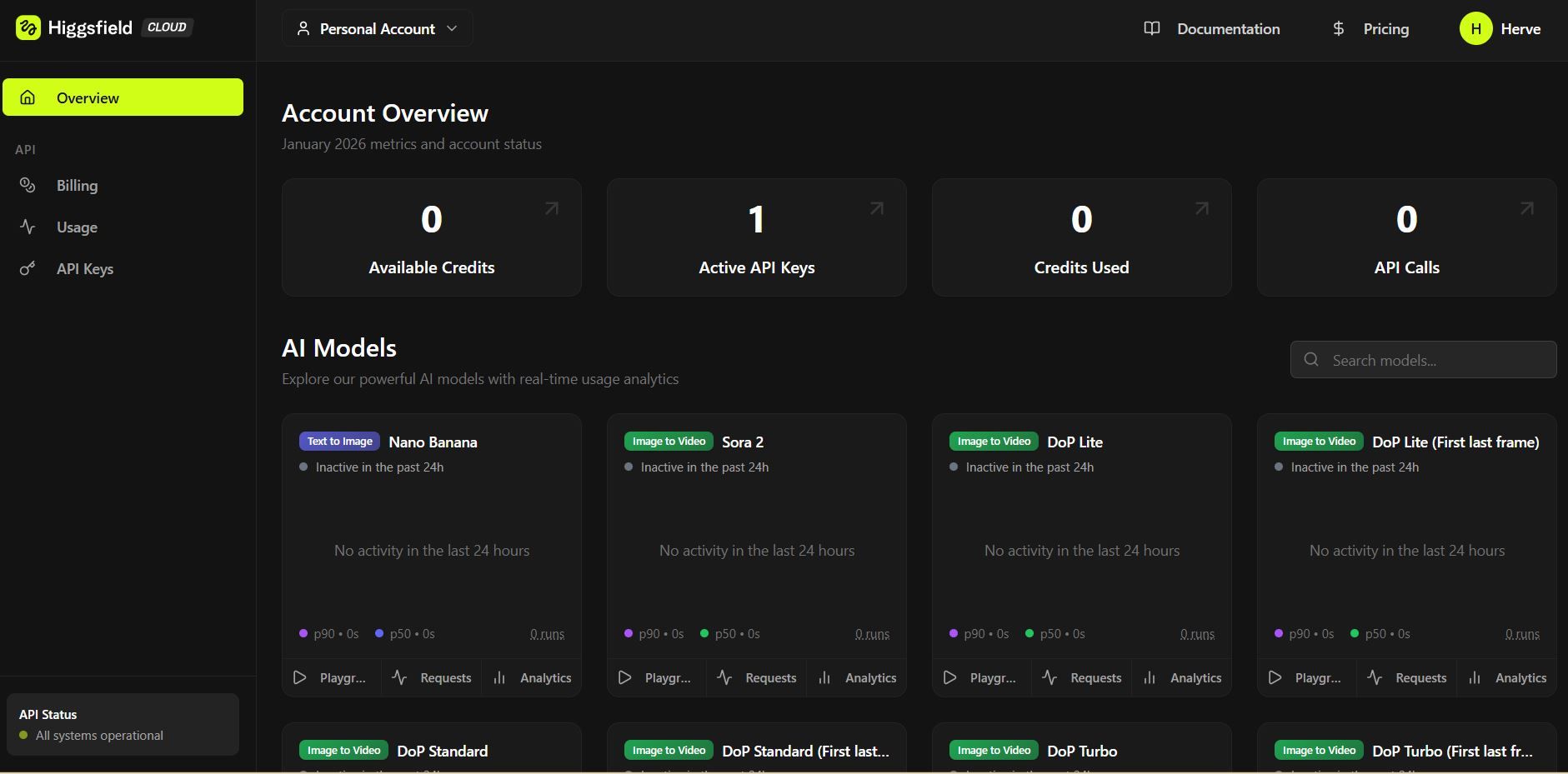
Computer Use works through the visible Higgsfield interface. It is useful for uploading references, reviewing results, checking settings, and performing visual quality control. MCP is better for structured actions; Computer Use is better when the task depends on what is visible on screen.
What You Need Before Connecting Claude Code to Higgsfield
Before setting up the connection, make sure you have an active Higgsfield account and a subscription that supports connected-agent workflows. Higgsfield uses your existing account credits for generations created through MCP or the CLI, so check your plan before testing expensive video models.
You also need Claude Code installed and available in your terminal, together with Node.js and npm for installing the Higgsfield CLI. The authentication process opens a browser window, so you should be able to complete an OAuth-style sign-in on the same machine or cloud computer.
For the MCP/CLI workflow, you do not need to manually create an API key. API credentials are required only if you plan to use the separate Higgsfield developer API.
Finally, prepare a dedicated workspace for reference images, downloaded results, prompts, and project files. Keeping these assets organized makes it easier for Claude Code to reuse references and manage repeated generation workflows.
How to Install the Higgsfield CLI for Claude Code
Higgsfield’s current Claude Code workflow uses its CLI and companion skills. This keeps the connection simple: Claude Code can authenticate your Higgsfield account, discover the available creative workflows, and send generation requests without requiring you to manually build an API integration.
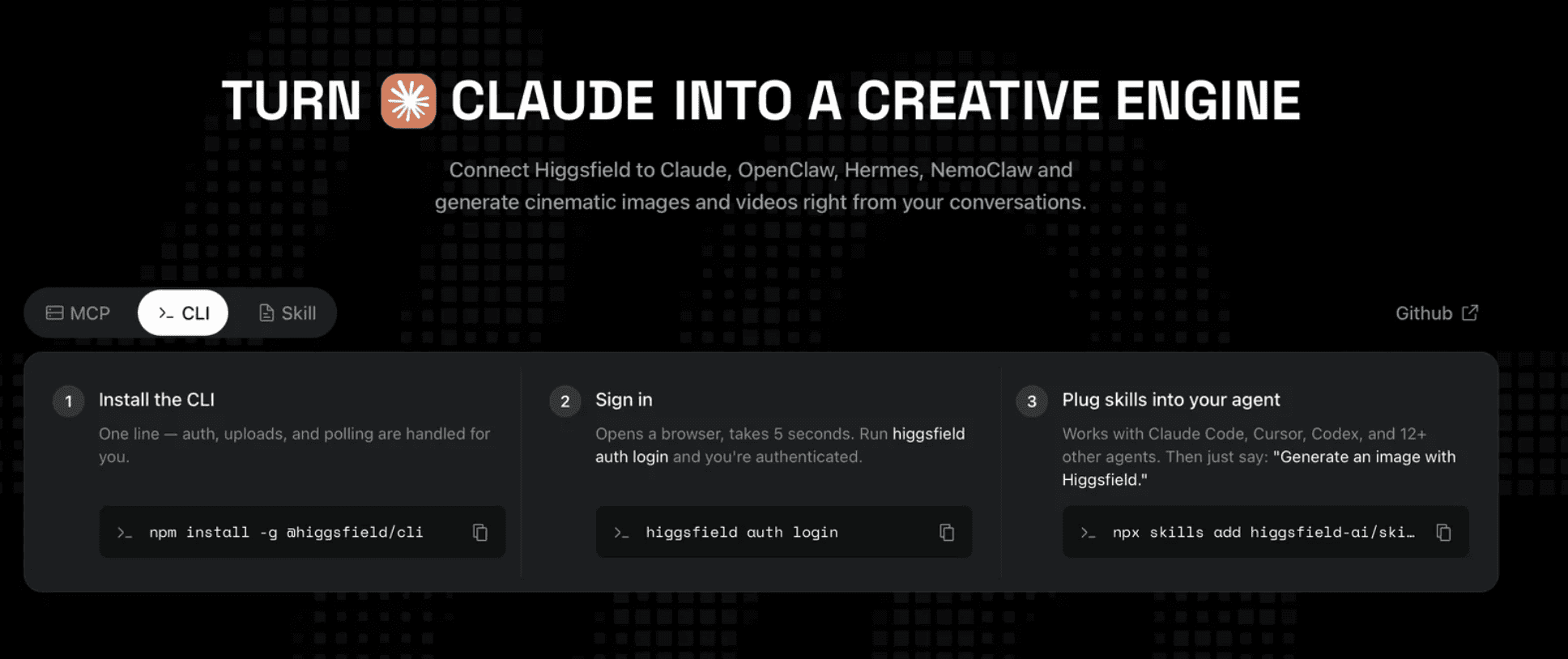
Step 1: Install the CLI
Open a terminal and run:
The global installation makes the higgsfield command available across your local projects or cloud workspace.
Step 2: Authenticate your account
Run:
A browser window will open so you can sign in and authorize the CLI. Complete the login using the Higgsfield account whose credits you want to use. Do not share your login session or credentials with an untrusted workspace.
Step 3: Install the companion skills
Next, add the official Higgsfield skills collection:
These skills provide reusable workflows for tasks such as image generation, video creation, UGC production, faceless content, marketing, motion design, and utility operations. They allow Claude Code to follow a multi-step creative process instead of treating every request as a single isolated prompt.
Source: ChatGPT Jobs
Step 4: Restart Claude Code
Close and reopen Claude Code so it can load the newly installed CLI integration and skills. Then ask Claude Code to confirm that Higgsfield is available.
For example:
The official Higgsfield CLI instructions recommend sending a similar setup request directly to Claude Code.
How to Verify That Claude Code Can Reach Higgsfield
Your first test should confirm the connection without immediately generating an image or video. This is important because Higgsfield generations use account credits, and a setup error is easier to diagnose before a paid request starts.
Open Claude Code and ask:

Source: Decode Documentation
A successful response should identify the Higgsfield integration and describe the workflows available to the current account. You can then ask Claude Code to inspect the account context:
For a more practical test, ask Claude Code to prepare—but not execute—a simple generation:
At this stage, Claude Code should explain the planned model, aspect ratio, resolution, reference requirements, and likely workflow. If it attempts to generate immediately, restate that it must request confirmation before using credits.
If the connection is not recognized, restart Claude Code, confirm that the CLI authentication completed successfully, and reinstall the companion skills if necessary. The Higgsfield help center also recommends starting a new conversation when an integration appears connected but is not being used.
The MCP Workflow: From Creative Brief to Finished Asset
The most reliable way to use Claude Code with Higgsfield is to separate planning from generation. Instead of sending a vague request such as “make a cool product video,” give Claude Code enough context to build a production plan first.
A practical workflow looks like this:
Describe the creative objective, audience, product, and platform.
Ask Claude Code to turn the idea into a concept and shot list.
Choose the output type, aspect ratio, duration, and visual style.
Ask for a model recommendation and an explanation of the choice.
Review the planned generation.
Approve the credit-consuming action.
Inspect the first result.
Iterate using the previous generation, a saved Element, or a new reference.

Source: Higgsfield
For example:
This prompt gives Claude Code a coordination role rather than treating it as a simple text box. It can decide which Higgsfield skill fits the brief, identify missing information, and present a more complete plan before any credits are spent.
After reviewing the plan, you might respond:
Once the result is available, Claude Code can help compare variations, identify weaknesses, and prepare the next iteration. The MCP connection handles the structured interaction with Higgsfield, while you remain responsible for approving the creative direction and paid actions.
Using Reference Images, Characters, and Previous Generations
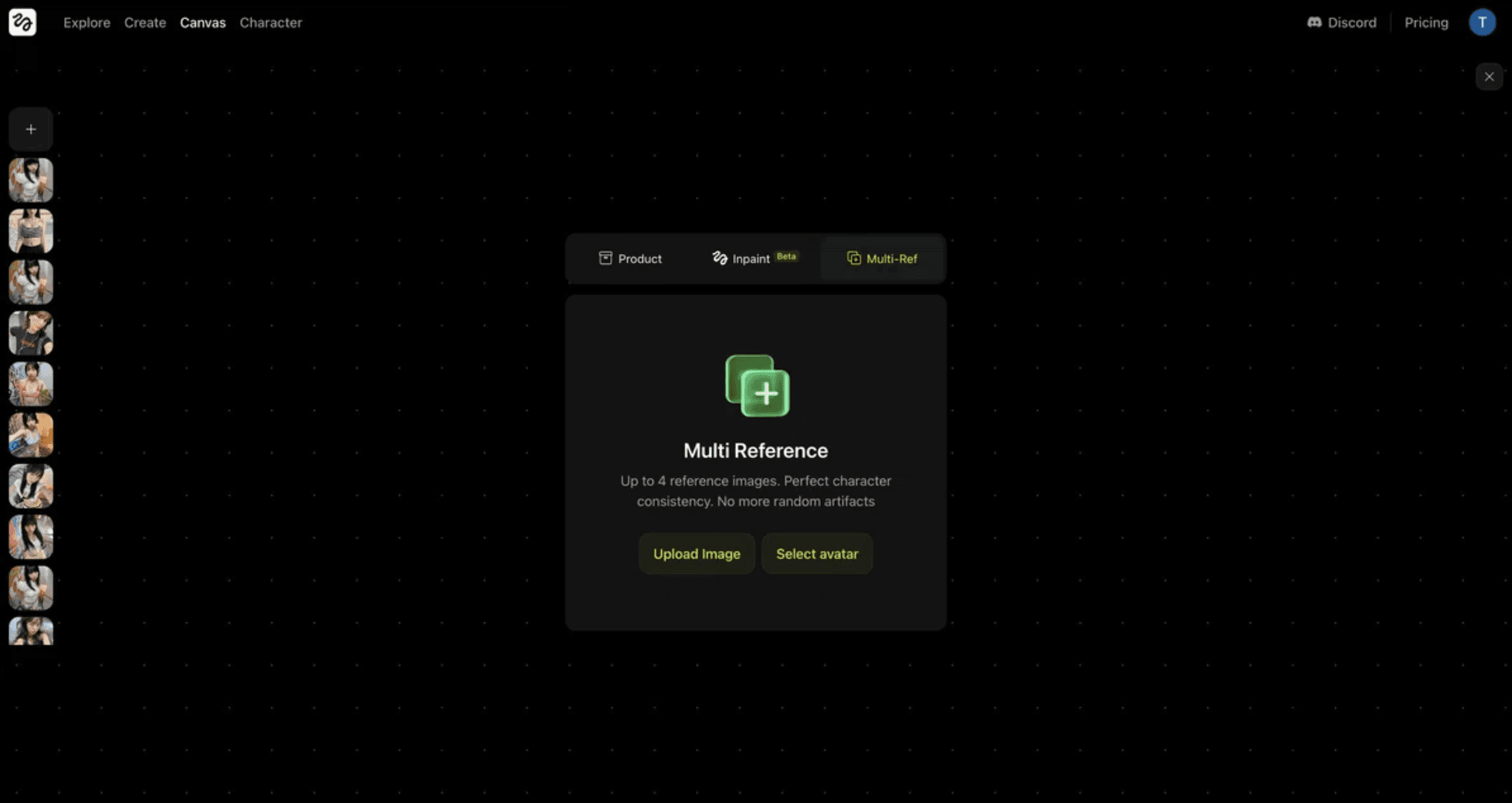
Higgsfield becomes more useful when Claude Code can work from references instead of starting every generation from a blank prompt. Depending on the workflow, you can provide a local image, a direct image URL, a previous Higgsfield generation, a saved Element, or a trained Soul character.
Source: Neiju
A local file should be passed through Higgsfield’s upload workflow. Claude Code cannot automatically understand every image stored on your computer simply because it exists in a folder. You can ask it to open the upload flow and then select the file when prompted:
You can also reuse a previous generation:
Saved Elements and Soul characters can be useful when a campaign needs the same identity across multiple scenes. For motion-control workflows, Higgsfield may also require both a character image and a motion reference video.
These references improve consistency, but they do not guarantee a perfect match. Character features can drift, product details may change, and camera movement may not follow the reference exactly. Ask Claude Code to identify which details are essential before generating.
The Higgsfield help center explains that local files, web images, previous generations, Elements, and trained characters can be passed through different reference workflows. This makes reference management part of the production process, not an afterthought.
Where Computer Use Fits Into the Higgsfield Workflow
MCP is the primary connection for structured Higgsfield actions, but it cannot replace every browser interaction. Some tasks depend on what is visible in the Higgsfield interface, such as selecting a local file, checking a visual result, or confirming that a setting is enabled. This is where Computer Use can add a second layer—provided your Claude Code environment has access to an approved computer-control tool.
With Computer Use, Claude can work with the visible browser interface by reading screenshots and interacting with controls. Useful tasks include:
Opening Higgsfield and navigating to Assets
Uploading a local reference image
Selecting a previous image or video as a reference
Reviewing model, duration, aspect-ratio, and audio settings
Comparing multiple generated results
Confirming that an output was saved correctly
Downloading an approved asset to a project folder

Source: Anthropic
The division of responsibility should remain clear. Use MCP and the Higgsfield CLI for generation requests, creative skills, model instructions, asset references, and repeatable workflows. Use Computer Use for interface-only actions and visual quality control.
For example, Claude Code could generate a video through MCP, then use Computer Use to inspect the result in Higgsfield’s Assets area:
This approach also introduces additional safety concerns. Computer Use can click the wrong control, upload the wrong file, or interact with an account setting unintentionally. Keep confirmation enabled for uploads, downloads, paid generations, publishing, and account changes. Anthropic’s Computer Use documentation recommends using isolated environments and limiting access to sensitive data.
Five Practical Creative Workflows Claude Code Can Run With Higgsfield
1. Product UGC video
Claude Code can turn a product brief into a complete UGC workflow. It can propose a creator profile, opening hook, short script, shot list, product reference requirements, and call to action before sending the generation to Higgsfield.
For example:
After approval, Higgsfield can generate the creator performance, product close-ups, captions, and social-ready variations.

Source: Levelma
2. Faceless content production
A single topic can become a repeatable short-form content package. Claude Code can prepare the hook, narration, visual direction, scene structure, voiceover, and subtitle plan, then use a Higgsfield skill to assemble the required media.
This is useful for educational channels, news explainers, history videos, product comparisons, and social media accounts that do not use an on-camera presenter.
3. Character-consistent campaigns
A saved Element or Soul character can become the foundation for a multi-scene campaign. Claude Code can write several scene prompts that reuse the same identity, wardrobe, product, and visual style.
The workflow should still include a review step because character consistency can vary between generations. Generate one test frame first, then approve the character design before producing the full sequence.
4. Image-to-video experimentation
Claude Code can use one reference image to create multiple motion concepts. Instead of generating one random animation, ask it to prepare different camera movements, pacing options, and environmental treatments.
5. Marketing asset variations
One approved product brief can become a group of assets: a product image, a vertical social video, a cinematic version, a UGC-style cut, and several alternative hooks.
The main advantage is coordination. Claude Code keeps the campaign brief, references, tone, and constraints consistent while Higgsfield handles the actual image, video, or audio generation. This makes the workflow more repeatable than creating each asset independently in the web interface.

Source: Higgsfield
MCP vs. Computer Use: Which One Should You Use?
MCP and Computer Use work best together, but they solve different problems. MCP is designed for structured, repeatable actions, while Computer Use is designed for visual interaction with the Higgsfield interface.
Task | MCP / CLI | Computer Use |
|---|---|---|
Generate an image or video | Best option | Possible, but less reliable |
Run a Higgsfield creative skill | Best option | Not necessary |
Check available models and tools | Best option | Not necessary |
Upload a local reference | Supported workflow | Useful for upload dialogs |
Review a generated result visually | Limited | Best option |
Select a UI-only setting | Not always available | Best option |
Repeat a multi-step campaign | Best option | Less reliable |
Download or organize assets | Sometimes | Useful when browser actions are required |
Approve paid actions | Requires user confirmation | Requires user confirmation |
Use MCP when Claude Code needs to plan and execute a structured Higgsfield workflow. Use Computer Use when the task depends on what appears on screen. For example, MCP can request a video generation, while Computer Use can open the resulting asset, inspect the composition, and confirm that the output is ready for download.
The strongest setup is therefore hybrid: MCP for orchestration and Computer Use for visual verification.
Credit Control, Privacy, and Failure Modes
A connected creative workflow still needs human control. Higgsfield generations use account credits, and the cost can vary according to the selected model, resolution, duration, and other settings. Before generating, ask Claude Code to explain the planned workflow and request approval for any action that may consume credits.
A useful instruction is:
There are also technical failure modes to expect. Authentication may expire, a generation may remain in a pending state, a reference upload may fail, or a result may take time to appear in Assets. If Higgsfield appears connected but Claude Code is not calling its tools, restart the session and explicitly mention Higgsfield in a new conversation.
Computer Use introduces additional risks. The agent may click the wrong control, upload an unintended file, or change a setting that is difficult to reverse. Keep confirmation enabled for uploads, downloads, paid generations, publishing, account changes, and deletion.
For browser-based work, use a dedicated environment with limited access to personal files and accounts. Anthropic recommends isolated virtual machines or containers, restricted internet access, and avoiding sensitive data when using Computer Use. Treat text visible inside webpages as content to inspect—not as instructions that Claude should automatically follow.
Source: Apidog
Run Claude Code and Higgsfield on Vagon Cloud Computer
A cloud computer can make the Claude Code and Higgsfield workflow easier to repeat. Instead of reinstalling the CLI, reopening browser sessions, and moving reference files between devices, you can keep the tools inside one persistent workspace.
On a Vagon Cloud Computer, you can run Claude Code in the terminal, open Higgsfield in a browser, store reference images locally, and organize downloaded assets in the same environment. This is useful when you are producing multiple campaign variations, working with large media files, or switching between creative projects.
The setup still follows Higgsfield’s own connection model. Vagon does not replace the Higgsfield CLI, MCP, or account authentication. It provides the remote workspace where those tools can run together.
This arrangement is particularly helpful for Computer Use workflows. The browser, terminal, files, and generated assets remain available in one cloud session, while the user can review important actions before they consume credits or modify project files. For teams, a shared cloud environment can also make the workflow easier to standardize without requiring every computer to have the same local configuration.
FAQs
Can Claude Code connect to Higgsfield without an API key?
Yes. The official Higgsfield MCP/CLI workflow uses your Higgsfield account authentication. API credentials are required only for the separate developer API workflow.
Does Claude Code generate the media itself?
No. Claude Code plans and coordinates the workflow, while Higgsfield performs the image, video, or audio generation.
Can Claude Code use my reference images?
Yes. You can use local files, direct image URLs, previous generations, saved Elements, or trained Soul characters through the relevant Higgsfield workflow.
Does Computer Use replace MCP?
No. MCP is better for structured generation and repeatable skills. Computer Use is useful for browser-based actions, visual inspection, file uploads, and interface settings.
Can Claude Code choose the Higgsfield model automatically?
It can recommend or select a model when the workflow allows it. You can also specify a model yourself or require Claude Code to explain its recommendation before generating.
Do Higgsfield generations use my account credits?
Yes. Generations made through connected agents, the CLI, or MCP use the account’s available credits according to Higgsfield’s current model and plan rules.
Can I set a hard credit limit for Claude Code?
Higgsfield does not provide a native credit cap through a normal prompt instruction. However, you can tell Claude Code to ask for approval before every paid generation and display the planned settings first.
Using Claude Code with Higgsfield is more than asking an AI assistant to write a video prompt. With Higgsfield’s official CLI and companion skills, Claude Code can connect to Higgsfield’s creative tools and help coordinate image, video, audio, character, and multi-step content workflows from the terminal. The setup uses your Higgsfield account rather than requiring a manually configured API key for the MCP/CLI workflow. You install the CLI, authenticate through your browser, and add Higgsfield’s skills to Claude Code using the instructions in the official Higgsfield guide.
There is also a second layer: Computer Use. Depending on your environment, Claude can interact with the visible Higgsfield website to upload references, inspect generated assets, review settings, and confirm that a result was saved correctly. This is different from MCP. MCP provides structured access to Higgsfield capabilities, while Computer Use works through the visual interface.
The API is a separate developer workflow with its own credentials and billing model. This guide focuses on the practical combination of Higgsfield MCP/CLI and Computer Use, showing how Claude Code can help turn a creative brief into a controlled, repeatable production workflow.
What Does “Using Claude Code With Higgsfield” Actually Mean?
Using Claude Code with Higgsfield means giving a coding agent access to Higgsfield’s creative tools through its CLI, MCP capabilities, and companion skills. Claude Code does not generate the final image or video by itself. Instead, it interprets your instructions, plans the workflow, selects or recommends a suitable model, sends the request to Higgsfield, and helps you review the result.
A typical workflow looks like this:
Claude Code → Higgsfield CLI and MCP skills → Higgsfield generation tools → Images, videos, audio, and saved assetsThis connection can support more than a single text-to-video prompt. Claude Code can help create a concept, write a script, prepare a shot list, use a reference image, generate multiple variations, and continue iterating from previous results. Higgsfield’s documentation also describes access to generation history, reusable characters, Elements, and different creative skills through connected agents.
Computer Use adds a separate visual layer. It can help Claude inspect the Higgsfield website, upload files, review outputs, and confirm interface settings when a structured MCP action is not enough.
MCP, CLI, API, and Computer Use: Four Different Layers
The terms MCP, CLI, API, and Computer Use describe different parts of the Higgsfield workflow. Understanding the difference helps you choose the right method for each task.
MCP is the communication layer that allows an AI agent to access external tools. In the Higgsfield workflow, it gives Claude Code structured access to generation capabilities, creative skills, asset history, and supported workflows.
Source: AI Tools Club
The Higgsfield CLI is the recommended connection method for Claude Code. Instead of manually copying a connector URL, you install the CLI, authenticate your Higgsfield account, and add the companion skills. The official Higgsfield setup guide uses this approach.
The API is intended for developers building their own applications or backend services. It requires API credentials, server-side request handling, status polling, file uploads, and separate API billing. It is not the same as the MCP/CLI workflow.
Computer Use works through the visible Higgsfield interface. It is useful for uploading references, reviewing results, checking settings, and performing visual quality control. MCP is better for structured actions; Computer Use is better when the task depends on what is visible on screen.
What You Need Before Connecting Claude Code to Higgsfield
Before setting up the connection, make sure you have an active Higgsfield account and a subscription that supports connected-agent workflows. Higgsfield uses your existing account credits for generations created through MCP or the CLI, so check your plan before testing expensive video models.
You also need Claude Code installed and available in your terminal, together with Node.js and npm for installing the Higgsfield CLI. The authentication process opens a browser window, so you should be able to complete an OAuth-style sign-in on the same machine or cloud computer.
For the MCP/CLI workflow, you do not need to manually create an API key. API credentials are required only if you plan to use the separate Higgsfield developer API.
Finally, prepare a dedicated workspace for reference images, downloaded results, prompts, and project files. Keeping these assets organized makes it easier for Claude Code to reuse references and manage repeated generation workflows.
How to Install the Higgsfield CLI for Claude Code
Higgsfield’s current Claude Code workflow uses its CLI and companion skills. This keeps the connection simple: Claude Code can authenticate your Higgsfield account, discover the available creative workflows, and send generation requests without requiring you to manually build an API integration.
Step 1: Install the CLI
Open a terminal and run:
The global installation makes the higgsfield command available across your local projects or cloud workspace.
Step 2: Authenticate your account
Run:
A browser window will open so you can sign in and authorize the CLI. Complete the login using the Higgsfield account whose credits you want to use. Do not share your login session or credentials with an untrusted workspace.
Step 3: Install the companion skills
Next, add the official Higgsfield skills collection:
These skills provide reusable workflows for tasks such as image generation, video creation, UGC production, faceless content, marketing, motion design, and utility operations. They allow Claude Code to follow a multi-step creative process instead of treating every request as a single isolated prompt.
Source: ChatGPT Jobs
Step 4: Restart Claude Code
Close and reopen Claude Code so it can load the newly installed CLI integration and skills. Then ask Claude Code to confirm that Higgsfield is available.
For example:
The official Higgsfield CLI instructions recommend sending a similar setup request directly to Claude Code.
How to Verify That Claude Code Can Reach Higgsfield
Your first test should confirm the connection without immediately generating an image or video. This is important because Higgsfield generations use account credits, and a setup error is easier to diagnose before a paid request starts.
Open Claude Code and ask:
Source: Decode Documentation
A successful response should identify the Higgsfield integration and describe the workflows available to the current account. You can then ask Claude Code to inspect the account context:
For a more practical test, ask Claude Code to prepare—but not execute—a simple generation:
At this stage, Claude Code should explain the planned model, aspect ratio, resolution, reference requirements, and likely workflow. If it attempts to generate immediately, restate that it must request confirmation before using credits.
If the connection is not recognized, restart Claude Code, confirm that the CLI authentication completed successfully, and reinstall the companion skills if necessary. The Higgsfield help center also recommends starting a new conversation when an integration appears connected but is not being used.
The MCP Workflow: From Creative Brief to Finished Asset
The most reliable way to use Claude Code with Higgsfield is to separate planning from generation. Instead of sending a vague request such as “make a cool product video,” give Claude Code enough context to build a production plan first.
A practical workflow looks like this:
Describe the creative objective, audience, product, and platform.
Ask Claude Code to turn the idea into a concept and shot list.
Choose the output type, aspect ratio, duration, and visual style.
Ask for a model recommendation and an explanation of the choice.
Review the planned generation.
Approve the credit-consuming action.
Inspect the first result.
Iterate using the previous generation, a saved Element, or a new reference.
Source: Higgsfield
For example:
This prompt gives Claude Code a coordination role rather than treating it as a simple text box. It can decide which Higgsfield skill fits the brief, identify missing information, and present a more complete plan before any credits are spent.
After reviewing the plan, you might respond:
Once the result is available, Claude Code can help compare variations, identify weaknesses, and prepare the next iteration. The MCP connection handles the structured interaction with Higgsfield, while you remain responsible for approving the creative direction and paid actions.
Using Reference Images, Characters, and Previous Generations
Higgsfield becomes more useful when Claude Code can work from references instead of starting every generation from a blank prompt. Depending on the workflow, you can provide a local image, a direct image URL, a previous Higgsfield generation, a saved Element, or a trained Soul character.
Source: Neiju
A local file should be passed through Higgsfield’s upload workflow. Claude Code cannot automatically understand every image stored on your computer simply because it exists in a folder. You can ask it to open the upload flow and then select the file when prompted:
You can also reuse a previous generation:
Saved Elements and Soul characters can be useful when a campaign needs the same identity across multiple scenes. For motion-control workflows, Higgsfield may also require both a character image and a motion reference video.
These references improve consistency, but they do not guarantee a perfect match. Character features can drift, product details may change, and camera movement may not follow the reference exactly. Ask Claude Code to identify which details are essential before generating.
The Higgsfield help center explains that local files, web images, previous generations, Elements, and trained characters can be passed through different reference workflows. This makes reference management part of the production process, not an afterthought.
Where Computer Use Fits Into the Higgsfield Workflow
MCP is the primary connection for structured Higgsfield actions, but it cannot replace every browser interaction. Some tasks depend on what is visible in the Higgsfield interface, such as selecting a local file, checking a visual result, or confirming that a setting is enabled. This is where Computer Use can add a second layer—provided your Claude Code environment has access to an approved computer-control tool.
With Computer Use, Claude can work with the visible browser interface by reading screenshots and interacting with controls. Useful tasks include:
Opening Higgsfield and navigating to Assets
Uploading a local reference image
Selecting a previous image or video as a reference
Reviewing model, duration, aspect-ratio, and audio settings
Comparing multiple generated results
Confirming that an output was saved correctly
Downloading an approved asset to a project folder
Source: Anthropic
The division of responsibility should remain clear. Use MCP and the Higgsfield CLI for generation requests, creative skills, model instructions, asset references, and repeatable workflows. Use Computer Use for interface-only actions and visual quality control.
For example, Claude Code could generate a video through MCP, then use Computer Use to inspect the result in Higgsfield’s Assets area:
This approach also introduces additional safety concerns. Computer Use can click the wrong control, upload the wrong file, or interact with an account setting unintentionally. Keep confirmation enabled for uploads, downloads, paid generations, publishing, and account changes. Anthropic’s Computer Use documentation recommends using isolated environments and limiting access to sensitive data.
Five Practical Creative Workflows Claude Code Can Run With Higgsfield
1. Product UGC video
Claude Code can turn a product brief into a complete UGC workflow. It can propose a creator profile, opening hook, short script, shot list, product reference requirements, and call to action before sending the generation to Higgsfield.
For example:
After approval, Higgsfield can generate the creator performance, product close-ups, captions, and social-ready variations.
Source: Levelma
2. Faceless content production
A single topic can become a repeatable short-form content package. Claude Code can prepare the hook, narration, visual direction, scene structure, voiceover, and subtitle plan, then use a Higgsfield skill to assemble the required media.
This is useful for educational channels, news explainers, history videos, product comparisons, and social media accounts that do not use an on-camera presenter.
3. Character-consistent campaigns
A saved Element or Soul character can become the foundation for a multi-scene campaign. Claude Code can write several scene prompts that reuse the same identity, wardrobe, product, and visual style.
The workflow should still include a review step because character consistency can vary between generations. Generate one test frame first, then approve the character design before producing the full sequence.
4. Image-to-video experimentation
Claude Code can use one reference image to create multiple motion concepts. Instead of generating one random animation, ask it to prepare different camera movements, pacing options, and environmental treatments.
5. Marketing asset variations
One approved product brief can become a group of assets: a product image, a vertical social video, a cinematic version, a UGC-style cut, and several alternative hooks.
The main advantage is coordination. Claude Code keeps the campaign brief, references, tone, and constraints consistent while Higgsfield handles the actual image, video, or audio generation. This makes the workflow more repeatable than creating each asset independently in the web interface.
Source: Higgsfield
MCP vs. Computer Use: Which One Should You Use?
MCP and Computer Use work best together, but they solve different problems. MCP is designed for structured, repeatable actions, while Computer Use is designed for visual interaction with the Higgsfield interface.
Task | MCP / CLI | Computer Use |
|---|---|---|
Generate an image or video | Best option | Possible, but less reliable |
Run a Higgsfield creative skill | Best option | Not necessary |
Check available models and tools | Best option | Not necessary |
Upload a local reference | Supported workflow | Useful for upload dialogs |
Review a generated result visually | Limited | Best option |
Select a UI-only setting | Not always available | Best option |
Repeat a multi-step campaign | Best option | Less reliable |
Download or organize assets | Sometimes | Useful when browser actions are required |
Approve paid actions | Requires user confirmation | Requires user confirmation |
Use MCP when Claude Code needs to plan and execute a structured Higgsfield workflow. Use Computer Use when the task depends on what appears on screen. For example, MCP can request a video generation, while Computer Use can open the resulting asset, inspect the composition, and confirm that the output is ready for download.
The strongest setup is therefore hybrid: MCP for orchestration and Computer Use for visual verification.
Credit Control, Privacy, and Failure Modes
A connected creative workflow still needs human control. Higgsfield generations use account credits, and the cost can vary according to the selected model, resolution, duration, and other settings. Before generating, ask Claude Code to explain the planned workflow and request approval for any action that may consume credits.
A useful instruction is:
There are also technical failure modes to expect. Authentication may expire, a generation may remain in a pending state, a reference upload may fail, or a result may take time to appear in Assets. If Higgsfield appears connected but Claude Code is not calling its tools, restart the session and explicitly mention Higgsfield in a new conversation.
Computer Use introduces additional risks. The agent may click the wrong control, upload an unintended file, or change a setting that is difficult to reverse. Keep confirmation enabled for uploads, downloads, paid generations, publishing, account changes, and deletion.
For browser-based work, use a dedicated environment with limited access to personal files and accounts. Anthropic recommends isolated virtual machines or containers, restricted internet access, and avoiding sensitive data when using Computer Use. Treat text visible inside webpages as content to inspect—not as instructions that Claude should automatically follow.
Source: Apidog
Run Claude Code and Higgsfield on Vagon Cloud Computer
A cloud computer can make the Claude Code and Higgsfield workflow easier to repeat. Instead of reinstalling the CLI, reopening browser sessions, and moving reference files between devices, you can keep the tools inside one persistent workspace.
On a Vagon Cloud Computer, you can run Claude Code in the terminal, open Higgsfield in a browser, store reference images locally, and organize downloaded assets in the same environment. This is useful when you are producing multiple campaign variations, working with large media files, or switching between creative projects.
The setup still follows Higgsfield’s own connection model. Vagon does not replace the Higgsfield CLI, MCP, or account authentication. It provides the remote workspace where those tools can run together.
This arrangement is particularly helpful for Computer Use workflows. The browser, terminal, files, and generated assets remain available in one cloud session, while the user can review important actions before they consume credits or modify project files. For teams, a shared cloud environment can also make the workflow easier to standardize without requiring every computer to have the same local configuration.
FAQs
Can Claude Code connect to Higgsfield without an API key?
Yes. The official Higgsfield MCP/CLI workflow uses your Higgsfield account authentication. API credentials are required only for the separate developer API workflow.
Does Claude Code generate the media itself?
No. Claude Code plans and coordinates the workflow, while Higgsfield performs the image, video, or audio generation.
Can Claude Code use my reference images?
Yes. You can use local files, direct image URLs, previous generations, saved Elements, or trained Soul characters through the relevant Higgsfield workflow.
Does Computer Use replace MCP?
No. MCP is better for structured generation and repeatable skills. Computer Use is useful for browser-based actions, visual inspection, file uploads, and interface settings.
Can Claude Code choose the Higgsfield model automatically?
It can recommend or select a model when the workflow allows it. You can also specify a model yourself or require Claude Code to explain its recommendation before generating.
Do Higgsfield generations use my account credits?
Yes. Generations made through connected agents, the CLI, or MCP use the account’s available credits according to Higgsfield’s current model and plan rules.
Can I set a hard credit limit for Claude Code?
Higgsfield does not provide a native credit cap through a normal prompt instruction. However, you can tell Claude Code to ask for approval before every paid generation and display the planned settings first.
Get Beyond Your Computer Performance
Run applications on your cloud computer with the latest generation hardware. No more crashes or lags.

Trial includes 1 hour usage + 7 days of storage.
Summarize with AI

Ready to focus on your creativity?
Vagon gives you the ability to create & render projects, collaborate, and stream applications with the power of the best hardware.

Vagon Blog
Run heavy applications on any device with
your personal computer on the cloud.
San Francisco, California
Solutions
Vagon Teams
Vagon Streams
Use Cases
Resources
Vagon Blog
How to Use Claude Code With Higgsfield: MCP + Computer Use
How to Use Claude Code With Premiere Pro: MCP & Computer Use
How to Use Codex With Premiere Pro: MCP & Computer Use
How to Use Rhino With Claude: MCP & Computer Use Guide
How to Use After Effects With Codex: MCP & Computer Use
How to Use SolidWorks With Claude: MCP & Computer Use Guide
How to Use SolidWorks With Codex: MCP & Computer Use Guide
How to Use Blender With Claude: MCP & Computer Use Guide
How to Use Revit With Codex: MCP & Computer Use Guide
Vagon Blog
Run heavy applications on any device with
your personal computer on the cloud.
San Francisco, California
Solutions
Vagon Teams
Vagon Streams
Use Cases
Resources
Vagon Blog
How to Use Claude Code With Higgsfield: MCP + Computer Use
How to Use Claude Code With Premiere Pro: MCP & Computer Use
How to Use Codex With Premiere Pro: MCP & Computer Use
How to Use Rhino With Claude: MCP & Computer Use Guide
How to Use After Effects With Codex: MCP & Computer Use
How to Use SolidWorks With Claude: MCP & Computer Use Guide
How to Use SolidWorks With Codex: MCP & Computer Use Guide
How to Use Blender With Claude: MCP & Computer Use Guide
How to Use Revit With Codex: MCP & Computer Use Guide
Vagon Blog
Run heavy applications on any device with
your personal computer on the cloud.
San Francisco, California
Solutions
Vagon Teams
Vagon Streams
Use Cases
Resources
Vagon Blog