Instant Connection for Pixel Streaming
— New Feature Automated Setup

How to Use Claude Code With Maya: MCP Setup Guide (2026)
DigitalArt
-
How to Use Claude Code With Maya: MCP Setup Guide (2026)
DigitalArt
How to Use Claude Code With Maya: MCP Setup Guide (2026)
DigitalArt
-
Table of Contents
Claude Code can help you write Maya scripts, diagnose errors, and automate operations inside an open scene. There is no built-in Claude Code integration for Maya, so live scene access requires a third-party Model Context Protocol server, commonly called an MCP server.
You can use Claude Code with Maya in three ways. The safest is a script-first workflow, where Claude edits Python or MEL files that you review and run manually. A Maya MCP server adds structured access to scene data, objects, materials, and animation. Claude Desktop’s computer-use feature can also operate Maya through the visible interface, although it is slower and less precise.
This guide explains how to set up a typed, localhost-only Maya MCP server, test it with controlled prompts, and troubleshoot the connection. Because the connector is unofficial, begin with a disposable scene, keep unrestricted code execution disabled, and review every important change inside Maya.
What Can Claude Code Actually Do With Maya?
Claude Code is primarily an agentic coding tool. It can read a project folder, edit multiple files, run terminal commands, and analyze errors. Even without a direct Maya connection, it can create and refactor Python or MEL scripts, build shelf tools, document pipeline code, and help diagnose errors copied from Maya’s Script Editor.
This script-first method produces reviewable files, but Claude cannot inspect the scene currently open in Maya. You must load the script, run it, and check the result yourself.

Source: Anthropic.
A Maya MCP server adds live scene access. MCP lets Claude Code call structured tools supplied by another application. Depending on the connector, Claude may be able to inspect nodes, read attributes, create geometry, change transforms, assign materials, work with animation data, and capture the viewport.
This guide uses the open-source maya-mcp project. It supports Maya 2024 and later and exposes typed tools for common operations. It communicates with Maya through a local command port and keeps unrestricted Python or MEL execution disabled unless the user explicitly enables it.
The project is community-built alpha software. It is not an official Autodesk or Anthropic integration, so its behavior and compatibility should be tested before it enters a production pipeline.
Claude Desktop provides a third option called computer use. It can inspect screenshots and control the mouse and keyboard, allowing Claude to navigate Maya’s visible interface. This can help with menus, panels, plug-in settings, and other actions outside the MCP toolset. However, it is slower and more sensitive to interface changes, unexpected dialogs, and misplaced clicks.
Method | Live scene access | Best for | Main limitation |
|---|---|---|---|
Script-first | No | Reusable tools and debugging | Requires manual testing |
Maya MCP | Yes | Structured scene inspection and edits | Depends on an unofficial connector |
Computer use | Yes, visually | Interface actions | Slower and less predictable |
Use the script-first method for reusable code, MCP for structured work in an open scene, and computer use when the task depends on Maya’s visible interface. None of these methods replaces checking the final scene, animation, rig, or render yourself.
What Do You Need Before You Start?
The MCP setup used in this guide requires:
Autodesk Maya 2024 or later
A valid Autodesk account and Maya license
A current Claude Code installation
A supported Claude subscription or API configuration
Python 3.10.1 or later
The open-source
maya-mcppackagePermission to install Python packages
A duplicate or disposable Maya scene
Maya, Claude Code, Python, and the MCP server must run on the same computer. The selected connector communicates through localhost and is not designed to control Maya on another workstation.
The MCP server uses an external Python installation, which is separate from the Python interpreter embedded in Maya. The external process manages communication between Claude Code and Maya, while Maya executes the scene operations it receives.
Check your external Python version from a terminal:
On Windows, use the Python launcher if necessary:
The selected package requires Python 3.10.1 or newer. Python 3.10.0 is excluded because of a dependency compatibility issue.
Before connecting anything, create a new scene or duplicate the project you want to test. Save it under a clearly marked filename and close any production scene containing irreplaceable work.
It also helps to create a dedicated project folder for the configuration and scripts:
Start Claude Code from this folder so it receives only the relevant project context. Once Maya opens normally, Claude Code starts successfully, and Python reports a supported version, you are ready to install the MCP server.
How to Connect Claude Code to Maya With MCP
The connection has three components. Maya opens a local command port, the MCP server translates structured requests into Maya operations, and Claude Code launches that server from your project configuration.
1. Install the Maya MCP Package
Open a terminal and install the package using your external Python environment.
On Windows:
On macOS or Linux:
Confirm that the package is available:
On macOS or Linux:
The process may wait without displaying a normal interface. This is expected because a local MCP server communicates through standard input and output. Stop the manual test with Ctrl+C.
If Python reports that it cannot find maya_mcp, the package was probably installed in a different environment. Run the installation and server commands with the same Python executable.
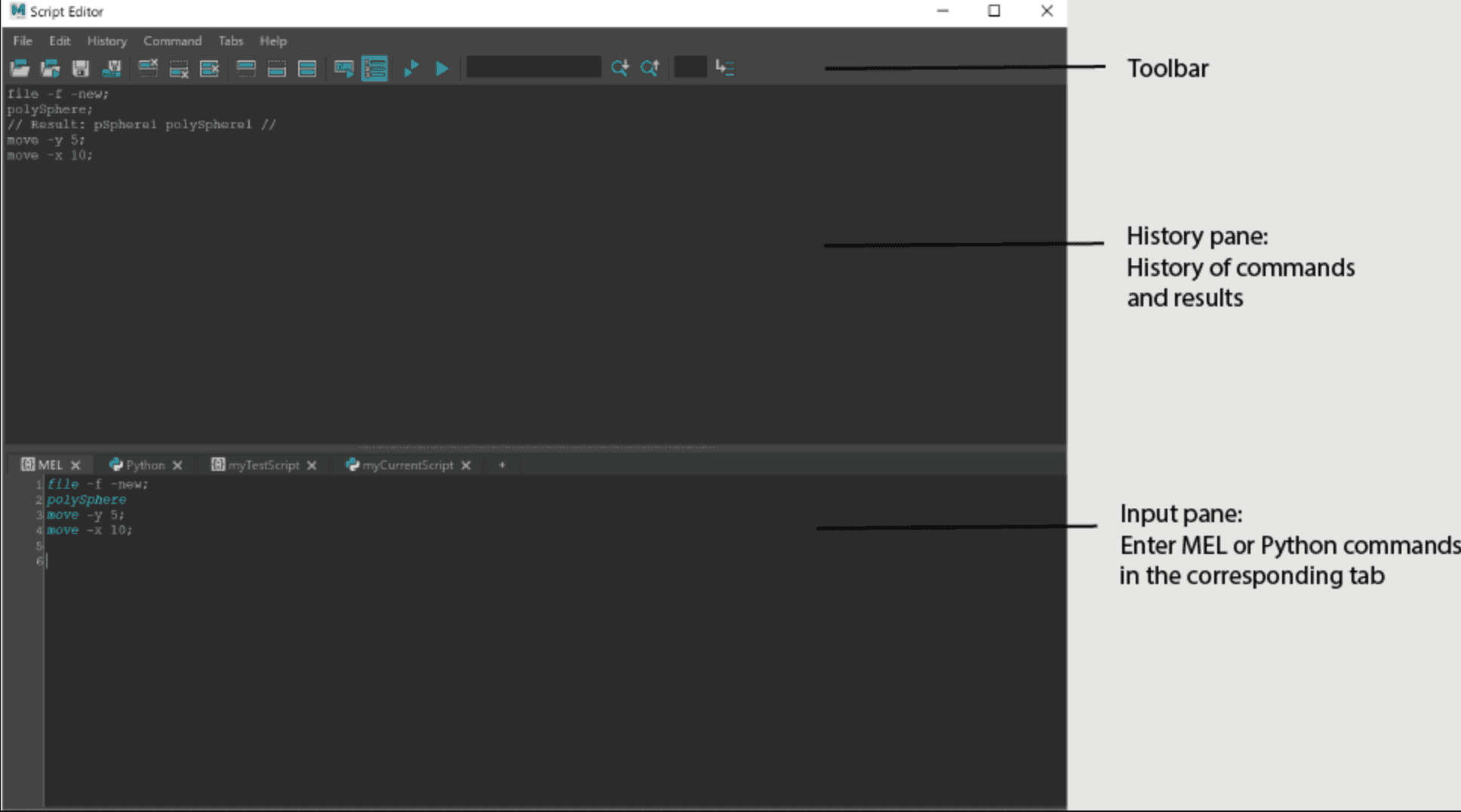
Source: Autodesk Maya Help.
2. Enable Maya’s Local Command Port
The MCP server communicates with Maya through Autodesk’s commandPort feature. The selected connector uses localhost:7001 by default.
Use the project’s maintained enable_commandport.py helper instead of entering a simplified one-line command. The helper includes compatibility handling for Maya 2024.
To run it:
Download or copy the complete helper script.
Open Maya.
Go to Windows > General Editors > Script Editor.
Open a Python tab.
Paste the complete script into the input area.
Press
Ctrl+Enterto execute it.
The command port normally remains active for the current Maya session. If you restart Maya, run the helper again unless you have intentionally configured a reviewed startup script.
Keep the connection on localhost. Maya’s command port does not include built-in authentication and should not be exposed to a LAN or the public internet.
3. Configure Claude Code
In the project folder created earlier, add a file named .mcp.json.
On Windows, use:
{
  "mcpServers": {
    "maya": {
      "command": "py",
      "args": ["-m", "maya_mcp.server"]
{
  "mcpServers": {
    "maya": {
      "command": "py",
      "args": ["-m", "maya_mcp.server"]
On macOS or Linux, replace py with the command used to run the supported Python installation, usually python3:
{
  "mcpServers": {
    "maya": {
      "command": "python3",
      "args": ["-m", "maya_mcp.server"]
{
  "mcpServers": {
    "maya": {
      "command": "python3",
      "args": ["-m", "maya_mcp.server"]
If you installed the package in a virtual environment, use the full path to that environment’s Python executable. The command in .mcp.json must point to the environment containing maya-mcp.
A project-level configuration keeps the Maya connector associated with this folder rather than enabling it across every Claude Code project.
4. Start Claude Code
Keep Maya open, navigate to the folder containing .mcp.json, and start Claude Code:
Claude Code may ask you to trust the folder and approve the MCP server. Review the command before accepting it.
Inside Claude Code, enter:
This displays the configured server and its connection status. You can also inspect it from a terminal:
5. Verify the Connection
Begin with a read-only health check:
If Maya is reachable, continue with:
Then test node access:
These checks verify the complete path:
If health.check fails, confirm that Maya is still running and that the helper script was executed during the current session. If the server does not appear in Claude Code, check the .mcp.json syntax, project approval, and Python command.
Once all three read-only checks succeed, the connection is ready for a small test edit.
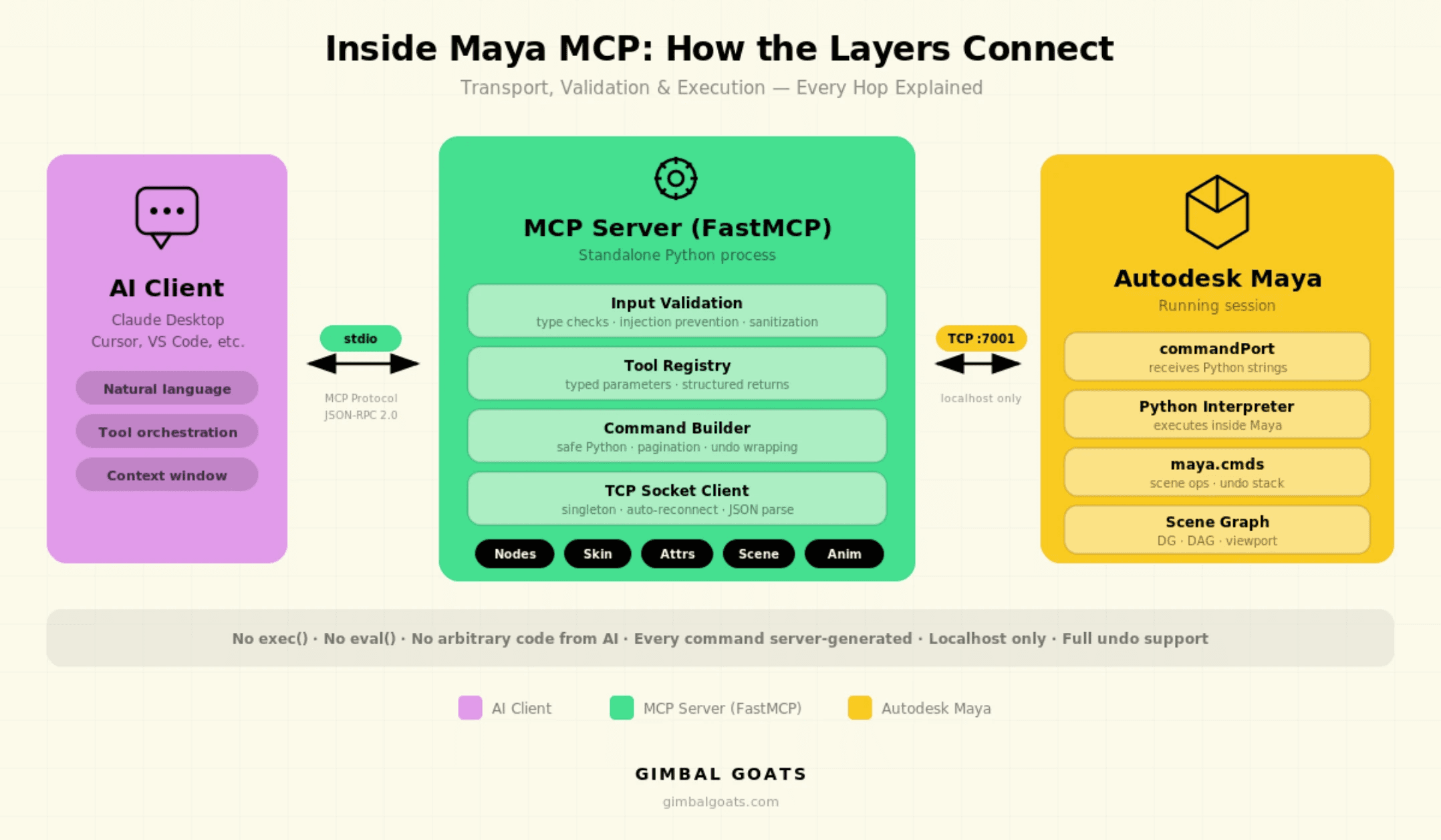
Source: Gimbal Goats.
What Should You Ask Claude Code to Do First?
A successful connection does not mean Claude should immediately modify a production scene. Begin with a small operation that is easy to inspect, undo, and recreate.
Start with a read-only request:
This confirms that Claude can read useful scene data while following a clear restriction. Check the returned information against Maya before moving to a write operation.
Next, open a disposable scene and request one simple change:
Confirm inside Maya that the sphere exists, has the correct name, and uses the requested transform values.
You can then test a small multi-step task:
A reliable prompt should define five things:
Context: The scene, selection, or object group Claude may use
Task: The exact change to perform
Constraints: The data it must not modify
Verification: How to check the result
Stop condition: When Claude must ask before continuing
For example:
Avoid broad instructions such as “clean up this scene.” Cleanup could mean deleting history, freezing transforms, renaming nodes, changing hierarchy, removing unused materials, or altering references. Claude cannot know which of those operations your pipeline permits unless you define the boundaries.
A viewport capture can help confirm visible changes, but it is not sufficient technical validation. Check names, hierarchy, transforms, materials, connections, animation curves, references, and output settings directly in Maya before approving the result.
Can You Use Claude Code With Maya Without MCP?
You can use Claude Code for Maya work without giving it access to an open scene. This script-first approach is often the better choice when you are building a reusable tool or working inside an established pipeline.
Store your Python or MEL files in the project folder, then ask Claude Code to inspect or edit them. Review the changes before loading the script into Maya.
A typical workflow is:
Ask Claude Code to create or update a Maya script.
Review the generated diff.
Load the script in Maya’s Script Editor.
Test it in a duplicate scene.
Copy any traceback back into Claude Code.
Ask for the smallest necessary correction.
This method works well for shelf tools, exporters, validators, naming utilities, batch processes, custom interfaces, and pipeline documentation. Because the result exists as a normal file, it can be reviewed, tested, versioned, and shared before anyone runs it.
Include the Maya version, operating system, relevant plug-ins, selection state, and complete traceback when reporting a problem. These details help Claude distinguish a code defect from a version, environment, or scene-specific issue.
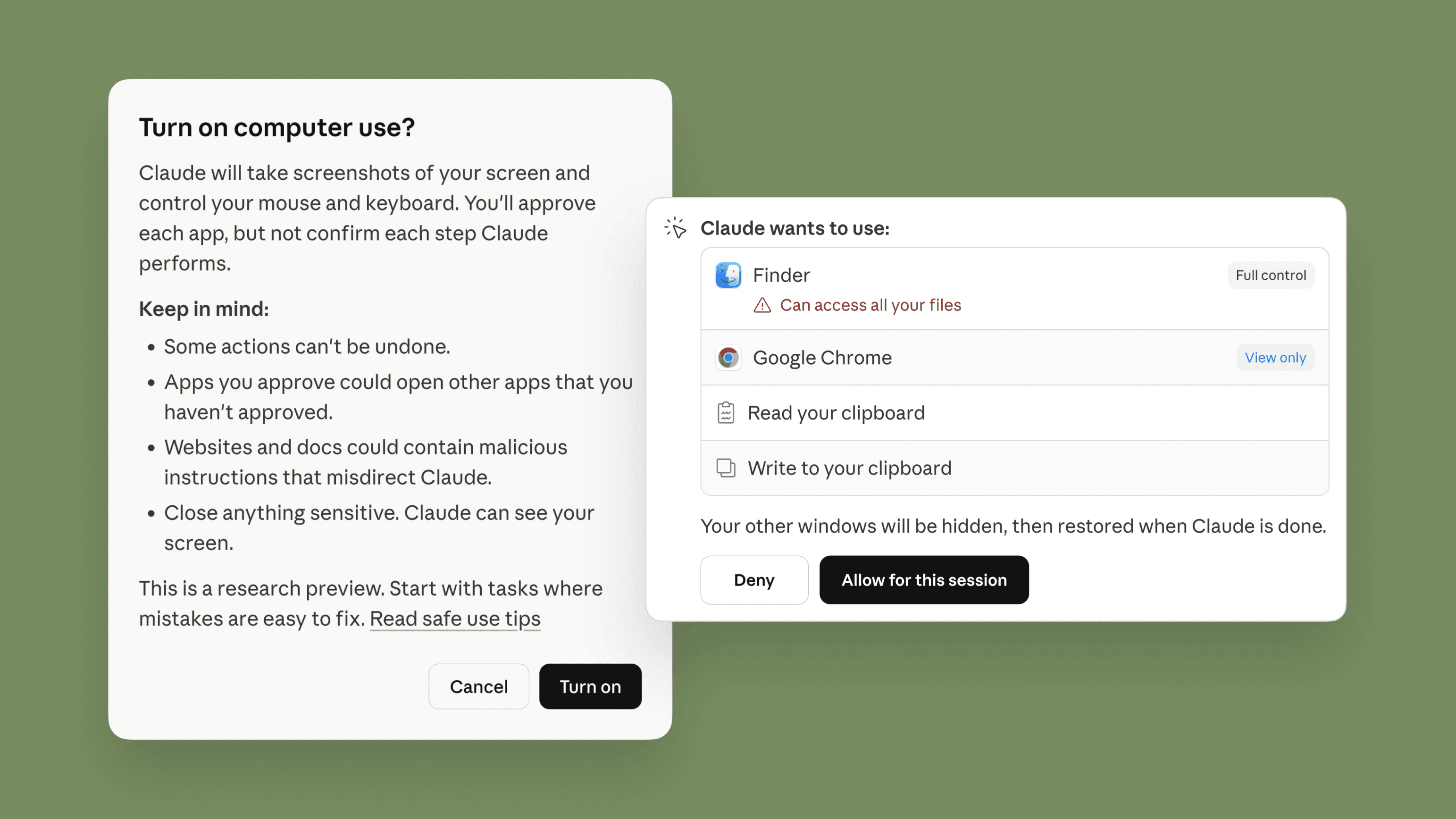
Claude Desktop’s computer-use feature offers another option. It can inspect screenshots and control the mouse and keyboard, allowing Claude to navigate menus, open panels, type into the Script Editor, or inspect an error dialog.
Computer use is less precise than an MCP connection because it depends on the visible interface. Hidden panels, changed workspaces, unexpected dialogs, and delayed responses can lead to incorrect clicks. Keep Maya visible and supervise the first attempts.
Use script-first for reusable code, MCP for structured live-scene operations, and computer use only when the task depends on an interface action that the connector does not expose.
Source: Anthropic.
How Do You Troubleshoot and Use the Connection Safely?
Most connection problems come from the command port, Python environment, or project configuration. Check those components separately before reinstalling everything.
Problem | Likely cause | First check |
|---|---|---|
| Maya or its command port is unavailable | Confirm Maya is open and rerun the helper script |
MCP server will not start | Wrong Python environment | Use the Python installation containing |
Server does not appear | Configuration was not loaded or approved | Check |
Connection uses the wrong port | Maya and the server use different values | Match |
Maya 2024 returns unexpected responses | Version-specific command-port behavior | Use the maintained helper script |
Local setup works but remote access fails | The connector rejects remote hosts | Run every component on the same workstation |
On Windows, use the module command if the maya-mcp executable is not available on PATH:
If Claude Code launches a different Python installation, replace py in .mcp.json with the full path to the correct executable.
Protect the Scene Before Allowing Changes
A working connection gives Claude access to real scene operations, so every session should begin with a saved checkpoint or duplicate file.
Start with read-only inspection and move to one limited change at a time. Keep unrestricted Python and MEL execution disabled. Typed tools are easier to understand and restrict than a tool that can run arbitrary code inside Maya.
Protect sensitive parts of the scene explicitly. Tell Claude not to change references, namespaces, hierarchy, pivots, skin weights, materials, animation, render settings, or output paths unless the task requires them.
Avoid permission-bypass modes during normal Maya work. Approval prompts provide an opportunity to catch a tool call that exceeds the requested scope.
After each important operation, verify the result inside Maya. A successful response only confirms that the server returned without reporting an error. It does not prove that the scene remains technically or artistically correct.
Check the areas affected by the task, including:
Node names and hierarchy
Transform and pivot values
Construction history
Materials and connections
Animation curves
References and namespaces
Skinning and deformation
Render settings and output paths
Viewport captures are helpful for visible confirmation, but they cannot validate hidden connections, deformation quality, topology, or final rendering. Treat Claude as an automation assistant whose work still requires the same scene review you would apply to a script written by a human.
How to Run Claude Code and Maya on Vagon Cloud Computer
The Maya MCP server in this guide expects Maya and the connector to run on the same machine. A Vagon Cloud Computer can host the complete environment when your local device lacks the required performance or you want to access the setup remotely.
Create a Vagon Cloud Computer with resources appropriate for your Maya project. Inside that cloud workstation, install:
Autodesk Maya
Claude Code
A supported external Python version
The
maya-mcppackageAny required Maya plug-ins and project dependencies
Store the .mcp.json configuration, scripts, and Maya project files on the same Vagon Computer. Because Claude Code, the MCP server, and Maya all run inside that workstation, communication can remain on localhost rather than exposing Maya’s unauthenticated command port over a network.
You can connect to the workstation from your regular device, supervise Claude’s actions, inspect the Maya viewport, and review scene changes. If a project needs more resources for a dense scene, simulation, or render, you can change the Vagon performance option without moving the workflow to another computer.
A cloud setup still has trade-offs. Interactive Maya work depends on connection quality, while large textures, caches, references, and renders require a clear storage and file-transfer plan.
Vagon provides the remote workstation, not the Claude-Maya integration. You must supply and manage the Autodesk license, Claude account, MCP package, plug-ins, and project files.
For artists who need stronger hardware or a portable Maya environment, keeping the complete workflow on one Vagon Cloud Computer provides a practical way to preserve both performance and the connector’s local-only security model.
Frequently Asked Questions
Can Claude Code control Maya directly?
Not by default. Claude Code can write Maya Python and MEL scripts, but live scene access requires a Maya-aware MCP server. Claude Desktop’s computer-use feature can also operate Maya visually, although it is less precise than structured MCP tools.
Is there an official Claude Code plug-in for Maya?
No official Anthropic or Autodesk connector currently provides Claude Code with live Maya scene control. The maya-mcp package used in this guide is an unofficial, open-source project and should be tested before production use.
Can Claude Code create complete 3D models in Maya?
It can create and modify geometry through supported tools or generated scripts. However, topology, proportions, materials, rigging, deformation, animation quality, and production readiness still require review by an artist or technical director.
Is it safe to connect Claude Code to a production scene?
The connection introduces real risk because Claude can modify scene data. Use duplicate files, save checkpoints, start with read-only inspection, define protected data, and keep unrestricted Python or MEL execution disabled.
Why can’t Claude Code connect to Maya?
The most common causes are a closed command port, mismatched port settings, an incorrect Python environment, or an unapproved .mcp.json configuration. Confirm Maya is open, rerun the command-port helper, and inspect the server with /mcp.
Can I run Claude Code and Maya on Vagon Cloud Computer?
Yes. Install Maya, Claude Code, Python, and the MCP package inside the same Vagon Cloud Computer. This allows the connector to remain on localhost while you remotely access the workstation. Maya, Claude, plug-ins, and their licenses must be supplied separately.
Claude Code can help you write Maya scripts, diagnose errors, and automate operations inside an open scene. There is no built-in Claude Code integration for Maya, so live scene access requires a third-party Model Context Protocol server, commonly called an MCP server.
You can use Claude Code with Maya in three ways. The safest is a script-first workflow, where Claude edits Python or MEL files that you review and run manually. A Maya MCP server adds structured access to scene data, objects, materials, and animation. Claude Desktop’s computer-use feature can also operate Maya through the visible interface, although it is slower and less precise.
This guide explains how to set up a typed, localhost-only Maya MCP server, test it with controlled prompts, and troubleshoot the connection. Because the connector is unofficial, begin with a disposable scene, keep unrestricted code execution disabled, and review every important change inside Maya.
What Can Claude Code Actually Do With Maya?
Claude Code is primarily an agentic coding tool. It can read a project folder, edit multiple files, run terminal commands, and analyze errors. Even without a direct Maya connection, it can create and refactor Python or MEL scripts, build shelf tools, document pipeline code, and help diagnose errors copied from Maya’s Script Editor.
This script-first method produces reviewable files, but Claude cannot inspect the scene currently open in Maya. You must load the script, run it, and check the result yourself.
Source: Anthropic.
A Maya MCP server adds live scene access. MCP lets Claude Code call structured tools supplied by another application. Depending on the connector, Claude may be able to inspect nodes, read attributes, create geometry, change transforms, assign materials, work with animation data, and capture the viewport.
This guide uses the open-source maya-mcp project. It supports Maya 2024 and later and exposes typed tools for common operations. It communicates with Maya through a local command port and keeps unrestricted Python or MEL execution disabled unless the user explicitly enables it.
The project is community-built alpha software. It is not an official Autodesk or Anthropic integration, so its behavior and compatibility should be tested before it enters a production pipeline.
Claude Desktop provides a third option called computer use. It can inspect screenshots and control the mouse and keyboard, allowing Claude to navigate Maya’s visible interface. This can help with menus, panels, plug-in settings, and other actions outside the MCP toolset. However, it is slower and more sensitive to interface changes, unexpected dialogs, and misplaced clicks.
Method | Live scene access | Best for | Main limitation |
|---|---|---|---|
Script-first | No | Reusable tools and debugging | Requires manual testing |
Maya MCP | Yes | Structured scene inspection and edits | Depends on an unofficial connector |
Computer use | Yes, visually | Interface actions | Slower and less predictable |
Use the script-first method for reusable code, MCP for structured work in an open scene, and computer use when the task depends on Maya’s visible interface. None of these methods replaces checking the final scene, animation, rig, or render yourself.
What Do You Need Before You Start?
The MCP setup used in this guide requires:
Autodesk Maya 2024 or later
A valid Autodesk account and Maya license
A current Claude Code installation
A supported Claude subscription or API configuration
Python 3.10.1 or later
The open-source
maya-mcppackagePermission to install Python packages
A duplicate or disposable Maya scene
Maya, Claude Code, Python, and the MCP server must run on the same computer. The selected connector communicates through localhost and is not designed to control Maya on another workstation.
The MCP server uses an external Python installation, which is separate from the Python interpreter embedded in Maya. The external process manages communication between Claude Code and Maya, while Maya executes the scene operations it receives.
Check your external Python version from a terminal:
On Windows, use the Python launcher if necessary:
The selected package requires Python 3.10.1 or newer. Python 3.10.0 is excluded because of a dependency compatibility issue.
Before connecting anything, create a new scene or duplicate the project you want to test. Save it under a clearly marked filename and close any production scene containing irreplaceable work.
It also helps to create a dedicated project folder for the configuration and scripts:
Start Claude Code from this folder so it receives only the relevant project context. Once Maya opens normally, Claude Code starts successfully, and Python reports a supported version, you are ready to install the MCP server.
How to Connect Claude Code to Maya With MCP
The connection has three components. Maya opens a local command port, the MCP server translates structured requests into Maya operations, and Claude Code launches that server from your project configuration.
1. Install the Maya MCP Package
Open a terminal and install the package using your external Python environment.
On Windows:
On macOS or Linux:
Confirm that the package is available:
On macOS or Linux:
The process may wait without displaying a normal interface. This is expected because a local MCP server communicates through standard input and output. Stop the manual test with Ctrl+C.
If Python reports that it cannot find maya_mcp, the package was probably installed in a different environment. Run the installation and server commands with the same Python executable.
Source: Autodesk Maya Help.
2. Enable Maya’s Local Command Port
The MCP server communicates with Maya through Autodesk’s commandPort feature. The selected connector uses localhost:7001 by default.
Use the project’s maintained enable_commandport.py helper instead of entering a simplified one-line command. The helper includes compatibility handling for Maya 2024.
To run it:
Download or copy the complete helper script.
Open Maya.
Go to Windows > General Editors > Script Editor.
Open a Python tab.
Paste the complete script into the input area.
Press
Ctrl+Enterto execute it.
The command port normally remains active for the current Maya session. If you restart Maya, run the helper again unless you have intentionally configured a reviewed startup script.
Keep the connection on localhost. Maya’s command port does not include built-in authentication and should not be exposed to a LAN or the public internet.
3. Configure Claude Code
In the project folder created earlier, add a file named .mcp.json.
On Windows, use:
{
  "mcpServers": {
    "maya": {
      "command": "py",
      "args": ["-m", "maya_mcp.server"]
On macOS or Linux, replace py with the command used to run the supported Python installation, usually python3:
{
  "mcpServers": {
    "maya": {
      "command": "python3",
      "args": ["-m", "maya_mcp.server"]
If you installed the package in a virtual environment, use the full path to that environment’s Python executable. The command in .mcp.json must point to the environment containing maya-mcp.
A project-level configuration keeps the Maya connector associated with this folder rather than enabling it across every Claude Code project.
4. Start Claude Code
Keep Maya open, navigate to the folder containing .mcp.json, and start Claude Code:
Claude Code may ask you to trust the folder and approve the MCP server. Review the command before accepting it.
Inside Claude Code, enter:
This displays the configured server and its connection status. You can also inspect it from a terminal:
5. Verify the Connection
Begin with a read-only health check:
If Maya is reachable, continue with:
Then test node access:
These checks verify the complete path:
If health.check fails, confirm that Maya is still running and that the helper script was executed during the current session. If the server does not appear in Claude Code, check the .mcp.json syntax, project approval, and Python command.
Once all three read-only checks succeed, the connection is ready for a small test edit.
Source: Gimbal Goats.
What Should You Ask Claude Code to Do First?
A successful connection does not mean Claude should immediately modify a production scene. Begin with a small operation that is easy to inspect, undo, and recreate.
Start with a read-only request:
This confirms that Claude can read useful scene data while following a clear restriction. Check the returned information against Maya before moving to a write operation.
Next, open a disposable scene and request one simple change:
Confirm inside Maya that the sphere exists, has the correct name, and uses the requested transform values.
You can then test a small multi-step task:
A reliable prompt should define five things:
Context: The scene, selection, or object group Claude may use
Task: The exact change to perform
Constraints: The data it must not modify
Verification: How to check the result
Stop condition: When Claude must ask before continuing
For example:
Avoid broad instructions such as “clean up this scene.” Cleanup could mean deleting history, freezing transforms, renaming nodes, changing hierarchy, removing unused materials, or altering references. Claude cannot know which of those operations your pipeline permits unless you define the boundaries.
A viewport capture can help confirm visible changes, but it is not sufficient technical validation. Check names, hierarchy, transforms, materials, connections, animation curves, references, and output settings directly in Maya before approving the result.
Can You Use Claude Code With Maya Without MCP?
You can use Claude Code for Maya work without giving it access to an open scene. This script-first approach is often the better choice when you are building a reusable tool or working inside an established pipeline.
Store your Python or MEL files in the project folder, then ask Claude Code to inspect or edit them. Review the changes before loading the script into Maya.
A typical workflow is:
Ask Claude Code to create or update a Maya script.
Review the generated diff.
Load the script in Maya’s Script Editor.
Test it in a duplicate scene.
Copy any traceback back into Claude Code.
Ask for the smallest necessary correction.
This method works well for shelf tools, exporters, validators, naming utilities, batch processes, custom interfaces, and pipeline documentation. Because the result exists as a normal file, it can be reviewed, tested, versioned, and shared before anyone runs it.
Include the Maya version, operating system, relevant plug-ins, selection state, and complete traceback when reporting a problem. These details help Claude distinguish a code defect from a version, environment, or scene-specific issue.
Claude Desktop’s computer-use feature offers another option. It can inspect screenshots and control the mouse and keyboard, allowing Claude to navigate menus, open panels, type into the Script Editor, or inspect an error dialog.
Computer use is less precise than an MCP connection because it depends on the visible interface. Hidden panels, changed workspaces, unexpected dialogs, and delayed responses can lead to incorrect clicks. Keep Maya visible and supervise the first attempts.
Use script-first for reusable code, MCP for structured live-scene operations, and computer use only when the task depends on an interface action that the connector does not expose.
Source: Anthropic.
How Do You Troubleshoot and Use the Connection Safely?
Most connection problems come from the command port, Python environment, or project configuration. Check those components separately before reinstalling everything.
Problem | Likely cause | First check |
|---|---|---|
| Maya or its command port is unavailable | Confirm Maya is open and rerun the helper script |
MCP server will not start | Wrong Python environment | Use the Python installation containing |
Server does not appear | Configuration was not loaded or approved | Check |
Connection uses the wrong port | Maya and the server use different values | Match |
Maya 2024 returns unexpected responses | Version-specific command-port behavior | Use the maintained helper script |
Local setup works but remote access fails | The connector rejects remote hosts | Run every component on the same workstation |
On Windows, use the module command if the maya-mcp executable is not available on PATH:
If Claude Code launches a different Python installation, replace py in .mcp.json with the full path to the correct executable.
Protect the Scene Before Allowing Changes
A working connection gives Claude access to real scene operations, so every session should begin with a saved checkpoint or duplicate file.
Start with read-only inspection and move to one limited change at a time. Keep unrestricted Python and MEL execution disabled. Typed tools are easier to understand and restrict than a tool that can run arbitrary code inside Maya.
Protect sensitive parts of the scene explicitly. Tell Claude not to change references, namespaces, hierarchy, pivots, skin weights, materials, animation, render settings, or output paths unless the task requires them.
Avoid permission-bypass modes during normal Maya work. Approval prompts provide an opportunity to catch a tool call that exceeds the requested scope.
After each important operation, verify the result inside Maya. A successful response only confirms that the server returned without reporting an error. It does not prove that the scene remains technically or artistically correct.
Check the areas affected by the task, including:
Node names and hierarchy
Transform and pivot values
Construction history
Materials and connections
Animation curves
References and namespaces
Skinning and deformation
Render settings and output paths
Viewport captures are helpful for visible confirmation, but they cannot validate hidden connections, deformation quality, topology, or final rendering. Treat Claude as an automation assistant whose work still requires the same scene review you would apply to a script written by a human.
How to Run Claude Code and Maya on Vagon Cloud Computer
The Maya MCP server in this guide expects Maya and the connector to run on the same machine. A Vagon Cloud Computer can host the complete environment when your local device lacks the required performance or you want to access the setup remotely.
Create a Vagon Cloud Computer with resources appropriate for your Maya project. Inside that cloud workstation, install:
Autodesk Maya
Claude Code
A supported external Python version
The
maya-mcppackageAny required Maya plug-ins and project dependencies
Store the .mcp.json configuration, scripts, and Maya project files on the same Vagon Computer. Because Claude Code, the MCP server, and Maya all run inside that workstation, communication can remain on localhost rather than exposing Maya’s unauthenticated command port over a network.
You can connect to the workstation from your regular device, supervise Claude’s actions, inspect the Maya viewport, and review scene changes. If a project needs more resources for a dense scene, simulation, or render, you can change the Vagon performance option without moving the workflow to another computer.
A cloud setup still has trade-offs. Interactive Maya work depends on connection quality, while large textures, caches, references, and renders require a clear storage and file-transfer plan.
Vagon provides the remote workstation, not the Claude-Maya integration. You must supply and manage the Autodesk license, Claude account, MCP package, plug-ins, and project files.
For artists who need stronger hardware or a portable Maya environment, keeping the complete workflow on one Vagon Cloud Computer provides a practical way to preserve both performance and the connector’s local-only security model.
Frequently Asked Questions
Can Claude Code control Maya directly?
Not by default. Claude Code can write Maya Python and MEL scripts, but live scene access requires a Maya-aware MCP server. Claude Desktop’s computer-use feature can also operate Maya visually, although it is less precise than structured MCP tools.
Is there an official Claude Code plug-in for Maya?
No official Anthropic or Autodesk connector currently provides Claude Code with live Maya scene control. The maya-mcp package used in this guide is an unofficial, open-source project and should be tested before production use.
Can Claude Code create complete 3D models in Maya?
It can create and modify geometry through supported tools or generated scripts. However, topology, proportions, materials, rigging, deformation, animation quality, and production readiness still require review by an artist or technical director.
Is it safe to connect Claude Code to a production scene?
The connection introduces real risk because Claude can modify scene data. Use duplicate files, save checkpoints, start with read-only inspection, define protected data, and keep unrestricted Python or MEL execution disabled.
Why can’t Claude Code connect to Maya?
The most common causes are a closed command port, mismatched port settings, an incorrect Python environment, or an unapproved .mcp.json configuration. Confirm Maya is open, rerun the command-port helper, and inspect the server with /mcp.
Can I run Claude Code and Maya on Vagon Cloud Computer?
Yes. Install Maya, Claude Code, Python, and the MCP package inside the same Vagon Cloud Computer. This allows the connector to remain on localhost while you remotely access the workstation. Maya, Claude, plug-ins, and their licenses must be supplied separately.
Get Beyond Your Computer Performance
Run applications on your cloud computer with the latest generation hardware. No more crashes or lags.

Trial includes 1 hour usage + 7 days of storage.
Summarize with AI

Ready to focus on your creativity?
Vagon gives you the ability to create & render projects, collaborate, and stream applications with the power of the best hardware.

Vagon Blog
Run heavy applications on any device with
your personal computer on the cloud.
San Francisco, California
Solutions
Vagon Teams
Vagon Streams
Use Cases
Resources
Vagon Blog
How to Use AutoCAD With Claude Code: MCP Guide
How to Use Codex With Maya: Python, MEL & Cloud Workflow
How to Use Claude Code With Maya: MCP Setup Guide (2026)
How to Use Codex With Photoshop: Step-by-Step Guide
How to Use Claude Code With Photoshop: Step-by-Step Guide
How to Use Codex With Figma: Step-by-Step Guide
How to Use Claude Code With Figma: Step-by-Step Guide
How to Use Claude Code With After Effects in 2026
How to Build a 3D Environment in Unity With GPT-6 Astra
Vagon Blog
Run heavy applications on any device with
your personal computer on the cloud.
San Francisco, California
Solutions
Vagon Teams
Vagon Streams
Use Cases
Resources
Vagon Blog
How to Use AutoCAD With Claude Code: MCP Guide
How to Use Codex With Maya: Python, MEL & Cloud Workflow
How to Use Claude Code With Maya: MCP Setup Guide (2026)
How to Use Codex With Photoshop: Step-by-Step Guide
How to Use Claude Code With Photoshop: Step-by-Step Guide
How to Use Codex With Figma: Step-by-Step Guide
How to Use Claude Code With Figma: Step-by-Step Guide
How to Use Claude Code With After Effects in 2026
How to Build a 3D Environment in Unity With GPT-6 Astra
Vagon Blog
Run heavy applications on any device with
your personal computer on the cloud.
San Francisco, California
Solutions
Vagon Teams
Vagon Streams
Use Cases
Resources
Vagon Blog