Instant Connection for Pixel Streaming
— New Feature Automated Setup

How to Use Claude Code With Photoshop: Step-by-Step Guide
DigitalArt
-
How to Use Claude Code With Photoshop: Step-by-Step Guide
DigitalArt
How to Use Claude Code With Photoshop: Step-by-Step Guide
DigitalArt
-
Table of Contents
Claude Code does not automatically connect to Photoshop or control the document open on your canvas. The most reliable workflow is to use Claude Code to create or debug an Adobe UXP script or plugin, run it inside Photoshop, and return the result or error for the next iteration.
For most first projects, start with a standalone UXP script. Build a plugin when you need an in-app panel, saved settings, network access, or a tool that other people can reuse. Community MCP bridges can add conversational control, but they are third-party systems that require a separate server, a Photoshop plugin, and a careful security review.
This guide shows how to choose the right route, build a non-destructive workflow, test a reusable plugin, evaluate MCP projects, and keep the complete environment together on Vagon Cloud Computer.
What Can Claude Code Actually Do With Photoshop?
Claude Code works with files, source code, terminal commands, screenshots, and tools you explicitly connect. In a Photoshop workflow, it can:
analyze an exported PNG, JPEG, or screenshot;
create and debug
.psjsscripts;build a Photoshop UXP plugin;
help create a client for Photoshop API v2;
inspect errors, logs, manifests, and plugin permissions;
write tests for filenames, dimensions, and output folders.
Anthropic documents image input in its Claude Code user FAQ. This provides a useful visual feedback loop, but not live knowledge of the Photoshop document. Claude Code cannot automatically see the selected layer, masks, smart objects, history state, or unsaved changes.

Source: Anthropic, Claude Code User FAQ.
Adobe provides the execution layer. UXP scripts handle focused tasks, while UXP plugins support persistent interfaces and maintained integrations. Adobe for creativity is a separate product available through supported Claude surfaces. It is not a documented Claude Code connection to the local Photoshop canvas.
Good first automation projects have measurable outputs:
export a document to approved sizes and formats;
rename layers or files using fixed rules;
add a standard watermark to duplicates;
validate canvas size, color mode, and required layer groups;
place supplied assets into predefined smart objects;
generate review previews or contact sheets.
Avoid starting with subjective requests such as “make this portrait look premium.” Begin with a task whose result can be verified.
Which Photoshop Workflow Should You Choose?
Workflow | Best for | Setup | Support status |
|---|---|---|---|
Exported preview | Visual review, planning, and QA | Low | Normal Claude Code workflow |
UXP script | Focused or repeated document tasks | Low to medium | Adobe-supported |
UXP plugin | Panels, preferences, commands, and team tools | Medium to high | Adobe-supported |
Photoshop API v2 | Enterprise content pipelines | High | Adobe-supported with enterprise prerequisites |
Community MCP bridge | Experimental live tool calls | Medium to high | Third-party |
A UXP script is a single .psjs file that runs a task and unloads. It can show a dialog but does not have a persistent panel or plugin storage. Adobe's UXP scripting overview explains the model.
Scripts also have module limits. Adobe currently lists Network, LaunchProcess, WebView, and IPC as unavailable in the script context. A script cannot invoke another script or accept launch arguments in the documented model. If your workflow needs those capabilities, create a properly permissioned plugin.
Photoshop Actions remain useful for fixed, recordable sequences. Choose Claude Code and UXP when you need conditional logic, input validation, filesystem rules, error handling, or a maintained interface.
How Do You Set Up a UXP Script Workflow?
1. Create a safe project folder
Do not test against the only copy of a client project. Create a workspace with clear boundaries:
photoshop-automation/
  CLAUDE.md
  scripts/
  references/
  outputs/
  test-files
photoshop-automation/
  CLAUDE.md
  scripts/
  references/
  outputs/
  test-files
Place a disposable PSD in test-files/ and a representative preview in references/. Generated files should go only into outputs/.
Add persistent rules to CLAUDE.md:
Use current Adobe Photoshop UXP APIs, not legacy ExtendScript.
Preserve the original Photoshop document.
Never flatten, overwrite, close, or delete without approval.
Write generated assets only to the outputs folder.
Use executeAsModal where Photoshop requires it.
State any API assumption not verified in Adobe documentation
Use current Adobe Photoshop UXP APIs, not legacy ExtendScript.
Preserve the original Photoshop document.
Never flatten, overwrite, close, or delete without approval.
Write generated assets only to the outputs folder.
Use executeAsModal where Photoshop requires it.
State any API assumption not verified in Adobe documentation
2. Describe the document and expected result
A PSD file alone is not enough context. Export a preview and describe information it cannot reveal:
Photoshop version and operating system;
document dimensions, resolution, and color mode;
relevant layers, artboards, smart objects, and linked assets;
output sizes, formats, quality, color profile, and naming rules;
what should happen when an output already exists.
Use a planning-first prompt:
Help me create a Photoshop UXP script.

Task:
- Duplicate the active document for each approved output size.
- Resize only the duplicate.
- Export each result into ./outputs.
- Close each duplicate without saving it over the source.
- Leave the original open and unchanged.

First identify the required current UXP APIs, destructive operations,
unsupported assumptions, and files you plan to create. Do not write code
until the plan is complete
Help me create a Photoshop UXP script.

Task:
- Duplicate the active document for each approved output size.
- Resize only the duplicate.
- Export each result into ./outputs.
- Close each duplicate without saving it over the source.
- Leave the original open and unchanged.

First identify the required current UXP APIs, destructive operations,
unsupported assumptions, and files you plan to create. Do not write code
until the plan is complete
3. Review before running
Document-changing operations generally need Photoshop's executeAsModal model. Review the generated code for commands that flatten, merge, save over, close, or delete. Check that it uses current UXP APIs instead of copied ExtendScript examples.
Save the file with a .psjs extension. Adobe documents launching it through File > Scripts > Browse or by dragging it onto the Photoshop application. UXP Developer Tool can debug the script and expose failures. Follow Adobe's current UXP scripting quickstart.
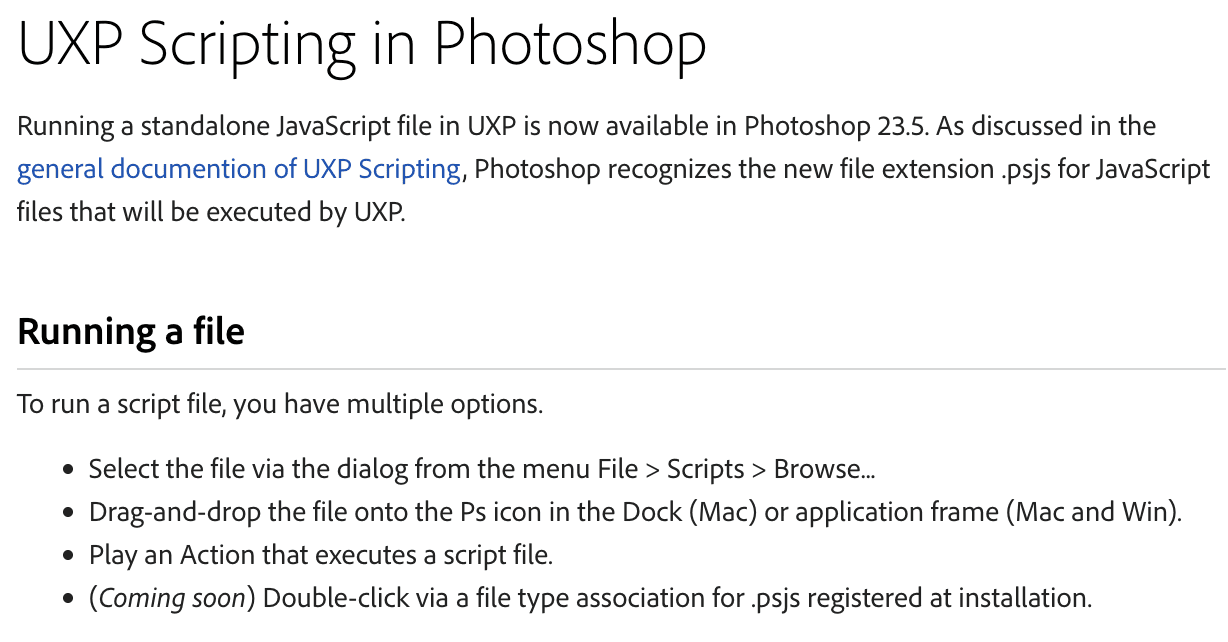
Source: Adobe, UXP Scripting in Photoshop documentation.
4. Return exact evidence
When the script fails, send Claude Code the exact error, stack, Photoshop version, reproduction steps, and relevant source. When it runs but produces the wrong image, attach the export and describe measurable differences.
Ask for the smallest correction instead of a rewrite:
The script failed in Photoshop [VERSION].

Exact error and stack:
[PASTE]

Expected result:
[PASTE]

Actual result:
[PASTE AND ATTACH OUTPUT]

Verify the relevant API in current Adobe documentation. Make the smallest
correction and preserve all source-protection rules
The script failed in Photoshop [VERSION].

Exact error and stack:
[PASTE]

Expected result:
[PASTE]

Actual result:
[PASTE AND ATTACH OUTPUT]

Verify the relevant API in current Adobe documentation. Make the smallest
correction and preserve all source-protection rules
This creates a controlled loop: Claude Code edits the automation, Photoshop executes it, and you verify the evidence.
What does a real task look like?
Consider a marketing team with one layered campaign master and three required output sizes. The safe automation should confirm that an active document exists, create a duplicate for each size, modify only the duplicate, export it with a predictable filename, and close the duplicate without saving changes to the source.
Before writing code, Claude Code should surface decisions that cannot be inferred from the file. Should the image fit inside each target size, fill and crop, or stretch? Should the crop remain centered? Must transparency be preserved? Which color profile is required? What happens when the filename already exists?
These are production decisions, not implementation details. Resolve them before running the script. After the first test, check the original document, output dimensions, crop, transparency, filename, color profile, text, smart objects, and repeat-run behavior. A script that succeeds twice by silently overwriting the first approved export may still be unsafe.
How Do You Build a Reusable Photoshop Plugin?
Use a plugin when users need a panel, reusable presets, stored settings, network access, several commands, or controlled distribution.
1. Scaffold with UXP Developer Tool
Install Photoshop and UXP Developer Tool through Creative Cloud, open Photoshop, and enable Developer Mode. Adobe notes that UDT requires elevated privileges. Its current Build Your First Plugin guide recommends scaffolding from a starter template.
A generated project gives Claude Code a valid manifest, entry point, interface, and JavaScript structure to inspect. Start with plain HTML, CSS, and JavaScript unless a framework solves a specific problem.
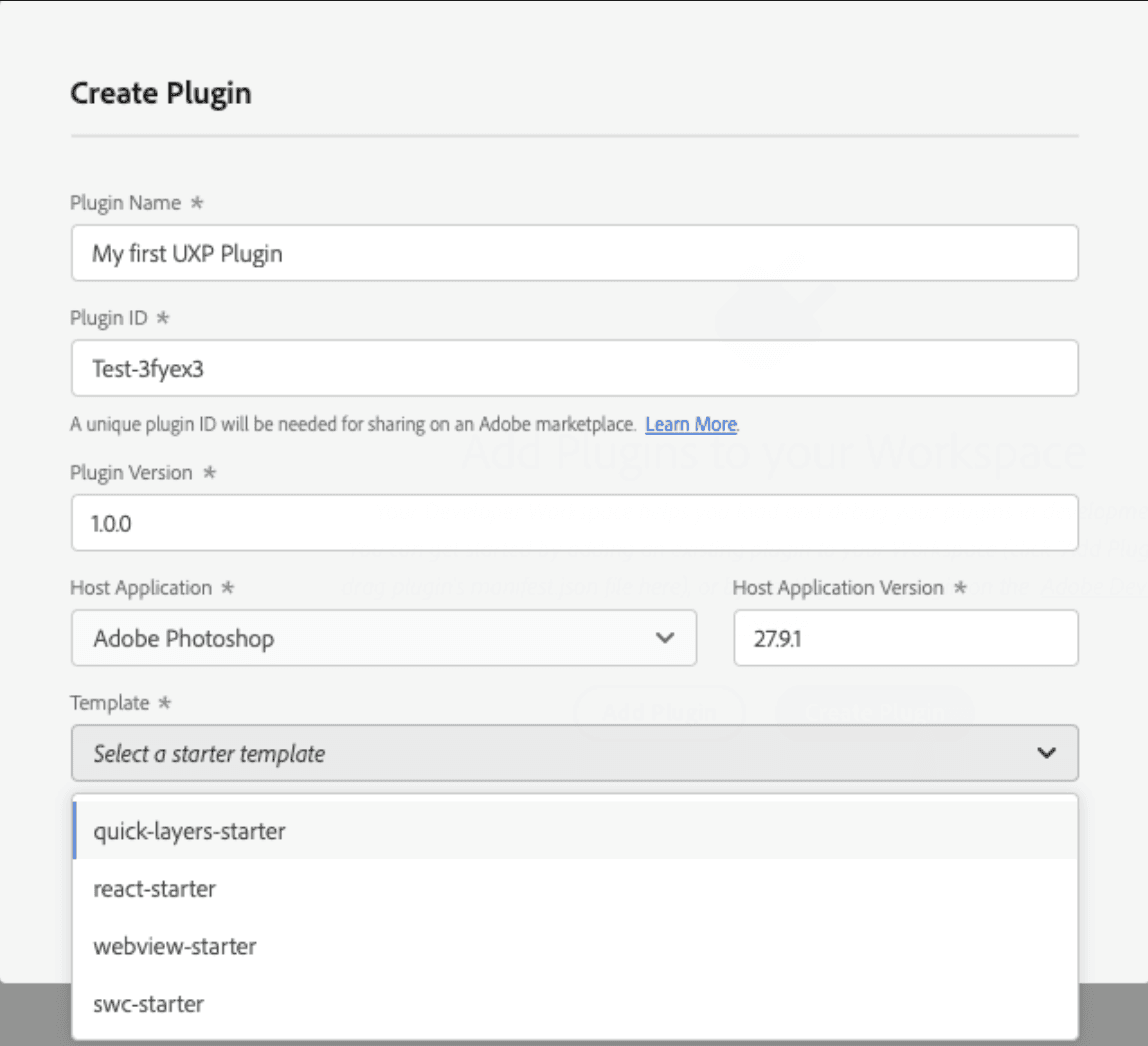
Source: Adobe, Build Your First Plugin tutorial.
2. Let Claude Code inspect the scaffold
Open the plugin root in Claude Code and ask it to explain the existing manifest, host version, entry points, and permissions before changing files. A useful instruction is:
Inspect this Photoshop UXP plugin scaffold.
Propose the smallest architecture for an export panel.
List and justify every permission.
Identify operations that need executeAsModal.
Give me a file-by-file plan before editing.
Do not replace the scaffold or add dependencies without approval
Inspect this Photoshop UXP plugin scaffold.
Propose the smallest architecture for an export panel.
List and justify every permission.
Identify operations that need executeAsModal.
Give me a file-by-file plan before editing.
Do not replace the scaffold or add dependencies without approval
3. Implement one vertical slice
Do not request the whole plugin in one prompt. First build one path that can be tested from interface to output:
Read safe metadata from the active document.
Accept one validated size preset.
Duplicate the document.
Resize and export only the duplicate.
Display a specific success or failure state.
Keep Photoshop operations separate from interface code. This makes review easier and prevents a visual change from rewriting document logic.
4. Test through UDT
Use UDT's Load & Watch workflow to load and reload the plugin. Manifest changes may require a manual unload and reload. Test with a disposable document and keep the console visible.
Do not test only the happy path. Check no document open, locked or missing layers, invalid dimensions, existing output files, interrupted exports, unsaved source changes, and reopening the panel. Inspect transparency, color profile, text, masks, smart objects, and edge pixels in the exported file.
Adobe maintains public Photoshop UXP plugin samples. Ask Claude Code to compare unfamiliar patterns with the nearest official sample rather than relying on an unverified forum snippet.
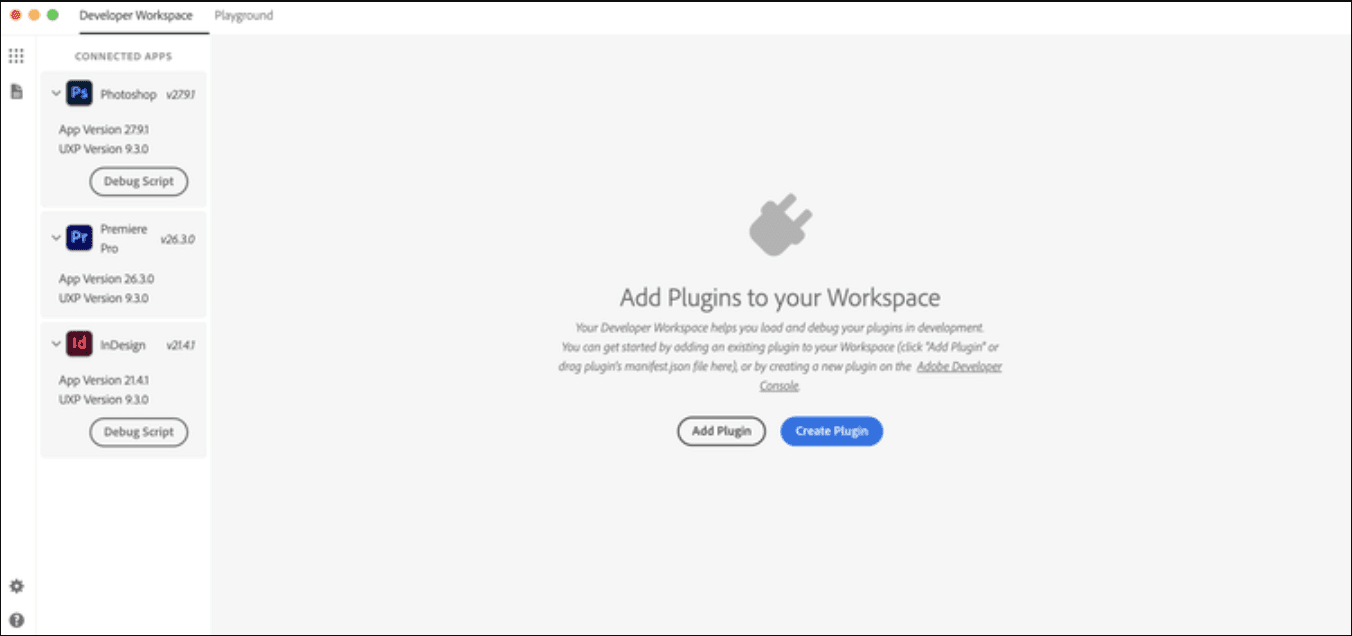
Source: Adobe, UXP Developer Tool documentation.
5. Package after testing
Once the development version passes its tests, package it with UDT and test the resulting CCX separately. Plan versioning, upgrades, release notes, and rollback before distributing it.
A practical YouTube walkthrough demonstrates this broader loop with CLAUDE.md, screenshot feedback, UDT reloads, debugging, and CCX packaging. It is a useful implementation example, while Adobe documentation remains the authority for APIs and permissions.
Can Claude Code Control Photoshop Through MCP?
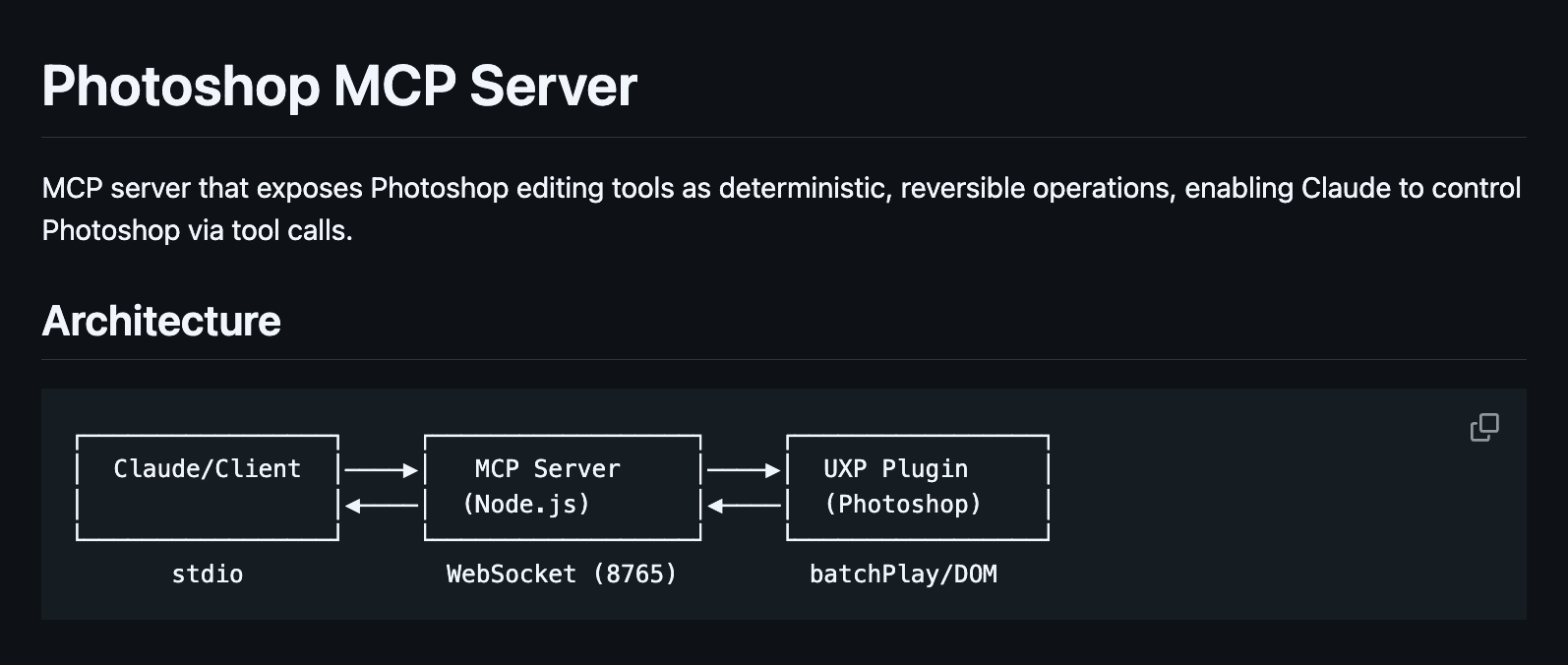
Potentially, but not natively. Community projects normally use an architecture like this:
Claude Code
  -> MCP server
  -> local transport such as WebSocket
  -> UXP plugin inside Photoshop
  -> Photoshop DOM or batchPlay
  -> active document
Claude Code
  -> MCP server
  -> local transport such as WebSocket
  -> UXP plugin inside Photoshop
  -> Photoshop DOM or batchPlay
  -> active document
The third-party CORE-Automate-WSS/photoshop-mcp repository illustrates this pattern. It is useful for understanding the architecture, but it is not an Adobe or Anthropic product endorsement.
A successful MCP connection does not prove that Photoshop is ready or that an operation is safe. Claude Code may reach the server while the UXP plugin is unloaded, the wrong document is active, or a local port is exposed incorrectly.
Before installing any bridge, check:
every Photoshop operation exposed as a tool;
whether arbitrary UXP or
batchPlaypayloads can run;filesystem and network permissions;
local ports, authentication, and origin restrictions;
logging of filenames, prompts, images, or metadata;
dependency and version pinning;
confirmation before save, overwrite, close, delete, or upload;
failure recovery when a command stops halfway through.
Prefer narrow tools such as “duplicate and export approved size” over a general tool that can execute any Photoshop command. Test with duplicate documents and limited credentials. Anthropic also recommends reviewing and trusting third-party servers before use in its Claude Code MCP documentation.
When Should You Use Photoshop API v2?
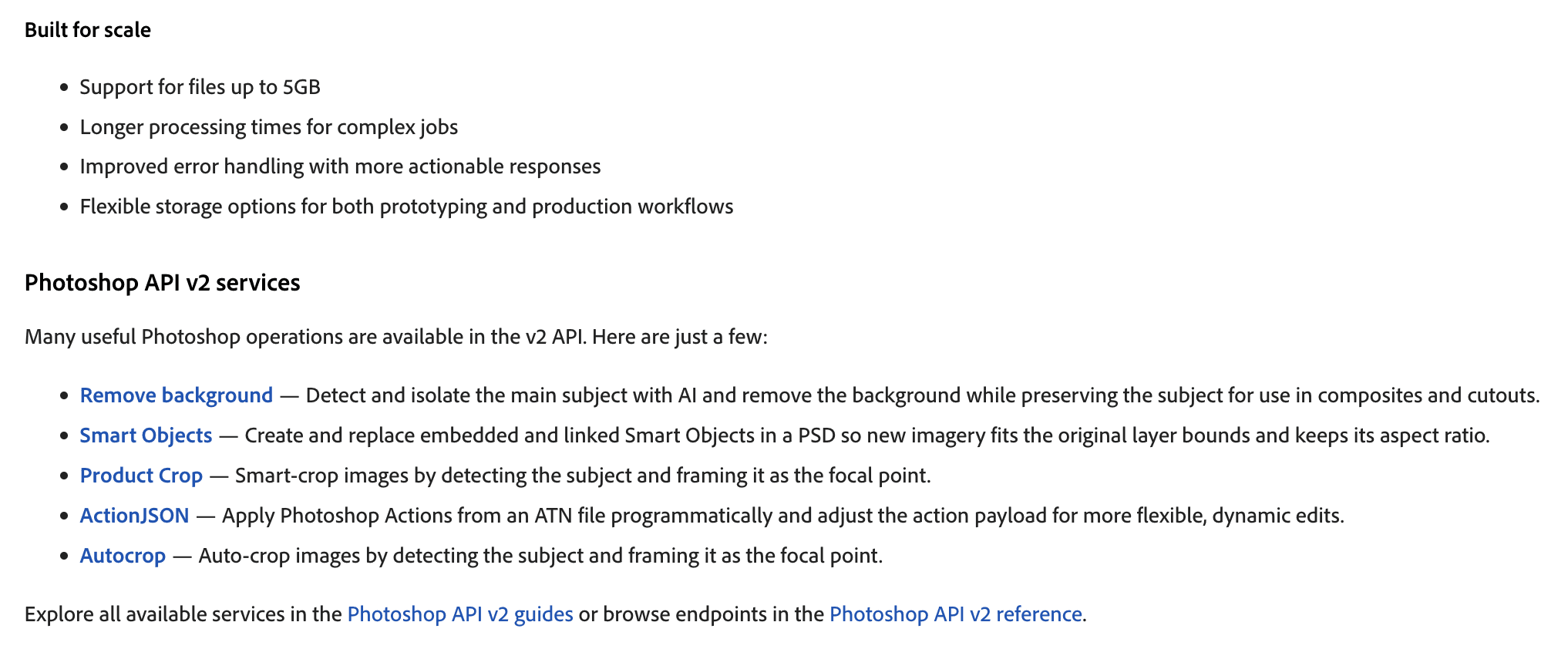
Photoshop API v2 belongs in an enterprise content pipeline rather than an individual's live desktop workflow. It processes assets available through supported cloud storage or signed URLs. It does not control the PSD currently open in local Photoshop.
Adobe's current onboarding requires eligible Enterprise Firefly Services access, an Adobe Developer Console project, OAuth server-to-server credentials, and secure storage handling. Review the Photoshop API documentation before asking Claude Code to implement a client.
Use API v2 for high-volume, server-side processing with clear infrastructure ownership. Use a script or plugin for work that depends on the user's active Photoshop document.
Source: Adobe, Photoshop API v2 documentation.
Which Prompts Produce Better Photoshop Automation?
Strong prompts describe the document state, safety boundary, expected output, and proof of completion. They also separate planning from implementation.
Use this compact planning prompt before creating files:
I need to automate [TASK] in Photoshop [VERSION].
The document contains [RELEVANT LAYERS, ARTBOARDS, AND SMART OBJECTS].
The outputs require [DIMENSIONS, FORMAT, NAMING, AND COLOR PROFILE].

Compare a UXP script and plugin for this task. Verify the required APIs in
current Adobe documentation. List unsupported assumptions, destructive
operations, permissions, and test cases. Recommend the smallest supported
option. Do not write code yet
I need to automate [TASK] in Photoshop [VERSION].
The document contains [RELEVANT LAYERS, ARTBOARDS, AND SMART OBJECTS].
The outputs require [DIMENSIONS, FORMAT, NAMING, AND COLOR PROFILE].

Compare a UXP script and plugin for this task. Verify the required APIs in
current Adobe documentation. List unsupported assumptions, destructive
operations, permissions, and test cases. Recommend the smallest supported
option. Do not write code yet
For implementation, tell Claude Code to preserve the source, write only to an approved folder, avoid unapproved dependencies and permissions, and implement one testable vertical slice. Require it to report every changed file and provide exact Photoshop and UDT test steps.
When evaluating an MCP project, use a repository-audit prompt rather than immediately installing it:
Audit this Photoshop MCP repository without running or installing it.
Map every process, port, protocol, executable, and UXP permission.
Identify document-changing tools, arbitrary code or batchPlay execution,
filesystem and network access, authentication, logging, and update behavior.
Cite the exact source files supporting each finding. End with unresolved
risks and a minimum-permission test plan
Audit this Photoshop MCP repository without running or installing it.
Map every process, port, protocol, executable, and UXP permission.
Identify document-changing tools, arbitrary code or batchPlay execution,
filesystem and network access, authentication, logging, and update behavior.
Cite the exact source files supporting each finding. End with unresolved
risks and a minimum-permission test plan
For visual QA, attach both the reference and generated export. Ask Claude Code to separate observations from hypotheses and check dimensions, crop, spacing, transparency, edge artifacts, text rendering, color shifts, and missing elements. This produces a more actionable review than asking whether the images “look the same.”
When Does Vagon Cloud Computer Improve This Workflow?
Photoshop automation may start with a small script, but the full setup can be demanding. Photoshop, large PSD files, Claude Code, Git, UXP Developer Tool, repositories, and exported previews all need to work together.
Vagon Cloud Computer gives you a complete Windows computer in the cloud where you can keep that environment in one place. Install your licensed copy of Photoshop alongside Claude Code, Git, UDT, test documents, and project files, then access the same computer from different devices without rebuilding the setup.
This is especially useful when your local hardware struggles with large layered documents or export batches. You can switch to a more capable performance option while keeping the same files, applications, and configured desktop. When the session is finished, your stored environment remains available for the next time you connect.
Applications offered in Vagon’s catalog can be installed automatically. If Photoshop or another required tool is not available there, install it manually through Adobe Creative Cloud, just as you would on a local Windows computer. The Vagon application library explains both installation options.
Vagon can also simplify an approved MCP setup. Claude Code, the MCP server, the companion UXP plugin, and Photoshop can run on the same Cloud Computer instead of being divided across separate devices. You should still audit the bridge’s permissions, ports, logging, and document-changing tools before using it.
Vagon is a strong fit when you:
need a Windows Photoshop environment from lightweight hardware;
want more performance for large PSDs or batch exports;
work across different devices or locations;
want a persistent, separate workstation for automation testing;
need Claude Code, Photoshop, UDT, and an approved local bridge on the same host.
Remote visual work depends on connection quality, particularly for pen input and detailed retouching. Compute usage and storage are billed separately, and third-party software licenses are not included. Review the latest options on the Vagon pricing page.
Ready to move the complete workflow onto one scalable workstation? Create your Vagon Cloud Computer and keep Photoshop, Claude Code, development tools, and project files together.
What Problems and Limits Should You Expect?
Problem | Likely cause | What to check |
|---|---|---|
Claude Code cannot interpret the PSD | No rendered view or layer context | Export a preview and describe the structure |
| Wrong extension or unsupported API | Use current Photoshop and UXP documentation |
Document change is rejected | Missing modal execution | Review |
Method does not exist | Legacy ExtendScript or invented API | Verify against Adobe's current reference |
Plugin cannot access a resource | Missing permission or incompatible host | Inspect manifest and minimum version |
MCP cannot reach Photoshop | Plugin inactive, blocked port, or different host | Check every process and transport step |
API request fails | Entitlement, token, endpoint, or storage issue | Check credentials and signed URL access |
Remote session feels slow | Network, region, display, or resource selection | Test connection and performance option |
Keep secrets out of prompts, screenshots, source control, and plugin bundles. Use duplicate documents, versioned outputs, and an allowlist of writable folders. Claude Code's permission model cannot determine whether a Photoshop operation is creatively correct.
Always inspect the final asset. Text, blend modes, masks, smart objects, metadata, transparency, and color profiles can be wrong even when the automation finishes without an exception.
Frequently Asked Questions
Can Claude Code edit a PSD directly?
Not by default. Photoshop must execute changes through a script, plugin, API workflow, or separately installed bridge.
Is there an official Photoshop MCP server for Claude Code?
Adobe does not currently document an official Claude Code bridge to the local Photoshop desktop canvas. Treat community MCP servers as third-party software.
Should I use a UXP script or plugin?
Use a script for a focused task that runs and exits. Use a plugin for a panel, reusable settings, network access, distribution, or ongoing maintenance.
Can a UXP script call a web API or local process?
Not in Adobe's documented script context. Network, LaunchProcess, WebView, and IPC are currently listed as unavailable for scripts.
Is Photoshop MCP required?
No. Scripts and plugins cover many useful workflows. MCP is relevant when you need live, narrowly defined tool calls and can audit the bridge.
Can I run everything on Vagon Cloud Computer?
Yes. Install your licensed Photoshop application, Claude Code, Git, UDT, and approved development tools inside the same Cloud Computer. Vagon supplies the cloud computer, not the third-party licenses.
Claude Code becomes useful with Photoshop when the boundary is clear: it develops the automation, Photoshop executes it, and you verify the result. Start with one non-destructive script and a disposable document. If hardware limits or repeated setup interrupt that loop, create your Vagon Cloud Computer and turn it into a persistent Photoshop automation workstation.
Claude Code does not automatically connect to Photoshop or control the document open on your canvas. The most reliable workflow is to use Claude Code to create or debug an Adobe UXP script or plugin, run it inside Photoshop, and return the result or error for the next iteration.
For most first projects, start with a standalone UXP script. Build a plugin when you need an in-app panel, saved settings, network access, or a tool that other people can reuse. Community MCP bridges can add conversational control, but they are third-party systems that require a separate server, a Photoshop plugin, and a careful security review.
This guide shows how to choose the right route, build a non-destructive workflow, test a reusable plugin, evaluate MCP projects, and keep the complete environment together on Vagon Cloud Computer.
What Can Claude Code Actually Do With Photoshop?
Claude Code works with files, source code, terminal commands, screenshots, and tools you explicitly connect. In a Photoshop workflow, it can:
analyze an exported PNG, JPEG, or screenshot;
create and debug
.psjsscripts;build a Photoshop UXP plugin;
help create a client for Photoshop API v2;
inspect errors, logs, manifests, and plugin permissions;
write tests for filenames, dimensions, and output folders.
Anthropic documents image input in its Claude Code user FAQ. This provides a useful visual feedback loop, but not live knowledge of the Photoshop document. Claude Code cannot automatically see the selected layer, masks, smart objects, history state, or unsaved changes.
Source: Anthropic, Claude Code User FAQ.
Adobe provides the execution layer. UXP scripts handle focused tasks, while UXP plugins support persistent interfaces and maintained integrations. Adobe for creativity is a separate product available through supported Claude surfaces. It is not a documented Claude Code connection to the local Photoshop canvas.
Good first automation projects have measurable outputs:
export a document to approved sizes and formats;
rename layers or files using fixed rules;
add a standard watermark to duplicates;
validate canvas size, color mode, and required layer groups;
place supplied assets into predefined smart objects;
generate review previews or contact sheets.
Avoid starting with subjective requests such as “make this portrait look premium.” Begin with a task whose result can be verified.
Which Photoshop Workflow Should You Choose?
Workflow | Best for | Setup | Support status |
|---|---|---|---|
Exported preview | Visual review, planning, and QA | Low | Normal Claude Code workflow |
UXP script | Focused or repeated document tasks | Low to medium | Adobe-supported |
UXP plugin | Panels, preferences, commands, and team tools | Medium to high | Adobe-supported |
Photoshop API v2 | Enterprise content pipelines | High | Adobe-supported with enterprise prerequisites |
Community MCP bridge | Experimental live tool calls | Medium to high | Third-party |
A UXP script is a single .psjs file that runs a task and unloads. It can show a dialog but does not have a persistent panel or plugin storage. Adobe's UXP scripting overview explains the model.
Scripts also have module limits. Adobe currently lists Network, LaunchProcess, WebView, and IPC as unavailable in the script context. A script cannot invoke another script or accept launch arguments in the documented model. If your workflow needs those capabilities, create a properly permissioned plugin.
Photoshop Actions remain useful for fixed, recordable sequences. Choose Claude Code and UXP when you need conditional logic, input validation, filesystem rules, error handling, or a maintained interface.
How Do You Set Up a UXP Script Workflow?
1. Create a safe project folder
Do not test against the only copy of a client project. Create a workspace with clear boundaries:
photoshop-automation/
  CLAUDE.md
  scripts/
  references/
  outputs/
  test-files
Place a disposable PSD in test-files/ and a representative preview in references/. Generated files should go only into outputs/.
Add persistent rules to CLAUDE.md:
Use current Adobe Photoshop UXP APIs, not legacy ExtendScript.
Preserve the original Photoshop document.
Never flatten, overwrite, close, or delete without approval.
Write generated assets only to the outputs folder.
Use executeAsModal where Photoshop requires it.
State any API assumption not verified in Adobe documentation
2. Describe the document and expected result
A PSD file alone is not enough context. Export a preview and describe information it cannot reveal:
Photoshop version and operating system;
document dimensions, resolution, and color mode;
relevant layers, artboards, smart objects, and linked assets;
output sizes, formats, quality, color profile, and naming rules;
what should happen when an output already exists.
Use a planning-first prompt:
Help me create a Photoshop UXP script.

Task:
- Duplicate the active document for each approved output size.
- Resize only the duplicate.
- Export each result into ./outputs.
- Close each duplicate without saving it over the source.
- Leave the original open and unchanged.

First identify the required current UXP APIs, destructive operations,
unsupported assumptions, and files you plan to create. Do not write code
until the plan is complete
3. Review before running
Document-changing operations generally need Photoshop's executeAsModal model. Review the generated code for commands that flatten, merge, save over, close, or delete. Check that it uses current UXP APIs instead of copied ExtendScript examples.
Save the file with a .psjs extension. Adobe documents launching it through File > Scripts > Browse or by dragging it onto the Photoshop application. UXP Developer Tool can debug the script and expose failures. Follow Adobe's current UXP scripting quickstart.
Source: Adobe, UXP Scripting in Photoshop documentation.
4. Return exact evidence
When the script fails, send Claude Code the exact error, stack, Photoshop version, reproduction steps, and relevant source. When it runs but produces the wrong image, attach the export and describe measurable differences.
Ask for the smallest correction instead of a rewrite:
The script failed in Photoshop [VERSION].

Exact error and stack:
[PASTE]

Expected result:
[PASTE]

Actual result:
[PASTE AND ATTACH OUTPUT]

Verify the relevant API in current Adobe documentation. Make the smallest
correction and preserve all source-protection rules
This creates a controlled loop: Claude Code edits the automation, Photoshop executes it, and you verify the evidence.
What does a real task look like?
Consider a marketing team with one layered campaign master and three required output sizes. The safe automation should confirm that an active document exists, create a duplicate for each size, modify only the duplicate, export it with a predictable filename, and close the duplicate without saving changes to the source.
Before writing code, Claude Code should surface decisions that cannot be inferred from the file. Should the image fit inside each target size, fill and crop, or stretch? Should the crop remain centered? Must transparency be preserved? Which color profile is required? What happens when the filename already exists?
These are production decisions, not implementation details. Resolve them before running the script. After the first test, check the original document, output dimensions, crop, transparency, filename, color profile, text, smart objects, and repeat-run behavior. A script that succeeds twice by silently overwriting the first approved export may still be unsafe.
How Do You Build a Reusable Photoshop Plugin?
Use a plugin when users need a panel, reusable presets, stored settings, network access, several commands, or controlled distribution.
1. Scaffold with UXP Developer Tool
Install Photoshop and UXP Developer Tool through Creative Cloud, open Photoshop, and enable Developer Mode. Adobe notes that UDT requires elevated privileges. Its current Build Your First Plugin guide recommends scaffolding from a starter template.
A generated project gives Claude Code a valid manifest, entry point, interface, and JavaScript structure to inspect. Start with plain HTML, CSS, and JavaScript unless a framework solves a specific problem.
Source: Adobe, Build Your First Plugin tutorial.
2. Let Claude Code inspect the scaffold
Open the plugin root in Claude Code and ask it to explain the existing manifest, host version, entry points, and permissions before changing files. A useful instruction is:
Inspect this Photoshop UXP plugin scaffold.
Propose the smallest architecture for an export panel.
List and justify every permission.
Identify operations that need executeAsModal.
Give me a file-by-file plan before editing.
Do not replace the scaffold or add dependencies without approval
3. Implement one vertical slice
Do not request the whole plugin in one prompt. First build one path that can be tested from interface to output:
Read safe metadata from the active document.
Accept one validated size preset.
Duplicate the document.
Resize and export only the duplicate.
Display a specific success or failure state.
Keep Photoshop operations separate from interface code. This makes review easier and prevents a visual change from rewriting document logic.
4. Test through UDT
Use UDT's Load & Watch workflow to load and reload the plugin. Manifest changes may require a manual unload and reload. Test with a disposable document and keep the console visible.
Do not test only the happy path. Check no document open, locked or missing layers, invalid dimensions, existing output files, interrupted exports, unsaved source changes, and reopening the panel. Inspect transparency, color profile, text, masks, smart objects, and edge pixels in the exported file.
Adobe maintains public Photoshop UXP plugin samples. Ask Claude Code to compare unfamiliar patterns with the nearest official sample rather than relying on an unverified forum snippet.
Source: Adobe, UXP Developer Tool documentation.
5. Package after testing
Once the development version passes its tests, package it with UDT and test the resulting CCX separately. Plan versioning, upgrades, release notes, and rollback before distributing it.
A practical YouTube walkthrough demonstrates this broader loop with CLAUDE.md, screenshot feedback, UDT reloads, debugging, and CCX packaging. It is a useful implementation example, while Adobe documentation remains the authority for APIs and permissions.
Can Claude Code Control Photoshop Through MCP?
Potentially, but not natively. Community projects normally use an architecture like this:
Claude Code
  -> MCP server
  -> local transport such as WebSocket
  -> UXP plugin inside Photoshop
  -> Photoshop DOM or batchPlay
  -> active document
The third-party CORE-Automate-WSS/photoshop-mcp repository illustrates this pattern. It is useful for understanding the architecture, but it is not an Adobe or Anthropic product endorsement.
A successful MCP connection does not prove that Photoshop is ready or that an operation is safe. Claude Code may reach the server while the UXP plugin is unloaded, the wrong document is active, or a local port is exposed incorrectly.
Before installing any bridge, check:
every Photoshop operation exposed as a tool;
whether arbitrary UXP or
batchPlaypayloads can run;filesystem and network permissions;
local ports, authentication, and origin restrictions;
logging of filenames, prompts, images, or metadata;
dependency and version pinning;
confirmation before save, overwrite, close, delete, or upload;
failure recovery when a command stops halfway through.
Prefer narrow tools such as “duplicate and export approved size” over a general tool that can execute any Photoshop command. Test with duplicate documents and limited credentials. Anthropic also recommends reviewing and trusting third-party servers before use in its Claude Code MCP documentation.
When Should You Use Photoshop API v2?
Photoshop API v2 belongs in an enterprise content pipeline rather than an individual's live desktop workflow. It processes assets available through supported cloud storage or signed URLs. It does not control the PSD currently open in local Photoshop.
Adobe's current onboarding requires eligible Enterprise Firefly Services access, an Adobe Developer Console project, OAuth server-to-server credentials, and secure storage handling. Review the Photoshop API documentation before asking Claude Code to implement a client.
Use API v2 for high-volume, server-side processing with clear infrastructure ownership. Use a script or plugin for work that depends on the user's active Photoshop document.
Source: Adobe, Photoshop API v2 documentation.
Which Prompts Produce Better Photoshop Automation?
Strong prompts describe the document state, safety boundary, expected output, and proof of completion. They also separate planning from implementation.
Use this compact planning prompt before creating files:
I need to automate [TASK] in Photoshop [VERSION].
The document contains [RELEVANT LAYERS, ARTBOARDS, AND SMART OBJECTS].
The outputs require [DIMENSIONS, FORMAT, NAMING, AND COLOR PROFILE].

Compare a UXP script and plugin for this task. Verify the required APIs in
current Adobe documentation. List unsupported assumptions, destructive
operations, permissions, and test cases. Recommend the smallest supported
option. Do not write code yet
For implementation, tell Claude Code to preserve the source, write only to an approved folder, avoid unapproved dependencies and permissions, and implement one testable vertical slice. Require it to report every changed file and provide exact Photoshop and UDT test steps.
When evaluating an MCP project, use a repository-audit prompt rather than immediately installing it:
Audit this Photoshop MCP repository without running or installing it.
Map every process, port, protocol, executable, and UXP permission.
Identify document-changing tools, arbitrary code or batchPlay execution,
filesystem and network access, authentication, logging, and update behavior.
Cite the exact source files supporting each finding. End with unresolved
risks and a minimum-permission test plan
For visual QA, attach both the reference and generated export. Ask Claude Code to separate observations from hypotheses and check dimensions, crop, spacing, transparency, edge artifacts, text rendering, color shifts, and missing elements. This produces a more actionable review than asking whether the images “look the same.”
When Does Vagon Cloud Computer Improve This Workflow?
Photoshop automation may start with a small script, but the full setup can be demanding. Photoshop, large PSD files, Claude Code, Git, UXP Developer Tool, repositories, and exported previews all need to work together.
Vagon Cloud Computer gives you a complete Windows computer in the cloud where you can keep that environment in one place. Install your licensed copy of Photoshop alongside Claude Code, Git, UDT, test documents, and project files, then access the same computer from different devices without rebuilding the setup.
This is especially useful when your local hardware struggles with large layered documents or export batches. You can switch to a more capable performance option while keeping the same files, applications, and configured desktop. When the session is finished, your stored environment remains available for the next time you connect.
Applications offered in Vagon’s catalog can be installed automatically. If Photoshop or another required tool is not available there, install it manually through Adobe Creative Cloud, just as you would on a local Windows computer. The Vagon application library explains both installation options.
Vagon can also simplify an approved MCP setup. Claude Code, the MCP server, the companion UXP plugin, and Photoshop can run on the same Cloud Computer instead of being divided across separate devices. You should still audit the bridge’s permissions, ports, logging, and document-changing tools before using it.
Vagon is a strong fit when you:
need a Windows Photoshop environment from lightweight hardware;
want more performance for large PSDs or batch exports;
work across different devices or locations;
want a persistent, separate workstation for automation testing;
need Claude Code, Photoshop, UDT, and an approved local bridge on the same host.
Remote visual work depends on connection quality, particularly for pen input and detailed retouching. Compute usage and storage are billed separately, and third-party software licenses are not included. Review the latest options on the Vagon pricing page.
Ready to move the complete workflow onto one scalable workstation? Create your Vagon Cloud Computer and keep Photoshop, Claude Code, development tools, and project files together.
What Problems and Limits Should You Expect?
Problem | Likely cause | What to check |
|---|---|---|
Claude Code cannot interpret the PSD | No rendered view or layer context | Export a preview and describe the structure |
| Wrong extension or unsupported API | Use current Photoshop and UXP documentation |
Document change is rejected | Missing modal execution | Review |
Method does not exist | Legacy ExtendScript or invented API | Verify against Adobe's current reference |
Plugin cannot access a resource | Missing permission or incompatible host | Inspect manifest and minimum version |
MCP cannot reach Photoshop | Plugin inactive, blocked port, or different host | Check every process and transport step |
API request fails | Entitlement, token, endpoint, or storage issue | Check credentials and signed URL access |
Remote session feels slow | Network, region, display, or resource selection | Test connection and performance option |
Keep secrets out of prompts, screenshots, source control, and plugin bundles. Use duplicate documents, versioned outputs, and an allowlist of writable folders. Claude Code's permission model cannot determine whether a Photoshop operation is creatively correct.
Always inspect the final asset. Text, blend modes, masks, smart objects, metadata, transparency, and color profiles can be wrong even when the automation finishes without an exception.
Frequently Asked Questions
Can Claude Code edit a PSD directly?
Not by default. Photoshop must execute changes through a script, plugin, API workflow, or separately installed bridge.
Is there an official Photoshop MCP server for Claude Code?
Adobe does not currently document an official Claude Code bridge to the local Photoshop desktop canvas. Treat community MCP servers as third-party software.
Should I use a UXP script or plugin?
Use a script for a focused task that runs and exits. Use a plugin for a panel, reusable settings, network access, distribution, or ongoing maintenance.
Can a UXP script call a web API or local process?
Not in Adobe's documented script context. Network, LaunchProcess, WebView, and IPC are currently listed as unavailable for scripts.
Is Photoshop MCP required?
No. Scripts and plugins cover many useful workflows. MCP is relevant when you need live, narrowly defined tool calls and can audit the bridge.
Can I run everything on Vagon Cloud Computer?
Yes. Install your licensed Photoshop application, Claude Code, Git, UDT, and approved development tools inside the same Cloud Computer. Vagon supplies the cloud computer, not the third-party licenses.
Claude Code becomes useful with Photoshop when the boundary is clear: it develops the automation, Photoshop executes it, and you verify the result. Start with one non-destructive script and a disposable document. If hardware limits or repeated setup interrupt that loop, create your Vagon Cloud Computer and turn it into a persistent Photoshop automation workstation.
Get Beyond Your Computer Performance
Run applications on your cloud computer with the latest generation hardware. No more crashes or lags.

Trial includes 1 hour usage + 7 days of storage.
Summarize with AI

Ready to focus on your creativity?
Vagon gives you the ability to create & render projects, collaborate, and stream applications with the power of the best hardware.

Vagon Blog
Run heavy applications on any device with
your personal computer on the cloud.
San Francisco, California
Solutions
Vagon Teams
Vagon Streams
Use Cases
Resources
Vagon Blog
How to Use AutoCAD With Claude Code: MCP Guide
How to Use Codex With Maya: Python, MEL & Cloud Workflow
How to Use Claude Code With Maya: MCP Setup Guide (2026)
How to Use Codex With Photoshop: Step-by-Step Guide
How to Use Claude Code With Photoshop: Step-by-Step Guide
How to Use Codex With Figma: Step-by-Step Guide
How to Use Claude Code With Figma: Step-by-Step Guide
How to Use Claude Code With After Effects in 2026
How to Build a 3D Environment in Unity With GPT-6 Astra
Vagon Blog
Run heavy applications on any device with
your personal computer on the cloud.
San Francisco, California
Solutions
Vagon Teams
Vagon Streams
Use Cases
Resources
Vagon Blog
How to Use AutoCAD With Claude Code: MCP Guide
How to Use Codex With Maya: Python, MEL & Cloud Workflow
How to Use Claude Code With Maya: MCP Setup Guide (2026)
How to Use Codex With Photoshop: Step-by-Step Guide
How to Use Claude Code With Photoshop: Step-by-Step Guide
How to Use Codex With Figma: Step-by-Step Guide
How to Use Claude Code With Figma: Step-by-Step Guide
How to Use Claude Code With After Effects in 2026
How to Build a 3D Environment in Unity With GPT-6 Astra
Vagon Blog
Run heavy applications on any device with
your personal computer on the cloud.
San Francisco, California
Solutions
Vagon Teams
Vagon Streams
Use Cases
Resources
Vagon Blog