Instant Connection for Pixel Streaming
— New Feature Automated Setup

How to Use Rhino With Claude: MCP & Computer Use Guide
Architecture
-
How to Use Rhino With Claude: MCP & Computer Use Guide
Architecture
How to Use Rhino With Claude: MCP & Computer Use Guide
Architecture
-
Table of Contents
Using Claude with Rhino involves more than asking an AI model to generate Rhino.Python scripts, RhinoCommon code, or Grasshopper components. With a compatible Model Context Protocol (MCP) server, Claude can communicate with a running Rhino session through a local plugin or bridge and work with structured geometry and document data.
Depending on the connector, Claude can inspect layers, curves, surfaces, Breps, meshes, blocks, materials, object properties, named views, and Grasshopper definitions. It may also create or modify geometry, transform objects, update layers, change Grasshopper parameters, bake generated output, capture viewports, and export files such as STEP, IGES, STL, OBJ, or PDF. Community projects such as rhino-mcp demonstrate workflows for connecting AI clients to Rhino 8 and Grasshopper through tools built around RhinoCommon, Rhino.Python, and rhino3dm.
Computer Use adds a visual layer to this connection. Claude can open the correct .3dm file, navigate the Layer panel, switch viewports, inspect the Grasshopper canvas, read component warnings, and verify that generated geometry looks correct before it is saved or exported.
This is not a native one-click Rhino feature. It requires a compatible Rhino installation and license, an MCP server or local bridge, the required Python, Node.js, or .NET dependencies, and appropriate project permissions. For production work, begin with a duplicate file and require approval before modifying geometry, baking Grasshopper output, running scripts, or exporting deliverables.
What Can Claude Do With Rhino Through MCP and Computer Use?
When Claude is connected to Rhino through an MCP server, it can work with structured geometry and document data instead of treating Rhino as a simple desktop window. The exact capabilities depend on the connector, Rhino version, and scripting functions it exposes, but a compatible bridge can provide access to layers, objects, geometry types, materials, blocks, named views, and Grasshopper definitions.
Claude can inspect an active Rhino document and report its name, units, layer hierarchy, object counts, visibility states, and document metadata. It may identify curves, surfaces, Breps, meshes, SubD objects, annotations, blocks, and other geometry types. It can also analyze object properties such as names, colors, materials, layers, bounding boxes, areas, lengths, and volumes when the MCP server exposes those values.

Source: McNeel – The Rhino Window
MCP can support more than read-only analysis. Some community implementations expose tools for creating points, curves, surfaces, and solids; transforming objects; assigning layers and materials; running Rhino.Python or RhinoCommon code; inspecting Grasshopper definitions; baking generated geometry; capturing viewports; and exporting files such as STEP, IGES, STL, OBJ, or PDF. These workflows build on Rhino.Python and RhinoCommon, rather than replacing them.
Computer Use provides a different type of access. Claude can open a .3dm file, navigate the Layer panel, switch viewports, select objects, open Grasshopper, inspect components, read warnings, and verify the visible result.
Task | MCP | Computer Use |
|---|---|---|
Read layers and object data | Strong | Visual |
Create geometry | Connector-dependent | Possible through commands |
Inspect viewport results | Limited | Strong |
Edit Grasshopper parameters | Connector-dependent | Possible through UI |
Bake geometry | Connector-dependent | Possible through UI |
Run Rhino.Python | Strong if exposed | Can open the editor |
Validate geometry visually | Limited | Strong |
Export files | Connector-dependent | Possible through dialogs |
Used together, MCP can identify what needs attention, while Computer Use can verify the geometry and interface state before Claude continues.

Source: McNeel Forum – Object Attributes Panel
MCP vs. Computer Use: Which Rhino Connection Should You Use?
MCP and Computer Use provide different ways for Claude to work with Rhino. MCP is designed for structured communication with Rhino documents, geometry, and scripting tools, while Computer Use allows Claude to interact with the visible Rhino and Grasshopper interfaces. The most reliable workflows use each method for the type of task it handles best.
MCP is the stronger choice when Claude needs structured geometry information or repeatable automation. A Rhino connector may expose tools for reading layers, objects, materials, blocks, geometry properties, Grasshopper components, and document metadata. It can also perform consistent operations such as creating geometry, transforming objects, updating layers, baking Grasshopper output, or exporting selected files.
This approach is useful when consistency matters. For example, Claude can inspect every object on a layer, identify open curves or invalid Breps, and group the results by geometry type. It can also compare object counts, materials, or layer states across several Rhino documents without manually opening and inspecting each one.
Computer Use is more appropriate when the task depends on Rhino’s interface or visual output. Claude can open a viewport, switch between Top, Front, and Perspective views, zoom to selected geometry, inspect display modes, open the Layer panel, or read warning icons on a Grasshopper canvas. It can also operate menus and export dialogs that the MCP server does not expose.
A practical rule is simple: use MCP to query Rhino data, analyze geometry, run Rhino.Python or RhinoCommon operations, and create repeatable results. Use Computer Use to navigate Rhino, inspect visual context, review Grasshopper layouts, operate interface-only controls, and verify geometry.
For example, Claude could use MCP to find all curves on a specific layer that are not closed. It could then use Computer Use to zoom to those curves in the Rhino viewport and confirm that the reported objects are the intended geometry before proposing a repair.
The available tools vary between connectors. The rhino-mcp project supports standalone rhino3dm workflows and live Rhino bridge operations, but other implementations may expose fewer tools or use different connection methods. Always check the selected server’s capabilities before planning a production workflow.
How Do You Connect Claude to a Rhino MCP Server?
Connecting Claude to Rhino requires a bridge between the MCP client and the Rhino application. Most integrations use a local server that communicates with Rhino through a plugin, socket, local HTTP endpoint, Rhino.Python, or RhinoCommon. Claude sends a tool request to the MCP server, the bridge translates it into a Rhino operation, and Rhino returns structured information or performs an approved action.
The architecture usually looks like this:
Some servers can work in standalone mode using rhino3dm. In that mode, Claude may create or inspect .3dm files without a live Rhino interface. Other operations, such as viewport capture, Grasshopper control, rendering, and live document edits, generally require Rhino and a bridge plugin to be running.
A typical setup includes:
Rhino and a valid license
A supported Rhino version, commonly Rhino 8 for newer connectors
Claude Desktop or Claude Code with MCP support
A compatible Rhino MCP server
Python, Node.js,
uv, or .NET dependenciesAn optional Rhino or Grasshopper bridge plugin
A test
.3dmfileBackup copies of important models and definitions
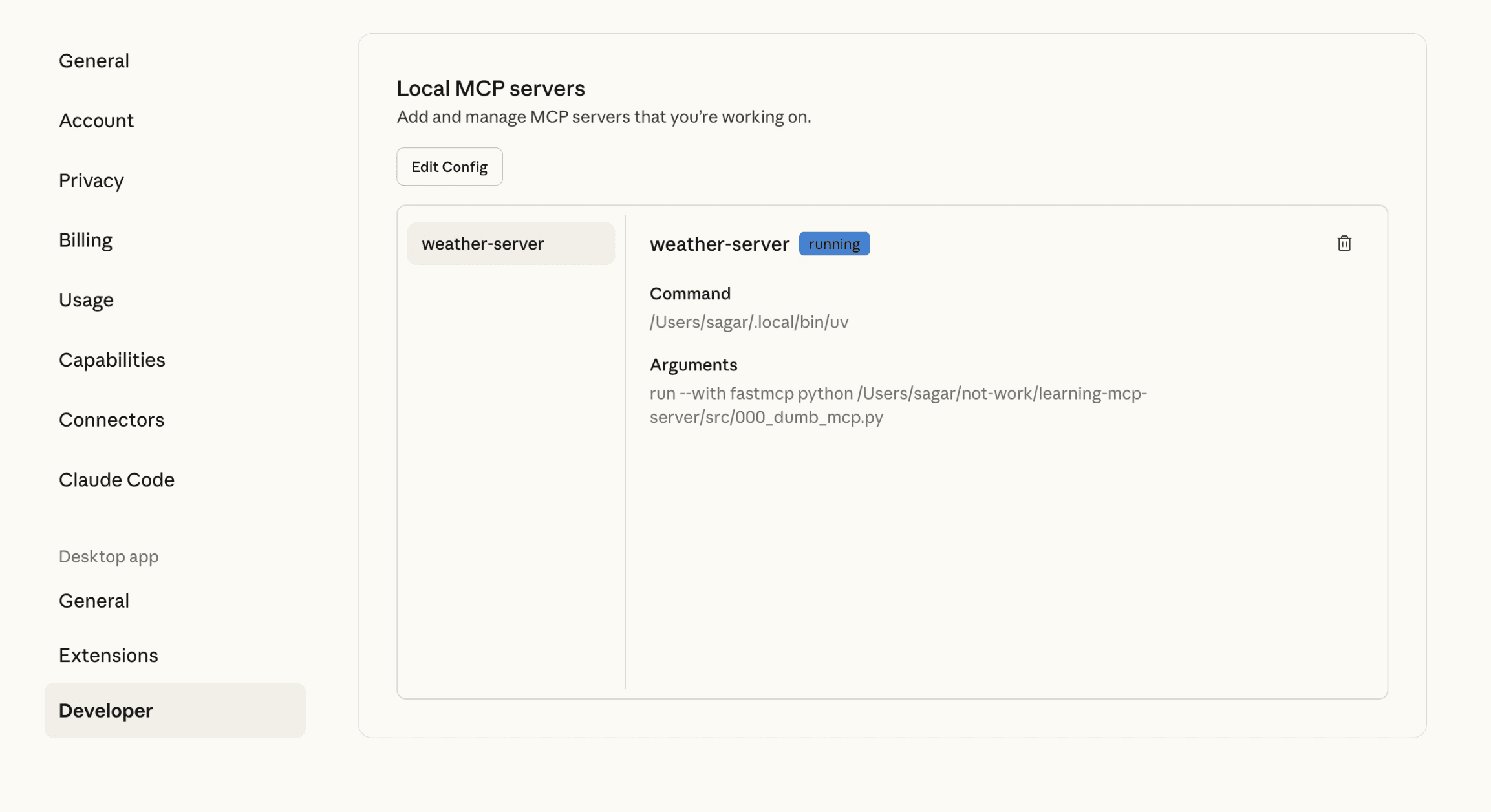
Source: The Ultimate Guide to Model Context Protocol
Basic Connection Process
Start by opening Rhino with a non-critical test document. Confirm that the document, units, layers, and Grasshopper installation work normally. Then install the selected MCP server, install its dependencies, and load the required Rhino plugin or bridge.
A local stdio configuration may look similar to this:
{
  "mcpServers": {
    "rhino-mcp": {
      "command": "uvx",
      "args": ["rhino3dm-mcp"]
{
  "mcpServers": {
    "rhino-mcp": {
      "command": "uvx",
      "args": ["rhino3dm-mcp"]
A local HTTP server may use an endpoint such as:
The exact command, server name, transport, and port depend on the implementation. The rhino-mcp project documents standalone, bridge, stdio, HTTP, and Docker modes. Other projects may use a Rhino plugin, TCP socket, or named-pipe connection.
After registering the server, restart Claude if necessary and confirm that the Rhino tools are available. Begin with read-only requests:
“Check whether Rhino is running and report the active document name. Do not modify anything.”Then test the document structure:
“List all layers in the active Rhino document and report their visibility and object counts.”For Grasshopper, use:
“Inspect the active Grasshopper document and summarize its components, inputs, outputs, and warnings.”If Claude returns information from Rhino, the connection is working. Only after these tests should you create geometry, modify layers, bake Grasshopper output, run scripts, or export files. Save a separate version of the document before approving any operation that can change the model.
How Do You Use Claude Computer Use With Rhino?
Computer Use allows Claude to interact with Rhino through its visible interface. Instead of depending only on MCP tools, Claude can observe the current Rhino window, identify the active document and viewport, and perform actions such as clicking, typing, selecting objects, opening panels, or switching display modes.
A reliable Rhino workflow follows an inspect–act–verify loop:
Claude observes the Rhino interface.
It confirms the active document, units, and current layer.
It checks the active viewport and display mode.
It identifies the required interface action.
It performs one click, keyboard shortcut, command, or text entry.
Rhino or Grasshopper displays a new state.
Claude checks the viewport, Layer panel, command line, or Grasshopper canvas.
It stops or continues based on the verified result.
This is useful when the operation depends on visual context. For example, MCP may report that several surfaces were joined, but Computer Use can zoom to the result and check whether visible gaps or unexpected seams remain. Similarly, MCP may identify a Grasshopper component with a warning, while Computer Use can open the canvas, locate the component, and inspect the surrounding data flow.
You can give Claude a narrowly defined instruction such as:
“Open the active Rhino document, switch to the Perspective viewport, and inspect the selected surfaces for visible gaps or failed joins. Do not modify the geometry.”Other useful interface tasks include opening the Layer panel, switching between Top, Front, and Perspective views, zooming to selected objects, changing display modes, opening Grasshopper, checking slider values, reading component warnings, opening the Render dialog, and reviewing export settings.
Computer Use should not be treated as unrestricted control of the modeling workstation. Confirm the correct Rhino document before each workflow. Require approval before Claude deletes or replaces geometry, changes layer structures, modifies Grasshopper definitions, bakes output, runs arbitrary scripts, overwrites files, or exports production geometry.
Mouse-based operations such as selecting small edges, dragging Grasshopper wires, positioning control points, or moving objects by eye can be fragile. Whenever possible, use MCP, Rhino.Python, or RhinoCommon for deterministic changes, and use Computer Use to navigate the interface and visually verify the result. This combination provides repeatable automation without losing visibility into what happens inside Rhino.
What Rhino and Grasshopper Workflows Can You Automate With Claude?
The most useful Rhino workflows combine MCP for structured geometry operations with Computer Use for visual inspection. Claude can query a document, determine what needs attention, propose a controlled action, and then use the Rhino or Grasshopper interface to verify the result before saving or exporting the model.
Rhino Document and Layer Inspection
Claude can inspect the active document and report its name, path, units, layer hierarchy, object counts, visibility states, locked layers, materials, named views, and blocks. It can also group objects by type, layer, or material.
A useful prompt might be:
“Inspect the active Rhino document and summarize all layers, object counts, geometry types, units, and locked layers. Do not modify anything.”MCP can return this information as structured data, while Computer Use can open the Layer panel and confirm that the reported structure matches the current document.

Source: McNeel Forum – Layer Panel Features
Geometry Creation and Modification
Depending on the connector, Claude can create and manipulate points, curves, NURBS surfaces, Breps, meshes, SubD objects, text, annotations, and blocks. It may also perform transformations, joins, trims, splits, offsets, lofts, sweeps, and boolean operations.
A controlled approach is to create generated geometry on a temporary layer first. Claude can then report the object count and geometry types, while Computer Use verifies the result in the viewport. Only after approval should the objects be moved to a production layer or saved into the main document.
Geometry Analysis and Validation
Claude can help identify:
Open curves
Unjoined surfaces
Invalid Breps
Duplicate geometry
Incorrect object orientation
Layer inconsistencies
Unexpected intersections
Bounding boxes
Areas, lengths, and volumes
Clearance or overlap issues
For example:
“Find all open curves on the Facade layer and report their object IDs and endpoints. Do not close or modify them.”Computer Use can zoom to the flagged objects and visually confirm whether the reported problem is real or caused by modeling tolerance, display mode, or overlapping geometry.
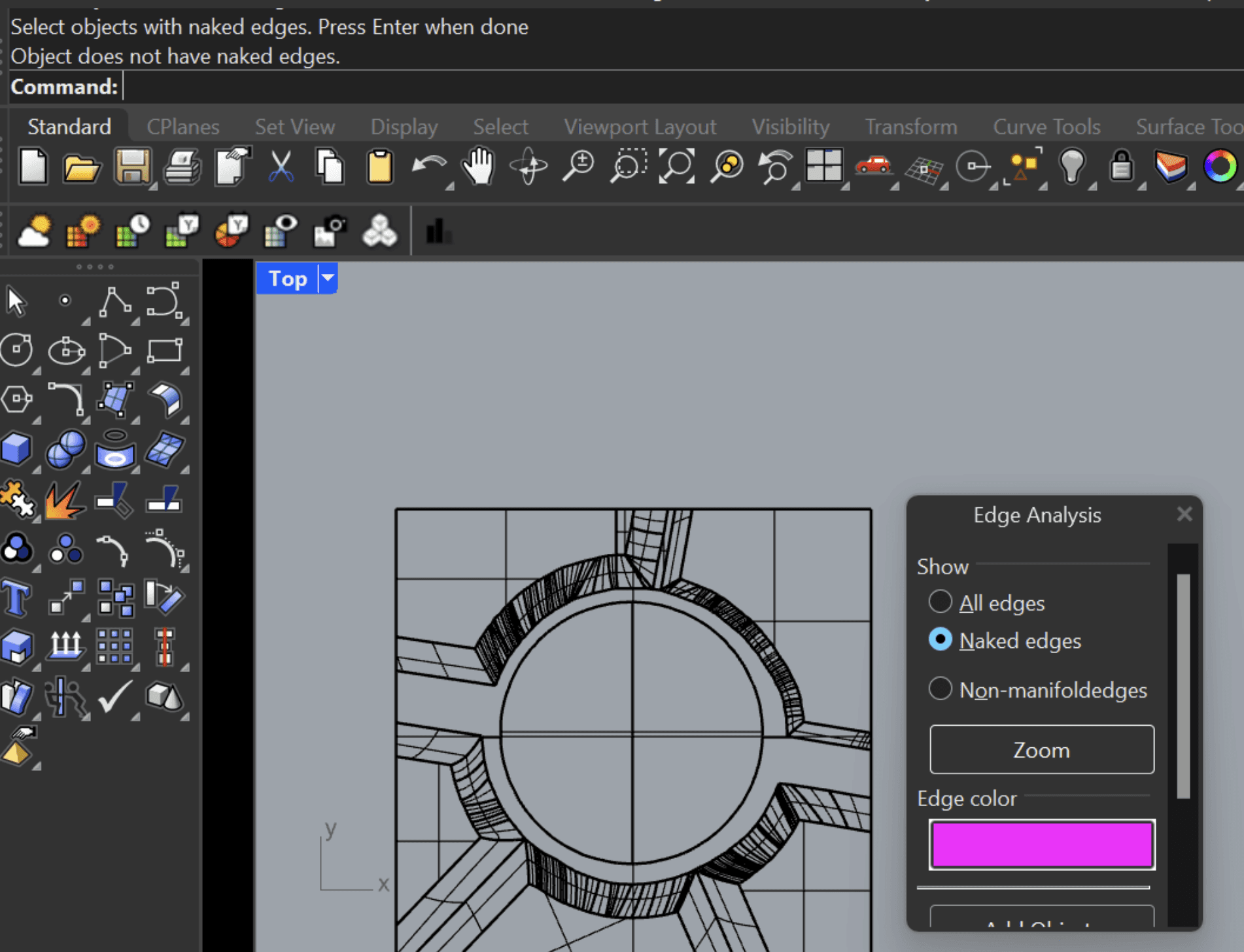
Source: McNeel Forum – Need Help Joining Naked Edges
Grasshopper Definition Inspection
The Grasshopper developer guides cover Python scripting, C# scripting, data trees, components, and plugin development. With a compatible MCP bridge, Claude may inspect a Grasshopper canvas, identify components and connections, read parameters, update sliders, and summarize the data flow.
A useful prompt is:
“Inspect this Grasshopper definition and explain the data flow from the input sliders to the final geometry. Identify components with warnings and do not change the definition.”Computer Use can open the canvas, zoom into a section, read warning icons, and verify the generated result in Rhino.

Source: Data Mining the City – Getting Started in Grasshopper
Grasshopper Parameters and Baking
Claude can help update numeric sliders, toggle boolean inputs, change data paths, recompute a definition, and bake selected output when the connector supports Grasshopper operations.
A safe workflow is:
Inspect the definition.
Identify the target input.
Record its current value.
Propose the new value.
Ask for approval.
Update the input.
Recompute Grasshopper.
Inspect the Rhino viewport.
Bake only the approved output.
This approach is useful for design studies, façade iterations, parametric furniture, panelization, and repeated geometric variations.

Source: McNeel Developer Documentation – Grasshopper Scripting: Python
Materials, Layers, and Scene Organization
Claude can organize objects by layer, assign colors or materials, rename objects, and prepare a consistent document structure. This can help with architectural models, product design files, visualization scenes, and fabrication geometry.
Computer Use should verify layer visibility, material appearance, display mode, and object selection before the scene is saved. A correct API response does not always mean that the viewport looks as intended.
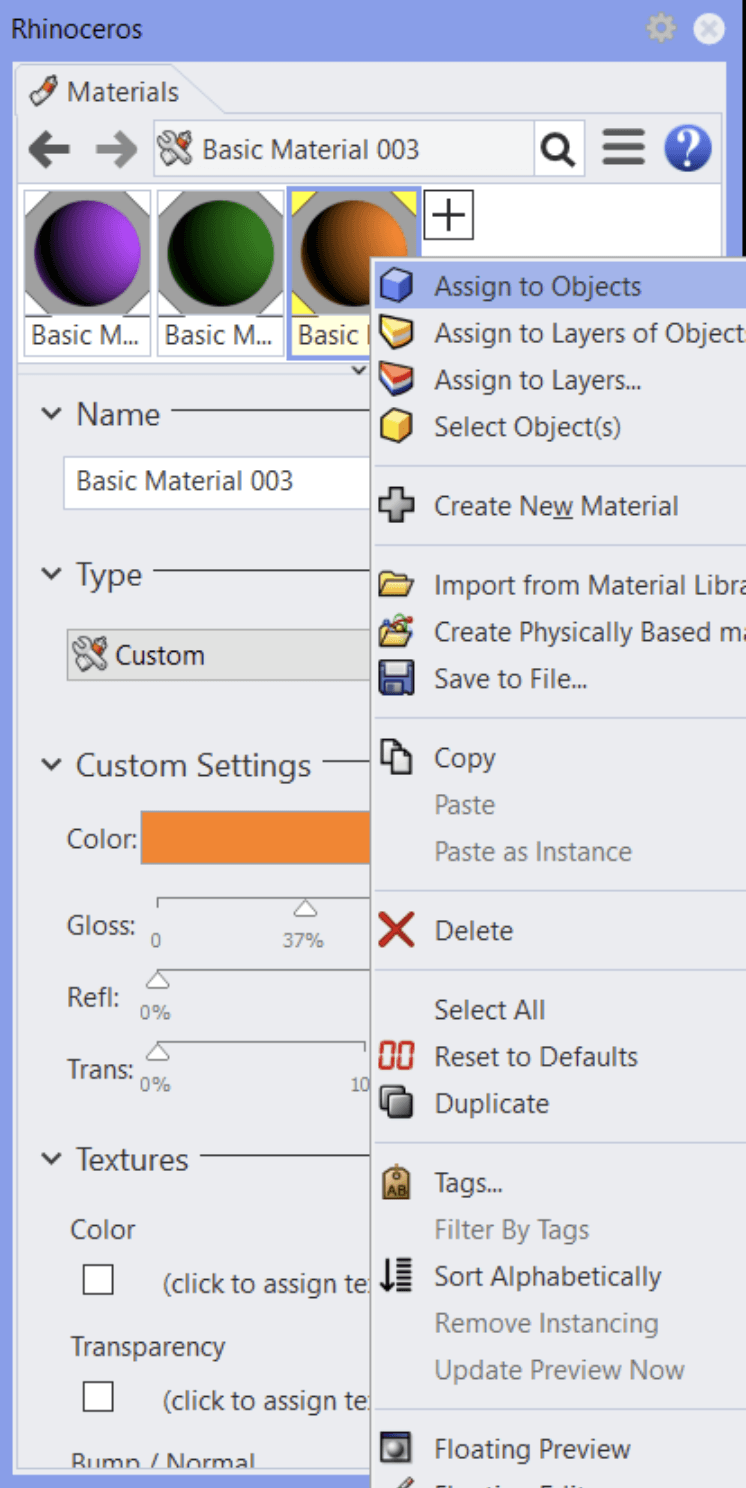
Source: Rhino Bongo Documentation – Animating Object Properties
File Export and Documentation
Depending on the MCP server, Claude may prepare or export STEP, IGES, STL, OBJ, 3DM, PDF, viewport images, rendered images, quantity schedules, or area reports.
Before exporting, Claude should confirm the selected objects, units, tolerance, file format, destination folder, and naming convention. Computer Use can open the export dialog and verify these values before the file is created.
A practical export prompt might be:
“Export only the objects on the Manufacturing layer as an STL in millimeters. Show me the selected object count and output path for approval before creating the file.”This combination of structured selection, explicit approval, and visual verification makes Rhino and Grasshopper automation more reliable for repeatable design and documentation workflows.

Source: University of Washington – CAD to STL in Rhino
How Do You Use MCP and Computer Use Safely With Rhino?
Connecting Claude to Rhino can expose geometry, layer structures, Grasshopper definitions, file paths, materials, and project metadata. Depending on the MCP server, it may also allow direct edits, script execution, baking, and exports. Use the connection as a controlled workflow rather than granting unrestricted access to production models.
Start with a duplicate .3dm file and separate copies of important Grasshopper definitions. Keep production layers locked where possible, and create a temporary or sandbox layer for generated geometry. This makes it easier to compare changes and remove unwanted output without affecting the original model.
Use this sequence:
Require approval before Claude:
Deletes or replaces geometry
Modifies Grasshopper definitions
Changes sliders across a design study
Bakes generated geometry
Edits materials or layers in bulk
Runs arbitrary Python or C# code
Changes document units or tolerances
Overwrites a
.3dmfileExports production geometry
Sends files to external services
Script execution deserves special attention. Rhino.Python and RhinoCommon can perform powerful operations, while a C# bridge may expose even broader capabilities. Review generated code and test it on a copy before running it on a production document.
Claude should stop if the wrong Rhino document is open, units or tolerances differ from the instruction, the active layer is locked or unexpected, Grasshopper reports warnings, geometry is created on the wrong layer, or a boolean, join, or bake operation returns an unexpected result. It should also stop when an export dialog shows the wrong format or destination.
Keep local MCP endpoints protected, avoid unauthenticated external access, restrict filesystem permissions, and maintain backups. After every approved edit, validate the geometry, inspect the viewport, compare the document with the previous version, and save a new revision.
For sensitive work, remember that the MCP bridge may expose object names, layer structures, Grasshopper logic, file paths, and project metadata to the AI service. Limit access to the folders and documents Claude actually needs.
Run Rhino and Claude Together on Vagon Cloud Computer
Rhino and Grasshopper workflows benefit from a persistent environment where Rhino, Claude, the MCP server, plugins, scripts, project files, and export tools remain configured. A Vagon Cloud Computer can provide a dedicated workspace for this setup.
You can install Rhino on the cloud computer, configure Claude Desktop or Claude Code, and run the Rhino MCP server on the same machine. Rhino plugins, Grasshopper libraries, Python packages, uv, Node.js, .NET dependencies, templates, and project folders can remain available between sessions.
Performance matters for MCP and Computer Use:
GPU performance affects Rhino viewport interaction, shaded display, rendered previews, Grasshopper previews, and large models.
CPU performance affects geometry calculations, Grasshopper recomputation, scripting, and exports.
RAM affects complex Breps, meshes, point clouds, large Grasshopper definitions, and multiple open documents.
Stable remote access improves Computer Use reliability when Claude needs to inspect viewports or Grasshopper canvases.
Persistent storage keeps scripts, templates, libraries, and output folders organized.
A typical environment might include:
This setup can support geometry creation, Grasshopper automation, viewport inspection, rendering, analysis, design studies, and repeatable export workflows. It also makes it easier to keep the Rhino version, plugin versions, MCP server, and scripting dependencies consistent.
Vagon does not provide a native Claude–Rhino integration. You still need a valid Rhino license, a compatible MCP server, supported plugins, and access to the required files. Networked assets and confidential project files should be protected with proper permissions, backups, and version control.
The main benefit is a persistent and performance-oriented workspace where Rhino and Claude can be configured once and reused for modeling, parametric design, visualization, analysis, and documentation tasks.
FAQs
Can Claude directly control Rhino?
Claude can interact with Rhino when an MCP server, plugin, or scripting bridge exposes supported tools. It is not a native one-click Rhino feature, and the available controls depend on the selected connector.
Is there an official Rhino MCP server?
Most current Rhino MCP solutions are community-built. They generally connect Claude to Rhino through RhinoCommon, Rhino.Python, sockets, local HTTP, or a Rhino plugin.
Can Claude create Rhino geometry?
Depending on the connector, Claude may create points, curves, surfaces, Breps, meshes, SubD objects, text, blocks, and other supported geometry types.
Can Claude inspect Rhino layers and objects?
Yes, if the MCP server exposes document-inspection tools. Claude may read layer names, visibility states, object types, materials, colors, blocks, and object metadata.
Can Claude work with Grasshopper?
Some MCP servers can inspect Grasshopper definitions, read components and connections, update parameters, recompute definitions, and bake selected output into Rhino.
Can Claude run Rhino.Python?
A compatible bridge may allow Claude to generate and execute approved Rhino.Python code. Review scripts before running them because they can modify geometry, layers, files, and document settings.
Can Claude use RhinoCommon?
Claude can generate RhinoCommon code and may execute it through a connector that exposes a Python or .NET scripting bridge. The available classes and permissions depend on the implementation.
What is Computer Use useful for in Rhino?
Computer Use is useful for navigating Rhino, switching viewports, inspecting layers, checking Grasshopper warnings, reviewing geometry visually, and verifying export dialogs.
Can Claude export STEP, IGES, or STL files?
Some Rhino MCP implementations expose geometry export tools. Always confirm units, tolerance, selected objects, format, output path, and file name before exporting.
Does Rhino need to be installed?
Standalone rhino3dm workflows may create or inspect .3dm files without a live Rhino session. Live viewport, Grasshopper, rendering, and bridge operations generally require Rhino to be installed and running.
Is it safe to connect Claude to production Rhino files?
Use duplicate files, locked production layers, temporary working layers, approval prompts, restricted permissions, and version control. Test scripts and geometry operations before applying them to production models.
Can Rhino and Claude run on Vagon?
Yes. A Vagon Cloud Computer can host Rhino, Grasshopper, Claude, the MCP server, plugins, dependencies, project files, and exports in a persistent environment.
Does Claude replace Rhino scripting?
No. Rhino.Python, RhinoCommon, Grasshopper scripting, and Rhino plugins remain the underlying automation tools. MCP exposes selected capabilities to Claude, while Computer Use provides interface-level control and visual verification.
Can Claude repair invalid Rhino geometry?
Claude can help identify open curves, invalid Breps, duplicate objects, failed joins, and inconsistent layers. It may suggest or apply repair operations, but the result should be tested on a copy because geometry fixes can change topology, tolerances, object IDs, and downstream Grasshopper references.
Using Claude with Rhino involves more than asking an AI model to generate Rhino.Python scripts, RhinoCommon code, or Grasshopper components. With a compatible Model Context Protocol (MCP) server, Claude can communicate with a running Rhino session through a local plugin or bridge and work with structured geometry and document data.
Depending on the connector, Claude can inspect layers, curves, surfaces, Breps, meshes, blocks, materials, object properties, named views, and Grasshopper definitions. It may also create or modify geometry, transform objects, update layers, change Grasshopper parameters, bake generated output, capture viewports, and export files such as STEP, IGES, STL, OBJ, or PDF. Community projects such as rhino-mcp demonstrate workflows for connecting AI clients to Rhino 8 and Grasshopper through tools built around RhinoCommon, Rhino.Python, and rhino3dm.
Computer Use adds a visual layer to this connection. Claude can open the correct .3dm file, navigate the Layer panel, switch viewports, inspect the Grasshopper canvas, read component warnings, and verify that generated geometry looks correct before it is saved or exported.
This is not a native one-click Rhino feature. It requires a compatible Rhino installation and license, an MCP server or local bridge, the required Python, Node.js, or .NET dependencies, and appropriate project permissions. For production work, begin with a duplicate file and require approval before modifying geometry, baking Grasshopper output, running scripts, or exporting deliverables.
What Can Claude Do With Rhino Through MCP and Computer Use?
When Claude is connected to Rhino through an MCP server, it can work with structured geometry and document data instead of treating Rhino as a simple desktop window. The exact capabilities depend on the connector, Rhino version, and scripting functions it exposes, but a compatible bridge can provide access to layers, objects, geometry types, materials, blocks, named views, and Grasshopper definitions.
Claude can inspect an active Rhino document and report its name, units, layer hierarchy, object counts, visibility states, and document metadata. It may identify curves, surfaces, Breps, meshes, SubD objects, annotations, blocks, and other geometry types. It can also analyze object properties such as names, colors, materials, layers, bounding boxes, areas, lengths, and volumes when the MCP server exposes those values.
Source: McNeel – The Rhino Window
MCP can support more than read-only analysis. Some community implementations expose tools for creating points, curves, surfaces, and solids; transforming objects; assigning layers and materials; running Rhino.Python or RhinoCommon code; inspecting Grasshopper definitions; baking generated geometry; capturing viewports; and exporting files such as STEP, IGES, STL, OBJ, or PDF. These workflows build on Rhino.Python and RhinoCommon, rather than replacing them.
Computer Use provides a different type of access. Claude can open a .3dm file, navigate the Layer panel, switch viewports, select objects, open Grasshopper, inspect components, read warnings, and verify the visible result.
Task | MCP | Computer Use |
|---|---|---|
Read layers and object data | Strong | Visual |
Create geometry | Connector-dependent | Possible through commands |
Inspect viewport results | Limited | Strong |
Edit Grasshopper parameters | Connector-dependent | Possible through UI |
Bake geometry | Connector-dependent | Possible through UI |
Run Rhino.Python | Strong if exposed | Can open the editor |
Validate geometry visually | Limited | Strong |
Export files | Connector-dependent | Possible through dialogs |
Used together, MCP can identify what needs attention, while Computer Use can verify the geometry and interface state before Claude continues.
Source: McNeel Forum – Object Attributes Panel
MCP vs. Computer Use: Which Rhino Connection Should You Use?
MCP and Computer Use provide different ways for Claude to work with Rhino. MCP is designed for structured communication with Rhino documents, geometry, and scripting tools, while Computer Use allows Claude to interact with the visible Rhino and Grasshopper interfaces. The most reliable workflows use each method for the type of task it handles best.
MCP is the stronger choice when Claude needs structured geometry information or repeatable automation. A Rhino connector may expose tools for reading layers, objects, materials, blocks, geometry properties, Grasshopper components, and document metadata. It can also perform consistent operations such as creating geometry, transforming objects, updating layers, baking Grasshopper output, or exporting selected files.
This approach is useful when consistency matters. For example, Claude can inspect every object on a layer, identify open curves or invalid Breps, and group the results by geometry type. It can also compare object counts, materials, or layer states across several Rhino documents without manually opening and inspecting each one.
Computer Use is more appropriate when the task depends on Rhino’s interface or visual output. Claude can open a viewport, switch between Top, Front, and Perspective views, zoom to selected geometry, inspect display modes, open the Layer panel, or read warning icons on a Grasshopper canvas. It can also operate menus and export dialogs that the MCP server does not expose.
A practical rule is simple: use MCP to query Rhino data, analyze geometry, run Rhino.Python or RhinoCommon operations, and create repeatable results. Use Computer Use to navigate Rhino, inspect visual context, review Grasshopper layouts, operate interface-only controls, and verify geometry.
For example, Claude could use MCP to find all curves on a specific layer that are not closed. It could then use Computer Use to zoom to those curves in the Rhino viewport and confirm that the reported objects are the intended geometry before proposing a repair.
The available tools vary between connectors. The rhino-mcp project supports standalone rhino3dm workflows and live Rhino bridge operations, but other implementations may expose fewer tools or use different connection methods. Always check the selected server’s capabilities before planning a production workflow.
How Do You Connect Claude to a Rhino MCP Server?
Connecting Claude to Rhino requires a bridge between the MCP client and the Rhino application. Most integrations use a local server that communicates with Rhino through a plugin, socket, local HTTP endpoint, Rhino.Python, or RhinoCommon. Claude sends a tool request to the MCP server, the bridge translates it into a Rhino operation, and Rhino returns structured information or performs an approved action.
The architecture usually looks like this:
Some servers can work in standalone mode using rhino3dm. In that mode, Claude may create or inspect .3dm files without a live Rhino interface. Other operations, such as viewport capture, Grasshopper control, rendering, and live document edits, generally require Rhino and a bridge plugin to be running.
A typical setup includes:
Rhino and a valid license
A supported Rhino version, commonly Rhino 8 for newer connectors
Claude Desktop or Claude Code with MCP support
A compatible Rhino MCP server
Python, Node.js,
uv, or .NET dependenciesAn optional Rhino or Grasshopper bridge plugin
A test
.3dmfileBackup copies of important models and definitions
Source: The Ultimate Guide to Model Context Protocol
Basic Connection Process
Start by opening Rhino with a non-critical test document. Confirm that the document, units, layers, and Grasshopper installation work normally. Then install the selected MCP server, install its dependencies, and load the required Rhino plugin or bridge.
A local stdio configuration may look similar to this:
{
  "mcpServers": {
    "rhino-mcp": {
      "command": "uvx",
      "args": ["rhino3dm-mcp"]
A local HTTP server may use an endpoint such as:
The exact command, server name, transport, and port depend on the implementation. The rhino-mcp project documents standalone, bridge, stdio, HTTP, and Docker modes. Other projects may use a Rhino plugin, TCP socket, or named-pipe connection.
After registering the server, restart Claude if necessary and confirm that the Rhino tools are available. Begin with read-only requests:
“Check whether Rhino is running and report the active document name. Do not modify anything.”Then test the document structure:
“List all layers in the active Rhino document and report their visibility and object counts.”For Grasshopper, use:
“Inspect the active Grasshopper document and summarize its components, inputs, outputs, and warnings.”If Claude returns information from Rhino, the connection is working. Only after these tests should you create geometry, modify layers, bake Grasshopper output, run scripts, or export files. Save a separate version of the document before approving any operation that can change the model.
How Do You Use Claude Computer Use With Rhino?
Computer Use allows Claude to interact with Rhino through its visible interface. Instead of depending only on MCP tools, Claude can observe the current Rhino window, identify the active document and viewport, and perform actions such as clicking, typing, selecting objects, opening panels, or switching display modes.
A reliable Rhino workflow follows an inspect–act–verify loop:
Claude observes the Rhino interface.
It confirms the active document, units, and current layer.
It checks the active viewport and display mode.
It identifies the required interface action.
It performs one click, keyboard shortcut, command, or text entry.
Rhino or Grasshopper displays a new state.
Claude checks the viewport, Layer panel, command line, or Grasshopper canvas.
It stops or continues based on the verified result.
This is useful when the operation depends on visual context. For example, MCP may report that several surfaces were joined, but Computer Use can zoom to the result and check whether visible gaps or unexpected seams remain. Similarly, MCP may identify a Grasshopper component with a warning, while Computer Use can open the canvas, locate the component, and inspect the surrounding data flow.
You can give Claude a narrowly defined instruction such as:
“Open the active Rhino document, switch to the Perspective viewport, and inspect the selected surfaces for visible gaps or failed joins. Do not modify the geometry.”Other useful interface tasks include opening the Layer panel, switching between Top, Front, and Perspective views, zooming to selected objects, changing display modes, opening Grasshopper, checking slider values, reading component warnings, opening the Render dialog, and reviewing export settings.
Computer Use should not be treated as unrestricted control of the modeling workstation. Confirm the correct Rhino document before each workflow. Require approval before Claude deletes or replaces geometry, changes layer structures, modifies Grasshopper definitions, bakes output, runs arbitrary scripts, overwrites files, or exports production geometry.
Mouse-based operations such as selecting small edges, dragging Grasshopper wires, positioning control points, or moving objects by eye can be fragile. Whenever possible, use MCP, Rhino.Python, or RhinoCommon for deterministic changes, and use Computer Use to navigate the interface and visually verify the result. This combination provides repeatable automation without losing visibility into what happens inside Rhino.
What Rhino and Grasshopper Workflows Can You Automate With Claude?
The most useful Rhino workflows combine MCP for structured geometry operations with Computer Use for visual inspection. Claude can query a document, determine what needs attention, propose a controlled action, and then use the Rhino or Grasshopper interface to verify the result before saving or exporting the model.
Rhino Document and Layer Inspection
Claude can inspect the active document and report its name, path, units, layer hierarchy, object counts, visibility states, locked layers, materials, named views, and blocks. It can also group objects by type, layer, or material.
A useful prompt might be:
“Inspect the active Rhino document and summarize all layers, object counts, geometry types, units, and locked layers. Do not modify anything.”MCP can return this information as structured data, while Computer Use can open the Layer panel and confirm that the reported structure matches the current document.
Source: McNeel Forum – Layer Panel Features
Geometry Creation and Modification
Depending on the connector, Claude can create and manipulate points, curves, NURBS surfaces, Breps, meshes, SubD objects, text, annotations, and blocks. It may also perform transformations, joins, trims, splits, offsets, lofts, sweeps, and boolean operations.
A controlled approach is to create generated geometry on a temporary layer first. Claude can then report the object count and geometry types, while Computer Use verifies the result in the viewport. Only after approval should the objects be moved to a production layer or saved into the main document.
Geometry Analysis and Validation
Claude can help identify:
Open curves
Unjoined surfaces
Invalid Breps
Duplicate geometry
Incorrect object orientation
Layer inconsistencies
Unexpected intersections
Bounding boxes
Areas, lengths, and volumes
Clearance or overlap issues
For example:
“Find all open curves on the Facade layer and report their object IDs and endpoints. Do not close or modify them.”Computer Use can zoom to the flagged objects and visually confirm whether the reported problem is real or caused by modeling tolerance, display mode, or overlapping geometry.
Source: McNeel Forum – Need Help Joining Naked Edges
Grasshopper Definition Inspection
The Grasshopper developer guides cover Python scripting, C# scripting, data trees, components, and plugin development. With a compatible MCP bridge, Claude may inspect a Grasshopper canvas, identify components and connections, read parameters, update sliders, and summarize the data flow.
A useful prompt is:
“Inspect this Grasshopper definition and explain the data flow from the input sliders to the final geometry. Identify components with warnings and do not change the definition.”Computer Use can open the canvas, zoom into a section, read warning icons, and verify the generated result in Rhino.
Source: Data Mining the City – Getting Started in Grasshopper
Grasshopper Parameters and Baking
Claude can help update numeric sliders, toggle boolean inputs, change data paths, recompute a definition, and bake selected output when the connector supports Grasshopper operations.
A safe workflow is:
Inspect the definition.
Identify the target input.
Record its current value.
Propose the new value.
Ask for approval.
Update the input.
Recompute Grasshopper.
Inspect the Rhino viewport.
Bake only the approved output.
This approach is useful for design studies, façade iterations, parametric furniture, panelization, and repeated geometric variations.
Source: McNeel Developer Documentation – Grasshopper Scripting: Python
Materials, Layers, and Scene Organization
Claude can organize objects by layer, assign colors or materials, rename objects, and prepare a consistent document structure. This can help with architectural models, product design files, visualization scenes, and fabrication geometry.
Computer Use should verify layer visibility, material appearance, display mode, and object selection before the scene is saved. A correct API response does not always mean that the viewport looks as intended.
Source: Rhino Bongo Documentation – Animating Object Properties
File Export and Documentation
Depending on the MCP server, Claude may prepare or export STEP, IGES, STL, OBJ, 3DM, PDF, viewport images, rendered images, quantity schedules, or area reports.
Before exporting, Claude should confirm the selected objects, units, tolerance, file format, destination folder, and naming convention. Computer Use can open the export dialog and verify these values before the file is created.
A practical export prompt might be:
“Export only the objects on the Manufacturing layer as an STL in millimeters. Show me the selected object count and output path for approval before creating the file.”This combination of structured selection, explicit approval, and visual verification makes Rhino and Grasshopper automation more reliable for repeatable design and documentation workflows.
Source: University of Washington – CAD to STL in Rhino
How Do You Use MCP and Computer Use Safely With Rhino?
Connecting Claude to Rhino can expose geometry, layer structures, Grasshopper definitions, file paths, materials, and project metadata. Depending on the MCP server, it may also allow direct edits, script execution, baking, and exports. Use the connection as a controlled workflow rather than granting unrestricted access to production models.
Start with a duplicate .3dm file and separate copies of important Grasshopper definitions. Keep production layers locked where possible, and create a temporary or sandbox layer for generated geometry. This makes it easier to compare changes and remove unwanted output without affecting the original model.
Use this sequence:
Require approval before Claude:
Deletes or replaces geometry
Modifies Grasshopper definitions
Changes sliders across a design study
Bakes generated geometry
Edits materials or layers in bulk
Runs arbitrary Python or C# code
Changes document units or tolerances
Overwrites a
.3dmfileExports production geometry
Sends files to external services
Script execution deserves special attention. Rhino.Python and RhinoCommon can perform powerful operations, while a C# bridge may expose even broader capabilities. Review generated code and test it on a copy before running it on a production document.
Claude should stop if the wrong Rhino document is open, units or tolerances differ from the instruction, the active layer is locked or unexpected, Grasshopper reports warnings, geometry is created on the wrong layer, or a boolean, join, or bake operation returns an unexpected result. It should also stop when an export dialog shows the wrong format or destination.
Keep local MCP endpoints protected, avoid unauthenticated external access, restrict filesystem permissions, and maintain backups. After every approved edit, validate the geometry, inspect the viewport, compare the document with the previous version, and save a new revision.
For sensitive work, remember that the MCP bridge may expose object names, layer structures, Grasshopper logic, file paths, and project metadata to the AI service. Limit access to the folders and documents Claude actually needs.
Run Rhino and Claude Together on Vagon Cloud Computer
Rhino and Grasshopper workflows benefit from a persistent environment where Rhino, Claude, the MCP server, plugins, scripts, project files, and export tools remain configured. A Vagon Cloud Computer can provide a dedicated workspace for this setup.
You can install Rhino on the cloud computer, configure Claude Desktop or Claude Code, and run the Rhino MCP server on the same machine. Rhino plugins, Grasshopper libraries, Python packages, uv, Node.js, .NET dependencies, templates, and project folders can remain available between sessions.
Performance matters for MCP and Computer Use:
GPU performance affects Rhino viewport interaction, shaded display, rendered previews, Grasshopper previews, and large models.
CPU performance affects geometry calculations, Grasshopper recomputation, scripting, and exports.
RAM affects complex Breps, meshes, point clouds, large Grasshopper definitions, and multiple open documents.
Stable remote access improves Computer Use reliability when Claude needs to inspect viewports or Grasshopper canvases.
Persistent storage keeps scripts, templates, libraries, and output folders organized.
A typical environment might include:
This setup can support geometry creation, Grasshopper automation, viewport inspection, rendering, analysis, design studies, and repeatable export workflows. It also makes it easier to keep the Rhino version, plugin versions, MCP server, and scripting dependencies consistent.
Vagon does not provide a native Claude–Rhino integration. You still need a valid Rhino license, a compatible MCP server, supported plugins, and access to the required files. Networked assets and confidential project files should be protected with proper permissions, backups, and version control.
The main benefit is a persistent and performance-oriented workspace where Rhino and Claude can be configured once and reused for modeling, parametric design, visualization, analysis, and documentation tasks.
FAQs
Can Claude directly control Rhino?
Claude can interact with Rhino when an MCP server, plugin, or scripting bridge exposes supported tools. It is not a native one-click Rhino feature, and the available controls depend on the selected connector.
Is there an official Rhino MCP server?
Most current Rhino MCP solutions are community-built. They generally connect Claude to Rhino through RhinoCommon, Rhino.Python, sockets, local HTTP, or a Rhino plugin.
Can Claude create Rhino geometry?
Depending on the connector, Claude may create points, curves, surfaces, Breps, meshes, SubD objects, text, blocks, and other supported geometry types.
Can Claude inspect Rhino layers and objects?
Yes, if the MCP server exposes document-inspection tools. Claude may read layer names, visibility states, object types, materials, colors, blocks, and object metadata.
Can Claude work with Grasshopper?
Some MCP servers can inspect Grasshopper definitions, read components and connections, update parameters, recompute definitions, and bake selected output into Rhino.
Can Claude run Rhino.Python?
A compatible bridge may allow Claude to generate and execute approved Rhino.Python code. Review scripts before running them because they can modify geometry, layers, files, and document settings.
Can Claude use RhinoCommon?
Claude can generate RhinoCommon code and may execute it through a connector that exposes a Python or .NET scripting bridge. The available classes and permissions depend on the implementation.
What is Computer Use useful for in Rhino?
Computer Use is useful for navigating Rhino, switching viewports, inspecting layers, checking Grasshopper warnings, reviewing geometry visually, and verifying export dialogs.
Can Claude export STEP, IGES, or STL files?
Some Rhino MCP implementations expose geometry export tools. Always confirm units, tolerance, selected objects, format, output path, and file name before exporting.
Does Rhino need to be installed?
Standalone rhino3dm workflows may create or inspect .3dm files without a live Rhino session. Live viewport, Grasshopper, rendering, and bridge operations generally require Rhino to be installed and running.
Is it safe to connect Claude to production Rhino files?
Use duplicate files, locked production layers, temporary working layers, approval prompts, restricted permissions, and version control. Test scripts and geometry operations before applying them to production models.
Can Rhino and Claude run on Vagon?
Yes. A Vagon Cloud Computer can host Rhino, Grasshopper, Claude, the MCP server, plugins, dependencies, project files, and exports in a persistent environment.
Does Claude replace Rhino scripting?
No. Rhino.Python, RhinoCommon, Grasshopper scripting, and Rhino plugins remain the underlying automation tools. MCP exposes selected capabilities to Claude, while Computer Use provides interface-level control and visual verification.
Can Claude repair invalid Rhino geometry?
Claude can help identify open curves, invalid Breps, duplicate objects, failed joins, and inconsistent layers. It may suggest or apply repair operations, but the result should be tested on a copy because geometry fixes can change topology, tolerances, object IDs, and downstream Grasshopper references.
Get Beyond Your Computer Performance
Run applications on your cloud computer with the latest generation hardware. No more crashes or lags.

Trial includes 1 hour usage + 7 days of storage.
Summarize with AI

Ready to focus on your creativity?
Vagon gives you the ability to create & render projects, collaborate, and stream applications with the power of the best hardware.

Vagon Blog
Run heavy applications on any device with
your personal computer on the cloud.
San Francisco, California
Solutions
Vagon Teams
Vagon Streams
Use Cases
Resources
Vagon Blog
How to Use Rhino With Claude: MCP & Computer Use Guide
How to Use After Effects With Codex: MCP & Computer Use
How to Use SolidWorks With Claude: MCP & Computer Use Guide
How to Use SolidWorks With Codex: MCP & Computer Use Guide
How to Use Blender With Claude: MCP & Computer Use Guide
How to Use Revit With Codex: MCP & Computer Use Guide
How to Use Revit With Claude: MCP & Computer Use
How to Use CATIA With Claude: MCP & Computer Use
How to Use CATIA With Codex: MCP & Computer Use Guide
Vagon Blog
Run heavy applications on any device with
your personal computer on the cloud.
San Francisco, California
Solutions
Vagon Teams
Vagon Streams
Use Cases
Resources
Vagon Blog
How to Use Rhino With Claude: MCP & Computer Use Guide
How to Use After Effects With Codex: MCP & Computer Use
How to Use SolidWorks With Claude: MCP & Computer Use Guide
How to Use SolidWorks With Codex: MCP & Computer Use Guide
How to Use Blender With Claude: MCP & Computer Use Guide
How to Use Revit With Codex: MCP & Computer Use Guide
How to Use Revit With Claude: MCP & Computer Use
How to Use CATIA With Claude: MCP & Computer Use
How to Use CATIA With Codex: MCP & Computer Use Guide
Vagon Blog
Run heavy applications on any device with
your personal computer on the cloud.
San Francisco, California
Solutions
Vagon Teams
Vagon Streams
Use Cases
Resources
Vagon Blog