Instant Connection for Pixel Streaming
— New Feature Automated Setup

How to Use SolidWorks With Codex: MCP & Computer Use Guide
Engineering
-
How to Use SolidWorks With Codex: MCP & Computer Use Guide
Engineering
How to Use SolidWorks With Codex: MCP & Computer Use Guide
Engineering
-
Table of Contents
Using Codex with SolidWorks involves more than asking an AI model to generate VBA macros, C# add-ins, or SOLIDWORKS API code. With a compatible Model Context Protocol (MCP) server, Codex can communicate with a running SolidWorks session through a local API or Windows COM bridge and work with structured CAD data.
Depending on the connector, Codex can inspect parts, assemblies, drawings, feature trees, configurations, mates, custom properties, and document metadata. It can help create drawing views, add dimensions and balloons, generate bills of materials, analyze assembly structures, run approved macros, and export documentation. Community projects such as solidworks-mcp demonstrate workflows for opening documents, creating standard drawing views, reading assembly information, and exporting drawings as PDFs.
Computer Use adds a visual layer to this connection. Codex can open the correct SolidWorks file, navigate the FeatureManager design tree, inspect a sketch or drawing sheet, read rebuild warnings, and verify that a generated result looks correct before it is saved. MCP provides structured access to the model, while Computer Use helps confirm what is visible in the application.
This is not a native one-click SolidWorks feature. It requires a Windows environment, a compatible SolidWorks installation and license, an MCP server or API bridge, appropriate permissions, and a test copy of the CAD files.
What Can Codex Do With SolidWorks Through MCP and Computer Use?
When connected to SolidWorks through MCP, Codex can work with structured CAD information instead of treating the application as a simple desktop window. The exact capabilities depend on the MCP server, SolidWorks version, and API functions it exposes, but a compatible connector can provide access to parts, assemblies, drawings, features, configurations, mates, and custom properties.
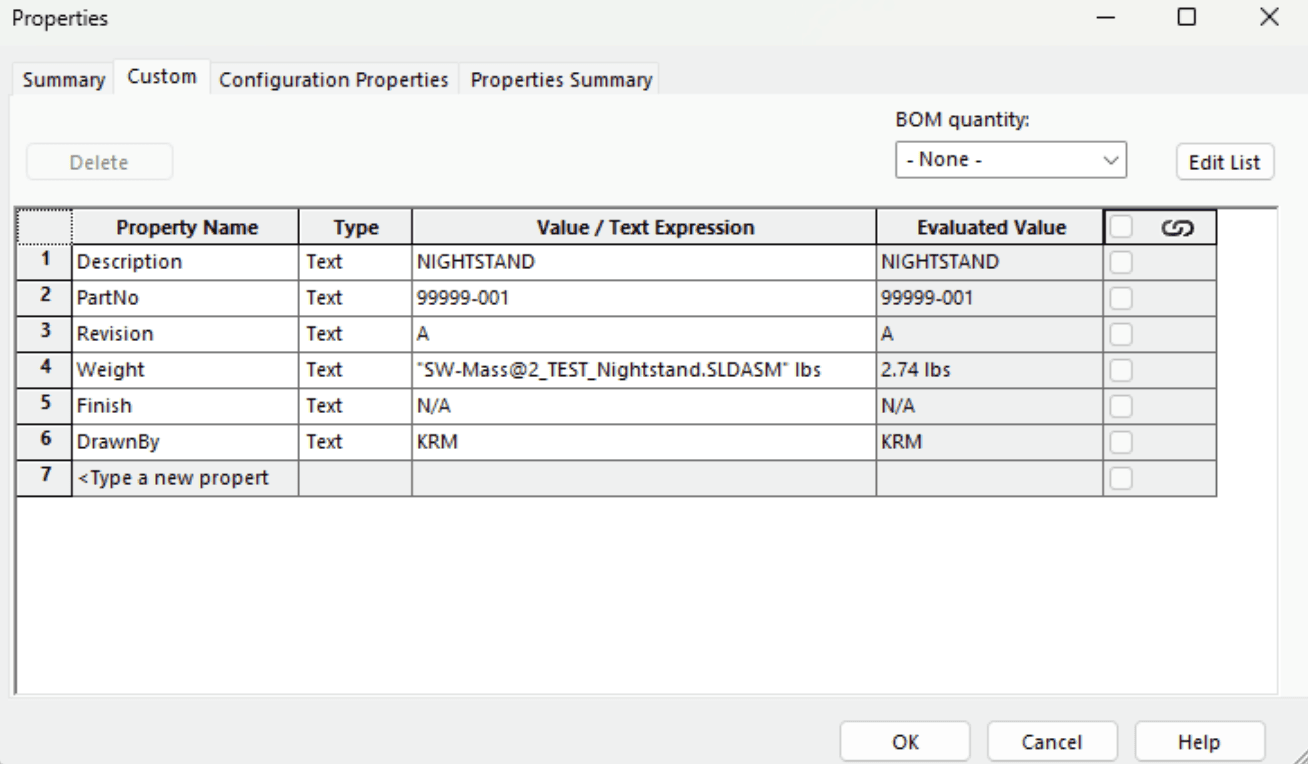
Codex can inspect an active document and determine whether it is a part, assembly, or drawing. It can read the feature tree, identify sketches and bodies, list assembly components, inspect configurations, and report unresolved or suppressed items. It can also analyze custom properties such as part numbers, materials, descriptions, revisions, and manufacturing metadata.

Source: Introduction to SolidWorks – Major User Interface Components
MCP can support more than read-only analysis. Depending on the implementation, Codex may be able to create drawing documents, add standard views, insert dimensions and balloons, generate BOM tables, capture model views, save PDFs, and export images. These workflows build on the automation capabilities of the SOLIDWORKS API, rather than replacing the API itself.
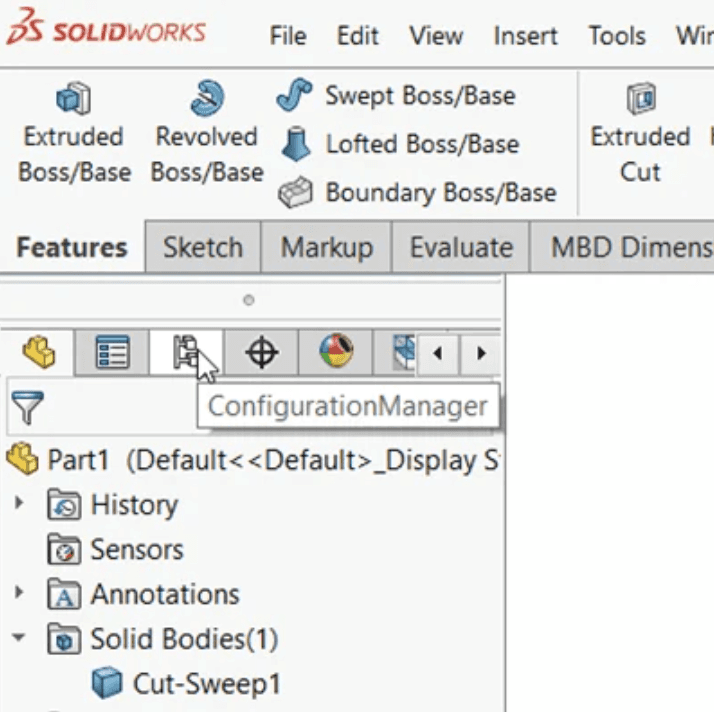
Computer Use provides a different type of access. Codex can interact with the visible SolidWorks interface by opening a file, navigating the FeatureManager design tree, switching configurations, opening the PropertyManager, reading a rebuild warning, or checking the layout of a drawing sheet. This is useful when the task depends on visual context or when the MCP server does not expose a particular interface control.
The two methods can be compared as follows:
Task | MCP | Computer Use |
|---|---|---|
Read feature tree data | Strong | Visual |
Inspect custom properties | Strong | Strong |
Analyze assembly components | Strong | Visual verification |
Create drawing views | Connector-dependent | Possible through the UI |
Add dimensions and balloons | Connector-dependent | Possible through the UI |
Edit sketches precisely | API-dependent | Fragile |
Run macros or API code | Strong | Can launch through the UI |
Review drawing layout | Limited | Strong |
Export approved documents | Connector-dependent | Possible through dialogs |
Used together, MCP can identify what needs attention, while Computer Use can open the relevant SolidWorks context and verify the visible result before Codex continues.
Source: SolidWorks Configurations for Parts and Assembly Modeling
MCP vs. Computer Use: Which SolidWorks Connection Should You Use?
MCP and Computer Use provide different ways for Codex to work with SolidWorks. MCP is designed for structured communication with the SolidWorks API or COM bridge, while Computer Use allows Codex to interact with the visible SolidWorks interface. The best method depends on whether the task is primarily data-driven, visual, or a combination of both.
MCP is the better choice when Codex needs to inspect or process a large amount of CAD information. A SolidWorks connector can expose tools for reading feature trees, configurations, components, mates, custom properties, drawing views, and document metadata. It can also perform repeatable operations such as generating standard drawing views, adding annotations, creating BOM tables, or exporting approved documents.
This structured approach is useful for consistency. For example, Codex can inspect every component in an assembly, identify suppressed or unresolved references, and group the results by configuration. It can also compare custom properties across a folder of part files without manually opening each document.
Computer Use is more appropriate when the task depends on SolidWorks’ interface or visual output. Codex can open a drawing sheet, select a feature in the FeatureManager tree, switch to a configuration, inspect a PropertyManager panel, read a rebuild warning, or confirm that dimensions and balloons are positioned correctly. It can also interact with menus and dialogs that the MCP server does not expose.
A practical rule is:
Use MCP to query CAD data, analyze documents, run API operations, and create repeatable results.
Use Computer Use to navigate SolidWorks, inspect visual context, operate interface-only controls, and verify drawings or model views.
Use both when structured analysis must be followed by visual confirmation.

Source: CAE1000 Assembly Tutorial
For example, Codex could use MCP to find parts with missing material or revision properties. It could then open a representative part with Computer Use, display the Custom Properties panel, and confirm that the result refers to the correct document. Only after approval should Codex update the affected files.
The solidworks-mcp project demonstrates this combined direction through tools for document operations, drawing views, annotations, assembly analysis, and exports. The available tools vary between connectors, so every workflow should begin by checking the server’s supported capabilities.
How Do You Connect Codex to a SolidWorks MCP Server?
Connecting Codex to SolidWorks requires a bridge between the MCP client and the running SolidWorks application. Most available integrations use a local server that communicates with SolidWorks through Windows COM, pywin32, or the SOLIDWORKS API. Codex sends a tool request to the MCP server, the server translates it into an API operation, and SolidWorks returns structured information or performs an approved action.
The overall architecture usually looks like this:
Codex → MCP client → MCP server → Windows COM/API bridge → SolidWorks → active document
The MCP server does not replace SolidWorks or automatically expose every feature. It provides a defined set of tools. One implementation may focus on drawings and exports, while another may support parts, sketches, feature creation, assemblies, configurations, or custom properties. Check the connector’s supported SolidWorks versions before using it on an active project.
Source: Linking a Revision Number to a Property in SolidWorks
Requirements
A typical setup includes:
A Windows computer
A compatible SolidWorks installation and license
Access to the SOLIDWORKS API
A SolidWorks MCP server or local bridge
Python and
pywin32, if required by the connectorCodex with MCP support
A test part, assembly, or drawing
A backup copy of important CAD files
Most COM-based integrations require SolidWorks to be installed on the same Windows host as the MCP server. Some servers can be reached over a local network, but the SolidWorks application and its API bridge still need to run on the Windows machine where the CAD files are opened.
Basic Connection Process
Install SolidWorks and confirm that it can open a test document.
Download or clone a compatible SolidWorks MCP server.
Create the required Python environment.
Install the server dependencies.
Start the MCP server on the SolidWorks host.
Add the server to Codex.
Open SolidWorks and load a test file.
Confirm that the MCP tools are available.
Run a read-only request before attempting any modification.
For example, the haunchen/solidworks-mcp project describes a local server that uses the SolidWorks COM API and exposes tools for document operations, drawing views, annotations, assembly analysis, and PDF export. Its documented setup uses an HTTP endpoint that an MCP client can connect to.
A Codex CLI configuration may look similar to this:
[mcp_servers.solidworks]
command = "C:\\path\\to\\.venv\\Scripts\\
[mcp_servers.solidworks]
command = "C:\\path\\to\\.venv\\Scripts\\
The exact command, server name, transport, and path depend on the implementation. Some servers use a local executable, while others require a Python script or an HTTP endpoint. Do not copy a configuration without checking the connector’s own documentation.
First Read-Only Test
Start with a request that does not change the model:
“Inspect the active SolidWorks document and report whether it is a part, assembly, or drawing. Do not modify anything.”Then test a more specific query:
“List the top-level components in the active assembly and report their configurations and suppression states.”If Codex returns information from the open SolidWorks document, the connection is working. Only after this test should you try to create drawing views, run a macro, change a property, or export a PDF. Save a separate version of the file before approving any operation that can modify the design.
Source: SOLIDWORKS API Object Model Diagram
How Do You Use Codex Computer Use With SolidWorks?
Computer Use allows Codex to interact with SolidWorks through its visible interface. Instead of depending only on MCP tools, Codex can observe the current SolidWorks window, identify the active document and configuration, and perform actions such as clicking, typing, selecting, opening panels, or switching views.
A reliable SolidWorks workflow follows an inspect–act–verify loop:
Codex observes the SolidWorks interface.
It confirms the active part, assembly, drawing, or configuration.
It identifies the required interface action.
It performs a click, keyboard shortcut, menu command, or text entry.
SolidWorks displays a new state.
Codex checks the updated feature tree, viewport, dialog, or drawing sheet.
It stops or continues based on the verified result.
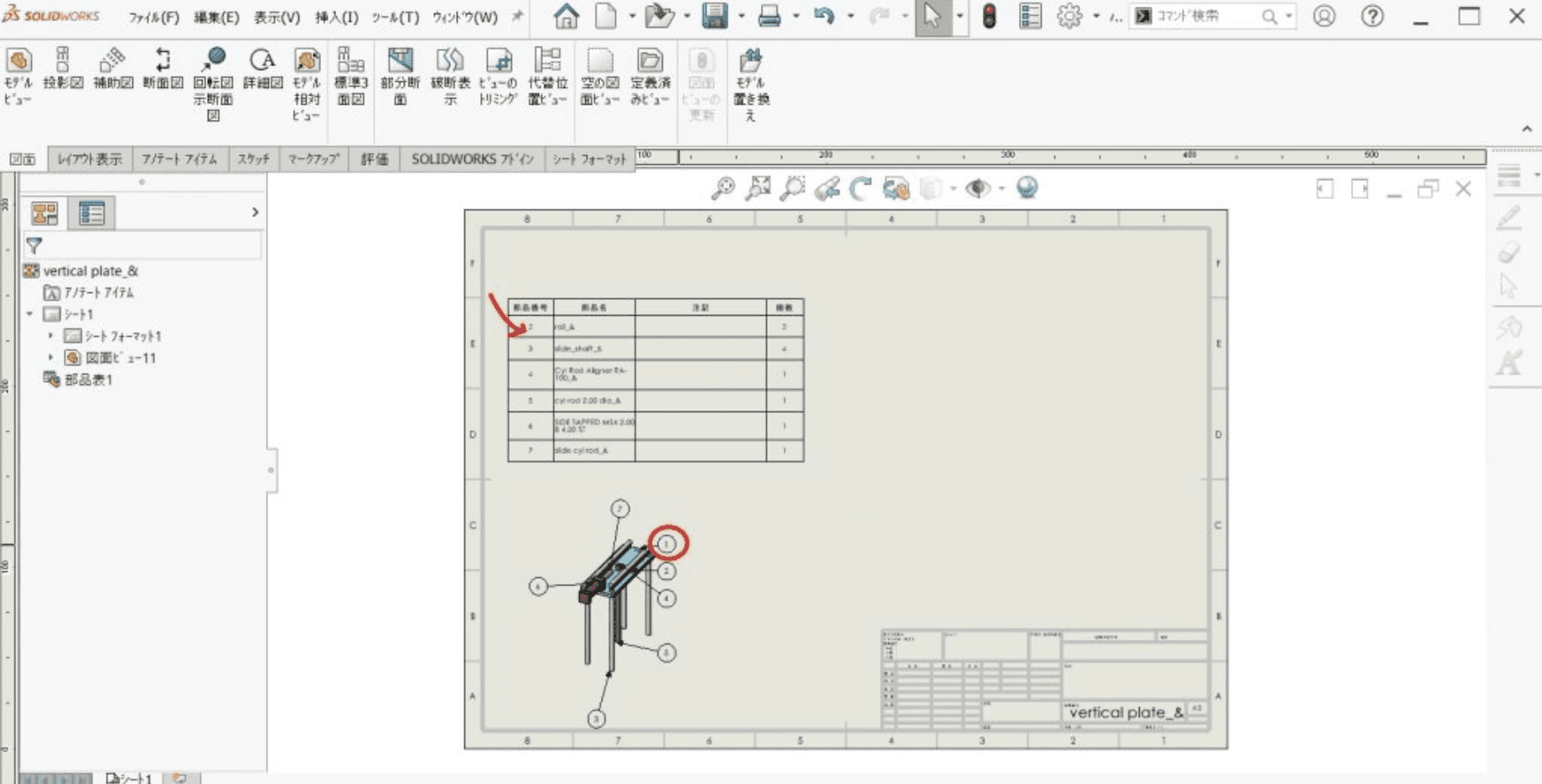
This is useful when the operation depends on visual context. For example, MCP may identify a drawing that contains the required views, but Computer Use can open the sheet and check whether the views overlap, whether dimensions are readable, and whether balloons are positioned correctly. Similarly, MCP may return a feature or component name, while Computer Use can select it in the FeatureManager design tree and show its properties.
You can give Codex a narrowly defined instruction such as:
“Open the active drawing, inspect the sheet layout, and identify any dimensions or balloons that overlap model geometry. Do not move or delete anything.”Other useful interface tasks include opening the ConfigurationManager, switching to a different configuration, expanding a feature tree, opening a sketch, checking rebuild warnings, changing model orientation, reviewing a section view, or opening the PDF export dialog.

Source: 2D Mechanical Engineering Drawing Using SolidWorks
Computer Use should not be treated as unrestricted control of the CAD workstation. Confirm that the correct SolidWorks document is open before each workflow. Require approval before Codex edits sketches, suppresses features, replaces assembly components, changes configurations, overwrites files, or exports design data. If SolidWorks displays an unexpected warning, rebuild error, save prompt, or different document, Codex should stop and request review.
Precise mouse-based operations, such as dragging sketch entities or positioning dimensions by a few pixels, can be fragile. Whenever possible, use MCP or the SOLIDWORKS API for deterministic changes, and use Computer Use to navigate the interface and visually verify the result. This combination provides structured automation without losing visibility into what happens inside SolidWorks.
What SolidWorks Workflows Can You Automate With Codex?
The most useful SolidWorks workflows combine MCP for structured CAD operations with Computer Use for visual inspection. Codex can query a part or assembly, determine what needs attention, propose a controlled action, and then use the SolidWorks interface to verify the result before saving or exporting the file.
Part and Feature Tree Inspection
Codex can inspect the active part’s feature tree and explain the modeling sequence. It can identify sketches, extrusions, cuts, fillets, chamfers, patterns, reference geometry, bodies, and dependencies. This is useful when an engineer inherits a part created by someone else or needs to understand which features are most likely to fail during a rebuild.
Example prompt:
“Inspect this part’s feature tree and explain the modeling sequence, dependencies, and features most likely to fail during rebuild.”Computer Use can then select representative features in the FeatureManager design tree and open their PropertyManager panels for visual confirmation.
Assembly Structure and Mate Review
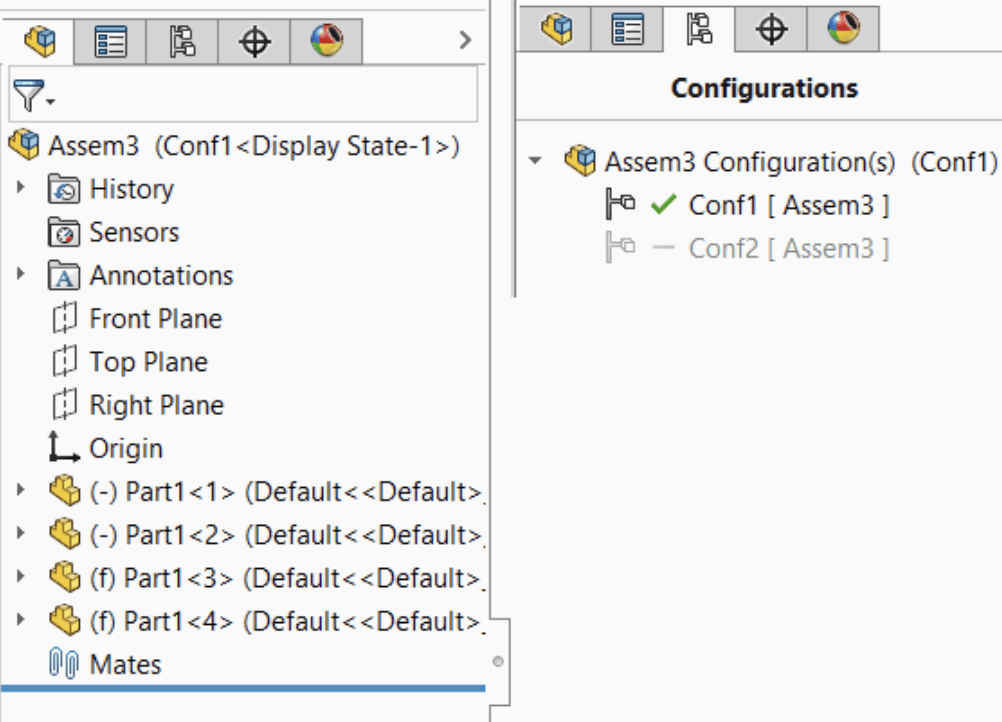
For assemblies, Codex can list top-level components, configurations, suppression states, and mates when the MCP connector exposes assembly-analysis tools. It can identify unresolved references, missing components, or components that are suppressed in one configuration but active in another.
Computer Use can open the assembly, expand the component tree, and inspect the model view to verify that the reported components are positioned as expected. This is helpful for assembly review before issuing a revision or sharing the file with another team.
Source: CodeStack – Fix or Float Components Using the SOLIDWORKS API
Drawing Creation and Documentation
Several community SolidWorks MCP implementations focus on drawing automation. The documented workflows include creating a drawing from a template, adding standard views, inserting section and detail views, importing model dimensions, adding linear or radial dimensions, placing balloons, inserting a BOM table, and exporting the result as a PDF.
A practical workflow might be:
Open a selected part or assembly.
Create a drawing from an approved template.
Add first-angle or third-angle standard views.
Insert model dimensions.
Add balloons and a BOM.
Open the drawing sheet with Computer Use.
Check view spacing, annotation visibility, and title block information.
Ask for approval before exporting the PDF.
Custom Properties and Metadata
Codex can read custom properties such as part number, description, material, revision, author, project code, or manufacturing status. It can create a report of files with missing or inconsistent values and group the results by part, assembly, or configuration.
Before changing properties, Codex should show the affected documents and the proposed values. Computer Use can open the Custom Properties panel for a sample file and verify that the correct configuration is active.

Source: GoEngineer – SOLIDWORKS Custom Property Tab Builder
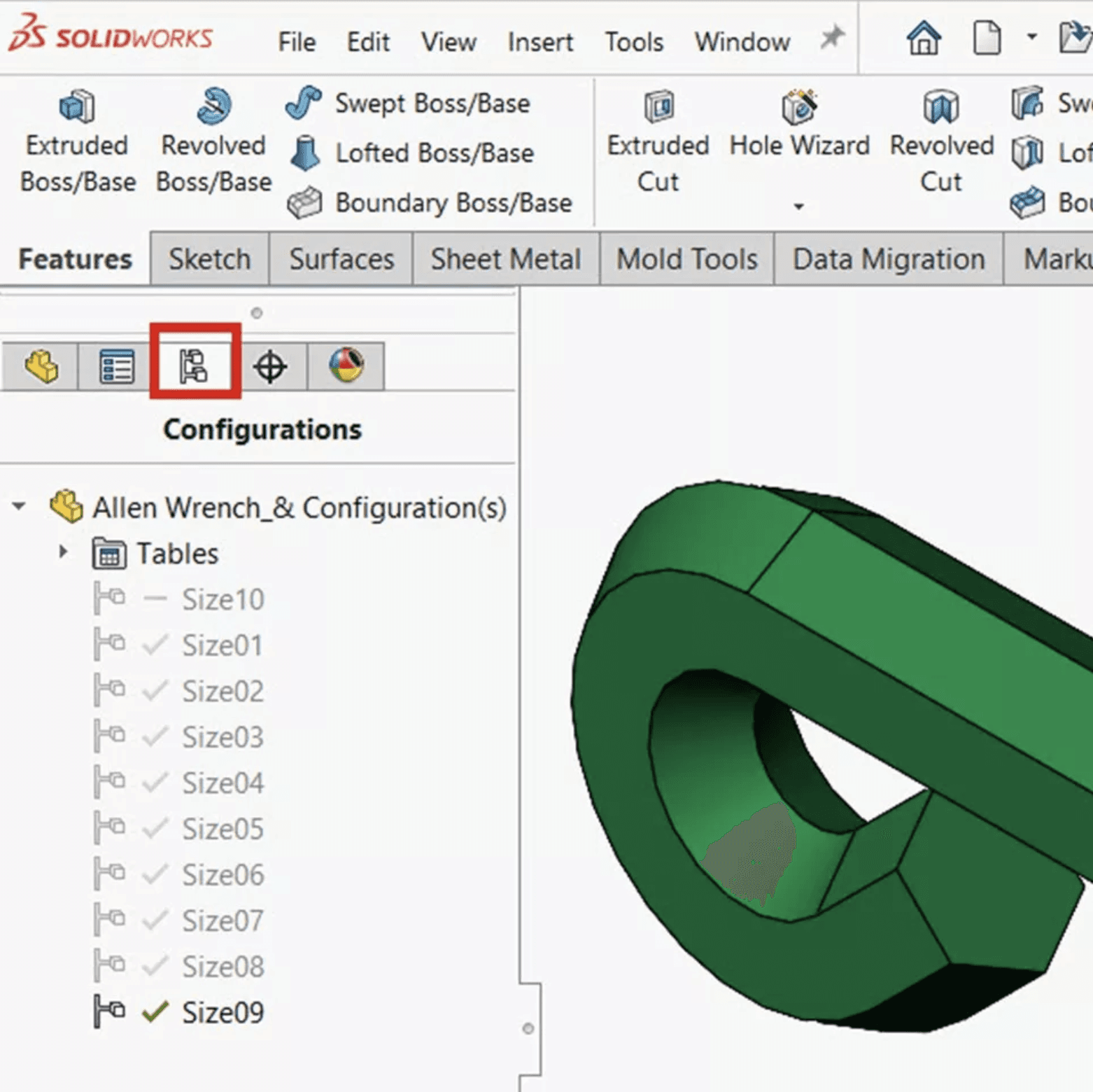
Configuration and Design Variant Review
A part or assembly may contain multiple configurations with different dimensions, suppressed features, materials, or component states. Codex can compare these configurations and summarize their differences. It can also identify configurations that share the same name pattern but contain inconsistent feature states.
Computer Use can switch between configurations and check the visible model, helping confirm that a reported difference is intentional rather than a connector or API interpretation error.
Source: GoEngineer – Configuration Properties in SOLIDWORKS PDM
Rebuild and Error Triage
Codex can help investigate failed features and rebuild warnings. It can read the error returned by the API or visible SolidWorks interface, identify the affected feature, and explain possible causes such as missing references, invalid dimensions, or dependency changes.
A safe workflow is to ask Codex to diagnose the problem first without modifying the model. Computer Use can then select the failed feature, open the relevant panel, and inspect the warning. Only after approval should Codex attempt a repair.
Export and Review Pipeline
Codex can prepare approved parts, assemblies, and drawings for PDF, JPEG, or other supported exports. It can apply naming conventions, organize output folders, and verify that the correct revision and configuration are being exported.
Every export should be checked for the active document, drawing sheet set, output path, file name, and overwrite behavior. The general workflow should remain:
Inspect → Analyze → Propose → Approve → Modify or Export → Verify
How Do You Use MCP and Computer Use Safely With SolidWorks?
SolidWorks files contain proprietary geometry, design history, manufacturing information, configurations, and potentially sensitive product data. Connecting Codex to SolidWorks should therefore be treated as a controlled engineering workflow rather than unrestricted access to the CAD workstation.
Start with a duplicate part, assembly, or drawing. Use read-only requests first to confirm that Codex is connected to the correct SolidWorks instance and active document. Before any write operation, verify the file name, document type, active configuration, units, and revision.
Use a staged workflow:
Inspect: read model, assembly, or drawing information.
Analyze: identify the requested change and possible dependencies.
Propose: list the features, components, properties, or files that will be affected.
Approve: wait for explicit user confirmation.
Modify: apply the approved API, macro, or interface operation.
Rebuild: check whether SolidWorks reports errors or warnings.
Verify: inspect the model, feature tree, drawing, or exported file.
Save: create a new version only after the result is accepted.
Approval should be required before Codex:
Deletes or suppresses features
Changes sketches or driving dimensions
Replaces assembly components
Modifies mates or configurations
Changes custom properties across multiple files
Overwrites parts, assemblies, or drawings
Exports PDFs or other design data
Writes to a shared PDM or network location
Keep the MCP server local or protected. COM-based integrations may require SolidWorks and Codex to run with compatible privilege levels; running one application as administrator and the other normally can prevent the connection from working. If the project uses PDM, verify file checkout, lock status, and revision permissions before making changes.
Computer Use requires additional checks because it acts through the visible interface. Codex should confirm that it is interacting with the intended SolidWorks window and should stop when it encounters an unexpected save prompt, rebuild warning, missing reference, different configuration, or unrelated document.
Finally, compare the file before and after every important operation. Check feature status, component count, custom properties, drawing views, dimensions, and exported files. This preserves professional review and creates a recoverable workflow for AI-assisted SolidWorks automation.
Run SolidWorks and Codex Together on Vagon Cloud Computer
Running SolidWorks, Codex, an MCP server, and the required Windows API bridge on the same Vagon Cloud Computer can provide a persistent environment for AI-assisted CAD workflows. Instead of reinstalling the MCP server, reconnecting Python dependencies, or moving large CAD files between devices, you can keep the SolidWorks installation, configuration, scripts, and project files in one cloud computer.
This setup is useful for workflows that require SolidWorks to remain open. Feature-tree analysis, assembly inspection, drawing generation, batch PDF exports, rebuild diagnosis, and Computer Use verification may take multiple steps. A persistent Windows environment keeps the active SolidWorks session, MCP server, add-ins, and project workspace available between work sessions.
Performance matters when working with large assemblies and detailed drawings. CPU and RAM affect file opening, rebuilds, component resolution, and configuration changes. GPU resources are important for interactive 3D viewport performance, shaded assembly views, RealView graphics, and visual checks performed through Computer Use. A stable, low-latency connection also helps Codex interact with menus, panels, drawing sheets, and dialogs without unnecessary delays.
A practical Vagon setup can include:
SolidWorks and required add-ins installed on the cloud computer
Codex and the SolidWorks MCP server configured locally
Python,
pywin32, and connector dependencies installedA dedicated folder for test files, backups, scripts, and exports
Versioned folders for PDFs and drawing revisions
Sufficient GPU, CPU, RAM, and storage for the assembly size
Network access to PDM or shared project locations, when required
SolidWorks licensing must also be considered. Confirm that the license can be activated or accessed from the cloud computer and that any network-license or PDM requirements are supported.
Before using a production file, test the complete workflow on a copy. Ask Codex to inspect the active document, verify the MCP connection, and run a read-only query. Then test a small operation before approving a drawing update or batch export.
Vagon does not add native AI features to SolidWorks. It provides the persistent Windows environment where SolidWorks, Codex, MCP, the SolidWorks API, and Computer Use can run together with the software and performance resources required for the workflow.
FAQs
Can Codex directly control SolidWorks?
Codex can interact with SolidWorks when a compatible MCP server exposes SolidWorks API or COM tools. The available operations depend on the connector, SolidWorks version, installed dependencies, and user permissions.
Is there an official SolidWorks MCP server?
SolidWorks provides official API and macro documentation, but the MCP bridges currently used with Claude or Codex are generally community-built integrations. They should not be described as official SolidWorks features unless the specific connector has been officially verified.
Can Codex read SolidWorks parts and assemblies?
A compatible MCP server can read document type, feature trees, components, mates, configurations, custom properties, and other metadata exposed through the SolidWorks API.
Can Codex create SolidWorks drawings?
Some MCP implementations support drawing templates, standard views, section views, detail views, dimensions, balloons, BOM tables, and PDF export. These capabilities vary between connectors and should be tested with a sample file first.
Can Computer Use edit SolidWorks sketches?
Computer Use can interact with visible sketch tools and dialogs, but precise sketch editing is usually more reliable through the SolidWorks API, VBA, or a generated macro. Mouse-based actions can be sensitive to zoom level, selection state, and interface layout.
Can Codex run SolidWorks macros?
Codex can generate or modify VBA, VSTA, C#, or Python/COM automation code. Running that code still requires the appropriate SolidWorks installation, permissions, and user approval.
Can Codex inspect assembly mates?
Yes, if the connected MCP server exposes assembly-analysis tools. Computer Use can then open the assembly and visually inspect component positions, mate errors, or unresolved references.
Does SolidWorks need to be open?
Most COM-based MCP integrations require SolidWorks to be running with the relevant document open. Some connectors may launch SolidWorks automatically, but this depends on the specific server and configuration.
Is it safe to connect Codex to production CAD files?
Start with a test copy or controlled workspace. Use read-only requests first and require approval before changing features, dimensions, configurations, components, custom properties, drawings, or export files.
Can SolidWorks and Codex run on Vagon?
Yes, provided the Vagon Cloud Computer has Windows, SolidWorks, a valid license, Codex, the MCP server, Python dependencies, and any required network or PDM access.
Can Codex automate PDF drawing exports?
Some SolidWorks MCP servers provide drawing capture and PDF export tools. Always verify the active configuration, drawing revision, sheet set, output path, file name, and overwrite behavior before exporting.
Does Codex replace the SolidWorks API?
No. Codex can generate and coordinate SolidWorks API workflows, but the API, macros, VSTA, and add-ins remain the underlying automation mechanisms. MCP provides a communication layer between Codex and these CAD tools.
Can Codex repair failed SolidWorks features?
It can help diagnose rebuild errors, identify failed references, and propose API or macro-based corrections. Any repair should be tested on a copy because changing one feature can affect dependent sketches, features, configurations, and drawings.
Using Codex with SolidWorks involves more than asking an AI model to generate VBA macros, C# add-ins, or SOLIDWORKS API code. With a compatible Model Context Protocol (MCP) server, Codex can communicate with a running SolidWorks session through a local API or Windows COM bridge and work with structured CAD data.
Depending on the connector, Codex can inspect parts, assemblies, drawings, feature trees, configurations, mates, custom properties, and document metadata. It can help create drawing views, add dimensions and balloons, generate bills of materials, analyze assembly structures, run approved macros, and export documentation. Community projects such as solidworks-mcp demonstrate workflows for opening documents, creating standard drawing views, reading assembly information, and exporting drawings as PDFs.
Computer Use adds a visual layer to this connection. Codex can open the correct SolidWorks file, navigate the FeatureManager design tree, inspect a sketch or drawing sheet, read rebuild warnings, and verify that a generated result looks correct before it is saved. MCP provides structured access to the model, while Computer Use helps confirm what is visible in the application.
This is not a native one-click SolidWorks feature. It requires a Windows environment, a compatible SolidWorks installation and license, an MCP server or API bridge, appropriate permissions, and a test copy of the CAD files.
What Can Codex Do With SolidWorks Through MCP and Computer Use?
When connected to SolidWorks through MCP, Codex can work with structured CAD information instead of treating the application as a simple desktop window. The exact capabilities depend on the MCP server, SolidWorks version, and API functions it exposes, but a compatible connector can provide access to parts, assemblies, drawings, features, configurations, mates, and custom properties.
Codex can inspect an active document and determine whether it is a part, assembly, or drawing. It can read the feature tree, identify sketches and bodies, list assembly components, inspect configurations, and report unresolved or suppressed items. It can also analyze custom properties such as part numbers, materials, descriptions, revisions, and manufacturing metadata.
Source: Introduction to SolidWorks – Major User Interface Components
MCP can support more than read-only analysis. Depending on the implementation, Codex may be able to create drawing documents, add standard views, insert dimensions and balloons, generate BOM tables, capture model views, save PDFs, and export images. These workflows build on the automation capabilities of the SOLIDWORKS API, rather than replacing the API itself.
Computer Use provides a different type of access. Codex can interact with the visible SolidWorks interface by opening a file, navigating the FeatureManager design tree, switching configurations, opening the PropertyManager, reading a rebuild warning, or checking the layout of a drawing sheet. This is useful when the task depends on visual context or when the MCP server does not expose a particular interface control.
The two methods can be compared as follows:
Task | MCP | Computer Use |
|---|---|---|
Read feature tree data | Strong | Visual |
Inspect custom properties | Strong | Strong |
Analyze assembly components | Strong | Visual verification |
Create drawing views | Connector-dependent | Possible through the UI |
Add dimensions and balloons | Connector-dependent | Possible through the UI |
Edit sketches precisely | API-dependent | Fragile |
Run macros or API code | Strong | Can launch through the UI |
Review drawing layout | Limited | Strong |
Export approved documents | Connector-dependent | Possible through dialogs |
Used together, MCP can identify what needs attention, while Computer Use can open the relevant SolidWorks context and verify the visible result before Codex continues.
Source: SolidWorks Configurations for Parts and Assembly Modeling
MCP vs. Computer Use: Which SolidWorks Connection Should You Use?
MCP and Computer Use provide different ways for Codex to work with SolidWorks. MCP is designed for structured communication with the SolidWorks API or COM bridge, while Computer Use allows Codex to interact with the visible SolidWorks interface. The best method depends on whether the task is primarily data-driven, visual, or a combination of both.
MCP is the better choice when Codex needs to inspect or process a large amount of CAD information. A SolidWorks connector can expose tools for reading feature trees, configurations, components, mates, custom properties, drawing views, and document metadata. It can also perform repeatable operations such as generating standard drawing views, adding annotations, creating BOM tables, or exporting approved documents.
This structured approach is useful for consistency. For example, Codex can inspect every component in an assembly, identify suppressed or unresolved references, and group the results by configuration. It can also compare custom properties across a folder of part files without manually opening each document.
Computer Use is more appropriate when the task depends on SolidWorks’ interface or visual output. Codex can open a drawing sheet, select a feature in the FeatureManager tree, switch to a configuration, inspect a PropertyManager panel, read a rebuild warning, or confirm that dimensions and balloons are positioned correctly. It can also interact with menus and dialogs that the MCP server does not expose.
A practical rule is:
Use MCP to query CAD data, analyze documents, run API operations, and create repeatable results.
Use Computer Use to navigate SolidWorks, inspect visual context, operate interface-only controls, and verify drawings or model views.
Use both when structured analysis must be followed by visual confirmation.
Source: CAE1000 Assembly Tutorial
For example, Codex could use MCP to find parts with missing material or revision properties. It could then open a representative part with Computer Use, display the Custom Properties panel, and confirm that the result refers to the correct document. Only after approval should Codex update the affected files.
The solidworks-mcp project demonstrates this combined direction through tools for document operations, drawing views, annotations, assembly analysis, and exports. The available tools vary between connectors, so every workflow should begin by checking the server’s supported capabilities.
How Do You Connect Codex to a SolidWorks MCP Server?
Connecting Codex to SolidWorks requires a bridge between the MCP client and the running SolidWorks application. Most available integrations use a local server that communicates with SolidWorks through Windows COM, pywin32, or the SOLIDWORKS API. Codex sends a tool request to the MCP server, the server translates it into an API operation, and SolidWorks returns structured information or performs an approved action.
The overall architecture usually looks like this:
Codex → MCP client → MCP server → Windows COM/API bridge → SolidWorks → active document
The MCP server does not replace SolidWorks or automatically expose every feature. It provides a defined set of tools. One implementation may focus on drawings and exports, while another may support parts, sketches, feature creation, assemblies, configurations, or custom properties. Check the connector’s supported SolidWorks versions before using it on an active project.
Source: Linking a Revision Number to a Property in SolidWorks
Requirements
A typical setup includes:
A Windows computer
A compatible SolidWorks installation and license
Access to the SOLIDWORKS API
A SolidWorks MCP server or local bridge
Python and
pywin32, if required by the connectorCodex with MCP support
A test part, assembly, or drawing
A backup copy of important CAD files
Most COM-based integrations require SolidWorks to be installed on the same Windows host as the MCP server. Some servers can be reached over a local network, but the SolidWorks application and its API bridge still need to run on the Windows machine where the CAD files are opened.
Basic Connection Process
Install SolidWorks and confirm that it can open a test document.
Download or clone a compatible SolidWorks MCP server.
Create the required Python environment.
Install the server dependencies.
Start the MCP server on the SolidWorks host.
Add the server to Codex.
Open SolidWorks and load a test file.
Confirm that the MCP tools are available.
Run a read-only request before attempting any modification.
For example, the haunchen/solidworks-mcp project describes a local server that uses the SolidWorks COM API and exposes tools for document operations, drawing views, annotations, assembly analysis, and PDF export. Its documented setup uses an HTTP endpoint that an MCP client can connect to.
A Codex CLI configuration may look similar to this:
[mcp_servers.solidworks]
command = "C:\\path\\to\\.venv\\Scripts\\
The exact command, server name, transport, and path depend on the implementation. Some servers use a local executable, while others require a Python script or an HTTP endpoint. Do not copy a configuration without checking the connector’s own documentation.
First Read-Only Test
Start with a request that does not change the model:
“Inspect the active SolidWorks document and report whether it is a part, assembly, or drawing. Do not modify anything.”Then test a more specific query:
“List the top-level components in the active assembly and report their configurations and suppression states.”If Codex returns information from the open SolidWorks document, the connection is working. Only after this test should you try to create drawing views, run a macro, change a property, or export a PDF. Save a separate version of the file before approving any operation that can modify the design.
Source: SOLIDWORKS API Object Model Diagram
How Do You Use Codex Computer Use With SolidWorks?
Computer Use allows Codex to interact with SolidWorks through its visible interface. Instead of depending only on MCP tools, Codex can observe the current SolidWorks window, identify the active document and configuration, and perform actions such as clicking, typing, selecting, opening panels, or switching views.
A reliable SolidWorks workflow follows an inspect–act–verify loop:
Codex observes the SolidWorks interface.
It confirms the active part, assembly, drawing, or configuration.
It identifies the required interface action.
It performs a click, keyboard shortcut, menu command, or text entry.
SolidWorks displays a new state.
Codex checks the updated feature tree, viewport, dialog, or drawing sheet.
It stops or continues based on the verified result.
This is useful when the operation depends on visual context. For example, MCP may identify a drawing that contains the required views, but Computer Use can open the sheet and check whether the views overlap, whether dimensions are readable, and whether balloons are positioned correctly. Similarly, MCP may return a feature or component name, while Computer Use can select it in the FeatureManager design tree and show its properties.
You can give Codex a narrowly defined instruction such as:
“Open the active drawing, inspect the sheet layout, and identify any dimensions or balloons that overlap model geometry. Do not move or delete anything.”Other useful interface tasks include opening the ConfigurationManager, switching to a different configuration, expanding a feature tree, opening a sketch, checking rebuild warnings, changing model orientation, reviewing a section view, or opening the PDF export dialog.
Source: 2D Mechanical Engineering Drawing Using SolidWorks
Computer Use should not be treated as unrestricted control of the CAD workstation. Confirm that the correct SolidWorks document is open before each workflow. Require approval before Codex edits sketches, suppresses features, replaces assembly components, changes configurations, overwrites files, or exports design data. If SolidWorks displays an unexpected warning, rebuild error, save prompt, or different document, Codex should stop and request review.
Precise mouse-based operations, such as dragging sketch entities or positioning dimensions by a few pixels, can be fragile. Whenever possible, use MCP or the SOLIDWORKS API for deterministic changes, and use Computer Use to navigate the interface and visually verify the result. This combination provides structured automation without losing visibility into what happens inside SolidWorks.
What SolidWorks Workflows Can You Automate With Codex?
The most useful SolidWorks workflows combine MCP for structured CAD operations with Computer Use for visual inspection. Codex can query a part or assembly, determine what needs attention, propose a controlled action, and then use the SolidWorks interface to verify the result before saving or exporting the file.
Part and Feature Tree Inspection
Codex can inspect the active part’s feature tree and explain the modeling sequence. It can identify sketches, extrusions, cuts, fillets, chamfers, patterns, reference geometry, bodies, and dependencies. This is useful when an engineer inherits a part created by someone else or needs to understand which features are most likely to fail during a rebuild.
Example prompt:
“Inspect this part’s feature tree and explain the modeling sequence, dependencies, and features most likely to fail during rebuild.”Computer Use can then select representative features in the FeatureManager design tree and open their PropertyManager panels for visual confirmation.
Assembly Structure and Mate Review
For assemblies, Codex can list top-level components, configurations, suppression states, and mates when the MCP connector exposes assembly-analysis tools. It can identify unresolved references, missing components, or components that are suppressed in one configuration but active in another.
Computer Use can open the assembly, expand the component tree, and inspect the model view to verify that the reported components are positioned as expected. This is helpful for assembly review before issuing a revision or sharing the file with another team.
Source: CodeStack – Fix or Float Components Using the SOLIDWORKS API
Drawing Creation and Documentation
Several community SolidWorks MCP implementations focus on drawing automation. The documented workflows include creating a drawing from a template, adding standard views, inserting section and detail views, importing model dimensions, adding linear or radial dimensions, placing balloons, inserting a BOM table, and exporting the result as a PDF.
A practical workflow might be:
Open a selected part or assembly.
Create a drawing from an approved template.
Add first-angle or third-angle standard views.
Insert model dimensions.
Add balloons and a BOM.
Open the drawing sheet with Computer Use.
Check view spacing, annotation visibility, and title block information.
Ask for approval before exporting the PDF.
Custom Properties and Metadata
Codex can read custom properties such as part number, description, material, revision, author, project code, or manufacturing status. It can create a report of files with missing or inconsistent values and group the results by part, assembly, or configuration.
Before changing properties, Codex should show the affected documents and the proposed values. Computer Use can open the Custom Properties panel for a sample file and verify that the correct configuration is active.
Source: GoEngineer – SOLIDWORKS Custom Property Tab Builder
Configuration and Design Variant Review
A part or assembly may contain multiple configurations with different dimensions, suppressed features, materials, or component states. Codex can compare these configurations and summarize their differences. It can also identify configurations that share the same name pattern but contain inconsistent feature states.
Computer Use can switch between configurations and check the visible model, helping confirm that a reported difference is intentional rather than a connector or API interpretation error.
Source: GoEngineer – Configuration Properties in SOLIDWORKS PDM
Rebuild and Error Triage
Codex can help investigate failed features and rebuild warnings. It can read the error returned by the API or visible SolidWorks interface, identify the affected feature, and explain possible causes such as missing references, invalid dimensions, or dependency changes.
A safe workflow is to ask Codex to diagnose the problem first without modifying the model. Computer Use can then select the failed feature, open the relevant panel, and inspect the warning. Only after approval should Codex attempt a repair.
Export and Review Pipeline
Codex can prepare approved parts, assemblies, and drawings for PDF, JPEG, or other supported exports. It can apply naming conventions, organize output folders, and verify that the correct revision and configuration are being exported.
Every export should be checked for the active document, drawing sheet set, output path, file name, and overwrite behavior. The general workflow should remain:
Inspect → Analyze → Propose → Approve → Modify or Export → Verify
How Do You Use MCP and Computer Use Safely With SolidWorks?
SolidWorks files contain proprietary geometry, design history, manufacturing information, configurations, and potentially sensitive product data. Connecting Codex to SolidWorks should therefore be treated as a controlled engineering workflow rather than unrestricted access to the CAD workstation.
Start with a duplicate part, assembly, or drawing. Use read-only requests first to confirm that Codex is connected to the correct SolidWorks instance and active document. Before any write operation, verify the file name, document type, active configuration, units, and revision.
Use a staged workflow:
Inspect: read model, assembly, or drawing information.
Analyze: identify the requested change and possible dependencies.
Propose: list the features, components, properties, or files that will be affected.
Approve: wait for explicit user confirmation.
Modify: apply the approved API, macro, or interface operation.
Rebuild: check whether SolidWorks reports errors or warnings.
Verify: inspect the model, feature tree, drawing, or exported file.
Save: create a new version only after the result is accepted.
Approval should be required before Codex:
Deletes or suppresses features
Changes sketches or driving dimensions
Replaces assembly components
Modifies mates or configurations
Changes custom properties across multiple files
Overwrites parts, assemblies, or drawings
Exports PDFs or other design data
Writes to a shared PDM or network location
Keep the MCP server local or protected. COM-based integrations may require SolidWorks and Codex to run with compatible privilege levels; running one application as administrator and the other normally can prevent the connection from working. If the project uses PDM, verify file checkout, lock status, and revision permissions before making changes.
Computer Use requires additional checks because it acts through the visible interface. Codex should confirm that it is interacting with the intended SolidWorks window and should stop when it encounters an unexpected save prompt, rebuild warning, missing reference, different configuration, or unrelated document.
Finally, compare the file before and after every important operation. Check feature status, component count, custom properties, drawing views, dimensions, and exported files. This preserves professional review and creates a recoverable workflow for AI-assisted SolidWorks automation.
Run SolidWorks and Codex Together on Vagon Cloud Computer
Running SolidWorks, Codex, an MCP server, and the required Windows API bridge on the same Vagon Cloud Computer can provide a persistent environment for AI-assisted CAD workflows. Instead of reinstalling the MCP server, reconnecting Python dependencies, or moving large CAD files between devices, you can keep the SolidWorks installation, configuration, scripts, and project files in one cloud computer.
This setup is useful for workflows that require SolidWorks to remain open. Feature-tree analysis, assembly inspection, drawing generation, batch PDF exports, rebuild diagnosis, and Computer Use verification may take multiple steps. A persistent Windows environment keeps the active SolidWorks session, MCP server, add-ins, and project workspace available between work sessions.
Performance matters when working with large assemblies and detailed drawings. CPU and RAM affect file opening, rebuilds, component resolution, and configuration changes. GPU resources are important for interactive 3D viewport performance, shaded assembly views, RealView graphics, and visual checks performed through Computer Use. A stable, low-latency connection also helps Codex interact with menus, panels, drawing sheets, and dialogs without unnecessary delays.
A practical Vagon setup can include:
SolidWorks and required add-ins installed on the cloud computer
Codex and the SolidWorks MCP server configured locally
Python,
pywin32, and connector dependencies installedA dedicated folder for test files, backups, scripts, and exports
Versioned folders for PDFs and drawing revisions
Sufficient GPU, CPU, RAM, and storage for the assembly size
Network access to PDM or shared project locations, when required
SolidWorks licensing must also be considered. Confirm that the license can be activated or accessed from the cloud computer and that any network-license or PDM requirements are supported.
Before using a production file, test the complete workflow on a copy. Ask Codex to inspect the active document, verify the MCP connection, and run a read-only query. Then test a small operation before approving a drawing update or batch export.
Vagon does not add native AI features to SolidWorks. It provides the persistent Windows environment where SolidWorks, Codex, MCP, the SolidWorks API, and Computer Use can run together with the software and performance resources required for the workflow.
FAQs
Can Codex directly control SolidWorks?
Codex can interact with SolidWorks when a compatible MCP server exposes SolidWorks API or COM tools. The available operations depend on the connector, SolidWorks version, installed dependencies, and user permissions.
Is there an official SolidWorks MCP server?
SolidWorks provides official API and macro documentation, but the MCP bridges currently used with Claude or Codex are generally community-built integrations. They should not be described as official SolidWorks features unless the specific connector has been officially verified.
Can Codex read SolidWorks parts and assemblies?
A compatible MCP server can read document type, feature trees, components, mates, configurations, custom properties, and other metadata exposed through the SolidWorks API.
Can Codex create SolidWorks drawings?
Some MCP implementations support drawing templates, standard views, section views, detail views, dimensions, balloons, BOM tables, and PDF export. These capabilities vary between connectors and should be tested with a sample file first.
Can Computer Use edit SolidWorks sketches?
Computer Use can interact with visible sketch tools and dialogs, but precise sketch editing is usually more reliable through the SolidWorks API, VBA, or a generated macro. Mouse-based actions can be sensitive to zoom level, selection state, and interface layout.
Can Codex run SolidWorks macros?
Codex can generate or modify VBA, VSTA, C#, or Python/COM automation code. Running that code still requires the appropriate SolidWorks installation, permissions, and user approval.
Can Codex inspect assembly mates?
Yes, if the connected MCP server exposes assembly-analysis tools. Computer Use can then open the assembly and visually inspect component positions, mate errors, or unresolved references.
Does SolidWorks need to be open?
Most COM-based MCP integrations require SolidWorks to be running with the relevant document open. Some connectors may launch SolidWorks automatically, but this depends on the specific server and configuration.
Is it safe to connect Codex to production CAD files?
Start with a test copy or controlled workspace. Use read-only requests first and require approval before changing features, dimensions, configurations, components, custom properties, drawings, or export files.
Can SolidWorks and Codex run on Vagon?
Yes, provided the Vagon Cloud Computer has Windows, SolidWorks, a valid license, Codex, the MCP server, Python dependencies, and any required network or PDM access.
Can Codex automate PDF drawing exports?
Some SolidWorks MCP servers provide drawing capture and PDF export tools. Always verify the active configuration, drawing revision, sheet set, output path, file name, and overwrite behavior before exporting.
Does Codex replace the SolidWorks API?
No. Codex can generate and coordinate SolidWorks API workflows, but the API, macros, VSTA, and add-ins remain the underlying automation mechanisms. MCP provides a communication layer between Codex and these CAD tools.
Can Codex repair failed SolidWorks features?
It can help diagnose rebuild errors, identify failed references, and propose API or macro-based corrections. Any repair should be tested on a copy because changing one feature can affect dependent sketches, features, configurations, and drawings.
Get Beyond Your Computer Performance
Run applications on your cloud computer with the latest generation hardware. No more crashes or lags.

Trial includes 1 hour usage + 7 days of storage.
Summarize with AI

Ready to focus on your creativity?
Vagon gives you the ability to create & render projects, collaborate, and stream applications with the power of the best hardware.

Vagon Blog
Run heavy applications on any device with
your personal computer on the cloud.
San Francisco, California
Solutions
Vagon Teams
Vagon Streams
Use Cases
Resources
Vagon Blog
How to Use Rhino With Claude: MCP & Computer Use Guide
How to Use After Effects With Codex: MCP & Computer Use
How to Use SolidWorks With Claude: MCP & Computer Use Guide
How to Use SolidWorks With Codex: MCP & Computer Use Guide
How to Use Blender With Claude: MCP & Computer Use Guide
How to Use Revit With Codex: MCP & Computer Use Guide
How to Use Revit With Claude: MCP & Computer Use
How to Use CATIA With Claude: MCP & Computer Use
How to Use CATIA With Codex: MCP & Computer Use Guide
Vagon Blog
Run heavy applications on any device with
your personal computer on the cloud.
San Francisco, California
Solutions
Vagon Teams
Vagon Streams
Use Cases
Resources
Vagon Blog
How to Use Rhino With Claude: MCP & Computer Use Guide
How to Use After Effects With Codex: MCP & Computer Use
How to Use SolidWorks With Claude: MCP & Computer Use Guide
How to Use SolidWorks With Codex: MCP & Computer Use Guide
How to Use Blender With Claude: MCP & Computer Use Guide
How to Use Revit With Codex: MCP & Computer Use Guide
How to Use Revit With Claude: MCP & Computer Use
How to Use CATIA With Claude: MCP & Computer Use
How to Use CATIA With Codex: MCP & Computer Use Guide
Vagon Blog
Run heavy applications on any device with
your personal computer on the cloud.
San Francisco, California
Solutions
Vagon Teams
Vagon Streams
Use Cases
Resources
Vagon Blog