Instant Connection for Pixel Streaming
— New Feature Automated Setup

Running SOLIDWORKS in the Cloud: A Practical Guide
Running SOLIDWORKS in the Cloud: A Practical Guide
Engineering
Running SOLIDWORKS in the Cloud: A Practical Guide
Table of Contents
Yes, you can run SOLIDWORKS in the cloud. In practice, that usually means installing the full SOLIDWORKS desktop application on a remote Windows workstation, then controlling that workstation from your Mac, laptop, or other local device.
The cloud provider supplies the computer and remote connection. You still need a valid SOLIDWORKS license, a compatible Windows environment, enough CPU, GPU, RAM, and storage, plus access to any company license server, PDM vault, VPN, or file system your workflow depends on.
That distinction matters. A cloud workstation is not the same as an online viewer, the SOLIDWORKS product trial, cloud storage, PDM, or a browser-native CAD application.
What Does Running SOLIDWORKS in the Cloud Mean?
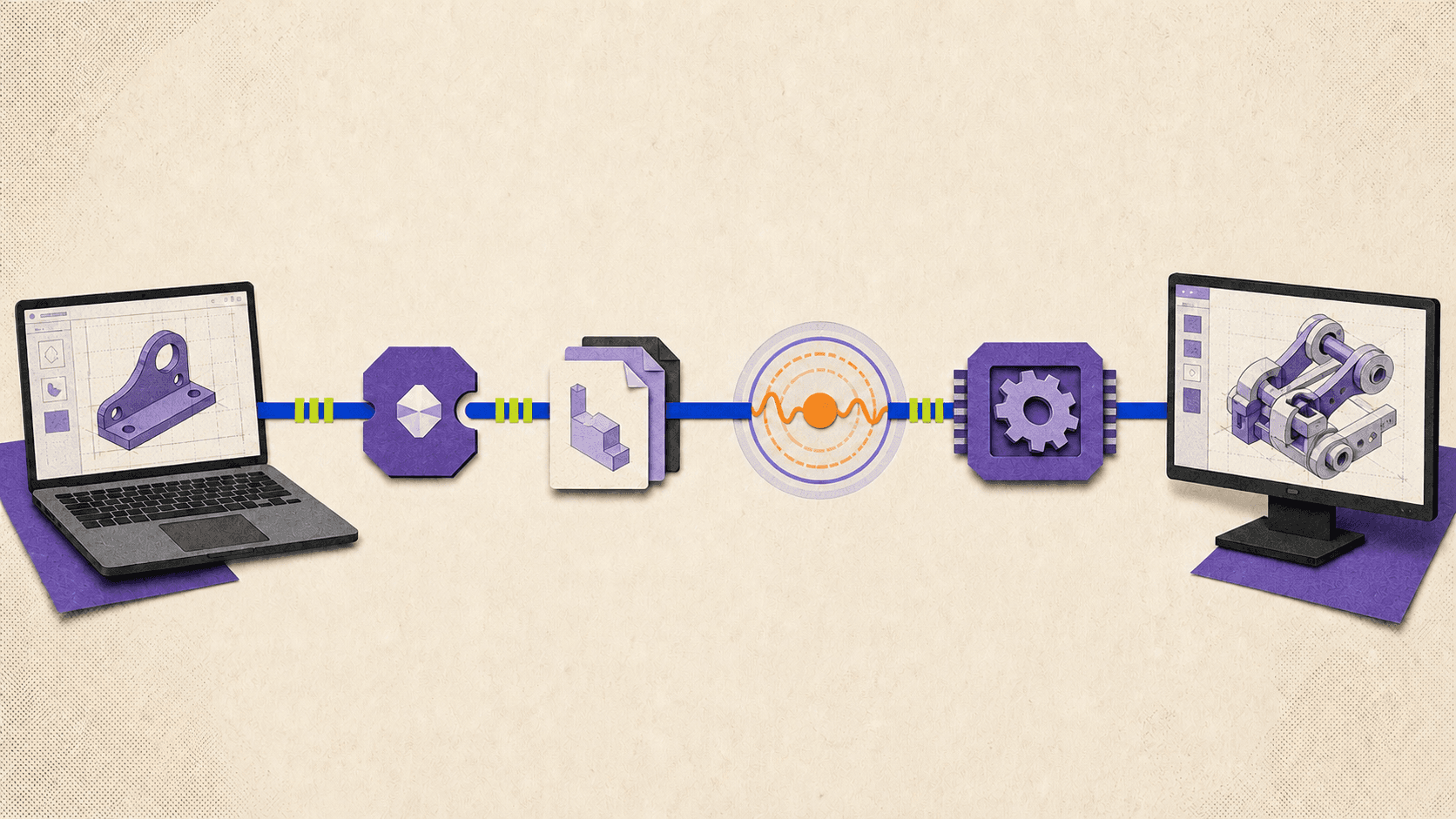
When SOLIDWORKS runs on a cloud workstation, the application itself executes on a Windows computer in a data center. That remote computer performs the rebuilds, graphics processing, simulation, rendering, and file operations.
Your local device receives a video stream of the Windows desktop and sends back keyboard, mouse, and other supported input. This is why a MacBook can act as the access device even though the installed SOLIDWORKS application still requires Windows.
Several other products can look similar from the outside, so it helps to separate them before choosing a setup.
Option | Runs the installed SOLIDWORKS desktop application? | Best used for | Main limitation |
|---|---|---|---|
Local Windows workstation | Yes | Regular office or home CAD work | Performance is limited by local hardware |
Cloud Windows workstation | Yes | Remote CAD, Mac access, temporary workstation capacity | Requires license and virtualization validation |
Company-managed remote desktop | Yes, if installed on the host | Accessing an existing company workstation | Depends on company availability, policy, and network |
3DPlay, Share and Markup, or another viewer | No | Viewing, measuring, reviewing, and commenting | Does not provide full feature editing |
SOLIDWORKS online product trial | Temporarily, in an evaluation environment | Trying the product | Not a permanent production workstation |
SOLIDWORKS xDesign | No, it is a separate browser-native product | Browser-based design and collaboration | Different product and workflow |
SOLIDWORKS describes SOLIDWORKS Design as installed CAD software, while SOLIDWORKS xDesign is a separate browser-native product. The company also offers an online product trial, but that trial is intended for evaluation. It should not be treated as free, permanent cloud access to a production SOLIDWORKS installation.
For browser-based review, Dassault Systèmes’ Share and Markup workflow lets recipients open a design in 3DPlay and use functions such as pan, rotate, zoom, measurement, and annotation. That is useful for a supplier or client who needs to inspect a model, but it is not the same as opening the FeatureManager tree and editing the model in SOLIDWORKS Design.
If you need native parts, assemblies, drawings, add-ins, macros, simulation tools, or a PDM client, you are probably looking for the remote Windows workstation option.
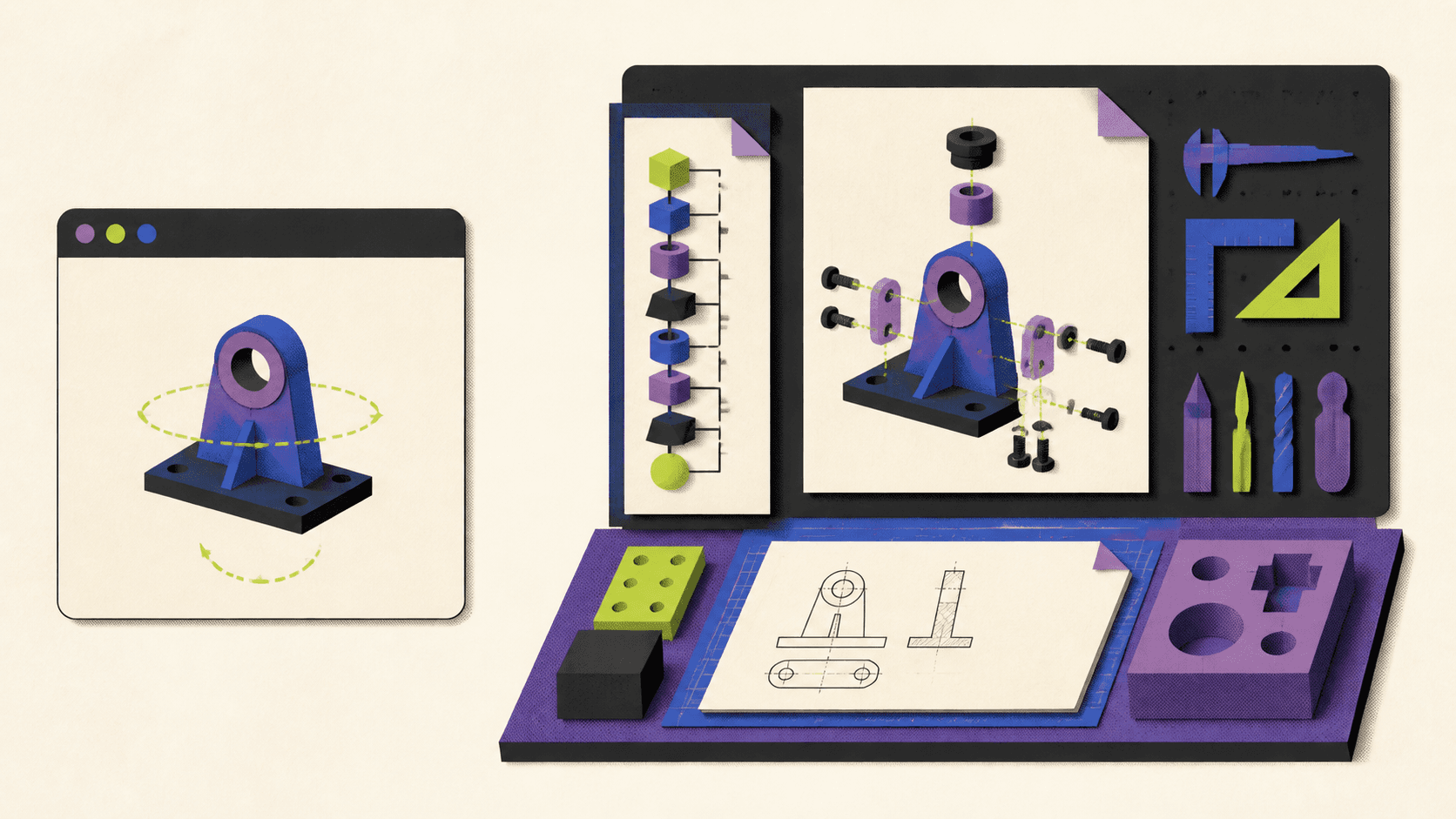
Will Your SOLIDWORKS License Work on a Cloud Workstation?
Check licensing before choosing hardware or transferring files. A technically capable workstation is not useful if the license cannot be activated or accessed in that environment.
Current SOLIDWORKS offerings include several licensing and deployment paths. The relevant ones are named-user licensing, machine-locked device licensing, and SolidNetWork floating licensing. SOLIDWORKS explains the current options on its licensing page.
Named-user licensing
A named-user SOLIDWORKS Design license is assigned to an individual and can be accessed across multiple devices, subject to the account and subscription terms. The application is still installed on the Windows machine. The word “cloud” in the license description does not mean the full application runs inside a general web browser.
A cloud workstation may count as one of the devices on which the named user installs and accesses SOLIDWORKS. Confirm the exact entitlement and sign-in behavior with your reseller or account administrator before relying on it for production work.
There is also an important offline limitation. SOLIDWORKS’ 2026 documentation states that offline mode is not supported in virtual or parallel machines for SOLIDWORKS Design installed from the 3DEXPERIENCE platform. A cloud workstation should therefore be planned as an online environment.
Machine-locked device licensing
A device license is tied to one machine and uses a serial number. Installing it on a cloud workstation may require a stable machine identity, along with the standard activation, deactivation, and reactivation process.
Do not assume that stopping, resizing, or recreating a virtual workstation leaves its licensing identity unchanged. Confirm how the cloud provider handles the machine identity and ask your SOLIDWORKS reseller whether the proposed environment is acceptable.
Vagon currently lists “License Compatibility” and “Permanent Disk ID” among features on its Cloud Computer pricing page. Those features may help with applications that expect a consistent machine identity, but they do not override the SOLIDWORKS license agreement or guarantee that every license type will activate. The exact license and Vagon plan still need to be checked.
If a license must be moved, use the documented SOLIDWORKS activation and deactivation process. Do not clone activation data or attempt to bypass the license service.
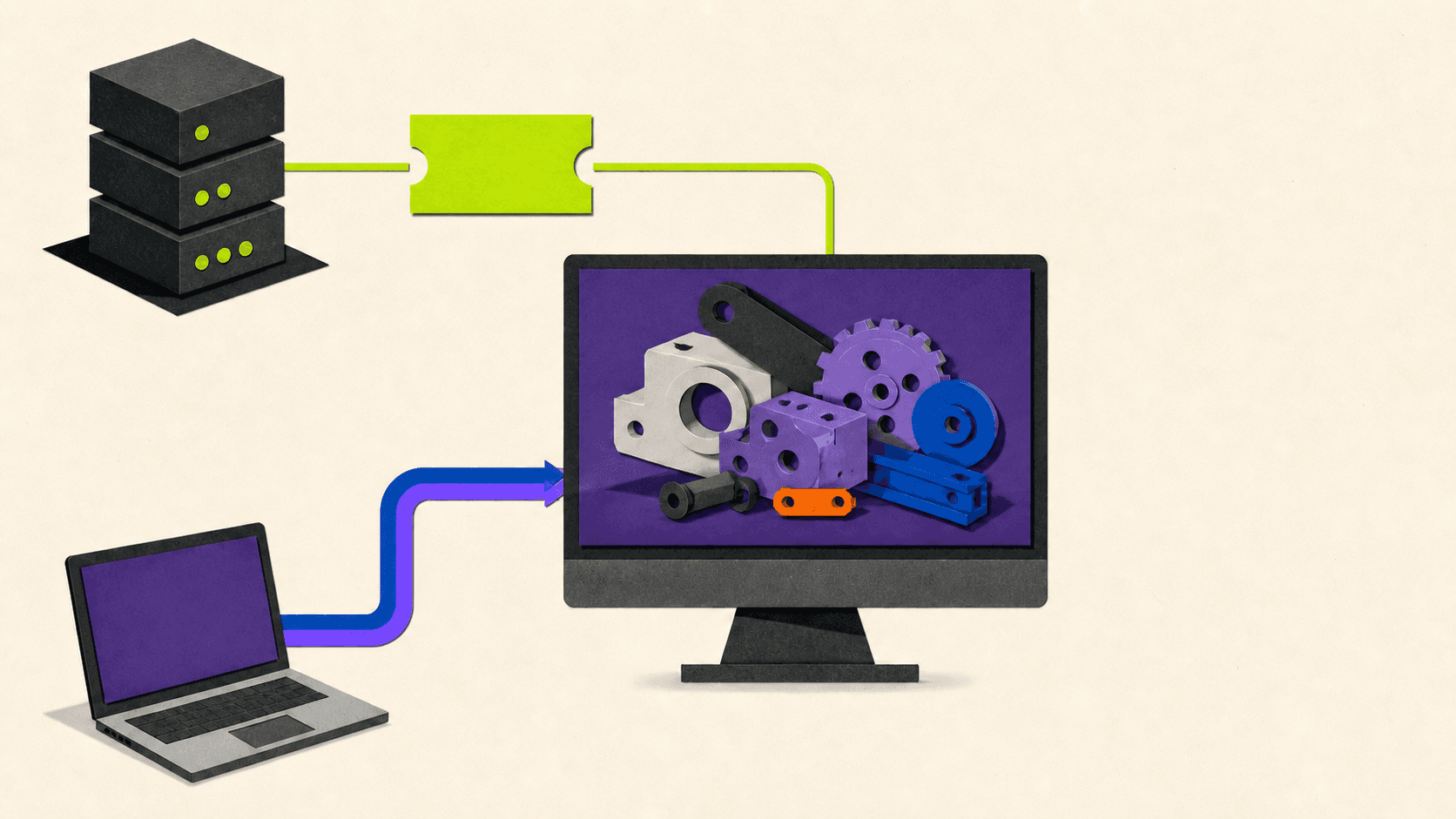
SolidNetWork floating licensing
A SolidNetWork License, often shortened to SNL, is issued by a SolidNetWork License Manager server. The SOLIDWORKS installation on the cloud workstation acts as a license client.
During installation, the client normally receives the license server address in this format:
The documented default port is 25734, although administrators can use other ports. The client must be able to resolve and reach the server through the company-approved network path. That might involve a VPN, firewall rules, DNS configuration, or private connectivity managed by IT. See the SolidNetWork client installation instructions.
SOLIDWORKS also supports borrowing an SNL license for remote use when the administrator permits it. A borrowed license can remain valid for up to 30 days, or a shorter period set by the administrator, and it stays assigned to the user and machine that borrowed it. SOLIDWORKS documents the borrowing rules here.
Vagon Cloud Computer does not supply any of these SOLIDWORKS licenses. It provides the remote Windows workstation. You or your organization must supply and configure the appropriate software entitlement.
What Setup Do You Need?
For SOLIDWORKS 2026, the official requirements provide a useful starting point: Windows 11 64-bit, an x86-64 Intel or AMD processor, 16 GB RAM with 32 GB recommended, a certified graphics card and driver, and SSD storage for better performance. SOLIDWORKS also publishes specific supported hypervisor versions rather than offering a blanket statement that every virtual machine is supported. Check the current SOLIDWORKS system requirements for the release you plan to install.
Use this setup sequence.
#1. Document the existing environment
Before creating the workstation, record:
SOLIDWORKS release and service pack
Standard, Professional, Premium, or another edition
Named-user, device, or network license
Required add-ins and simulation products
PDM client version and vault details
Toolbox, templates, macros, fonts, materials, and custom libraries
Company VPN, file server, and security requirements
Required peripherals, such as a 3D mouse, scanner, plotter, or USB device
A workstation that launches basic SOLIDWORKS may still fail the actual workflow if a required add-in, license, peripheral, or server connection is missing.
#2. Verify the Windows environment
For a SOLIDWORKS 2026 client installation, verify that the cloud computer uses a supported Windows 11 64-bit image. Do not assume that installing the desktop client on Windows Server is equivalent. SOLIDWORKS recommends Windows Server for its server products, while the interactive client has its own operating-system requirements.
Vagon describes Cloud Computer as a remote Windows PC that can be reached through a browser or native application. Its current Windows-on-Mac documentation describes the environment as x86 Windows 11, but you should still verify the actual image shown in your account before installing SOLIDWORKS.
#3. Select a reasonable starting configuration
The official 16 GB minimum may be enough for installation, smaller parts, and basic exercises. It leaves less room for large assemblies, drawings, add-ins, Excel design tables, rendering, simulation, or several applications running together.
For regular professional work, 32 GB is a more practical starting point because it matches the current SOLIDWORKS recommendation. Larger projects may justify 64 GB or more, but model size alone does not determine memory demand. Configurations, component states, drawing views, simulation meshes, and other open programs all contribute.
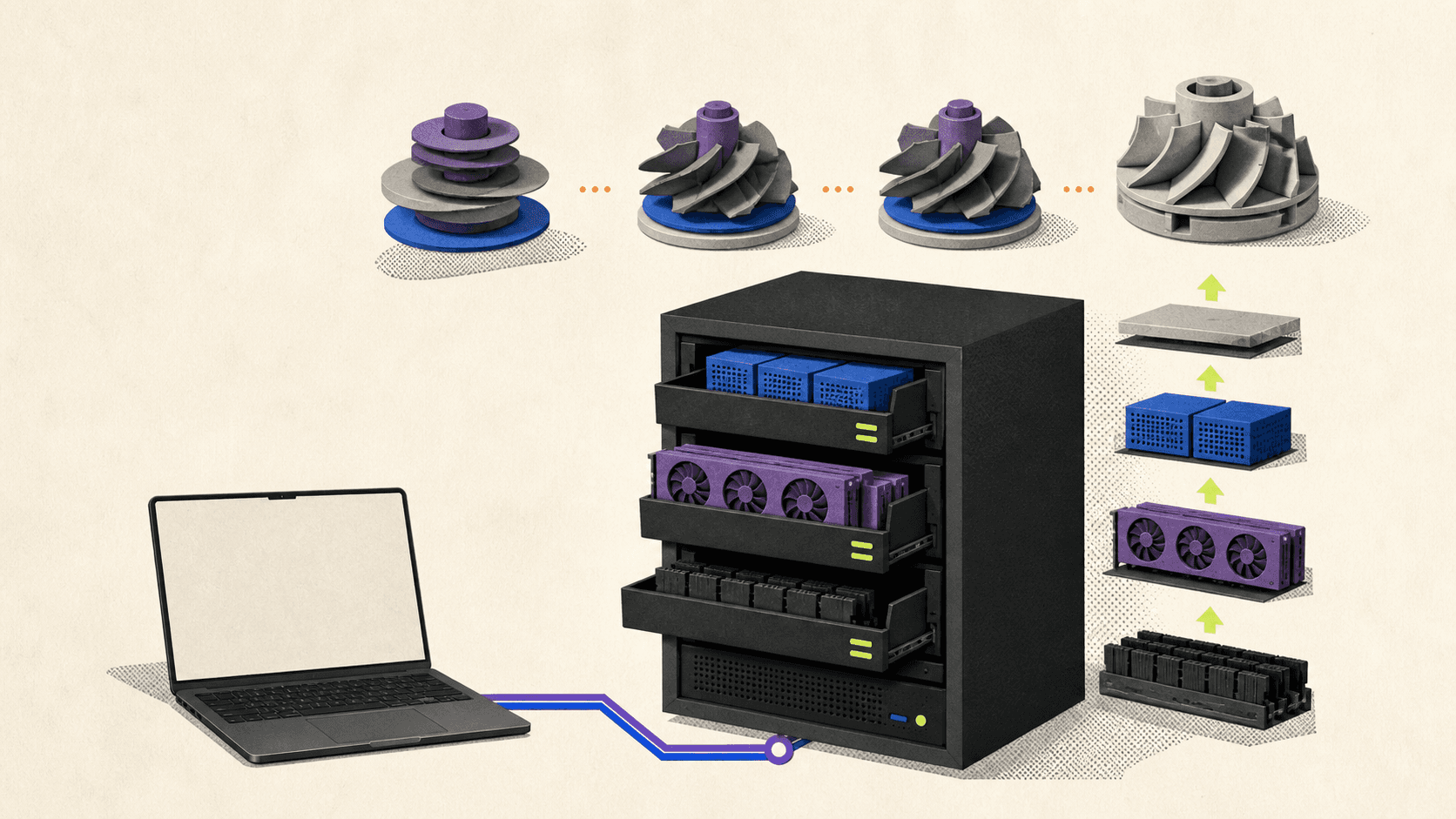
Vagon currently offers configurations with different CPU counts, 16 GB to 192 GB of RAM, and NVIDIA T4 or A10G GPU options. These specifications are listed on the Vagon Cloud Computer page and pricing page. They are selectable resources, not verified SOLIDWORKS workload benchmarks.
Choose a starting configuration, test your own assemblies, and change capacity based on observed CPU, memory, graphics, and storage use.
#4. Install from an approved source
Download SOLIDWORKS through your official account, reseller, or company deployment package. Install the correct release and service pack, followed by required add-ins and the matching PDM client.
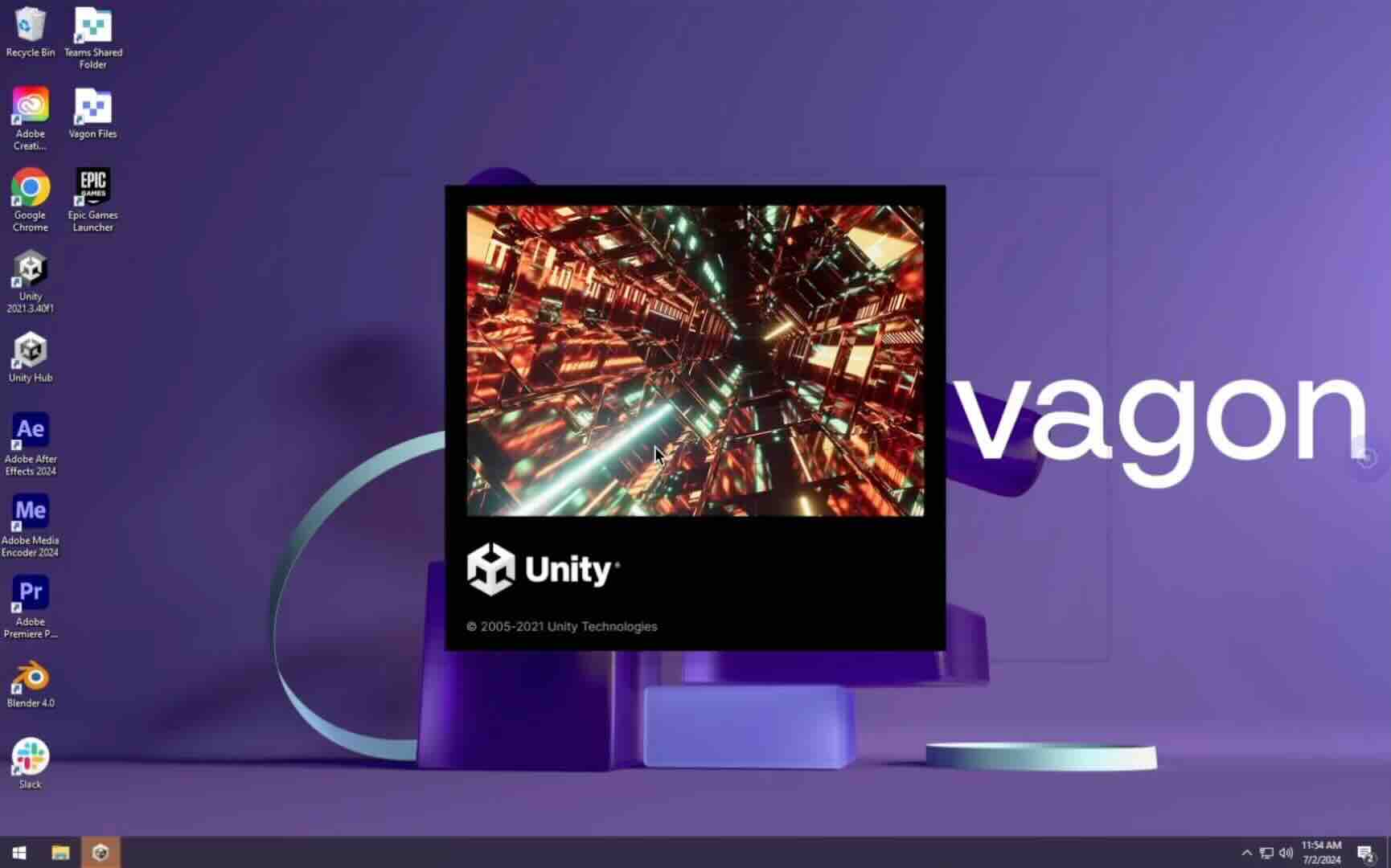
Vagon supports manual application installation inside the workstation, much like a local Windows computer. Its application installation page explains that applications not found in the preinstallation library can be installed manually.
Keep enough free disk space for Windows, SOLIDWORKS, downloaded installation media, temporary files, projects, backups, PDM cache, and simulation or rendering results.
#5. Configure licensing and company connectivity
Activate the named-user or device license using its approved method, or enter the SNL server information. If the workstation needs PDM, a file server, or internal services, configure the company-approved network path before opening production files.
Test the license after a full shutdown and restart. If the cloud service allows hardware resizing, test again after changing performance configurations. This can reveal machine-identity or network assumptions before they interrupt a real project.
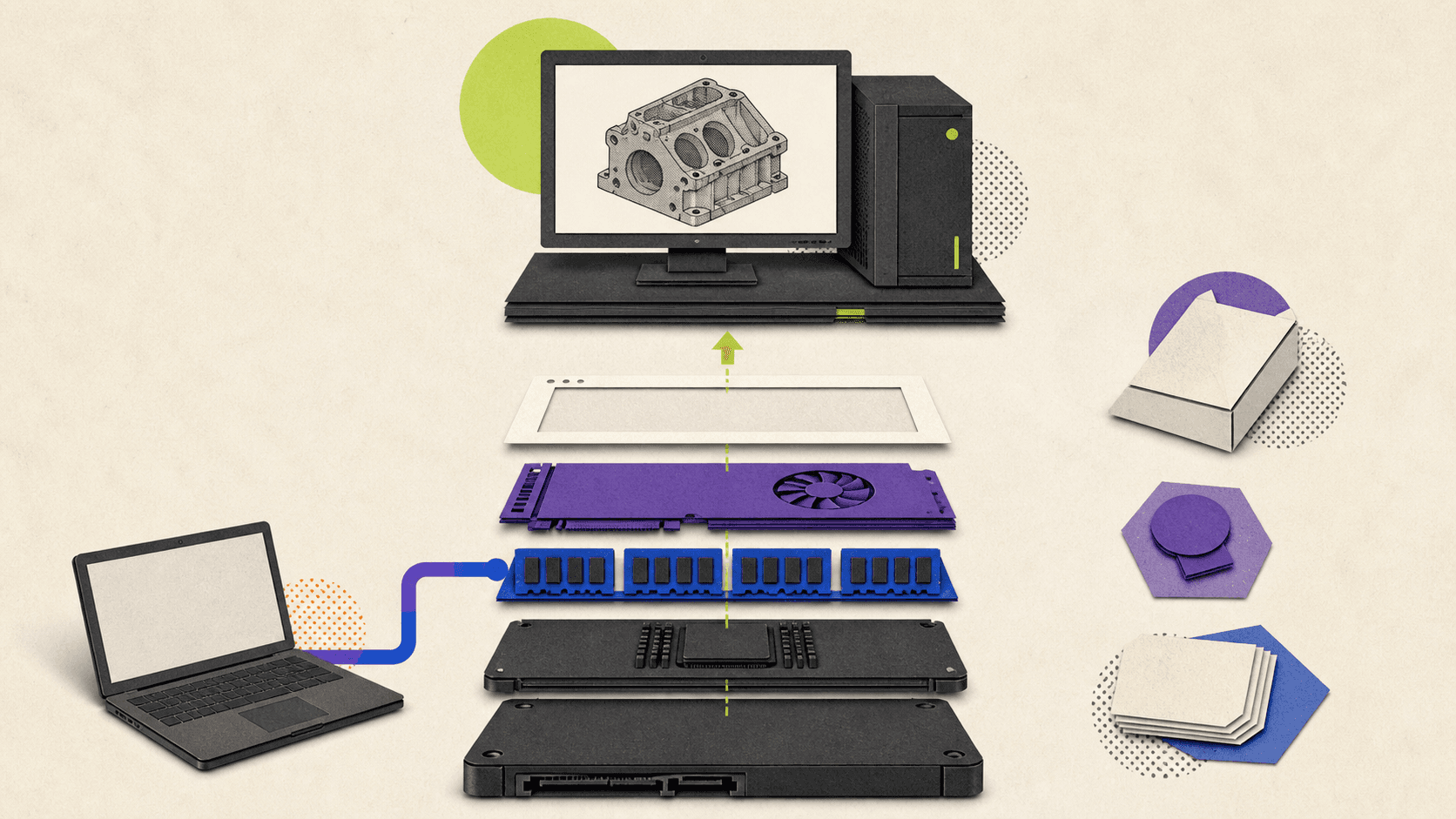
#6. Validate the graphics path
A large amount of GPU memory does not prove that the graphics card, virtual GPU, and driver combination is certified for your SOLIDWORKS release.
After installation, run SOLIDWORKS Rx. Its diagnostics can report the graphics adapter, driver version, and support status. SOLIDWORKS recommends using Rx to validate the graphics card and driver.
Open representative models and test rotate, pan, zoom, section views, drawings, transparency, RealView if required, and any graphics-heavy add-ins. Do not validate only with an empty part.
#7. Test the remote connection
Vagon supports access from a browser and offers native macOS and Windows applications through its download page. Test both if possible, especially at the resolution and monitor arrangement you intend to use.
Choose a data-center region close to the user. Prefer wired Ethernet when available. On Wi-Fi, use a stable network with low contention.
There is no single bandwidth number that guarantees a good CAD session. Distance, round-trip latency, jitter, packet loss, Wi-Fi interference, screen resolution, and local video decoding can affect input response even when a speed test reports a high download rate.
How Do You Choose Hardware and Reduce Lag?
Remote SOLIDWORKS performance has two separate paths.
The first is application performance inside the cloud workstation. This controls how quickly SOLIDWORKS rebuilds a part, loads an assembly, updates a drawing, solves a study, or renders an image.
The second is stream performance between the workstation and your device. This controls how quickly a mouse movement, click, or screen update appears locally.
Treating them as one problem leads to expensive and ineffective upgrades.
Parts, sketches, and rebuilds
Common modeling operations benefit from responsive CPU performance. A larger GPU will not necessarily make a feature rebuild or equation update faster.
If rebuilds are slow but Windows menus and remote input remain responsive, inspect CPU use, model complexity, rebuild errors, external references, and SOLIDWORKS performance settings. A higher-CPU configuration may help, but the file itself may also need attention.
Large assemblies
Large assemblies increase CPU, RAM, storage, and graphics demand. Loading every component as fully resolved can consume substantially more memory than loading only the required data.
SOLIDWORKS provides Lightweight Components, Large Assembly Settings, simplified representations, and Large Design Review for these situations. Lightweight components load only a subset of model data, while Large Design Review is intended for opening and reviewing very large assemblies quickly.
These modes have functional trade-offs. A review mode is not a substitute for fully resolving components when the task requires complete feature and mate data.
Drawings
A drawing can be slow because it needs to load, resolve, rebuild, and display referenced models. More GPU capacity may help shaded views, but it will not correct broken references or an overloaded file server.
SOLIDWORKS supports lightweight drawings and detailing-oriented performance options. Its documentation states that lightweight drawings can improve the performance of large-assembly drawings.
Simulation and nonlinear analysis
Simulation sizing depends on the study, solver, mesh, contact conditions, degrees of freedom, available RAM, and CPU cores. Some SOLIDWORKS Simulation solvers make better use of multiple cores, while others use less memory or behave differently when a study runs out of physical RAM.
Once a study exceeds available memory and begins using disk for solver data, performance can drop sharply. For demanding simulation, inspect solver memory use and result-file size rather than selecting a workstation based only on GPU specifications. The SOLIDWORKS solver documentation explains these CPU and memory differences.

Point clouds
Point-cloud work also depends on the SOLIDWORKS edition. ScanTo3D is available in SOLIDWORKS Design Professional, Premium, and Ultimate, not every edition. It supports defined point-cloud and mesh formats, including several XYZ, TXT, ASC, OBJ, STL, and PLY workflows. See the ScanTo3D overview and supported scan-data formats.
Large scan files may need substantial RAM, storage, and preprocessing. A cloud workstation can provide more capacity, but it cannot add ScanTo3D to an edition that does not include it.
Rendering
Rendering should be evaluated separately from normal viewport use. SOLIDWORKS Visualize has its own product entitlement and graphics requirements. GPU acceleration depends on the rendering engine, supported GPU architecture, VRAM, and driver. Review the current Visualize requirements before selecting a GPU tier.
If the application is fast but the cursor and viewport still feel delayed, investigate the streaming path. Try a nearer region, wired connection, lower resolution, less network congestion, and the native remote client. If remote input is responsive but model rotation is slow, investigate the workstation GPU, driver, model, and SOLIDWORKS settings instead.
How Should Files and PDM Work?
The workstation disk, cloud file storage, PDM, and a license server solve different problems.
Vagon Cloud Computer includes persistent workstation storage and Vagon Files for transferring or accessing files outside an active session. That can be useful for independent projects, but it does not provide CAD-aware revision control, check-in and check-out, workflow states, a PDM database, or an archive server.
For a standalone project, SOLIDWORKS Pack and Go is safer than copying only the top-level assembly. It can gather related parts, assemblies, drawings, references, design tables, appearances, and applicable simulation results into a folder or ZIP file. See the Pack and Go documentation.
Once transferred, keep the active project on the workstation’s local disk. Opening a reference-heavy assembly directly across an improvised internet-mounted drive can add file latency and increase the chance of missing paths.
SOLIDWORKS PDM is different. Its server architecture includes an archive server, database server, Microsoft SQL Server, and SolidNetWork licensing. The PDM client retrieves files into a local cache, and users check files out for editing before checking them back into the vault.
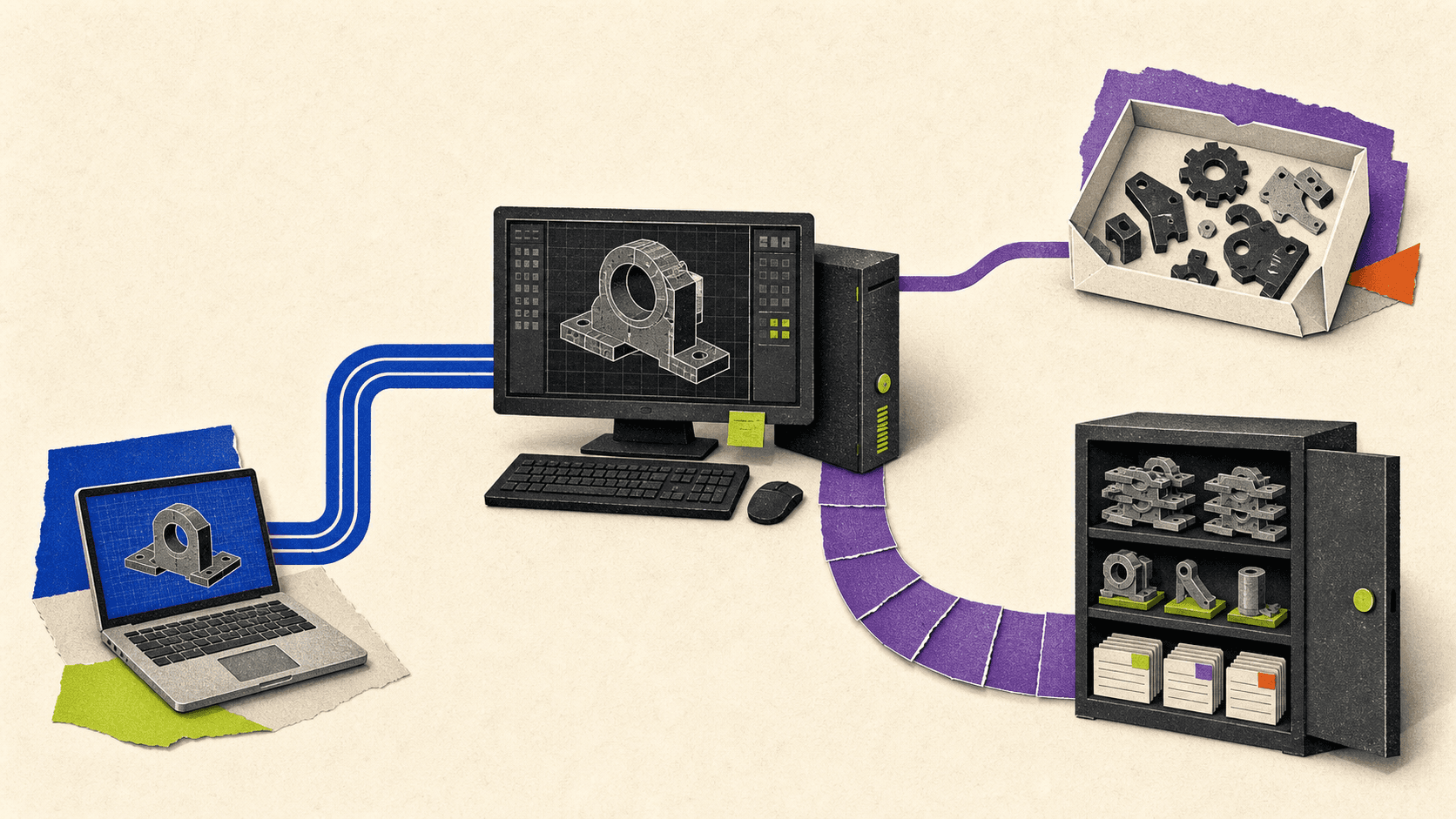
A cloud workstation can act as a PDM client only if the organization has configured and approved the required connectivity. The workstation may need access through a VPN or another private route, matching PDM client software, the correct vault view, permissions, name resolution, and an available PDM license.
SOLIDWORKS documents TCP 3030 for archive-server communication and TCP 1433 for SQL Server communication in its PDM server prerequisites. Those details are for administrators. Do not expose database or archive services directly to the public internet as a quick fix.
The PDM cache documentation explains that retrieved files are copied to a working folder on the client. This local cache can make a properly configured cloud workstation practical because SOLIDWORKS works from the cached files rather than constantly editing across the WAN.
Before moving company CAD data, confirm:
Who owns the files stored on the workstation
Which storage locations company policy permits
Whether project data may leave the company network
Which region is acceptable
How backups and retention work
Who can upload, download, or share files
Whether contractors may access the vault
What happens to data when the cloud subscription ends
Vagon states that its computers are isolated virtual machines and that connections are encrypted. Its privacy policy also says information may be stored or processed in the United States or other countries where Vagon or its service providers maintain facilities. Regulated or confidential projects therefore need a company review rather than a general assumption that any cloud region is acceptable.
How Do You Troubleshoot the Most Common Problems?
Start by identifying which layer has failed. License access, PDM, file references, application performance, graphics, and remote streaming need different fixes.
SOLIDWORKS cannot connect to the license server
Confirm the server address, port, VPN connection, name resolution, license availability, and SolidNetWork License Manager status with the administrator. Firewalls may require a configured SNL port and vendor-daemon port. SOLIDWORKS provides a documented firewall configuration process.
Do not delete FlexNet files, modify license data, or attempt to suppress the license check. If the company allows license borrowing, configure it through the SolidNetWork License Manager before the workstation loses server access.
Activation fails after resizing or recreating the workstation
Check whether the license is machine-locked and whether the machine identity changed. Follow the normal deactivation and reactivation process or contact the reseller.
If persistent identity is required, verify the relevant Vagon plan before installing. A “permanent disk ID” feature is helpful only when it satisfies the application’s approved activation requirements.
PDM cannot connect to SQL Server or the vault
Treat this as several possible connections, not one generic PDM failure. Check:
PDM client version
Vault view and user permissions
PDM license availability
Archive-server reachability
SQL Server reachability
VPN or private network status
DNS and server names
Server, database, and firewall changes belong to the PDM administrator. Vagon Cloud Computer is the client workstation in this design, not the replacement PDM or SQL server.
The remote desktop stutters
Check the stream before upgrading the workstation. Test a wired connection, a lower display resolution, a nearby region, and a less congested network. Compare browser access with the Vagon desktop client.
If the Windows desktop, cursor, and menus stutter, the network or streaming path is a likely suspect. If Windows feels responsive but rotating the SOLIDWORKS model is slow, inspect the remote GPU, driver, memory, and model.
Graphics are corrupted or SOLIDWORKS crashes
Run SOLIDWORKS Rx and compare the installed GPU and driver with the hardware-certification information. Check available RAM and disk space as well.
SOLIDWORKS can run with Software OpenGL as a diagnostic test when graphics problems are suspected. This disables hardware acceleration and is normally slower, so it should not be presented as a permanent performance setting. The graphics troubleshooting documentation explains the procedure.
Assembly components are missing
Use Find References to inspect paths, or return to the source workstation and create a complete Pack and Go package. Also check whether the files were saved in a newer SOLIDWORKS release.
SOLIDWORKS 2026 supports saving eligible documents to the previous two releases for users with the required active subscription, but backward compatibility still has boundaries. See the previous-version saving rules.
When Is Vagon Cloud Computer a Good Fit?
Vagon Cloud Computer fits this topic when you need an interactive remote Windows workstation and do not want your local machine to carry the full SOLIDWORKS workload.
It can be useful for:
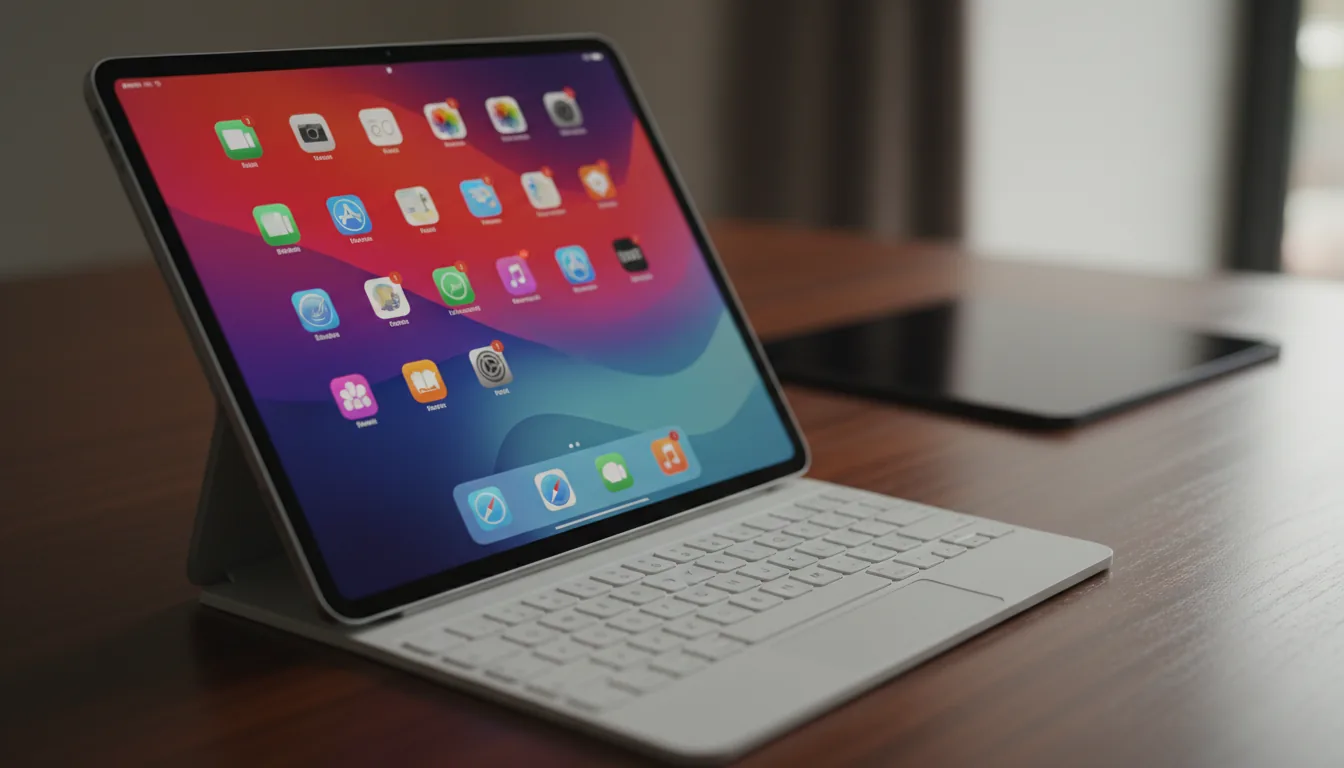
Mac users who need the Windows version of SOLIDWORKS
Remote workers whose companies permit a cloud workstation
Students, makers, and freelancers who need workstation capacity for a project
Users who want to change CPU, RAM, or GPU capacity without buying a new computer
People who need access from more than one local device
A local or company-managed workstation may be a better choice when the workflow requires an unverified plug-in, specialist peripheral, strict hardware certification, planned offline use, or direct access to infrastructure that cannot be reached from the cloud.
A company-managed remote desktop may also make more sense when SOLIDWORKS, PDM, licensing, templates, and add-ins are already configured on an office workstation. An official SOLIDWORKS browser-native product or viewer is a better fit when the reader needs browser CAD, review, or markup rather than the installed desktop application.
Vagon currently charges Cloud Computer usage by the minute and charges separately for persistent workstation storage. Available performance types and rates can vary by region, so compare the current pricing with the cost and expected use of a local workstation. Cloud is not automatically less expensive for someone who runs SOLIDWORKS all day, every day.
Before committing, test one representative part, one large assembly, one drawing, the required license path, PDM access, file transfer, add-ins, and the real network connection. That short pilot will tell you more than a generic hardware recommendation.
If the workflow passes those checks, create a Vagon Cloud Computer and use it as the remote Windows workstation for your existing, properly licensed SOLIDWORKS environment.
Frequently Asked Questions
Can SOLIDWORKS run in the cloud?
Yes. The full SOLIDWORKS desktop application can run on a compatible remote Windows workstation. You access that workstation from your local device, but you must provide a valid SOLIDWORKS license and verify the Windows, GPU, driver, and virtualization requirements.
Can I run SOLIDWORKS on a Mac through the cloud?
Yes. Your Mac acts as the access device while SOLIDWORKS runs on the remote Windows computer. This gives Mac users access to the Windows application without installing SOLIDWORKS directly on macOS.
Does Vagon Cloud Computer include a SOLIDWORKS license?
No. Vagon supplies the remote Windows workstation, storage options, and streaming connection. You or your organization must provide and configure a compatible named-user, device, or SolidNetWork license.
Can a cloud workstation connect to SOLIDWORKS PDM?
It can if your organization permits remote access and provides the required VPN or private network connection. The workstation still needs the correct PDM client, vault permissions, license access, and connectivity to the existing archive and database infrastructure.
Is Vagon Files the same as SOLIDWORKS PDM?
No. Vagon Files helps transfer, store, and access files, while PDM adds CAD-aware revision management, permissions, workflows, check-in and check-out, local caching, and server components. Vagon Cloud Computer does not replace a PDM vault, archive server, or SQL Server.
How fast should my internet connection be?
There is no single speed that guarantees a smooth CAD session. Low latency, limited jitter and packet loss, a nearby workstation region, and a stable wired or strong Wi-Fi connection are often more important than a high headline download speed.
Why does the viewport stutter even with a powerful cloud GPU?
The delay may come from the remote stream rather than the GPU. Test network latency, connection stability, workstation region, display resolution, and the remote client before increasing hardware capacity. If Windows responds quickly but model rotation remains slow, inspect the GPU, driver, RAM, and model complexity.
Can I open SOLIDWORKS files online without installing SOLIDWORKS?
You can view or review supported designs through tools such as 3DPlay, Share and Markup, eDrawings, or other compatible viewers. These tools do not provide the full SOLIDWORKS feature-editing environment, and they may not preserve or expose every native feature.
Yes, you can run SOLIDWORKS in the cloud. In practice, that usually means installing the full SOLIDWORKS desktop application on a remote Windows workstation, then controlling that workstation from your Mac, laptop, or other local device.
The cloud provider supplies the computer and remote connection. You still need a valid SOLIDWORKS license, a compatible Windows environment, enough CPU, GPU, RAM, and storage, plus access to any company license server, PDM vault, VPN, or file system your workflow depends on.
That distinction matters. A cloud workstation is not the same as an online viewer, the SOLIDWORKS product trial, cloud storage, PDM, or a browser-native CAD application.
What Does Running SOLIDWORKS in the Cloud Mean?
When SOLIDWORKS runs on a cloud workstation, the application itself executes on a Windows computer in a data center. That remote computer performs the rebuilds, graphics processing, simulation, rendering, and file operations.
Your local device receives a video stream of the Windows desktop and sends back keyboard, mouse, and other supported input. This is why a MacBook can act as the access device even though the installed SOLIDWORKS application still requires Windows.
Several other products can look similar from the outside, so it helps to separate them before choosing a setup.
Option | Runs the installed SOLIDWORKS desktop application? | Best used for | Main limitation |
|---|---|---|---|
Local Windows workstation | Yes | Regular office or home CAD work | Performance is limited by local hardware |
Cloud Windows workstation | Yes | Remote CAD, Mac access, temporary workstation capacity | Requires license and virtualization validation |
Company-managed remote desktop | Yes, if installed on the host | Accessing an existing company workstation | Depends on company availability, policy, and network |
3DPlay, Share and Markup, or another viewer | No | Viewing, measuring, reviewing, and commenting | Does not provide full feature editing |
SOLIDWORKS online product trial | Temporarily, in an evaluation environment | Trying the product | Not a permanent production workstation |
SOLIDWORKS xDesign | No, it is a separate browser-native product | Browser-based design and collaboration | Different product and workflow |
SOLIDWORKS describes SOLIDWORKS Design as installed CAD software, while SOLIDWORKS xDesign is a separate browser-native product. The company also offers an online product trial, but that trial is intended for evaluation. It should not be treated as free, permanent cloud access to a production SOLIDWORKS installation.
For browser-based review, Dassault Systèmes’ Share and Markup workflow lets recipients open a design in 3DPlay and use functions such as pan, rotate, zoom, measurement, and annotation. That is useful for a supplier or client who needs to inspect a model, but it is not the same as opening the FeatureManager tree and editing the model in SOLIDWORKS Design.
If you need native parts, assemblies, drawings, add-ins, macros, simulation tools, or a PDM client, you are probably looking for the remote Windows workstation option.
Will Your SOLIDWORKS License Work on a Cloud Workstation?
Check licensing before choosing hardware or transferring files. A technically capable workstation is not useful if the license cannot be activated or accessed in that environment.
Current SOLIDWORKS offerings include several licensing and deployment paths. The relevant ones are named-user licensing, machine-locked device licensing, and SolidNetWork floating licensing. SOLIDWORKS explains the current options on its licensing page.
Named-user licensing
A named-user SOLIDWORKS Design license is assigned to an individual and can be accessed across multiple devices, subject to the account and subscription terms. The application is still installed on the Windows machine. The word “cloud” in the license description does not mean the full application runs inside a general web browser.
A cloud workstation may count as one of the devices on which the named user installs and accesses SOLIDWORKS. Confirm the exact entitlement and sign-in behavior with your reseller or account administrator before relying on it for production work.
There is also an important offline limitation. SOLIDWORKS’ 2026 documentation states that offline mode is not supported in virtual or parallel machines for SOLIDWORKS Design installed from the 3DEXPERIENCE platform. A cloud workstation should therefore be planned as an online environment.
Machine-locked device licensing
A device license is tied to one machine and uses a serial number. Installing it on a cloud workstation may require a stable machine identity, along with the standard activation, deactivation, and reactivation process.
Do not assume that stopping, resizing, or recreating a virtual workstation leaves its licensing identity unchanged. Confirm how the cloud provider handles the machine identity and ask your SOLIDWORKS reseller whether the proposed environment is acceptable.
Vagon currently lists “License Compatibility” and “Permanent Disk ID” among features on its Cloud Computer pricing page. Those features may help with applications that expect a consistent machine identity, but they do not override the SOLIDWORKS license agreement or guarantee that every license type will activate. The exact license and Vagon plan still need to be checked.
If a license must be moved, use the documented SOLIDWORKS activation and deactivation process. Do not clone activation data or attempt to bypass the license service.
SolidNetWork floating licensing
A SolidNetWork License, often shortened to SNL, is issued by a SolidNetWork License Manager server. The SOLIDWORKS installation on the cloud workstation acts as a license client.
During installation, the client normally receives the license server address in this format:
The documented default port is 25734, although administrators can use other ports. The client must be able to resolve and reach the server through the company-approved network path. That might involve a VPN, firewall rules, DNS configuration, or private connectivity managed by IT. See the SolidNetWork client installation instructions.
SOLIDWORKS also supports borrowing an SNL license for remote use when the administrator permits it. A borrowed license can remain valid for up to 30 days, or a shorter period set by the administrator, and it stays assigned to the user and machine that borrowed it. SOLIDWORKS documents the borrowing rules here.
Vagon Cloud Computer does not supply any of these SOLIDWORKS licenses. It provides the remote Windows workstation. You or your organization must supply and configure the appropriate software entitlement.
What Setup Do You Need?
For SOLIDWORKS 2026, the official requirements provide a useful starting point: Windows 11 64-bit, an x86-64 Intel or AMD processor, 16 GB RAM with 32 GB recommended, a certified graphics card and driver, and SSD storage for better performance. SOLIDWORKS also publishes specific supported hypervisor versions rather than offering a blanket statement that every virtual machine is supported. Check the current SOLIDWORKS system requirements for the release you plan to install.
Use this setup sequence.
#1. Document the existing environment
Before creating the workstation, record:
SOLIDWORKS release and service pack
Standard, Professional, Premium, or another edition
Named-user, device, or network license
Required add-ins and simulation products
PDM client version and vault details
Toolbox, templates, macros, fonts, materials, and custom libraries
Company VPN, file server, and security requirements
Required peripherals, such as a 3D mouse, scanner, plotter, or USB device
A workstation that launches basic SOLIDWORKS may still fail the actual workflow if a required add-in, license, peripheral, or server connection is missing.
#2. Verify the Windows environment
For a SOLIDWORKS 2026 client installation, verify that the cloud computer uses a supported Windows 11 64-bit image. Do not assume that installing the desktop client on Windows Server is equivalent. SOLIDWORKS recommends Windows Server for its server products, while the interactive client has its own operating-system requirements.
Vagon describes Cloud Computer as a remote Windows PC that can be reached through a browser or native application. Its current Windows-on-Mac documentation describes the environment as x86 Windows 11, but you should still verify the actual image shown in your account before installing SOLIDWORKS.
#3. Select a reasonable starting configuration
The official 16 GB minimum may be enough for installation, smaller parts, and basic exercises. It leaves less room for large assemblies, drawings, add-ins, Excel design tables, rendering, simulation, or several applications running together.
For regular professional work, 32 GB is a more practical starting point because it matches the current SOLIDWORKS recommendation. Larger projects may justify 64 GB or more, but model size alone does not determine memory demand. Configurations, component states, drawing views, simulation meshes, and other open programs all contribute.
Vagon currently offers configurations with different CPU counts, 16 GB to 192 GB of RAM, and NVIDIA T4 or A10G GPU options. These specifications are listed on the Vagon Cloud Computer page and pricing page. They are selectable resources, not verified SOLIDWORKS workload benchmarks.
Choose a starting configuration, test your own assemblies, and change capacity based on observed CPU, memory, graphics, and storage use.
#4. Install from an approved source
Download SOLIDWORKS through your official account, reseller, or company deployment package. Install the correct release and service pack, followed by required add-ins and the matching PDM client.
Vagon supports manual application installation inside the workstation, much like a local Windows computer. Its application installation page explains that applications not found in the preinstallation library can be installed manually.
Keep enough free disk space for Windows, SOLIDWORKS, downloaded installation media, temporary files, projects, backups, PDM cache, and simulation or rendering results.
#5. Configure licensing and company connectivity
Activate the named-user or device license using its approved method, or enter the SNL server information. If the workstation needs PDM, a file server, or internal services, configure the company-approved network path before opening production files.
Test the license after a full shutdown and restart. If the cloud service allows hardware resizing, test again after changing performance configurations. This can reveal machine-identity or network assumptions before they interrupt a real project.
#6. Validate the graphics path
A large amount of GPU memory does not prove that the graphics card, virtual GPU, and driver combination is certified for your SOLIDWORKS release.
After installation, run SOLIDWORKS Rx. Its diagnostics can report the graphics adapter, driver version, and support status. SOLIDWORKS recommends using Rx to validate the graphics card and driver.
Open representative models and test rotate, pan, zoom, section views, drawings, transparency, RealView if required, and any graphics-heavy add-ins. Do not validate only with an empty part.
#7. Test the remote connection
Vagon supports access from a browser and offers native macOS and Windows applications through its download page. Test both if possible, especially at the resolution and monitor arrangement you intend to use.
Choose a data-center region close to the user. Prefer wired Ethernet when available. On Wi-Fi, use a stable network with low contention.
There is no single bandwidth number that guarantees a good CAD session. Distance, round-trip latency, jitter, packet loss, Wi-Fi interference, screen resolution, and local video decoding can affect input response even when a speed test reports a high download rate.
How Do You Choose Hardware and Reduce Lag?
Remote SOLIDWORKS performance has two separate paths.
The first is application performance inside the cloud workstation. This controls how quickly SOLIDWORKS rebuilds a part, loads an assembly, updates a drawing, solves a study, or renders an image.
The second is stream performance between the workstation and your device. This controls how quickly a mouse movement, click, or screen update appears locally.
Treating them as one problem leads to expensive and ineffective upgrades.
Parts, sketches, and rebuilds
Common modeling operations benefit from responsive CPU performance. A larger GPU will not necessarily make a feature rebuild or equation update faster.
If rebuilds are slow but Windows menus and remote input remain responsive, inspect CPU use, model complexity, rebuild errors, external references, and SOLIDWORKS performance settings. A higher-CPU configuration may help, but the file itself may also need attention.
Large assemblies
Large assemblies increase CPU, RAM, storage, and graphics demand. Loading every component as fully resolved can consume substantially more memory than loading only the required data.
SOLIDWORKS provides Lightweight Components, Large Assembly Settings, simplified representations, and Large Design Review for these situations. Lightweight components load only a subset of model data, while Large Design Review is intended for opening and reviewing very large assemblies quickly.
These modes have functional trade-offs. A review mode is not a substitute for fully resolving components when the task requires complete feature and mate data.
Drawings
A drawing can be slow because it needs to load, resolve, rebuild, and display referenced models. More GPU capacity may help shaded views, but it will not correct broken references or an overloaded file server.
SOLIDWORKS supports lightweight drawings and detailing-oriented performance options. Its documentation states that lightweight drawings can improve the performance of large-assembly drawings.
Simulation and nonlinear analysis
Simulation sizing depends on the study, solver, mesh, contact conditions, degrees of freedom, available RAM, and CPU cores. Some SOLIDWORKS Simulation solvers make better use of multiple cores, while others use less memory or behave differently when a study runs out of physical RAM.
Once a study exceeds available memory and begins using disk for solver data, performance can drop sharply. For demanding simulation, inspect solver memory use and result-file size rather than selecting a workstation based only on GPU specifications. The SOLIDWORKS solver documentation explains these CPU and memory differences.
Point clouds
Point-cloud work also depends on the SOLIDWORKS edition. ScanTo3D is available in SOLIDWORKS Design Professional, Premium, and Ultimate, not every edition. It supports defined point-cloud and mesh formats, including several XYZ, TXT, ASC, OBJ, STL, and PLY workflows. See the ScanTo3D overview and supported scan-data formats.
Large scan files may need substantial RAM, storage, and preprocessing. A cloud workstation can provide more capacity, but it cannot add ScanTo3D to an edition that does not include it.
Rendering
Rendering should be evaluated separately from normal viewport use. SOLIDWORKS Visualize has its own product entitlement and graphics requirements. GPU acceleration depends on the rendering engine, supported GPU architecture, VRAM, and driver. Review the current Visualize requirements before selecting a GPU tier.
If the application is fast but the cursor and viewport still feel delayed, investigate the streaming path. Try a nearer region, wired connection, lower resolution, less network congestion, and the native remote client. If remote input is responsive but model rotation is slow, investigate the workstation GPU, driver, model, and SOLIDWORKS settings instead.
How Should Files and PDM Work?
The workstation disk, cloud file storage, PDM, and a license server solve different problems.
Vagon Cloud Computer includes persistent workstation storage and Vagon Files for transferring or accessing files outside an active session. That can be useful for independent projects, but it does not provide CAD-aware revision control, check-in and check-out, workflow states, a PDM database, or an archive server.
For a standalone project, SOLIDWORKS Pack and Go is safer than copying only the top-level assembly. It can gather related parts, assemblies, drawings, references, design tables, appearances, and applicable simulation results into a folder or ZIP file. See the Pack and Go documentation.
Once transferred, keep the active project on the workstation’s local disk. Opening a reference-heavy assembly directly across an improvised internet-mounted drive can add file latency and increase the chance of missing paths.
SOLIDWORKS PDM is different. Its server architecture includes an archive server, database server, Microsoft SQL Server, and SolidNetWork licensing. The PDM client retrieves files into a local cache, and users check files out for editing before checking them back into the vault.
A cloud workstation can act as a PDM client only if the organization has configured and approved the required connectivity. The workstation may need access through a VPN or another private route, matching PDM client software, the correct vault view, permissions, name resolution, and an available PDM license.
SOLIDWORKS documents TCP 3030 for archive-server communication and TCP 1433 for SQL Server communication in its PDM server prerequisites. Those details are for administrators. Do not expose database or archive services directly to the public internet as a quick fix.
The PDM cache documentation explains that retrieved files are copied to a working folder on the client. This local cache can make a properly configured cloud workstation practical because SOLIDWORKS works from the cached files rather than constantly editing across the WAN.
Before moving company CAD data, confirm:
Who owns the files stored on the workstation
Which storage locations company policy permits
Whether project data may leave the company network
Which region is acceptable
How backups and retention work
Who can upload, download, or share files
Whether contractors may access the vault
What happens to data when the cloud subscription ends
Vagon states that its computers are isolated virtual machines and that connections are encrypted. Its privacy policy also says information may be stored or processed in the United States or other countries where Vagon or its service providers maintain facilities. Regulated or confidential projects therefore need a company review rather than a general assumption that any cloud region is acceptable.
How Do You Troubleshoot the Most Common Problems?
Start by identifying which layer has failed. License access, PDM, file references, application performance, graphics, and remote streaming need different fixes.
SOLIDWORKS cannot connect to the license server
Confirm the server address, port, VPN connection, name resolution, license availability, and SolidNetWork License Manager status with the administrator. Firewalls may require a configured SNL port and vendor-daemon port. SOLIDWORKS provides a documented firewall configuration process.
Do not delete FlexNet files, modify license data, or attempt to suppress the license check. If the company allows license borrowing, configure it through the SolidNetWork License Manager before the workstation loses server access.
Activation fails after resizing or recreating the workstation
Check whether the license is machine-locked and whether the machine identity changed. Follow the normal deactivation and reactivation process or contact the reseller.
If persistent identity is required, verify the relevant Vagon plan before installing. A “permanent disk ID” feature is helpful only when it satisfies the application’s approved activation requirements.
PDM cannot connect to SQL Server or the vault
Treat this as several possible connections, not one generic PDM failure. Check:
PDM client version
Vault view and user permissions
PDM license availability
Archive-server reachability
SQL Server reachability
VPN or private network status
DNS and server names
Server, database, and firewall changes belong to the PDM administrator. Vagon Cloud Computer is the client workstation in this design, not the replacement PDM or SQL server.
The remote desktop stutters
Check the stream before upgrading the workstation. Test a wired connection, a lower display resolution, a nearby region, and a less congested network. Compare browser access with the Vagon desktop client.
If the Windows desktop, cursor, and menus stutter, the network or streaming path is a likely suspect. If Windows feels responsive but rotating the SOLIDWORKS model is slow, inspect the remote GPU, driver, memory, and model.
Graphics are corrupted or SOLIDWORKS crashes
Run SOLIDWORKS Rx and compare the installed GPU and driver with the hardware-certification information. Check available RAM and disk space as well.
SOLIDWORKS can run with Software OpenGL as a diagnostic test when graphics problems are suspected. This disables hardware acceleration and is normally slower, so it should not be presented as a permanent performance setting. The graphics troubleshooting documentation explains the procedure.
Assembly components are missing
Use Find References to inspect paths, or return to the source workstation and create a complete Pack and Go package. Also check whether the files were saved in a newer SOLIDWORKS release.
SOLIDWORKS 2026 supports saving eligible documents to the previous two releases for users with the required active subscription, but backward compatibility still has boundaries. See the previous-version saving rules.
When Is Vagon Cloud Computer a Good Fit?
Vagon Cloud Computer fits this topic when you need an interactive remote Windows workstation and do not want your local machine to carry the full SOLIDWORKS workload.
It can be useful for:
Mac users who need the Windows version of SOLIDWORKS
Remote workers whose companies permit a cloud workstation
Students, makers, and freelancers who need workstation capacity for a project
Users who want to change CPU, RAM, or GPU capacity without buying a new computer
People who need access from more than one local device
A local or company-managed workstation may be a better choice when the workflow requires an unverified plug-in, specialist peripheral, strict hardware certification, planned offline use, or direct access to infrastructure that cannot be reached from the cloud.
A company-managed remote desktop may also make more sense when SOLIDWORKS, PDM, licensing, templates, and add-ins are already configured on an office workstation. An official SOLIDWORKS browser-native product or viewer is a better fit when the reader needs browser CAD, review, or markup rather than the installed desktop application.
Vagon currently charges Cloud Computer usage by the minute and charges separately for persistent workstation storage. Available performance types and rates can vary by region, so compare the current pricing with the cost and expected use of a local workstation. Cloud is not automatically less expensive for someone who runs SOLIDWORKS all day, every day.
Before committing, test one representative part, one large assembly, one drawing, the required license path, PDM access, file transfer, add-ins, and the real network connection. That short pilot will tell you more than a generic hardware recommendation.
If the workflow passes those checks, create a Vagon Cloud Computer and use it as the remote Windows workstation for your existing, properly licensed SOLIDWORKS environment.
Frequently Asked Questions
Can SOLIDWORKS run in the cloud?
Yes. The full SOLIDWORKS desktop application can run on a compatible remote Windows workstation. You access that workstation from your local device, but you must provide a valid SOLIDWORKS license and verify the Windows, GPU, driver, and virtualization requirements.
Can I run SOLIDWORKS on a Mac through the cloud?
Yes. Your Mac acts as the access device while SOLIDWORKS runs on the remote Windows computer. This gives Mac users access to the Windows application without installing SOLIDWORKS directly on macOS.
Does Vagon Cloud Computer include a SOLIDWORKS license?
No. Vagon supplies the remote Windows workstation, storage options, and streaming connection. You or your organization must provide and configure a compatible named-user, device, or SolidNetWork license.
Can a cloud workstation connect to SOLIDWORKS PDM?
It can if your organization permits remote access and provides the required VPN or private network connection. The workstation still needs the correct PDM client, vault permissions, license access, and connectivity to the existing archive and database infrastructure.
Is Vagon Files the same as SOLIDWORKS PDM?
No. Vagon Files helps transfer, store, and access files, while PDM adds CAD-aware revision management, permissions, workflows, check-in and check-out, local caching, and server components. Vagon Cloud Computer does not replace a PDM vault, archive server, or SQL Server.
How fast should my internet connection be?
There is no single speed that guarantees a smooth CAD session. Low latency, limited jitter and packet loss, a nearby workstation region, and a stable wired or strong Wi-Fi connection are often more important than a high headline download speed.
Why does the viewport stutter even with a powerful cloud GPU?
The delay may come from the remote stream rather than the GPU. Test network latency, connection stability, workstation region, display resolution, and the remote client before increasing hardware capacity. If Windows responds quickly but model rotation remains slow, inspect the GPU, driver, RAM, and model complexity.
Can I open SOLIDWORKS files online without installing SOLIDWORKS?
You can view or review supported designs through tools such as 3DPlay, Share and Markup, eDrawings, or other compatible viewers. These tools do not provide the full SOLIDWORKS feature-editing environment, and they may not preserve or expose every native feature.
Get Beyond Your Computer Performance
Run applications on your cloud computer with the latest generation hardware. No more crashes or lags.
Trial includes 1 hour usage + 7 days of storage.
Summarize with AI

Ready to focus on your creativity?
Vagon gives you the ability to create & render projects, collaborate, and stream applications with the power of the best hardware.

Vagon Blog


Run heavy applications on any device with
your personal computer on the cloud.
San Francisco, California
Solutions
Vagon Teams
Vagon Streams
Use Cases
Resources
Vagon Blog
Running SOLIDWORKS in the Cloud: A Practical Guide
Render Farm vs Cloud Workstation: Which Do You Need?
SolidWorks Keyboard Shortcuts & Mouse Gestures Guide
Blender for 3D Printing: Advanced Model Preparation
GPU Acceleration: Which Creative Apps Use Your GPU?
Best Cloud PC for Video Editing (Premiere & DaVinci)
Best Cloud Workstations for Revit, 3ds Max & V-Ray 2026
Best Pixel Streaming Platforms in 2026 (Compared)
Best Cloud Gaming with Full Desktop Access (2026)
Vagon Blog
Run heavy applications on any device with
your personal computer on the cloud.
San Francisco, California
Solutions
Vagon Teams
Vagon Streams
Use Cases
Resources
Vagon Blog
Running SOLIDWORKS in the Cloud: A Practical Guide
Render Farm vs Cloud Workstation: Which Do You Need?
SolidWorks Keyboard Shortcuts & Mouse Gestures Guide
Blender for 3D Printing: Advanced Model Preparation
GPU Acceleration: Which Creative Apps Use Your GPU?
Best Cloud PC for Video Editing (Premiere & DaVinci)
Best Cloud Workstations for Revit, 3ds Max & V-Ray 2026
Best Pixel Streaming Platforms in 2026 (Compared)
Best Cloud Gaming with Full Desktop Access (2026)
Vagon Blog
Run heavy applications on any device with
your personal computer on the cloud.
San Francisco, California
Solutions
Vagon Teams
Vagon Streams
Use Cases
Resources
Vagon Blog