GPU acceleration guide
Plex Media Server: GPU Acceleration, Tips To Speed Up & Recommended GPUs
How to turn on GPU acceleration in Plex Media Server, tips to make it faster, and which GPUs to pick for it.

Plex Media Server
·
Part of the guide
GPU acceleration guides for creative apps
→
Plex Media Server
Plex Media Server is a versatile platform that organizes your media collections and streams them to various devices. To enhance streaming performance, especially for high-resolution content, enabling GPU acceleration can significantly improve transcoding efficiency.
Enabling GPU Acceleration in Plex Media Server
To utilize hardware-accelerated streaming in Plex Media Server, follow these steps:
Access Plex Web App
Open the Plex Web App and log into your administrator account.Navigate to Transcoder Settings
Go to Settings > Server > Transcoder.Enable Hardware Acceleration
Click on Show Advanced to reveal advanced settings.
Check the box for Use hardware acceleration when available.
Save Changes
Click Save Changes at the bottom of the page.
Note: Hardware-accelerated streaming requires an active Plex Pass subscription.
Top Tips to Optimize Plex Media Server Performance
Update Your GPU Drivers
Ensure your GPU drivers are up to date to maintain compatibility and performance.Monitor Transcoding Processes
Regularly check the server's resource usage during transcoding to identify and address potential bottlenecks.Optimize Media Formats
Store media in formats that are natively supported by your client devices to reduce the need for transcoding.Adjust Transcoder Settings
Fine-tune settings such as Transcoder quality and Maximum simultaneous transcode sessions to balance quality and performance.Leverage Direct Play and Direct Stream
Configure your server and client devices to use Direct Play or Direct Stream when possible, minimizing the need for transcoding.
Implementing these strategies can significantly enhance your Plex Media Server's performance and streaming quality.
Top Recommended GPUs for Plex Media Server
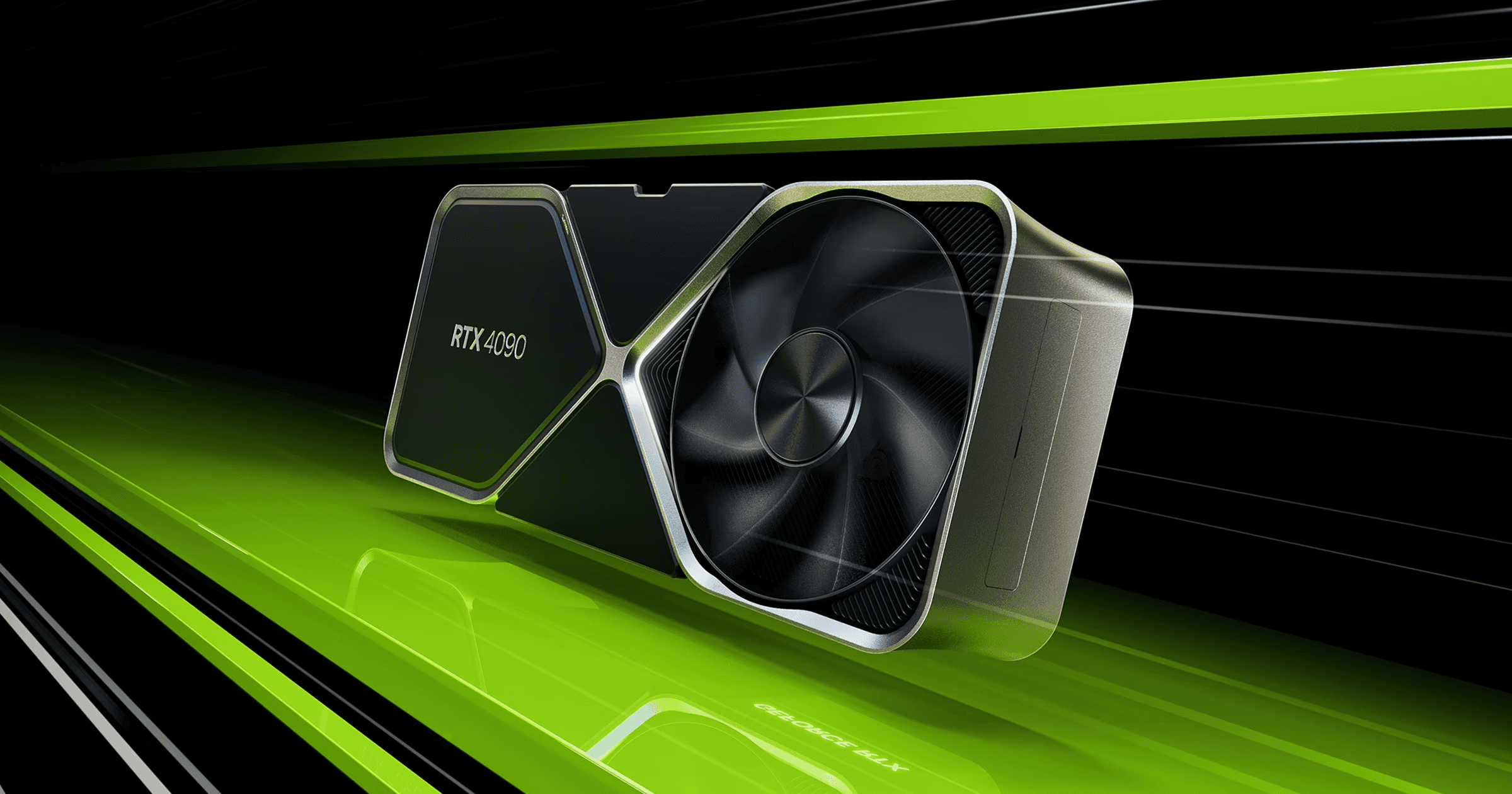
NVIDIA Quadro P2200
A mid-range GPU capable of handling multiple 4K transcoding streams efficiently.NVIDIA GeForce GTX 1660 Super
Offers excellent transcoding capabilities with 6GB GDDR5 memory, suitable for high-definition content.NVIDIA GeForce RTX 3050
Provides a balanced blend of gaming and media server capabilities with good power efficiency.AMD Radeon RX 5500 XT
A versatile mid-range GPU with 4GB/8GB GDDR6 VRAM options, offering solid performance for Plex servers.NVIDIA GeForce RTX 3080
Ideal for high-resolution rendering and real-time ray tracing, delivering top-tier performance for intensive tasks.
Selecting a suitable GPU enhances Plex's transcoding efficiency, ensuring smooth streaming across devices.
Enhance Your Plex Experience with Vagon
To further optimize your media streaming and transcoding tasks, consider utilizing Vagon's cloud PCs. Powered by 48 cores, 4 x 24GB RTX-enabled NVIDIA GPUs, and 192GB of RAM, Vagon allows you to:
Access high-performance computing directly from your browser.
Easily transfer your media library and server settings.
Experience seamless and accelerated media streaming.
Unlock the full potential of your Plex Media Server with Vagon's powerful cloud solutions!


