GPU acceleration guide
Stride: GPU Acceleration, Tips To Speed Up & Recommended GPUs
How to turn on GPU acceleration in Stride, tips to make it faster, and which GPUs to pick for it.

Stride
·
Part of the guide
GPU acceleration guides for creative apps
→
Stride (formerly Xenko)
Stride is a free, open-source game engine that supports both 2D and 3D game development using C#. Renowned for its modular design and realistic rendering capabilities, Stride is suitable for creating games and high-end simulations across platforms like Windows, macOS, Linux, and VR systems.
Enabling GPU Acceleration in Stride
Stride utilizes GPU acceleration by default to enhance rendering performance. To ensure optimal GPU utilization:
Verify Graphics Platform
Stride supports multiple graphics APIs, including Direct3D, OpenGL, and Vulkan.Locate the
GameSettingsasset within the Assets folder of your project.Review or modify the graphics platform settings in the Property Grid.
Update Graphics Drivers
Ensure your GPU drivers are up to date for optimal performance and compatibility. Visit your GPU manufacturer’s website to download the latest drivers.Enable Hardware-Accelerated GPU Scheduling (Windows)
For systems supporting hardware-accelerated GPU scheduling:Navigate to Settings > System > Display > Graphics > Change Default Graphics Settings.
Toggle on Hardware-Accelerated GPU Scheduling and restart your system.
By following these steps, Stride will effectively utilize GPU resources for improved performance.
Top Tips to Optimize Performance in Stride
Optimize Assets
Use compressed textures and level of detail (LOD) models to reduce GPU load.Efficient Scene Management
Implement culling techniques to ensure only visible objects are rendered, conserving resources.Profile Performance
Use Stride’s built-in profiling tools to identify and address performance bottlenecks.Adjust Graphics Settings
Balance quality and performance by fine-tuning settings like shadows, anti-aliasing, and post-processing effects.Leverage GPU Instancing
Utilize GPU instancing for efficient rendering of numerous identical objects.
These strategies will help maintain smooth performance and enable efficient development in Stride.
Top Recommended GPUs for Stride
NVIDIA GeForce RTX 3080
Excellent for high-resolution rendering and real-time ray tracing.AMD Radeon RX 7900 XTX
Robust performance with ample VRAM for complex scenes.NVIDIA GeForce RTX 3060
A cost-effective choice delivering solid performance for most development needs.AMD Radeon RX 6800 XT
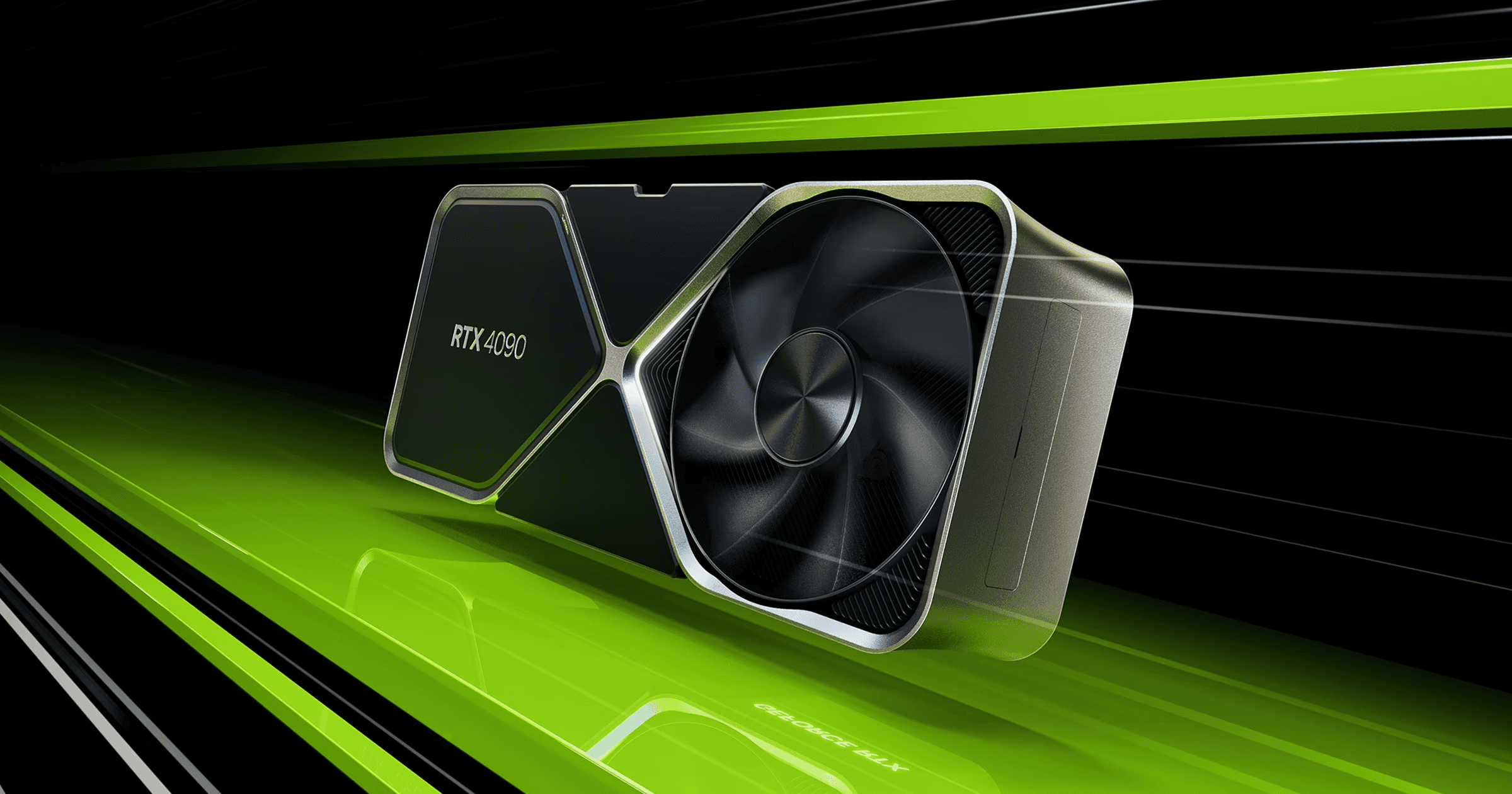
Balances performance and price, ideal for demanding applications.NVIDIA GeForce RTX 4090
Provides top-tier performance for intensive rendering tasks and future-proofing your setup.
Selecting a powerful GPU ensures smooth development and high-quality outputs in Stride.
Enhance Your Workflow with Vagon
To accelerate your game development projects and streamline workflows, consider utilizing Vagon’s cloud PCs. Powered by 48 cores, 4 x 24GB RTX-enabled NVIDIA GPUs, and 192GB of RAM, Vagon provides unparalleled performance:
Accessible directly from your browser.
Transfer your workspace and files in just a few clicks.
Experience accelerated rendering and development instantly.
Unlock Stride’s full potential and power through your projects with ease using Vagon!


