Instant Connection for Pixel Streaming
— New Feature Automated Setup

How to Run Windows on Mac: Every Method Tested (2026)
How to Run Windows on Mac: Every Method Tested (2026)
ComputerPerformance
How to Run Windows on Mac: Every Method Tested (2026)
Table of Contents
Boot Camp is gone. If you've owned a Mac for more than a few years, that one sentence probably stings a little, because Boot Camp used to be the answer. Buy a Mac, partition the drive, reboot into Windows when you needed it. Simple.
That door closed when Apple moved to its own chips, and most of the advice floating around online hasn't caught up.
Here's the thing nobody warns you about until you're knee-deep in it: you switched to a Mac for good reasons, and then one day your job hands you a Windows-only installer, or your accountant needs you in QuickBooks Desktop, or a client sends a file that only opens in some ancient piece of Windows software. A 2024 Parallels survey found that 78% of Mac users still need at least one Windows app for work. You're not the exception. You're the rule.
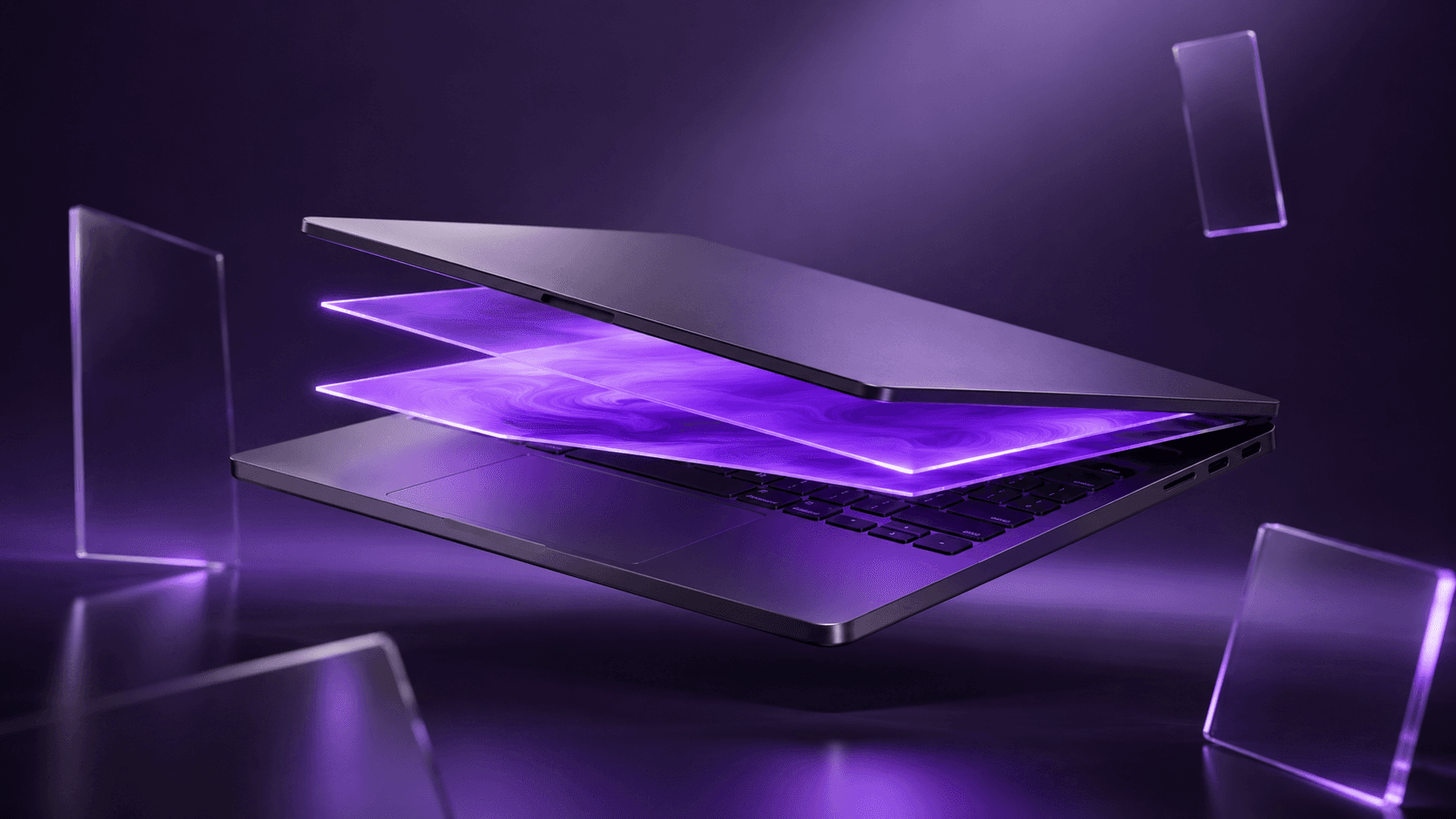
So the real question isn't "can I run Windows on my Mac." You can. The question is which method won't drive you up the wall for your particular situation, because the wrong choice wastes money, time, or both. Let's sort it out.
Quick answer, for the impatient: on an Apple Silicon Mac, Parallels Desktop is the easiest paid way to run Windows, VMware Fusion is the best free one, and CrossOver runs single apps without installing Windows at all. For GPU-heavy work, a cloud computer like Vagon beats all three. Everything below is the why.
What changed, and why most guides are wrong
Apple Silicon flipped the whole thing on its head.
Older Macs ran on Intel chips, the same x86 architecture that powers regular Windows PCs. That shared foundation is what made Boot Camp possible. Your Mac was, underneath the macOS paint job, a PC. It could boot Windows natively because the hardware spoke the same language.
The M-series chips don't. They're ARM-based, a different architecture entirely, and that single change broke a decade of assumptions. Boot Camp is no longer available on Apple Silicon Macs, so a virtual machine is the recommended route for any M-series machine. If you're reading a tutorial that tells you to open Boot Camp Assistant on your M3 MacBook, close the tab. It's describing a Mac that doesn't exist anymore.

So what can you actually run? On Apple Silicon, the only version of Windows that installs is Windows 11 on ARM, a build Microsoft made specifically for this kind of chip. And before you panic about your x86 apps, there's a translation layer called Prism baked into Windows 11 ARM that converts most traditional Windows software on the fly. Microsoft's Prism binary translator handles x86 and x64 apps with surprisingly little performance loss.
Most. That word is going to come back later, because it's where a lot of people get burned.
The ones that trip people up are usually the heavyweight professional tools, and AutoCAD is a classic example of software that needs its own careful setup on a Mac.
The methods that actually run Windows on Mac, and where each one quits on you
There are more ways to do this than most people realize, and they're not interchangeable. A tool that's perfect for running one finance app is overkill for gaming, and the free option that everyone recommends online will frustrate you if you're not comfortable poking around in settings. So here's each one, what it's good at, and the exact point where it stops being good enough.

Parallels Desktop: the one that just works
If you want to stop reading and just pick something, pick this. Parallels runs Windows as a virtual machine directly inside macOS, no partitioning, no reboot, and it's the only Microsoft-authorized way to run Windows 11 on Apple Silicon. Setup is genuinely fast. You can install Windows and have your first app running in under 15 minutes, with no ISO files or manual partitioning to wrestle with.
The standout feature is Coherence mode, which drops your Windows apps right onto your Mac desktop so they sit next to Safari and Slack like they belong there. It's the closest thing to Windows and macOS feeling like one machine.
The catch is money. It runs $99.99 a year, and that's a subscription, not a one-time buy. You'll also need a Windows 11 license on top of that. For people who live in Windows every day, the convenience pays for itself. For someone who opens one app twice a month, it's a lot.

VMware Fusion: the free full machine
This used to cost real money. Now it doesn't. As of November 2024, VMware Fusion became free for everyone, personal and commercial users alike. You get a complete Windows 11 ARM virtual machine, the same core idea as Parallels, for zero dollars.
So why doesn't everyone just use this? Setup. You have to register for a Broadcom account, then find and download the right Windows ARM image yourself, and the process has more steps and more chances to get confused. It's not hard, exactly, but it's not the hand-holding Parallels gives you. There's also no Coherence-style blending of the two desktops on Apple Silicon, so Windows lives in its own window rather than melting into your Mac.
If you're patient and want a full Windows environment without paying, this is the smart pick.

CrossOver: skip Windows entirely
Here's a different idea altogether. What if you didn't install Windows at all, and just ran the one Windows app you need? That's CrossOver. It uses a translation layer to run individual .exe files without a Windows license underneath. It's $74 a year or $494 for a lifetime license, and there's a 14-day free trial that runs fully unlocked so you can test your specific app before paying.
That last part matters more than the price. CrossOver doesn't run everything. Some apps work flawlessly, some are a mess, and the only way to know is to try yours. The current version, CrossOver 26, arrived in February 2026. If your need is one or two specific programs rather than a whole Windows setup, this is lighter and cheaper than spinning up a full VM.

UTM and VirtualBox: free, but you'll work for it
Both are free. Both are also where casual users tend to give up. UTM and VirtualBox require more setup and deliver lower performance, which makes them better suited to advanced users or experimentation than daily work. VirtualBox in particular is rough on Apple Silicon. It's still effectively in developer-preview territory on M-series Macs and doesn't officially support Windows there at all.
I wouldn't steer a normal user here. If you tinker for fun, go nuts. If you just need Windows to work, you'll be happier almost anywhere else.
Game Porting Toolkit: for the gamers
Gaming is its own beast, and the tooling moves fast. The free, popular option for a while was Whisky, but heads up: Whisky is no longer actively maintained, and CrossOver is now the recommended alternative for Mac gaming in 2026. Underneath a lot of this sits Apple's Game Porting Toolkit, a translation layer that combines Wine with Apple's own D3DMetal to support DirectX 11 and 12. It's powerful, and it's also fiddly, leaning on the command line in a way most people won't enjoy.
We'll get to why Mac gaming has a hard ceiling regardless of tool in a minute.

Boot Camp: only if you're on old hardware
Last one, and it's a footnote now. Boot Camp still works, but only on Intel-based Macs, where it installs Windows natively for the best possible performance. If you're on an older Intel MacBook, this is still a real option and it's free. If you're on anything M-series, it doesn't exist for you. Moving on.
The wall every way to run Windows on Apple Silicon hits
Notice a pattern building? Every method above is some flavor of the same move: take Windows, squeeze it onto your Mac's hardware, and hope it fits. And mostly it does. Right up until it doesn't.
There are two ceilings here, and almost everyone bumps into at least one.
The first is ARM compatibility. Remember "most" from earlier? Windows 11 ARM translates most x86 software, but a stubborn list of things refuse to play along, and they tend to be exactly the things people care about:
Competitive games with kernel-level anti-cheat. Titles like Valorant, Fortnite, and League of Legends detect a virtual machine and simply won't launch. This isn't a bug you can fix. Kernel anti-cheat blocks every VM, full stop.
WSL2, Hyper-V, and anything needing nested virtualization. Nested virtualization isn't available, so Hyper-V and WSL2 don't work, and you're stuck with WSL1 as a workaround. For developers, that's a real problem.
Older 32-bit apps. 32-bit ARM apps aren't supported on M-series Macs, and they're being phased out across all ARM versions of Windows.
Hardware that expects x86 drivers. Peripherals and devices only work if their drivers are built for Windows 11 ARM, and plenty still aren't. That license dongle from 2014 isn't going to cooperate.
You might dodge every one of these. Plenty of people do. But you can't know in advance, and finding out usually means discovering it mid-task, which is the worst possible time.

The second ceiling is quieter and harder to argue with: your Mac is only as powerful as your Mac.
A virtual machine doesn't conjure performance out of nowhere. It carves off a slice of the hardware you already own. So if you're on a MacBook Air, Windows runs inside a MacBook Air, with the Air's integrated graphics and the Air's thermal limits. No virtualization tool changes that. Modern games with heavy 3D, anything leaning on DirectX 12, and demanding professional apps run into significant limits, because Mac gaming and rendering through a VM is not a substitute for a dedicated machine.
This is the part that stings for creative folks. You bought a beautiful, thin laptop, and now you need it to render a heavy 3D scene or push through a GPU-bound workload, and it physically can't, no matter which of the six tools above you installed. There's no NVIDIA GPU inside a MacBook to borrow. You can't slice off power that isn't there.
If your day involves something like 3ds Max, where a single render can pin a machine for hours, a thin laptop was never going to be enough.
So you're left with an awkward truth. The local approaches are great for a wide band of everyday Windows needs, and genuinely the right call for a lot of people. But the moment your work pokes past that band, into serious graphics, real GPU horsepower, or software that flatly won't translate, every single one of them taps out at roughly the same place.
The mistake is assuming that wall is the end of the road. It isn't. It's just the end of one road.
And if you're wondering whether an external GPU could rescue a MacBook here, Apple Silicon dropped eGPU support, so that escape hatch is closed too.
The other road: don't put Windows on your Mac at all
What if the whole framing has been wrong this entire time?
Every option so far tries to cram Windows onto your Mac. But there's no law saying the Windows machine has to be the one in your bag. It can live somewhere else, in a data center, running on hardware built for exactly this, and you just reach it from whatever device you happen to be holding.
This is the cloud computer idea, and it quietly erases both ceilings at once.

Think about what those two walls actually were. One was ARM compatibility, the headache of Windows 11 ARM translating x86 software and occasionally failing. The other was your laptop's raw horsepower. A cloud Windows PC sidesteps both, because it isn't ARM and it isn't your laptop. It's a real x86 Windows machine with real hardware behind it. The thing your apps were written for in the first place. No translation layer guessing in the middle. No slicing power off a thin laptop that never had much to spare.
You can probably feel where the trade-off lands, and we'll be honest about it in a second. But first, the version of this I'd actually point a Mac user toward.
Vagon Cloud Computer: run real Windows on any Mac
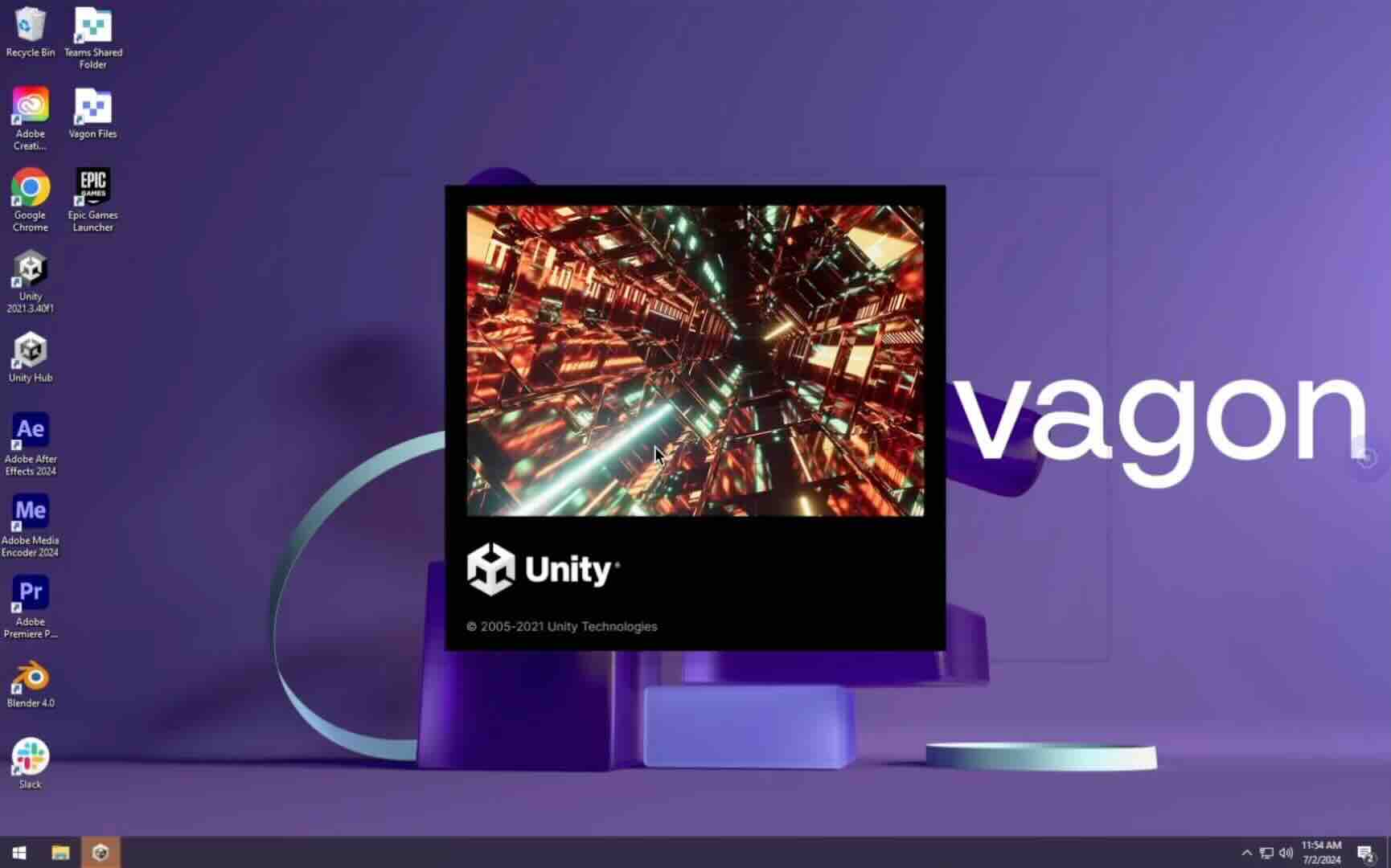
Vagon gives you a full Windows computer that runs in the cloud and streams to your Mac through the browser. No install, no partition, no Windows ARM asterisks. You hit a button and you're sitting in front of a genuine, high-performance Windows desktop.
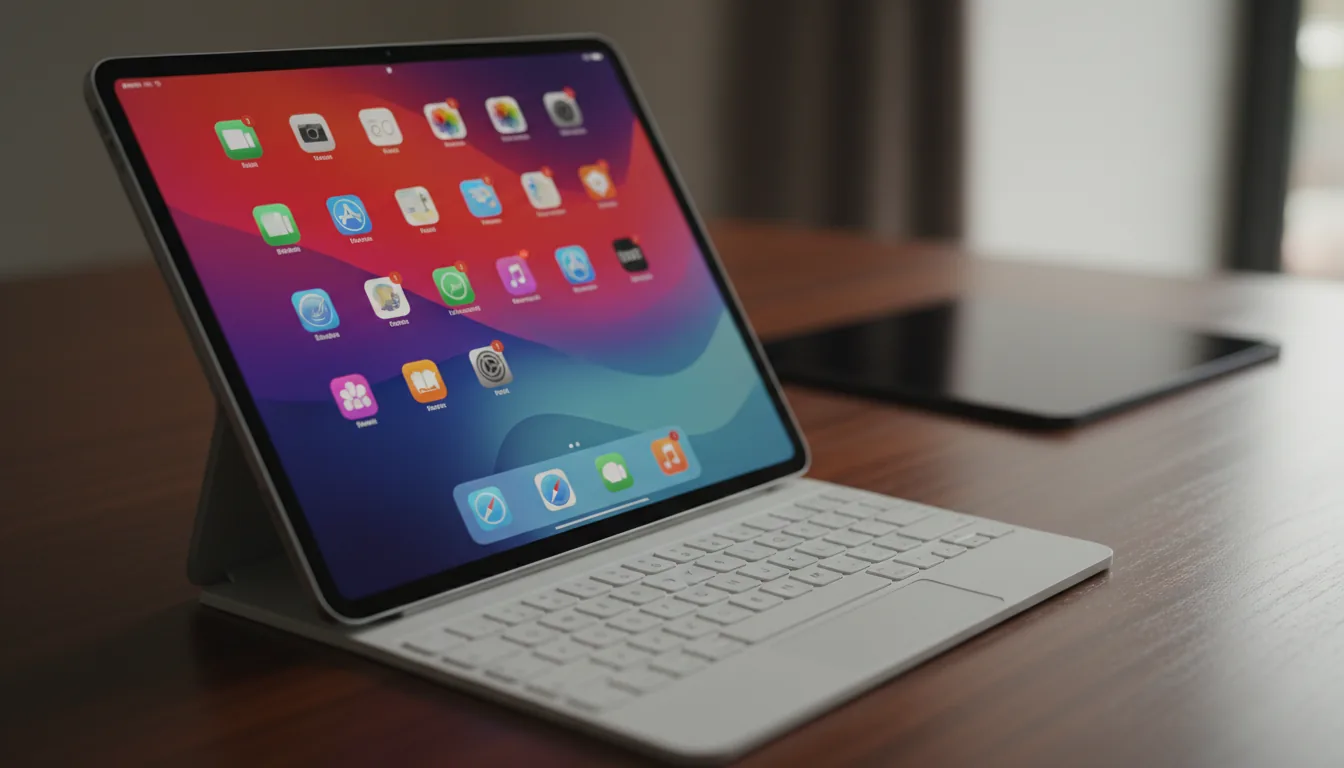
A few things make it click for the exact problems we've been circling. It's real x86 Windows 11, so the apps and drivers that choke on ARM emulation just run, the way they would on any normal PC. You can attach a serious NVIDIA GPU on demand, which is the piece no MacBook can offer no matter how you configure a local VM. And it runs on Mac, and even on a tablet or phone, through the browser, off nothing more than an internet connection. That last point is the one that reframes everything. Your MacBook Air stops being the bottleneck, because the heavy lifting is happening somewhere else and the Air is just the screen.

There's a detail I like more than I expected to. The performance isn't fixed. You can dial it up to a more powerful machine and back down again, and your desktop, apps, and files stay exactly the same through the switch. So you can work on something at a modest tier, jump to a GPU-heavy configuration for the render or the export, then drop back down. You're not paying for a monster rig to sit idle between the moments you actually need it.
That's a different shape of solution than "install this app and pray your software is on the compatible list."
When this is the right move, and when it isn't
I don't think a cloud computer is the answer for everyone, and pretending otherwise would be the kind of thing that makes you distrust the rest of this post. So let's be straight about both sides.
It's the right call when your work has outgrown what a local VM can give you. If you're doing GPU-heavy creative work, 3D, rendering, simulation, the kind of thing that makes a MacBook Air's fans sound like a hair dryer, this is built for exactly that. If you depend on x86 software that won't translate cleanly on Apple Silicon, you skip the compatibility lottery entirely. If you need real Windows power only in bursts, a few times a month, renting it beats buying a second machine that gathers dust the other 28 days. And if you want to stay light, carrying a thin Mac while still reaching a heavy Windows setup when you need it, that's the whole pitch in one sentence.
The same goes for architectural visualization, where getting Lumion running on a Mac has always meant fighting the hardware.

Now the other side.
You need a solid internet connection. There's no getting around it, because the machine lives in a data center and the experience travels over your connection to get to you. On good wifi it feels remarkably close to local. On hotel wifi held together with tape, less so. If you're regularly somewhere with shaky internet and you need Windows offline, a local VM is genuinely the better tool for you, and I'd rather tell you that than oversell.
It's also a subscription rather than a thing you own outright. For some people that's a feature, paying for power only when you use it. For others it's a mental hurdle, and that's fair.
So here's the honest sorting. Light, occasional Windows needs with decent local hardware? A local VM is probably fine, and free options exist. Heavy, GPU-hungry, or compatibility-cursed work, especially on a lighter Mac? That's where the wall stops being a metaphor and a cloud computer stops being optional.
Match the tool to the job. That's the whole game.
Enscape sits in the same boat for Mac users, leaning hard on a GPU that a laptop just doesn't have.
So what should you actually do?
Depends entirely on who you are, so let me just say it plainly for each of you.
If you need Windows for a couple of everyday apps and you're comfortable spending a little to make the friction disappear, get Parallels and don't overthink it. The fifteen minutes and the yearly fee buy you something that just works, and your time is worth more than the savings.
If you're the patient type who'd rather not pay, VMware Fusion gives you the same full Windows setup for free, as long as you don't mind a fiddlier start. And if it really is just one stubborn app standing between you and a clean Mac life, try CrossOver before anything else. The free trial tells you in an afternoon whether it'll work.

But if you've read this far nodding along about renders that crawl, software that won't cooperate, or a beautiful thin laptop that buckles the moment the work gets heavy, you already know the local route has a ceiling and you're standing under it. That's not a hardware problem you can install your way out of. That's the moment to stop forcing Windows onto your Mac and let it run somewhere with the muscle to handle it. A cloud computer like Vagon turns your Mac into the screen and puts the heavy lifting where it belongs, and the difference is the kind you feel in the first ten minutes.
You bought a Mac because you wanted the Mac. Good call. The trick was never giving that up to get Windows when you need it. It was finding the version of "both" that fits the work you actually do.
Now go pick one and get back to work.
Running Windows on Mac: common questions
1. Can I still use Boot Camp on a Mac?
Only if you're on an older Intel Mac. Boot Camp installs Windows natively, but it only works on Intel-based machines, not Apple Silicon. On any M-series Mac it simply isn't an option, and a virtual machine or a cloud computer is the way to go instead.
2. Do I need a Windows license to run Windows on a Mac?
For a full Windows setup, yes. Running Windows 11 in a virtual machine through something like Parallels or VMware Fusion expects a valid Windows 11 license for proper activation. The exception is CrossOver, which runs individual Windows apps without a Windows license at all, since it translates the app rather than booting a whole copy of Windows.
3. Can I run Windows on a Mac for free?
You can. VMware Fusion became free for everyone in November 2024, and it gives you a complete Windows 11 virtual machine at no cost. The trade-off is a fiddlier setup than the paid options. You'll still need a Windows license to activate Windows itself, though you can test things unactivated first.
4. Can I play Windows games on a Mac?
Some, with caveats. Casual and older titles often run fine through a VM, but two things get in the way of serious gaming. Competitive games with kernel-level anti-cheat, like Valorant and Fortnite, refuse to launch inside any virtual machine, and your graphics are capped by your Mac's own hardware. For demanding games that need a real GPU, a cloud computer with a dedicated NVIDIA GPU sidesteps both problems, since it's a real Windows PC rather than a slice of your laptop.
5. What's the easiest way to run Windows on a Mac?
Parallels Desktop, hands down, if you don't mind paying. It gets you from zero to a working Windows install in under 15 minutes with no manual setup, and it's the only Microsoft-authorized way to run Windows 11 on Apple Silicon. If you'd rather not install anything at all, a cloud computer is arguably even easier, since you just open a browser.
6. Can I run Windows on a MacBook Air?
Yes, but the Air's hardware is the limit. A virtual machine runs Windows inside whatever Mac you own, so on an Air you get the Air's performance and integrated graphics, which is fine for everyday Windows apps and not much more. For heavy 3D, rendering, or GPU-bound work on a light Mac, a cloud computer like Vagon does the heavy lifting elsewhere and streams the result, so the Air just acts as the screen.
Boot Camp is gone. If you've owned a Mac for more than a few years, that one sentence probably stings a little, because Boot Camp used to be the answer. Buy a Mac, partition the drive, reboot into Windows when you needed it. Simple.
That door closed when Apple moved to its own chips, and most of the advice floating around online hasn't caught up.
Here's the thing nobody warns you about until you're knee-deep in it: you switched to a Mac for good reasons, and then one day your job hands you a Windows-only installer, or your accountant needs you in QuickBooks Desktop, or a client sends a file that only opens in some ancient piece of Windows software. A 2024 Parallels survey found that 78% of Mac users still need at least one Windows app for work. You're not the exception. You're the rule.
So the real question isn't "can I run Windows on my Mac." You can. The question is which method won't drive you up the wall for your particular situation, because the wrong choice wastes money, time, or both. Let's sort it out.
Quick answer, for the impatient: on an Apple Silicon Mac, Parallels Desktop is the easiest paid way to run Windows, VMware Fusion is the best free one, and CrossOver runs single apps without installing Windows at all. For GPU-heavy work, a cloud computer like Vagon beats all three. Everything below is the why.
What changed, and why most guides are wrong
Apple Silicon flipped the whole thing on its head.
Older Macs ran on Intel chips, the same x86 architecture that powers regular Windows PCs. That shared foundation is what made Boot Camp possible. Your Mac was, underneath the macOS paint job, a PC. It could boot Windows natively because the hardware spoke the same language.
The M-series chips don't. They're ARM-based, a different architecture entirely, and that single change broke a decade of assumptions. Boot Camp is no longer available on Apple Silicon Macs, so a virtual machine is the recommended route for any M-series machine. If you're reading a tutorial that tells you to open Boot Camp Assistant on your M3 MacBook, close the tab. It's describing a Mac that doesn't exist anymore.
So what can you actually run? On Apple Silicon, the only version of Windows that installs is Windows 11 on ARM, a build Microsoft made specifically for this kind of chip. And before you panic about your x86 apps, there's a translation layer called Prism baked into Windows 11 ARM that converts most traditional Windows software on the fly. Microsoft's Prism binary translator handles x86 and x64 apps with surprisingly little performance loss.
Most. That word is going to come back later, because it's where a lot of people get burned.
The ones that trip people up are usually the heavyweight professional tools, and AutoCAD is a classic example of software that needs its own careful setup on a Mac.
The methods that actually run Windows on Mac, and where each one quits on you
There are more ways to do this than most people realize, and they're not interchangeable. A tool that's perfect for running one finance app is overkill for gaming, and the free option that everyone recommends online will frustrate you if you're not comfortable poking around in settings. So here's each one, what it's good at, and the exact point where it stops being good enough.
Parallels Desktop: the one that just works
If you want to stop reading and just pick something, pick this. Parallels runs Windows as a virtual machine directly inside macOS, no partitioning, no reboot, and it's the only Microsoft-authorized way to run Windows 11 on Apple Silicon. Setup is genuinely fast. You can install Windows and have your first app running in under 15 minutes, with no ISO files or manual partitioning to wrestle with.
The standout feature is Coherence mode, which drops your Windows apps right onto your Mac desktop so they sit next to Safari and Slack like they belong there. It's the closest thing to Windows and macOS feeling like one machine.
The catch is money. It runs $99.99 a year, and that's a subscription, not a one-time buy. You'll also need a Windows 11 license on top of that. For people who live in Windows every day, the convenience pays for itself. For someone who opens one app twice a month, it's a lot.
VMware Fusion: the free full machine
This used to cost real money. Now it doesn't. As of November 2024, VMware Fusion became free for everyone, personal and commercial users alike. You get a complete Windows 11 ARM virtual machine, the same core idea as Parallels, for zero dollars.
So why doesn't everyone just use this? Setup. You have to register for a Broadcom account, then find and download the right Windows ARM image yourself, and the process has more steps and more chances to get confused. It's not hard, exactly, but it's not the hand-holding Parallels gives you. There's also no Coherence-style blending of the two desktops on Apple Silicon, so Windows lives in its own window rather than melting into your Mac.
If you're patient and want a full Windows environment without paying, this is the smart pick.
CrossOver: skip Windows entirely
Here's a different idea altogether. What if you didn't install Windows at all, and just ran the one Windows app you need? That's CrossOver. It uses a translation layer to run individual .exe files without a Windows license underneath. It's $74 a year or $494 for a lifetime license, and there's a 14-day free trial that runs fully unlocked so you can test your specific app before paying.
That last part matters more than the price. CrossOver doesn't run everything. Some apps work flawlessly, some are a mess, and the only way to know is to try yours. The current version, CrossOver 26, arrived in February 2026. If your need is one or two specific programs rather than a whole Windows setup, this is lighter and cheaper than spinning up a full VM.
UTM and VirtualBox: free, but you'll work for it
Both are free. Both are also where casual users tend to give up. UTM and VirtualBox require more setup and deliver lower performance, which makes them better suited to advanced users or experimentation than daily work. VirtualBox in particular is rough on Apple Silicon. It's still effectively in developer-preview territory on M-series Macs and doesn't officially support Windows there at all.
I wouldn't steer a normal user here. If you tinker for fun, go nuts. If you just need Windows to work, you'll be happier almost anywhere else.
Game Porting Toolkit: for the gamers
Gaming is its own beast, and the tooling moves fast. The free, popular option for a while was Whisky, but heads up: Whisky is no longer actively maintained, and CrossOver is now the recommended alternative for Mac gaming in 2026. Underneath a lot of this sits Apple's Game Porting Toolkit, a translation layer that combines Wine with Apple's own D3DMetal to support DirectX 11 and 12. It's powerful, and it's also fiddly, leaning on the command line in a way most people won't enjoy.
We'll get to why Mac gaming has a hard ceiling regardless of tool in a minute.
Boot Camp: only if you're on old hardware
Last one, and it's a footnote now. Boot Camp still works, but only on Intel-based Macs, where it installs Windows natively for the best possible performance. If you're on an older Intel MacBook, this is still a real option and it's free. If you're on anything M-series, it doesn't exist for you. Moving on.
The wall every way to run Windows on Apple Silicon hits
Notice a pattern building? Every method above is some flavor of the same move: take Windows, squeeze it onto your Mac's hardware, and hope it fits. And mostly it does. Right up until it doesn't.
There are two ceilings here, and almost everyone bumps into at least one.
The first is ARM compatibility. Remember "most" from earlier? Windows 11 ARM translates most x86 software, but a stubborn list of things refuse to play along, and they tend to be exactly the things people care about:
Competitive games with kernel-level anti-cheat. Titles like Valorant, Fortnite, and League of Legends detect a virtual machine and simply won't launch. This isn't a bug you can fix. Kernel anti-cheat blocks every VM, full stop.
WSL2, Hyper-V, and anything needing nested virtualization. Nested virtualization isn't available, so Hyper-V and WSL2 don't work, and you're stuck with WSL1 as a workaround. For developers, that's a real problem.
Older 32-bit apps. 32-bit ARM apps aren't supported on M-series Macs, and they're being phased out across all ARM versions of Windows.
Hardware that expects x86 drivers. Peripherals and devices only work if their drivers are built for Windows 11 ARM, and plenty still aren't. That license dongle from 2014 isn't going to cooperate.
You might dodge every one of these. Plenty of people do. But you can't know in advance, and finding out usually means discovering it mid-task, which is the worst possible time.
The second ceiling is quieter and harder to argue with: your Mac is only as powerful as your Mac.
A virtual machine doesn't conjure performance out of nowhere. It carves off a slice of the hardware you already own. So if you're on a MacBook Air, Windows runs inside a MacBook Air, with the Air's integrated graphics and the Air's thermal limits. No virtualization tool changes that. Modern games with heavy 3D, anything leaning on DirectX 12, and demanding professional apps run into significant limits, because Mac gaming and rendering through a VM is not a substitute for a dedicated machine.
This is the part that stings for creative folks. You bought a beautiful, thin laptop, and now you need it to render a heavy 3D scene or push through a GPU-bound workload, and it physically can't, no matter which of the six tools above you installed. There's no NVIDIA GPU inside a MacBook to borrow. You can't slice off power that isn't there.
If your day involves something like 3ds Max, where a single render can pin a machine for hours, a thin laptop was never going to be enough.
So you're left with an awkward truth. The local approaches are great for a wide band of everyday Windows needs, and genuinely the right call for a lot of people. But the moment your work pokes past that band, into serious graphics, real GPU horsepower, or software that flatly won't translate, every single one of them taps out at roughly the same place.
The mistake is assuming that wall is the end of the road. It isn't. It's just the end of one road.
And if you're wondering whether an external GPU could rescue a MacBook here, Apple Silicon dropped eGPU support, so that escape hatch is closed too.
The other road: don't put Windows on your Mac at all
What if the whole framing has been wrong this entire time?
Every option so far tries to cram Windows onto your Mac. But there's no law saying the Windows machine has to be the one in your bag. It can live somewhere else, in a data center, running on hardware built for exactly this, and you just reach it from whatever device you happen to be holding.
This is the cloud computer idea, and it quietly erases both ceilings at once.
Think about what those two walls actually were. One was ARM compatibility, the headache of Windows 11 ARM translating x86 software and occasionally failing. The other was your laptop's raw horsepower. A cloud Windows PC sidesteps both, because it isn't ARM and it isn't your laptop. It's a real x86 Windows machine with real hardware behind it. The thing your apps were written for in the first place. No translation layer guessing in the middle. No slicing power off a thin laptop that never had much to spare.
You can probably feel where the trade-off lands, and we'll be honest about it in a second. But first, the version of this I'd actually point a Mac user toward.
Vagon Cloud Computer: run real Windows on any Mac
Vagon gives you a full Windows computer that runs in the cloud and streams to your Mac through the browser. No install, no partition, no Windows ARM asterisks. You hit a button and you're sitting in front of a genuine, high-performance Windows desktop.
A few things make it click for the exact problems we've been circling. It's real x86 Windows 11, so the apps and drivers that choke on ARM emulation just run, the way they would on any normal PC. You can attach a serious NVIDIA GPU on demand, which is the piece no MacBook can offer no matter how you configure a local VM. And it runs on Mac, and even on a tablet or phone, through the browser, off nothing more than an internet connection. That last point is the one that reframes everything. Your MacBook Air stops being the bottleneck, because the heavy lifting is happening somewhere else and the Air is just the screen.
There's a detail I like more than I expected to. The performance isn't fixed. You can dial it up to a more powerful machine and back down again, and your desktop, apps, and files stay exactly the same through the switch. So you can work on something at a modest tier, jump to a GPU-heavy configuration for the render or the export, then drop back down. You're not paying for a monster rig to sit idle between the moments you actually need it.
That's a different shape of solution than "install this app and pray your software is on the compatible list."
When this is the right move, and when it isn't
I don't think a cloud computer is the answer for everyone, and pretending otherwise would be the kind of thing that makes you distrust the rest of this post. So let's be straight about both sides.
It's the right call when your work has outgrown what a local VM can give you. If you're doing GPU-heavy creative work, 3D, rendering, simulation, the kind of thing that makes a MacBook Air's fans sound like a hair dryer, this is built for exactly that. If you depend on x86 software that won't translate cleanly on Apple Silicon, you skip the compatibility lottery entirely. If you need real Windows power only in bursts, a few times a month, renting it beats buying a second machine that gathers dust the other 28 days. And if you want to stay light, carrying a thin Mac while still reaching a heavy Windows setup when you need it, that's the whole pitch in one sentence.
The same goes for architectural visualization, where getting Lumion running on a Mac has always meant fighting the hardware.
Now the other side.
You need a solid internet connection. There's no getting around it, because the machine lives in a data center and the experience travels over your connection to get to you. On good wifi it feels remarkably close to local. On hotel wifi held together with tape, less so. If you're regularly somewhere with shaky internet and you need Windows offline, a local VM is genuinely the better tool for you, and I'd rather tell you that than oversell.
It's also a subscription rather than a thing you own outright. For some people that's a feature, paying for power only when you use it. For others it's a mental hurdle, and that's fair.
So here's the honest sorting. Light, occasional Windows needs with decent local hardware? A local VM is probably fine, and free options exist. Heavy, GPU-hungry, or compatibility-cursed work, especially on a lighter Mac? That's where the wall stops being a metaphor and a cloud computer stops being optional.
Match the tool to the job. That's the whole game.
Enscape sits in the same boat for Mac users, leaning hard on a GPU that a laptop just doesn't have.
So what should you actually do?
Depends entirely on who you are, so let me just say it plainly for each of you.
If you need Windows for a couple of everyday apps and you're comfortable spending a little to make the friction disappear, get Parallels and don't overthink it. The fifteen minutes and the yearly fee buy you something that just works, and your time is worth more than the savings.
If you're the patient type who'd rather not pay, VMware Fusion gives you the same full Windows setup for free, as long as you don't mind a fiddlier start. And if it really is just one stubborn app standing between you and a clean Mac life, try CrossOver before anything else. The free trial tells you in an afternoon whether it'll work.
But if you've read this far nodding along about renders that crawl, software that won't cooperate, or a beautiful thin laptop that buckles the moment the work gets heavy, you already know the local route has a ceiling and you're standing under it. That's not a hardware problem you can install your way out of. That's the moment to stop forcing Windows onto your Mac and let it run somewhere with the muscle to handle it. A cloud computer like Vagon turns your Mac into the screen and puts the heavy lifting where it belongs, and the difference is the kind you feel in the first ten minutes.
You bought a Mac because you wanted the Mac. Good call. The trick was never giving that up to get Windows when you need it. It was finding the version of "both" that fits the work you actually do.
Now go pick one and get back to work.
Running Windows on Mac: common questions
1. Can I still use Boot Camp on a Mac?
Only if you're on an older Intel Mac. Boot Camp installs Windows natively, but it only works on Intel-based machines, not Apple Silicon. On any M-series Mac it simply isn't an option, and a virtual machine or a cloud computer is the way to go instead.
2. Do I need a Windows license to run Windows on a Mac?
For a full Windows setup, yes. Running Windows 11 in a virtual machine through something like Parallels or VMware Fusion expects a valid Windows 11 license for proper activation. The exception is CrossOver, which runs individual Windows apps without a Windows license at all, since it translates the app rather than booting a whole copy of Windows.
3. Can I run Windows on a Mac for free?
You can. VMware Fusion became free for everyone in November 2024, and it gives you a complete Windows 11 virtual machine at no cost. The trade-off is a fiddlier setup than the paid options. You'll still need a Windows license to activate Windows itself, though you can test things unactivated first.
4. Can I play Windows games on a Mac?
Some, with caveats. Casual and older titles often run fine through a VM, but two things get in the way of serious gaming. Competitive games with kernel-level anti-cheat, like Valorant and Fortnite, refuse to launch inside any virtual machine, and your graphics are capped by your Mac's own hardware. For demanding games that need a real GPU, a cloud computer with a dedicated NVIDIA GPU sidesteps both problems, since it's a real Windows PC rather than a slice of your laptop.
5. What's the easiest way to run Windows on a Mac?
Parallels Desktop, hands down, if you don't mind paying. It gets you from zero to a working Windows install in under 15 minutes with no manual setup, and it's the only Microsoft-authorized way to run Windows 11 on Apple Silicon. If you'd rather not install anything at all, a cloud computer is arguably even easier, since you just open a browser.
6. Can I run Windows on a MacBook Air?
Yes, but the Air's hardware is the limit. A virtual machine runs Windows inside whatever Mac you own, so on an Air you get the Air's performance and integrated graphics, which is fine for everyday Windows apps and not much more. For heavy 3D, rendering, or GPU-bound work on a light Mac, a cloud computer like Vagon does the heavy lifting elsewhere and streams the result, so the Air just acts as the screen.
Get Beyond Your Computer Performance
Run applications on your cloud computer with the latest generation hardware. No more crashes or lags.
Trial includes 1 hour usage + 7 days of storage.
Summarize with AI

Ready to focus on your creativity?
Vagon gives you the ability to create & render projects, collaborate, and stream applications with the power of the best hardware.

Vagon Blog


Run heavy applications on any device with
your personal computer on the cloud.
San Francisco, California
Solutions
Vagon Teams
Vagon Streams
Use Cases
Resources
Vagon Blog
Best GeForce Now Alternatives in 2026: 5 Top Options
FL Studio Keyboard Shortcuts: Complete Cheat Sheet
Adobe Illustrator Keyboard Shortcuts: Windows & Mac
How Much Does Maya Cost? Maya Pricing Guide (2026)
Fusion 360 Pricing 2026: Personal, Startup & Paid
SketchUp Pricing 2026: Free, Go, Pro & Studio Compared
Running SOLIDWORKS in the Cloud: A Practical Guide
Render Farm vs Cloud Workstation: Which Do You Need?
SolidWorks Keyboard Shortcuts & Mouse Gestures Guide
Vagon Blog
Run heavy applications on any device with
your personal computer on the cloud.
San Francisco, California
Solutions
Vagon Teams
Vagon Streams
Use Cases
Resources
Vagon Blog
Best GeForce Now Alternatives in 2026: 5 Top Options
FL Studio Keyboard Shortcuts: Complete Cheat Sheet
Adobe Illustrator Keyboard Shortcuts: Windows & Mac
How Much Does Maya Cost? Maya Pricing Guide (2026)
Fusion 360 Pricing 2026: Personal, Startup & Paid
SketchUp Pricing 2026: Free, Go, Pro & Studio Compared
Running SOLIDWORKS in the Cloud: A Practical Guide
Render Farm vs Cloud Workstation: Which Do You Need?
SolidWorks Keyboard Shortcuts & Mouse Gestures Guide
Vagon Blog
Run heavy applications on any device with
your personal computer on the cloud.
San Francisco, California
Solutions
Vagon Teams
Vagon Streams
Use Cases
Resources
Vagon Blog