Instant Connection for Pixel Streaming
— New Feature Automated Setup
How to Build a 3D Environment in Unity With GPT-6 Astra
How to Build a 3D Environment in Unity With GPT-6 Astra
GameDevelopment
How to Build a 3D Environment in Unity With GPT-6 Astra
Table of Contents
GPT-6 Astra can help you inspect a Unity project, plan a scene hierarchy, construct a graybox, place modular assets, and identify visible problems when it has controlled access to the project. The practical setup combines Astra with an agent environment such as Codex, Unity-specific tools, an existing asset library, visual access to the Editor, and human approval at each major stage.
The goal is not to generate an entire production environment from one vague prompt. It is to turn a defined environment brief into a structured Unity scene through small, reviewable operations.
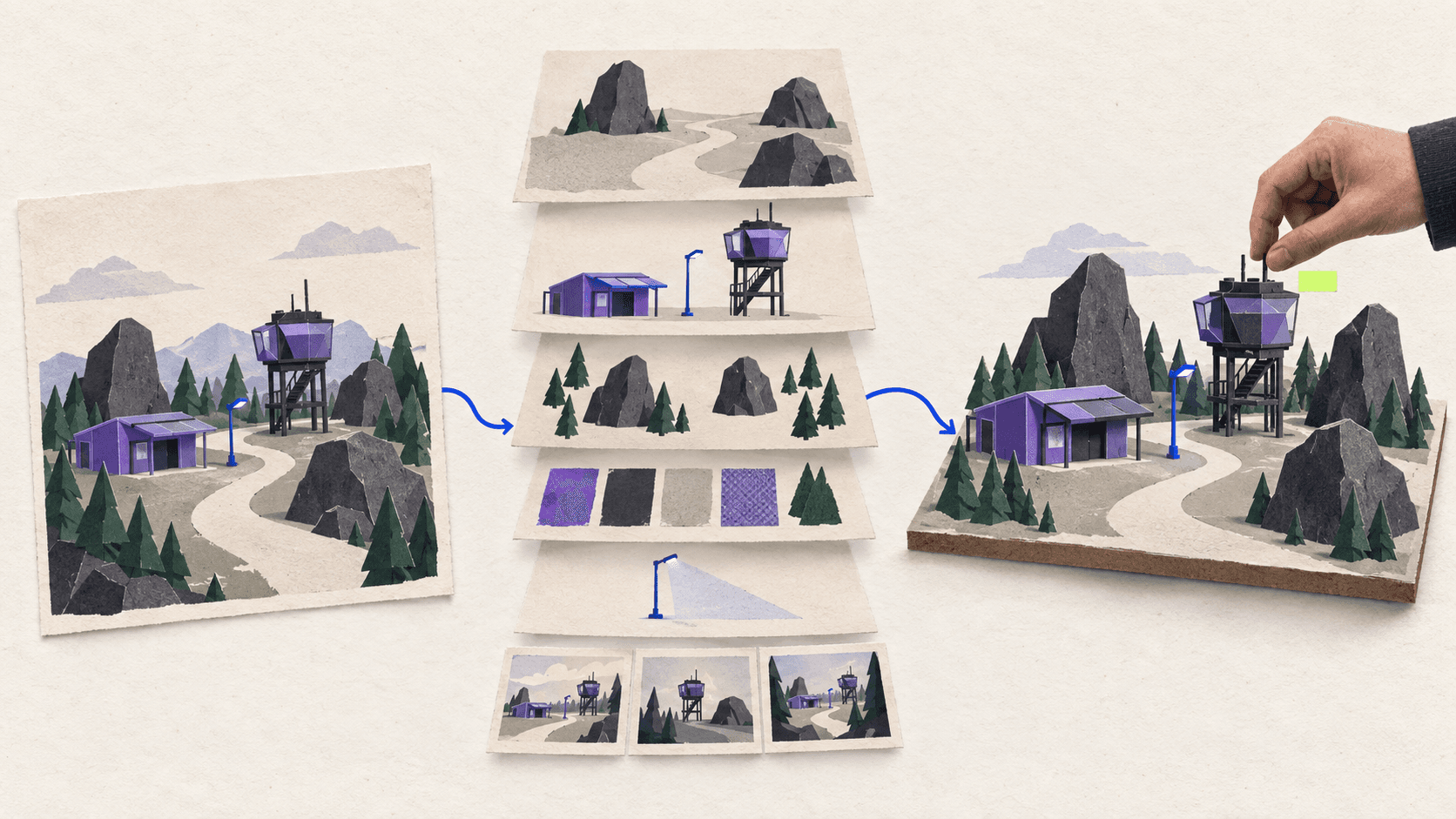
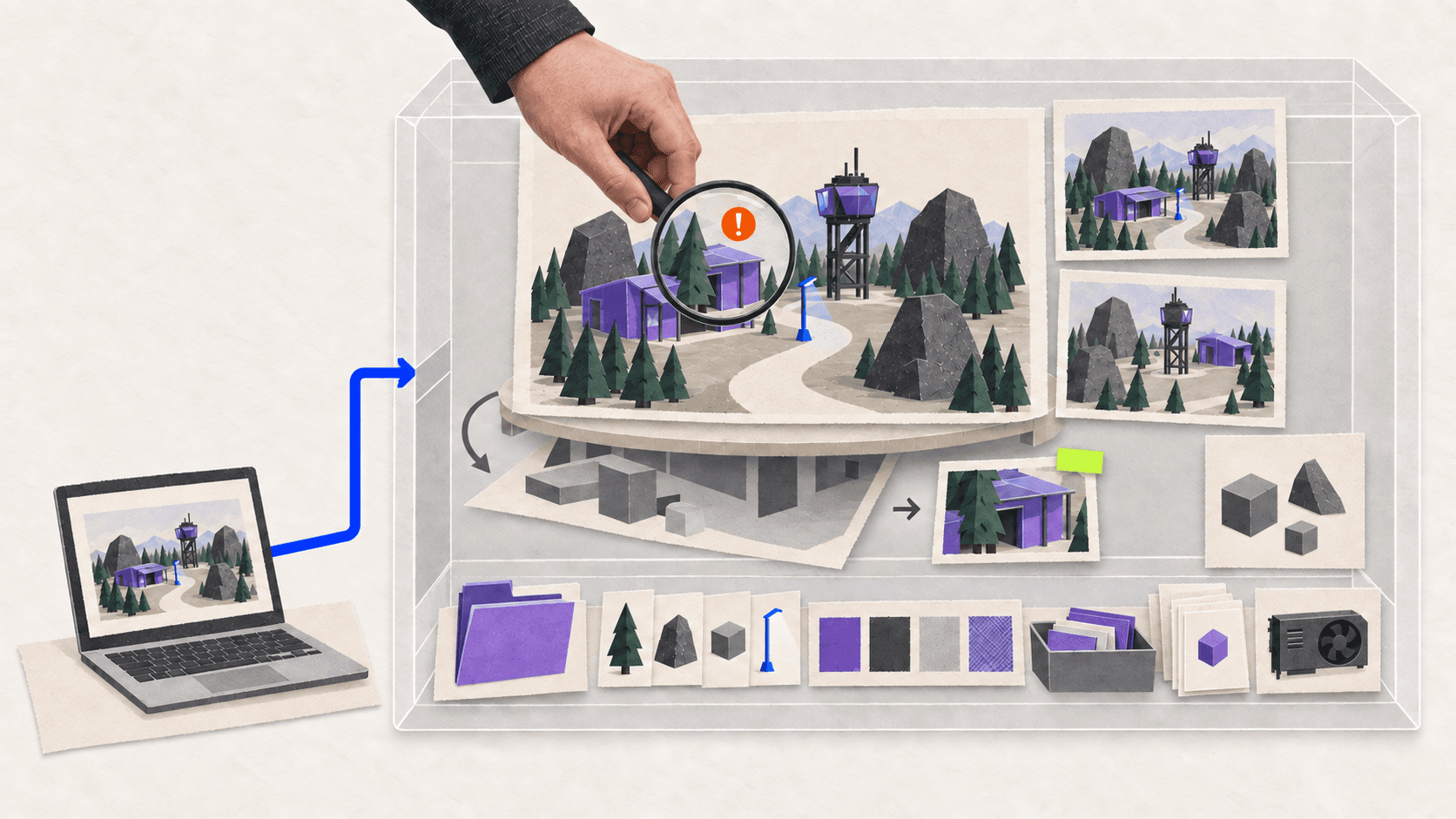
This guide uses a compact forest outpost as its example. The scene contains a terrain surface, a modular shelter, a focal structure, three rock formations, a small vegetation set, one lighting setup, and three review cameras. It deliberately excludes player controls, objectives, enemies, and other gameplay systems.
Can GPT-6 Astra Actually Build a 3D Environment in Unity?
There is already a publicly documented example of this workflow.
Unity shared how a creator used Codex, Unity’s published agent skills, Unity CLI, computer use, and an existing Asset Store pack to build a city environment with GPT-6 Astra. The creator started Codex from the Unity project directory, gave the system access to the prepared assets, and used computer interaction to inspect and adjust the scene. You can review Unity’s description of the Astra environment workflow.
The important detail is the surrounding setup. Astra did not gain control of Unity simply because someone entered a prompt.
Each part of the workflow had a different responsibility:
GPT-6 Astra provided reasoning, codebase understanding, planning, and visual judgment.
Codex provided an agent environment that could work with project files and tools.
Unity’s agent skills supplied instructions for Unity-related operations.
Unity CLI provided a way to interact with projects and connected Editors.
Computer use allowed the system to inspect visible scene results.
The existing Asset Store pack supplied the environment content.
The creator remained responsible for the request, permissions, assets, and approval.
OpenAI describes Astra as a model designed for software engineering, computer use, multistep professional work, software installation, testing, and visible troubleshooting. These capabilities are useful for a Unity environment workflow, but only when the necessary tools and permissions are available. The GPT-6 Astra announcement does not describe a universal native integration inside Unity.
Unity also maintains an official collection of skills for AI coding agents. Its Unity CLI integration can expose commands from a connected Editor to compatible agent clients through MCP. That connection must still be installed, configured, and pointed at the correct project.
Astra can therefore help build a Unity environment, but the repeatable unit of work is not “make a beautiful world.” It is a controlled operation such as:
Inventory the available environment assets.
Propose a scene hierarchy.
Construct a graybox from approved primitives.
Replace one graybox category with specified Prefabs.
Find missing materials or broken references.
Compare three camera views.
Report repeated placement patterns.
Inspect measured rendering data.
Apply one approved correction.
That level of specificity makes the work easier to inspect and reverse.
What Should You Prepare Before Astra Changes the Project?
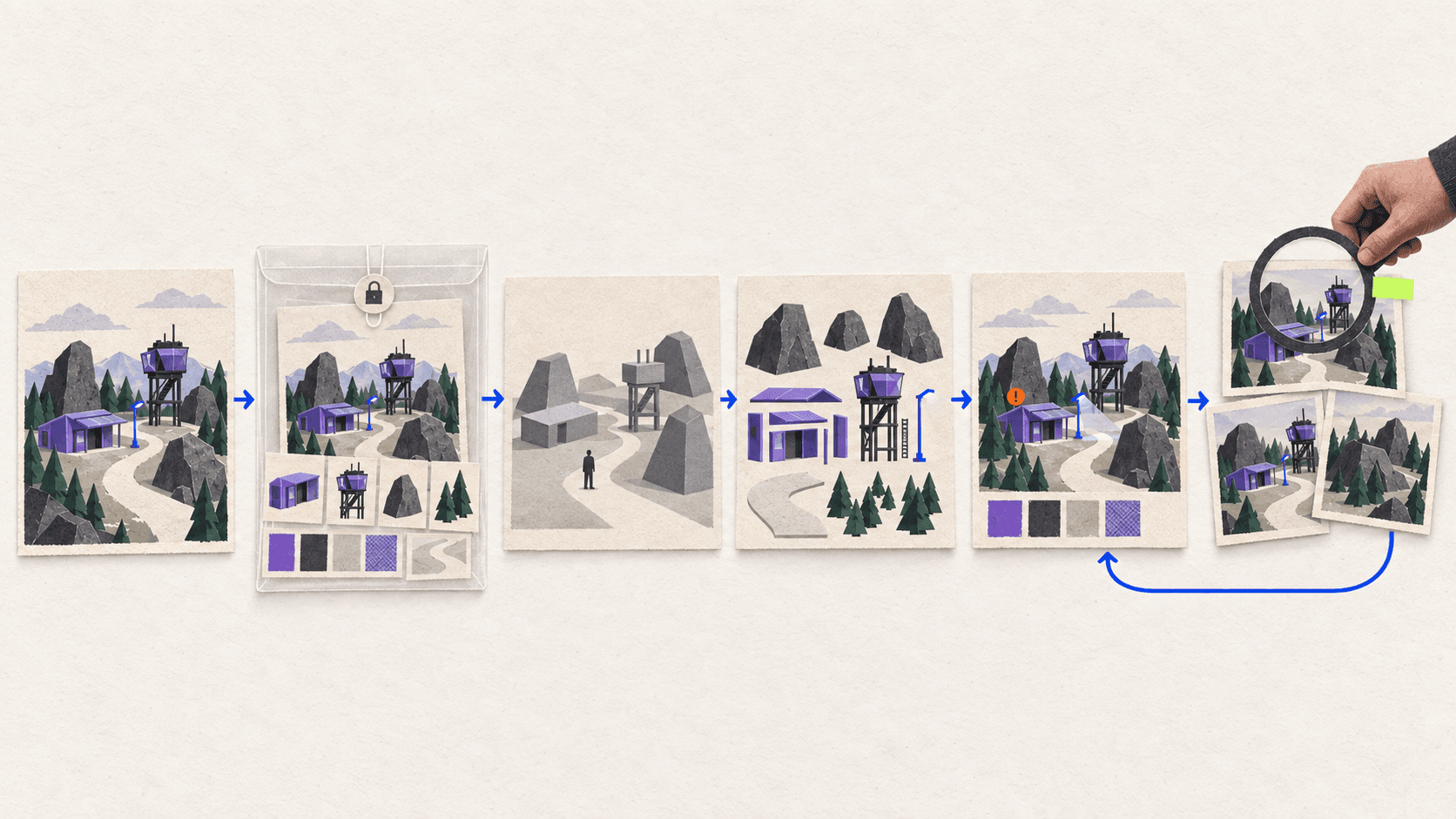
Freeze the technical and creative context before giving Astra modification permission.
Start with the Unity version. As of September 2026, Unity identifies Unity 6.3 as its current LTS release and lists support through December 2027. LTS can provide a practical baseline for a reproducible project, but an existing project should stay on its approved version unless there is a separate reason to upgrade. Check the current status on Unity’s release and support page.
Confirm these project details:
Exact Unity Editor version
Active render pipeline
Target platform
Active color space
Installed packages
Terrain solution
Lighting approach
Source-control status
Available storage
Intended final output
Do not let Astra choose or change these elements casually while it is already constructing the scene. Switching render pipelines, upgrading packages, or changing project-wide graphics settings can affect far more than one environment.
Next, define the environment itself. A useful brief needs more than a mood reference.
For the forest outpost, the contract could specify:
A compact outdoor footprint
One walkable terrain surface
One modular shelter in the middle ground
One elevated focal structure
Three rock formations that define the scene boundary
A limited set of trees and ground vegetation
A clear path through the environment
One primary lighting direction
A readable foreground, middle ground, and background
Three fixed cameras for review
No gameplay logic or unrelated packages
Include scale references, approximate distances, permitted assets, desired density, target platform, and the intended visual mood. If the brief contains a reference image, explain which properties should be followed. Perspective, color, silhouette, lighting, and asset identity are different constraints.
A single image does not reveal hidden geometry, exact measurements, collision intent, object pivots, or what should exist outside the camera frame. Those decisions remain with the artist.
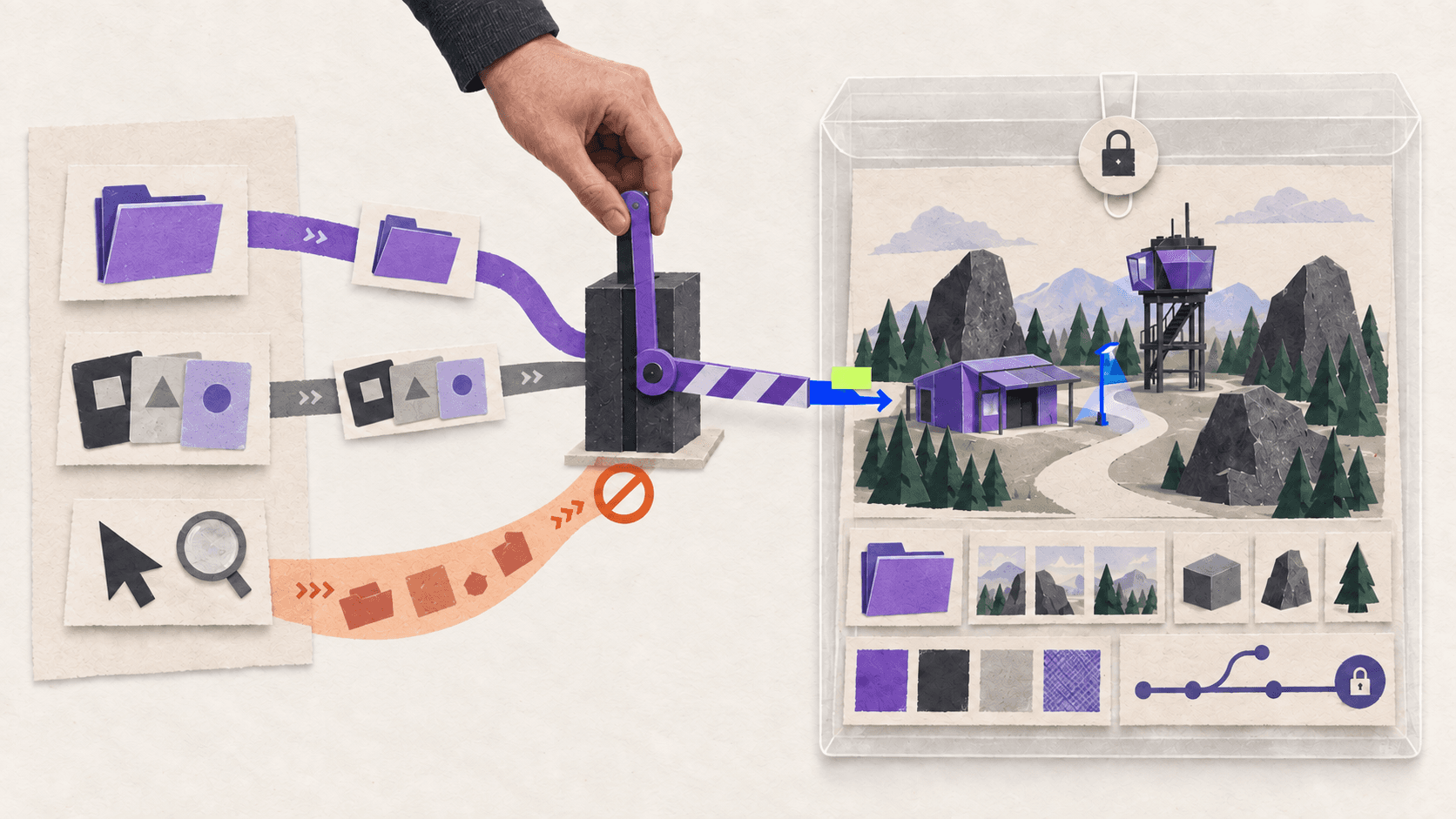
Before continuing, create a Git checkpoint, a separate branch, or a duplicate project. Then request a report-only inspection.
Compare the report with the Unity Project window and your source-control status. If Astra has identified the wrong project, render pipeline, branch, or scene, correct that before allowing any changes.
Asset licensing also needs a human checkpoint. Astra can report which folders and assets appear relevant, but it cannot determine whether every asset is licensed for your intended product. Confirm usage rights before bringing an asset into the environment.
How Do You Create and Approve the Environment Graybox?
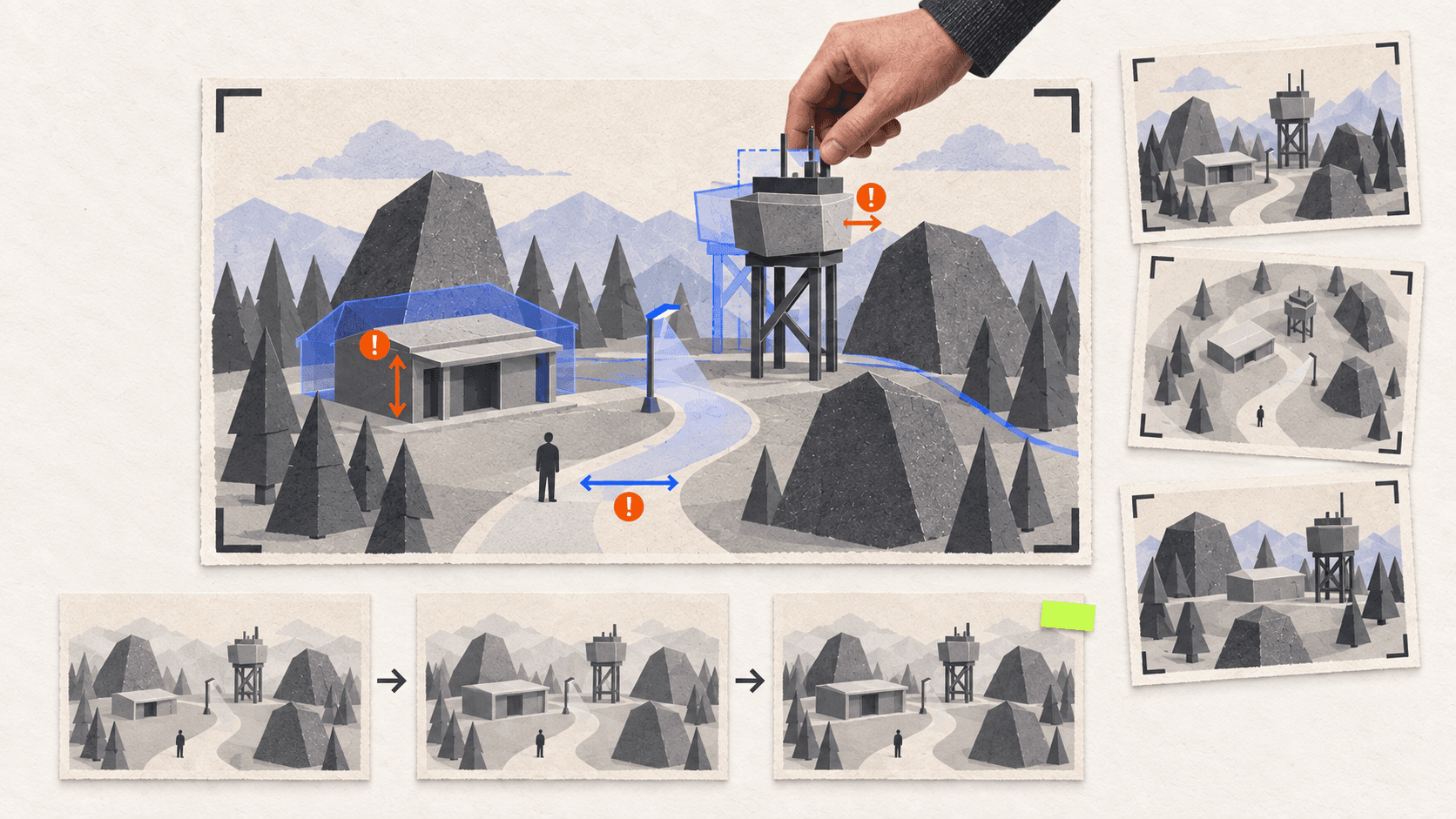
The graybox is where you solve scale and composition without the distraction of finished art.
Build the terrain, shelter, focal structure, path, rocks, and boundaries from basic primitives or approved blockout tools. Keep materials neutral. Do not add polished lighting, decorative vegetation, small props, or expensive effects yet.
The graybox should answer a small set of questions:
Is the shelter the correct size relative to a person?
Is the focal structure visible from the intended views?
Does the terrain create a readable route?
Are the foreground, middle ground, and background distinct?
Do the rocks form natural boundaries without looking accidental?
Is there enough negative space around the focal point?
Does the environment hold together outside the hero camera?
Create two or three fixed review cameras. One may be the primary composition, while the others reveal the side and rear of the environment. Keep the cameras consistent throughout the project so you can compare each production stage from the same viewpoints.
Astra can build the first graybox and calculate broad spatial relationships, but the artist should approve the composition. A technically correct layout can still have a weak focal point, an awkward silhouette, or a path that feels visually flat.
Use a narrowly scoped construction prompt:
Review the first version at human scale, from above, and from all three cameras. Correct the largest problem first. That may be the terrain slope, building silhouette, path width, or focal-point position.
Do not move into detailed assets until the graybox works as a complete composition.
How Should Astra Replace the Graybox With Modular Assets?
Once the graybox is approved, map each large form to an asset from the approved library.
Inspect each candidate asset before placing it. Scale, pivot location, forward direction, material requirements, nested objects, scripts, colliders, and render-pipeline compatibility can all affect the result.
Unity’s Prefab system allows a configured GameObject and its components, properties, and child objects to be stored as a reusable asset. Instances can then be placed throughout the scene while retaining a connection to that Prefab Asset. Unity’s Prefab documentation also distinguishes Prefab variants, nested Prefabs, instance overrides, and unpacked objects.
That distinction matters when Astra is making repeated placements. You want to know whether it:
Created a reusable Prefab
Placed connected instances
Added intentional instance overrides
Duplicated ordinary GameObjects
Unpacked an existing Prefab
Changed the source Prefab for every instance
Replace the graybox one category at a time. Start with architecture, then add rocks, terrain details, vegetation, and smaller props. Keep the approved graybox disabled in a reference hierarchy until the production replacement passes review.
Repeat this process for each asset category.
Modularity can make a scene efficient to construct, but repetition becomes visible quickly. Do not solve that by randomizing every object. Controlled variations in rotation, grouping, spacing, scale, and surrounding props usually work better than unrestricted randomness.
Astra can flag repeated patterns and propose alternatives. The artist should decide which variations strengthen the composition.
How Do You Add Terrain, Materials, Vegetation, and Lighting?
Treat terrain, surface treatment, vegetation, and lighting as separate approval passes.
Unity’s built-in Terrain workflow creates both a Terrain GameObject and a corresponding Terrain Asset. The Terrain tools can shape the landscape and support surface and vegetation workflows, but the exact options can differ by Unity version and installed packages. Follow the documentation for creating and editing Terrain that matches your project.
For a compact environment, terrain work should support the approved composition rather than replace it. Preserve the main route, building foundation, focal silhouette, and camera views.
When assigning materials, inspect:
Missing assignments
Shader compatibility
Texture scale
Visible seams
Repeated tiling
Color relationships
Unnecessary material variants
Whether repeated modules still share the intended material
Vegetation needs a density plan. Establish clusters, clearings, boundary zones, and focal areas. Uniform distribution often makes a scene feel procedural even when every placement is technically valid.
Watch for trees intersecting the structure, rocks floating above the ground, roots cutting through paths, and foliage blocking the primary cameras.
Lighting should come after the large forms and main materials are stable. Choose real-time, mixed, or baked lighting according to the project, target platform, render pipeline, and scene behavior. Unity’s lighting overview separates these workflows, while its lightmapping guidance explains how baked lighting data is generated.
Ask Astra to inspect before applying a lighting change:
Apply only the approved corrections. Capture the same three cameras after each pass so that changes remain comparable.

How Do You Know Whether the Environment Is Actually Usable?
A scene can look convincing from one camera and still be incomplete everywhere else.
Review the environment from the hero camera, alternate cameras, an overhead view, and human scale. Rotate around the shelter and focal structure. Inspect areas hidden behind rocks, terrain slopes, and vegetation.
Use a structured checklist:
Area | What to inspect | Useful evidence |
|---|---|---|
Composition | Focal point, silhouette, depth, and sightlines | Matched camera captures |
Geometry | Floating objects, intersections, and unfinished backs | Multi-angle Scene views |
Materials | Missing assignments, texture scale, and repetition | Material and rendered views |
Lighting | Direction, contrast, and shadow readability | Matched lighting captures |
Organization | Hierarchy, Prefabs, overrides, and references | Hierarchy and project audit |
Performance | CPU, GPU, rendering, and memory behavior | Profiler captures from relevant conditions |
A clean Console does not prove the scene performs well. It only shows that no reported error currently blocks the inspected state.
Use the Unity Profiler to collect performance information from the Editor or an intended release platform. Its modules can help distinguish CPU, GPU, rendering, memory, physics, and other costs.
If you need to understand how a particular frame is rendered, the Frame Debugger exposes its rendering events and draw calls.
Do not jump directly to batching, instancing, LOD, or occlusion settings because the environment looks heavy. Identify the bottleneck first. Features such as the GPU Resident Drawer have specific render-path and platform requirements, so they are not universal switches for every Unity project.
Vagon’s guide to improving Unity game performance covers the wider process of profiling before choosing an optimization.
Finish with a report-only audit:
After correcting approved issues, create the intended build or presentation output and inspect it separately. Editor behavior and standalone-build behavior are not interchangeable.
If you plan to add controls, objectives, and a gameplay loop next, Vagon’s guide to building a Unity game with GPT-6 Astra covers the gameplay and validation stages without repeating this environment workflow.
When Does It Make Sense to Build the Unity Environment on Vagon?
Unity environment work still needs a computer that imports assets, compiles shaders, displays the Editor, processes lighting, stores caches, runs profiling tools, and creates builds.
Vagon Cloud Computer provides a configurable remote Windows computer that you can access from your existing device. You can install Unity, Codex, source-control tools, and supporting applications, then keep the project, assets, packages, caches, lighting data, screenshots, and builds together in that remote environment.
This is useful if you want to work from a lightweight laptop, Mac, tablet, or another device while Unity runs on a separate NVIDIA GPU-equipped computer.
You can move between different stages of the environment workflow without rebuilding the software setup on every device:
Inspect and organize the Unity project
Import modular environment assets
Prepare assets in supporting 3D applications
Assemble the graybox
Review materials and lighting
Run the environment
Capture Profiler evidence
Prepare and inspect builds
Vagon’s scalable performance options let you change the computer configuration while retaining the same workspace and files. You can select a configuration around the current production stage instead of moving the project to a different local machine.
Vagon’s role remains separate from Astra. Vagon provides the Windows production computer running Unity and the surrounding applications. It does not provide Astra access, process Astra inference, increase OpenAI allowances, supply Unity licenses, or include paid Asset Store content.
If you want a configurable remote Windows workstation for building and reviewing Unity environments, create your Vagon Cloud Computer and continue the project from the device you already own.
Frequently Asked Questions
Can GPT-6 Astra create a complete Unity environment?
Astra can help inspect assets, construct a graybox, organize Prefabs, place environment objects, and review visible problems when it has suitable Unity tools. A production-ready environment still requires human art direction, licensing review, technical validation, and performance testing.
Does Astra integrate directly with Unity?
Not by default. Unity’s documented example used Codex, Unity’s agent skills, Unity CLI, a project-side plugin, prepared assets, and computer use. Your setup must provide a verified connection to the correct project and Editor.
Can Astra place and organize Unity assets?
Yes, if the connected tools allow project and Editor changes. Limit the operation to approved folders, scenes, and asset categories, then inspect Prefab connections, hierarchy changes, material assignments, and unintended overrides.
Can Astra create terrain and vegetation?
Astra can operate supported terrain and vegetation workflows when the required tools expose those operations. You should still define terrain boundaries, density rules, permitted assets, composition, and validation criteria before allowing changes.
Can Astra optimize a Unity environment?
Astra can inspect Profiler evidence and propose focused changes. It should not claim that an environment is optimized based only on visual smoothness or an Editor preview.
Do I need Unity CLI or MCP?
You need a verified way for Astra to interact with the project and Unity Editor. Unity CLI and its MCP integration are publicly documented options, but the exact connection depends on your agent environment and Unity setup.
Can Unity run on Vagon Cloud Computer?
Yes. Vagon Cloud Computer provides a remote Windows workspace where you can install Unity and keep your development tools and environment files together. Vagon also has a dedicated guide to using Unity on a Cloud Computer.
Does Vagon provide GPT-6 Astra access?
No. Vagon provides the remote computer running Unity. Astra access, subscriptions, API usage, and inference are supplied separately through OpenAI or another supported provider.
GPT-6 Astra can help you inspect a Unity project, plan a scene hierarchy, construct a graybox, place modular assets, and identify visible problems when it has controlled access to the project. The practical setup combines Astra with an agent environment such as Codex, Unity-specific tools, an existing asset library, visual access to the Editor, and human approval at each major stage.
The goal is not to generate an entire production environment from one vague prompt. It is to turn a defined environment brief into a structured Unity scene through small, reviewable operations.
This guide uses a compact forest outpost as its example. The scene contains a terrain surface, a modular shelter, a focal structure, three rock formations, a small vegetation set, one lighting setup, and three review cameras. It deliberately excludes player controls, objectives, enemies, and other gameplay systems.
Can GPT-6 Astra Actually Build a 3D Environment in Unity?
There is already a publicly documented example of this workflow.
Unity shared how a creator used Codex, Unity’s published agent skills, Unity CLI, computer use, and an existing Asset Store pack to build a city environment with GPT-6 Astra. The creator started Codex from the Unity project directory, gave the system access to the prepared assets, and used computer interaction to inspect and adjust the scene. You can review Unity’s description of the Astra environment workflow.
The important detail is the surrounding setup. Astra did not gain control of Unity simply because someone entered a prompt.
Each part of the workflow had a different responsibility:
GPT-6 Astra provided reasoning, codebase understanding, planning, and visual judgment.
Codex provided an agent environment that could work with project files and tools.
Unity’s agent skills supplied instructions for Unity-related operations.
Unity CLI provided a way to interact with projects and connected Editors.
Computer use allowed the system to inspect visible scene results.
The existing Asset Store pack supplied the environment content.
The creator remained responsible for the request, permissions, assets, and approval.
OpenAI describes Astra as a model designed for software engineering, computer use, multistep professional work, software installation, testing, and visible troubleshooting. These capabilities are useful for a Unity environment workflow, but only when the necessary tools and permissions are available. The GPT-6 Astra announcement does not describe a universal native integration inside Unity.
Unity also maintains an official collection of skills for AI coding agents. Its Unity CLI integration can expose commands from a connected Editor to compatible agent clients through MCP. That connection must still be installed, configured, and pointed at the correct project.
Astra can therefore help build a Unity environment, but the repeatable unit of work is not “make a beautiful world.” It is a controlled operation such as:
Inventory the available environment assets.
Propose a scene hierarchy.
Construct a graybox from approved primitives.
Replace one graybox category with specified Prefabs.
Find missing materials or broken references.
Compare three camera views.
Report repeated placement patterns.
Inspect measured rendering data.
Apply one approved correction.
That level of specificity makes the work easier to inspect and reverse.
What Should You Prepare Before Astra Changes the Project?
Freeze the technical and creative context before giving Astra modification permission.
Start with the Unity version. As of September 2026, Unity identifies Unity 6.3 as its current LTS release and lists support through December 2027. LTS can provide a practical baseline for a reproducible project, but an existing project should stay on its approved version unless there is a separate reason to upgrade. Check the current status on Unity’s release and support page.
Confirm these project details:
Exact Unity Editor version
Active render pipeline
Target platform
Active color space
Installed packages
Terrain solution
Lighting approach
Source-control status
Available storage
Intended final output
Do not let Astra choose or change these elements casually while it is already constructing the scene. Switching render pipelines, upgrading packages, or changing project-wide graphics settings can affect far more than one environment.
Next, define the environment itself. A useful brief needs more than a mood reference.
For the forest outpost, the contract could specify:
A compact outdoor footprint
One walkable terrain surface
One modular shelter in the middle ground
One elevated focal structure
Three rock formations that define the scene boundary
A limited set of trees and ground vegetation
A clear path through the environment
One primary lighting direction
A readable foreground, middle ground, and background
Three fixed cameras for review
No gameplay logic or unrelated packages
Include scale references, approximate distances, permitted assets, desired density, target platform, and the intended visual mood. If the brief contains a reference image, explain which properties should be followed. Perspective, color, silhouette, lighting, and asset identity are different constraints.
A single image does not reveal hidden geometry, exact measurements, collision intent, object pivots, or what should exist outside the camera frame. Those decisions remain with the artist.
Before continuing, create a Git checkpoint, a separate branch, or a duplicate project. Then request a report-only inspection.
Compare the report with the Unity Project window and your source-control status. If Astra has identified the wrong project, render pipeline, branch, or scene, correct that before allowing any changes.
Asset licensing also needs a human checkpoint. Astra can report which folders and assets appear relevant, but it cannot determine whether every asset is licensed for your intended product. Confirm usage rights before bringing an asset into the environment.
How Do You Create and Approve the Environment Graybox?
The graybox is where you solve scale and composition without the distraction of finished art.
Build the terrain, shelter, focal structure, path, rocks, and boundaries from basic primitives or approved blockout tools. Keep materials neutral. Do not add polished lighting, decorative vegetation, small props, or expensive effects yet.
The graybox should answer a small set of questions:
Is the shelter the correct size relative to a person?
Is the focal structure visible from the intended views?
Does the terrain create a readable route?
Are the foreground, middle ground, and background distinct?
Do the rocks form natural boundaries without looking accidental?
Is there enough negative space around the focal point?
Does the environment hold together outside the hero camera?
Create two or three fixed review cameras. One may be the primary composition, while the others reveal the side and rear of the environment. Keep the cameras consistent throughout the project so you can compare each production stage from the same viewpoints.
Astra can build the first graybox and calculate broad spatial relationships, but the artist should approve the composition. A technically correct layout can still have a weak focal point, an awkward silhouette, or a path that feels visually flat.
Use a narrowly scoped construction prompt:
Review the first version at human scale, from above, and from all three cameras. Correct the largest problem first. That may be the terrain slope, building silhouette, path width, or focal-point position.
Do not move into detailed assets until the graybox works as a complete composition.
How Should Astra Replace the Graybox With Modular Assets?
Once the graybox is approved, map each large form to an asset from the approved library.
Inspect each candidate asset before placing it. Scale, pivot location, forward direction, material requirements, nested objects, scripts, colliders, and render-pipeline compatibility can all affect the result.
Unity’s Prefab system allows a configured GameObject and its components, properties, and child objects to be stored as a reusable asset. Instances can then be placed throughout the scene while retaining a connection to that Prefab Asset. Unity’s Prefab documentation also distinguishes Prefab variants, nested Prefabs, instance overrides, and unpacked objects.
That distinction matters when Astra is making repeated placements. You want to know whether it:
Created a reusable Prefab
Placed connected instances
Added intentional instance overrides
Duplicated ordinary GameObjects
Unpacked an existing Prefab
Changed the source Prefab for every instance
Replace the graybox one category at a time. Start with architecture, then add rocks, terrain details, vegetation, and smaller props. Keep the approved graybox disabled in a reference hierarchy until the production replacement passes review.
Repeat this process for each asset category.
Modularity can make a scene efficient to construct, but repetition becomes visible quickly. Do not solve that by randomizing every object. Controlled variations in rotation, grouping, spacing, scale, and surrounding props usually work better than unrestricted randomness.
Astra can flag repeated patterns and propose alternatives. The artist should decide which variations strengthen the composition.
How Do You Add Terrain, Materials, Vegetation, and Lighting?
Treat terrain, surface treatment, vegetation, and lighting as separate approval passes.
Unity’s built-in Terrain workflow creates both a Terrain GameObject and a corresponding Terrain Asset. The Terrain tools can shape the landscape and support surface and vegetation workflows, but the exact options can differ by Unity version and installed packages. Follow the documentation for creating and editing Terrain that matches your project.
For a compact environment, terrain work should support the approved composition rather than replace it. Preserve the main route, building foundation, focal silhouette, and camera views.
When assigning materials, inspect:
Missing assignments
Shader compatibility
Texture scale
Visible seams
Repeated tiling
Color relationships
Unnecessary material variants
Whether repeated modules still share the intended material
Vegetation needs a density plan. Establish clusters, clearings, boundary zones, and focal areas. Uniform distribution often makes a scene feel procedural even when every placement is technically valid.
Watch for trees intersecting the structure, rocks floating above the ground, roots cutting through paths, and foliage blocking the primary cameras.
Lighting should come after the large forms and main materials are stable. Choose real-time, mixed, or baked lighting according to the project, target platform, render pipeline, and scene behavior. Unity’s lighting overview separates these workflows, while its lightmapping guidance explains how baked lighting data is generated.
Ask Astra to inspect before applying a lighting change:
Apply only the approved corrections. Capture the same three cameras after each pass so that changes remain comparable.
How Do You Know Whether the Environment Is Actually Usable?
A scene can look convincing from one camera and still be incomplete everywhere else.
Review the environment from the hero camera, alternate cameras, an overhead view, and human scale. Rotate around the shelter and focal structure. Inspect areas hidden behind rocks, terrain slopes, and vegetation.
Use a structured checklist:
Area | What to inspect | Useful evidence |
|---|---|---|
Composition | Focal point, silhouette, depth, and sightlines | Matched camera captures |
Geometry | Floating objects, intersections, and unfinished backs | Multi-angle Scene views |
Materials | Missing assignments, texture scale, and repetition | Material and rendered views |
Lighting | Direction, contrast, and shadow readability | Matched lighting captures |
Organization | Hierarchy, Prefabs, overrides, and references | Hierarchy and project audit |
Performance | CPU, GPU, rendering, and memory behavior | Profiler captures from relevant conditions |
A clean Console does not prove the scene performs well. It only shows that no reported error currently blocks the inspected state.
Use the Unity Profiler to collect performance information from the Editor or an intended release platform. Its modules can help distinguish CPU, GPU, rendering, memory, physics, and other costs.
If you need to understand how a particular frame is rendered, the Frame Debugger exposes its rendering events and draw calls.
Do not jump directly to batching, instancing, LOD, or occlusion settings because the environment looks heavy. Identify the bottleneck first. Features such as the GPU Resident Drawer have specific render-path and platform requirements, so they are not universal switches for every Unity project.
Vagon’s guide to improving Unity game performance covers the wider process of profiling before choosing an optimization.
Finish with a report-only audit:
After correcting approved issues, create the intended build or presentation output and inspect it separately. Editor behavior and standalone-build behavior are not interchangeable.
If you plan to add controls, objectives, and a gameplay loop next, Vagon’s guide to building a Unity game with GPT-6 Astra covers the gameplay and validation stages without repeating this environment workflow.
When Does It Make Sense to Build the Unity Environment on Vagon?
Unity environment work still needs a computer that imports assets, compiles shaders, displays the Editor, processes lighting, stores caches, runs profiling tools, and creates builds.
Vagon Cloud Computer provides a configurable remote Windows computer that you can access from your existing device. You can install Unity, Codex, source-control tools, and supporting applications, then keep the project, assets, packages, caches, lighting data, screenshots, and builds together in that remote environment.
This is useful if you want to work from a lightweight laptop, Mac, tablet, or another device while Unity runs on a separate NVIDIA GPU-equipped computer.
You can move between different stages of the environment workflow without rebuilding the software setup on every device:
Inspect and organize the Unity project
Import modular environment assets
Prepare assets in supporting 3D applications
Assemble the graybox
Review materials and lighting
Run the environment
Capture Profiler evidence
Prepare and inspect builds
Vagon’s scalable performance options let you change the computer configuration while retaining the same workspace and files. You can select a configuration around the current production stage instead of moving the project to a different local machine.
Vagon’s role remains separate from Astra. Vagon provides the Windows production computer running Unity and the surrounding applications. It does not provide Astra access, process Astra inference, increase OpenAI allowances, supply Unity licenses, or include paid Asset Store content.
If you want a configurable remote Windows workstation for building and reviewing Unity environments, create your Vagon Cloud Computer and continue the project from the device you already own.
Frequently Asked Questions
Can GPT-6 Astra create a complete Unity environment?
Astra can help inspect assets, construct a graybox, organize Prefabs, place environment objects, and review visible problems when it has suitable Unity tools. A production-ready environment still requires human art direction, licensing review, technical validation, and performance testing.
Does Astra integrate directly with Unity?
Not by default. Unity’s documented example used Codex, Unity’s agent skills, Unity CLI, a project-side plugin, prepared assets, and computer use. Your setup must provide a verified connection to the correct project and Editor.
Can Astra place and organize Unity assets?
Yes, if the connected tools allow project and Editor changes. Limit the operation to approved folders, scenes, and asset categories, then inspect Prefab connections, hierarchy changes, material assignments, and unintended overrides.
Can Astra create terrain and vegetation?
Astra can operate supported terrain and vegetation workflows when the required tools expose those operations. You should still define terrain boundaries, density rules, permitted assets, composition, and validation criteria before allowing changes.
Can Astra optimize a Unity environment?
Astra can inspect Profiler evidence and propose focused changes. It should not claim that an environment is optimized based only on visual smoothness or an Editor preview.
Do I need Unity CLI or MCP?
You need a verified way for Astra to interact with the project and Unity Editor. Unity CLI and its MCP integration are publicly documented options, but the exact connection depends on your agent environment and Unity setup.
Can Unity run on Vagon Cloud Computer?
Yes. Vagon Cloud Computer provides a remote Windows workspace where you can install Unity and keep your development tools and environment files together. Vagon also has a dedicated guide to using Unity on a Cloud Computer.
Does Vagon provide GPT-6 Astra access?
No. Vagon provides the remote computer running Unity. Astra access, subscriptions, API usage, and inference are supplied separately through OpenAI or another supported provider.
Get Beyond Your Computer Performance
Run applications on your cloud computer with the latest generation hardware. No more crashes or lags.
Trial includes 1 hour usage + 7 days of storage.
Summarize with AI

Ready to focus on your creativity?
Vagon gives you the ability to create & render projects, collaborate, and stream applications with the power of the best hardware.

Vagon Blog


Run heavy applications on any device with
your personal computer on the cloud.
San Francisco, California
Solutions
Vagon Teams
Vagon Streams
Use Cases
Resources
Vagon Blog
How to Build a 3D Environment in Unity With GPT-6 Astra
How to Build a Unity Game With GPT-6 Astra (2026)
Best Laptop for Unreal Engine 5.8 in 2026: Top 10 Picks
Best PC for Unreal Engine 5.8 in 2026: 10 Top Picks
Best Freelance Platforms 2026: 9 Sites for Contracts
How to Generate B-Roll and Sound Effects in Premiere Pro
How to Automate Blender Tasks With GPT-6 Astra
GPT-6 Astra Blender Unreal Engine Workflow: Playable 3D
Reference Image to 3D Scene With GPT-6 Astra & Blender
Vagon Blog
Run heavy applications on any device with
your personal computer on the cloud.
San Francisco, California
Solutions
Vagon Teams
Vagon Streams
Use Cases
Resources
Vagon Blog
How to Build a 3D Environment in Unity With GPT-6 Astra
How to Build a Unity Game With GPT-6 Astra (2026)
Best Laptop for Unreal Engine 5.8 in 2026: Top 10 Picks
Best PC for Unreal Engine 5.8 in 2026: 10 Top Picks
Best Freelance Platforms 2026: 9 Sites for Contracts
How to Generate B-Roll and Sound Effects in Premiere Pro
How to Automate Blender Tasks With GPT-6 Astra
GPT-6 Astra Blender Unreal Engine Workflow: Playable 3D
Reference Image to 3D Scene With GPT-6 Astra & Blender
Vagon Blog
Run heavy applications on any device with
your personal computer on the cloud.
San Francisco, California
Solutions
Vagon Teams
Vagon Streams
Use Cases
Resources
Vagon Blog