Instant Connection for Pixel Streaming
— New Feature Automated Setup

How to Use 3ds Max With Claude: MCP & Computer Use
DigitalArt
-
How to Use 3ds Max With Claude: MCP & Computer Use
DigitalArt
How to Use 3ds Max With Claude: MCP & Computer Use
DigitalArt
-
Table of Contents
A 3ds Max scene can look ready in the viewport and still fail at render time. A texture points to an unavailable folder, the wrong camera is selected, or a modifier behaves differently in the final output. Before changing anything, an assistant needs to establish what is actually in the scene.
Using Claude with 3ds Max goes beyond asking it to generate MAXScript. A compatible MCP connector can expose information from a running 3ds Max session and provide tools for inspecting objects, adjusting properties, or executing scripts. The available operations depend on the connector, your Max version, and installed plugins. This is a community integration, not a built-in Autodesk feature.
Computer Use provides a separate route through the interface. With access enabled, Claude can navigate supported applications, inspect dialogs, and help review visible results. It is useful where connector coverage ends, but screen interaction requires careful verification.
This guide combines both approaches around a practical workflow: connect Claude, audit the scene, approve targeted changes, and verify render outputs. The aim is to reduce repetitive preparation while keeping creative decisions and consequential operations under your control.

Source: Autodesk
Two Ways Into the Scene: MCP and Computer Use
The right connection depends on the task. Renaming fifty objects requires precise targeting. Checking whether a chair intersects a table requires a useful view of the geometry. Claude can help with both, but the underlying access is different.
MCP provides structured access
An MCP connector acts as a bridge between Claude and the running 3ds Max session. Instead of interpreting an object name from the screen, Claude can request scene information and use the connector’s exposed tools to perform specific operations.
For example, the community 3dsmax-mcp project documents tools for scene queries, modifier properties, material networks, MAXScript execution, and viewport capture. These are connector-specific capabilities, not features that every MCP server provides.
A viewport capture returned by an MCP tool is still part of that connection. It does not mean Claude has mouse and keyboard access to Max.
Computer Use works through the interface
With Computer Use enabled, Claude can interact with approved applications through screenshots, clicks, and keyboard input. This can help when a renderer-specific dialog or interface option is not exposed by the connector.
Task | Preferred starting point |
|---|---|
Read object properties or inspect material assignments | MCP |
Apply repeated, explicitly defined changes | MCP |
Navigate an unsupported dialog | Computer Use |
Review framing or a visible result | Viewport capture or Computer Use |
Neither route removes the need to verify results. A successful property update does not prove that a material looks correct, and a screenshot cannot establish every dependency in a scene.
For this workflow, keep 3ds Max and its bridge in a compatible Windows environment. Check Claude’s available tools and Computer Use access separately. An ordinary chat without either connection can suggest instructions or scripts, but it cannot inspect your live scene.
Connect Claude, Then Prove It Can Read the Right Scene
Start with a disposable scene containing a few named objects, one camera, and a simple material. This gives you a predictable environment for checking the connection before exposing a production file.
Install a compatible bridge and register the MCP server
A typical setup has two components: a bridge inside 3ds Max and an MCP server that exposes tools to Claude. Installing one does not establish that the other is working.
The community 3dsmax-mcp connector currently documents Windows support for 3ds Max 2023–2027. Its installer includes dependencies and native bridges, while its source installation requires Python, uv, and Git. Follow the instructions for the release you choose rather than combining configuration steps from different projects.
Before installation, close Max and fully exit Claude. Review the connector’s source, permissions, and installation instructions, then select Claude Desktop where the installer offers client configuration. Reopen both applications afterward.
In Claude, check that the server appears and its tools are available. Anthropic’s local MCP setup documentation explains how to inspect connection status and logs. A connected server alone does not prove that its bridge can reach Max.
Test the connection without changing anything
Make the first request explicitly read-only:
Inspect the connected 3ds Max session. Report the Max version, scene filename, object count, selected objects, and active renderer using the available tools. State which information you cannot retrieve. Do not create, modify, delete, save, or render anything.
Compare the response with the scene you opened. Confirm the filename and selected object, not just a plausible object count. Then select a different object manually and ask Claude to read the selection again. This helps establish that it is querying the current session rather than repeating an earlier result.
For custom bridges, execution context matters. Autodesk documents that Python worker threads cannot call pymxs; scene operations must be routed appropriately to Max’s main thread. A background network listener is not permission to manipulate the scene from that thread. Autodesk threading documentation
Enable screen access separately
MCP registration does not grant desktop control. In a supported Claude Desktop experience, enable Computer Use in settings and approve access to 3ds Max when prompted.
Start with a bounded request: identify the selected object and describe its visible modifier stack without changing values.
If either route fails, check the bridge version, client logs, and blocking dialogs. Do not repeatedly submit a command while Max is waiting for input. Establish which component failed before retrying, especially once you move beyond read-only checks.
Build a Scene Audit Before Asking for Cleanup
“Clean up this scene” leaves too many decisions open. Claude might interpret cleanup as renaming objects, deleting hidden geometry, or collapsing modifier stacks. Those actions have different consequences, and none should follow automatically from a vague request.
Instead, ask for an audit that separates observations from proposed changes:
Audit the current scene without modifying it. Inspect object and layer organization, instance relationships, assigned materials, modifier stacks, external asset references, cameras, and render settings where the tools allow. For each issue, identify the affected objects, explain the evidence, and propose an action. Mark anything you cannot verify.
The report should tell you how the scene is assembled, not simply produce a long inventory.

Source: Autodesk
Identify relationships before proposing changes
Repeated objects may share a base object, a modifier, or a material. Changing one shared component can affect objects outside the current selection.
Have Claude establish those relationships before recommending edits. Object names are useful for communication, but duplicate names can make targeting ambiguous. Where the connector supports them, resolved node references or handles provide more precise identification.
An audit should also distinguish disabled modifiers from unnecessary ones. A modifier that is off in the viewport but enabled for rendering may be intentional.
Check external files, not just their stored paths
A texture path is not proof that the file is available. Network references deserve particular attention: Autodesk documents that Asset Tracking can display a network path without checking its existence unless Check Network Paths is enabled. Asset Tracking options
If Claude cannot verify accessibility, it should report “unverified,” not “missing” or “healthy.”
A useful summary might look like this:
Finding | Proposed action | Approval needed |
|---|---|---|
Duplicate object names | Rename identified nodes using an agreed convention | Yes |
Unverified texture reference | Check the approved asset folder | Before repathing |
Shared material on several groups | Create a variant for the target group | Yes |
Finish by prioritizing blockers: inaccessible assets, uncertain targets, and incorrect render settings come before cosmetic organization. Once you approve specific actions, Claude has a defined scope rather than an invitation to redesign the scene.
Make Repetitive Changes Without Breaking the Scene
Once the audit identifies specific targets, Claude can help apply mechanical changes through MCP tools or MAXScript. The important distinction is between changing the intended property and unintentionally changing how the scene behaves.
Save a separate working version first. Then keep each operation small enough that its effects can be checked before proceeding.
Organize objects without changing their behavior
Renaming objects and moving them into layers can make a scene easier to navigate, but names may also appear in scripts, expressions, or external pipeline tools. Do not assume a cosmetic change has no dependencies.
Ask Claude to preview the mapping before applying it:
Prepare a rename plan for the selected furniture objects using the prefix
Lounge_. Identify each target unambiguously and show its current and proposed name. Check for conflicts and report any dependencies you can inspect. Do not rename anything until I approve the mapping.
After approval, verify the updated names and layer membership. Transforms, parent relationships, material assignments, and instance relationships should remain unchanged unless the plan explicitly includes them.
Adjust modifiers without flattening the workflow
A modifier stack preserves decisions that may need revision later. Collapsing it simply to make an operation easier can remove that flexibility.
For a parameter adjustment, Claude should identify the modifier, its position in the stack, and whether it is shared. Changing an instanced modifier can affect several objects even when only one object is selected.

Source: Autodesk
A bounded instruction is more useful than “smooth these objects”:
Inspect the selected objects for existing TurboSmooth modifiers. Report their viewport and render iteration settings and whether any modifiers are shared. Propose the changes needed to use one viewport iteration while preserving the current render settings. Do not add modifiers or collapse stacks.
After the change, read the values back and inspect representative objects. A correct parameter value does not establish that the resulting surface is acceptable.
Create material variants without replacing the original
Suppose a client wants darker upholstery on one furniture group. Editing the existing material directly may also change chairs elsewhere in the scene.
Have Claude inspect the material’s users and map connections first. Where supported, it can create a separate material variant and assign it only to the approved targets. The example connector documents material inspection, replication, and assignment tools, but their behavior should still be checked in your installed environment. Connector tool documentation

Source: Autodesk
Use a clear sequence:
Identify the target objects and their current material.
Preview the material changes and affected assignments.
Create and assign the approved variant.
Verify that unrelated objects retain their original material.
Finish with a small test render from a known camera. Check the appearance alongside the structured readback, particularly reflections, texture scale, and any differences that the viewport does not reproduce.
Practical Computer Use Tasks Beyond Clicking Menus
Computer Use is most useful when a task depends on something visible in Max: a file-status dialog, a modifier’s effect, or a renderer option that the MCP tools cannot reach. The following are bounded workflows to try, not guarantees that Claude will complete every step correctly in your setup.
Check missing assets in Asset Tracking
After moving a project between workstations, ask Claude to open Asset Tracking, inspect unresolved references, and compare them with an approved asset folder.
Review unresolved texture references against
D:\Project\Textures. List candidate replacements and explain each match. Do not change paths yet. Flag duplicate filenames and uncertain matches.
This is more useful than blindly searching the entire machine. A matching filename alone does not establish that a texture is the correct version. Claude should show ambiguous candidates for approval, then refresh the asset listing after any authorized repathing.

Source: Autodesk Community
Compare a modifier change from useful viewpoints
A numerical readback can confirm that a modifier changed, but it cannot fully explain the visual result. Combine MCP edits with a repeatable screen review.
For example, inspect a furniture model before and after changing a smoothing setting. Use the same front, side, and perspective views, keeping the zoom and display mode consistent. Ask Claude to look for silhouette changes, visible surface breaks, and intersections with neighboring parts.

Source: Autodesk
The request should distinguish observation from repair:
Compare these views before and after the approved modifier change. Describe visible differences. Do not alter geometry to fix anything you find.
If the comparison is inconclusive, use an isolated object view or a test render. Do not treat a clean-looking viewport as proof of valid topology.
Inspect renderer-specific settings
Render Setup can contain options that vary with the installed renderer and version. Computer Use can help read those controls when the connector does not expose them.
A practical request is to compare the current settings with a delivery brief: renderer, output dimensions, frame range, file format, and destination. Have Claude report discrepancies before changing anything.

Source: Autodesk
Avoid instructions such as “optimize quality.” They leave sampling, denoising, displacement, and render time tradeoffs undefined. Approve specific changes, then reopen the relevant panel to verify that the values persisted.
Review camera framing against a delivery brief
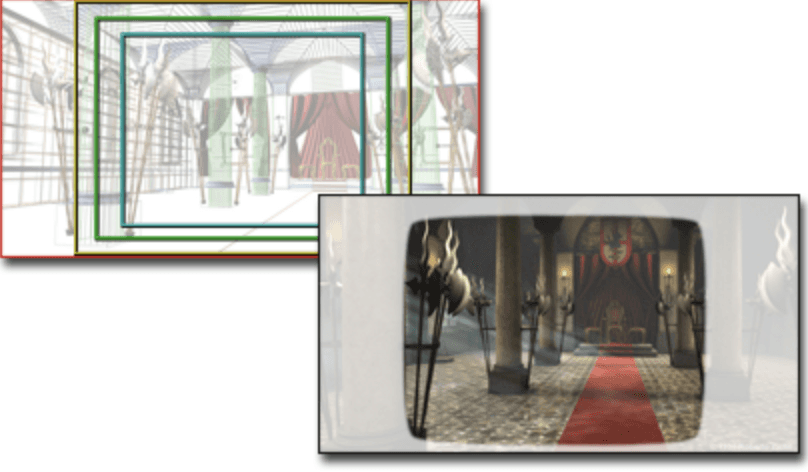
Product visualization often requires several compositions from the same scene. A wide catalog image and a portrait advertisement may need different framing, not merely different output dimensions.
Ask Claude to activate each approved camera and inspect the visible composition using the intended aspect ratio. Useful checks include clipped product edges, obscured details, distracting objects, and insufficient space for planned text.
Review the three product cameras for the portrait delivery. Report framing problems and propose adjustments. Preserve the existing cameras and do not reposition them without approval.
After authorized changes, render low-resolution previews from those cameras. Viewport review helps identify issues quickly, but the rendered previews remain necessary for checking lighting, reflections, and the final composition.
Source: Autodesk
Turn Cameras and Variants Into a Verified Render Plan
A scene with several cameras and material options can produce dozens of outputs. Before Claude configures anything, turn that requirement into an explicit render plan.
For three cameras and two upholstery variants, the plan might contain six jobs:
Camera | Variant | Output filename |
|---|---|---|
Front | Light |
|
Front | Dark |
|
Side | Light |
|
Side | Dark |
|
Detail | Light |
|
Detail | Dark |
|
Each job also needs a resolution, frame or frame range, renderer, and destination folder. Do not let Claude infer these from “render all versions.”
Separate the queue from the scene state
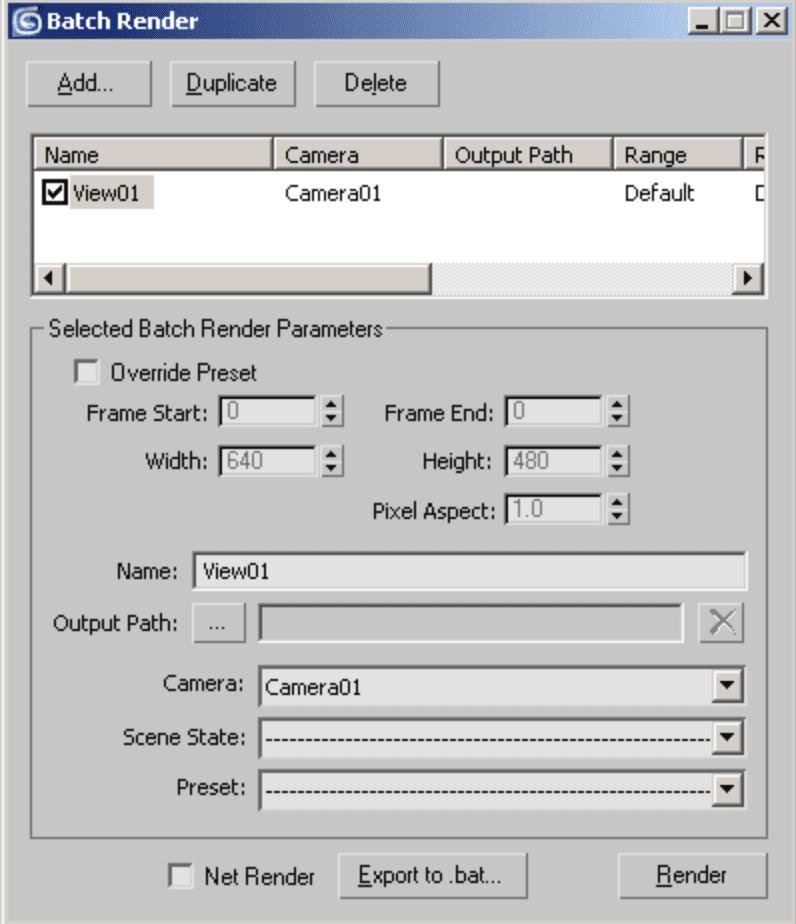
Batch Render organizes camera-based rendering tasks, including output paths and per-job overrides. State Sets can record supported changes to materials, lighting, cameras, and render settings.
They serve related purposes, but should not be treated as interchangeable. Have Claude inspect which mechanism the scene already uses and verify how each job activates its intended variant. If the connector cannot manage that configuration, use Computer Use for the relevant interface steps rather than assuming a dedicated tool exists.
Source: Autodesk
Test the plan before committing render time
Give Claude a bounded instruction:
Prepare the six approved jobs without starting the full render. Verify each camera, material variant, output size, frame, and filename. Flag existing destination files. Produce low-resolution tests only after I approve the setup.
Review those tests for incorrect assignments, camera selection, missing textures, and unexpected differences between variants. Keep test files separate from final outputs.
Before launching the full queue, ask Claude to read back the settings and confirm that no jobs share an output filename. Approve the render explicitly.
Afterward, verify that the expected files exist, have the intended dimensions, and show the correct combinations. A completed job status is useful, but it does not prove that the right camera and variant reached the final image.

Source: Autodesk
Know When to Stop: Safety, Recovery, and Uncertain Results
Claude’s access to a live scene should come with explicit boundaries. Reading properties is different from deleting objects, collapsing stacks, replacing shared materials, or starting a render that could occupy the workstation for hours.
Before consequential changes, save a separate .max version and confirm where it was written. Keep the original available independently of Max’s Undo history. An undoable scene operation does not necessarily reverse texture-file changes, exported files, or overwritten renders.
Specify approval requirements in the task:
Work only on the saved revision. Ask before deleting objects, collapsing modifier stacks, changing shared materials outside the approved targets, overwriting files, or starting the full render. Stop if the target or result is uncertain.
Inspect state before retrying
A timeout does not prove that an operation failed. Max may have completed the change while the connector was waiting, or a modal dialog may be blocking the response. Repeating the command could create duplicate objects or apply a transform twice.
Check the current scene and visible dialogs first. Retry only after establishing what happened.
Keep verification and privacy in scope
A local MCP bridge does not mean all information stays on the workstation. Tool responses can enter Claude’s context, and Computer Use sends screenshots for interpretation. Avoid exposing confidential assets or unrelated sensitive windows. Anthropic recommends carefully limiting application access and monitoring early tasks. Computer Use safety guidance
Finally, keep uncertainty visible. A viewport review can reveal obvious problems, but it cannot certify topology, UV correctness, or physical accuracy. Those checks still require appropriate tools and human judgment.
Give Heavy 3ds Max Scenes More Room With Vagon
Claude can reduce repetitive scene preparation, but it cannot remove the hardware demands of a dense architectural model or a texture-heavy product scene. If Max struggles to navigate the viewport or produce test renders, automation still waits on the same workstation.
Vagon Cloud Computer gives you a full remote Windows desktop with flexible performance options. Instead of replacing your laptop to accommodate a demanding project, you can access a cloud workstation from your existing device and run the applications there.
Keep the workflow together on one workstation
For this setup, install compatible versions of 3ds Max, Claude Desktop, the MCP connector, and your required plugins inside the Vagon computer. Keep project assets accessible from that same environment.
This arrangement gives the local bridge a direct route to the running Max session. Installing the bridge only on your laptop does not automatically connect it to Max running remotely. Verify MCP connectivity and Computer Use access inside the cloud desktop before relying on either for production work.
Choose performance for the actual workload
Match the workstation to your scene and renderer. GPU rendering needs a compatible GPU and enough video memory, while CPU rendering depends more heavily on processor resources. Large scenes also need sufficient system RAM. A more powerful GPU will not accelerate every modifier or a CPU-only render.
Vagon’s flexible performance options let you choose resources for the work at hand. Check software licensing, renderer compatibility, and current operating-system requirements before committing to a setup.
The benefit is room to work: more suitable resources for scene navigation, asset-heavy projects, and repeated render checks without buying another workstation. Claude handles the approved workflow, while Vagon provides the Windows environment that runs it. Start with a representative scene and test the complete process before moving a deadline-critical project.
FAQs
Can Claude directly control 3ds Max?
Yes, with an appropriate connection. A compatible MCP server can expose tools for reading and changing a running scene. Computer Use provides a separate route through the interface. Without either, Claude can suggest scripts or instructions but cannot inspect your live session.
Is there an official Autodesk MCP connector for Claude?
The connector used as an example in this guide is a community project, not an Autodesk-provided integration. Check its current documentation, supported versions, and permissions before installation. Do not assume that another connector exposes the same tools or provides equivalent safeguards.
Do I need MCP if Computer Use is available?
Not necessarily, but MCP is generally the better starting point for structured queries and repeated, precisely targeted changes. Computer Use helps with interface tasks that the connector does not cover. Combining them can be useful, provided you verify both the changed values and the visible result.
Can Claude work with V-Ray, Corona, or Arnold?
That depends on the installed renderer, its version, and the connector’s coverage. Ask Claude to inspect available capabilities before requesting renderer-specific changes. It may access exposed properties through MCP or supported dialogs through Computer Use. Neither route guarantees that a material conversion or render setup will be correct.
Can I use this workflow from a Mac?
You can access a remote Windows workstation from a Mac, but 3ds Max itself needs a supported Windows environment. Autodesk lists Windows 11 for 3ds Max 2027. Keep Max and its local bridge on the Windows machine, then verify Claude access there. Autodesk system requirements
A 3ds Max scene can look ready in the viewport and still fail at render time. A texture points to an unavailable folder, the wrong camera is selected, or a modifier behaves differently in the final output. Before changing anything, an assistant needs to establish what is actually in the scene.
Using Claude with 3ds Max goes beyond asking it to generate MAXScript. A compatible MCP connector can expose information from a running 3ds Max session and provide tools for inspecting objects, adjusting properties, or executing scripts. The available operations depend on the connector, your Max version, and installed plugins. This is a community integration, not a built-in Autodesk feature.
Computer Use provides a separate route through the interface. With access enabled, Claude can navigate supported applications, inspect dialogs, and help review visible results. It is useful where connector coverage ends, but screen interaction requires careful verification.
This guide combines both approaches around a practical workflow: connect Claude, audit the scene, approve targeted changes, and verify render outputs. The aim is to reduce repetitive preparation while keeping creative decisions and consequential operations under your control.
Source: Autodesk
Two Ways Into the Scene: MCP and Computer Use
The right connection depends on the task. Renaming fifty objects requires precise targeting. Checking whether a chair intersects a table requires a useful view of the geometry. Claude can help with both, but the underlying access is different.
MCP provides structured access
An MCP connector acts as a bridge between Claude and the running 3ds Max session. Instead of interpreting an object name from the screen, Claude can request scene information and use the connector’s exposed tools to perform specific operations.
For example, the community 3dsmax-mcp project documents tools for scene queries, modifier properties, material networks, MAXScript execution, and viewport capture. These are connector-specific capabilities, not features that every MCP server provides.
A viewport capture returned by an MCP tool is still part of that connection. It does not mean Claude has mouse and keyboard access to Max.
Computer Use works through the interface
With Computer Use enabled, Claude can interact with approved applications through screenshots, clicks, and keyboard input. This can help when a renderer-specific dialog or interface option is not exposed by the connector.
Task | Preferred starting point |
|---|---|
Read object properties or inspect material assignments | MCP |
Apply repeated, explicitly defined changes | MCP |
Navigate an unsupported dialog | Computer Use |
Review framing or a visible result | Viewport capture or Computer Use |
Neither route removes the need to verify results. A successful property update does not prove that a material looks correct, and a screenshot cannot establish every dependency in a scene.
For this workflow, keep 3ds Max and its bridge in a compatible Windows environment. Check Claude’s available tools and Computer Use access separately. An ordinary chat without either connection can suggest instructions or scripts, but it cannot inspect your live scene.
Connect Claude, Then Prove It Can Read the Right Scene
Start with a disposable scene containing a few named objects, one camera, and a simple material. This gives you a predictable environment for checking the connection before exposing a production file.
Install a compatible bridge and register the MCP server
A typical setup has two components: a bridge inside 3ds Max and an MCP server that exposes tools to Claude. Installing one does not establish that the other is working.
The community 3dsmax-mcp connector currently documents Windows support for 3ds Max 2023–2027. Its installer includes dependencies and native bridges, while its source installation requires Python, uv, and Git. Follow the instructions for the release you choose rather than combining configuration steps from different projects.
Before installation, close Max and fully exit Claude. Review the connector’s source, permissions, and installation instructions, then select Claude Desktop where the installer offers client configuration. Reopen both applications afterward.
In Claude, check that the server appears and its tools are available. Anthropic’s local MCP setup documentation explains how to inspect connection status and logs. A connected server alone does not prove that its bridge can reach Max.
Test the connection without changing anything
Make the first request explicitly read-only:
Inspect the connected 3ds Max session. Report the Max version, scene filename, object count, selected objects, and active renderer using the available tools. State which information you cannot retrieve. Do not create, modify, delete, save, or render anything.
Compare the response with the scene you opened. Confirm the filename and selected object, not just a plausible object count. Then select a different object manually and ask Claude to read the selection again. This helps establish that it is querying the current session rather than repeating an earlier result.
For custom bridges, execution context matters. Autodesk documents that Python worker threads cannot call pymxs; scene operations must be routed appropriately to Max’s main thread. A background network listener is not permission to manipulate the scene from that thread. Autodesk threading documentation
Enable screen access separately
MCP registration does not grant desktop control. In a supported Claude Desktop experience, enable Computer Use in settings and approve access to 3ds Max when prompted.
Start with a bounded request: identify the selected object and describe its visible modifier stack without changing values.
If either route fails, check the bridge version, client logs, and blocking dialogs. Do not repeatedly submit a command while Max is waiting for input. Establish which component failed before retrying, especially once you move beyond read-only checks.
Build a Scene Audit Before Asking for Cleanup
“Clean up this scene” leaves too many decisions open. Claude might interpret cleanup as renaming objects, deleting hidden geometry, or collapsing modifier stacks. Those actions have different consequences, and none should follow automatically from a vague request.
Instead, ask for an audit that separates observations from proposed changes:
Audit the current scene without modifying it. Inspect object and layer organization, instance relationships, assigned materials, modifier stacks, external asset references, cameras, and render settings where the tools allow. For each issue, identify the affected objects, explain the evidence, and propose an action. Mark anything you cannot verify.
The report should tell you how the scene is assembled, not simply produce a long inventory.
Source: Autodesk
Identify relationships before proposing changes
Repeated objects may share a base object, a modifier, or a material. Changing one shared component can affect objects outside the current selection.
Have Claude establish those relationships before recommending edits. Object names are useful for communication, but duplicate names can make targeting ambiguous. Where the connector supports them, resolved node references or handles provide more precise identification.
An audit should also distinguish disabled modifiers from unnecessary ones. A modifier that is off in the viewport but enabled for rendering may be intentional.
Check external files, not just their stored paths
A texture path is not proof that the file is available. Network references deserve particular attention: Autodesk documents that Asset Tracking can display a network path without checking its existence unless Check Network Paths is enabled. Asset Tracking options
If Claude cannot verify accessibility, it should report “unverified,” not “missing” or “healthy.”
A useful summary might look like this:
Finding | Proposed action | Approval needed |
|---|---|---|
Duplicate object names | Rename identified nodes using an agreed convention | Yes |
Unverified texture reference | Check the approved asset folder | Before repathing |
Shared material on several groups | Create a variant for the target group | Yes |
Finish by prioritizing blockers: inaccessible assets, uncertain targets, and incorrect render settings come before cosmetic organization. Once you approve specific actions, Claude has a defined scope rather than an invitation to redesign the scene.
Make Repetitive Changes Without Breaking the Scene
Once the audit identifies specific targets, Claude can help apply mechanical changes through MCP tools or MAXScript. The important distinction is between changing the intended property and unintentionally changing how the scene behaves.
Save a separate working version first. Then keep each operation small enough that its effects can be checked before proceeding.
Organize objects without changing their behavior
Renaming objects and moving them into layers can make a scene easier to navigate, but names may also appear in scripts, expressions, or external pipeline tools. Do not assume a cosmetic change has no dependencies.
Ask Claude to preview the mapping before applying it:
Prepare a rename plan for the selected furniture objects using the prefix
Lounge_. Identify each target unambiguously and show its current and proposed name. Check for conflicts and report any dependencies you can inspect. Do not rename anything until I approve the mapping.
After approval, verify the updated names and layer membership. Transforms, parent relationships, material assignments, and instance relationships should remain unchanged unless the plan explicitly includes them.
Adjust modifiers without flattening the workflow
A modifier stack preserves decisions that may need revision later. Collapsing it simply to make an operation easier can remove that flexibility.
For a parameter adjustment, Claude should identify the modifier, its position in the stack, and whether it is shared. Changing an instanced modifier can affect several objects even when only one object is selected.
Source: Autodesk
A bounded instruction is more useful than “smooth these objects”:
Inspect the selected objects for existing TurboSmooth modifiers. Report their viewport and render iteration settings and whether any modifiers are shared. Propose the changes needed to use one viewport iteration while preserving the current render settings. Do not add modifiers or collapse stacks.
After the change, read the values back and inspect representative objects. A correct parameter value does not establish that the resulting surface is acceptable.
Create material variants without replacing the original
Suppose a client wants darker upholstery on one furniture group. Editing the existing material directly may also change chairs elsewhere in the scene.
Have Claude inspect the material’s users and map connections first. Where supported, it can create a separate material variant and assign it only to the approved targets. The example connector documents material inspection, replication, and assignment tools, but their behavior should still be checked in your installed environment. Connector tool documentation
Source: Autodesk
Use a clear sequence:
Identify the target objects and their current material.
Preview the material changes and affected assignments.
Create and assign the approved variant.
Verify that unrelated objects retain their original material.
Finish with a small test render from a known camera. Check the appearance alongside the structured readback, particularly reflections, texture scale, and any differences that the viewport does not reproduce.
Practical Computer Use Tasks Beyond Clicking Menus
Computer Use is most useful when a task depends on something visible in Max: a file-status dialog, a modifier’s effect, or a renderer option that the MCP tools cannot reach. The following are bounded workflows to try, not guarantees that Claude will complete every step correctly in your setup.
Check missing assets in Asset Tracking
After moving a project between workstations, ask Claude to open Asset Tracking, inspect unresolved references, and compare them with an approved asset folder.
Review unresolved texture references against
D:\Project\Textures. List candidate replacements and explain each match. Do not change paths yet. Flag duplicate filenames and uncertain matches.
This is more useful than blindly searching the entire machine. A matching filename alone does not establish that a texture is the correct version. Claude should show ambiguous candidates for approval, then refresh the asset listing after any authorized repathing.
Source: Autodesk Community
Compare a modifier change from useful viewpoints
A numerical readback can confirm that a modifier changed, but it cannot fully explain the visual result. Combine MCP edits with a repeatable screen review.
For example, inspect a furniture model before and after changing a smoothing setting. Use the same front, side, and perspective views, keeping the zoom and display mode consistent. Ask Claude to look for silhouette changes, visible surface breaks, and intersections with neighboring parts.
Source: Autodesk
The request should distinguish observation from repair:
Compare these views before and after the approved modifier change. Describe visible differences. Do not alter geometry to fix anything you find.
If the comparison is inconclusive, use an isolated object view or a test render. Do not treat a clean-looking viewport as proof of valid topology.
Inspect renderer-specific settings
Render Setup can contain options that vary with the installed renderer and version. Computer Use can help read those controls when the connector does not expose them.
A practical request is to compare the current settings with a delivery brief: renderer, output dimensions, frame range, file format, and destination. Have Claude report discrepancies before changing anything.
Source: Autodesk
Avoid instructions such as “optimize quality.” They leave sampling, denoising, displacement, and render time tradeoffs undefined. Approve specific changes, then reopen the relevant panel to verify that the values persisted.
Review camera framing against a delivery brief
Product visualization often requires several compositions from the same scene. A wide catalog image and a portrait advertisement may need different framing, not merely different output dimensions.
Ask Claude to activate each approved camera and inspect the visible composition using the intended aspect ratio. Useful checks include clipped product edges, obscured details, distracting objects, and insufficient space for planned text.
Review the three product cameras for the portrait delivery. Report framing problems and propose adjustments. Preserve the existing cameras and do not reposition them without approval.
After authorized changes, render low-resolution previews from those cameras. Viewport review helps identify issues quickly, but the rendered previews remain necessary for checking lighting, reflections, and the final composition.
Source: Autodesk
Turn Cameras and Variants Into a Verified Render Plan
A scene with several cameras and material options can produce dozens of outputs. Before Claude configures anything, turn that requirement into an explicit render plan.
For three cameras and two upholstery variants, the plan might contain six jobs:
Camera | Variant | Output filename |
|---|---|---|
Front | Light |
|
Front | Dark |
|
Side | Light |
|
Side | Dark |
|
Detail | Light |
|
Detail | Dark |
|
Each job also needs a resolution, frame or frame range, renderer, and destination folder. Do not let Claude infer these from “render all versions.”
Separate the queue from the scene state
Batch Render organizes camera-based rendering tasks, including output paths and per-job overrides. State Sets can record supported changes to materials, lighting, cameras, and render settings.
They serve related purposes, but should not be treated as interchangeable. Have Claude inspect which mechanism the scene already uses and verify how each job activates its intended variant. If the connector cannot manage that configuration, use Computer Use for the relevant interface steps rather than assuming a dedicated tool exists.
Source: Autodesk
Test the plan before committing render time
Give Claude a bounded instruction:
Prepare the six approved jobs without starting the full render. Verify each camera, material variant, output size, frame, and filename. Flag existing destination files. Produce low-resolution tests only after I approve the setup.
Review those tests for incorrect assignments, camera selection, missing textures, and unexpected differences between variants. Keep test files separate from final outputs.
Before launching the full queue, ask Claude to read back the settings and confirm that no jobs share an output filename. Approve the render explicitly.
Afterward, verify that the expected files exist, have the intended dimensions, and show the correct combinations. A completed job status is useful, but it does not prove that the right camera and variant reached the final image.
Source: Autodesk
Know When to Stop: Safety, Recovery, and Uncertain Results
Claude’s access to a live scene should come with explicit boundaries. Reading properties is different from deleting objects, collapsing stacks, replacing shared materials, or starting a render that could occupy the workstation for hours.
Before consequential changes, save a separate .max version and confirm where it was written. Keep the original available independently of Max’s Undo history. An undoable scene operation does not necessarily reverse texture-file changes, exported files, or overwritten renders.
Specify approval requirements in the task:
Work only on the saved revision. Ask before deleting objects, collapsing modifier stacks, changing shared materials outside the approved targets, overwriting files, or starting the full render. Stop if the target or result is uncertain.
Inspect state before retrying
A timeout does not prove that an operation failed. Max may have completed the change while the connector was waiting, or a modal dialog may be blocking the response. Repeating the command could create duplicate objects or apply a transform twice.
Check the current scene and visible dialogs first. Retry only after establishing what happened.
Keep verification and privacy in scope
A local MCP bridge does not mean all information stays on the workstation. Tool responses can enter Claude’s context, and Computer Use sends screenshots for interpretation. Avoid exposing confidential assets or unrelated sensitive windows. Anthropic recommends carefully limiting application access and monitoring early tasks. Computer Use safety guidance
Finally, keep uncertainty visible. A viewport review can reveal obvious problems, but it cannot certify topology, UV correctness, or physical accuracy. Those checks still require appropriate tools and human judgment.
Give Heavy 3ds Max Scenes More Room With Vagon
Claude can reduce repetitive scene preparation, but it cannot remove the hardware demands of a dense architectural model or a texture-heavy product scene. If Max struggles to navigate the viewport or produce test renders, automation still waits on the same workstation.
Vagon Cloud Computer gives you a full remote Windows desktop with flexible performance options. Instead of replacing your laptop to accommodate a demanding project, you can access a cloud workstation from your existing device and run the applications there.
Keep the workflow together on one workstation
For this setup, install compatible versions of 3ds Max, Claude Desktop, the MCP connector, and your required plugins inside the Vagon computer. Keep project assets accessible from that same environment.
This arrangement gives the local bridge a direct route to the running Max session. Installing the bridge only on your laptop does not automatically connect it to Max running remotely. Verify MCP connectivity and Computer Use access inside the cloud desktop before relying on either for production work.
Choose performance for the actual workload
Match the workstation to your scene and renderer. GPU rendering needs a compatible GPU and enough video memory, while CPU rendering depends more heavily on processor resources. Large scenes also need sufficient system RAM. A more powerful GPU will not accelerate every modifier or a CPU-only render.
Vagon’s flexible performance options let you choose resources for the work at hand. Check software licensing, renderer compatibility, and current operating-system requirements before committing to a setup.
The benefit is room to work: more suitable resources for scene navigation, asset-heavy projects, and repeated render checks without buying another workstation. Claude handles the approved workflow, while Vagon provides the Windows environment that runs it. Start with a representative scene and test the complete process before moving a deadline-critical project.
FAQs
Can Claude directly control 3ds Max?
Yes, with an appropriate connection. A compatible MCP server can expose tools for reading and changing a running scene. Computer Use provides a separate route through the interface. Without either, Claude can suggest scripts or instructions but cannot inspect your live session.
Is there an official Autodesk MCP connector for Claude?
The connector used as an example in this guide is a community project, not an Autodesk-provided integration. Check its current documentation, supported versions, and permissions before installation. Do not assume that another connector exposes the same tools or provides equivalent safeguards.
Do I need MCP if Computer Use is available?
Not necessarily, but MCP is generally the better starting point for structured queries and repeated, precisely targeted changes. Computer Use helps with interface tasks that the connector does not cover. Combining them can be useful, provided you verify both the changed values and the visible result.
Can Claude work with V-Ray, Corona, or Arnold?
That depends on the installed renderer, its version, and the connector’s coverage. Ask Claude to inspect available capabilities before requesting renderer-specific changes. It may access exposed properties through MCP or supported dialogs through Computer Use. Neither route guarantees that a material conversion or render setup will be correct.
Can I use this workflow from a Mac?
You can access a remote Windows workstation from a Mac, but 3ds Max itself needs a supported Windows environment. Autodesk lists Windows 11 for 3ds Max 2027. Keep Max and its local bridge on the Windows machine, then verify Claude access there. Autodesk system requirements
Get Beyond Your Computer Performance
Run applications on your cloud computer with the latest generation hardware. No more crashes or lags.

Trial includes 1 hour usage + 7 days of storage.
Summarize with AI

Ready to focus on your creativity?
Vagon gives you the ability to create & render projects, collaborate, and stream applications with the power of the best hardware.

Vagon Blog
Run heavy applications on any device with
your personal computer on the cloud.
San Francisco, California
Solutions
Vagon Teams
Vagon Streams
Use Cases
Resources
Vagon Blog
How to Use 3ds Max With Claude: MCP & Computer Use
How to Use DaVinci Resolve With Claude: MCP & Computer Use
How to Use Godot With Claude: MCP & Computer Use
How to Use Unreal Engine With Claude: MCP & Computer Use
How to Use Unity With Claude: MCP & Computer Use Guide
Googlebook vs Chromebook: What Changes for Creative Work?
How to Use Claude Code With Higgsfield: MCP + Computer Use
How to Use Claude Code With Premiere Pro: MCP & Computer Use
How to Use Codex With Premiere Pro: MCP & Computer Use
Vagon Blog
Run heavy applications on any device with
your personal computer on the cloud.
San Francisco, California
Solutions
Vagon Teams
Vagon Streams
Use Cases
Resources
Vagon Blog
How to Use 3ds Max With Claude: MCP & Computer Use
How to Use DaVinci Resolve With Claude: MCP & Computer Use
How to Use Godot With Claude: MCP & Computer Use
How to Use Unreal Engine With Claude: MCP & Computer Use
How to Use Unity With Claude: MCP & Computer Use Guide
Googlebook vs Chromebook: What Changes for Creative Work?
How to Use Claude Code With Higgsfield: MCP + Computer Use
How to Use Claude Code With Premiere Pro: MCP & Computer Use
How to Use Codex With Premiere Pro: MCP & Computer Use
Vagon Blog
Run heavy applications on any device with
your personal computer on the cloud.
San Francisco, California
Solutions
Vagon Teams
Vagon Streams
Use Cases
Resources
Vagon Blog