Instant Connection for Pixel Streaming
— New Feature Automated Setup

How to Use After Effects With Codex: MCP & Computer Use
VideoProduction
-
How to Use After Effects With Codex: MCP & Computer Use
VideoProduction
How to Use After Effects With Codex: MCP & Computer Use
VideoProduction
-
Table of Contents
Using Codex with After Effects involves more than asking an AI model to generate ExtendScript, JavaScript, or animation expressions. With a compatible Model Context Protocol (MCP) server, Codex can communicate with a running After Effects session through a local bridge, panel, or scripting layer and work with structured project data.
Depending on the connector, Codex can inspect projects, compositions, layers, keyframes, expressions, effects, footage, markers, and render queue items. It may also create compositions, add or modify layers, update text, apply effects, adjust animation properties, organize assets, and prepare approved compositions for rendering. Community projects such as After Effects MCP demonstrate how AI clients can work with compositions, layers, effects, keyframes, snapshots, and rendering workflows.
Computer Use adds a visual layer to this connection. Codex can open the correct project, navigate the Project panel and timeline, inspect Effect Controls, check text placement, read missing-footage warnings, and verify that an animation looks correct before it is rendered.
This is not a native one-click Adobe After Effects feature. It requires an After Effects installation and license, a compatible MCP server or scripting bridge, the necessary ExtendScript, CEP, UXP, or Node dependencies, and permission to access project files. For production work, always begin with a duplicate project and require approval before making changes or starting a render.
What Can Codex Do With After Effects Through MCP and Computer Use?
When Codex is connected to After Effects through an MCP server, it can work with structured project data instead of treating the application as a simple desktop window. The exact capabilities depend on the connector, After Effects version, and scripting functions it exposes, but a compatible bridge can provide access to projects, compositions, layers, effects, keyframes, expressions, footage, and render queue items.
Codex can inspect an active project and identify its compositions, dimensions, frame rates, durations, folders, and render settings. It can read layer names, types, order, visibility, timing, parenting, blending modes, and enabled states. It may also inspect transform properties, keyframes, expressions, markers, masks, and effect parameters.

Source: Adobe After Effects Scripting Guide – Object Model
MCP can support more than read-only analysis. Some community implementations expose tools for creating compositions, adding text and shape layers, importing footage, applying effects, updating properties, creating precompositions, capturing snapshots, and preparing compositions for rendering. These workflows build on the After Effects scripting object model, rather than replacing it.
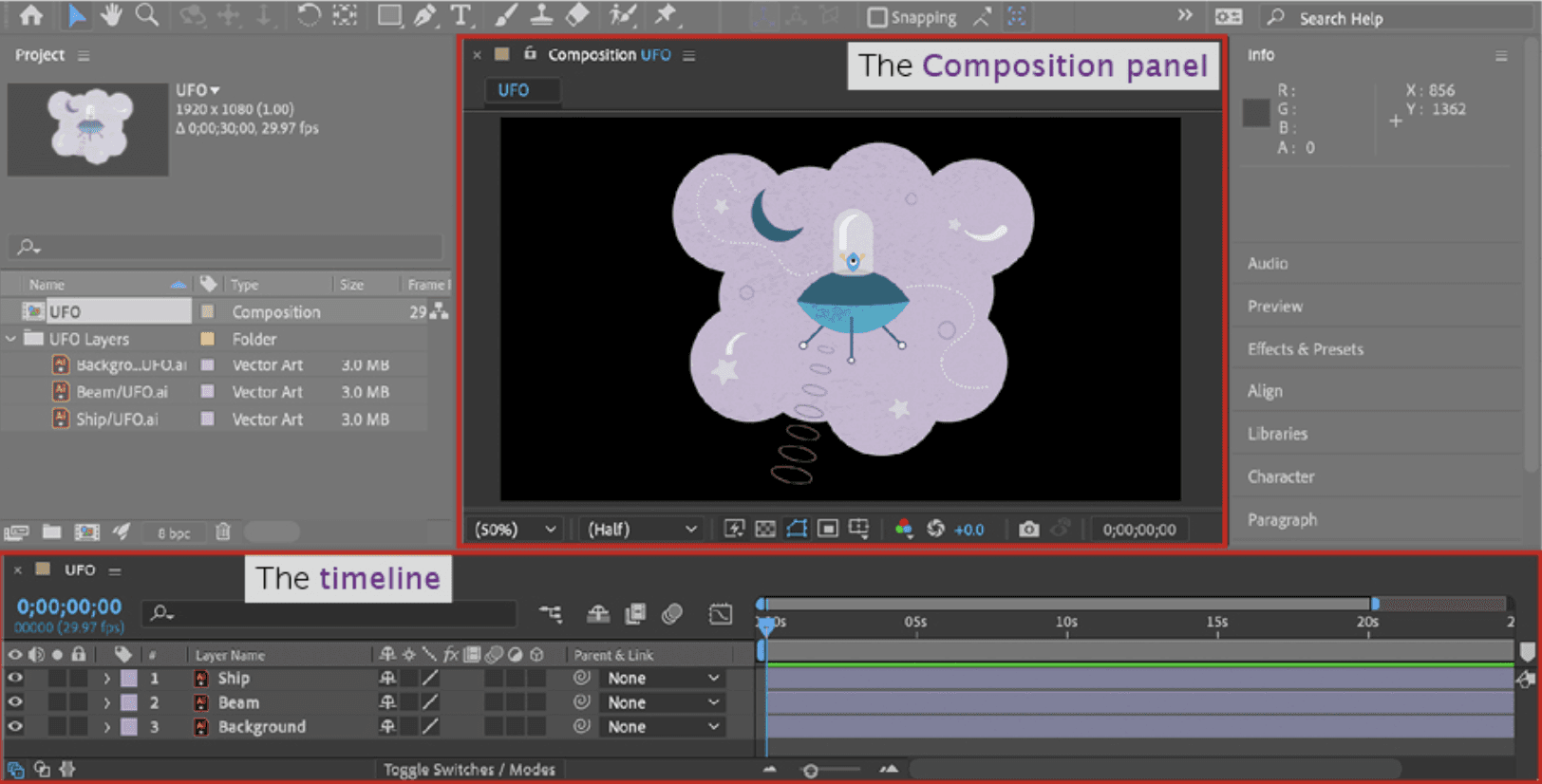
Computer Use provides a different type of access. Codex can interact with the visible After Effects interface by opening a project, selecting a composition, expanding the timeline, opening Effect Controls, checking keyframe placement, inspecting text alignment, or reading missing-footage warnings. This is useful when the MCP server does not expose a specific interface control or when the final result requires visual verification.
Task | MCP | Computer Use |
|---|---|---|
List compositions | Structured | Visual |
Inspect layer properties | Strong | Strong |
Add layers | Connector-dependent | Possible through the UI |
Edit keyframes | API-dependent | Visual but fragile |
Review animation timing | Limited | Strong |
Apply effects | Connector-dependent | Possible through the UI |
Check final composition | Limited | Strong |
Render or export | Connector-dependent | Possible through dialogs |
Used together, MCP can identify what needs attention, while Computer Use can open the relevant After Effects context and verify the visible result before Codex continues.
Source: O’Reilly – The Composition Panel in After Effects
MCP vs. Computer Use: Which After Effects Connection Should You Use?
MCP and Computer Use provide different ways for Codex to work with After Effects. MCP is designed for structured communication with project data and scripting operations, while Computer Use allows Codex to interact with the visible After Effects interface. The most reliable workflows use each method for the type of task it handles best.
MCP is the stronger choice when Codex needs to inspect or process project data. An After Effects connector may expose tools for reading compositions, layers, effects, keyframes, expressions, footage, markers, and render settings. It can also perform repeatable operations such as creating compositions, adding layers, updating text, applying effects, organizing assets, or preparing multiple compositions for export.
This approach is useful when consistency matters. For example, Codex can inspect a project and identify all text layers that use an outdated title. It can then group those layers by composition and propose a controlled replacement without manually searching through every timeline.
Computer Use is more appropriate when the task depends on After Effects’ interface or visual output. Codex can open a composition, select a layer, expand the timeline, inspect Effect Controls, check keyframe placement, or confirm that a title remains inside the safe area. It can also operate menus and dialogs that the MCP server does not expose.
A practical rule is simple: use MCP to query project data, analyze compositions, run repeatable scripting operations, and prepare structured changes. Use Computer Use to navigate After Effects, inspect visual context, operate interface-only controls, and verify the result. Use both when structured automation must be followed by visual confirmation.
For example, Codex could use MCP to find compositions containing outdated lower-third text. It could then open one composition with Computer Use, confirm the correct layer and animation, and show the result before updating the remaining compositions.
The available tools vary between connectors. Some projects expose layer, effect, keyframe, snapshot, and rendering operations, while others provide only basic project inspection. Check the selected MCP server’s documentation before designing a workflow around a specific tool.
How Do You Connect Codex to an After Effects MCP Server?
Connecting Codex to After Effects requires a bridge between the MCP client and the running After Effects application. Most integrations use a local server that communicates with After Effects through a CEP panel, UXP plugin, ExtendScript, or another scripting layer. Codex sends a tool request to the MCP server, the bridge translates it into an After Effects operation, and the application returns structured information or performs an approved action.
The architecture usually looks like this:
The MCP server does not replace After Effects or automatically expose every feature. It provides a defined set of tools. One implementation may focus on project inspection and layer editing, while another may also support keyframes, expressions, effects, snapshots, render queue operations, and batch workflows. Before installing a server, check its supported After Effects versions, operating systems, transport method, and dependencies.
A typical setup includes:
Windows or macOS
An installed and licensed version of After Effects
Codex with MCP support
A compatible After Effects MCP server
Node.js, Python, or other dependencies required by the connector
A CEP extension, UXP plugin, or scripting bridge if required
A test
.aepprojectA backup copy of important projects and footage

Source: Matagi – Codex MCP Setup Guide
Basic Connection Process
Start by opening After Effects with a non-critical test project. Then install or clone a compatible MCP server, install its dependencies, and install the required panel or bridge. Some projects start a local server automatically when the After Effects panel is opened; others require a separate command.
A Codex MCP registration may look similar to this:
Some connectors expose a local HTTP endpoint instead:
The exact server name, command, transport, and URL depend on the implementation. For example, the After Effects MCP client configuration guide documents a Codex registration command for its own server. Do not copy a configuration without checking the connector’s current documentation.
After registering the server, restart Codex if necessary and confirm that the After Effects tools are available. Begin with read-only requests:
“Check whether After Effects is running and report the active project name. Do not modify anything.”Then try:
“List all compositions in the current project and report their dimensions, frame rates, durations, and number of layers.”A third test can inspect the active composition:
“List the layers in the active composition, including each layer’s name, type, in point, out point, and enabled state.”If Codex returns information from the open project, the connection is working. Only after this test should you create layers, change properties, apply effects, or start a render. Save a separate version of the project before approving any operation that can modify the composition.
How Do You Use Codex Computer Use With After Effects?
Computer Use allows Codex to interact with After Effects through its visible interface. Instead of depending only on MCP tools, Codex can observe the current After Effects window, identify the active project and composition, and perform actions such as clicking, typing, selecting layers, opening panels, or switching workspaces.
A reliable After Effects workflow follows an inspect–act–verify loop:
Codex observes the After Effects interface.
It confirms the active project and composition.
It checks the composition dimensions, frame rate, and duration.
It identifies the required interface action.
It performs one click, keyboard shortcut, menu command, or text entry.
After Effects displays a new state.
Codex checks the timeline, Composition panel, Effect Controls, or warning dialog.
It stops or continues based on the verified result.
This is useful when the operation depends on visual context. For example, MCP may report the position and timing of a text layer, but Computer Use can open the composition and check whether the title is readable, centered, and inside the safe area. Similarly, MCP may identify a keyframe sequence, while Computer Use can inspect the timeline and verify that the animation appears as expected.
You can give Codex a narrowly defined instruction such as:
“Open the active composition and inspect the title animation. Check whether the text remains inside the safe area throughout the animation. Do not change any keyframes or layer properties.”Other useful interface tasks include opening the Project panel, expanding the timeline, selecting a precomposition, opening Effect Controls, checking missing footage warnings, inspecting masks, switching workspaces, opening Render Queue, and verifying output settings.
Computer Use should not be treated as unrestricted control of the motion graphics workstation. Confirm the correct project and composition before each workflow. Require approval before Codex deletes layers, changes expressions, replaces footage, modifies keyframes across multiple compositions, overwrites project files, or starts a production render.
Pixel-level operations, such as dragging keyframes, adjusting Graph Editor handles, positioning masks, or moving layers by eye, can be fragile. Whenever possible, use MCP or After Effects scripting for deterministic changes and use Computer Use to navigate the interface and visually verify the result. This combination provides repeatable automation without losing visibility into what happens inside After Effects.
What After Effects Workflows Can You Automate With Codex?
The most useful After Effects workflows combine MCP for structured project operations with Computer Use for visual inspection. Codex can query a project, determine what needs attention, propose a controlled action, and then use the After Effects interface to verify the result before saving or rendering.
Project and Composition Inspection
Codex can inspect the active project and report its name, path, folder structure, compositions, dimensions, frame rates, durations, work areas, and render queue state. It can also identify missing footage or compositions with unusually large layer counts.
A useful prompt might be:
“Inspect the current After Effects project and summarize all compositions, their dimensions, frame rates, durations, and number of layers. Do not modify anything.”MCP can return this information as structured data, while Computer Use can open the relevant composition and confirm that the correct project is active.

Source: AEJuice – How to Update Links in After Effects
Layer and Timeline Management
Depending on the connector, Codex can create, rename, reorder, duplicate, hide, or remove supported layers. It may also inspect layer types, in and out points, parenting, blending modes, visibility, and enabled states.
This can help with tasks such as:
Applying a consistent naming convention.
Organizing imported assets.
Creating null layers for control.
Duplicating a standardized title layer.
Precomposing a selected group of layers.
Finding layers that extend beyond the intended work area.
Computer Use can expand the timeline, select the target layer, and verify that the layer order and timing match the requested change.
Text and Motion Graphics Automation
Codex can update text layers, replace repeated titles, and preserve existing animation structures when the MCP server exposes text and property operations. For example, it could replace a campaign title across several compositions while keeping the original position, scale, opacity animation, and styling.
A safe workflow is to first identify every matching text layer, group the results by composition, and show the proposed replacements. Computer Use can then verify line breaks, safe-area placement, alignment, and readability in a representative composition before Codex updates the rest.
Source: Adobe Help – Expression Basics
Keyframes, Expressions, and Animation Timing
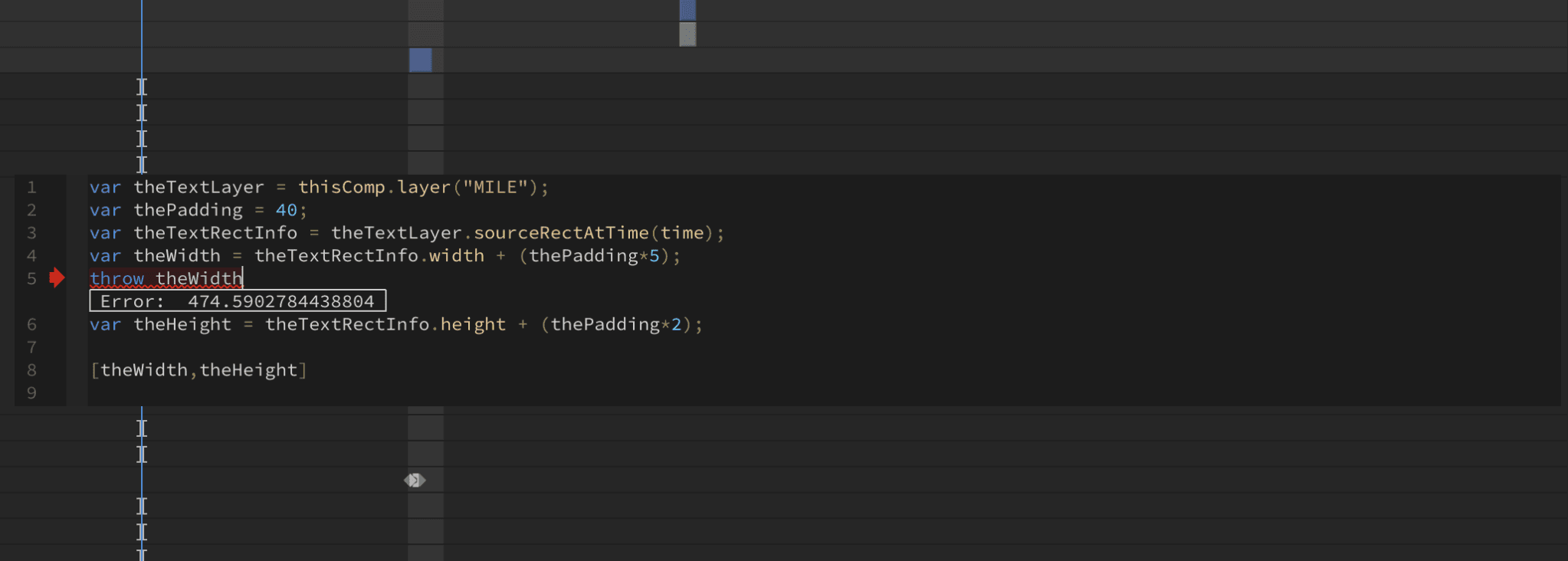
Some After Effects MCP projects expose keyframe and expression operations. Codex may be able to add keyframes, update property values, adjust timing, apply interpolation, add expressions, or remove outdated expressions.
For example, Codex could standardize the entrance timing of several lower thirds or compare the opacity and position keyframes of multiple title layers. These operations should be tested on a duplicate composition because expressions can depend on layer names, property paths, composition dimensions, and external assets.
Computer Use is useful for checking whether the animation looks correct in the timeline and Composition panel. It can reveal issues that structured data alone may not show, such as an element entering too early, overlapping another layer, or moving outside the visible frame.

Source: Adobe Help – Editing, Moving, and Copying Keyframes
Effects and Visual Treatments
Depending on the connector, Codex may be able to list available effects, apply an effect, update its properties, reorder effects, or remove them. Potential uses include applying a consistent blur, color correction, glow, transform, or transition treatment across multiple layers.
A controlled effect workflow might be:
Identify the target layer.
Confirm that the intended effect is available.
Apply it to a duplicate or test layer.
Set the required parameters.
Open Effect Controls with Computer Use.
Verify the visual result.
Ask for approval before applying it to the final composition.
Codex should not assume that an effect is visually correct simply because the property values were applied successfully.

Source: Adobe Community – Adding Fills and Strokes in the Properties Panel
Footage, Assets, and Project Organization
Codex can help import footage, organize assets into folders, identify missing files, and report unused project items when the MCP server supports these operations. It can also inspect footage names, source paths, and layer references.
Computer Use can confirm that the correct asset appears in the intended composition and that its scale, interpretation, frame rate, and position are appropriate. This is particularly important when several files have similar names or when a project contains multiple versions of the same footage.

Source: AEJuice – How to Copy Transform Properties in After Effects
Render Queue and Export Automation
The After Effects RenderQueue object exposes render automation functionality through scripting. Depending on the connector, Codex may be able to add compositions to the render queue, select output modules, set output paths, start approved renders, monitor status, and report completed files.
A practical render workflow is:
Confirm the project and composition.
Verify the active work area.
Check resolution, frame rate, and output module.
Confirm the output path.
Ask for approval.
Start the render.
Monitor the result.
Report the completed file.
Computer Use can open the Render Queue and visually confirm the composition, output module, file path, and render status before the final export begins. This combination makes repetitive motion graphics and delivery workflows more consistent while keeping the final visual and production checks under human control.

Source: Adobe Help – Basics of Rendering and Exporting
How Do You Use MCP and Computer Use Safely With After Effects?
Connecting Codex to After Effects can give an AI system access to project structures, footage paths, expressions, animation data, and render settings. Depending on the MCP server, it may also be able to modify compositions or start renders. The safest approach is to treat Codex as a controlled production assistant rather than giving it unrestricted access to active projects.
Start with a duplicate .aep file and keep the original project unchanged. Use versioned filenames for major revisions, preserve the original footage structure, and confirm that output files will not overwrite existing deliverables.
Begin with read-only inspection. Codex should identify the active project, composition, dimensions, frame rate, duration, work area, and available footage before making any change. A safe sequence is:
Require approval before Codex:
Deletes or replaces layers
Changes expressions or keyframes
Replaces footage
Applies effects across multiple compositions
Changes composition settings
Modifies project structure
Overwrites an existing project
Starts a long or production render
Exports unreleased or confidential media
This approval step is particularly important with Computer Use because an incorrect click can select a different composition, layer, effect, or output path than intended. Codex should stop if After Effects shows a missing-footage warning, script error, unexpected dialog, disconnected panel, different project, or unexpected composition state.
Project confidentiality also deserves attention. An MCP bridge may expose project names, layer names, expressions, keyframes, footage paths, and other production information to the AI service. Community projects such as mcp-aftereffects warn users to consider data retention and privacy policies when working with unreleased or NDA-protected projects.
Keep local MCP endpoints protected, restrict file permissions to the required project folders, avoid unauthenticated remote access, and log important operations. After every approved modification, preview the composition, compare it with the previous version, and save a new project revision instead of silently replacing the source file.
Run After Effects and Codex Together on Vagon Cloud Computer
After Effects automation depends heavily on the computer where the application, MCP server, project files, and render dependencies run. A local workstation may be enough for simple compositions, but larger projects often require a persistent environment with reliable GPU performance, stable storage, and all automation tools available between sessions. A Vagon Cloud Computer can provide this type of dedicated workspace.
You can install Adobe After Effects on the Windows cloud computer, configure Codex with the selected MCP server, and keep the required panel or scripting bridge available in the same environment. Node.js, Python, ExtendScript files, project templates, media folders, output modules, and render destinations can remain configured instead of being rebuilt for every session.
Performance matters for both MCP and Computer Use workflows. GPU performance affects Composition panel previews, 3D layers, effects, high-resolution footage, and visual verification. CPU performance influences expressions, precompositions, asset processing, and rendering. RAM becomes important when working with multiple compositions, large footage files, and complex timelines. A stable remote connection also helps Computer Use interpret the interface and interact with panels or dialogs reliably.
A typical setup might include:
This environment is useful for repeatable motion graphics, composition inspection, asset organization, batch updates, and render queue workflows.
Vagon does not provide a native Codex–After Effects integration. You still need a valid Adobe license, a compatible MCP server, the correct bridge dependencies, and access to the required project and media files. Sensitive projects should remain protected with backups, version control, restricted permissions, and approval-based workflows.
The main advantage is a persistent, performance-oriented workspace where After Effects and Codex can be configured once and reused for animation, compositing, editing, and rendering tasks.
FAQs
Can Codex directly control After Effects?
Codex can interact with After Effects when an MCP server, scripting bridge, or panel exposes supported tools. It is not a native, one-click Adobe After Effects feature. The available controls depend on the selected connector and After Effects version.
Is there an official After Effects MCP server?
Most available integrations are community-built. They generally connect Codex to After Effects through ExtendScript, CEP, UXP, a local HTTP bridge, or a Node-based MCP server.
Can Codex read After Effects projects?
Depending on the connector, Codex may inspect projects, compositions, layers, properties, keyframes, expressions, effects, markers, footage, and render queue items.
Can Codex create compositions and layers?
Some MCP servers expose tools for creating compositions, text layers, shape layers, solid layers, nulls, adjustment layers, cameras, and lights. These capabilities are connector-dependent.
Can Codex edit keyframes?
It may be able to add, update, remove, or compare keyframes when the MCP server exposes those operations. Use Computer Use to check the timeline and verify the visual result after the change.
Can Codex write After Effects expressions?
Codex can generate expressions and, through a compatible bridge, apply them to supported properties. Expressions should be tested because layer names, property paths, composition dimensions, and external assets can affect how they behave.
What is Computer Use best for in After Effects?
Computer Use is useful for navigating the interface, inspecting the timeline, checking Effect Controls, verifying text placement, reviewing missing-footage warnings, confirming layer order, and checking the final composition.
Can Codex automate rendering?
Some connectors can add compositions to the render queue, configure output settings, start renders, monitor progress, and report completed files. Always verify the output path, work area, resolution, and output module before starting a production render.
Does After Effects need to be installed on Windows?
After Effects runs on both Windows and macOS. The required operating system depends on the selected MCP server, panel, scripting bridge, and installed dependencies.
Is it safe to connect Codex to an unreleased project?
Use a duplicate project, restricted file permissions, local MCP endpoints, approval prompts, and appropriate data-retention controls. Layer names, footage paths, expressions, keyframes, and project metadata may be exposed to the AI service.
Can After Effects and Codex run on Vagon?
Yes. A Vagon Cloud Computer can host After Effects, Codex, the MCP bridge, dependencies, project files, and render outputs in a persistent environment. A valid Adobe license and compatible connector are still required.
Does Codex replace ExtendScript or the After Effects API?
No. ExtendScript and the After Effects scripting model remain the underlying automation layer. MCP makes selected scripting capabilities available to Codex, while Computer Use provides interface-level control and visual verification.
Can Codex repair broken After Effects projects?
Codex can help identify missing footage, broken expressions, incorrect layer references, and inconsistent composition settings. Any repair should be tested on a copy because changing one layer, expression, or asset path can affect multiple compositions and render outputs.
Using Codex with After Effects involves more than asking an AI model to generate ExtendScript, JavaScript, or animation expressions. With a compatible Model Context Protocol (MCP) server, Codex can communicate with a running After Effects session through a local bridge, panel, or scripting layer and work with structured project data.
Depending on the connector, Codex can inspect projects, compositions, layers, keyframes, expressions, effects, footage, markers, and render queue items. It may also create compositions, add or modify layers, update text, apply effects, adjust animation properties, organize assets, and prepare approved compositions for rendering. Community projects such as After Effects MCP demonstrate how AI clients can work with compositions, layers, effects, keyframes, snapshots, and rendering workflows.
Computer Use adds a visual layer to this connection. Codex can open the correct project, navigate the Project panel and timeline, inspect Effect Controls, check text placement, read missing-footage warnings, and verify that an animation looks correct before it is rendered.
This is not a native one-click Adobe After Effects feature. It requires an After Effects installation and license, a compatible MCP server or scripting bridge, the necessary ExtendScript, CEP, UXP, or Node dependencies, and permission to access project files. For production work, always begin with a duplicate project and require approval before making changes or starting a render.
What Can Codex Do With After Effects Through MCP and Computer Use?
When Codex is connected to After Effects through an MCP server, it can work with structured project data instead of treating the application as a simple desktop window. The exact capabilities depend on the connector, After Effects version, and scripting functions it exposes, but a compatible bridge can provide access to projects, compositions, layers, effects, keyframes, expressions, footage, and render queue items.
Codex can inspect an active project and identify its compositions, dimensions, frame rates, durations, folders, and render settings. It can read layer names, types, order, visibility, timing, parenting, blending modes, and enabled states. It may also inspect transform properties, keyframes, expressions, markers, masks, and effect parameters.
Source: Adobe After Effects Scripting Guide – Object Model
MCP can support more than read-only analysis. Some community implementations expose tools for creating compositions, adding text and shape layers, importing footage, applying effects, updating properties, creating precompositions, capturing snapshots, and preparing compositions for rendering. These workflows build on the After Effects scripting object model, rather than replacing it.
Computer Use provides a different type of access. Codex can interact with the visible After Effects interface by opening a project, selecting a composition, expanding the timeline, opening Effect Controls, checking keyframe placement, inspecting text alignment, or reading missing-footage warnings. This is useful when the MCP server does not expose a specific interface control or when the final result requires visual verification.
Task | MCP | Computer Use |
|---|---|---|
List compositions | Structured | Visual |
Inspect layer properties | Strong | Strong |
Add layers | Connector-dependent | Possible through the UI |
Edit keyframes | API-dependent | Visual but fragile |
Review animation timing | Limited | Strong |
Apply effects | Connector-dependent | Possible through the UI |
Check final composition | Limited | Strong |
Render or export | Connector-dependent | Possible through dialogs |
Used together, MCP can identify what needs attention, while Computer Use can open the relevant After Effects context and verify the visible result before Codex continues.
Source: O’Reilly – The Composition Panel in After Effects
MCP vs. Computer Use: Which After Effects Connection Should You Use?
MCP and Computer Use provide different ways for Codex to work with After Effects. MCP is designed for structured communication with project data and scripting operations, while Computer Use allows Codex to interact with the visible After Effects interface. The most reliable workflows use each method for the type of task it handles best.
MCP is the stronger choice when Codex needs to inspect or process project data. An After Effects connector may expose tools for reading compositions, layers, effects, keyframes, expressions, footage, markers, and render settings. It can also perform repeatable operations such as creating compositions, adding layers, updating text, applying effects, organizing assets, or preparing multiple compositions for export.
This approach is useful when consistency matters. For example, Codex can inspect a project and identify all text layers that use an outdated title. It can then group those layers by composition and propose a controlled replacement without manually searching through every timeline.
Computer Use is more appropriate when the task depends on After Effects’ interface or visual output. Codex can open a composition, select a layer, expand the timeline, inspect Effect Controls, check keyframe placement, or confirm that a title remains inside the safe area. It can also operate menus and dialogs that the MCP server does not expose.
A practical rule is simple: use MCP to query project data, analyze compositions, run repeatable scripting operations, and prepare structured changes. Use Computer Use to navigate After Effects, inspect visual context, operate interface-only controls, and verify the result. Use both when structured automation must be followed by visual confirmation.
For example, Codex could use MCP to find compositions containing outdated lower-third text. It could then open one composition with Computer Use, confirm the correct layer and animation, and show the result before updating the remaining compositions.
The available tools vary between connectors. Some projects expose layer, effect, keyframe, snapshot, and rendering operations, while others provide only basic project inspection. Check the selected MCP server’s documentation before designing a workflow around a specific tool.
How Do You Connect Codex to an After Effects MCP Server?
Connecting Codex to After Effects requires a bridge between the MCP client and the running After Effects application. Most integrations use a local server that communicates with After Effects through a CEP panel, UXP plugin, ExtendScript, or another scripting layer. Codex sends a tool request to the MCP server, the bridge translates it into an After Effects operation, and the application returns structured information or performs an approved action.
The architecture usually looks like this:
The MCP server does not replace After Effects or automatically expose every feature. It provides a defined set of tools. One implementation may focus on project inspection and layer editing, while another may also support keyframes, expressions, effects, snapshots, render queue operations, and batch workflows. Before installing a server, check its supported After Effects versions, operating systems, transport method, and dependencies.
A typical setup includes:
Windows or macOS
An installed and licensed version of After Effects
Codex with MCP support
A compatible After Effects MCP server
Node.js, Python, or other dependencies required by the connector
A CEP extension, UXP plugin, or scripting bridge if required
A test
.aepprojectA backup copy of important projects and footage
Source: Matagi – Codex MCP Setup Guide
Basic Connection Process
Start by opening After Effects with a non-critical test project. Then install or clone a compatible MCP server, install its dependencies, and install the required panel or bridge. Some projects start a local server automatically when the After Effects panel is opened; others require a separate command.
A Codex MCP registration may look similar to this:
Some connectors expose a local HTTP endpoint instead:
The exact server name, command, transport, and URL depend on the implementation. For example, the After Effects MCP client configuration guide documents a Codex registration command for its own server. Do not copy a configuration without checking the connector’s current documentation.
After registering the server, restart Codex if necessary and confirm that the After Effects tools are available. Begin with read-only requests:
“Check whether After Effects is running and report the active project name. Do not modify anything.”Then try:
“List all compositions in the current project and report their dimensions, frame rates, durations, and number of layers.”A third test can inspect the active composition:
“List the layers in the active composition, including each layer’s name, type, in point, out point, and enabled state.”If Codex returns information from the open project, the connection is working. Only after this test should you create layers, change properties, apply effects, or start a render. Save a separate version of the project before approving any operation that can modify the composition.
How Do You Use Codex Computer Use With After Effects?
Computer Use allows Codex to interact with After Effects through its visible interface. Instead of depending only on MCP tools, Codex can observe the current After Effects window, identify the active project and composition, and perform actions such as clicking, typing, selecting layers, opening panels, or switching workspaces.
A reliable After Effects workflow follows an inspect–act–verify loop:
Codex observes the After Effects interface.
It confirms the active project and composition.
It checks the composition dimensions, frame rate, and duration.
It identifies the required interface action.
It performs one click, keyboard shortcut, menu command, or text entry.
After Effects displays a new state.
Codex checks the timeline, Composition panel, Effect Controls, or warning dialog.
It stops or continues based on the verified result.
This is useful when the operation depends on visual context. For example, MCP may report the position and timing of a text layer, but Computer Use can open the composition and check whether the title is readable, centered, and inside the safe area. Similarly, MCP may identify a keyframe sequence, while Computer Use can inspect the timeline and verify that the animation appears as expected.
You can give Codex a narrowly defined instruction such as:
“Open the active composition and inspect the title animation. Check whether the text remains inside the safe area throughout the animation. Do not change any keyframes or layer properties.”Other useful interface tasks include opening the Project panel, expanding the timeline, selecting a precomposition, opening Effect Controls, checking missing footage warnings, inspecting masks, switching workspaces, opening Render Queue, and verifying output settings.
Computer Use should not be treated as unrestricted control of the motion graphics workstation. Confirm the correct project and composition before each workflow. Require approval before Codex deletes layers, changes expressions, replaces footage, modifies keyframes across multiple compositions, overwrites project files, or starts a production render.
Pixel-level operations, such as dragging keyframes, adjusting Graph Editor handles, positioning masks, or moving layers by eye, can be fragile. Whenever possible, use MCP or After Effects scripting for deterministic changes and use Computer Use to navigate the interface and visually verify the result. This combination provides repeatable automation without losing visibility into what happens inside After Effects.
What After Effects Workflows Can You Automate With Codex?
The most useful After Effects workflows combine MCP for structured project operations with Computer Use for visual inspection. Codex can query a project, determine what needs attention, propose a controlled action, and then use the After Effects interface to verify the result before saving or rendering.
Project and Composition Inspection
Codex can inspect the active project and report its name, path, folder structure, compositions, dimensions, frame rates, durations, work areas, and render queue state. It can also identify missing footage or compositions with unusually large layer counts.
A useful prompt might be:
“Inspect the current After Effects project and summarize all compositions, their dimensions, frame rates, durations, and number of layers. Do not modify anything.”MCP can return this information as structured data, while Computer Use can open the relevant composition and confirm that the correct project is active.
Source: AEJuice – How to Update Links in After Effects
Layer and Timeline Management
Depending on the connector, Codex can create, rename, reorder, duplicate, hide, or remove supported layers. It may also inspect layer types, in and out points, parenting, blending modes, visibility, and enabled states.
This can help with tasks such as:
Applying a consistent naming convention.
Organizing imported assets.
Creating null layers for control.
Duplicating a standardized title layer.
Precomposing a selected group of layers.
Finding layers that extend beyond the intended work area.
Computer Use can expand the timeline, select the target layer, and verify that the layer order and timing match the requested change.
Text and Motion Graphics Automation
Codex can update text layers, replace repeated titles, and preserve existing animation structures when the MCP server exposes text and property operations. For example, it could replace a campaign title across several compositions while keeping the original position, scale, opacity animation, and styling.
A safe workflow is to first identify every matching text layer, group the results by composition, and show the proposed replacements. Computer Use can then verify line breaks, safe-area placement, alignment, and readability in a representative composition before Codex updates the rest.
Source: Adobe Help – Expression Basics
Keyframes, Expressions, and Animation Timing
Some After Effects MCP projects expose keyframe and expression operations. Codex may be able to add keyframes, update property values, adjust timing, apply interpolation, add expressions, or remove outdated expressions.
For example, Codex could standardize the entrance timing of several lower thirds or compare the opacity and position keyframes of multiple title layers. These operations should be tested on a duplicate composition because expressions can depend on layer names, property paths, composition dimensions, and external assets.
Computer Use is useful for checking whether the animation looks correct in the timeline and Composition panel. It can reveal issues that structured data alone may not show, such as an element entering too early, overlapping another layer, or moving outside the visible frame.
Source: Adobe Help – Editing, Moving, and Copying Keyframes
Effects and Visual Treatments
Depending on the connector, Codex may be able to list available effects, apply an effect, update its properties, reorder effects, or remove them. Potential uses include applying a consistent blur, color correction, glow, transform, or transition treatment across multiple layers.
A controlled effect workflow might be:
Identify the target layer.
Confirm that the intended effect is available.
Apply it to a duplicate or test layer.
Set the required parameters.
Open Effect Controls with Computer Use.
Verify the visual result.
Ask for approval before applying it to the final composition.
Codex should not assume that an effect is visually correct simply because the property values were applied successfully.
Source: Adobe Community – Adding Fills and Strokes in the Properties Panel
Footage, Assets, and Project Organization
Codex can help import footage, organize assets into folders, identify missing files, and report unused project items when the MCP server supports these operations. It can also inspect footage names, source paths, and layer references.
Computer Use can confirm that the correct asset appears in the intended composition and that its scale, interpretation, frame rate, and position are appropriate. This is particularly important when several files have similar names or when a project contains multiple versions of the same footage.
Source: AEJuice – How to Copy Transform Properties in After Effects
Render Queue and Export Automation
The After Effects RenderQueue object exposes render automation functionality through scripting. Depending on the connector, Codex may be able to add compositions to the render queue, select output modules, set output paths, start approved renders, monitor status, and report completed files.
A practical render workflow is:
Confirm the project and composition.
Verify the active work area.
Check resolution, frame rate, and output module.
Confirm the output path.
Ask for approval.
Start the render.
Monitor the result.
Report the completed file.
Computer Use can open the Render Queue and visually confirm the composition, output module, file path, and render status before the final export begins. This combination makes repetitive motion graphics and delivery workflows more consistent while keeping the final visual and production checks under human control.
Source: Adobe Help – Basics of Rendering and Exporting
How Do You Use MCP and Computer Use Safely With After Effects?
Connecting Codex to After Effects can give an AI system access to project structures, footage paths, expressions, animation data, and render settings. Depending on the MCP server, it may also be able to modify compositions or start renders. The safest approach is to treat Codex as a controlled production assistant rather than giving it unrestricted access to active projects.
Start with a duplicate .aep file and keep the original project unchanged. Use versioned filenames for major revisions, preserve the original footage structure, and confirm that output files will not overwrite existing deliverables.
Begin with read-only inspection. Codex should identify the active project, composition, dimensions, frame rate, duration, work area, and available footage before making any change. A safe sequence is:
Require approval before Codex:
Deletes or replaces layers
Changes expressions or keyframes
Replaces footage
Applies effects across multiple compositions
Changes composition settings
Modifies project structure
Overwrites an existing project
Starts a long or production render
Exports unreleased or confidential media
This approval step is particularly important with Computer Use because an incorrect click can select a different composition, layer, effect, or output path than intended. Codex should stop if After Effects shows a missing-footage warning, script error, unexpected dialog, disconnected panel, different project, or unexpected composition state.
Project confidentiality also deserves attention. An MCP bridge may expose project names, layer names, expressions, keyframes, footage paths, and other production information to the AI service. Community projects such as mcp-aftereffects warn users to consider data retention and privacy policies when working with unreleased or NDA-protected projects.
Keep local MCP endpoints protected, restrict file permissions to the required project folders, avoid unauthenticated remote access, and log important operations. After every approved modification, preview the composition, compare it with the previous version, and save a new project revision instead of silently replacing the source file.
Run After Effects and Codex Together on Vagon Cloud Computer
After Effects automation depends heavily on the computer where the application, MCP server, project files, and render dependencies run. A local workstation may be enough for simple compositions, but larger projects often require a persistent environment with reliable GPU performance, stable storage, and all automation tools available between sessions. A Vagon Cloud Computer can provide this type of dedicated workspace.
You can install Adobe After Effects on the Windows cloud computer, configure Codex with the selected MCP server, and keep the required panel or scripting bridge available in the same environment. Node.js, Python, ExtendScript files, project templates, media folders, output modules, and render destinations can remain configured instead of being rebuilt for every session.
Performance matters for both MCP and Computer Use workflows. GPU performance affects Composition panel previews, 3D layers, effects, high-resolution footage, and visual verification. CPU performance influences expressions, precompositions, asset processing, and rendering. RAM becomes important when working with multiple compositions, large footage files, and complex timelines. A stable remote connection also helps Computer Use interpret the interface and interact with panels or dialogs reliably.
A typical setup might include:
This environment is useful for repeatable motion graphics, composition inspection, asset organization, batch updates, and render queue workflows.
Vagon does not provide a native Codex–After Effects integration. You still need a valid Adobe license, a compatible MCP server, the correct bridge dependencies, and access to the required project and media files. Sensitive projects should remain protected with backups, version control, restricted permissions, and approval-based workflows.
The main advantage is a persistent, performance-oriented workspace where After Effects and Codex can be configured once and reused for animation, compositing, editing, and rendering tasks.
FAQs
Can Codex directly control After Effects?
Codex can interact with After Effects when an MCP server, scripting bridge, or panel exposes supported tools. It is not a native, one-click Adobe After Effects feature. The available controls depend on the selected connector and After Effects version.
Is there an official After Effects MCP server?
Most available integrations are community-built. They generally connect Codex to After Effects through ExtendScript, CEP, UXP, a local HTTP bridge, or a Node-based MCP server.
Can Codex read After Effects projects?
Depending on the connector, Codex may inspect projects, compositions, layers, properties, keyframes, expressions, effects, markers, footage, and render queue items.
Can Codex create compositions and layers?
Some MCP servers expose tools for creating compositions, text layers, shape layers, solid layers, nulls, adjustment layers, cameras, and lights. These capabilities are connector-dependent.
Can Codex edit keyframes?
It may be able to add, update, remove, or compare keyframes when the MCP server exposes those operations. Use Computer Use to check the timeline and verify the visual result after the change.
Can Codex write After Effects expressions?
Codex can generate expressions and, through a compatible bridge, apply them to supported properties. Expressions should be tested because layer names, property paths, composition dimensions, and external assets can affect how they behave.
What is Computer Use best for in After Effects?
Computer Use is useful for navigating the interface, inspecting the timeline, checking Effect Controls, verifying text placement, reviewing missing-footage warnings, confirming layer order, and checking the final composition.
Can Codex automate rendering?
Some connectors can add compositions to the render queue, configure output settings, start renders, monitor progress, and report completed files. Always verify the output path, work area, resolution, and output module before starting a production render.
Does After Effects need to be installed on Windows?
After Effects runs on both Windows and macOS. The required operating system depends on the selected MCP server, panel, scripting bridge, and installed dependencies.
Is it safe to connect Codex to an unreleased project?
Use a duplicate project, restricted file permissions, local MCP endpoints, approval prompts, and appropriate data-retention controls. Layer names, footage paths, expressions, keyframes, and project metadata may be exposed to the AI service.
Can After Effects and Codex run on Vagon?
Yes. A Vagon Cloud Computer can host After Effects, Codex, the MCP bridge, dependencies, project files, and render outputs in a persistent environment. A valid Adobe license and compatible connector are still required.
Does Codex replace ExtendScript or the After Effects API?
No. ExtendScript and the After Effects scripting model remain the underlying automation layer. MCP makes selected scripting capabilities available to Codex, while Computer Use provides interface-level control and visual verification.
Can Codex repair broken After Effects projects?
Codex can help identify missing footage, broken expressions, incorrect layer references, and inconsistent composition settings. Any repair should be tested on a copy because changing one layer, expression, or asset path can affect multiple compositions and render outputs.
Get Beyond Your Computer Performance
Run applications on your cloud computer with the latest generation hardware. No more crashes or lags.

Trial includes 1 hour usage + 7 days of storage.
Summarize with AI

Ready to focus on your creativity?
Vagon gives you the ability to create & render projects, collaborate, and stream applications with the power of the best hardware.

Vagon Blog
Run heavy applications on any device with
your personal computer on the cloud.
San Francisco, California
Solutions
Vagon Teams
Vagon Streams
Use Cases
Resources
Vagon Blog
How to Use Rhino With Claude: MCP & Computer Use Guide
How to Use After Effects With Codex: MCP & Computer Use
How to Use SolidWorks With Claude: MCP & Computer Use Guide
How to Use SolidWorks With Codex: MCP & Computer Use Guide
How to Use Blender With Claude: MCP & Computer Use Guide
How to Use Revit With Codex: MCP & Computer Use Guide
How to Use Revit With Claude: MCP & Computer Use
How to Use CATIA With Claude: MCP & Computer Use
How to Use CATIA With Codex: MCP & Computer Use Guide
Vagon Blog
Run heavy applications on any device with
your personal computer on the cloud.
San Francisco, California
Solutions
Vagon Teams
Vagon Streams
Use Cases
Resources
Vagon Blog
How to Use Rhino With Claude: MCP & Computer Use Guide
How to Use After Effects With Codex: MCP & Computer Use
How to Use SolidWorks With Claude: MCP & Computer Use Guide
How to Use SolidWorks With Codex: MCP & Computer Use Guide
How to Use Blender With Claude: MCP & Computer Use Guide
How to Use Revit With Codex: MCP & Computer Use Guide
How to Use Revit With Claude: MCP & Computer Use
How to Use CATIA With Claude: MCP & Computer Use
How to Use CATIA With Codex: MCP & Computer Use Guide
Vagon Blog
Run heavy applications on any device with
your personal computer on the cloud.
San Francisco, California
Solutions
Vagon Teams
Vagon Streams
Use Cases
Resources
Vagon Blog