Instant Connection for Pixel Streaming
— New Feature Automated Setup

How to Use Claude Code With Figma: Step-by-Step Guide
DigitalArt
-
How to Use Claude Code With Figma: Step-by-Step Guide
DigitalArt
How to Use Claude Code With Figma: Step-by-Step Guide
DigitalArt
-
Table of Contents
The simplest way to use Claude Code with Figma is to install Figma's official Claude Code plugin, connect your Figma account, and paste a link to the exact frame or layer you want to build. Claude Code can then retrieve structured design context and a visual reference, inspect your repository, and implement the design using your existing code.
This workflow is for teams with a Figma design and a working codebase. It is not a one-click converter, and the output still needs review and testing.
What Can Claude Code Actually Do With Figma?
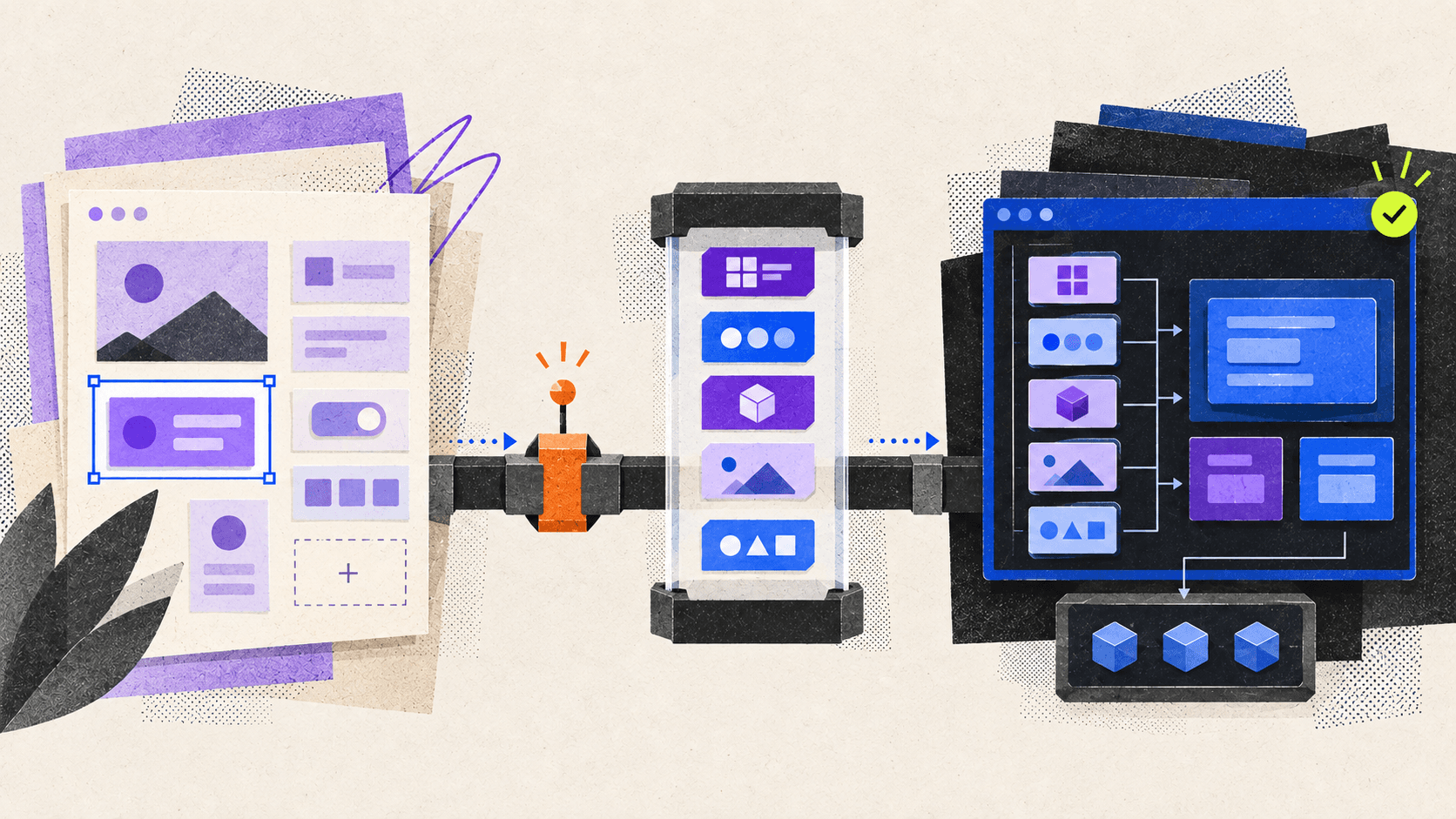
The connection works through Figma's official Model Context Protocol server. MCP gives Claude Code access to tools that can retrieve information from Figma without reducing the entire design to a screenshot.
Depending on the file and your permissions, Claude Code can receive:
Frames, components, and layout information
Variables and styles used by a selection
A screenshot for visual comparison
Component mappings from Code Connect
Images and other design assets where supported
FigJam and Figma Make context for related workflows
Figma's MCP server supplies this information, but it does not produce the final implementation by itself. Claude Code interprets the context, examines your repository, writes the code, and adapts the result to your framework and project rules. Figma describes the MCP output as a starting point rather than finished production code. Figma explains the division between the MCP server and the coding agent here.
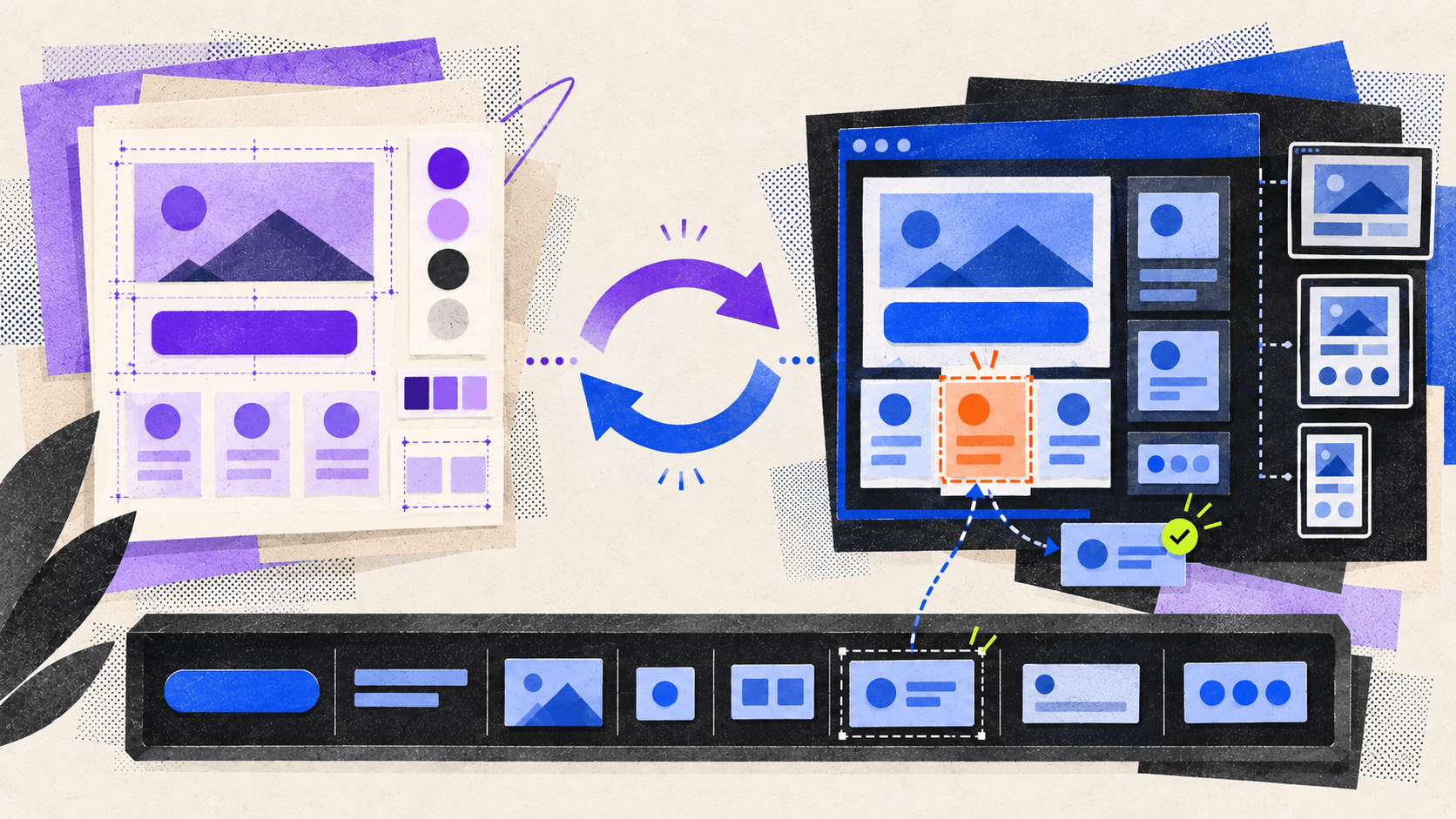
This guide focuses on implementing one pricing-card frame inside an existing React application. A screenshot shows the intended composition, while structured context carries relationships such as Auto Layout, variables, and component instances. Claude combines both with the repository’s framework, components, and conventions. The task is to reconcile two sources of truth without replacing unrelated code.
What Do You Need Before You Start?
Prepare these items before connecting the two tools:
A current installation of Claude Code
A Figma account with access to the design file
A local checkout of the repository you want Claude Code to edit
Permission to install the official Figma plugin or configure an MCP server
Figma offers remote and desktop MCP servers. Start with the remote server because it has the broadest feature set and does not require Figma Desktop. Figma recommends the remote server for general use.
Option | How you identify the design | Requirements | When to use it |
|---|---|---|---|
Remote MCP server | Paste a link to a Figma file, frame, or layer | Claude Code, Figma account, and browser authentication | The normal choice for most workflows |
Desktop MCP server | Use the active selection in Figma Desktop or provide a node reference | Figma Desktop, Dev Mode, and a Dev or Full seat on a paid plan | Specific local, organization, or enterprise workflows |
The remote server is available across Figma plans and seat types, but read-tool limits vary by plan and seat. Full and Dev seats receive higher allowances than View and Collab seats. Check Figma’s current access and rate-limit table before planning a large conversion.
Prepare the repository too. Confirm that it runs, record its lint, type-checking, test, and build commands, and note existing failures. Give Claude a short map of the target route, shared components, tokens, and nearby tests. Start with one component or meaningful page section rather than an entire application flow.
How to Connect Claude Code to Figma
Figma's official plugin is the recommended installation method. It configures the remote MCP connection and adds Figma Agent Skills that help Claude Code follow common workflows.
Open a terminal and install the plugin:
Restart Claude Code if it is already running.
Enter
/plugininside Claude Code.Open the Installed tab, select the Figma plugin, and start the authorization process.
Your browser will open. Sign in to the correct Figma account and select Allow access.
Return to Claude Code, open
/pluginagain, and confirm that Figma is connected.
These steps and the install command come from Figma's Claude Code setup guide. An organization can block plugin installation, so a failed installation may require help from your Claude administrator rather than a different command.
If you cannot use the plugin but are allowed to add the official server manually, run:
claude mcp add --transportclaude mcp add --transportStart a new Claude Code session, enter /mcp, select Figma, and complete the browser authentication flow. Add --scope user to the command if you want this manually configured server to be available across all of your projects. Without that flag, Claude Code uses local project scope. Figma documents both manual options here, while Anthropic's MCP documentation explains the scope behavior.
Only use the desktop route when you have a reason to run the server locally. Enable the MCP server from Dev Mode in the Figma desktop app, copy its address, and add it to Claude Code with the documented endpoint:
claude mcp add --transportclaude mcp add --transportFigma Desktop must remain open with the relevant file active for that local server to work.
Before implementation, give Claude a simple frame link and ask it to identify the frame, layout, and variables without editing files. This checks the MCP tools, Figma permission, and node link separately from any repository changes. If it fails, fix that layer before rewriting prompts or installing project packages.
How to Give Claude Code the Right Figma Context
Result quality depends on pointing Claude Code to the correct node and explaining how it belongs in your project.
For the remote server:
Open the design in Figma.
Select the exact frame or layer you want to implement.
Right-click the selection and choose Copy link to selection.
Open Claude Code from the root of the target repository.
Paste the selection link into a prompt with clear implementation constraints.
The remote MCP server does not navigate the link like a browser. It extracts the node ID from the URL and uses that identifier to request the relevant design context. Selection-only prompting without a link is specific to the desktop server. Figma documents this distinction in its tools and prompts reference.
Here is a practical prompt for implementing a pricing card in an existing React project:
Implement the pricing card at [FIGMA LINK] in this existing React project.

Before editing files:
1. Inspect the repository and identify its component, token, and styling conventions.
2. Retrieve the structured design context and a screenshot for the exact Figma node.
3. Reuse components from src/components/ui and the existing color, typography,
   spacing, and radius tokens.
4. Preserve the current data flow and do not replace unrelated files.
5. Match the desktop design and define sensible responsive behavior for smaller widths.
6. Preserve semantic HTML, keyboard access, visible focus states, and accessible contrast.

After implementation, run the relevant checks and summarize the files changed,
the existing components reused, and any remaining visual differences
Implement the pricing card at [FIGMA LINK] in this existing React project.

Before editing files:
1. Inspect the repository and identify its component, token, and styling conventions.
2. Retrieve the structured design context and a screenshot for the exact Figma node.
3. Reuse components from src/components/ui and the existing color, typography,
   spacing, and radius tokens.
4. Preserve the current data flow and do not replace unrelated files.
5. Match the desktop design and define sensible responsive behavior for smaller widths.
6. Preserve semantic HTML, keyboard access, visible focus states, and accessible contrast.

After implementation, run the relevant checks and summarize the files changed,
the existing components reused, and any remaining visual differences
The Figma context may describe the interface without explaining how your application handles routing, data, state, or component reuse, so Claude should inspect the repository before editing.
Figma recommends retrieving both design context and a screenshot before implementation. If a large selection produces a truncated response, Claude can first retrieve a lighter metadata map and then request smaller child nodes. Assets should be downloaded only after the exact design context has been identified. Figma provides this sequence in its recommended MCP rules.
Choose a useful selection
Choose the smallest parent frame containing the complete behavior. A text layer alone omits its container and spacing, while a whole page can add too much context. For a pricing card, select the card with its heading, price, features, and action. Handle the surrounding grid separately. Also state where the component belongs, what must remain untouched, and whether mock data is acceptable.
Split the work into three prompts
Use three prompts instead of one oversized request:
Inspect: Ask Claude to read the Figma node and repository, identify reusable components, and propose a file-level plan without editing.
Implement: Approve or correct the plan, then ask Claude to make the bounded change and run the normal checks.
Verify: Ask it to compare the rendered result with the Figma screenshot, list visible differences, and fix only the approved mismatches.
This creates a checkpoint before files change and exposes wrong assumptions about styling or assets early.
How to Make the Result Fit Your Existing Codebase
By default, Figma's get_design_context tool usually returns a React and Tailwind representation. You can request Vue, plain HTML and CSS, iOS, or another target, but naming the framework is only one part of the job. Figma lists the supported prompting patterns in its tool reference.
Tell Claude Code where the real building blocks live. Useful context includes:
The folder containing shared UI components
The files that define color, spacing, typography, and radius tokens
The icon package or internal icon wrapper
The project's styling method
Routing, state-management, and data-fetching conventions
Asset rules, including when to use SVG, optimized images, or existing files
Required browser support and responsive breakpoints
Accessibility requirements that are not visible in a static design
This prevents a common failure mode: code that resembles the frame but creates a second button, card, or typography system beside the one your application already uses.
A compact context block can make these expectations reusable across several Figma tasks:
Project context:
- Framework: React with TypeScript
- Styling: CSS Modules and tokens from src/styles/tokens.css
- Shared UI: src/components/ui
- Icons: use the existing icon wrapper in src/components/Icon
- Tests: Vitest and Testing Library
- Responsive breakpoints: use the existing media-query variables
- Do not add dependencies without approval
- Do not modify routing, data fetching, or shared tokens unless the task requires it
Project context:
- Framework: React with TypeScript
- Styling: CSS Modules and tokens from src/styles/tokens.css
- Shared UI: src/components/ui
- Icons: use the existing icon wrapper in src/components/Icon
- Tests: Vitest and Testing Library
- Responsive breakpoints: use the existing media-query variables
- Do not add dependencies without approval
- Do not modify routing, data fetching, or shared tokens unless the task requires it
Adjust the block to the real project instead of copying generic instructions between repositories.
Code Connect can supply import information, prop mappings, usage snippets, and implementation instructions when a Figma component is mapped to real code. Start with frequently used buttons, inputs, typography, cards, and navigation, then keep their mappings current. Figma’s Code Connect guide explains what reaches the agent.
The Figma file also matters. Components, variables, semantic names, Auto Layout, annotations, and developer-resource links provide more intent than unnamed groups and hardcoded values. Figma’s file-structure guide covers these recommendations.
A static frame may not define long text, errors, disabled controls, or intermediate viewport sizes. Tell Claude which behaviors should follow existing patterns and which decisions require human review.
Can Claude Code Update the Figma File Too?
Yes. The remote server can let Claude create or modify native Figma content, including frames, components, variables, and Auto Layout. Request this separately with a clear file or selection link and make large changes incrementally. Figma’s write-to-canvas guide provides the workflow.
Writing to an existing file requires a Full seat and edit permission. The beta workflow currently has a 20 KB response limit per call, no image-asset or custom-font support, and manual publishing requirements before Code Connect completes. Review every result, and do not combine canvas edits with code changes unless you intend to modify both systems.
How to Review the Implementation and Iterate
Treat the first implementation as a reviewable draft. Open it at the same viewport represented in Figma, then test smaller and larger widths.
Check these areas in order:
Structure: Is the correct content present, and are existing components being reused?
Layout: Compare widths, gaps, alignment, padding, and positioning.
Typography: Check font family, size, weight, line height, and wrapping.
Visual styling: Check colors, borders, radii, shadows, icons, and images.
States: Review hover, focus, disabled, loading, empty, and error states where relevant.
Responsiveness: Test overflow, stacking, resizing, and touch targets.
Code quality: Run linting, type checks, tests, and the production build used by the project.
Change scope: Inspect the git diff for unrelated edits, duplicate components, new dependencies, or hardcoded values that should use tokens.
When you find a mismatch, make the next request narrow. For example:
At 390px, make the pricing-card button full width and keep 16px gaps in the
feature list. Recheck only this component against the linked Figma node, keep
the existing Button component, and do not modify other page sections
At 390px, make the pricing-card button full width and keep 16px gaps in the
feature list. Recheck only this component against the linked Figma node, keep
the existing Button component, and do not modify other page sections
This keeps the diff easier to inspect and reduces the chance of losing work that was already correct.
Test real content, including long headings, missing optional fields, translated strings, and enough items to stress the layout. Check heading order, labels, keyboard behavior, focus, and screen-reader output with the project’s normal tools. For responsive work, decide which elements wrap, stack, scroll, hide, or realign instead of scaling every value proportionally.
Run Claude Code and Figma From a Vagon Cloud Computer
The workflow above can run on a local computer, but that also ties the repository, development tools, Figma access, and Claude Code sessions to one physical device. Vagon Cloud Computer gives this setup its own remote Windows workstation instead. Open it from a browser, continue from another supported device, and keep the complete working environment together without rebuilding it on every laptop you use.
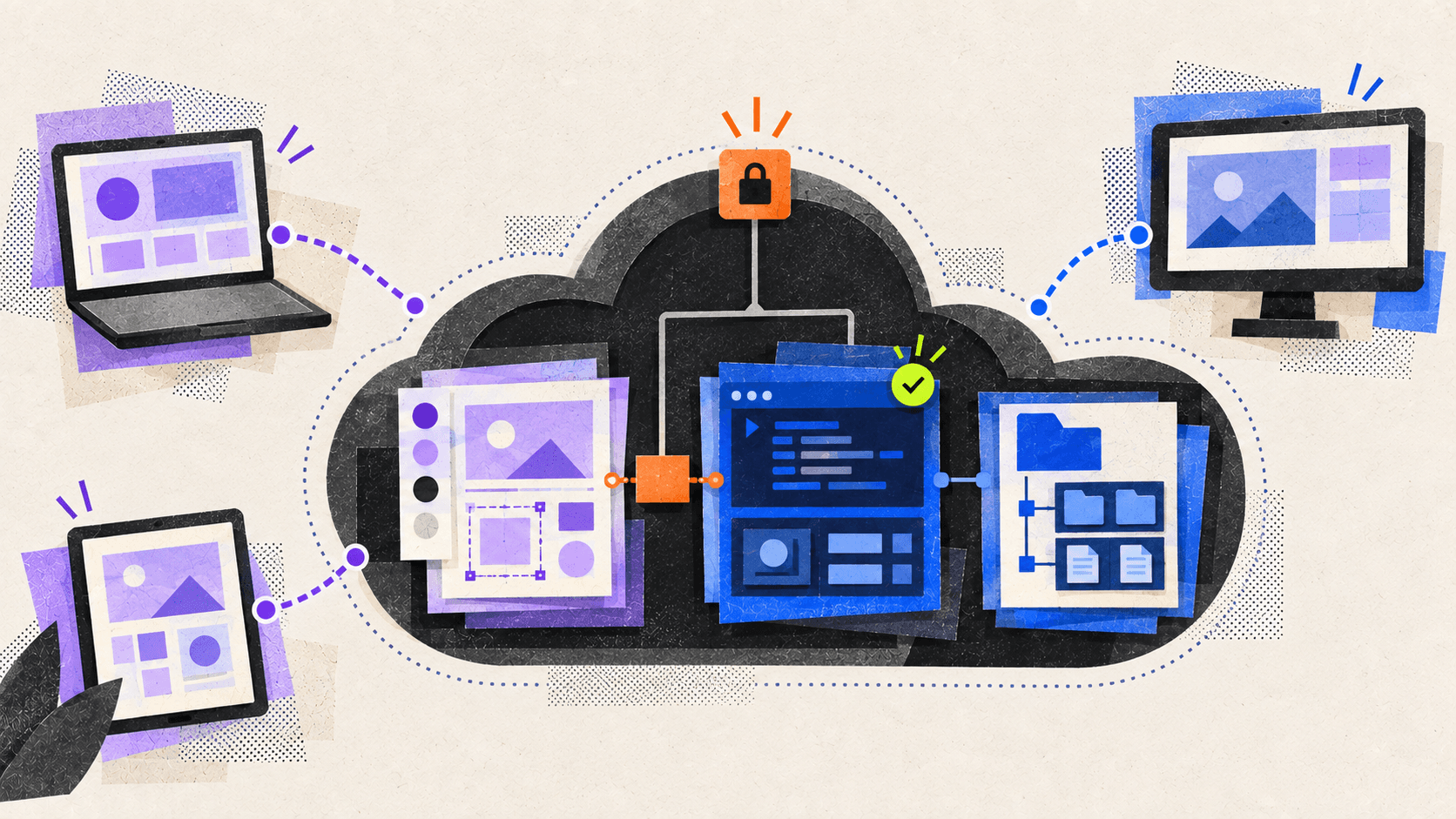
Each Vagon Computer runs as an isolated virtual machine with an encrypted remote connection. Inside it, you can keep the repository, development runtime, Claude Code, browser authentication, and Figma tools in one workspace. Vagon is not changing how Claude reasons or how Figma MCP works. It solves a different problem: where the complete workflow runs and how you reach it. Vagon describes its isolation and cross-device access model on its official product pages.
This makes Vagon Cloud Computer especially relevant if you:
Work from a lightweight laptop, Chromebook, tablet, or several different computers.
Want the agent, project dependencies, and downloaded packages to run away from your personal machine.
Need a ready-to-resume Windows workspace for the same repository and design project.
Want to use Figma's desktop MCP server without buying or carrying another Windows workstation.
Prefer usage-based access instead of purchasing a separate development computer for an occasional or project-based workflow.
Keep the complete workflow on one remote machine
For the simplest setup, install Claude Code in the Vagon Computer, clone the repository, and connect Figma's remote MCP server through the official plugin. The remote server remains the preferred route because it does not require Figma Desktop and provides the broadest feature set.
If you specifically need Figma's desktop MCP server, Vagon gives you a practical Windows route. Figma Desktop supports 64-bit Windows, and Claude Code now runs natively on Windows. Install both applications inside the same Vagon Computer so the MCP server's 127.0.0.1 address stays on one machine. Vagon describes Cloud Computer as a remote x86 Windows 11 PC, Figma lists its desktop-app requirements here, and Anthropic documents native Claude Code support on Windows.
The setup looks like this:
Create and start a Vagon Cloud Computer.
Install Claude Code and the development tools required by the repository.
Clone the project and run its normal setup checks.
Install Figma's official Claude Code plugin and authenticate the remote MCP server.
If the desktop MCP server is required, install Figma Desktop in the same Vagon Computer.
Stop the computer when the work session is finished and reconnect when you need the environment again.
Vagon supports manual installation for applications that are not available in its preinstalled catalog. You still need to verify software licensing, repository policy, and compatibility for your own stack. Vagon explains manual application installation here.
Pay for the workstation when you need it
Vagon charges active computer usage by the minute, while the storage that preserves applications and files between sessions is billed separately. That model is useful for project-based work, occasional development sessions, or anyone who does not want to purchase and maintain another physical machine. Stop the computer after the session to stop active compute usage while the paid storage keeps the environment available for the next connection. See Vagon's current Cloud Computer pricing.
The fit is clearest when portability, environment isolation, or access to a remote Windows desktop solves a real problem. You still need a reliable internet connection, and your organization must permit source code and Figma access inside a third-party cloud workstation. If those requirements work for your project, Vagon turns the Claude Code and Figma workflow into a workspace you can open from almost anywhere instead of a setup tied to one computer.
Common Problems, Security, and FAQs
Troubleshooting the connection and output
Most setup failures fall into a small number of categories:
Problem | Likely cause | Next step |
|---|---|---|
The Figma plugin is missing | Claude Code is outdated, the marketplace needs refreshing, or an administrator blocked it | Update Claude Code, refresh the official marketplace, or contact the administrator |
Authentication fails | The OAuth flow used the wrong account or did not complete | Reopen |
Claude cannot access the file | The authenticated Figma user lacks permission | Open the file with the same account and confirm its view or edit access |
Claude retrieves the wrong design | The prompt contains a file-level or stale link | Copy a fresh link to the exact frame or layer |
Context is incomplete or an error appears | The selection is too large or the request timed out | Retry with a smaller node and a simpler prompt |
The output ignores the design system | Claude lacks repository paths, project rules, or component mappings | Provide those paths, improve the Figma structure, or configure Code Connect |
For the desktop server, also confirm that Figma Desktop is running, the file is open, Dev Mode MCP is enabled, and Claude Code is using http://127.0.0.1:3845/mcp. Figma's connection troubleshooting guide and 500-error guidance recommend restarting the relevant app and retrying with a smaller selection when appropriate.
Use the official Figma plugin and OAuth flow. Do not paste access tokens into prompts or commit them to the repository. Remember that Claude Code can read and modify project files and run commands when you approve that access, so review its plan, commands, and final diff. Anthropic also notes that plugins can execute code with the user’s privileges, which is a good reason to avoid unverified marketplaces and third-party integrations. Anthropic covers plugin trust and security in its official plugin guide.
File permission does not make every design appropriate for an AI-assisted workflow. Follow company policies for unreleased products, customer information, confidential prototypes, and regulated data. Keep repository secrets out of prompts and tracked configuration, and review package installs, shell commands, generated assets, and changes outside the requested directory.
Frequently Asked Questions
Do I need a paid Figma plan to use Claude Code with Figma?
The remote MCP server is available across Figma plans and seat types, but usage limits vary. The desktop MCP server requires a Dev or Full seat on a paid plan. Writing to an existing Figma file through an agent requires a Full seat and edit access. Check Figma’s live access table before relying on specific limits.
Should I use the remote or desktop Figma MCP server?
Use the remote server unless you have a specific reason to run the integration through Figma Desktop. It has the broadest feature set, works through selection links, and is Figma’s recommended route. The desktop server is useful for selection-based local workflows but requires the app, Dev Mode, and a paid Dev or Full seat.
Can Claude Code edit my Figma design as well as generate code?
Yes. With the remote MCP server, the appropriate Figma skills, a Full seat, and edit permission, Claude Code can create or update native Figma content. Treat this as a separate beta workflow and review every canvas change. Read-only design-to-code work does not modify the original file.
Will Claude Code generate production-ready code from Figma?
Not automatically. Figma supplies design context and Claude produces an implementation based on that context and your repository. You still need to review component reuse, behavior, accessibility, responsiveness, tests, and security before merging the result.
Why does the generated interface look generic or ignore existing components?
Claude probably lacks one of three inputs: a precise Figma selection, a clear map of the repository, or component mappings. Provide the exact frame link, identify the shared component and token paths, and use Code Connect for frequently reused design-system components.
Can I run the complete workflow on Vagon Cloud Computer?
Yes, if the selected Vagon environment supports your development stack and your organization permits the repository and Figma access to be used in a third-party cloud workstation. Use Figma's remote MCP server for the simpler setup. If you need the desktop MCP server, use a compatible Windows Vagon Computer and run Figma Desktop and Claude Code inside that same machine. Confirm software licensing, allow for per-minute computer usage and separate storage charges, and do not treat VM isolation as a substitute for credential and repository security.
The reliable workflow is simple: connect the official remote server, share the smallest useful Figma selection, give Claude Code the repository rules it cannot infer, and review the result in small iterations. Ready to move that workflow into an isolated Windows workspace you can reach from almost any device? Create your Vagon Cloud Computer.
The simplest way to use Claude Code with Figma is to install Figma's official Claude Code plugin, connect your Figma account, and paste a link to the exact frame or layer you want to build. Claude Code can then retrieve structured design context and a visual reference, inspect your repository, and implement the design using your existing code.
This workflow is for teams with a Figma design and a working codebase. It is not a one-click converter, and the output still needs review and testing.
What Can Claude Code Actually Do With Figma?
The connection works through Figma's official Model Context Protocol server. MCP gives Claude Code access to tools that can retrieve information from Figma without reducing the entire design to a screenshot.
Depending on the file and your permissions, Claude Code can receive:
Frames, components, and layout information
Variables and styles used by a selection
A screenshot for visual comparison
Component mappings from Code Connect
Images and other design assets where supported
FigJam and Figma Make context for related workflows
Figma's MCP server supplies this information, but it does not produce the final implementation by itself. Claude Code interprets the context, examines your repository, writes the code, and adapts the result to your framework and project rules. Figma describes the MCP output as a starting point rather than finished production code. Figma explains the division between the MCP server and the coding agent here.
This guide focuses on implementing one pricing-card frame inside an existing React application. A screenshot shows the intended composition, while structured context carries relationships such as Auto Layout, variables, and component instances. Claude combines both with the repository’s framework, components, and conventions. The task is to reconcile two sources of truth without replacing unrelated code.
What Do You Need Before You Start?
Prepare these items before connecting the two tools:
A current installation of Claude Code
A Figma account with access to the design file
A local checkout of the repository you want Claude Code to edit
Permission to install the official Figma plugin or configure an MCP server
Figma offers remote and desktop MCP servers. Start with the remote server because it has the broadest feature set and does not require Figma Desktop. Figma recommends the remote server for general use.
Option | How you identify the design | Requirements | When to use it |
|---|---|---|---|
Remote MCP server | Paste a link to a Figma file, frame, or layer | Claude Code, Figma account, and browser authentication | The normal choice for most workflows |
Desktop MCP server | Use the active selection in Figma Desktop or provide a node reference | Figma Desktop, Dev Mode, and a Dev or Full seat on a paid plan | Specific local, organization, or enterprise workflows |
The remote server is available across Figma plans and seat types, but read-tool limits vary by plan and seat. Full and Dev seats receive higher allowances than View and Collab seats. Check Figma’s current access and rate-limit table before planning a large conversion.
Prepare the repository too. Confirm that it runs, record its lint, type-checking, test, and build commands, and note existing failures. Give Claude a short map of the target route, shared components, tokens, and nearby tests. Start with one component or meaningful page section rather than an entire application flow.
How to Connect Claude Code to Figma
Figma's official plugin is the recommended installation method. It configures the remote MCP connection and adds Figma Agent Skills that help Claude Code follow common workflows.
Open a terminal and install the plugin:
Restart Claude Code if it is already running.
Enter
/plugininside Claude Code.Open the Installed tab, select the Figma plugin, and start the authorization process.
Your browser will open. Sign in to the correct Figma account and select Allow access.
Return to Claude Code, open
/pluginagain, and confirm that Figma is connected.
These steps and the install command come from Figma's Claude Code setup guide. An organization can block plugin installation, so a failed installation may require help from your Claude administrator rather than a different command.
If you cannot use the plugin but are allowed to add the official server manually, run:
claude mcp add --transportStart a new Claude Code session, enter /mcp, select Figma, and complete the browser authentication flow. Add --scope user to the command if you want this manually configured server to be available across all of your projects. Without that flag, Claude Code uses local project scope. Figma documents both manual options here, while Anthropic's MCP documentation explains the scope behavior.
Only use the desktop route when you have a reason to run the server locally. Enable the MCP server from Dev Mode in the Figma desktop app, copy its address, and add it to Claude Code with the documented endpoint:
claude mcp add --transportFigma Desktop must remain open with the relevant file active for that local server to work.
Before implementation, give Claude a simple frame link and ask it to identify the frame, layout, and variables without editing files. This checks the MCP tools, Figma permission, and node link separately from any repository changes. If it fails, fix that layer before rewriting prompts or installing project packages.
How to Give Claude Code the Right Figma Context
Result quality depends on pointing Claude Code to the correct node and explaining how it belongs in your project.
For the remote server:
Open the design in Figma.
Select the exact frame or layer you want to implement.
Right-click the selection and choose Copy link to selection.
Open Claude Code from the root of the target repository.
Paste the selection link into a prompt with clear implementation constraints.
The remote MCP server does not navigate the link like a browser. It extracts the node ID from the URL and uses that identifier to request the relevant design context. Selection-only prompting without a link is specific to the desktop server. Figma documents this distinction in its tools and prompts reference.
Here is a practical prompt for implementing a pricing card in an existing React project:
Implement the pricing card at [FIGMA LINK] in this existing React project.

Before editing files:
1. Inspect the repository and identify its component, token, and styling conventions.
2. Retrieve the structured design context and a screenshot for the exact Figma node.
3. Reuse components from src/components/ui and the existing color, typography,
   spacing, and radius tokens.
4. Preserve the current data flow and do not replace unrelated files.
5. Match the desktop design and define sensible responsive behavior for smaller widths.
6. Preserve semantic HTML, keyboard access, visible focus states, and accessible contrast.

After implementation, run the relevant checks and summarize the files changed,
the existing components reused, and any remaining visual differences
The Figma context may describe the interface without explaining how your application handles routing, data, state, or component reuse, so Claude should inspect the repository before editing.
Figma recommends retrieving both design context and a screenshot before implementation. If a large selection produces a truncated response, Claude can first retrieve a lighter metadata map and then request smaller child nodes. Assets should be downloaded only after the exact design context has been identified. Figma provides this sequence in its recommended MCP rules.
Choose a useful selection
Choose the smallest parent frame containing the complete behavior. A text layer alone omits its container and spacing, while a whole page can add too much context. For a pricing card, select the card with its heading, price, features, and action. Handle the surrounding grid separately. Also state where the component belongs, what must remain untouched, and whether mock data is acceptable.
Split the work into three prompts
Use three prompts instead of one oversized request:
Inspect: Ask Claude to read the Figma node and repository, identify reusable components, and propose a file-level plan without editing.
Implement: Approve or correct the plan, then ask Claude to make the bounded change and run the normal checks.
Verify: Ask it to compare the rendered result with the Figma screenshot, list visible differences, and fix only the approved mismatches.
This creates a checkpoint before files change and exposes wrong assumptions about styling or assets early.
How to Make the Result Fit Your Existing Codebase
By default, Figma's get_design_context tool usually returns a React and Tailwind representation. You can request Vue, plain HTML and CSS, iOS, or another target, but naming the framework is only one part of the job. Figma lists the supported prompting patterns in its tool reference.
Tell Claude Code where the real building blocks live. Useful context includes:
The folder containing shared UI components
The files that define color, spacing, typography, and radius tokens
The icon package or internal icon wrapper
The project's styling method
Routing, state-management, and data-fetching conventions
Asset rules, including when to use SVG, optimized images, or existing files
Required browser support and responsive breakpoints
Accessibility requirements that are not visible in a static design
This prevents a common failure mode: code that resembles the frame but creates a second button, card, or typography system beside the one your application already uses.
A compact context block can make these expectations reusable across several Figma tasks:
Project context:
- Framework: React with TypeScript
- Styling: CSS Modules and tokens from src/styles/tokens.css
- Shared UI: src/components/ui
- Icons: use the existing icon wrapper in src/components/Icon
- Tests: Vitest and Testing Library
- Responsive breakpoints: use the existing media-query variables
- Do not add dependencies without approval
- Do not modify routing, data fetching, or shared tokens unless the task requires it
Adjust the block to the real project instead of copying generic instructions between repositories.
Code Connect can supply import information, prop mappings, usage snippets, and implementation instructions when a Figma component is mapped to real code. Start with frequently used buttons, inputs, typography, cards, and navigation, then keep their mappings current. Figma’s Code Connect guide explains what reaches the agent.
The Figma file also matters. Components, variables, semantic names, Auto Layout, annotations, and developer-resource links provide more intent than unnamed groups and hardcoded values. Figma’s file-structure guide covers these recommendations.
A static frame may not define long text, errors, disabled controls, or intermediate viewport sizes. Tell Claude which behaviors should follow existing patterns and which decisions require human review.
Can Claude Code Update the Figma File Too?
Yes. The remote server can let Claude create or modify native Figma content, including frames, components, variables, and Auto Layout. Request this separately with a clear file or selection link and make large changes incrementally. Figma’s write-to-canvas guide provides the workflow.
Writing to an existing file requires a Full seat and edit permission. The beta workflow currently has a 20 KB response limit per call, no image-asset or custom-font support, and manual publishing requirements before Code Connect completes. Review every result, and do not combine canvas edits with code changes unless you intend to modify both systems.
How to Review the Implementation and Iterate
Treat the first implementation as a reviewable draft. Open it at the same viewport represented in Figma, then test smaller and larger widths.
Check these areas in order:
Structure: Is the correct content present, and are existing components being reused?
Layout: Compare widths, gaps, alignment, padding, and positioning.
Typography: Check font family, size, weight, line height, and wrapping.
Visual styling: Check colors, borders, radii, shadows, icons, and images.
States: Review hover, focus, disabled, loading, empty, and error states where relevant.
Responsiveness: Test overflow, stacking, resizing, and touch targets.
Code quality: Run linting, type checks, tests, and the production build used by the project.
Change scope: Inspect the git diff for unrelated edits, duplicate components, new dependencies, or hardcoded values that should use tokens.
When you find a mismatch, make the next request narrow. For example:
At 390px, make the pricing-card button full width and keep 16px gaps in the
feature list. Recheck only this component against the linked Figma node, keep
the existing Button component, and do not modify other page sections
This keeps the diff easier to inspect and reduces the chance of losing work that was already correct.
Test real content, including long headings, missing optional fields, translated strings, and enough items to stress the layout. Check heading order, labels, keyboard behavior, focus, and screen-reader output with the project’s normal tools. For responsive work, decide which elements wrap, stack, scroll, hide, or realign instead of scaling every value proportionally.
Run Claude Code and Figma From a Vagon Cloud Computer
The workflow above can run on a local computer, but that also ties the repository, development tools, Figma access, and Claude Code sessions to one physical device. Vagon Cloud Computer gives this setup its own remote Windows workstation instead. Open it from a browser, continue from another supported device, and keep the complete working environment together without rebuilding it on every laptop you use.
Each Vagon Computer runs as an isolated virtual machine with an encrypted remote connection. Inside it, you can keep the repository, development runtime, Claude Code, browser authentication, and Figma tools in one workspace. Vagon is not changing how Claude reasons or how Figma MCP works. It solves a different problem: where the complete workflow runs and how you reach it. Vagon describes its isolation and cross-device access model on its official product pages.
This makes Vagon Cloud Computer especially relevant if you:
Work from a lightweight laptop, Chromebook, tablet, or several different computers.
Want the agent, project dependencies, and downloaded packages to run away from your personal machine.
Need a ready-to-resume Windows workspace for the same repository and design project.
Want to use Figma's desktop MCP server without buying or carrying another Windows workstation.
Prefer usage-based access instead of purchasing a separate development computer for an occasional or project-based workflow.
Keep the complete workflow on one remote machine
For the simplest setup, install Claude Code in the Vagon Computer, clone the repository, and connect Figma's remote MCP server through the official plugin. The remote server remains the preferred route because it does not require Figma Desktop and provides the broadest feature set.
If you specifically need Figma's desktop MCP server, Vagon gives you a practical Windows route. Figma Desktop supports 64-bit Windows, and Claude Code now runs natively on Windows. Install both applications inside the same Vagon Computer so the MCP server's 127.0.0.1 address stays on one machine. Vagon describes Cloud Computer as a remote x86 Windows 11 PC, Figma lists its desktop-app requirements here, and Anthropic documents native Claude Code support on Windows.
The setup looks like this:
Create and start a Vagon Cloud Computer.
Install Claude Code and the development tools required by the repository.
Clone the project and run its normal setup checks.
Install Figma's official Claude Code plugin and authenticate the remote MCP server.
If the desktop MCP server is required, install Figma Desktop in the same Vagon Computer.
Stop the computer when the work session is finished and reconnect when you need the environment again.
Vagon supports manual installation for applications that are not available in its preinstalled catalog. You still need to verify software licensing, repository policy, and compatibility for your own stack. Vagon explains manual application installation here.
Pay for the workstation when you need it
Vagon charges active computer usage by the minute, while the storage that preserves applications and files between sessions is billed separately. That model is useful for project-based work, occasional development sessions, or anyone who does not want to purchase and maintain another physical machine. Stop the computer after the session to stop active compute usage while the paid storage keeps the environment available for the next connection. See Vagon's current Cloud Computer pricing.
The fit is clearest when portability, environment isolation, or access to a remote Windows desktop solves a real problem. You still need a reliable internet connection, and your organization must permit source code and Figma access inside a third-party cloud workstation. If those requirements work for your project, Vagon turns the Claude Code and Figma workflow into a workspace you can open from almost anywhere instead of a setup tied to one computer.
Common Problems, Security, and FAQs
Troubleshooting the connection and output
Most setup failures fall into a small number of categories:
Problem | Likely cause | Next step |
|---|---|---|
The Figma plugin is missing | Claude Code is outdated, the marketplace needs refreshing, or an administrator blocked it | Update Claude Code, refresh the official marketplace, or contact the administrator |
Authentication fails | The OAuth flow used the wrong account or did not complete | Reopen |
Claude cannot access the file | The authenticated Figma user lacks permission | Open the file with the same account and confirm its view or edit access |
Claude retrieves the wrong design | The prompt contains a file-level or stale link | Copy a fresh link to the exact frame or layer |
Context is incomplete or an error appears | The selection is too large or the request timed out | Retry with a smaller node and a simpler prompt |
The output ignores the design system | Claude lacks repository paths, project rules, or component mappings | Provide those paths, improve the Figma structure, or configure Code Connect |
For the desktop server, also confirm that Figma Desktop is running, the file is open, Dev Mode MCP is enabled, and Claude Code is using http://127.0.0.1:3845/mcp. Figma's connection troubleshooting guide and 500-error guidance recommend restarting the relevant app and retrying with a smaller selection when appropriate.
Use the official Figma plugin and OAuth flow. Do not paste access tokens into prompts or commit them to the repository. Remember that Claude Code can read and modify project files and run commands when you approve that access, so review its plan, commands, and final diff. Anthropic also notes that plugins can execute code with the user’s privileges, which is a good reason to avoid unverified marketplaces and third-party integrations. Anthropic covers plugin trust and security in its official plugin guide.
File permission does not make every design appropriate for an AI-assisted workflow. Follow company policies for unreleased products, customer information, confidential prototypes, and regulated data. Keep repository secrets out of prompts and tracked configuration, and review package installs, shell commands, generated assets, and changes outside the requested directory.
Frequently Asked Questions
Do I need a paid Figma plan to use Claude Code with Figma?
The remote MCP server is available across Figma plans and seat types, but usage limits vary. The desktop MCP server requires a Dev or Full seat on a paid plan. Writing to an existing Figma file through an agent requires a Full seat and edit access. Check Figma’s live access table before relying on specific limits.
Should I use the remote or desktop Figma MCP server?
Use the remote server unless you have a specific reason to run the integration through Figma Desktop. It has the broadest feature set, works through selection links, and is Figma’s recommended route. The desktop server is useful for selection-based local workflows but requires the app, Dev Mode, and a paid Dev or Full seat.
Can Claude Code edit my Figma design as well as generate code?
Yes. With the remote MCP server, the appropriate Figma skills, a Full seat, and edit permission, Claude Code can create or update native Figma content. Treat this as a separate beta workflow and review every canvas change. Read-only design-to-code work does not modify the original file.
Will Claude Code generate production-ready code from Figma?
Not automatically. Figma supplies design context and Claude produces an implementation based on that context and your repository. You still need to review component reuse, behavior, accessibility, responsiveness, tests, and security before merging the result.
Why does the generated interface look generic or ignore existing components?
Claude probably lacks one of three inputs: a precise Figma selection, a clear map of the repository, or component mappings. Provide the exact frame link, identify the shared component and token paths, and use Code Connect for frequently reused design-system components.
Can I run the complete workflow on Vagon Cloud Computer?
Yes, if the selected Vagon environment supports your development stack and your organization permits the repository and Figma access to be used in a third-party cloud workstation. Use Figma's remote MCP server for the simpler setup. If you need the desktop MCP server, use a compatible Windows Vagon Computer and run Figma Desktop and Claude Code inside that same machine. Confirm software licensing, allow for per-minute computer usage and separate storage charges, and do not treat VM isolation as a substitute for credential and repository security.
The reliable workflow is simple: connect the official remote server, share the smallest useful Figma selection, give Claude Code the repository rules it cannot infer, and review the result in small iterations. Ready to move that workflow into an isolated Windows workspace you can reach from almost any device? Create your Vagon Cloud Computer.
Get Beyond Your Computer Performance
Run applications on your cloud computer with the latest generation hardware. No more crashes or lags.

Trial includes 1 hour usage + 7 days of storage.
Summarize with AI

Ready to focus on your creativity?
Vagon gives you the ability to create & render projects, collaborate, and stream applications with the power of the best hardware.

Vagon Blog
Run heavy applications on any device with
your personal computer on the cloud.
San Francisco, California
Solutions
Vagon Teams
Vagon Streams
Use Cases
Resources
Vagon Blog
How to Use Claude Code With Figma: Step-by-Step Guide
How to Use Claude Code With After Effects in 2026
How to Build a 3D Environment in Unity With GPT-6 Astra
How to Build a Unity Game With GPT-6 Astra (2026)
Best Laptop for Unreal Engine 5.8 in 2026: Top 10 Picks
Best PC for Unreal Engine 5.8 in 2026: 10 Top Picks
Best Freelance Platforms 2026: 9 Sites for Contracts
How to Generate B-Roll and Sound Effects in Premiere Pro
How to Automate Blender Tasks With GPT-6 Astra
Vagon Blog
Run heavy applications on any device with
your personal computer on the cloud.
San Francisco, California
Solutions
Vagon Teams
Vagon Streams
Use Cases
Resources
Vagon Blog
How to Use Claude Code With Figma: Step-by-Step Guide
How to Use Claude Code With After Effects in 2026
How to Build a 3D Environment in Unity With GPT-6 Astra
How to Build a Unity Game With GPT-6 Astra (2026)
Best Laptop for Unreal Engine 5.8 in 2026: Top 10 Picks
Best PC for Unreal Engine 5.8 in 2026: 10 Top Picks
Best Freelance Platforms 2026: 9 Sites for Contracts
How to Generate B-Roll and Sound Effects in Premiere Pro
How to Automate Blender Tasks With GPT-6 Astra
Vagon Blog
Run heavy applications on any device with
your personal computer on the cloud.
San Francisco, California
Solutions
Vagon Teams
Vagon Streams
Use Cases
Resources
Vagon Blog