Instant Connection for Pixel Streaming
— New Feature Automated Setup

How to Use Fusion With Codex: MCP and Computer Use Guide
Engineering
-
How to Use Fusion With Codex: MCP and Computer Use Guide
Engineering
How to Use Fusion With Codex: MCP and Computer Use Guide
Engineering
-
Table of Contents
Using Codex with Autodesk Fusion can mean two different things. In the simplest workflow, Codex helps you write Fusion API code or explain modeling steps, while you manually apply the result. A connected workflow goes further by giving Codex access to Fusion through MCP or allowing it to interact with the Fusion desktop through computer use.
With the Autodesk Fusion MCP Server, Codex can work with structured tools exposed by a running Fusion session. Depending on the available tools, it may inspect the active document, execute modeling commands, and work with components or design data. Autodesk also provides a separate Fusion Data MCP Server for cloud-hosted hubs, projects, folders, and items.
Computer use works through the visible interface. As described in OpenAI’s computer use documentation, the model can interpret screenshots and request actions such as clicking, typing, scrolling, or taking another screenshot. This makes it useful for Fusion panels, dialogs, menus, and workflows that are not exposed through MCP.
The two methods are complementary: MCP provides structured control, while computer use provides visual control. Both require a suitable desktop environment, careful permissions, and human review before consequential design changes.
What Can Codex Do With Fusion Through MCP and Computer Use?
Codex can work with Autodesk Fusion through two different connection types. The first is MCP, which gives Codex access to structured tools exposed by Fusion or Autodesk cloud services. The second is computer use, which lets Codex interact with the visible Fusion interface through screenshots and desktop actions.
The Autodesk Fusion MCP Server is designed for a live Fusion desktop session. When Fusion is running and its MCP server is enabled, an MCP-capable client can inspect the active document, execute supported modeling commands, and work with Fusion objects in real time. This is the more structured option because the client works with named tools instead of relying only on screen coordinates.
Autodesk also provides the Fusion Data MCP Server. This cloud-hosted server focuses on Fusion Manufacturing Data Model information such as hubs, projects, folders, and items. It does not require the Fusion desktop application to be open, but it is not a replacement for live modeling operations.
Computer use solves a different problem. According to OpenAI’s computer use documentation, a model can interpret screenshots and request actions such as clicking, typing, dragging, scrolling, waiting, and capturing another screenshot. In Fusion, this can help Codex navigate workspaces, open panels, interact with dialogs, and review visible model or simulation states.
A practical workflow may combine both methods:
MCP is usually better for repeatable operations. Computer use is more flexible when the task depends on Fusion’s current interface or a feature that is not exposed through MCP. Neither approach removes the need for user approval and design review.
MCP vs. Computer Use: Which Fusion Connection Should You Use?
MCP and computer use can both help Codex work with Fusion, but they operate at different levels. Choosing the right method depends on whether your task is structured and repeatable or visual and interface-driven.
Task | Better option |
|---|---|
Inspect the active Fusion document | Local Fusion MCP |
Execute supported modeling tools | Local Fusion MCP |
Query hubs, projects, folders, and items | Fusion Data MCP |
Open a panel or dialog | Computer use |
Navigate Fusion’s visible interface | Computer use |
Work with a feature not exposed through MCP | Computer use |
Repeat the same operation reliably | MCP |
Check the visual result in the viewport | Computer use |
Combine structured editing with visual review | MCP plus computer use |
The local Autodesk Fusion MCP Server is the better starting point when you want Codex to inspect a live document, access supported modeling tools, or execute repeatable operations. Because the interaction uses structured tools, it is easier to describe the intended action and verify the returned result.
Computer use is more appropriate when the task depends on what is visible on screen. For example, Codex may need to open the Design workspace, locate a panel, select a menu item, or inspect a simulation view. It can also help with workflows that are not yet exposed as MCP tools.
The strongest workflow often combines both methods. Codex can use MCP to inspect a component or apply a structured change, then use computer use to open the relevant Fusion panel and visually confirm the result.
Use MCP when precision, repeatability, and structured data matter. Use computer use when visual context and interface navigation matter. If a workflow includes both, assign each method a clear role instead of asking computer use to perform every operation.
How Do You Connect Codex to the Autodesk Fusion MCP Server?
The local Autodesk Fusion MCP workflow starts inside Fusion. Unlike the Fusion Data MCP Server, which runs through Autodesk cloud services, the local server connects an MCP client to a running Fusion desktop session.
1. Open the Fusion desktop application
Start the desktop version of Fusion and open a design that you can safely test. The local server works with the active Fusion session, so Fusion must remain open while Codex is using the connection.
The Autodesk Fusion MCP documentation specifically distinguishes the desktop server from the web client. This workflow should therefore be tested in the installed Fusion application rather than in a browser-only session.
2. Enable the MCP server in Fusion
In Fusion, open Preferences and navigate to:
Enable the Autodesk Fusion MCP Server option if it is available. Autodesk may update the location or wording of this setting between releases, so confirm the current label in the latest Fusion documentation.
You can also check Fusion’s Extensions or installed-application settings if the MCP option does not appear immediately. After enabling the server, keep Fusion running with the target design open.

Source: Autodesk Fusion MCP Server documentation
3. Add the server to Codex
Codex supports local and remote MCP servers through its CLI and configuration file. The official Codex MCP documentation provides these general patterns:
codex mcp add <server-name> -- <stdio-server-command>
codex mcp add <server-name> -- <stdio-server-command>
For a server exposed through a URL, Codex uses:
codex mcp add <server-name> --url <server-url>
codex mcp add <server-name> --url <server-url>
The Autodesk Fusion MCP connection instructions should provide the correct transport and endpoint for the current Fusion release. Use those values rather than guessing a port or copying a configuration intended for another client.

Source: Roam MCP integration guide for Codex
If you configure the server manually, Codex stores MCP settings in:
A URL-based configuration follows this general structure:
[mcp_servers.fusion]
[mcp_servers.fusion]
Replace the placeholder with the endpoint documented by Autodesk. Do not reuse a cloud Fusion Data MCP URL for the local live-session server.

Source: Autodesk Fusion MCP Server documentation
4. Verify the server in Codex
After adding the server, run:
You can also open the Codex terminal interface and use:
The Fusion server should appear as an available MCP connection. If it does not, restart Codex completely and confirm that Fusion is still running.
5. Test with a read-only request
Start with a request that only asks for information:
Then test the document context:
If Codex returns information from the open design, the connection is working. Keep write operations disabled or unapproved until you have confirmed that Codex is connected to the correct Fusion session. The exact tools available may change because Autodesk documents the Fusion MCP toolset as dynamic and dependent on the current server version.
How Do You Use Fusion Data MCP With Codex?
The Fusion Data MCP Server is designed for cloud-hosted Fusion information rather than direct control of the active Fusion viewport. It can help Codex work with project structures and manufacturing data without requiring the Fusion desktop application to remain open.
According to the Autodesk Fusion MCP documentation, the Fusion Data MCP Server can provide access to information such as:
Autodesk hubs
Fusion projects
Folders
Design items
Manufacturing Data Model resources
Project and file relationships
This makes it useful for organization and data-management tasks. For example, you could ask Codex:
Or:
Because the server runs through Autodesk cloud services, Fusion does not need to be open for these requests. However, Codex still needs an MCP client configuration that supports the server’s transport and authentication requirements. Autodesk documents the Fusion Data MCP Server as a streamable HTTP service that uses Autodesk account sign-in.

Source: Autodesk Fusion MCP Server documentation
The setup should therefore be treated differently from the local Fusion MCP workflow:
This server is not intended to replace the local desktop server when you need to inspect or modify the active model in Fusion. If your request involves creating geometry, changing a sketch, editing a feature, or reviewing the current viewport, use the local Fusion MCP Server or computer use instead.
A useful combined workflow is to use Fusion Data MCP to locate the correct project or design, then open that design in Fusion and use the local MCP connection or computer use for the actual modeling task. This separation helps prevent confusion between cloud project data and the live desktop document.

Source: Autodesk Fusion Data MCP Server documentation
How Do You Use Computer Use With Fusion?
Computer use allows Codex to interact with Fusion through its visible desktop interface. Instead of calling a named Fusion tool, Codex receives a screenshot, interprets the current state of the application, and requests actions such as clicking, typing, dragging, scrolling, waiting, or taking another screenshot.
The OpenAI computer use documentation describes this as an action loop:
For example, you can ask Codex to navigate Fusion without changing the design:
Computer use can be helpful for tasks such as:
Opening a design from the Data Panel
Switching between Design and Manufacture workspaces
Opening the Parameters or Inspect panels
Selecting a component in the Browser
Navigating a context menu
Reviewing a simulation or toolpath view
Opening a dialog that is not exposed through MCP
Capturing a screenshot of the current model state

Source: ChatGPT Learn – Computer Use
The method is flexible, but it is less deterministic than a structured MCP tool. Its result can depend on screen resolution, window focus, interface layout, zoom level, active workspace, and the position of controls. If Fusion changes its interface or a dialog appears unexpectedly, Codex may need a new screenshot before continuing.
For that reason, use short action sequences and require verification after each important step:
For consequential actions, add an explicit approval requirement:
Computer use should run in a persistent desktop environment where Codex can maintain the Fusion session between actions. It should also be isolated from unrelated files, accounts, and applications. OpenAI recommends restricting the environment, treating screen content as untrusted, confirming consequential actions, and checking the actual result instead of relying only on the model’s final response.

Source: Fab Academy – Fusion 360 Interface
What Fusion Workflows Can You Automate With Codex?
The most useful Fusion workflows combine structured MCP operations with visual computer use. MCP handles tasks that can be expressed as precise tools or data queries, while computer use helps Codex navigate the interface and verify what is visible in the Fusion workspace.
MCP-oriented workflows
With the local Fusion MCP Server, Codex may be able to inspect the active document, review components, execute supported modeling commands, and work with exposed Fusion objects. The exact tools depend on the current server version and the capabilities Autodesk makes available.
Example prompts include:
For cloud-based work, Fusion Data MCP can help Codex locate projects, folders, items, and manufacturing data. This is useful before opening the design in Fusion.

Source: Autodesk Fusion Blog – Master the Timeline, Browser, & Preferences
Computer-use workflows
Computer use is useful when the task depends on the visible interface:
Open a design from the Data Panel
Switch to the Design or Manufacture workspace
Open a parameter or inspection panel
Select a component in the Browser
Review a simulation or toolpath
Navigate a dialog
Capture a screenshot for visual confirmation
These actions are more flexible, but they require more verification because Codex is interpreting the screen rather than calling a dedicated Fusion tool.
A combined workflow
A practical end-to-end workflow can look like this:
Autodesk’s Fusion 2026 release notes describe expanded MCP capabilities, including bulk property editing for components. However, feature availability can change between releases, so the article should not promise that every Fusion command or modeling feature is exposed through MCP. Always check the tools available in the connected session before planning the workflow.

Source: Autodesk Fusion Blog – Master the Timeline, Browser, & Preferences
How Do You Use MCP and Computer Use Safely With Fusion?
AI-assisted modeling can affect real designs, project data, and manufacturing workflows. MCP and computer use should therefore be treated as supervised tools, not as fully autonomous CAD operators.
Start with a copy or a versioned design. Before asking Codex to create, delete, or modify anything, duplicate the design or create a checkpoint that lets you compare the result with the original. Avoid testing a new workflow on the only copy of a production model.
Begin with read-only requests:
This gives you an opportunity to confirm that Codex is connected to the correct document and has identified the correct objects.
For every consequential action, separate planning from execution. Ask Codex to explain:
Which component, body, sketch, or feature it will affect
Which MCP tool or Fusion control it will use
Which parameters it will change
What result it expects
Whether the action will create a new version or modify the current design
Then require approval:
Computer use requires additional safeguards because screen content can be ambiguous. Ask Codex to take a fresh screenshot after opening a workspace, dialog, or panel. Use short action sequences and require verification before clicking buttons such as Apply, Generate, Save, Delete, or Post Process.
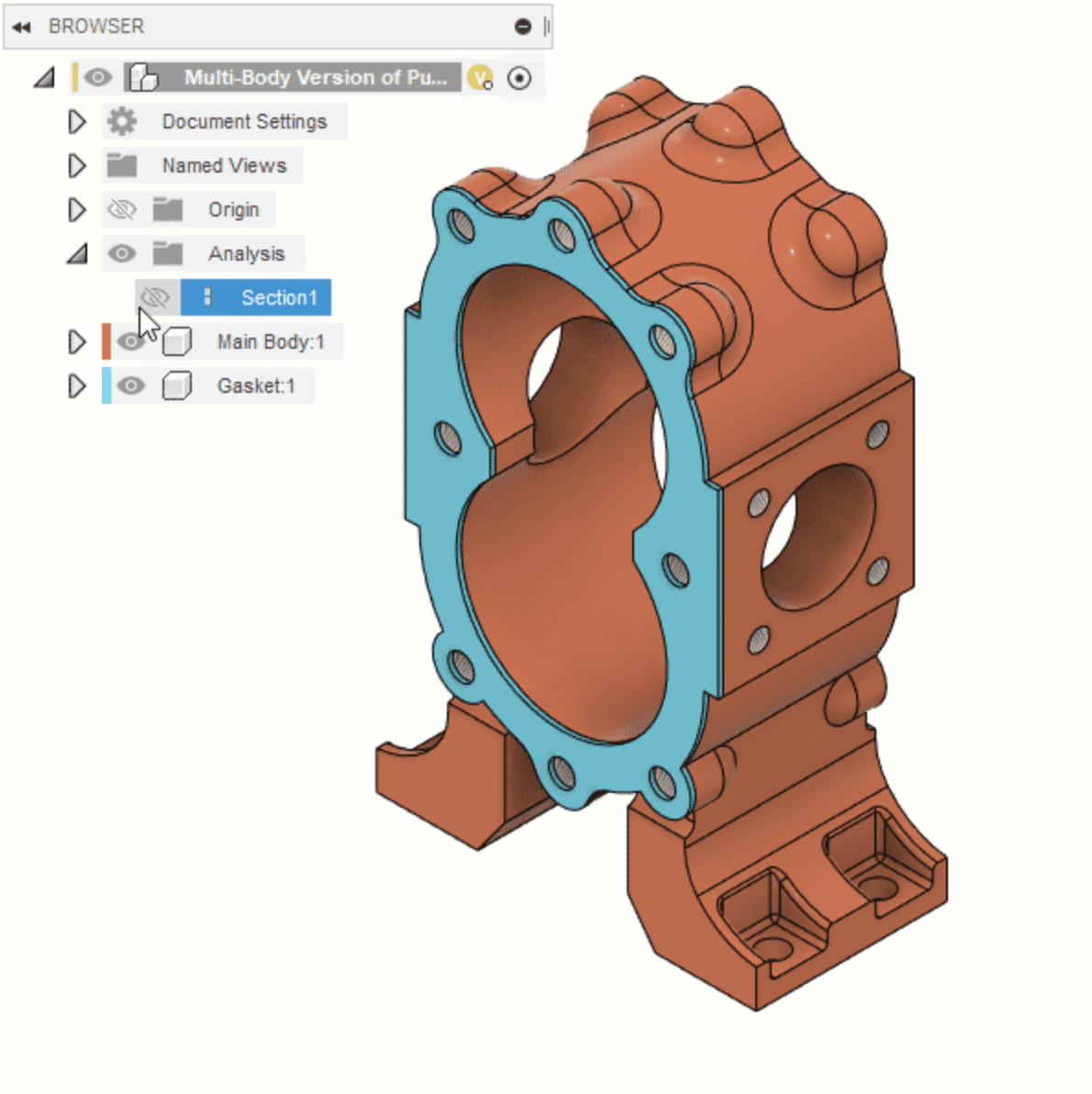
Source: Autodesk Fusion Help – Create a 3D Section View
The OpenAI computer use guidance recommends restricting the environment, treating on-screen text as untrusted, confirming consequential actions, and checking the actual result. These controls are particularly important in Fusion because a visual click can affect a sketch, feature, toolpath, or project setting.
For MCP workflows, limit the tools exposed to Codex when possible. Use read-only access during inspection, enable write operations only when necessary, and review the available tools before starting a session.
After every approved change:
Finally, inspect the model manually in Fusion. Check the timeline, dimensions, parameters, component relationships, warnings, and manufacturing results before saving or sharing the design. Codex can help perform operations, but the final CAD and engineering review remains the user’s responsibility.
Run Fusion and Codex Together on Vagon Cloud Computer
A Fusion workflow that combines MCP and computer use needs a stable desktop environment. Fusion must be available as a desktop application, Codex needs access to the MCP configuration, and computer use needs to see and interact with the same Fusion session. For users working on lightweight laptops, tablets, or devices with limited graphics performance, Vagon Cloud Computer can provide a practical remote workstation for the entire workflow.
With Vagon, you can launch a high-performance cloud computer and access it through a browser or the Vagon app. Inside that environment, you can install Autodesk Fusion, sign in with your Autodesk account, configure Codex, enable the Fusion MCP Server, and run computer-use workflows against the same desktop session.
A typical setup looks like this:
This arrangement is useful because the application and the AI tools remain in one environment. Codex can use MCP for structured Fusion operations, then use computer use to navigate the interface or visually verify the result. You do not need to move screenshots, project files, or application sessions between separate computers.
Vagon can also help users who prefer macOS but need a Windows workstation for a specific Fusion workflow. The Vagon guide to running Windows on Mac explains how a cloud Windows desktop can be accessed from a Mac without relying on a local Windows installation.
Vagon does not provide Autodesk Fusion MCP by itself. You still need a valid Autodesk Fusion license, the Fusion desktop application, Codex, and the relevant MCP or computer-use configuration. Vagon provides the persistent cloud computer where these components can run together, with performance that can be adjusted to match the size and complexity of your Fusion projects.
FAQs
Can Codex control Autodesk Fusion?
Codex can work with Fusion when it is connected through a compatible MCP server or a supported computer-use environment. The available actions depend on the Fusion MCP server, Codex surface, transport method, and permissions.
What is the difference between Fusion MCP and computer use?
Fusion MCP provides structured tools for working with Fusion documents, modeling operations, or Autodesk cloud data. Computer use interacts with the visible Fusion interface through screenshots, mouse actions, keyboard input, and verification screenshots.
Do I need Fusion to be open?
You need Fusion running for the local Autodesk Fusion MCP Server because it works with the active desktop session. The separate Fusion Data MCP Server is cloud-hosted and can access supported project data without the Fusion application being open.
Can Codex create 3D models in Fusion?
It may be able to create or modify geometry when the connected Fusion MCP server exposes the required modeling tools. Tool availability can change between releases, so the article should not promise access to every Fusion feature.
Can Codex click Fusion’s buttons and menus?
Computer use can request clicks, typing, scrolling, dragging, and other desktop actions in a supported runtime. However, visual interaction can be affected by window focus, screen resolution, interface changes, and unexpected dialogs. Require a screenshot and confirmation before consequential actions.
Can I use MCP and computer use together?
Yes. A useful workflow is to use MCP for structured inspection or modeling operations, then use computer use to open a Fusion panel and visually verify the result.
Does Fusion MCP work with the Fusion web client?
The local Fusion MCP Server is designed for the Fusion desktop application. The Fusion Data MCP Server is cloud-hosted and serves a different purpose, such as accessing hubs, projects, folders, and items.
Is Vagon required to use Codex with Fusion?
No. Vagon is optional. It is useful when you need a remote desktop with enough graphics performance to run Fusion, Codex, MCP, and computer-use workflows together.
Can Codex safely modify a Fusion design?
Codex can assist with modifications, but safety depends on the tools, permissions, and review process you configure. Use a copy or versioned design, begin with read-only inspection, require approval before consequential actions, and verify the final model manually in Fusion.
Can computer use replace the Fusion MCP Server?
Not in every workflow. Computer use can interact with the interface, but structured MCP tools are generally better for precise, repeatable operations and data queries. The most reliable setup uses each method for the tasks it handles best.
Using Codex with Autodesk Fusion can mean two different things. In the simplest workflow, Codex helps you write Fusion API code or explain modeling steps, while you manually apply the result. A connected workflow goes further by giving Codex access to Fusion through MCP or allowing it to interact with the Fusion desktop through computer use.
With the Autodesk Fusion MCP Server, Codex can work with structured tools exposed by a running Fusion session. Depending on the available tools, it may inspect the active document, execute modeling commands, and work with components or design data. Autodesk also provides a separate Fusion Data MCP Server for cloud-hosted hubs, projects, folders, and items.
Computer use works through the visible interface. As described in OpenAI’s computer use documentation, the model can interpret screenshots and request actions such as clicking, typing, scrolling, or taking another screenshot. This makes it useful for Fusion panels, dialogs, menus, and workflows that are not exposed through MCP.
The two methods are complementary: MCP provides structured control, while computer use provides visual control. Both require a suitable desktop environment, careful permissions, and human review before consequential design changes.
What Can Codex Do With Fusion Through MCP and Computer Use?
Codex can work with Autodesk Fusion through two different connection types. The first is MCP, which gives Codex access to structured tools exposed by Fusion or Autodesk cloud services. The second is computer use, which lets Codex interact with the visible Fusion interface through screenshots and desktop actions.
The Autodesk Fusion MCP Server is designed for a live Fusion desktop session. When Fusion is running and its MCP server is enabled, an MCP-capable client can inspect the active document, execute supported modeling commands, and work with Fusion objects in real time. This is the more structured option because the client works with named tools instead of relying only on screen coordinates.
Autodesk also provides the Fusion Data MCP Server. This cloud-hosted server focuses on Fusion Manufacturing Data Model information such as hubs, projects, folders, and items. It does not require the Fusion desktop application to be open, but it is not a replacement for live modeling operations.
Computer use solves a different problem. According to OpenAI’s computer use documentation, a model can interpret screenshots and request actions such as clicking, typing, dragging, scrolling, waiting, and capturing another screenshot. In Fusion, this can help Codex navigate workspaces, open panels, interact with dialogs, and review visible model or simulation states.
A practical workflow may combine both methods:
MCP is usually better for repeatable operations. Computer use is more flexible when the task depends on Fusion’s current interface or a feature that is not exposed through MCP. Neither approach removes the need for user approval and design review.
MCP vs. Computer Use: Which Fusion Connection Should You Use?
MCP and computer use can both help Codex work with Fusion, but they operate at different levels. Choosing the right method depends on whether your task is structured and repeatable or visual and interface-driven.
Task | Better option |
|---|---|
Inspect the active Fusion document | Local Fusion MCP |
Execute supported modeling tools | Local Fusion MCP |
Query hubs, projects, folders, and items | Fusion Data MCP |
Open a panel or dialog | Computer use |
Navigate Fusion’s visible interface | Computer use |
Work with a feature not exposed through MCP | Computer use |
Repeat the same operation reliably | MCP |
Check the visual result in the viewport | Computer use |
Combine structured editing with visual review | MCP plus computer use |
The local Autodesk Fusion MCP Server is the better starting point when you want Codex to inspect a live document, access supported modeling tools, or execute repeatable operations. Because the interaction uses structured tools, it is easier to describe the intended action and verify the returned result.
Computer use is more appropriate when the task depends on what is visible on screen. For example, Codex may need to open the Design workspace, locate a panel, select a menu item, or inspect a simulation view. It can also help with workflows that are not yet exposed as MCP tools.
The strongest workflow often combines both methods. Codex can use MCP to inspect a component or apply a structured change, then use computer use to open the relevant Fusion panel and visually confirm the result.
Use MCP when precision, repeatability, and structured data matter. Use computer use when visual context and interface navigation matter. If a workflow includes both, assign each method a clear role instead of asking computer use to perform every operation.
How Do You Connect Codex to the Autodesk Fusion MCP Server?
The local Autodesk Fusion MCP workflow starts inside Fusion. Unlike the Fusion Data MCP Server, which runs through Autodesk cloud services, the local server connects an MCP client to a running Fusion desktop session.
1. Open the Fusion desktop application
Start the desktop version of Fusion and open a design that you can safely test. The local server works with the active Fusion session, so Fusion must remain open while Codex is using the connection.
The Autodesk Fusion MCP documentation specifically distinguishes the desktop server from the web client. This workflow should therefore be tested in the installed Fusion application rather than in a browser-only session.
2. Enable the MCP server in Fusion
In Fusion, open Preferences and navigate to:
Enable the Autodesk Fusion MCP Server option if it is available. Autodesk may update the location or wording of this setting between releases, so confirm the current label in the latest Fusion documentation.
You can also check Fusion’s Extensions or installed-application settings if the MCP option does not appear immediately. After enabling the server, keep Fusion running with the target design open.
Source: Autodesk Fusion MCP Server documentation
3. Add the server to Codex
Codex supports local and remote MCP servers through its CLI and configuration file. The official Codex MCP documentation provides these general patterns:
codex mcp add <server-name> -- <stdio-server-command>
For a server exposed through a URL, Codex uses:
codex mcp add <server-name> --url <server-url>
The Autodesk Fusion MCP connection instructions should provide the correct transport and endpoint for the current Fusion release. Use those values rather than guessing a port or copying a configuration intended for another client.
Source: Roam MCP integration guide for Codex
If you configure the server manually, Codex stores MCP settings in:
A URL-based configuration follows this general structure:
[mcp_servers.fusion]
Replace the placeholder with the endpoint documented by Autodesk. Do not reuse a cloud Fusion Data MCP URL for the local live-session server.
Source: Autodesk Fusion MCP Server documentation
4. Verify the server in Codex
After adding the server, run:
You can also open the Codex terminal interface and use:
The Fusion server should appear as an available MCP connection. If it does not, restart Codex completely and confirm that Fusion is still running.
5. Test with a read-only request
Start with a request that only asks for information:
Then test the document context:
If Codex returns information from the open design, the connection is working. Keep write operations disabled or unapproved until you have confirmed that Codex is connected to the correct Fusion session. The exact tools available may change because Autodesk documents the Fusion MCP toolset as dynamic and dependent on the current server version.
How Do You Use Fusion Data MCP With Codex?
The Fusion Data MCP Server is designed for cloud-hosted Fusion information rather than direct control of the active Fusion viewport. It can help Codex work with project structures and manufacturing data without requiring the Fusion desktop application to remain open.
According to the Autodesk Fusion MCP documentation, the Fusion Data MCP Server can provide access to information such as:
Autodesk hubs
Fusion projects
Folders
Design items
Manufacturing Data Model resources
Project and file relationships
This makes it useful for organization and data-management tasks. For example, you could ask Codex:
Or:
Because the server runs through Autodesk cloud services, Fusion does not need to be open for these requests. However, Codex still needs an MCP client configuration that supports the server’s transport and authentication requirements. Autodesk documents the Fusion Data MCP Server as a streamable HTTP service that uses Autodesk account sign-in.
Source: Autodesk Fusion MCP Server documentation
The setup should therefore be treated differently from the local Fusion MCP workflow:
This server is not intended to replace the local desktop server when you need to inspect or modify the active model in Fusion. If your request involves creating geometry, changing a sketch, editing a feature, or reviewing the current viewport, use the local Fusion MCP Server or computer use instead.
A useful combined workflow is to use Fusion Data MCP to locate the correct project or design, then open that design in Fusion and use the local MCP connection or computer use for the actual modeling task. This separation helps prevent confusion between cloud project data and the live desktop document.
Source: Autodesk Fusion Data MCP Server documentation
How Do You Use Computer Use With Fusion?
Computer use allows Codex to interact with Fusion through its visible desktop interface. Instead of calling a named Fusion tool, Codex receives a screenshot, interprets the current state of the application, and requests actions such as clicking, typing, dragging, scrolling, waiting, or taking another screenshot.
The OpenAI computer use documentation describes this as an action loop:
For example, you can ask Codex to navigate Fusion without changing the design:
Computer use can be helpful for tasks such as:
Opening a design from the Data Panel
Switching between Design and Manufacture workspaces
Opening the Parameters or Inspect panels
Selecting a component in the Browser
Navigating a context menu
Reviewing a simulation or toolpath view
Opening a dialog that is not exposed through MCP
Capturing a screenshot of the current model state
Source: ChatGPT Learn – Computer Use
The method is flexible, but it is less deterministic than a structured MCP tool. Its result can depend on screen resolution, window focus, interface layout, zoom level, active workspace, and the position of controls. If Fusion changes its interface or a dialog appears unexpectedly, Codex may need a new screenshot before continuing.
For that reason, use short action sequences and require verification after each important step:
For consequential actions, add an explicit approval requirement:
Computer use should run in a persistent desktop environment where Codex can maintain the Fusion session between actions. It should also be isolated from unrelated files, accounts, and applications. OpenAI recommends restricting the environment, treating screen content as untrusted, confirming consequential actions, and checking the actual result instead of relying only on the model’s final response.
Source: Fab Academy – Fusion 360 Interface
What Fusion Workflows Can You Automate With Codex?
The most useful Fusion workflows combine structured MCP operations with visual computer use. MCP handles tasks that can be expressed as precise tools or data queries, while computer use helps Codex navigate the interface and verify what is visible in the Fusion workspace.
MCP-oriented workflows
With the local Fusion MCP Server, Codex may be able to inspect the active document, review components, execute supported modeling commands, and work with exposed Fusion objects. The exact tools depend on the current server version and the capabilities Autodesk makes available.
Example prompts include:
For cloud-based work, Fusion Data MCP can help Codex locate projects, folders, items, and manufacturing data. This is useful before opening the design in Fusion.
Source: Autodesk Fusion Blog – Master the Timeline, Browser, & Preferences
Computer-use workflows
Computer use is useful when the task depends on the visible interface:
Open a design from the Data Panel
Switch to the Design or Manufacture workspace
Open a parameter or inspection panel
Select a component in the Browser
Review a simulation or toolpath
Navigate a dialog
Capture a screenshot for visual confirmation
These actions are more flexible, but they require more verification because Codex is interpreting the screen rather than calling a dedicated Fusion tool.
A combined workflow
A practical end-to-end workflow can look like this:
Autodesk’s Fusion 2026 release notes describe expanded MCP capabilities, including bulk property editing for components. However, feature availability can change between releases, so the article should not promise that every Fusion command or modeling feature is exposed through MCP. Always check the tools available in the connected session before planning the workflow.
Source: Autodesk Fusion Blog – Master the Timeline, Browser, & Preferences
How Do You Use MCP and Computer Use Safely With Fusion?
AI-assisted modeling can affect real designs, project data, and manufacturing workflows. MCP and computer use should therefore be treated as supervised tools, not as fully autonomous CAD operators.
Start with a copy or a versioned design. Before asking Codex to create, delete, or modify anything, duplicate the design or create a checkpoint that lets you compare the result with the original. Avoid testing a new workflow on the only copy of a production model.
Begin with read-only requests:
This gives you an opportunity to confirm that Codex is connected to the correct document and has identified the correct objects.
For every consequential action, separate planning from execution. Ask Codex to explain:
Which component, body, sketch, or feature it will affect
Which MCP tool or Fusion control it will use
Which parameters it will change
What result it expects
Whether the action will create a new version or modify the current design
Then require approval:
Computer use requires additional safeguards because screen content can be ambiguous. Ask Codex to take a fresh screenshot after opening a workspace, dialog, or panel. Use short action sequences and require verification before clicking buttons such as Apply, Generate, Save, Delete, or Post Process.
Source: Autodesk Fusion Help – Create a 3D Section View
The OpenAI computer use guidance recommends restricting the environment, treating on-screen text as untrusted, confirming consequential actions, and checking the actual result. These controls are particularly important in Fusion because a visual click can affect a sketch, feature, toolpath, or project setting.
For MCP workflows, limit the tools exposed to Codex when possible. Use read-only access during inspection, enable write operations only when necessary, and review the available tools before starting a session.
After every approved change:
Finally, inspect the model manually in Fusion. Check the timeline, dimensions, parameters, component relationships, warnings, and manufacturing results before saving or sharing the design. Codex can help perform operations, but the final CAD and engineering review remains the user’s responsibility.
Run Fusion and Codex Together on Vagon Cloud Computer
A Fusion workflow that combines MCP and computer use needs a stable desktop environment. Fusion must be available as a desktop application, Codex needs access to the MCP configuration, and computer use needs to see and interact with the same Fusion session. For users working on lightweight laptops, tablets, or devices with limited graphics performance, Vagon Cloud Computer can provide a practical remote workstation for the entire workflow.
With Vagon, you can launch a high-performance cloud computer and access it through a browser or the Vagon app. Inside that environment, you can install Autodesk Fusion, sign in with your Autodesk account, configure Codex, enable the Fusion MCP Server, and run computer-use workflows against the same desktop session.
A typical setup looks like this:
This arrangement is useful because the application and the AI tools remain in one environment. Codex can use MCP for structured Fusion operations, then use computer use to navigate the interface or visually verify the result. You do not need to move screenshots, project files, or application sessions between separate computers.
Vagon can also help users who prefer macOS but need a Windows workstation for a specific Fusion workflow. The Vagon guide to running Windows on Mac explains how a cloud Windows desktop can be accessed from a Mac without relying on a local Windows installation.
Vagon does not provide Autodesk Fusion MCP by itself. You still need a valid Autodesk Fusion license, the Fusion desktop application, Codex, and the relevant MCP or computer-use configuration. Vagon provides the persistent cloud computer where these components can run together, with performance that can be adjusted to match the size and complexity of your Fusion projects.
FAQs
Can Codex control Autodesk Fusion?
Codex can work with Fusion when it is connected through a compatible MCP server or a supported computer-use environment. The available actions depend on the Fusion MCP server, Codex surface, transport method, and permissions.
What is the difference between Fusion MCP and computer use?
Fusion MCP provides structured tools for working with Fusion documents, modeling operations, or Autodesk cloud data. Computer use interacts with the visible Fusion interface through screenshots, mouse actions, keyboard input, and verification screenshots.
Do I need Fusion to be open?
You need Fusion running for the local Autodesk Fusion MCP Server because it works with the active desktop session. The separate Fusion Data MCP Server is cloud-hosted and can access supported project data without the Fusion application being open.
Can Codex create 3D models in Fusion?
It may be able to create or modify geometry when the connected Fusion MCP server exposes the required modeling tools. Tool availability can change between releases, so the article should not promise access to every Fusion feature.
Can Codex click Fusion’s buttons and menus?
Computer use can request clicks, typing, scrolling, dragging, and other desktop actions in a supported runtime. However, visual interaction can be affected by window focus, screen resolution, interface changes, and unexpected dialogs. Require a screenshot and confirmation before consequential actions.
Can I use MCP and computer use together?
Yes. A useful workflow is to use MCP for structured inspection or modeling operations, then use computer use to open a Fusion panel and visually verify the result.
Does Fusion MCP work with the Fusion web client?
The local Fusion MCP Server is designed for the Fusion desktop application. The Fusion Data MCP Server is cloud-hosted and serves a different purpose, such as accessing hubs, projects, folders, and items.
Is Vagon required to use Codex with Fusion?
No. Vagon is optional. It is useful when you need a remote desktop with enough graphics performance to run Fusion, Codex, MCP, and computer-use workflows together.
Can Codex safely modify a Fusion design?
Codex can assist with modifications, but safety depends on the tools, permissions, and review process you configure. Use a copy or versioned design, begin with read-only inspection, require approval before consequential actions, and verify the final model manually in Fusion.
Can computer use replace the Fusion MCP Server?
Not in every workflow. Computer use can interact with the interface, but structured MCP tools are generally better for precise, repeatable operations and data queries. The most reliable setup uses each method for the tasks it handles best.
Get Beyond Your Computer Performance
Run applications on your cloud computer with the latest generation hardware. No more crashes or lags.

Trial includes 1 hour usage + 7 days of storage.
Summarize with AI

Ready to focus on your creativity?
Vagon gives you the ability to create & render projects, collaborate, and stream applications with the power of the best hardware.

Vagon Blog
Run heavy applications on any device with
your personal computer on the cloud.
San Francisco, California
Solutions
Vagon Teams
Vagon Streams
Use Cases
Resources
Vagon Blog
How to Use Revit With Claude: MCP & Computer Use
How to Use CATIA With Claude: MCP & Computer Use
How to Use CATIA With Codex: MCP & Computer Use Guide
How to Use Autodesk Fusion With Claude: MCP & Computer Use
How to Use Fusion With Codex: MCP and Computer Use Guide
How to Use AutoCAD With Codex: Live MCP Setup Guide
How to Use AutoCAD With Claude Code: MCP Guide
How to Use Codex With Maya: Python, MEL & Cloud Workflow
How to Use Claude Code With Maya: MCP Setup Guide (2026)
Vagon Blog
Run heavy applications on any device with
your personal computer on the cloud.
San Francisco, California
Solutions
Vagon Teams
Vagon Streams
Use Cases
Resources
Vagon Blog
How to Use Revit With Claude: MCP & Computer Use
How to Use CATIA With Claude: MCP & Computer Use
How to Use CATIA With Codex: MCP & Computer Use Guide
How to Use Autodesk Fusion With Claude: MCP & Computer Use
How to Use Fusion With Codex: MCP and Computer Use Guide
How to Use AutoCAD With Codex: Live MCP Setup Guide
How to Use AutoCAD With Claude Code: MCP Guide
How to Use Codex With Maya: Python, MEL & Cloud Workflow
How to Use Claude Code With Maya: MCP Setup Guide (2026)
Vagon Blog
Run heavy applications on any device with
your personal computer on the cloud.
San Francisco, California
Solutions
Vagon Teams
Vagon Streams
Use Cases
Resources
Vagon Blog