Instant Connection for Pixel Streaming
— New Feature Automated Setup

How to Use Rhino With Codex: MCP & Computer Use Guide
Architecture
-
How to Use Rhino With Codex: MCP & Computer Use Guide
Architecture
How to Use Rhino With Codex: MCP & Computer Use Guide
Architecture
-
Table of Contents
A client asks for three versions of an existing product housing: a different ventilation pattern, a softer edge profile, and updated presentation views. In Rhino, the challenge is not simply creating new geometry. You also need to preserve the original model, maintain the intended dimensions, and check that each variation remains suitable for its next use.
Codex can help with that workflow, but generating a Python script is different from working with your open Rhino document. Through a compatible MCP connection, Codex can access the tools exposed by the connector, inspect model information, and run commands or scripts that create and modify geometry. McNeel’s RhinoAI project provides a documented connection path for Codex.
Computer Use adds another route: interacting with Rhino’s interface to inspect viewport results, operate dialogs, and review changes visually. These approaches complement each other. Structured access helps target the right objects; interface access helps examine how the result appears inside Rhino.
Neither approach removes the need for geometric checks or your approval of consequential changes. This guide follows a practical workflow: connect Codex, audit the existing model, create controlled variations, review their surfaces, and prepare deliverables without losing the source design.

Source: McNeel Rhino 8 Help
Give Codex Geometry Access, Not Just a Screenshot
A screenshot can show Codex the shape of a housing, but it cannot reliably reveal whether that housing is a closed polysurface, a mesh, or several overlapping surfaces. It also does not establish the document’s units, tolerance, or the identities of the objects you want changed.
A Rhino MCP connection gives Codex access to tools that communicate with Rhino. Depending on the connector and its version, those tools can retrieve document information, run Rhino commands, execute scripts, and capture viewport images. Codex should inspect the available tools before assuming it can perform a particular operation.
For our housing example, the first useful task is identifying the source geometry and its context. A named layer helps narrow the search, while object IDs provide precise targets for subsequent operations. Hidden reference geometry and unrelated objects should remain outside the editing scope.
Task | Preferred approach |
|---|---|
Read document settings and object information | MCP tools or scripts exposed by the connector |
Create dimensioned geometry and repeat transformations | MCP with Rhino commands or scripting |
Operate dialogs and inspect viewport results | Computer Use |
Assess whether a variation meets the brief | Geometry checks, visual review, and human judgment |
The distinction is about access, not intelligence. A connector-provided viewport capture gives Codex an image; it does not automatically give it mouse and keyboard control. Computer Use provides that separate interaction route when enabled and permitted.
Start with a bounded request:
Inspect the active Rhino document without changing it. Report its units, absolute tolerance, and objects on the Housing layer. Identify their object IDs and geometry types, and determine which are closed solids. Report anything you cannot verify.
That establishes a baseline before redesign begins.
Connect Codex to Rhino Through McNeel’s MCP Router
For this workflow, use McNeel’s RhinoAI connection guide for Codex. It documents a router-based setup that lets an external Codex session communicate with Rhino. Keep Codex, the router, and Rhino on the same computer for the initial configuration.
The setup differs by Rhino version. McNeel’s RhinoAI announcement describes RhinoAI as included in Rhino BETA, while Rhino 8 requires installation through Package Manager. This guide uses the Rhino 8 route.
Install the Rhino-side package
Open Rhino 8 and run PackageManager. Search for Rhino-MCP-Platform, install the package, and restart Rhino if requested. Follow the current McNeel instructions if the package name or installation steps change.

Source: vikas_venkatesha1 via McNeel Forum
Next, run:
The connection interface provides the information needed to configure an external AI client. Use the command and arguments supplied by your installation, especially if they contain an absolute executable path. Do not substitute a path copied from another computer.
Register the router with Codex
Codex stores MCP server configuration in ~/.codex/config.toml. McNeel documents this example:
[mcp_servers.rhino]
command = "rhino-mcp-router"
args = ["--default-version", "8"]
[mcp_servers.rhino]
command = "rhino-mcp-router"
args = ["--default-version", "8"]
The command identifies the router executable, and --default-version selects the Rhino version. Treat this as a configuration example, not a guarantee that the executable is available on your system’s command search path. If MCPConnect supplies a full path, use that value.
Preserve any existing configuration and add the Rhino entry without replacing unrelated servers. Restart Codex so it loads the connection.
You can inspect configured servers with:
Inside the Codex terminal interface, /mcp shows active MCP servers. These checks are documented in OpenAI’s MCP configuration guide.
Verify the connection without editing geometry
A registered server does not prove that Codex is communicating with the document you intended. Open a disposable Rhino file containing a simple box, then ask:
Use the Rhino MCP connection to inspect the active document. Report the Rhino version, document units, and the box’s object ID and geometry type. Do not create, modify, delete, or save anything. If more than one Rhino session is available, ask me which session to use.
Compare the response with Rhino’s actual document. If the information is wrong, resolve the session selection before continuing.
This establishes the MCP route only. Computer Use requires separate setup and application permissions. Connecting the router does not automatically authorize Codex to operate Rhino’s interface or make unrestricted changes to your files.
Audit the Model Before Asking for a Redesign
Before Codex changes the housing, establish what the document contains and which geometry belongs to the task. Save a separate working copy of the .3dm file, then identify the source objects. A layer named Housing is useful context, but it may contain construction curves, previous versions, or hidden references alongside the final body.
Ask Codex to build a compact inventory:
Inspect the Housing layer without editing anything. Report each object’s ID, name, geometry type, visibility, and bounding-box dimensions. Report the document units and absolute tolerance. For Brep objects, check validity and whether they are closed. Separate confirmed findings from information you cannot retrieve.
Three distinctions matter before proceeding:
Check | Why it matters |
|---|---|
Document units | A requested opening of “5” is ambiguous without millimeters, inches, or another unit. |
Geometry type | A mesh, a single NURBS surface, and a trimmed polysurface require different operations. |
Validity and closure | A valid object is not necessarily a closed solid, and closure alone does not establish manufacturing suitability. |
Rhino’s absolute tolerance also affects geometric operations. Record the existing value rather than asking Codex to loosen it whenever an operation fails. Modeling tolerance is not the same as the manufacturing clearance between two physical parts.
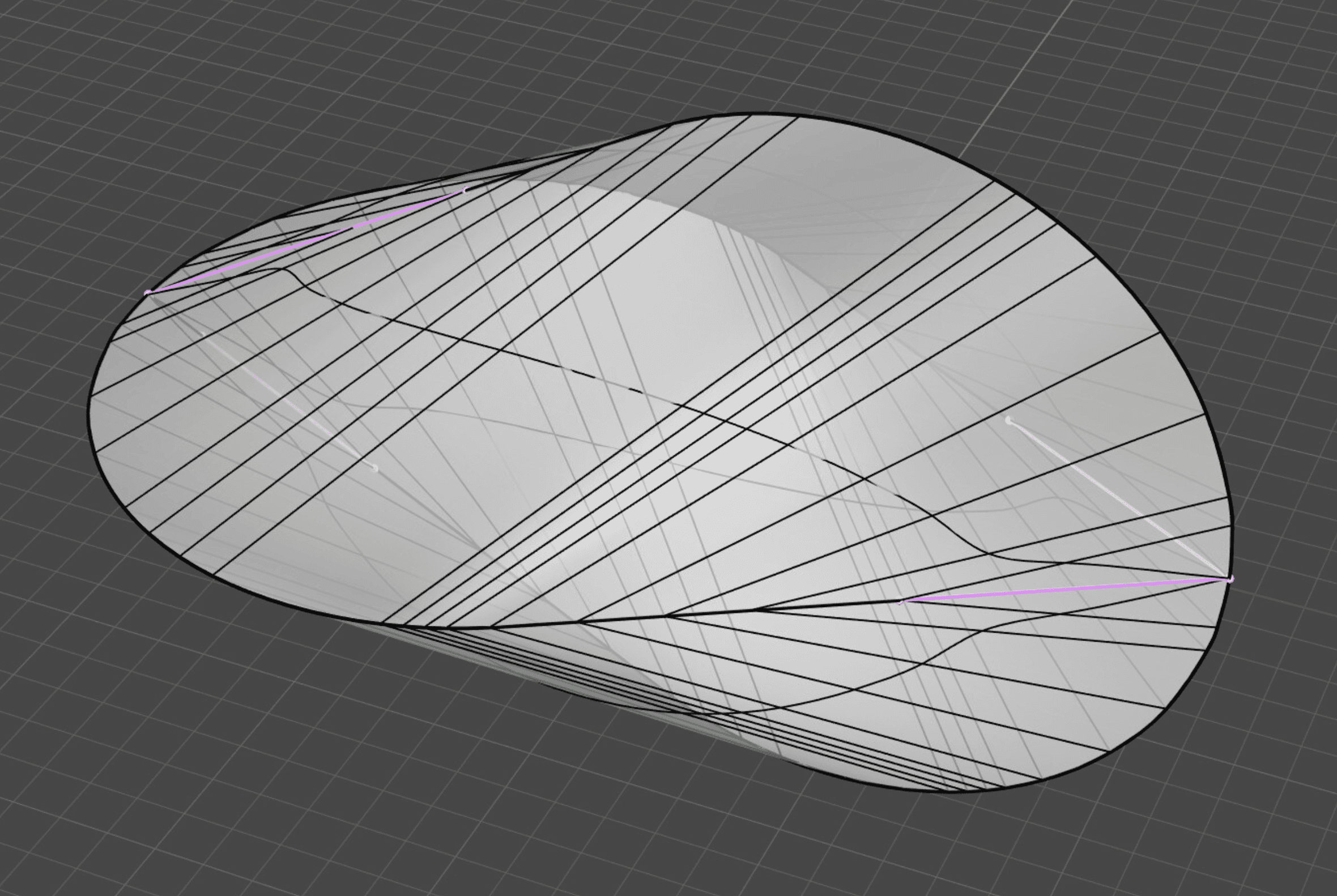
For surface-based geometry, distinguish a Brep’s underlying surfaces from its trimming boundaries. A housing can look continuous in shaded mode while retaining unjoined edges. Rhino’s ShowEdges can highlight naked or non-manifold edges for closer inspection.
Source: Helvetosaur via McNeel Forum
Finish the audit by setting an explicit editing boundary. Confirm the source object IDs, the dimensions that must remain unchanged, and any protected reference geometry. In our example, the outer envelope and mounting features stay fixed while the ventilation pattern and selected edge treatment may change.
If the audit reveals questionable geometry, resolve that issue before creating variants. Otherwise, Codex may reproduce the same defect three times and make the comparison harder to trust.
Build Three Design Variants Without Losing the Original
With the audit complete, give Codex a constrained design task. “Make the housing more interesting” leaves too many decisions open. Specify which features may change, which dimensions must remain fixed, and how the alternatives should be organized.
For our example, keep the housing’s outer envelope and mounting features unchanged. Create three ventilation patterns on copies of the approved source body: parallel slots, circular openings, and staggered slots. Treat the opening dimensions and spacing as design inputs that you approve, not values Codex should invent.
Define the boundaries before creating geometry
Use a prompt that separates planning from execution:
Propose three ventilation variants using the audited housing object IDs. Preserve the outer dimensions and mounting features. Use the approved vent region and dimensions listed below. First describe the operations and identify any missing inputs. After approval, create each variant on a separate layer. Do not modify or delete the source objects, overwrite files, or export anything.
Include the vent region, opening width or diameter, spacing, and required distance from protected features. These constraints make the result measurable. They do not, by themselves, establish adequate strength, airflow, or manufacturing suitability.
Organize the output into layers such as Variants::Slots, Variants::Circular, and Variants::Staggered. Keep the source on its existing layer, and ask Codex to report the IDs of every new object.

Source: McNeel
Make changes in small, inspectable steps
Through the connector’s scripting tools, Codex can use RhinoCommon to duplicate geometry, construct cutting objects, and attempt Boolean operations. The exact implementation should follow the available tools and the audited geometry type.
The workflow should have clear checkpoints:
Duplicate the approved source geometry.
Create and inspect the opening profiles or cutting volumes.
Attempt the cuts on one variant.
Check the resulting geometry before proceeding.
A Boolean operation can return no result or multiple pieces. Codex should report that outcome rather than silently treating any returned object as the finished housing. Cutting volumes also need to intersect the intended wall without unintentionally cutting protected features or the opposite side.
Apply the edge treatment separately. Specify the target edges and proposed radius, then inspect the result before repeating it across variants. A failed fillet is a reason to examine the geometry and dimensions, not automatically increase the document tolerance.

Source: McNeel Rhino 8 Help
Require a result report
For each variant, ask Codex to report the output object IDs, bounding-box dimensions, validity, closure status, and any failed operations. Compare those dimensions with the baseline audit.
Keep intermediate geometry until the result has been reviewed. Once a variant passes the agreed checks, you can authorize cleanup of its temporary cutters.
This approach makes failures easier to locate and preserves a usable original. It also gives you three traceable alternatives instead of an unexplained collection of new surfaces.
Use Computer Use to Review What the Model Actually Looks Like
The three variants now exist as separate objects, but a successful script does not tell you whether their ventilation patterns look balanced or whether the edge treatment introduces an unwanted transition. This is where Computer Use can complement the MCP workflow by operating Rhino’s interface and inspecting the displayed results.
Enable Computer Use in a supported desktop environment and grant access to Rhino when prompted. This permission is separate from the MCP connection. On Windows, Computer Use operates in the active desktop session, so keep Rhino visible and avoid moving the pointer or typing while Codex is interacting with it.
Review each variant under consistent conditions
Ask Codex to isolate one variant at a time and use the same views, display mode, and zoom level. Comparing different camera angles can make one ventilation pattern appear more open or an edge profile appear softer than another.
A bounded review prompt could be:
Use Computer Use to inspect the three housing variants in Rhino. Show each separately from the same top, side, and perspective views. Look for visibly uneven spacing, openings near protected features, and unexpected surface artifacts. Do not edit geometry or save files. Report observations separately from properties that require numerical checks.
These are proposed review tasks, not a guarantee that Codex will reliably identify every defect. Small openings, occluded faces, and dense geometry can make screenshot-based judgments uncertain.
Inspect edges, surface transitions, and internal geometry
Rhino’s ShowEdges highlights naked and non-manifold edges. Codex can use the interface to display those results and navigate around the affected area. Where the intended output is a closed solid, unexpected naked edges deserve investigation. For deliberately open surfaces, their presence may be expected.
For the revised edge profile, Zebra analysis provides reflected stripes that help reveal surface defects and continuity issues. Ask Codex to capture comparable views and flag apparent breaks or abrupt changes. Do not treat its visual interpretation as a precise continuity measurement.

Source: McNeel Rhino 8 Help
A clipping plane can also help expose internal geometry and show whether a cutting operation reached an unintended wall. Confirm clearances and wall thickness with geometric measurements rather than estimating them from the section view.

Source: McNeel
Turn observations into specific follow-up checks
The review should end with a short list of findings linked to the relevant variant and object IDs. Codex can then use MCP tools to investigate measurable concerns.
Keep observation and correction separate. A suspicious highlight might come from the display mesh rather than the underlying surface, so investigate before authorizing a geometry change.
Where Grasshopper Fits Into the Workflow
Three ventilation variants can be created with scripts, but repeated revisions may justify a parametric definition. If the client keeps changing slot width, spacing, or the vent region, Grasshopper can express those relationships without rebuilding each pattern manually.
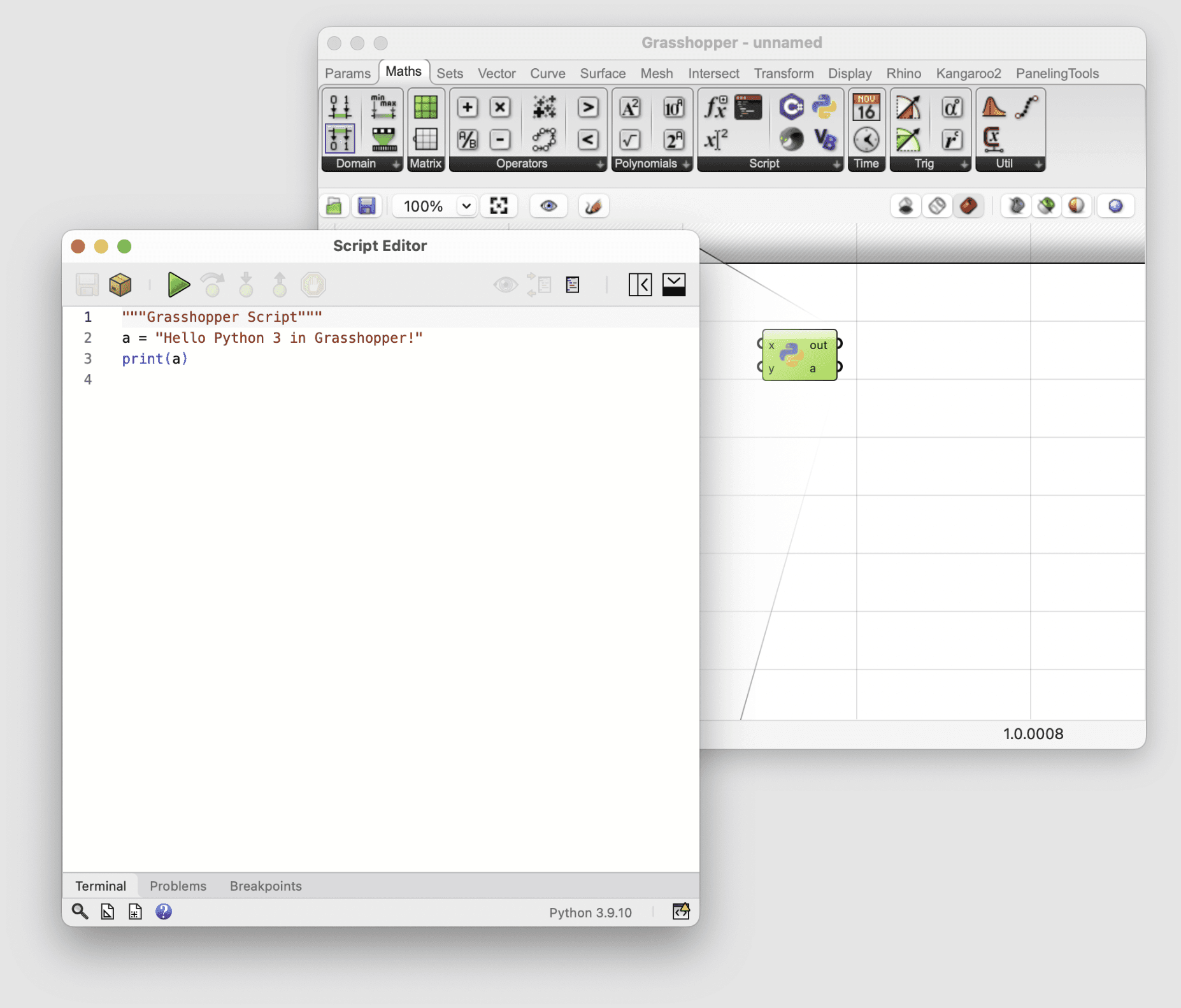
For our housing, a definition might generate opening profiles from a boundary curve and a small set of parameters. Codex can help develop or inspect that logic through the Grasshopper tools available in RhinoAI. Confirm the installed toolset first rather than assuming every component or canvas operation is supported.
Source: McNeel Developer Documentation
Keep three states distinct:
State | What it represents |
|---|---|
Definition | Components, connections, parameters, and processing logic |
Preview | Geometry displayed by Grasshopper, not necessarily stored as Rhino document objects |
Baked geometry | Objects added to the Rhino document for subsequent editing or delivery |
That distinction prevents a common misunderstanding: visible openings in the viewport do not prove that the housing has been cut or that exportable objects exist.
Use a focused request:
Inspect the ventilation definition. Identify the inputs controlling opening size, spacing, and boundary clearance. Report component errors and the number of generated profiles. Do not change parameters or bake geometry until I approve.
Data structure matters too. Grasshopper can organize geometry into branches, so an unexpected list or tree structure may produce mismatched operations or duplicated results.
Use MCP for accessible definition information and supported changes. Use Computer Use to inspect the canvas, warnings, and previews when needed. Before baking, confirm the parameter values and destination layer, then check the resulting Rhino objects independently.
Prepare Deliverables That Survive Export
Once you approve a variant, decide what the recipient actually needs. A presentation model, an editable Rhino document, and geometry for fabrication are different deliverables. Codex should not choose an export format solely because the file saves successfully.
Keep the reviewed .3dm working file as the source, then prepare separate exports for the agreed purpose.
Format | Typical purpose | Important checks |
|---|---|---|
| Continuing work in Rhino | Objects, layers, units, and required references |
STEP | Exchanging surface and solid geometry | Scale, geometry validity, and how the receiving application imports it |
STL | Mesh-based workflows, including some 3D printing processes | Mesh closure, resolution, and the recipient’s expected units |
STL requires particular care because its geometry does not reliably communicate a standardized unit setting. Confirm the intended scale with the recipient. Meshing also introduces an approximation of the source surfaces, so the export settings affect detail and file size.

Source: McNeel Rhino 5 Level 1 Training
Export only the approved objects
Use the object IDs recorded during review to define the export scope. Hidden cutters, reference geometry, and rejected variants should not accidentally enter the deliverable.
A useful prompt is:
Prepare an export of the approved housing variant using these object IDs. Confirm the requested format, units, destination, and export settings before proceeding. Exclude reference geometry and intermediate objects. Do not overwrite an existing file without approval.
Use filenames that identify the variant and revision, such as Housing_Slots_Rev03.step. Keep a brief record of the source file and export settings.
Reopen the result before handing it over
Import the exported file into a separate document or, preferably, inspect it in the intended receiving application. Compare its overall dimensions and check for missing objects, unexpected fragments, or changed geometry.
Computer Use can help inspect the import interface and displayed result, while structured tools can check measurable properties. Neither replaces the recipient’s requirements or final approval.
Fix the Failure, Not Just the Prompt
When something goes wrong, identify which part of the workflow failed before asking Codex to try again. A router startup problem, an unsuccessful Boolean, and an obstructed dialog require different responses.
Symptom | First check | Appropriate next step |
|---|---|---|
MCP connects, but reports unexpected objects | Active document and Rhino session | Confirm the target session before allowing edits. |
Rhino does not recognize | Package installation, loading, and runtime | Follow the current connector troubleshooting instructions. |
A Boolean produces no result or unexpected pieces | Input validity, closure, and intersection | Inspect the inputs and returned geometry before retrying. |
Curved surfaces look faceted | Display mesh and underlying geometry | Determine whether this is a display issue before rebuilding surfaces. |
Computer Use stops at a dialog | Active window, pending command, and permissions | Resolve the interface state without approving unrelated actions. |
For an unavailable MCPConnect command, reinstalling Codex is not necessarily relevant. A McNeel troubleshooting discussion documents cases involving Rhino’s .NET runtime. Check the installed package’s requirements rather than changing runtime settings blindly.
Geometry failures need equally specific diagnosis. Ask Codex to preserve the inputs, report the failed operation, and identify the affected object IDs. Do not automatically increase tolerance, delete fragments, or accept whichever result looks plausible.
Use this recovery instruction:
Stop after the failure. Report the operation, input object IDs, error information, and any objects created before it stopped. Do not retry or delete anything until we review the cause.
Before restarting, check whether the previous attempt already created partial output. Otherwise, retries can accumulate duplicate objects and make the document harder to diagnose.

Source: McNeel Rhino 8 Help
Give Rhino and Codex More Room to Work With Vagon
Automating a Rhino workflow does not remove its hardware demands. Large models, repeated geometry operations, dense Grasshopper definitions, and rendering can still push a lightweight laptop beyond a comfortable working pace.
Vagon Cloud Computer gives you access to a cloud workstation with configurable CPU, RAM, and GPU resources. Instead of choosing between carrying a powerful workstation and working on a less capable device, you can access your project remotely and select a performance option suited to the task.
For this workflow, the practical approach is to keep Rhino, Codex, and the MCP router on the same cloud computer. That keeps the local connector alongside the application it controls, while you access the desktop from your own device. Computer Use also needs to run against the intended desktop session, with the required permissions.
Choose resources according to the bottleneck. Geometry operations and Grasshopper calculations can depend heavily on CPU performance and memory. Viewport display and compatible GPU rendering workloads have different requirements. A larger GPU does not automatically accelerate every Rhino command.
Before committing a project, test the complete setup: Rhino licensing, connector startup, viewport interaction, a representative geometry operation, and your export workflow. McNeel lists certain virtualization and remote desktop environments as unsupported, so compatibility should not be assumed or presented as guaranteed.
Ready to give demanding projects more hardware headroom? Explore Vagon’s performance options and validate your Rhino and Codex workflow with a representative model first.
FAQs
Can Codex directly control Rhino?
Yes, through a compatible MCP connection. McNeel documents a Codex setup using its Rhino MCP router. Available operations depend on the installed connector and tools. Computer Use provides a separate route for interacting with Rhino’s interface.
Does Rhino 8 include the MCP connection by default?
McNeel’s documented Rhino 8 setup requires installing the Rhino-MCP-Platform package. Its RhinoAI announcement distinguishes this from Rhino BETA, where RhinoAI is included by default. Follow the instructions for your specific version.
Can Codex work with Grasshopper?
RhinoAI provides Grasshopper tooling, but check which operations your installation exposes. Reading or changing a definition, viewing its preview, and baking geometry are separate actions. Approve parameter changes and baking before adding output to your Rhino document.
Is a viewport screenshot the same as Computer Use?
No. An MCP tool can return a viewport image without providing mouse or keyboard control. Computer Use lets Codex interact with permitted applications visually. A screenshot alone also cannot establish dimensions, tolerances, or geometry validity.
Can Codex confirm that a Rhino model is ready for manufacturing?
Codex can assist with checks such as dimensions, validity, closure, and export inspection. Those checks do not certify manufacturability. Material, process, strength, clearances, and supplier requirements still need qualified review.
Can I run Rhino and Codex on a cloud computer?
It may be possible, but verify licensing, graphics support, connector compatibility, and desktop access first. McNeel lists certain virtualized environments as unsupported. Test a representative project before relying on the setup for production work.
A client asks for three versions of an existing product housing: a different ventilation pattern, a softer edge profile, and updated presentation views. In Rhino, the challenge is not simply creating new geometry. You also need to preserve the original model, maintain the intended dimensions, and check that each variation remains suitable for its next use.
Codex can help with that workflow, but generating a Python script is different from working with your open Rhino document. Through a compatible MCP connection, Codex can access the tools exposed by the connector, inspect model information, and run commands or scripts that create and modify geometry. McNeel’s RhinoAI project provides a documented connection path for Codex.
Computer Use adds another route: interacting with Rhino’s interface to inspect viewport results, operate dialogs, and review changes visually. These approaches complement each other. Structured access helps target the right objects; interface access helps examine how the result appears inside Rhino.
Neither approach removes the need for geometric checks or your approval of consequential changes. This guide follows a practical workflow: connect Codex, audit the existing model, create controlled variations, review their surfaces, and prepare deliverables without losing the source design.
Source: McNeel Rhino 8 Help
Give Codex Geometry Access, Not Just a Screenshot
A screenshot can show Codex the shape of a housing, but it cannot reliably reveal whether that housing is a closed polysurface, a mesh, or several overlapping surfaces. It also does not establish the document’s units, tolerance, or the identities of the objects you want changed.
A Rhino MCP connection gives Codex access to tools that communicate with Rhino. Depending on the connector and its version, those tools can retrieve document information, run Rhino commands, execute scripts, and capture viewport images. Codex should inspect the available tools before assuming it can perform a particular operation.
For our housing example, the first useful task is identifying the source geometry and its context. A named layer helps narrow the search, while object IDs provide precise targets for subsequent operations. Hidden reference geometry and unrelated objects should remain outside the editing scope.
Task | Preferred approach |
|---|---|
Read document settings and object information | MCP tools or scripts exposed by the connector |
Create dimensioned geometry and repeat transformations | MCP with Rhino commands or scripting |
Operate dialogs and inspect viewport results | Computer Use |
Assess whether a variation meets the brief | Geometry checks, visual review, and human judgment |
The distinction is about access, not intelligence. A connector-provided viewport capture gives Codex an image; it does not automatically give it mouse and keyboard control. Computer Use provides that separate interaction route when enabled and permitted.
Start with a bounded request:
Inspect the active Rhino document without changing it. Report its units, absolute tolerance, and objects on the Housing layer. Identify their object IDs and geometry types, and determine which are closed solids. Report anything you cannot verify.
That establishes a baseline before redesign begins.
Connect Codex to Rhino Through McNeel’s MCP Router
For this workflow, use McNeel’s RhinoAI connection guide for Codex. It documents a router-based setup that lets an external Codex session communicate with Rhino. Keep Codex, the router, and Rhino on the same computer for the initial configuration.
The setup differs by Rhino version. McNeel’s RhinoAI announcement describes RhinoAI as included in Rhino BETA, while Rhino 8 requires installation through Package Manager. This guide uses the Rhino 8 route.
Install the Rhino-side package
Open Rhino 8 and run PackageManager. Search for Rhino-MCP-Platform, install the package, and restart Rhino if requested. Follow the current McNeel instructions if the package name or installation steps change.
Source: vikas_venkatesha1 via McNeel Forum
Next, run:
The connection interface provides the information needed to configure an external AI client. Use the command and arguments supplied by your installation, especially if they contain an absolute executable path. Do not substitute a path copied from another computer.
Register the router with Codex
Codex stores MCP server configuration in ~/.codex/config.toml. McNeel documents this example:
[mcp_servers.rhino]
command = "rhino-mcp-router"
args = ["--default-version", "8"]
The command identifies the router executable, and --default-version selects the Rhino version. Treat this as a configuration example, not a guarantee that the executable is available on your system’s command search path. If MCPConnect supplies a full path, use that value.
Preserve any existing configuration and add the Rhino entry without replacing unrelated servers. Restart Codex so it loads the connection.
You can inspect configured servers with:
Inside the Codex terminal interface, /mcp shows active MCP servers. These checks are documented in OpenAI’s MCP configuration guide.
Verify the connection without editing geometry
A registered server does not prove that Codex is communicating with the document you intended. Open a disposable Rhino file containing a simple box, then ask:
Use the Rhino MCP connection to inspect the active document. Report the Rhino version, document units, and the box’s object ID and geometry type. Do not create, modify, delete, or save anything. If more than one Rhino session is available, ask me which session to use.
Compare the response with Rhino’s actual document. If the information is wrong, resolve the session selection before continuing.
This establishes the MCP route only. Computer Use requires separate setup and application permissions. Connecting the router does not automatically authorize Codex to operate Rhino’s interface or make unrestricted changes to your files.
Audit the Model Before Asking for a Redesign
Before Codex changes the housing, establish what the document contains and which geometry belongs to the task. Save a separate working copy of the .3dm file, then identify the source objects. A layer named Housing is useful context, but it may contain construction curves, previous versions, or hidden references alongside the final body.
Ask Codex to build a compact inventory:
Inspect the Housing layer without editing anything. Report each object’s ID, name, geometry type, visibility, and bounding-box dimensions. Report the document units and absolute tolerance. For Brep objects, check validity and whether they are closed. Separate confirmed findings from information you cannot retrieve.
Three distinctions matter before proceeding:
Check | Why it matters |
|---|---|
Document units | A requested opening of “5” is ambiguous without millimeters, inches, or another unit. |
Geometry type | A mesh, a single NURBS surface, and a trimmed polysurface require different operations. |
Validity and closure | A valid object is not necessarily a closed solid, and closure alone does not establish manufacturing suitability. |
Rhino’s absolute tolerance also affects geometric operations. Record the existing value rather than asking Codex to loosen it whenever an operation fails. Modeling tolerance is not the same as the manufacturing clearance between two physical parts.
For surface-based geometry, distinguish a Brep’s underlying surfaces from its trimming boundaries. A housing can look continuous in shaded mode while retaining unjoined edges. Rhino’s ShowEdges can highlight naked or non-manifold edges for closer inspection.
Source: Helvetosaur via McNeel Forum
Finish the audit by setting an explicit editing boundary. Confirm the source object IDs, the dimensions that must remain unchanged, and any protected reference geometry. In our example, the outer envelope and mounting features stay fixed while the ventilation pattern and selected edge treatment may change.
If the audit reveals questionable geometry, resolve that issue before creating variants. Otherwise, Codex may reproduce the same defect three times and make the comparison harder to trust.
Build Three Design Variants Without Losing the Original
With the audit complete, give Codex a constrained design task. “Make the housing more interesting” leaves too many decisions open. Specify which features may change, which dimensions must remain fixed, and how the alternatives should be organized.
For our example, keep the housing’s outer envelope and mounting features unchanged. Create three ventilation patterns on copies of the approved source body: parallel slots, circular openings, and staggered slots. Treat the opening dimensions and spacing as design inputs that you approve, not values Codex should invent.
Define the boundaries before creating geometry
Use a prompt that separates planning from execution:
Propose three ventilation variants using the audited housing object IDs. Preserve the outer dimensions and mounting features. Use the approved vent region and dimensions listed below. First describe the operations and identify any missing inputs. After approval, create each variant on a separate layer. Do not modify or delete the source objects, overwrite files, or export anything.
Include the vent region, opening width or diameter, spacing, and required distance from protected features. These constraints make the result measurable. They do not, by themselves, establish adequate strength, airflow, or manufacturing suitability.
Organize the output into layers such as Variants::Slots, Variants::Circular, and Variants::Staggered. Keep the source on its existing layer, and ask Codex to report the IDs of every new object.
Source: McNeel
Make changes in small, inspectable steps
Through the connector’s scripting tools, Codex can use RhinoCommon to duplicate geometry, construct cutting objects, and attempt Boolean operations. The exact implementation should follow the available tools and the audited geometry type.
The workflow should have clear checkpoints:
Duplicate the approved source geometry.
Create and inspect the opening profiles or cutting volumes.
Attempt the cuts on one variant.
Check the resulting geometry before proceeding.
A Boolean operation can return no result or multiple pieces. Codex should report that outcome rather than silently treating any returned object as the finished housing. Cutting volumes also need to intersect the intended wall without unintentionally cutting protected features or the opposite side.
Apply the edge treatment separately. Specify the target edges and proposed radius, then inspect the result before repeating it across variants. A failed fillet is a reason to examine the geometry and dimensions, not automatically increase the document tolerance.
Source: McNeel Rhino 8 Help
Require a result report
For each variant, ask Codex to report the output object IDs, bounding-box dimensions, validity, closure status, and any failed operations. Compare those dimensions with the baseline audit.
Keep intermediate geometry until the result has been reviewed. Once a variant passes the agreed checks, you can authorize cleanup of its temporary cutters.
This approach makes failures easier to locate and preserves a usable original. It also gives you three traceable alternatives instead of an unexplained collection of new surfaces.
Use Computer Use to Review What the Model Actually Looks Like
The three variants now exist as separate objects, but a successful script does not tell you whether their ventilation patterns look balanced or whether the edge treatment introduces an unwanted transition. This is where Computer Use can complement the MCP workflow by operating Rhino’s interface and inspecting the displayed results.
Enable Computer Use in a supported desktop environment and grant access to Rhino when prompted. This permission is separate from the MCP connection. On Windows, Computer Use operates in the active desktop session, so keep Rhino visible and avoid moving the pointer or typing while Codex is interacting with it.
Review each variant under consistent conditions
Ask Codex to isolate one variant at a time and use the same views, display mode, and zoom level. Comparing different camera angles can make one ventilation pattern appear more open or an edge profile appear softer than another.
A bounded review prompt could be:
Use Computer Use to inspect the three housing variants in Rhino. Show each separately from the same top, side, and perspective views. Look for visibly uneven spacing, openings near protected features, and unexpected surface artifacts. Do not edit geometry or save files. Report observations separately from properties that require numerical checks.
These are proposed review tasks, not a guarantee that Codex will reliably identify every defect. Small openings, occluded faces, and dense geometry can make screenshot-based judgments uncertain.
Inspect edges, surface transitions, and internal geometry
Rhino’s ShowEdges highlights naked and non-manifold edges. Codex can use the interface to display those results and navigate around the affected area. Where the intended output is a closed solid, unexpected naked edges deserve investigation. For deliberately open surfaces, their presence may be expected.
For the revised edge profile, Zebra analysis provides reflected stripes that help reveal surface defects and continuity issues. Ask Codex to capture comparable views and flag apparent breaks or abrupt changes. Do not treat its visual interpretation as a precise continuity measurement.
Source: McNeel Rhino 8 Help
A clipping plane can also help expose internal geometry and show whether a cutting operation reached an unintended wall. Confirm clearances and wall thickness with geometric measurements rather than estimating them from the section view.
Source: McNeel
Turn observations into specific follow-up checks
The review should end with a short list of findings linked to the relevant variant and object IDs. Codex can then use MCP tools to investigate measurable concerns.
Keep observation and correction separate. A suspicious highlight might come from the display mesh rather than the underlying surface, so investigate before authorizing a geometry change.
Where Grasshopper Fits Into the Workflow
Three ventilation variants can be created with scripts, but repeated revisions may justify a parametric definition. If the client keeps changing slot width, spacing, or the vent region, Grasshopper can express those relationships without rebuilding each pattern manually.
For our housing, a definition might generate opening profiles from a boundary curve and a small set of parameters. Codex can help develop or inspect that logic through the Grasshopper tools available in RhinoAI. Confirm the installed toolset first rather than assuming every component or canvas operation is supported.
Source: McNeel Developer Documentation
Keep three states distinct:
State | What it represents |
|---|---|
Definition | Components, connections, parameters, and processing logic |
Preview | Geometry displayed by Grasshopper, not necessarily stored as Rhino document objects |
Baked geometry | Objects added to the Rhino document for subsequent editing or delivery |
That distinction prevents a common misunderstanding: visible openings in the viewport do not prove that the housing has been cut or that exportable objects exist.
Use a focused request:
Inspect the ventilation definition. Identify the inputs controlling opening size, spacing, and boundary clearance. Report component errors and the number of generated profiles. Do not change parameters or bake geometry until I approve.
Data structure matters too. Grasshopper can organize geometry into branches, so an unexpected list or tree structure may produce mismatched operations or duplicated results.
Use MCP for accessible definition information and supported changes. Use Computer Use to inspect the canvas, warnings, and previews when needed. Before baking, confirm the parameter values and destination layer, then check the resulting Rhino objects independently.
Prepare Deliverables That Survive Export
Once you approve a variant, decide what the recipient actually needs. A presentation model, an editable Rhino document, and geometry for fabrication are different deliverables. Codex should not choose an export format solely because the file saves successfully.
Keep the reviewed .3dm working file as the source, then prepare separate exports for the agreed purpose.
Format | Typical purpose | Important checks |
|---|---|---|
| Continuing work in Rhino | Objects, layers, units, and required references |
STEP | Exchanging surface and solid geometry | Scale, geometry validity, and how the receiving application imports it |
STL | Mesh-based workflows, including some 3D printing processes | Mesh closure, resolution, and the recipient’s expected units |
STL requires particular care because its geometry does not reliably communicate a standardized unit setting. Confirm the intended scale with the recipient. Meshing also introduces an approximation of the source surfaces, so the export settings affect detail and file size.
Source: McNeel Rhino 5 Level 1 Training
Export only the approved objects
Use the object IDs recorded during review to define the export scope. Hidden cutters, reference geometry, and rejected variants should not accidentally enter the deliverable.
A useful prompt is:
Prepare an export of the approved housing variant using these object IDs. Confirm the requested format, units, destination, and export settings before proceeding. Exclude reference geometry and intermediate objects. Do not overwrite an existing file without approval.
Use filenames that identify the variant and revision, such as Housing_Slots_Rev03.step. Keep a brief record of the source file and export settings.
Reopen the result before handing it over
Import the exported file into a separate document or, preferably, inspect it in the intended receiving application. Compare its overall dimensions and check for missing objects, unexpected fragments, or changed geometry.
Computer Use can help inspect the import interface and displayed result, while structured tools can check measurable properties. Neither replaces the recipient’s requirements or final approval.
Fix the Failure, Not Just the Prompt
When something goes wrong, identify which part of the workflow failed before asking Codex to try again. A router startup problem, an unsuccessful Boolean, and an obstructed dialog require different responses.
Symptom | First check | Appropriate next step |
|---|---|---|
MCP connects, but reports unexpected objects | Active document and Rhino session | Confirm the target session before allowing edits. |
Rhino does not recognize | Package installation, loading, and runtime | Follow the current connector troubleshooting instructions. |
A Boolean produces no result or unexpected pieces | Input validity, closure, and intersection | Inspect the inputs and returned geometry before retrying. |
Curved surfaces look faceted | Display mesh and underlying geometry | Determine whether this is a display issue before rebuilding surfaces. |
Computer Use stops at a dialog | Active window, pending command, and permissions | Resolve the interface state without approving unrelated actions. |
For an unavailable MCPConnect command, reinstalling Codex is not necessarily relevant. A McNeel troubleshooting discussion documents cases involving Rhino’s .NET runtime. Check the installed package’s requirements rather than changing runtime settings blindly.
Geometry failures need equally specific diagnosis. Ask Codex to preserve the inputs, report the failed operation, and identify the affected object IDs. Do not automatically increase tolerance, delete fragments, or accept whichever result looks plausible.
Use this recovery instruction:
Stop after the failure. Report the operation, input object IDs, error information, and any objects created before it stopped. Do not retry or delete anything until we review the cause.
Before restarting, check whether the previous attempt already created partial output. Otherwise, retries can accumulate duplicate objects and make the document harder to diagnose.
Source: McNeel Rhino 8 Help
Give Rhino and Codex More Room to Work With Vagon
Automating a Rhino workflow does not remove its hardware demands. Large models, repeated geometry operations, dense Grasshopper definitions, and rendering can still push a lightweight laptop beyond a comfortable working pace.
Vagon Cloud Computer gives you access to a cloud workstation with configurable CPU, RAM, and GPU resources. Instead of choosing between carrying a powerful workstation and working on a less capable device, you can access your project remotely and select a performance option suited to the task.
For this workflow, the practical approach is to keep Rhino, Codex, and the MCP router on the same cloud computer. That keeps the local connector alongside the application it controls, while you access the desktop from your own device. Computer Use also needs to run against the intended desktop session, with the required permissions.
Choose resources according to the bottleneck. Geometry operations and Grasshopper calculations can depend heavily on CPU performance and memory. Viewport display and compatible GPU rendering workloads have different requirements. A larger GPU does not automatically accelerate every Rhino command.
Before committing a project, test the complete setup: Rhino licensing, connector startup, viewport interaction, a representative geometry operation, and your export workflow. McNeel lists certain virtualization and remote desktop environments as unsupported, so compatibility should not be assumed or presented as guaranteed.
Ready to give demanding projects more hardware headroom? Explore Vagon’s performance options and validate your Rhino and Codex workflow with a representative model first.
FAQs
Can Codex directly control Rhino?
Yes, through a compatible MCP connection. McNeel documents a Codex setup using its Rhino MCP router. Available operations depend on the installed connector and tools. Computer Use provides a separate route for interacting with Rhino’s interface.
Does Rhino 8 include the MCP connection by default?
McNeel’s documented Rhino 8 setup requires installing the Rhino-MCP-Platform package. Its RhinoAI announcement distinguishes this from Rhino BETA, where RhinoAI is included by default. Follow the instructions for your specific version.
Can Codex work with Grasshopper?
RhinoAI provides Grasshopper tooling, but check which operations your installation exposes. Reading or changing a definition, viewing its preview, and baking geometry are separate actions. Approve parameter changes and baking before adding output to your Rhino document.
Is a viewport screenshot the same as Computer Use?
No. An MCP tool can return a viewport image without providing mouse or keyboard control. Computer Use lets Codex interact with permitted applications visually. A screenshot alone also cannot establish dimensions, tolerances, or geometry validity.
Can Codex confirm that a Rhino model is ready for manufacturing?
Codex can assist with checks such as dimensions, validity, closure, and export inspection. Those checks do not certify manufacturability. Material, process, strength, clearances, and supplier requirements still need qualified review.
Can I run Rhino and Codex on a cloud computer?
It may be possible, but verify licensing, graphics support, connector compatibility, and desktop access first. McNeel lists certain virtualized environments as unsupported. Test a representative project before relying on the setup for production work.
Get Beyond Your Computer Performance
Run applications on your cloud computer with the latest generation hardware. No more crashes or lags.

Trial includes 1 hour usage + 7 days of storage.
Summarize with AI

Ready to focus on your creativity?
Vagon gives you the ability to create & render projects, collaborate, and stream applications with the power of the best hardware.

Vagon Blog
Run heavy applications on any device with
your personal computer on the cloud.
San Francisco, California
Solutions
Vagon Teams
Vagon Streams
Use Cases
Resources
Vagon Blog
How to Use DaVinci Resolve With Codex: MCP & Computer Use
How to Use ComfyUI With Claude: MCP & Computer Use Guide
How to Use Rhino With Codex: MCP & Computer Use Guide
How to Use KiCad With Codex: MCP & Computer Use Guide
How to Use KiCad With Claude: MCP & Computer Use Guide Meta
How to Use FreeCAD With Codex: MCP & Computer Use
How to Use FreeCAD With Claude: MCP & Computer Use
How to Use 3ds Max With Codex: MCP & Computer Use
How to Use Houdini With Claude: MCP & Computer Use
Vagon Blog
Run heavy applications on any device with
your personal computer on the cloud.
San Francisco, California
Solutions
Vagon Teams
Vagon Streams
Use Cases
Resources
Vagon Blog
How to Use DaVinci Resolve With Codex: MCP & Computer Use
How to Use ComfyUI With Claude: MCP & Computer Use Guide
How to Use Rhino With Codex: MCP & Computer Use Guide
How to Use KiCad With Codex: MCP & Computer Use Guide
How to Use KiCad With Claude: MCP & Computer Use Guide Meta
How to Use FreeCAD With Codex: MCP & Computer Use
How to Use FreeCAD With Claude: MCP & Computer Use
How to Use 3ds Max With Codex: MCP & Computer Use
How to Use Houdini With Claude: MCP & Computer Use
Vagon Blog
Run heavy applications on any device with
your personal computer on the cloud.
San Francisco, California
Solutions
Vagon Teams
Vagon Streams
Use Cases
Resources
Vagon Blog