Instant Connection for Pixel Streaming
— New Feature Automated Setup

What Slows Down Blender 3D Projects?
What Slows Down Blender 3D Projects?
DigitalArt
What Slows Down Blender 3D Projects?
Table of Contents
Blender projects rarely slow down because of one dramatic mistake.
It’s usually smaller than that. A few extra subdivisions here. A kitbash asset with more geometry than expected. Some 4K textures you never resized. A Geometry Nodes setup left live in the viewport. Hair particles, cloth tests, Material Preview, high samples, a heavy HDRI, and a laptop that was already working hard before Blender even opened.
Then suddenly the scene feels stuck.
The viewport takes a second to respond. Render previews crawl. Saving gets slower. You hide a few objects and somehow it still feels heavy. At that point, it’s tempting to blame Blender, your GPU, or both.
Sometimes the GPU really is the problem. But not always.
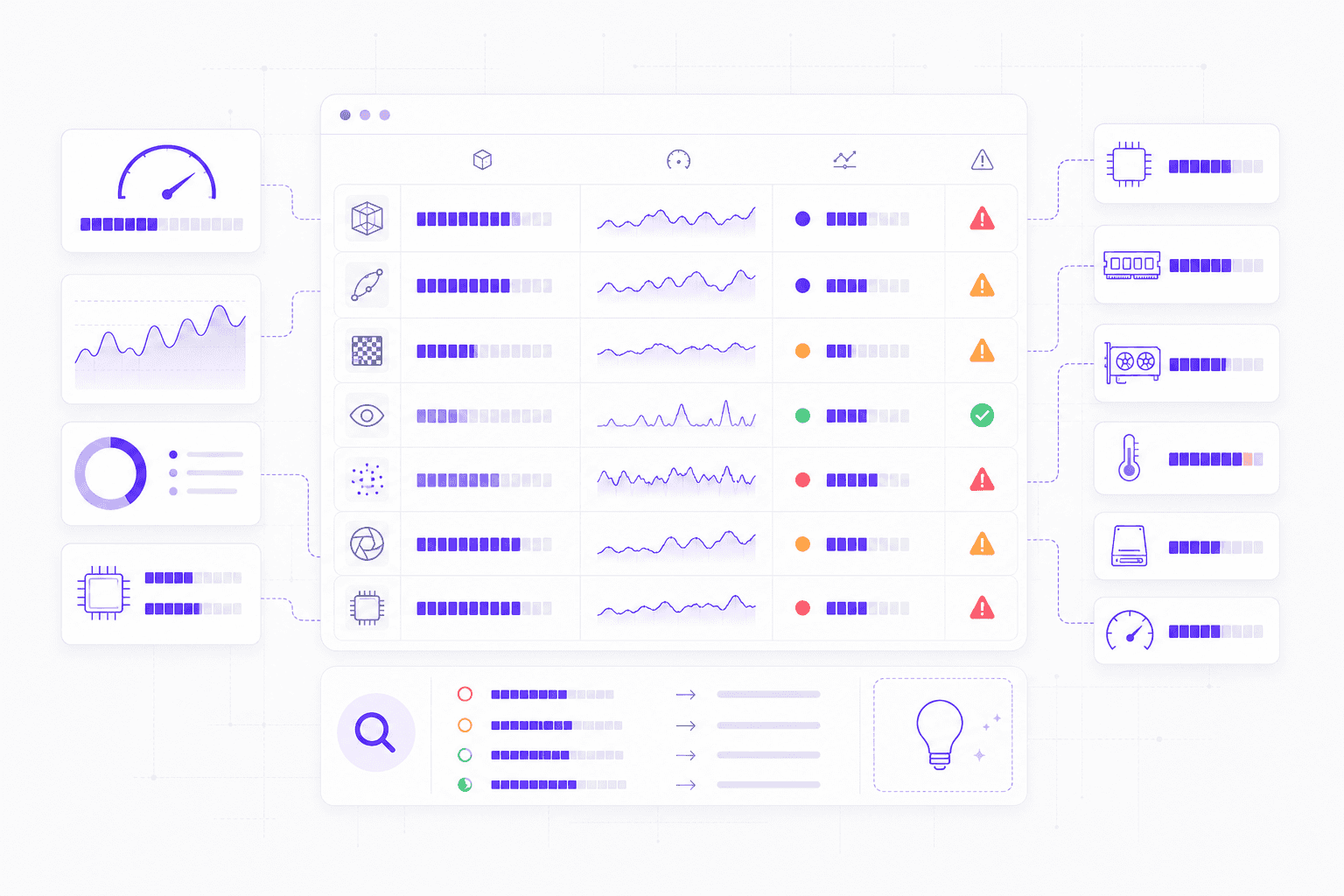
This guide is a practical diagnosis guide for Blender users who want to understand what’s actually slowing their projects down. Not a generic “buy a better graphics card” article, because that advice is too easy and often incomplete.
We’ll look at the usual suspects: scene complexity, dense geometry, modifier stacks, textures, materials, viewport settings, particles, simulations, render settings, hardware limits, and the point where using Vagon Cloud Computer can make more sense than forcing a heavy 3D scene through a local machine that’s already struggling.
#1. Heavy geometry in the scene
A Blender scene can look almost empty and still be painfully heavy.
That’s one of the first traps. You open the viewport and see a chair, a product model, a room corner, maybe a few props. Nothing dramatic. Then you try to orbit the view and Blender hesitates like it’s thinking about a life decision.
Most of the time, the problem is not what the scene looks like. It’s what the scene contains.
High-poly meshes are the obvious culprit. A sculpted character, a detailed environment asset, a photogrammetry scan, or a dense CAD import can bring millions of polygons into the file before you’ve even started lighting or shading. Sometimes that detail is necessary. Often, it’s just there because the asset came that way.
Imported assets are especially sneaky. CAD models, 3D scans, marketplace kits, and kitbash packs can be beautifully detailed, but they are not always optimized for active Blender work. A tiny screw might have hundreds of bevelled edges. A product model might include internal parts you’ll never see. A decorative object in the background might be heavier than the hero model.
That’s how a “simple” scene becomes slow.
Subdivision surfaces can make the problem worse. I like Subdivision Surface modifiers when they’re used with intent. They keep modeling flexible and let you preview smooth forms without permanently applying geometry too early. But if every object in the scene has high viewport subdivision levels, Blender has to calculate that extra geometry while you work.
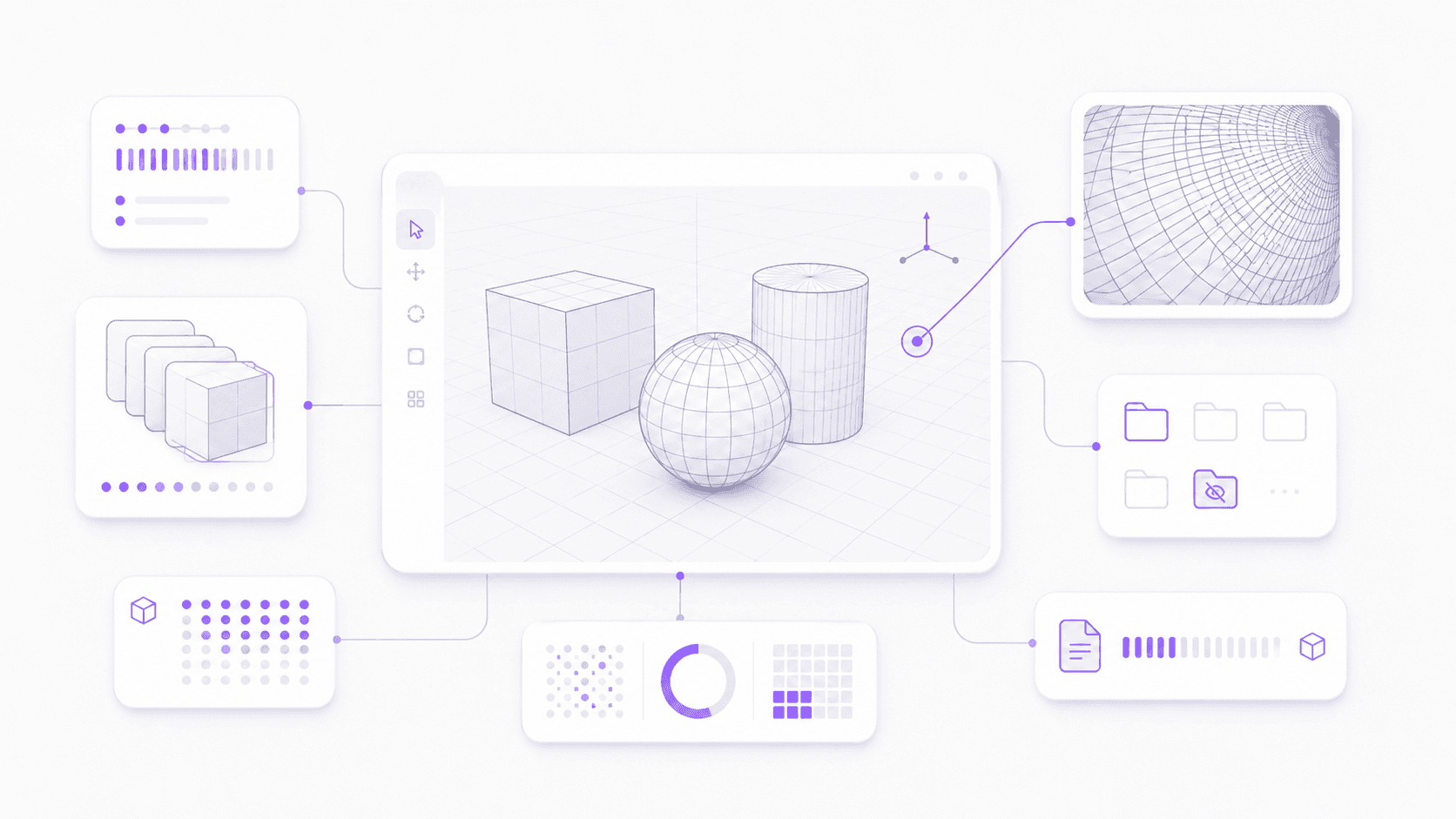
The render level can be higher than the viewport level, and that’s fine. The viewport does not always need to show the final smoothness. If you’re blocking a scene, animating cameras, arranging lights, or testing materials, lower preview settings are usually enough.
Duplicated objects are another common issue. If you duplicate heavy meshes normally, the file can get heavy fast. Linked duplicates or collection instances can be much lighter because they reuse the same underlying data. For repeated objects like bolts, trees, rocks, furniture, buildings, cables, or background props, that difference matters.
Hidden objects can also mislead you.
Turning off visibility helps the viewport, but it does not mean the file is clean. Hidden collections, old versions, unused imported assets, backup objects, and test geometry can still live inside the project. They add file weight, make the scene harder to manage, and sometimes sneak back into renders if visibility settings are inconsistent.
I’ve noticed this a lot in product visualization scenes. The final render might show one clean object on a simple background, but the file contains three older versions, a pile of imported reference parts, unused bevel tests, several hidden camera setups, and a few “maybe later” objects nobody deleted. The scene looks minimal. The file is not.
A good habit is to check geometry before blaming Blender.
Look for:
High-poly imported assets
Subdivision levels that are too high in the viewport
Duplicated meshes that could be linked instead
Hidden objects or old collections still saved in the file
Background props with more detail than the camera will ever show
Blender can handle serious scenes, but it’s not a mind reader. If you feed it millions of unnecessary polygons, it will try to carry them.
Even the ones you forgot were there.
If your scene is headed toward fabrication, Vagon’s guide on how to use Blender for 3D printing is a useful follow-up because print-ready geometry has its own cleanup rules.
#2. Live modifier stacks
Modifiers are one of the best parts of Blender. They’re also one of the easiest ways to accidentally make a scene feel slow.
A single Subdivision Surface modifier is usually fine. A bevel on one product edge is fine. A Boolean used to test a cutout is fine. The problem starts when half the scene is built from live modifiers that Blender has to recalculate every time you move, preview, scrub, or render.
Subdivision Surface is the classic example. It can turn a simple base mesh into something smooth and polished, but every extra subdivision level multiplies the amount of geometry Blender has to show. If the viewport level is too high across many objects, the scene can start lagging before materials or lighting even enter the conversation.
Booleans can be another performance sink, especially when they are stacked or used on dense meshes. They’re great for hard-surface modeling and quick shape exploration, but a messy Boolean stack can become expensive fast. I don’t think Booleans are bad. I think people forget when they’re still live.
Bevel modifiers can also add more geometry than expected. A tiny bevel with many segments across a detailed model might look harmless, but if it runs across thousands of edges, it can add a surprising amount of weight.
Then there’s Geometry Nodes.
Geometry Nodes can be incredibly efficient when built well. It can also create forests, crowds, procedural cities, scatter systems, curve networks, and particle-like setups that are much heavier than they look from a distance. The node tree might feel elegant. The evaluated result might still be massive.
That gap matters. Blender doesn’t only care how smart the setup looks. It has to calculate the result.
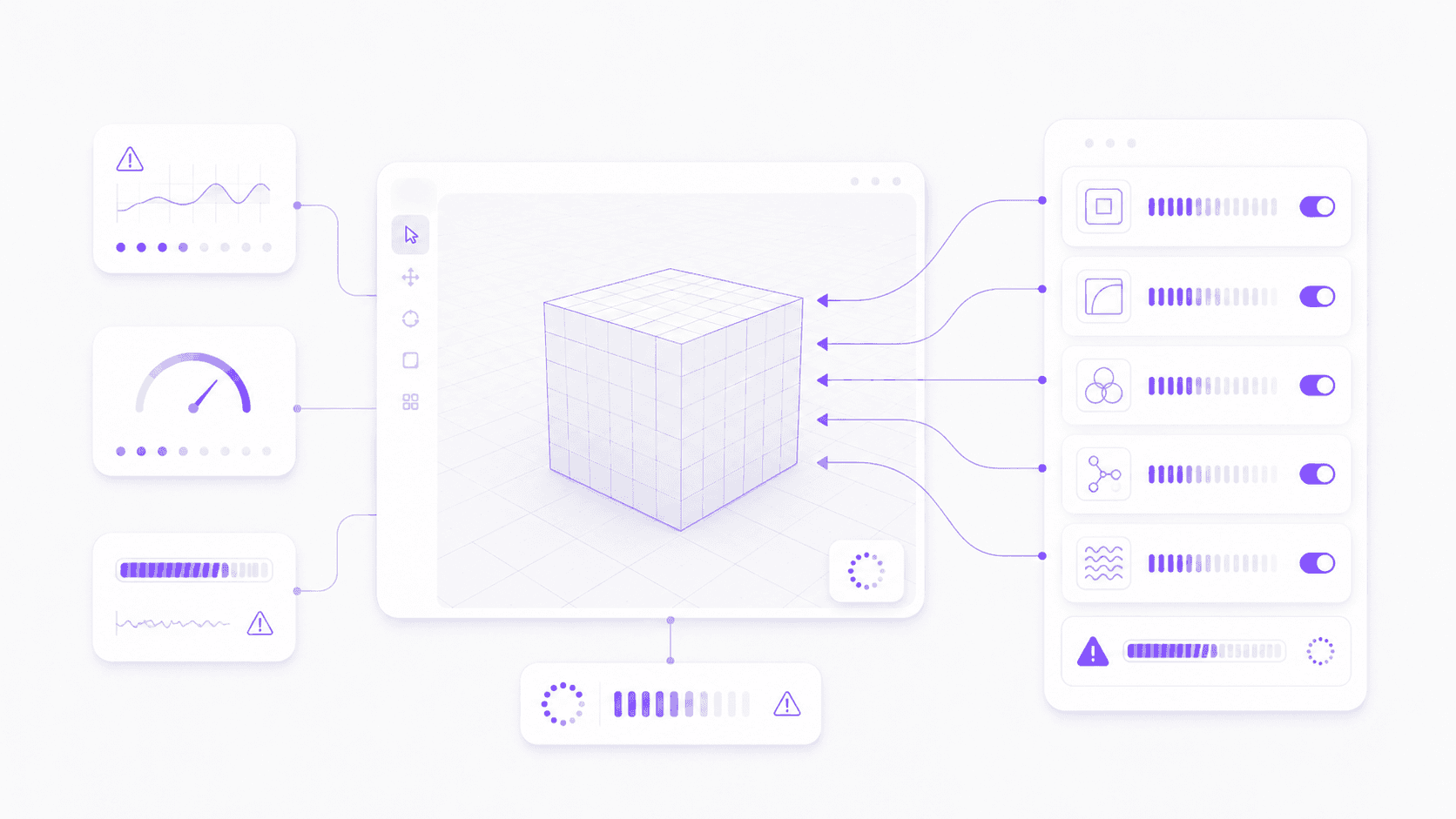
Viewport levels vs render levels
One of the simplest fixes is separating what you need to see while working from what you need in the final render.
You do not always need final-quality geometry in the viewport. If you’re animating, blocking camera angles, setting up materials, or arranging lights, lower preview settings usually make more sense. Save the heavier render settings for the moment when they actually matter.
For Subdivision Surface, reduce the viewport level and keep the render level higher if needed. For Geometry Nodes, create controls that let you lower density in the viewport. For particles or scattered assets, use fewer instances while working and increase them for the final output.
This is not cutting corners. It’s working sanely.
When to apply, disable, or simplify modifiers
The hard part is knowing when flexibility has stopped being useful.
A live modifier is valuable when you’re still making decisions. Once the shape is final, keeping every modifier live forever can become unnecessary baggage. Applying a modifier too early can limit edits, but keeping it live too long can slow the scene.
Start with the low-risk options:
Lower viewport subdivision levels
Disable heavy modifiers in the viewport
Hide complex generators while animating or laying out the scene
Use proxy objects or simplified versions for blocking
Apply modifiers only when the form is truly final
Save a backup version before applying anything destructive
That last point is important. You don’t need to be reckless. Duplicate the file, archive the flexible version, then simplify the working scene.
The goal is not to remove every modifier. The goal is to stop Blender from recalculating expensive work you no longer need to keep live.
#3. Texture and material memory
Geometry gets blamed first because it’s easy to see. Textures are sneakier.
A scene can have a reasonable polygon count and still feel heavy because the materials are carrying too much weight. A few 4K textures might be fine. A whole scene full of 4K and 8K maps, each with base color, roughness, normal, displacement, metallic, opacity, and emission textures? That adds up quickly.
And not in a vague way. It adds up in memory.
If you use large textures everywhere, Blender has to load and manage them while you work. The viewport may slow down, material previews may take longer, and rendering can become more memory-hungry than expected. This is especially noticeable on laptops or GPUs with limited VRAM.

4K and 8K textures add up quickly
High-resolution textures make sense when the object is close to the camera, fills the frame, or needs detailed surface work. They make much less sense on tiny props, background walls, distant furniture, or objects that are blurred by depth of field.
I’ve seen scenes where a small background coffee cup uses multiple 4K maps, while the camera barely sees it. That’s not quality. That’s waste.
A practical rule: texture resolution should follow camera importance. Hero objects get more detail. Background objects get less. If the viewer won’t notice the difference, your hardware definitely will.
You can also use lower-resolution working textures during layout and switch to higher-resolution maps later. Blender’s Simplify settings can help here too, especially with texture limits when you need a lighter preview of a large scene.
Complex materials can be heavier than they look
Texture size is only part of the story. Shader complexity matters too.
Procedural materials, layered node trees, displacement, transparency, subsurface scattering, volumetrics, and complex mix setups can make materials more expensive to preview and render. One fancy shader might be fine. Dozens of them across a scene can slow things down.
Transparency is a common one. Glass, leaves, hair cards, decals, smoke planes, and layered alpha textures can make rendering more difficult, especially in Cycles. Volumetrics can be even heavier. They often look beautiful, but they can turn a simple lighting test into a waiting game.
Displacement deserves respect as well. Real geometry displacement can add detail at render time, but it can also increase memory use and render cost. If a bump map gives you the same visible result for a mid-distance object, use the cheaper option.
Look for:
4K or 8K textures used on small background objects
Multiple texture maps where one or two would be enough
Procedural node trees that are more complex than the shot needs
Transparent materials used heavily across the scene
Volumetrics left on during basic layout work
Unused image textures still packed into the file
Materials are part of the creative look, so I’m not saying you should strip everything down until the scene feels flat. But material detail should serve the shot.
If the render is slow and the geometry is reasonable, check the textures next. A scene can be visually simple and still be carrying a small mountain of image maps.
#4. Viewport overload
Viewport lag and render slowdown are related, but they’re not the same thing.
This matters because people often treat them as one problem. If the viewport is slow, they assume the final render will be slow. If the render is slow, they assume the viewport must be showing too much geometry. Sometimes both are true. Sometimes they’re not.
The viewport is your working environment. It has to respond while you orbit, zoom, select, move objects, scrub animation, adjust modifiers, preview materials, and test lighting. If Blender is trying to show the full scene with heavy shading, overlays, shadows, textures, and all collections visible at once, it can start to feel sticky.
Material Preview is a common source of confusion. It’s useful, especially when you want a quick sense of surfaces and lighting without committing to a full render. But it is still more demanding than Solid view. Rendered view asks even more, especially with Cycles.
If you are blocking a scene, checking proportions, moving cameras, or arranging objects, Solid view is often enough. You can switch to Material Preview or Rendered view when you actually need to judge materials and light.
That sounds obvious. In practice, people leave the viewport in a heavy mode for hours and then wonder why every small move feels slow.
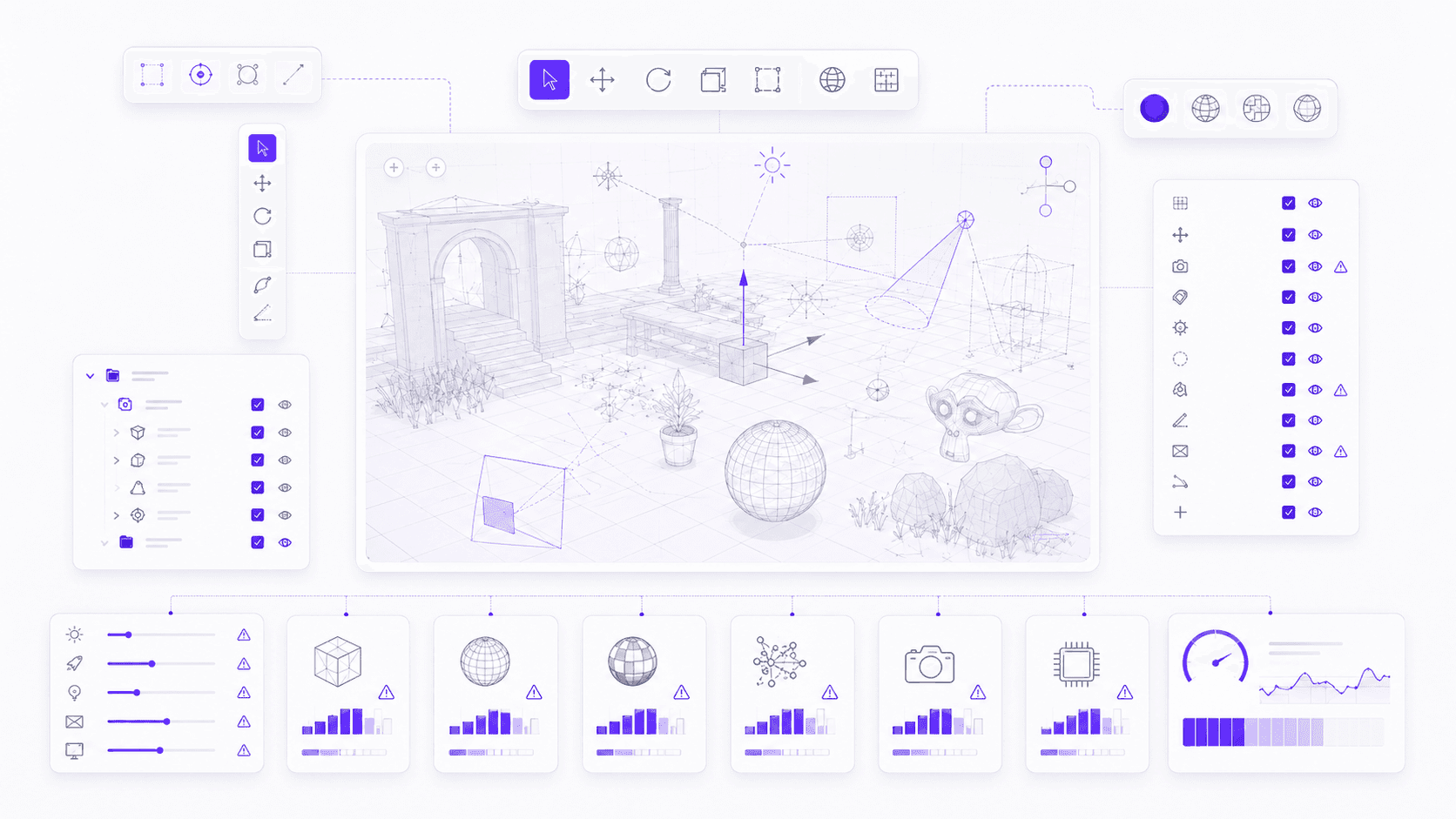
Overlays can add clutter too. Grid, outlines, relationship lines, face orientation, measurements, bones, curves, object origins, and annotation tools are all helpful in the right moment. But a busy overlay setup can make the viewport harder to read and sometimes slower to navigate, especially in dense scenes.
Visible collections matter as well.
If you are working on one part of the scene, you do not need every collection visible. Hide the background set. Turn off high-density props. Disable hair or particle collections while animating. Keep only what you need for the task in front of you.
This is one of the most underrated Blender habits: work in layers of attention.
Not every part of the project needs to be active all the time.
Lighting and shadows can also slow the viewport down. Scene lights, scene world, ambient occlusion, cavity, shadows, and high-quality material previews can all make the viewport more demanding. If you are modeling or arranging objects, you probably do not need the prettiest preview mode yet.
A practical viewport cleanup might look like this:
Use Solid view for layout, modeling, and scene organization
Switch to Material Preview only when judging surfaces
Use Rendered view when checking lighting or final look
Hide collections you are not actively editing
Turn off overlays that are not useful for the current task
Reduce viewport subdivision, particle display, or instance density
Use bounding boxes or simplified display modes for very heavy objects
The viewport should help you make decisions quickly. If it becomes a mini final render running all day, it starts working against you.
If your work leans more toward Grease Pencil or motion design, this guide to 2D animation on Blender may also help you think about viewport setup differently.
#5. Particles and simulations
Some Blender features don’t just make the scene heavier. They make it more alive.
That’s exactly why they’re expensive.
Particles, hair, cloth, rigid bodies, fluids, smoke, fire, and other simulations introduce time-based complexity. Blender is no longer only displaying objects. It may be calculating movement, collisions, strands, caches, forces, or frame-by-frame behavior.
A static chair and a cloth sheet falling onto that chair are not the same kind of problem.

Particles and hair
Particles and hair can slow a project down fast because they multiply visual detail. A few thousand points might be fine. Hundreds of thousands of strands, instanced objects, or dense hair children can make the viewport feel heavy and the render even heavier.
Hair is especially easy to overdo. You increase the count, add children, adjust thickness, preview more strands, and suddenly the scene starts dragging before you’ve even touched materials.
For grooming and look development, you usually don’t need final density at every moment. Work with lower viewport display counts. Increase density for render tests. Use collection instances carefully. If the hair or particle system is only visible in one close-up, don’t let it punish every other part of the scene.
Instanced particles can be sneaky too. Scattering pebbles, leaves, grass, dust, buildings, debris, or product details can look efficient, and often it is. But a scatter system can still create a huge evaluated scene. If each instance is high-poly, the total cost can get out of hand.
Cloth, fluids, and physics caches
Cloth, fluids, smoke, fire, and rigid body simulations come with a different problem: caching.
If a simulation is not baked, Blender may need to calculate it as you scrub or play the timeline. That can make playback choppy and unpredictable. Once cached, the simulation is usually easier to preview, but now you’re dealing with storage, cache size, and sometimes long bake times.
Fluid simulations are the obvious heavyweight. Higher resolution domains, detailed foam, spray, bubbles, smoke, and complex collisions can all increase calculation time. Cloth can also become slow when mesh density is high, collisions are complex, or multiple cloth objects interact.
Rigid bodies are usually lighter, but even they can slow things down if the scene has lots of objects, complex collision shapes, or unstable physics settings.
The mistake is treating simulation scenes like normal modeling scenes.
They need a different workflow:
Use lower simulation resolution while testing motion
Bake caches before judging playback
Simplify collision objects where possible
Reduce hair or particle display in the viewport
Turn off simulations when working on unrelated parts of the scene
Save separate test files for risky simulation experiments
I’m a big believer in isolating sims. If you’re testing cloth, test cloth. If you’re adjusting camera movement, you probably don’t need the full simulation live in the background.
Blender can handle complex simulations, but they demand patience and planning. If you let every dynamic system stay active while you do everything else, the project can start feeling slow for reasons that are completely avoidable.
#6. Render settings that slow Blender
Render settings are where Blender users quietly lose hours.
Not because the settings are bad. Because they’re easy to turn up without asking what the shot actually needs.
Cycles and Eevee serve different purposes, and choosing between them changes the performance story immediately. Cycles gives you physically based path tracing, better global illumination, more realistic light behavior, and high-quality results for many scenes. It also asks more from your hardware. Eevee is faster and more real-time friendly, but it uses a different rendering approach and may need more manual setup to fake certain lighting effects.
Neither is “better” for every project.
If you’re doing product visualization, realistic interiors, cinematic lighting, or anything where light accuracy matters, Cycles often makes sense. If you’re doing stylized animation, fast previews, look development, motion graphics, or work that needs quicker iteration, Eevee may be the smarter choice.
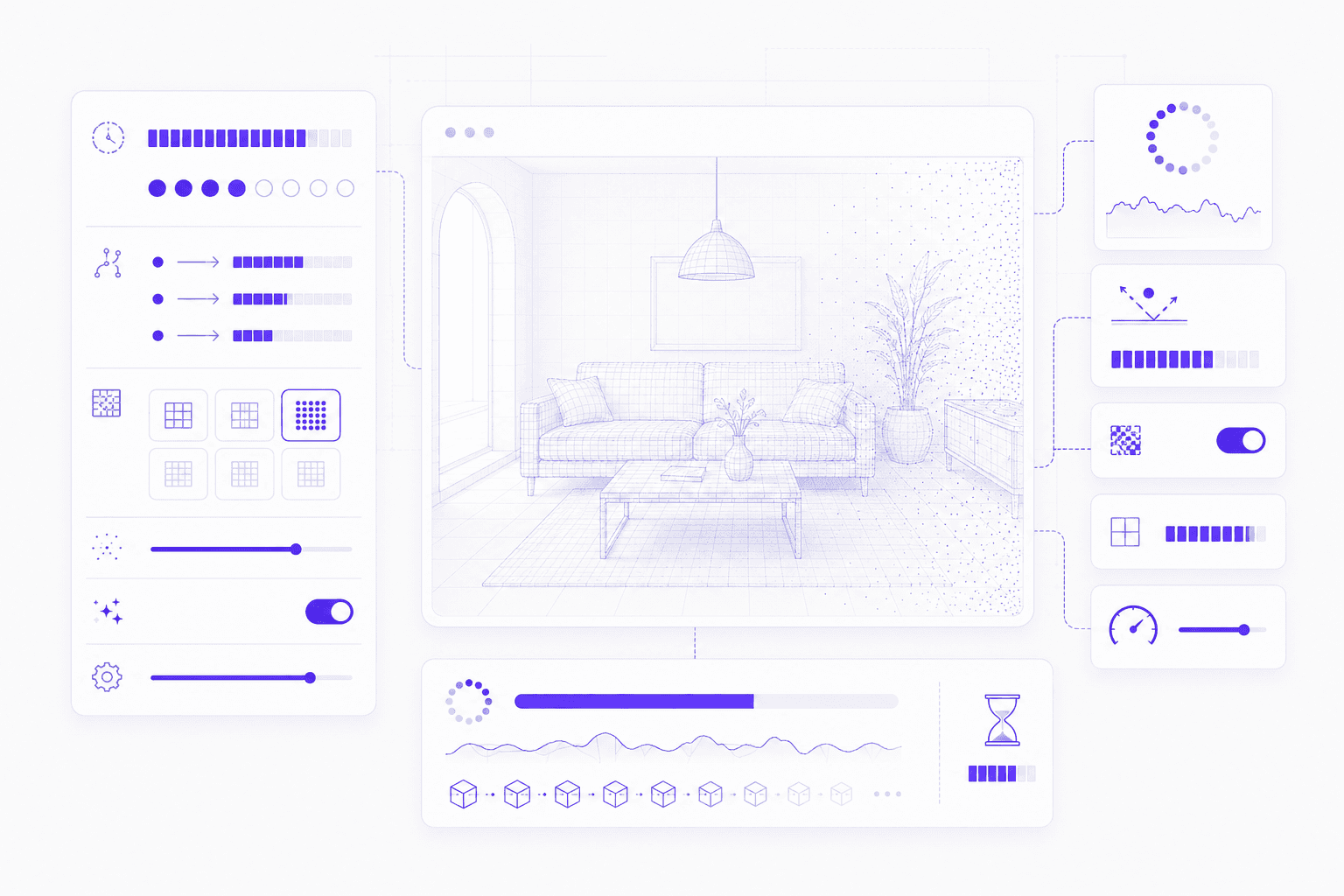
Cycles vs Eevee
A scene that feels impossible in Cycles might be perfectly workable in Eevee. The opposite can happen too: an Eevee scene can become messy if you’re stacking screen-space effects, transparency, shadows, and lighting tricks to imitate a look Cycles would handle more naturally.
The point is to choose based on the job, not habit.
I’ve seen people render simple style frames in Cycles with high samples because “that’s the quality renderer,” even though the visual style did not need it. I’ve also seen people fight Eevee for realistic interior lighting when Cycles would have given them a cleaner result with less manual workaround energy.
Render engine choice is a creative decision, but it’s also a performance decision.
If you want a deeper settings walkthrough, we also have a guide to the best render settings for Blender.
Samples, bounces, and denoising
Samples are the next obvious slowdown. More samples can reduce noise, but more samples also mean more render time. The question is not “How high can I set this?” The question is “How much noise is actually visible after denoising?”
Modern denoising makes this more flexible. You may not need extreme sample counts for every scene, especially if the final output is small, moving quickly in animation, or viewed on social platforms. Test before committing to a huge render.
Light bounces matter too. Diffuse bounces, glossy bounces, transmission, transparency, volume bounces, and caustics can all increase render cost. Some scenes need them. Many do not need the maximum values.
Resolution is another silent multiplier. Doubling resolution does not feel like a small change to render time. A 4K render asks much more than a 1080p render, especially with high samples, heavy materials, and complex lighting.
Motion blur, depth of field, transparency, volumetrics, displacement, and high-resolution textures can all pile on. None of them are “wrong.” The problem is leaving all of them high while still doing basic tests.
A smarter workflow is to separate test settings from final settings:
Lower samples for look development
Use denoising early
Reduce bounces when the scene allows it
Render smaller previews before full resolution
Turn off motion blur or depth of field during layout tests
Use Eevee or viewport renders for quick timing checks
Save final-quality settings for final-quality decisions
This sounds less glamorous than buying a faster GPU, but it often saves more time.
Render settings should answer the needs of the shot. If they’re just maxed out because “higher means better,” Blender will happily make you wait.
For a more focused comparison, Vagon’s guide to the best Blender render engines breaks down when different rendering options make sense.
#7. Hardware limits
Sometimes the scene is optimized enough and Blender is still slow.
That’s when you have to look at the machine.
Blender uses different parts of your computer for different kinds of work. The CPU handles a lot of general calculations, scene evaluation, modifiers, simulations, and parts of rendering depending on your setup. The GPU can handle viewport drawing and GPU rendering, especially in Cycles when configured properly. RAM keeps the active scene available. VRAM matters when the GPU has to store geometry, textures, frame buffers, and render data. Storage affects loading, saving, caches, linked assets, and large project files.
That’s a lot of pressure on one device.
A common mistake is thinking “Blender opens” means “this computer is good enough for the project.” Those are very different standards. A scene can open, orbit slowly, render eventually, and still be a miserable place to work for three hours.
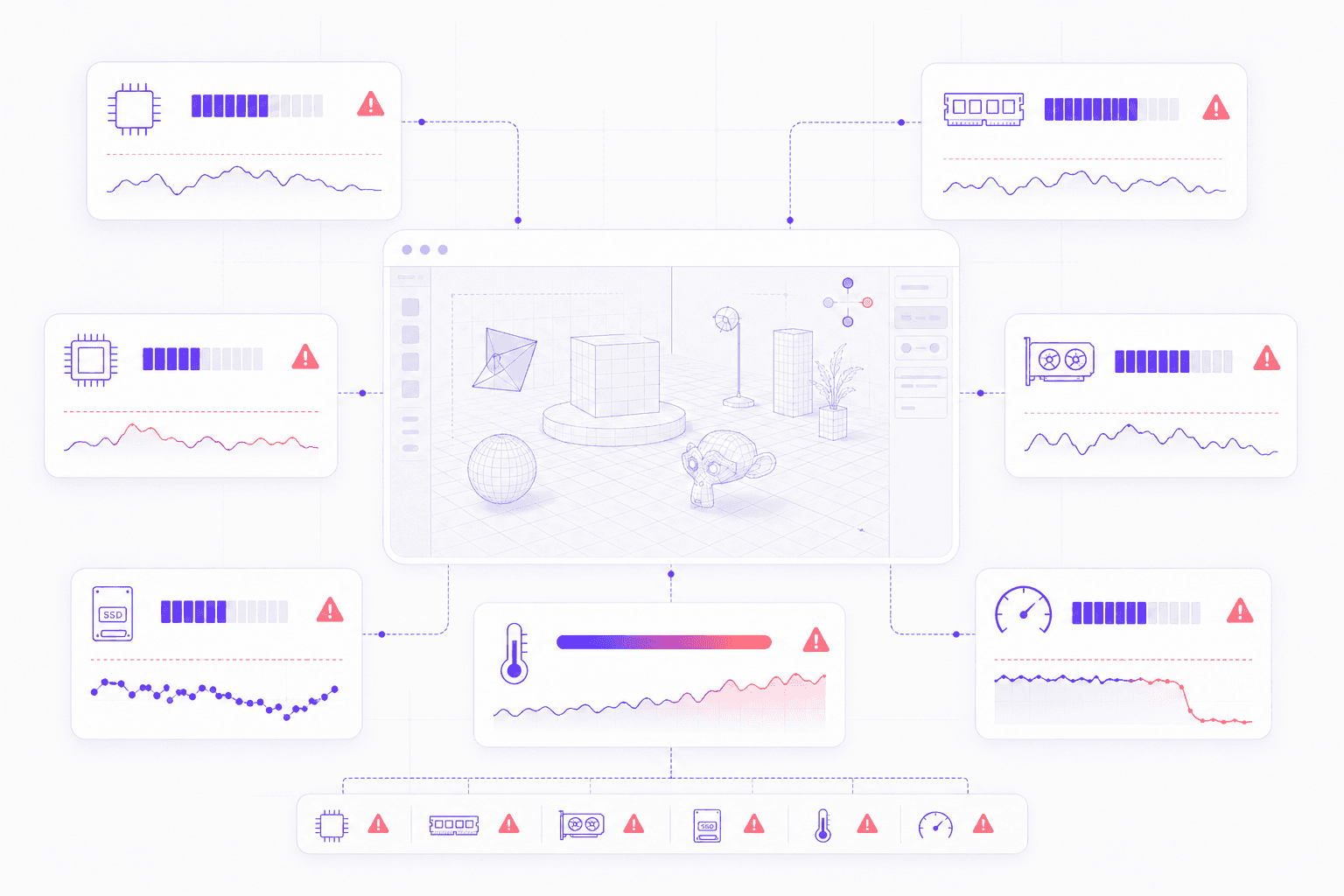
RAM and VRAM
RAM is the general working room. If the scene has dense geometry, large textures, simulations, or multiple heavy files open, RAM can fill up quickly. Once the system starts leaning on slower storage, everything feels worse.
VRAM is especially important for GPU rendering. If the GPU does not have enough memory for the scene, you may hit errors, slowdowns, or fallback behavior depending on the render setup and hardware. Large textures are often the reason. So are dense meshes, high subdivision levels, heavy geometry nodes, volumes, and large render resolutions.
This is why two computers with similar GPUs can behave differently if one has more VRAM. Raw speed matters, but memory headroom matters too.
Blender’s current requirements are not extreme for basic work, but serious scenes move past the minimum quickly. The official recommendations include more RAM and VRAM than the bare minimum for a reason. In practice, if you’re working with large scenes, high-resolution textures, simulations, or Cycles renders, extra memory gives you more breathing room.
CPU, GPU, and storage
The CPU still matters, even if you render on the GPU. Scene evaluation, some modifiers, simulations, physics, file operations, and parts of Blender’s general responsiveness can still depend heavily on CPU performance.
The GPU matters for viewport performance and rendering, but again, it is not a magic button. A faster GPU will not fix messy geometry, overloaded materials, uncached simulations, or a file saved on slow storage.
Storage is the quiet one. People notice GPU specs. They talk about RAM. Storage gets ignored until saving takes forever or simulation caches become huge.
A fast SSD helps with opening large blend files, saving, loading image sequences, reading textures, writing caches, and working with linked assets. A slow external drive or network volume can make a decent scene feel worse than it should.
If Blender feels slow across multiple projects, check the machine. If one scene is slow, check the scene first. That distinction saves a lot of guessing.
A good hardware check looks like this:
Is RAM filling up during the project?
Is VRAM maxing out during viewport or render work?
Is the CPU stuck calculating modifiers or simulations?
Is the GPU actually being used for rendering?
Are files, textures, or caches sitting on slow storage?
Is the machine overheating or throttling during longer sessions?
Hardware limits are real. But they’re easier to understand once you know what part of Blender is asking for what kind of power.
This can be especially useful if you want to use Blender on a Chromebook or keep working from a lightweight device without giving up a stronger 3D workspace.
#8. Vagon Cloud Computer for Blender
Sometimes the honest answer is not “optimize more.”
Sometimes the project has simply outgrown the computer.
That does not mean your local machine is bad. A lightweight laptop can be perfectly fine for modeling simple assets, reviewing files, editing materials, blocking scenes, or working on smaller renders. But Blender can become a very different workload once the scene starts combining dense geometry, large textures, simulations, particles, high-quality render previews, and long render tests.
At that point, the question changes.
It’s no longer “Can this machine open Blender?” It’s “Can this machine stay comfortable while I work?”
That comfort matters more than people admit. If orbiting the viewport is slow, every camera adjustment becomes annoying. If render previews take too long, you stop testing lighting properly. If the machine gets hot and starts throttling, performance becomes inconsistent. If saving large files interrupts your flow every few minutes, the project starts shaping your decisions in the wrong way.
This is where Vagon Cloud Computer can make sense.
Instead of forcing a heavy Blender project through a local device that is already struggling, you can run the workflow on a powerful cloud computer and access it from the machine you already have. That can be especially useful if you’re working from a lightweight laptop, switching between devices, handling large scenes, using high-resolution textures, testing simulations, or trying to keep a consistent 3D workspace while working remotely.
I would not say every Blender user needs cloud computing for every project. That would be silly. If you’re modeling a simple asset, doing basic layout, or rendering something lightweight, your local machine may be enough.
But when the scene is clearly getting heavier, moving earlier is usually better than waiting until the file becomes frustrating to manage.
Vagon Cloud Computer is most useful when:
The scene opens locally but does not feel workable
You are using large textures, simulations, particles, or render previews
Your laptop is overheating or throttling during longer sessions
You need a consistent Blender workspace across devices
You want to avoid rebuilding your setup every time you switch machines

There is a point where performance problems stop being occasional interruptions and become part of the workflow. That’s the line to watch.
If Blender is constantly making you wait, the project may not need more patience. It may need a better workspace.
You can also launch Blender 3D on Vagon directly if you want to run Blender from a cloud computer instead of relying only on local hardware.
Blender slowdown checklist
You don’t need to inspect every setting every time Blender stutters.
But when a scene keeps lagging, previews slow down, or renders take much longer than expected, it helps to check the usual pressure points in one place. Most Blender slowdowns are not mysterious. They come from a few familiar areas stacking up.
Area | What to check |
Geometry | High-poly meshes, imported CAD or scan assets, subdivision levels, duplicated meshes, and hidden objects still saved in the file. |
Modifiers | Subdivision, Boolean, Bevel, Geometry Nodes, Displace, and other live modifiers that may be doing too much work in the viewport. |
Textures | 4K or 8K maps, procedural materials, transparency, displacement, packed textures, and unique materials that increase memory use. |
Viewport | Shading mode, overlays, visible collections, scene lights, shadows, texture display, and whether Solid view would be enough while working. |
Simulations | Particles, hair, cloth, rigid bodies, fluids, smoke, and whether caches are baked or still calculating during playback. |
Rendering | Render engine, samples, denoising, light bounces, resolution, motion blur, depth of field, and GPU memory pressure. |
Hardware | RAM, VRAM, CPU, GPU, storage speed, overheating, throttling, and whether Vagon Cloud Computer would be smoother. |
The point is not to make every Blender scene tiny. That would be a boring way to work.
The point is to know what deserves detail and what is just making the project harder to handle. Keep the geometry that matters. Use high-resolution textures where the camera can see them. Leave modifiers live when they still help. Bake simulations when you need reliable playback. Push render settings when the shot actually needs it.
And when the scene is too heavy for the machine underneath it, be honest about that too.
A slow Blender project is usually not one problem. It’s a pile of small decisions, some creative, some technical, all adding up in the same file. The earlier you notice them, the easier they are to fix.
And if your workflow moves between desktop and tablet, our guide on how to use Blender on iPad can help you decide where each part of the work fits best.
FAQs
1. Why is Blender viewport so slow?
Blender viewport slowdown usually comes from the scene being too heavy for real-time interaction. Dense geometry, high subdivision levels, large textures, live modifiers, particles, simulations, Material Preview, Rendered view, and too many visible collections can all contribute. If the viewport feels slow, start simple. Switch to Solid view, hide collections you are not editing, lower subdivision preview levels, reduce particle display counts, and check whether a specific object or modifier is causing the lag.
2. Does Blender use CPU or GPU more?
Blender uses both, but for different jobs. The CPU handles a lot of scene evaluation, modifiers, simulations, physics, and general calculations. The GPU helps with viewport drawing and can handle rendering in Cycles if GPU rendering is enabled and supported by your hardware. A stronger GPU can help a lot with rendering and viewport performance, but it will not fix every slowdown. Messy geometry, complex modifiers, large textures, uncached simulations, or slow storage can still cause problems.
3. Do high-poly models slow down Blender?
Yes. High-poly models can slow down the viewport, increase file size, raise memory use, and make renders heavier. This is especially common with CAD imports, 3D scans, sculpted assets, and marketplace models that were not optimized for your scene. If an object is far from the camera or barely visible, it probably does not need hero-level geometry. Use lower-poly versions, linked duplicates, collection instances, lower subdivision preview levels, or simplified proxy objects where possible.
4. Do textures affect Blender performance?
Yes, especially high-resolution textures. A few large textures may be fine, but a whole scene full of 4K and 8K maps can use a lot of RAM and VRAM. Materials with many texture maps, transparency, displacement, volumetrics, or complex procedural node trees can also make previews and renders slower. A good rule is to match texture resolution to camera importance. Hero objects can justify more detail. Background objects usually cannot.
5. Why is Cycles rendering so slow?
Cycles is a path tracer, so it calculates light behavior in a more physically realistic way than a real-time renderer. That can produce beautiful results, but it also costs time. High sample counts, too many light bounces, large render resolution, volumetrics, transparency, displacement, motion blur, depth of field, and heavy materials can all slow Cycles down. Try lowering samples, using denoising, reducing unnecessary bounces, rendering smaller previews, and checking whether Eevee is enough for the project.
6. Can Geometry Nodes slow down Blender?
Definitely. Geometry Nodes can be efficient, but it can also generate huge amounts of evaluated geometry, instances, curves, points, or procedural detail. A clean node tree can still produce a very heavy result. If a Geometry Nodes setup slows the scene down, add viewport controls. Lower density while working. Use simpler preview settings. Hide or disable the generator when it is not needed. Increase quality only for final tests or renders.
7. When should I use Vagon Cloud Computer for Blender?
Use Vagon Cloud Computer when your Blender scene starts asking for more power than your local machine can comfortably provide. That might mean dense geometry, high-resolution textures, simulations, particles, heavy render previews, large Cycles renders, or a laptop that keeps overheating during longer sessions. It can also help if you need a consistent Blender workspace across devices or want to keep working remotely without depending only on local hardware. For simple scenes, your own machine may be enough. For heavier Blender projects, moving to Vagon Cloud Computer early can be smoother than waiting until the file becomes frustrating.
Blender projects rarely slow down because of one dramatic mistake.
It’s usually smaller than that. A few extra subdivisions here. A kitbash asset with more geometry than expected. Some 4K textures you never resized. A Geometry Nodes setup left live in the viewport. Hair particles, cloth tests, Material Preview, high samples, a heavy HDRI, and a laptop that was already working hard before Blender even opened.
Then suddenly the scene feels stuck.
The viewport takes a second to respond. Render previews crawl. Saving gets slower. You hide a few objects and somehow it still feels heavy. At that point, it’s tempting to blame Blender, your GPU, or both.
Sometimes the GPU really is the problem. But not always.
This guide is a practical diagnosis guide for Blender users who want to understand what’s actually slowing their projects down. Not a generic “buy a better graphics card” article, because that advice is too easy and often incomplete.
We’ll look at the usual suspects: scene complexity, dense geometry, modifier stacks, textures, materials, viewport settings, particles, simulations, render settings, hardware limits, and the point where using Vagon Cloud Computer can make more sense than forcing a heavy 3D scene through a local machine that’s already struggling.
#1. Heavy geometry in the scene
A Blender scene can look almost empty and still be painfully heavy.
That’s one of the first traps. You open the viewport and see a chair, a product model, a room corner, maybe a few props. Nothing dramatic. Then you try to orbit the view and Blender hesitates like it’s thinking about a life decision.
Most of the time, the problem is not what the scene looks like. It’s what the scene contains.
High-poly meshes are the obvious culprit. A sculpted character, a detailed environment asset, a photogrammetry scan, or a dense CAD import can bring millions of polygons into the file before you’ve even started lighting or shading. Sometimes that detail is necessary. Often, it’s just there because the asset came that way.
Imported assets are especially sneaky. CAD models, 3D scans, marketplace kits, and kitbash packs can be beautifully detailed, but they are not always optimized for active Blender work. A tiny screw might have hundreds of bevelled edges. A product model might include internal parts you’ll never see. A decorative object in the background might be heavier than the hero model.
That’s how a “simple” scene becomes slow.
Subdivision surfaces can make the problem worse. I like Subdivision Surface modifiers when they’re used with intent. They keep modeling flexible and let you preview smooth forms without permanently applying geometry too early. But if every object in the scene has high viewport subdivision levels, Blender has to calculate that extra geometry while you work.
The render level can be higher than the viewport level, and that’s fine. The viewport does not always need to show the final smoothness. If you’re blocking a scene, animating cameras, arranging lights, or testing materials, lower preview settings are usually enough.
Duplicated objects are another common issue. If you duplicate heavy meshes normally, the file can get heavy fast. Linked duplicates or collection instances can be much lighter because they reuse the same underlying data. For repeated objects like bolts, trees, rocks, furniture, buildings, cables, or background props, that difference matters.
Hidden objects can also mislead you.
Turning off visibility helps the viewport, but it does not mean the file is clean. Hidden collections, old versions, unused imported assets, backup objects, and test geometry can still live inside the project. They add file weight, make the scene harder to manage, and sometimes sneak back into renders if visibility settings are inconsistent.
I’ve noticed this a lot in product visualization scenes. The final render might show one clean object on a simple background, but the file contains three older versions, a pile of imported reference parts, unused bevel tests, several hidden camera setups, and a few “maybe later” objects nobody deleted. The scene looks minimal. The file is not.
A good habit is to check geometry before blaming Blender.
Look for:
High-poly imported assets
Subdivision levels that are too high in the viewport
Duplicated meshes that could be linked instead
Hidden objects or old collections still saved in the file
Background props with more detail than the camera will ever show
Blender can handle serious scenes, but it’s not a mind reader. If you feed it millions of unnecessary polygons, it will try to carry them.
Even the ones you forgot were there.
If your scene is headed toward fabrication, Vagon’s guide on how to use Blender for 3D printing is a useful follow-up because print-ready geometry has its own cleanup rules.
#2. Live modifier stacks
Modifiers are one of the best parts of Blender. They’re also one of the easiest ways to accidentally make a scene feel slow.
A single Subdivision Surface modifier is usually fine. A bevel on one product edge is fine. A Boolean used to test a cutout is fine. The problem starts when half the scene is built from live modifiers that Blender has to recalculate every time you move, preview, scrub, or render.
Subdivision Surface is the classic example. It can turn a simple base mesh into something smooth and polished, but every extra subdivision level multiplies the amount of geometry Blender has to show. If the viewport level is too high across many objects, the scene can start lagging before materials or lighting even enter the conversation.
Booleans can be another performance sink, especially when they are stacked or used on dense meshes. They’re great for hard-surface modeling and quick shape exploration, but a messy Boolean stack can become expensive fast. I don’t think Booleans are bad. I think people forget when they’re still live.
Bevel modifiers can also add more geometry than expected. A tiny bevel with many segments across a detailed model might look harmless, but if it runs across thousands of edges, it can add a surprising amount of weight.
Then there’s Geometry Nodes.
Geometry Nodes can be incredibly efficient when built well. It can also create forests, crowds, procedural cities, scatter systems, curve networks, and particle-like setups that are much heavier than they look from a distance. The node tree might feel elegant. The evaluated result might still be massive.
That gap matters. Blender doesn’t only care how smart the setup looks. It has to calculate the result.
Viewport levels vs render levels
One of the simplest fixes is separating what you need to see while working from what you need in the final render.
You do not always need final-quality geometry in the viewport. If you’re animating, blocking camera angles, setting up materials, or arranging lights, lower preview settings usually make more sense. Save the heavier render settings for the moment when they actually matter.
For Subdivision Surface, reduce the viewport level and keep the render level higher if needed. For Geometry Nodes, create controls that let you lower density in the viewport. For particles or scattered assets, use fewer instances while working and increase them for the final output.
This is not cutting corners. It’s working sanely.
When to apply, disable, or simplify modifiers
The hard part is knowing when flexibility has stopped being useful.
A live modifier is valuable when you’re still making decisions. Once the shape is final, keeping every modifier live forever can become unnecessary baggage. Applying a modifier too early can limit edits, but keeping it live too long can slow the scene.
Start with the low-risk options:
Lower viewport subdivision levels
Disable heavy modifiers in the viewport
Hide complex generators while animating or laying out the scene
Use proxy objects or simplified versions for blocking
Apply modifiers only when the form is truly final
Save a backup version before applying anything destructive
That last point is important. You don’t need to be reckless. Duplicate the file, archive the flexible version, then simplify the working scene.
The goal is not to remove every modifier. The goal is to stop Blender from recalculating expensive work you no longer need to keep live.
#3. Texture and material memory
Geometry gets blamed first because it’s easy to see. Textures are sneakier.
A scene can have a reasonable polygon count and still feel heavy because the materials are carrying too much weight. A few 4K textures might be fine. A whole scene full of 4K and 8K maps, each with base color, roughness, normal, displacement, metallic, opacity, and emission textures? That adds up quickly.
And not in a vague way. It adds up in memory.
If you use large textures everywhere, Blender has to load and manage them while you work. The viewport may slow down, material previews may take longer, and rendering can become more memory-hungry than expected. This is especially noticeable on laptops or GPUs with limited VRAM.
4K and 8K textures add up quickly
High-resolution textures make sense when the object is close to the camera, fills the frame, or needs detailed surface work. They make much less sense on tiny props, background walls, distant furniture, or objects that are blurred by depth of field.
I’ve seen scenes where a small background coffee cup uses multiple 4K maps, while the camera barely sees it. That’s not quality. That’s waste.
A practical rule: texture resolution should follow camera importance. Hero objects get more detail. Background objects get less. If the viewer won’t notice the difference, your hardware definitely will.
You can also use lower-resolution working textures during layout and switch to higher-resolution maps later. Blender’s Simplify settings can help here too, especially with texture limits when you need a lighter preview of a large scene.
Complex materials can be heavier than they look
Texture size is only part of the story. Shader complexity matters too.
Procedural materials, layered node trees, displacement, transparency, subsurface scattering, volumetrics, and complex mix setups can make materials more expensive to preview and render. One fancy shader might be fine. Dozens of them across a scene can slow things down.
Transparency is a common one. Glass, leaves, hair cards, decals, smoke planes, and layered alpha textures can make rendering more difficult, especially in Cycles. Volumetrics can be even heavier. They often look beautiful, but they can turn a simple lighting test into a waiting game.
Displacement deserves respect as well. Real geometry displacement can add detail at render time, but it can also increase memory use and render cost. If a bump map gives you the same visible result for a mid-distance object, use the cheaper option.
Look for:
4K or 8K textures used on small background objects
Multiple texture maps where one or two would be enough
Procedural node trees that are more complex than the shot needs
Transparent materials used heavily across the scene
Volumetrics left on during basic layout work
Unused image textures still packed into the file
Materials are part of the creative look, so I’m not saying you should strip everything down until the scene feels flat. But material detail should serve the shot.
If the render is slow and the geometry is reasonable, check the textures next. A scene can be visually simple and still be carrying a small mountain of image maps.
#4. Viewport overload
Viewport lag and render slowdown are related, but they’re not the same thing.
This matters because people often treat them as one problem. If the viewport is slow, they assume the final render will be slow. If the render is slow, they assume the viewport must be showing too much geometry. Sometimes both are true. Sometimes they’re not.
The viewport is your working environment. It has to respond while you orbit, zoom, select, move objects, scrub animation, adjust modifiers, preview materials, and test lighting. If Blender is trying to show the full scene with heavy shading, overlays, shadows, textures, and all collections visible at once, it can start to feel sticky.
Material Preview is a common source of confusion. It’s useful, especially when you want a quick sense of surfaces and lighting without committing to a full render. But it is still more demanding than Solid view. Rendered view asks even more, especially with Cycles.
If you are blocking a scene, checking proportions, moving cameras, or arranging objects, Solid view is often enough. You can switch to Material Preview or Rendered view when you actually need to judge materials and light.
That sounds obvious. In practice, people leave the viewport in a heavy mode for hours and then wonder why every small move feels slow.
Overlays can add clutter too. Grid, outlines, relationship lines, face orientation, measurements, bones, curves, object origins, and annotation tools are all helpful in the right moment. But a busy overlay setup can make the viewport harder to read and sometimes slower to navigate, especially in dense scenes.
Visible collections matter as well.
If you are working on one part of the scene, you do not need every collection visible. Hide the background set. Turn off high-density props. Disable hair or particle collections while animating. Keep only what you need for the task in front of you.
This is one of the most underrated Blender habits: work in layers of attention.
Not every part of the project needs to be active all the time.
Lighting and shadows can also slow the viewport down. Scene lights, scene world, ambient occlusion, cavity, shadows, and high-quality material previews can all make the viewport more demanding. If you are modeling or arranging objects, you probably do not need the prettiest preview mode yet.
A practical viewport cleanup might look like this:
Use Solid view for layout, modeling, and scene organization
Switch to Material Preview only when judging surfaces
Use Rendered view when checking lighting or final look
Hide collections you are not actively editing
Turn off overlays that are not useful for the current task
Reduce viewport subdivision, particle display, or instance density
Use bounding boxes or simplified display modes for very heavy objects
The viewport should help you make decisions quickly. If it becomes a mini final render running all day, it starts working against you.
If your work leans more toward Grease Pencil or motion design, this guide to 2D animation on Blender may also help you think about viewport setup differently.
#5. Particles and simulations
Some Blender features don’t just make the scene heavier. They make it more alive.
That’s exactly why they’re expensive.
Particles, hair, cloth, rigid bodies, fluids, smoke, fire, and other simulations introduce time-based complexity. Blender is no longer only displaying objects. It may be calculating movement, collisions, strands, caches, forces, or frame-by-frame behavior.
A static chair and a cloth sheet falling onto that chair are not the same kind of problem.
Particles and hair
Particles and hair can slow a project down fast because they multiply visual detail. A few thousand points might be fine. Hundreds of thousands of strands, instanced objects, or dense hair children can make the viewport feel heavy and the render even heavier.
Hair is especially easy to overdo. You increase the count, add children, adjust thickness, preview more strands, and suddenly the scene starts dragging before you’ve even touched materials.
For grooming and look development, you usually don’t need final density at every moment. Work with lower viewport display counts. Increase density for render tests. Use collection instances carefully. If the hair or particle system is only visible in one close-up, don’t let it punish every other part of the scene.
Instanced particles can be sneaky too. Scattering pebbles, leaves, grass, dust, buildings, debris, or product details can look efficient, and often it is. But a scatter system can still create a huge evaluated scene. If each instance is high-poly, the total cost can get out of hand.
Cloth, fluids, and physics caches
Cloth, fluids, smoke, fire, and rigid body simulations come with a different problem: caching.
If a simulation is not baked, Blender may need to calculate it as you scrub or play the timeline. That can make playback choppy and unpredictable. Once cached, the simulation is usually easier to preview, but now you’re dealing with storage, cache size, and sometimes long bake times.
Fluid simulations are the obvious heavyweight. Higher resolution domains, detailed foam, spray, bubbles, smoke, and complex collisions can all increase calculation time. Cloth can also become slow when mesh density is high, collisions are complex, or multiple cloth objects interact.
Rigid bodies are usually lighter, but even they can slow things down if the scene has lots of objects, complex collision shapes, or unstable physics settings.
The mistake is treating simulation scenes like normal modeling scenes.
They need a different workflow:
Use lower simulation resolution while testing motion
Bake caches before judging playback
Simplify collision objects where possible
Reduce hair or particle display in the viewport
Turn off simulations when working on unrelated parts of the scene
Save separate test files for risky simulation experiments
I’m a big believer in isolating sims. If you’re testing cloth, test cloth. If you’re adjusting camera movement, you probably don’t need the full simulation live in the background.
Blender can handle complex simulations, but they demand patience and planning. If you let every dynamic system stay active while you do everything else, the project can start feeling slow for reasons that are completely avoidable.
#6. Render settings that slow Blender
Render settings are where Blender users quietly lose hours.
Not because the settings are bad. Because they’re easy to turn up without asking what the shot actually needs.
Cycles and Eevee serve different purposes, and choosing between them changes the performance story immediately. Cycles gives you physically based path tracing, better global illumination, more realistic light behavior, and high-quality results for many scenes. It also asks more from your hardware. Eevee is faster and more real-time friendly, but it uses a different rendering approach and may need more manual setup to fake certain lighting effects.
Neither is “better” for every project.
If you’re doing product visualization, realistic interiors, cinematic lighting, or anything where light accuracy matters, Cycles often makes sense. If you’re doing stylized animation, fast previews, look development, motion graphics, or work that needs quicker iteration, Eevee may be the smarter choice.
Cycles vs Eevee
A scene that feels impossible in Cycles might be perfectly workable in Eevee. The opposite can happen too: an Eevee scene can become messy if you’re stacking screen-space effects, transparency, shadows, and lighting tricks to imitate a look Cycles would handle more naturally.
The point is to choose based on the job, not habit.
I’ve seen people render simple style frames in Cycles with high samples because “that’s the quality renderer,” even though the visual style did not need it. I’ve also seen people fight Eevee for realistic interior lighting when Cycles would have given them a cleaner result with less manual workaround energy.
Render engine choice is a creative decision, but it’s also a performance decision.
If you want a deeper settings walkthrough, we also have a guide to the best render settings for Blender.
Samples, bounces, and denoising
Samples are the next obvious slowdown. More samples can reduce noise, but more samples also mean more render time. The question is not “How high can I set this?” The question is “How much noise is actually visible after denoising?”
Modern denoising makes this more flexible. You may not need extreme sample counts for every scene, especially if the final output is small, moving quickly in animation, or viewed on social platforms. Test before committing to a huge render.
Light bounces matter too. Diffuse bounces, glossy bounces, transmission, transparency, volume bounces, and caustics can all increase render cost. Some scenes need them. Many do not need the maximum values.
Resolution is another silent multiplier. Doubling resolution does not feel like a small change to render time. A 4K render asks much more than a 1080p render, especially with high samples, heavy materials, and complex lighting.
Motion blur, depth of field, transparency, volumetrics, displacement, and high-resolution textures can all pile on. None of them are “wrong.” The problem is leaving all of them high while still doing basic tests.
A smarter workflow is to separate test settings from final settings:
Lower samples for look development
Use denoising early
Reduce bounces when the scene allows it
Render smaller previews before full resolution
Turn off motion blur or depth of field during layout tests
Use Eevee or viewport renders for quick timing checks
Save final-quality settings for final-quality decisions
This sounds less glamorous than buying a faster GPU, but it often saves more time.
Render settings should answer the needs of the shot. If they’re just maxed out because “higher means better,” Blender will happily make you wait.
For a more focused comparison, Vagon’s guide to the best Blender render engines breaks down when different rendering options make sense.
#7. Hardware limits
Sometimes the scene is optimized enough and Blender is still slow.
That’s when you have to look at the machine.
Blender uses different parts of your computer for different kinds of work. The CPU handles a lot of general calculations, scene evaluation, modifiers, simulations, and parts of rendering depending on your setup. The GPU can handle viewport drawing and GPU rendering, especially in Cycles when configured properly. RAM keeps the active scene available. VRAM matters when the GPU has to store geometry, textures, frame buffers, and render data. Storage affects loading, saving, caches, linked assets, and large project files.
That’s a lot of pressure on one device.
A common mistake is thinking “Blender opens” means “this computer is good enough for the project.” Those are very different standards. A scene can open, orbit slowly, render eventually, and still be a miserable place to work for three hours.
RAM and VRAM
RAM is the general working room. If the scene has dense geometry, large textures, simulations, or multiple heavy files open, RAM can fill up quickly. Once the system starts leaning on slower storage, everything feels worse.
VRAM is especially important for GPU rendering. If the GPU does not have enough memory for the scene, you may hit errors, slowdowns, or fallback behavior depending on the render setup and hardware. Large textures are often the reason. So are dense meshes, high subdivision levels, heavy geometry nodes, volumes, and large render resolutions.
This is why two computers with similar GPUs can behave differently if one has more VRAM. Raw speed matters, but memory headroom matters too.
Blender’s current requirements are not extreme for basic work, but serious scenes move past the minimum quickly. The official recommendations include more RAM and VRAM than the bare minimum for a reason. In practice, if you’re working with large scenes, high-resolution textures, simulations, or Cycles renders, extra memory gives you more breathing room.
CPU, GPU, and storage
The CPU still matters, even if you render on the GPU. Scene evaluation, some modifiers, simulations, physics, file operations, and parts of Blender’s general responsiveness can still depend heavily on CPU performance.
The GPU matters for viewport performance and rendering, but again, it is not a magic button. A faster GPU will not fix messy geometry, overloaded materials, uncached simulations, or a file saved on slow storage.
Storage is the quiet one. People notice GPU specs. They talk about RAM. Storage gets ignored until saving takes forever or simulation caches become huge.
A fast SSD helps with opening large blend files, saving, loading image sequences, reading textures, writing caches, and working with linked assets. A slow external drive or network volume can make a decent scene feel worse than it should.
If Blender feels slow across multiple projects, check the machine. If one scene is slow, check the scene first. That distinction saves a lot of guessing.
A good hardware check looks like this:
Is RAM filling up during the project?
Is VRAM maxing out during viewport or render work?
Is the CPU stuck calculating modifiers or simulations?
Is the GPU actually being used for rendering?
Are files, textures, or caches sitting on slow storage?
Is the machine overheating or throttling during longer sessions?
Hardware limits are real. But they’re easier to understand once you know what part of Blender is asking for what kind of power.
This can be especially useful if you want to use Blender on a Chromebook or keep working from a lightweight device without giving up a stronger 3D workspace.
#8. Vagon Cloud Computer for Blender
Sometimes the honest answer is not “optimize more.”
Sometimes the project has simply outgrown the computer.
That does not mean your local machine is bad. A lightweight laptop can be perfectly fine for modeling simple assets, reviewing files, editing materials, blocking scenes, or working on smaller renders. But Blender can become a very different workload once the scene starts combining dense geometry, large textures, simulations, particles, high-quality render previews, and long render tests.
At that point, the question changes.
It’s no longer “Can this machine open Blender?” It’s “Can this machine stay comfortable while I work?”
That comfort matters more than people admit. If orbiting the viewport is slow, every camera adjustment becomes annoying. If render previews take too long, you stop testing lighting properly. If the machine gets hot and starts throttling, performance becomes inconsistent. If saving large files interrupts your flow every few minutes, the project starts shaping your decisions in the wrong way.
This is where Vagon Cloud Computer can make sense.
Instead of forcing a heavy Blender project through a local device that is already struggling, you can run the workflow on a powerful cloud computer and access it from the machine you already have. That can be especially useful if you’re working from a lightweight laptop, switching between devices, handling large scenes, using high-resolution textures, testing simulations, or trying to keep a consistent 3D workspace while working remotely.
I would not say every Blender user needs cloud computing for every project. That would be silly. If you’re modeling a simple asset, doing basic layout, or rendering something lightweight, your local machine may be enough.
But when the scene is clearly getting heavier, moving earlier is usually better than waiting until the file becomes frustrating to manage.
Vagon Cloud Computer is most useful when:
The scene opens locally but does not feel workable
You are using large textures, simulations, particles, or render previews
Your laptop is overheating or throttling during longer sessions
You need a consistent Blender workspace across devices
You want to avoid rebuilding your setup every time you switch machines
There is a point where performance problems stop being occasional interruptions and become part of the workflow. That’s the line to watch.
If Blender is constantly making you wait, the project may not need more patience. It may need a better workspace.
You can also launch Blender 3D on Vagon directly if you want to run Blender from a cloud computer instead of relying only on local hardware.
Blender slowdown checklist
You don’t need to inspect every setting every time Blender stutters.
But when a scene keeps lagging, previews slow down, or renders take much longer than expected, it helps to check the usual pressure points in one place. Most Blender slowdowns are not mysterious. They come from a few familiar areas stacking up.
Area | What to check |
Geometry | High-poly meshes, imported CAD or scan assets, subdivision levels, duplicated meshes, and hidden objects still saved in the file. |
Modifiers | Subdivision, Boolean, Bevel, Geometry Nodes, Displace, and other live modifiers that may be doing too much work in the viewport. |
Textures | 4K or 8K maps, procedural materials, transparency, displacement, packed textures, and unique materials that increase memory use. |
Viewport | Shading mode, overlays, visible collections, scene lights, shadows, texture display, and whether Solid view would be enough while working. |
Simulations | Particles, hair, cloth, rigid bodies, fluids, smoke, and whether caches are baked or still calculating during playback. |
Rendering | Render engine, samples, denoising, light bounces, resolution, motion blur, depth of field, and GPU memory pressure. |
Hardware | RAM, VRAM, CPU, GPU, storage speed, overheating, throttling, and whether Vagon Cloud Computer would be smoother. |
The point is not to make every Blender scene tiny. That would be a boring way to work.
The point is to know what deserves detail and what is just making the project harder to handle. Keep the geometry that matters. Use high-resolution textures where the camera can see them. Leave modifiers live when they still help. Bake simulations when you need reliable playback. Push render settings when the shot actually needs it.
And when the scene is too heavy for the machine underneath it, be honest about that too.
A slow Blender project is usually not one problem. It’s a pile of small decisions, some creative, some technical, all adding up in the same file. The earlier you notice them, the easier they are to fix.
And if your workflow moves between desktop and tablet, our guide on how to use Blender on iPad can help you decide where each part of the work fits best.
FAQs
1. Why is Blender viewport so slow?
Blender viewport slowdown usually comes from the scene being too heavy for real-time interaction. Dense geometry, high subdivision levels, large textures, live modifiers, particles, simulations, Material Preview, Rendered view, and too many visible collections can all contribute. If the viewport feels slow, start simple. Switch to Solid view, hide collections you are not editing, lower subdivision preview levels, reduce particle display counts, and check whether a specific object or modifier is causing the lag.
2. Does Blender use CPU or GPU more?
Blender uses both, but for different jobs. The CPU handles a lot of scene evaluation, modifiers, simulations, physics, and general calculations. The GPU helps with viewport drawing and can handle rendering in Cycles if GPU rendering is enabled and supported by your hardware. A stronger GPU can help a lot with rendering and viewport performance, but it will not fix every slowdown. Messy geometry, complex modifiers, large textures, uncached simulations, or slow storage can still cause problems.
3. Do high-poly models slow down Blender?
Yes. High-poly models can slow down the viewport, increase file size, raise memory use, and make renders heavier. This is especially common with CAD imports, 3D scans, sculpted assets, and marketplace models that were not optimized for your scene. If an object is far from the camera or barely visible, it probably does not need hero-level geometry. Use lower-poly versions, linked duplicates, collection instances, lower subdivision preview levels, or simplified proxy objects where possible.
4. Do textures affect Blender performance?
Yes, especially high-resolution textures. A few large textures may be fine, but a whole scene full of 4K and 8K maps can use a lot of RAM and VRAM. Materials with many texture maps, transparency, displacement, volumetrics, or complex procedural node trees can also make previews and renders slower. A good rule is to match texture resolution to camera importance. Hero objects can justify more detail. Background objects usually cannot.
5. Why is Cycles rendering so slow?
Cycles is a path tracer, so it calculates light behavior in a more physically realistic way than a real-time renderer. That can produce beautiful results, but it also costs time. High sample counts, too many light bounces, large render resolution, volumetrics, transparency, displacement, motion blur, depth of field, and heavy materials can all slow Cycles down. Try lowering samples, using denoising, reducing unnecessary bounces, rendering smaller previews, and checking whether Eevee is enough for the project.
6. Can Geometry Nodes slow down Blender?
Definitely. Geometry Nodes can be efficient, but it can also generate huge amounts of evaluated geometry, instances, curves, points, or procedural detail. A clean node tree can still produce a very heavy result. If a Geometry Nodes setup slows the scene down, add viewport controls. Lower density while working. Use simpler preview settings. Hide or disable the generator when it is not needed. Increase quality only for final tests or renders.
7. When should I use Vagon Cloud Computer for Blender?
Use Vagon Cloud Computer when your Blender scene starts asking for more power than your local machine can comfortably provide. That might mean dense geometry, high-resolution textures, simulations, particles, heavy render previews, large Cycles renders, or a laptop that keeps overheating during longer sessions. It can also help if you need a consistent Blender workspace across devices or want to keep working remotely without depending only on local hardware. For simple scenes, your own machine may be enough. For heavier Blender projects, moving to Vagon Cloud Computer early can be smoother than waiting until the file becomes frustrating.
Get Beyond Your Computer Performance
Run applications on your cloud computer with the latest generation hardware. No more crashes or lags.

Trial includes 1 hour usage + 7 days of storage.
Summarize with AI

Ready to focus on your creativity?
Vagon gives you the ability to create & render projects, collaborate, and stream applications with the power of the best hardware.

Vagon Blog


Run heavy applications on any device with
your personal computer on the cloud.
San Francisco, California
Solutions
Vagon Teams
Vagon Streams
Use Cases
Resources
Vagon Blog
Best GeForce Now Alternatives in 2026: 5 Top Options
FL Studio Keyboard Shortcuts: Complete Cheat Sheet
Adobe Illustrator Keyboard Shortcuts: Windows & Mac
How Much Does Maya Cost? Maya Pricing Guide (2026)
Fusion 360 Pricing 2026: Personal, Startup & Paid
SketchUp Pricing 2026: Free, Go, Pro & Studio Compared
Running SOLIDWORKS in the Cloud: A Practical Guide
Render Farm vs Cloud Workstation: Which Do You Need?
SolidWorks Keyboard Shortcuts & Mouse Gestures Guide
Vagon Blog
Run heavy applications on any device with
your personal computer on the cloud.
San Francisco, California
Solutions
Vagon Teams
Vagon Streams
Use Cases
Resources
Vagon Blog
Best GeForce Now Alternatives in 2026: 5 Top Options
FL Studio Keyboard Shortcuts: Complete Cheat Sheet
Adobe Illustrator Keyboard Shortcuts: Windows & Mac
How Much Does Maya Cost? Maya Pricing Guide (2026)
Fusion 360 Pricing 2026: Personal, Startup & Paid
SketchUp Pricing 2026: Free, Go, Pro & Studio Compared
Running SOLIDWORKS in the Cloud: A Practical Guide
Render Farm vs Cloud Workstation: Which Do You Need?
SolidWorks Keyboard Shortcuts & Mouse Gestures Guide
Vagon Blog
Run heavy applications on any device with
your personal computer on the cloud.
San Francisco, California
Solutions
Vagon Teams
Vagon Streams
Use Cases
Resources
Vagon Blog