Instant Connection for Pixel Streaming
— New Feature Automated Setup

Best Revit AI Tools and Plugins in 2026: Top Picks for Architects and BIM Teams
Best Revit AI Tools and Plugins in 2026: Top Picks for Architects and BIM Teams
Engineering
Best Revit AI Tools and Plugins in 2026: Top Picks for Architects and BIM Teams
Table of Contents
Most “AI for Revit” lists get one basic thing wrong.
They treat every tool with an AI label like it belongs in the same category. It doesn’t. And that’s why so many of these lists feel sloppy the second you actually use Revit for real work.
When people say AI for Revit, they usually mean one of three things: native Autodesk AI workflows, AI-powered Revit add-ins, or adjacent tools that shape decisions before the model gets too far downstream.
Those are very different products solving very different problems.
A built-in Autodesk workflow is not the same as a prompt-based plugin inside Revit. And neither of those should be judged the same way as an early-stage planning or massing tool that influences what even gets modeled in the first place.
That distinction matters. Because if you mix all three together, the list starts falling apart before the rankings even begin.
If you’re already noticing slowdowns with larger models, it may be worth looking at what actually makes a good PC for Autodesk Revit.
What actually makes an AI tool useful in Revit
Not every AI feature deserves space in your workflow.
For Revit users, the real question is pretty simple: does it help you move faster without making the model worse? That matters more than clever prompts or flashy screenshots.
I tend to judge these tools by four things. First, do they save time on actual project work, not just in a polished demo. Second, do they fit naturally into Revit instead of creating extra cleanup. Third, are they useful in production, concept design, or both. And fourth, do they solve a real bottleneck, like repetitive checking, early option testing, or fast visual exploration.
Because honestly, some AI tools look impressive for five minutes and then create more friction than they remove.
The best ones usually do one job well. They help you iterate faster, check models with less manual effort, or make early decisions before the project gets too heavy. That’s where AI starts to feel practical instead of gimmicky.
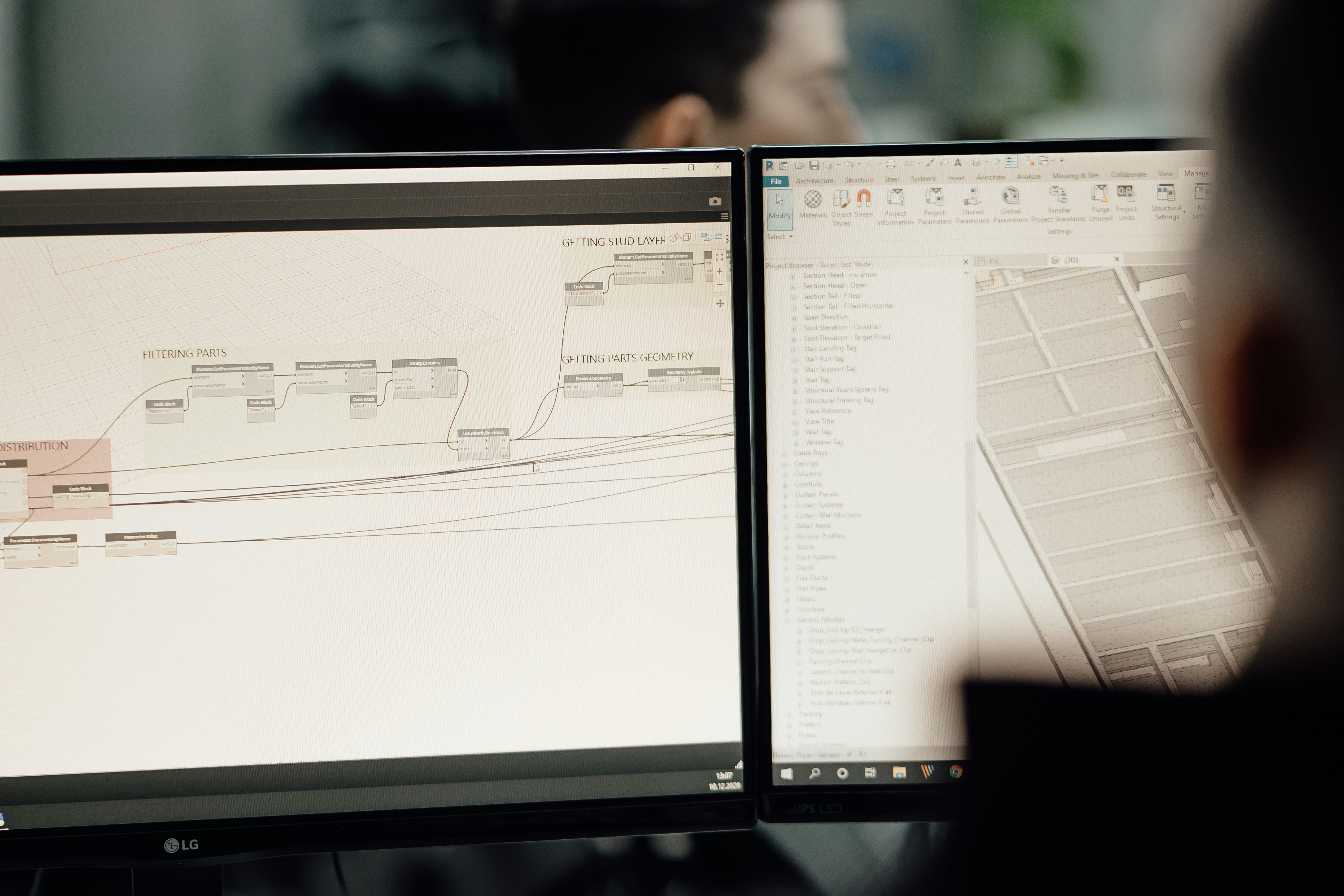
Best Revit AI Tools and Plugins in 2026
Once you separate the categories, the list gets a lot more useful.
Some tools are great for concept visuals. Some are better for model interaction and repetitive tasks. Others matter most before the Revit model is even fully formed. That’s why I wouldn’t treat this as one straight fight between plugins. Still, a few names stand out.
Autodesk Assistant
Autodesk Assistant is one of the more interesting native options because it points toward something Revit users have wanted for years: faster access to help, guidance, and task support without digging through menus, forums, or documentation.
That said, I wouldn’t oversell it. Tools like this are often more helpful for navigation, support, and lightweight assistance than for deep BIM problem-solving. Still useful. Just not magic. For firms that prefer Autodesk-backed workflows and want something built closer to the platform, this is an easy one to watch.
If you want more flexibility without being tied to a desk, here’s a practical guide on how to use Autodesk Revit on iPad.
Generative Design in Revit
Generative Design has been around long enough that it doesn’t feel new anymore, but it still belongs in this conversation.
It’s useful when you’re testing layout logic, spatial relationships, and option studies with clear rules. That’s the key part. Clear rules. If your team expects AI to invent good architecture from scratch, this will disappoint you fast. But if you already know the constraints and want to compare possibilities faster, it can still save real time.
I’ve noticed this is one of those tools people either underestimate or misunderstand. It’s not exciting in the same way as image-based AI, but it can be far more relevant to actual design decisions.

Veras
Veras is probably one of the easiest tools to understand because the value shows up quickly.
It helps Revit users turn rough model views into much more polished visual outputs, which makes it useful for concept development, client presentations, and internal iteration. If the goal is speed, mood, and visual exploration, Veras makes sense.
But here’s the catch. A beautiful AI-enhanced image is not the same thing as a resolved design. That sounds obvious, yet teams blur that line all the time. Veras is strongest when you use it to explore atmosphere, materials, and design direction, not when you expect it to verify constructability or documentation quality.
NonicaTab A.I. Connector
This one is interesting for a different reason.
Instead of treating AI like a toy prompt box, NonicaTab’s approach is closer to practical Revit interaction tied to actual tools and commands. That makes it more relevant for users who care about workflows, not just novelty. In many offices, that’s the smarter direction.
I think tools like this have more long-term value than people expect, especially for repetitive actions, model interrogation, and structured use cases where you want AI to help trigger real work rather than just generate text.
If part of your workflow still lives between tools, this Revit vs Rhino comparison gives useful context before you start adding AI on top.
DWD AI Assistant
DWD AI Assistant is more direct. It’s built around AI interaction inside Revit, and that makes it appealing for users who want a more conversational workflow.
The tradeoff is that these tools often depend heavily on setup, prompt quality, and user expectations. If someone expects a chat window to behave like an experienced BIM coordinator, they’re going to be disappointed. But for lightweight assistance, quick questions, and certain guided tasks, this kind of tool can still be useful.
It’s the kind of plugin I’d treat as promising, with value that depends a lot on who’s using it and how disciplined the workflow already is.

Finch
Finch sits a little outside the classic plugin conversation, but it still matters.
For early-stage residential planning, layout generation, and fast option testing, tools like Finch can influence the project long before Revit becomes heavy with detail. That makes it important, even if it doesn’t behave like a typical Revit add-in.
This is a good example of why adjacent tools belong in the same article. Because sometimes the biggest time savings happen before production modeling even starts.
If performance is starting to feel uneven, the issue may not be Revit alone. Sometimes it comes down to choosing the best GPU for Revit.
Archistar and Forma-connected workflows
This category is less about flashy plugin behavior and more about smarter early decisions.
When tools like Archistar and Autodesk Forma are used well, they help teams test feasibility, site constraints, yield, and massing logic earlier in the process. That can reduce wasted effort later, which is honestly one of the most valuable kinds of AI support.
For planners, developers, and early-stage design teams, this may matter more than an AI plugin inside Revit itself. For detail-focused production users, maybe less. Context matters.
Overall, the best Revit AI tools in 2026 are not all trying to do the same thing. Some improve visuals. Some help with interaction. Some support planning before geometry gets locked in. That’s exactly why choosing the right one depends less on hype and more on where your bottleneck actually is.

The tools I’d separate by use case
A long list is fine. A useful list is better.
If you’re choosing between Revit AI tools in 2026, the easiest way to make sense of them is by job to be done, not by who has the flashiest feature page.
Best for concept visuals
This is where Veras stands out.
If your goal is to turn rough Revit views into stronger concept imagery fast, it’s one of the most obvious picks. It helps with mood, materials, and presentation. Just don’t confuse visual polish with design resolution. That’s where people get carried away.
Best for model assistance and AI interaction
This is the lane for tools like Autodesk Assistant and DWD AI Assistant.
They’re useful when you want quicker access to help, guidance, or AI-style interaction inside the workflow. I’d treat these as support tools, not replacements for BIM judgment. Helpful? Yes. Independent problem-solvers? Not really.
Best for automation and structured workflows
This is where NonicaTab A.I. Connector becomes more interesting.
I think this category has more long-term value than people expect, because it connects AI to actual actions and repeatable workflows instead of stopping at chat. For teams dealing with repetitive tasks, model queries, or process-heavy work, that matters a lot more than novelty.
Best for early-stage planning and massing
This is the space for Finch, Archistar, and Forma-connected workflows.
These tools are strongest before the Revit model gets dense and expensive to change. They help with layout studies, feasibility, site logic, and early option testing. For some firms, this is where AI delivers the biggest payoff. Not later. Earlier.
That’s the real pattern here: the best tool depends less on “which one is smartest” and more on which part of the project is slowing you down.

What most Revit users get wrong about AI
The biggest mistake is expecting one tool to handle everything.
It won’t.
A plugin that creates better concept images is not helping you the same way a planning tool helps with feasibility, or the way an assistant helps with repetitive model tasks. A lot of disappointment comes from using the right tool for the wrong job.
I also think many teams confuse impressive output with useful output. That’s a common trap. An AI-generated image might look great in a meeting and still add almost nothing to documentation, coordination, or model quality.
Another problem is timing. Some AI tools are clearly better in early design than in production. That doesn’t make them weak. It just means they need to be used at the right stage.
And then there’s the hardware side, which gets ignored until it becomes annoying. Once you start mixing Revit, visualization tools, and connected workflows, even a decent local machine can start to feel small pretty quickly.
If you’re working on Apple hardware, this guide shows a few realistic ways to run Revit on Mac.
How to choose the right Revit AI tool for your workflow
The right pick depends less on the tool itself and more on what’s slowing you down.
If you’re an architect working in early design, you’ll probably get more value from tools that help with visual iteration, planning, and quick option testing. That makes tools like Veras, Finch, or Forma-connected workflows more relevant than a general assistant inside Revit.
If you’re a BIM manager or power user, the priorities are different. You’re more likely to care about consistency, repeatable actions, model queries, and reducing manual effort. That’s where something like NonicaTab A.I. Connector starts to make more sense.
If your team is mostly curious about conversational AI inside the Revit environment, then Autodesk Assistant or DWD AI Assistant are the more natural places to start. Just keep expectations realistic. These tools can help, but they won’t replace experience or solve messy project logic on their own.
And if your machine is already struggling with Revit before you even add AI tools into the mix, the decision isn’t only about software anymore. It’s also about whether your setup can handle the workflow comfortably.
That part matters more than people like to admit.
Where hardware becomes the real bottleneck
This is the part people usually notice a little late.
Testing AI in Revit sounds exciting until the workflow starts feeling heavy. You’re running Revit, maybe a visualization plugin, maybe a browser-based planning tool, maybe a few other design apps at the same time. Suddenly the problem is not whether the tool is good. It’s whether your machine still feels usable.
That gets even worse on teams with mixed hardware. One person has a strong workstation. Someone else is on a laptop that was already struggling with big models. Someone else is working remotely and dealing with file access, installs, and setup issues on top of everything else.
At that point, AI tools stop being just a software choice. They become an infrastructure question.
And honestly, that’s where a lot of otherwise useful workflows start to break down. Not because the tool is bad, but because the environment around it can’t keep up.
If your concept workflow also includes real-time visualization, this guide to exporting from Revit to Twinmotion is a useful next step.
Where Vagon Cloud Computer fits
This is where Vagon Cloud Computer starts to make sense.
Not as another AI plugin. And not as something you need from day one. But as a practical way to run these workflows without being limited by the machine in front of you.
Once you start using heavier Revit setups, AI visualization tools, or connected planning platforms, local hardware can become the weakest part of the experience. That’s especially true for freelancers, distributed teams, consultants, or anyone trying to work from a lighter laptop or a Mac.
Vagon solves a different problem. It gives you a cloud computer that can handle demanding software workflows without forcing every user to rely on a high-end local workstation. That makes it easier to test AI-assisted Revit workflows, onboard team members faster, and share the experience with end users who may not have the same setup.
I think that’s the right way to position it in this conversation.
The goal is not to say Vagon is the AI. It isn’t. The value is that once you’ve found the right AI tools for your Revit workflow, Vagon gives you a cleaner way to run them without all the usual hardware friction.
Final take
The best Revit AI tools in 2026 are not all competing for the same job. Some help you explore ideas faster. Some help you interact with the model more efficiently. Others are most useful before the real Revit work even gets heavy.
That’s why the smartest approach is usually not chasing one “best” tool. It’s choosing the right tool for the right stage.
Use visualization tools when you need faster concept feedback. Use assistant-style tools when you want quicker interaction and support. Use planning tools when the biggest decisions are still upstream. And once those workflows start pushing your hardware too hard, that’s where a platform like Vagon Cloud Computer becomes a practical advantage.
That, to me, is the real story. AI can absolutely help Revit users in 2026. But only when the workflow makes sense, the expectations are realistic, and the setup behind it can actually support the way you work.
FAQs
1. What is the best AI tool for Revit in 2026?
There isn’t one single best tool for everyone. If you care most about concept visuals, Veras is one of the stronger options. If you want AI tied more closely to actions and workflow support, NonicaTab A.I. Connector is more interesting. If you’re focused on early-stage planning and feasibility, tools connected to Forma, Finch, or Archistar may be a better fit.
2. Does Revit have built-in AI features?
Yes, but they’re not all the kind of AI people imagine. Revit users may work with Autodesk-backed features like Autodesk Assistant and Generative Design, along with connected workflows that bring AI-informed decisions into the process. These are usually more practical than flashy.
3. Are AI Revit plugins actually useful in real projects?
Some are. Some really aren’t. The useful ones tend to help with a specific job like visual exploration, repetitive actions, model queries, or early-stage option testing. The weak ones usually look impressive in a demo but don’t hold up once the project gets messy.
4. What’s the difference between a Revit AI plugin and an adjacent AI tool?
A Revit AI plugin works inside Revit itself. An adjacent AI tool influences the project before or around the Revit model, often through planning, feasibility, site analysis, or early massing workflows. Both can matter. They just solve different problems.
5. Which Revit AI tool is best for concept design?
For concept visuals, Veras is one of the clearest choices. If the goal is broader early-stage design thinking rather than just imagery, then tools like Finch or Forma-connected workflows may be more valuable.
6. Which Revit AI tool is best for BIM managers or advanced users?
For more structured workflows, repetitive tasks, and model interaction, NonicaTab A.I. Connector stands out more than image-focused tools. BIM managers usually need consistency and process support, not just something that produces nice-looking outputs.
7. Can AI generate Revit models automatically?
Not in the way many people hope. AI can assist with layouts, options, prompts, analysis, and certain workflow tasks, but it does not replace real BIM judgment, coordination, or documentation logic. You still need a human to make decisions and clean things up.
8. Are AI-generated renders from Revit accurate?
Visually, they can be impressive. Technically, that’s a different question. AI-generated images are useful for mood, material exploration, and concept communication. They are not a reliable substitute for model accuracy, constructability, or documented design intent.
9. Do I need a powerful computer to use Revit AI tools?
In a lot of cases, yes. Once you start combining Revit with AI visualization, connected planning tools, and multiple plugins, the workflow can get heavy fast. That’s one reason cloud-based setups become more appealing.
10. How does Vagon Cloud Computer help with Revit AI workflows?
Vagon helps on the infrastructure side. Instead of acting like another AI tool, it gives you a way to run demanding Revit workflows on a stronger cloud machine. That can be useful for remote teams, freelancers, consultants, Mac users, or anyone whose local hardware starts becoming the bottleneck.
Most “AI for Revit” lists get one basic thing wrong.
They treat every tool with an AI label like it belongs in the same category. It doesn’t. And that’s why so many of these lists feel sloppy the second you actually use Revit for real work.
When people say AI for Revit, they usually mean one of three things: native Autodesk AI workflows, AI-powered Revit add-ins, or adjacent tools that shape decisions before the model gets too far downstream.
Those are very different products solving very different problems.
A built-in Autodesk workflow is not the same as a prompt-based plugin inside Revit. And neither of those should be judged the same way as an early-stage planning or massing tool that influences what even gets modeled in the first place.
That distinction matters. Because if you mix all three together, the list starts falling apart before the rankings even begin.
If you’re already noticing slowdowns with larger models, it may be worth looking at what actually makes a good PC for Autodesk Revit.
What actually makes an AI tool useful in Revit
Not every AI feature deserves space in your workflow.
For Revit users, the real question is pretty simple: does it help you move faster without making the model worse? That matters more than clever prompts or flashy screenshots.
I tend to judge these tools by four things. First, do they save time on actual project work, not just in a polished demo. Second, do they fit naturally into Revit instead of creating extra cleanup. Third, are they useful in production, concept design, or both. And fourth, do they solve a real bottleneck, like repetitive checking, early option testing, or fast visual exploration.
Because honestly, some AI tools look impressive for five minutes and then create more friction than they remove.
The best ones usually do one job well. They help you iterate faster, check models with less manual effort, or make early decisions before the project gets too heavy. That’s where AI starts to feel practical instead of gimmicky.
Best Revit AI Tools and Plugins in 2026
Once you separate the categories, the list gets a lot more useful.
Some tools are great for concept visuals. Some are better for model interaction and repetitive tasks. Others matter most before the Revit model is even fully formed. That’s why I wouldn’t treat this as one straight fight between plugins. Still, a few names stand out.
Autodesk Assistant
Autodesk Assistant is one of the more interesting native options because it points toward something Revit users have wanted for years: faster access to help, guidance, and task support without digging through menus, forums, or documentation.
That said, I wouldn’t oversell it. Tools like this are often more helpful for navigation, support, and lightweight assistance than for deep BIM problem-solving. Still useful. Just not magic. For firms that prefer Autodesk-backed workflows and want something built closer to the platform, this is an easy one to watch.
If you want more flexibility without being tied to a desk, here’s a practical guide on how to use Autodesk Revit on iPad.
Generative Design in Revit
Generative Design has been around long enough that it doesn’t feel new anymore, but it still belongs in this conversation.
It’s useful when you’re testing layout logic, spatial relationships, and option studies with clear rules. That’s the key part. Clear rules. If your team expects AI to invent good architecture from scratch, this will disappoint you fast. But if you already know the constraints and want to compare possibilities faster, it can still save real time.
I’ve noticed this is one of those tools people either underestimate or misunderstand. It’s not exciting in the same way as image-based AI, but it can be far more relevant to actual design decisions.
Veras
Veras is probably one of the easiest tools to understand because the value shows up quickly.
It helps Revit users turn rough model views into much more polished visual outputs, which makes it useful for concept development, client presentations, and internal iteration. If the goal is speed, mood, and visual exploration, Veras makes sense.
But here’s the catch. A beautiful AI-enhanced image is not the same thing as a resolved design. That sounds obvious, yet teams blur that line all the time. Veras is strongest when you use it to explore atmosphere, materials, and design direction, not when you expect it to verify constructability or documentation quality.
NonicaTab A.I. Connector
This one is interesting for a different reason.
Instead of treating AI like a toy prompt box, NonicaTab’s approach is closer to practical Revit interaction tied to actual tools and commands. That makes it more relevant for users who care about workflows, not just novelty. In many offices, that’s the smarter direction.
I think tools like this have more long-term value than people expect, especially for repetitive actions, model interrogation, and structured use cases where you want AI to help trigger real work rather than just generate text.
If part of your workflow still lives between tools, this Revit vs Rhino comparison gives useful context before you start adding AI on top.
DWD AI Assistant
DWD AI Assistant is more direct. It’s built around AI interaction inside Revit, and that makes it appealing for users who want a more conversational workflow.
The tradeoff is that these tools often depend heavily on setup, prompt quality, and user expectations. If someone expects a chat window to behave like an experienced BIM coordinator, they’re going to be disappointed. But for lightweight assistance, quick questions, and certain guided tasks, this kind of tool can still be useful.
It’s the kind of plugin I’d treat as promising, with value that depends a lot on who’s using it and how disciplined the workflow already is.
Finch
Finch sits a little outside the classic plugin conversation, but it still matters.
For early-stage residential planning, layout generation, and fast option testing, tools like Finch can influence the project long before Revit becomes heavy with detail. That makes it important, even if it doesn’t behave like a typical Revit add-in.
This is a good example of why adjacent tools belong in the same article. Because sometimes the biggest time savings happen before production modeling even starts.
If performance is starting to feel uneven, the issue may not be Revit alone. Sometimes it comes down to choosing the best GPU for Revit.
Archistar and Forma-connected workflows
This category is less about flashy plugin behavior and more about smarter early decisions.
When tools like Archistar and Autodesk Forma are used well, they help teams test feasibility, site constraints, yield, and massing logic earlier in the process. That can reduce wasted effort later, which is honestly one of the most valuable kinds of AI support.
For planners, developers, and early-stage design teams, this may matter more than an AI plugin inside Revit itself. For detail-focused production users, maybe less. Context matters.
Overall, the best Revit AI tools in 2026 are not all trying to do the same thing. Some improve visuals. Some help with interaction. Some support planning before geometry gets locked in. That’s exactly why choosing the right one depends less on hype and more on where your bottleneck actually is.
The tools I’d separate by use case
A long list is fine. A useful list is better.
If you’re choosing between Revit AI tools in 2026, the easiest way to make sense of them is by job to be done, not by who has the flashiest feature page.
Best for concept visuals
This is where Veras stands out.
If your goal is to turn rough Revit views into stronger concept imagery fast, it’s one of the most obvious picks. It helps with mood, materials, and presentation. Just don’t confuse visual polish with design resolution. That’s where people get carried away.
Best for model assistance and AI interaction
This is the lane for tools like Autodesk Assistant and DWD AI Assistant.
They’re useful when you want quicker access to help, guidance, or AI-style interaction inside the workflow. I’d treat these as support tools, not replacements for BIM judgment. Helpful? Yes. Independent problem-solvers? Not really.
Best for automation and structured workflows
This is where NonicaTab A.I. Connector becomes more interesting.
I think this category has more long-term value than people expect, because it connects AI to actual actions and repeatable workflows instead of stopping at chat. For teams dealing with repetitive tasks, model queries, or process-heavy work, that matters a lot more than novelty.
Best for early-stage planning and massing
This is the space for Finch, Archistar, and Forma-connected workflows.
These tools are strongest before the Revit model gets dense and expensive to change. They help with layout studies, feasibility, site logic, and early option testing. For some firms, this is where AI delivers the biggest payoff. Not later. Earlier.
That’s the real pattern here: the best tool depends less on “which one is smartest” and more on which part of the project is slowing you down.
What most Revit users get wrong about AI
The biggest mistake is expecting one tool to handle everything.
It won’t.
A plugin that creates better concept images is not helping you the same way a planning tool helps with feasibility, or the way an assistant helps with repetitive model tasks. A lot of disappointment comes from using the right tool for the wrong job.
I also think many teams confuse impressive output with useful output. That’s a common trap. An AI-generated image might look great in a meeting and still add almost nothing to documentation, coordination, or model quality.
Another problem is timing. Some AI tools are clearly better in early design than in production. That doesn’t make them weak. It just means they need to be used at the right stage.
And then there’s the hardware side, which gets ignored until it becomes annoying. Once you start mixing Revit, visualization tools, and connected workflows, even a decent local machine can start to feel small pretty quickly.
If you’re working on Apple hardware, this guide shows a few realistic ways to run Revit on Mac.
How to choose the right Revit AI tool for your workflow
The right pick depends less on the tool itself and more on what’s slowing you down.
If you’re an architect working in early design, you’ll probably get more value from tools that help with visual iteration, planning, and quick option testing. That makes tools like Veras, Finch, or Forma-connected workflows more relevant than a general assistant inside Revit.
If you’re a BIM manager or power user, the priorities are different. You’re more likely to care about consistency, repeatable actions, model queries, and reducing manual effort. That’s where something like NonicaTab A.I. Connector starts to make more sense.
If your team is mostly curious about conversational AI inside the Revit environment, then Autodesk Assistant or DWD AI Assistant are the more natural places to start. Just keep expectations realistic. These tools can help, but they won’t replace experience or solve messy project logic on their own.
And if your machine is already struggling with Revit before you even add AI tools into the mix, the decision isn’t only about software anymore. It’s also about whether your setup can handle the workflow comfortably.
That part matters more than people like to admit.
Where hardware becomes the real bottleneck
This is the part people usually notice a little late.
Testing AI in Revit sounds exciting until the workflow starts feeling heavy. You’re running Revit, maybe a visualization plugin, maybe a browser-based planning tool, maybe a few other design apps at the same time. Suddenly the problem is not whether the tool is good. It’s whether your machine still feels usable.
That gets even worse on teams with mixed hardware. One person has a strong workstation. Someone else is on a laptop that was already struggling with big models. Someone else is working remotely and dealing with file access, installs, and setup issues on top of everything else.
At that point, AI tools stop being just a software choice. They become an infrastructure question.
And honestly, that’s where a lot of otherwise useful workflows start to break down. Not because the tool is bad, but because the environment around it can’t keep up.
If your concept workflow also includes real-time visualization, this guide to exporting from Revit to Twinmotion is a useful next step.
Where Vagon Cloud Computer fits
This is where Vagon Cloud Computer starts to make sense.
Not as another AI plugin. And not as something you need from day one. But as a practical way to run these workflows without being limited by the machine in front of you.
Once you start using heavier Revit setups, AI visualization tools, or connected planning platforms, local hardware can become the weakest part of the experience. That’s especially true for freelancers, distributed teams, consultants, or anyone trying to work from a lighter laptop or a Mac.
Vagon solves a different problem. It gives you a cloud computer that can handle demanding software workflows without forcing every user to rely on a high-end local workstation. That makes it easier to test AI-assisted Revit workflows, onboard team members faster, and share the experience with end users who may not have the same setup.
I think that’s the right way to position it in this conversation.
The goal is not to say Vagon is the AI. It isn’t. The value is that once you’ve found the right AI tools for your Revit workflow, Vagon gives you a cleaner way to run them without all the usual hardware friction.
Final take
The best Revit AI tools in 2026 are not all competing for the same job. Some help you explore ideas faster. Some help you interact with the model more efficiently. Others are most useful before the real Revit work even gets heavy.
That’s why the smartest approach is usually not chasing one “best” tool. It’s choosing the right tool for the right stage.
Use visualization tools when you need faster concept feedback. Use assistant-style tools when you want quicker interaction and support. Use planning tools when the biggest decisions are still upstream. And once those workflows start pushing your hardware too hard, that’s where a platform like Vagon Cloud Computer becomes a practical advantage.
That, to me, is the real story. AI can absolutely help Revit users in 2026. But only when the workflow makes sense, the expectations are realistic, and the setup behind it can actually support the way you work.
FAQs
1. What is the best AI tool for Revit in 2026?
There isn’t one single best tool for everyone. If you care most about concept visuals, Veras is one of the stronger options. If you want AI tied more closely to actions and workflow support, NonicaTab A.I. Connector is more interesting. If you’re focused on early-stage planning and feasibility, tools connected to Forma, Finch, or Archistar may be a better fit.
2. Does Revit have built-in AI features?
Yes, but they’re not all the kind of AI people imagine. Revit users may work with Autodesk-backed features like Autodesk Assistant and Generative Design, along with connected workflows that bring AI-informed decisions into the process. These are usually more practical than flashy.
3. Are AI Revit plugins actually useful in real projects?
Some are. Some really aren’t. The useful ones tend to help with a specific job like visual exploration, repetitive actions, model queries, or early-stage option testing. The weak ones usually look impressive in a demo but don’t hold up once the project gets messy.
4. What’s the difference between a Revit AI plugin and an adjacent AI tool?
A Revit AI plugin works inside Revit itself. An adjacent AI tool influences the project before or around the Revit model, often through planning, feasibility, site analysis, or early massing workflows. Both can matter. They just solve different problems.
5. Which Revit AI tool is best for concept design?
For concept visuals, Veras is one of the clearest choices. If the goal is broader early-stage design thinking rather than just imagery, then tools like Finch or Forma-connected workflows may be more valuable.
6. Which Revit AI tool is best for BIM managers or advanced users?
For more structured workflows, repetitive tasks, and model interaction, NonicaTab A.I. Connector stands out more than image-focused tools. BIM managers usually need consistency and process support, not just something that produces nice-looking outputs.
7. Can AI generate Revit models automatically?
Not in the way many people hope. AI can assist with layouts, options, prompts, analysis, and certain workflow tasks, but it does not replace real BIM judgment, coordination, or documentation logic. You still need a human to make decisions and clean things up.
8. Are AI-generated renders from Revit accurate?
Visually, they can be impressive. Technically, that’s a different question. AI-generated images are useful for mood, material exploration, and concept communication. They are not a reliable substitute for model accuracy, constructability, or documented design intent.
9. Do I need a powerful computer to use Revit AI tools?
In a lot of cases, yes. Once you start combining Revit with AI visualization, connected planning tools, and multiple plugins, the workflow can get heavy fast. That’s one reason cloud-based setups become more appealing.
10. How does Vagon Cloud Computer help with Revit AI workflows?
Vagon helps on the infrastructure side. Instead of acting like another AI tool, it gives you a way to run demanding Revit workflows on a stronger cloud machine. That can be useful for remote teams, freelancers, consultants, Mac users, or anyone whose local hardware starts becoming the bottleneck.
Get Beyond Your Computer Performance
Run applications on your cloud computer with the latest generation hardware. No more crashes or lags.

Trial includes 1 hour usage + 7 days of storage.
Summarize with AI

Ready to focus on your creativity?
Vagon gives you the ability to create & render projects, collaborate, and stream applications with the power of the best hardware.

Vagon Blog



Run heavy applications on any device with
your personal computer on the cloud.
San Francisco, California
Solutions
Vagon Teams
Vagon Streams
Use Cases
Resources
Vagon Blog
Best GeForce Now Alternatives in 2026: 5 Top Options
FL Studio Keyboard Shortcuts: Complete Cheat Sheet
Adobe Illustrator Keyboard Shortcuts: Windows & Mac
How Much Does Maya Cost? Maya Pricing Guide (2026)
Fusion 360 Pricing 2026: Personal, Startup & Paid
SketchUp Pricing 2026: Free, Go, Pro & Studio Compared
Running SOLIDWORKS in the Cloud: A Practical Guide
Render Farm vs Cloud Workstation: Which Do You Need?
SolidWorks Keyboard Shortcuts & Mouse Gestures Guide
Vagon Blog
Run heavy applications on any device with
your personal computer on the cloud.
San Francisco, California
Solutions
Vagon Teams
Vagon Streams
Use Cases
Resources
Vagon Blog
Best GeForce Now Alternatives in 2026: 5 Top Options
FL Studio Keyboard Shortcuts: Complete Cheat Sheet
Adobe Illustrator Keyboard Shortcuts: Windows & Mac
How Much Does Maya Cost? Maya Pricing Guide (2026)
Fusion 360 Pricing 2026: Personal, Startup & Paid
SketchUp Pricing 2026: Free, Go, Pro & Studio Compared
Running SOLIDWORKS in the Cloud: A Practical Guide
Render Farm vs Cloud Workstation: Which Do You Need?
SolidWorks Keyboard Shortcuts & Mouse Gestures Guide
Vagon Blog
Run heavy applications on any device with
your personal computer on the cloud.
San Francisco, California
Solutions
Vagon Teams
Vagon Streams
Use Cases
Resources
Vagon Blog