Instant Connection for Pixel Streaming
— New Feature Automated Setup
V-Ray Crashes & Fixes: How to Diagnose and Stop Render Failures
V-Ray Crashes & Fixes: How to Diagnose and Stop Render Failures
Architecture
V-Ray Crashes & Fixes: How to Diagnose and Stop Render Failures
Table of Contents
V-Ray crashes feel sudden. You’re adjusting a material, testing a camera, or starting a final render, then the scene freezes, closes, or throws an error that doesn’t tell you much.
But usually, the crash started long before that moment.
The scene got heavier piece by piece. A few imported models became a full interior. Some plants became a dense landscape. 2K textures turned into 4K or 8K textures. AI-upscaled materials looked sharper, so they stayed. Displacement got added to walls, rugs, stones, fabrics. Render elements were turned on. The output size jumped from a test frame to a client-ready render.
None of that is wrong. That’s normal V-Ray work.
The problem is that every detail adds pressure somewhere. More RAM. More VRAM. More CPU load. More GPU load. More work for the host app, whether you’re using 3ds Max, SketchUp, Rhino, Maya, Cinema 4D, or another tool.
So when V-Ray crashes, the first question shouldn’t be “Which setting should I lower?”
That usually leads to random fixes. You reduce quality, switch render modes, restart the machine, delete objects, update drivers, and hope something works.
A better question is: what limit did I hit?
Maybe the scene no longer fits in GPU memory. Maybe system RAM is running out during geometry loading. Maybe one imported asset is broken. Maybe the driver is unstable. Maybe the file is fine, but the machine just can’t handle the final version anymore.
That’s the real way to fix V-Ray crashes. Don’t chase the crash. Find the limit behind it.
First, identify the type of crash
Before changing settings, look at when V-Ray crashes. That timing matters more than people think.
A crash before rendering starts is not the same as a crash halfway through a final render. A file that crashes on one machine but works on another is a different problem again. Same symptom, different cause.
This is why random fixes can waste so much time. If you don’t know what kind of crash you’re dealing with, you end up lowering settings, switching render modes, deleting assets, restarting your machine, and hoping something sticks.
Sometimes it works. Usually, it just makes the scene harder to troubleshoot.
V-Ray crashes before rendering starts
If V-Ray crashes before the render even begins, the issue is often around the scene setup, not the final render quality.
It could be a broken material, an outdated V-Ray version, a host app issue, a missing plugin, a corrupt scene file, or one imported asset that V-Ray doesn’t like. In 3ds Max, SketchUp, Rhino, Maya, or Cinema 4D, V-Ray is only one part of the chain. The host app, plugins, asset paths, drivers, and scene data all matter too.
So if the crash happens right after you hit render, don’t immediately start lowering samples or resolution. V-Ray may not even be getting that far.
V-Ray crashes during scene loading
This is where heavier scene problems usually show up.
V-Ray has to load geometry, process textures, read materials, prepare lights, calculate scene data, and get everything ready before the actual render starts. A viewport can hide a messy scene. Rendering can’t.
Common suspects here include:
Huge textures
Heavy displacement
High-poly imported models
Large XRefs
Too many proxies
RAM pressure
Broken asset paths
If the crash happens while V-Ray is preparing the scene, think less about “final quality” and more about what the scene is forcing V-Ray to load.
V-Ray crashes during rendering
If the render starts, runs for a while, and then fails, you’re often looking at memory, GPU, or render-setting pressure.
Maybe the scene fits at a small resolution but not at final size. Maybe CPU rendering works but GPU rendering crashes. Maybe the render finishes without denoising, but fails when the denoiser and render elements are enabled.
This kind of crash often points to limits: RAM, VRAM, GPU driver stability, render elements, Light Cache, displacement, output size, or denoising.
V-Ray crashes only in one file
If one project keeps crashing but other scenes render fine, suspect the file first.
Usually, there’s something inside the scene causing the problem: a bad object, broken material, corrupt geometry, imported model, old shader, or one section that’s simply too heavy.
This is when the hide-half-and-test method becomes useful. Not elegant, but it works.
V-Ray crashes only on one machine
If the same file works on another workstation, the scene may not be the main issue.
The weaker machine might have less RAM, less VRAM, an unstable GPU driver, a different V-Ray version, missing plugins, limited disk space, or a local cache problem.
That’s why “V-Ray crashed” isn’t enough information. You need to know when, where, and under what conditions it crashed before you can fix it properly.
If you’re trying to understand whether your GPU is part of the problem, this guide on the best GPU for V-Ray is a useful next read.
The most common reasons V-Ray crashes
Once you know when the crash happens, the next step is figuring out what is actually causing the pressure. In most V-Ray projects, the answer is not mysterious. It’s usually one of a few things: memory, VRAM, bad assets, outdated drivers, messy scene data, or render settings that are too heavy for the machine.
Not glamorous. But very real.
Memory and VRAM limits
This is probably the most common crash source, especially in larger scenes.
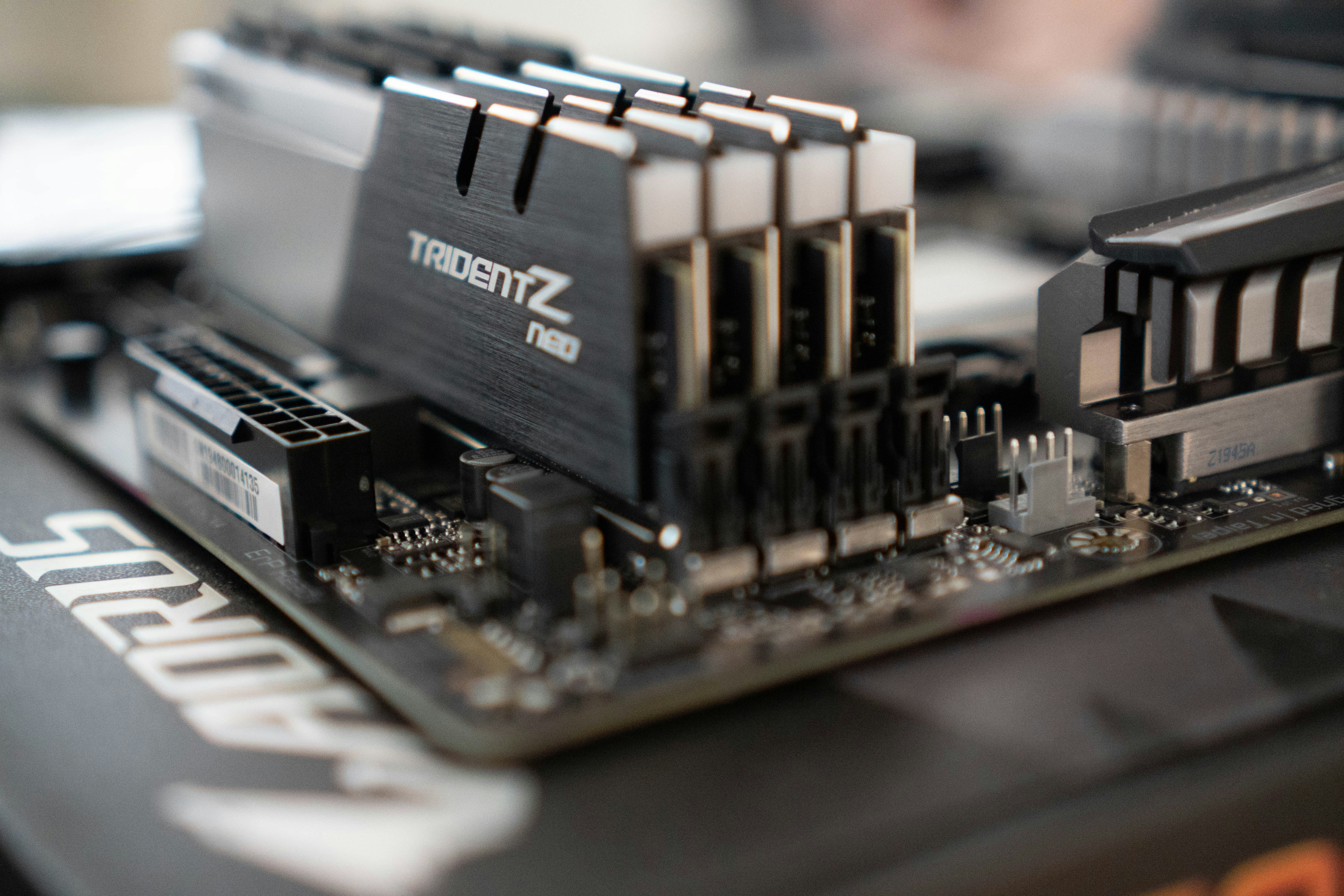
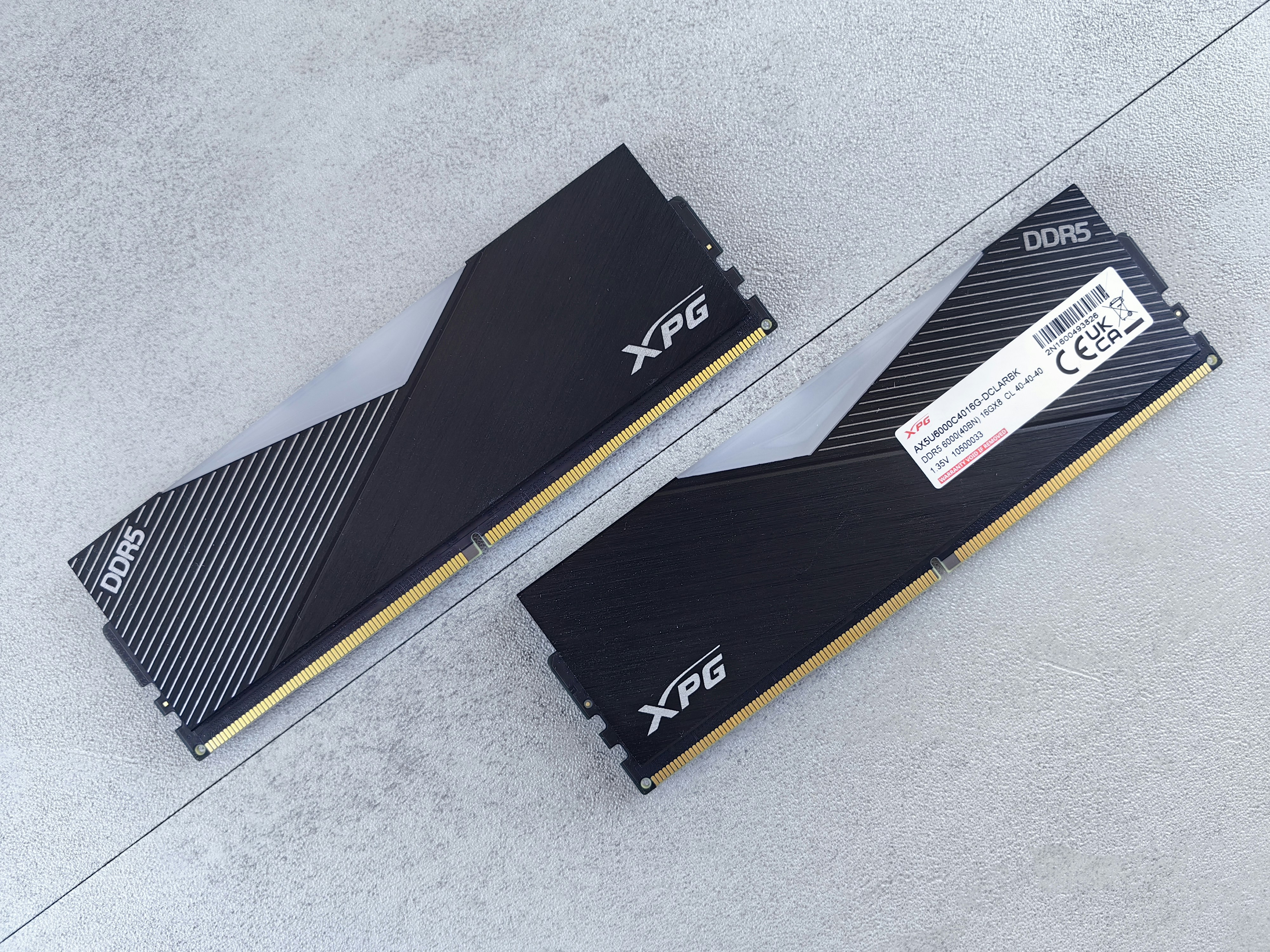
System RAM and GPU VRAM are not the same thing. RAM is used by the whole machine: the host app, V-Ray, geometry, textures, other open software, and the operating system. VRAM is the memory on your graphics card, and it becomes especially important when you render with V-Ray GPU.
A scene can feel fine in the viewport and still fail during rendering. That’s because the viewport is not processing everything the way V-Ray does. When rendering starts, V-Ray has to load the real geometry, textures, lights, displacement, proxies, render elements, and output data. Suddenly, the machine has to deal with the full weight of the scene.
Common signs of memory pressure include crashes that happen after scene loading, crashes at higher output sizes, GPU renders failing while CPU renders still work, or renders that complete in a small region but fail at full frame.
High-resolution textures are a big one here. A few 4K textures usually won’t kill a scene. But a full interior or exterior full of 4K and 8K maps can get ugly fast. AI-upscaled materials make this even easier to miss. They look sharper, so you keep them. Then you use them everywhere. Before long, your material library is quietly eating the render alive.
Same thing with displacement. Displacement can look great, especially for bricks, stone, rugs, terrain, and fabric. But it’s expensive. If every surface in the scene has real displacement, V-Ray has to generate much more geometry at render time. That extra detail has to live somewhere.
Usually, in memory.
The fixes are not exciting, but they work. Resize textures where the detail will never be visible. Don’t use 8K maps on background objects. Replace displacement with bump or normal maps when the camera won’t get close enough to justify it. Use proxies for repeated high-poly objects like trees, furniture, rocks, and decorative assets. Remove unused materials and maps instead of letting them sit in the file forever.
And test at lower resolution first. Seriously. Rendering final size too early is one of the fastest ways to confuse yourself.
Bad assets and broken materials
One bad asset can take down a whole V-Ray scene.
This happens a lot with downloaded models. Furniture libraries, vegetation packs, cars, scanned objects, CAD imports, old model collections, converted files from other software. They can look fine on the surface, but underneath they may contain messy geometry, extreme polygon counts, broken normals, strange material setups, unsupported maps, or huge bitmap chains.
I’ve noticed this especially in archviz scenes. Someone imports a beautiful sofa, a detailed plant, or a decorative object from a random library. It looks good, so nobody questions it. Then the render starts crashing, and everyone blames V-Ray settings.
Sometimes the problem is just one chair.
Materials can be just as dangerous. Old V-Ray materials from previous versions, converted Corona or standard materials, strange procedural maps, heavy displacement chains, missing bitmap paths, or unsupported plugins can all create instability. It’s easy to forget that materials are not just colors. They can contain reflection maps, bump maps, normal maps, displacement, opacity, glossiness, dirt maps, triplanar mapping, color corrections, layered shaders, and more.
A messy material can become a tiny render engine inside your render engine.
The easiest way to isolate this is crude but effective: save a copy of the scene, hide half of it, and render. If it works, the problem is probably in the hidden half. If it still crashes, the problem is probably in the visible half. Keep splitting until you find the object, material, or area that breaks the render.
Not elegant. Very effective.
Once you find the problem, don’t always try to “fix” the asset. Sometimes it’s faster to replace it, rebuild the material, collapse or clean the geometry in a copy, or merge the object into a fresh scene. If an asset has been passed through five different programs before reaching V-Ray, it may not be worth saving.
Drivers, versions, and install issues
This is the boring category everyone wants to skip.
I get it. Updating software is not as satisfying as discovering some hidden render setting. But V-Ray depends on a full chain: the host app, V-Ray version, GPU driver, plugins, operating system, asset paths, and sometimes licensing tools too.
If one part of that chain is out of sync, crashes can happen before you even get to the actual rendering problem.
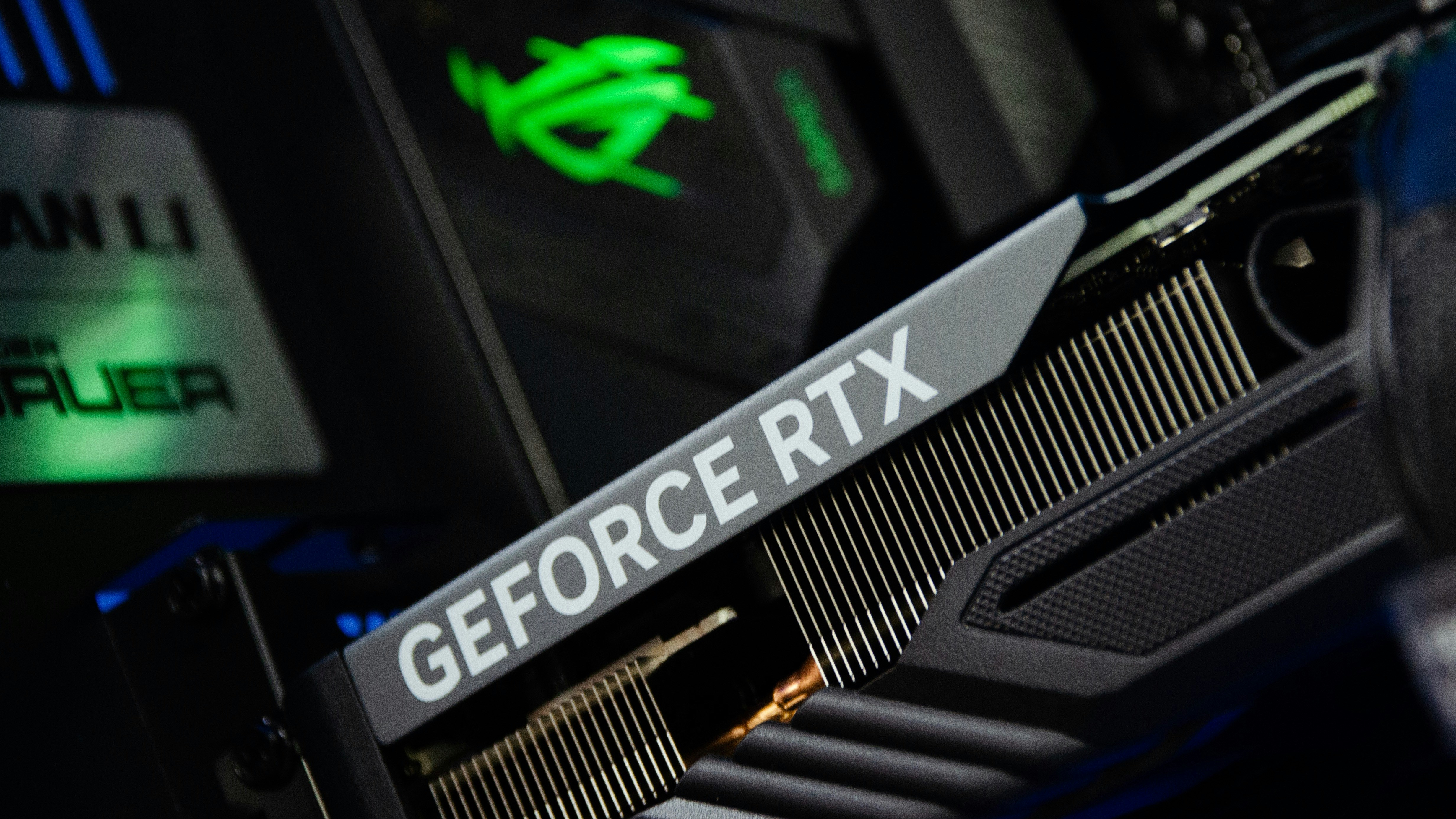
This matters a lot with V-Ray GPU. CUDA, RTX, GPU denoising, interactive rendering, and viewport/render communication are all sensitive to driver stability. A driver that works fine for games or general desktop use can still behave badly in production rendering.
A few basic checks are worth doing early:
Update V-Ray to a stable current build.
Make sure the host app version is supported.
Use a stable GPU driver, especially for GPU rendering.
Check whether the crash happens in a blank scene.
Restart the machine before testing heavy renders.
Look at the V-Ray log instead of guessing.
Compare the same scene on another workstation if possible.
If V-Ray crashes in every scene, including a simple test scene with one object and one light, the problem is probably not your project. It’s more likely installation, driver, plugin conflict, permissions, license, or hardware.
If only one project crashes, look inside the file first.
That distinction saves time.
If you’re using V-Ray GPU specifically, you can also check this guide on how to use GPU on V-Ray GPU Next for 3ds Max to make sure your GPU setup is actually being used correctly.
Render settings that push scenes over the edge
Render settings are not always the root cause, but they can expose the root cause fast.
A scene might render fine with basic settings, then crash when you turn on final output size, denoising, render elements, high displacement quality, heavy GI settings, or V-Ray GPU. That doesn’t always mean the setting is “bad.” It may just mean the scene was already close to the limit.
Displacement is one of the biggest offenders. Used carefully, it adds real depth. Used everywhere, it can turn a manageable file into a memory problem.
Render resolution is another one. A 1920 px test render and a 6000 px final render are not the same workload. Larger output means more memory for the frame buffer, render elements, denoising, and post effects.
Render elements also add weight. They’re useful, especially for compositing, but they are not free. If you have a long list of passes turned on by default, disable the ones you don’t need while troubleshooting.
Denoising can also be part of the problem, especially GPU denoising in a scene that is already tight on VRAM. If the render keeps failing near the end, test once with denoising off. Not because denoising is bad, but because you need to remove variables.
Interactive rendering deserves a mention too. IPR is great, but heavy scenes can get unstable when you leave it running while constantly changing materials, importing models, editing lights, and switching cameras. Sometimes the cleanest test is still the old-school way: stop IPR, save, restart the app, and run a controlled render.
The main idea is simple: don’t treat render settings like magic buttons. Treat them like load. Every extra feature adds pressure somewhere. When V-Ray crashes, your job is to find out which pressure point finally gave up.
A practical workflow for fixing V-Ray crashes
Once V-Ray starts crashing, the worst thing you can do is change everything at once.
I know the temptation. You lower the resolution, switch from GPU to CPU, delete a few models, turn off displacement, update the driver, restart the machine, and maybe even reinstall V-Ray. Then if the render works, you don’t actually know what fixed it. Worse, if it still crashes, now the scene is different and the problem is harder to track.
A better approach is slower at first, but faster overall: change one thing, test, then move to the next clue.
Save a copy before touching anything
This sounds obvious, but it matters.
Before you start deleting objects, replacing materials, collapsing modifiers, or changing render settings, save a separate troubleshooting version of the file. Don’t experiment on the production file. V-Ray crashes are already annoying enough. You don’t need to add “I destroyed the clean scene” to the list.
Name it something simple, like projectname_troubleshoot_01. Then you can be aggressive without worrying about breaking the original.
Check the V-Ray log
The log won’t always hand you a perfect answer, but it often points you in the right direction.
Look for repeated warnings, missing assets, memory allocation errors, CUDA or RTX messages, plugin-related errors, texture loading issues, or anything that appears right before the crash. Even if you don’t understand every line, you can usually tell whether the issue smells like memory, GPU, missing files, or a specific asset.
And if you need to contact Chaos support later, logs and crash files are much more useful than “it crashes sometimes.”
Test a blank scene
Before blaming your project, make sure V-Ray itself works.
Open a fresh scene. Add one basic object, one light, one material, and render. If that crashes too, your main project probably isn’t the first problem. You may be dealing with an install issue, driver problem, license issue, plugin conflict, or host app problem.
If the blank scene renders fine, good. Now you know the crash is more likely tied to your project file.
Lower the resolution and disable extras
Next, reduce the render load without destroying the scene.
Drop the output resolution. Turn off denoising. Disable extra render elements. Temporarily reduce displacement. Avoid final-quality settings for this test.
The point is not to create a beautiful render. The point is to see whether the scene can complete under lighter pressure.
If the lower version works but the final version fails, you’ve learned something important. The scene is probably close to a memory, VRAM, or render-setting limit.
Test CPU vs GPU rendering
If you’re using V-Ray GPU and the scene keeps failing, test the same file with CPU rendering.
If CPU works but GPU crashes, that usually points toward VRAM limits, GPU driver problems, GPU-only features, or a scene that is too heavy for the available graphics memory. It doesn’t automatically mean the GPU is “bad.” It may just not have enough room for this specific project.
If both CPU and GPU rendering fail, I’d look harder at the scene itself: broken assets, corrupt geometry, extreme displacement, RAM limits, or host app instability.
This one test can save a lot of guessing.

Hide half the scene and render again
This is the least glamorous troubleshooting method, but it works.
Save your copy, hide half the objects, and render. If it works, the problem is probably in the hidden half. If it still crashes, the problem is probably in the visible half. Keep splitting the scene until you narrow it down to one area, one imported model, or one material group.
It feels primitive, but honestly, it’s one of the fastest ways to find a bad asset.
This is especially useful in archviz scenes with lots of downloaded furniture, trees, decorative objects, or CAD imports. One broken model can waste hours if you keep treating the whole file as the problem.
Merge into a clean file
If the scene has been reused for months, passed between artists, upgraded through software versions, or filled with imported assets, it may have hidden baggage.
In that case, try merging the important objects into a clean scene. Rebuild the render setup carefully. Bring materials, lights, and cameras over in controlled steps.
This won’t fix every crash, but it can help when the original file has corruption, old scene data, broken plugin leftovers, or strange behavior that doesn’t make sense anymore.
Sometimes the file is the mess. Not the render settings.

Decide if it’s the scene or the machine
After these tests, you should have a clearer answer.
If one object crashes the render, fix or replace the asset. If one material causes the issue, rebuild it. If high displacement breaks the scene, reduce it. If final resolution fails but lower resolution works, check memory pressure. If GPU fails but CPU works, look at VRAM and driver stability.
But if the scene is clean, assets are reasonable, settings are sane, and the render still keeps pushing your local machine too hard, then you may not have a V-Ray problem anymore.
You may have a hardware limit.
That’s an important distinction. Because once you know the scene itself is not broken, the conversation changes from “How do I fix this file?” to “Do I have enough machine for the render I’m trying to finish?”
For Maya users, Vagon also has a separate walkthrough on how to use GPU on V-Ray GPU Next for Maya, which can help if the crash seems tied to GPU rendering rather than the scene itself.
When the scene is fine, but the machine isn’t
At some point, optimization stops being clever and starts becoming damage control.
You’ve probably seen this before. The scene is not broken. The materials are reasonable. The assets are cleaned up. You’ve reduced the worst displacement, removed unused maps, tested the render at smaller sizes, checked the log, and maybe even tried the file on another machine.
And still, your main workstation struggles.
That’s usually when people keep forcing the scene to become smaller. Lower the texture quality again. Delete background details. Remove vegetation. Turn off render elements. Reduce output size. Switch to a less demanding material. Compromise the image until the machine can survive it.
Sometimes that’s the right move. A messy scene should be optimized. No argument there.
But sometimes the project has simply outgrown the local hardware.

A laptop with limited VRAM might be fine for lookdev, previews, and smaller interiors, then fall apart when the final scene is ready. A desktop with 32 GB of RAM might handle everyday work, but struggle with a large exterior, dense landscaping, 8K materials, displacement, and multiple render elements. An older GPU might open the file, orbit the viewport, and run small tests, but fail the moment V-Ray GPU has to process the full production render.
That doesn’t mean you’re doing something wrong. It means the scene has reached a different weight class.
If your workflow also touches SketchUp before rendering, this breakdown of the best GPUs for SketchUp can help you understand where viewport performance ends and rendering pressure begins.
Signs you’ve hit a hardware wall
The clearest sign is consistency. If small scenes render fine but production scenes fail, the machine is probably the limit. If low-resolution tests work but final-size renders crash, memory may be the issue. If CPU rendering works but takes forever while GPU rendering crashes, VRAM is a strong suspect.
Another sign is when you spend more time shrinking the project than improving the image.
That’s a bad place to be. You’re no longer making creative decisions. You’re negotiating with your hardware.
You remove detail not because the shot looks better, but because the workstation can’t handle it. You avoid realistic vegetation because it’s risky. You stop using high-quality scanned materials because they might crash the render. You break one image into awkward pieces just to get it out.
This is where V-Ray troubleshooting becomes less about fixing errors and more about protecting the work.
Where Vagon Cloud Computer fits
This is the point where Vagon Cloud Computer actually makes sense to mention.
Not as a magic fix. It won’t repair a corrupt file, clean a broken model, or turn a badly built scene into a good one. If one imported chair is crashing V-Ray, you still need to find that chair.
But if the scene is healthy and your local machine is the bottleneck, working on a cloud computer can be a practical way around that limit.
With Vagon Cloud Computer, you can run demanding creative and rendering workflows on a high-performance cloud machine instead of depending only on your local device. For V-Ray users, that matters most when projects start pushing against RAM, VRAM, GPU performance, or laptop limitations.
A freelancer working from a thin laptop can still open and work on heavier scenes. An archviz artist can handle a detailed interior or exterior without immediately buying a new workstation. A student can work with V-Ray even if their personal computer was never built for production rendering. A team member can review or adjust a heavy file without waiting for everything to behave on a weaker local setup.
I think that’s the realistic way to look at it. Vagon doesn’t replace good scene management. It gives you more room when good scene management still isn’t enough.
And that distinction matters.
Because if your V-Ray scene is crashing because it’s messy, fix the scene. If it’s crashing because your machine has hit its limit, then the better question becomes whether you really want to keep cutting down the project just to fit the hardware in front of you.
For Revit-heavy pipelines, hardware pressure can start even before the scene reaches V-Ray. This guide on the best PC for Autodesk Revit is helpful if your V-Ray work depends on large architectural models coming from Revit.
What not to do when V-Ray keeps crashing
When V-Ray keeps crashing, panic makes everything worse.
The first mistake is changing too many things at once. You lower the resolution, switch from GPU to CPU, turn off displacement, delete some assets, update the driver, change GI settings, restart the app, and try again. Maybe it works. Great. But now you have no idea which change actually helped.
That’s not troubleshooting. That’s gambling.
Change one thing, test it, then move on.
Another mistake is lowering quality blindly. Yes, reducing settings can help you get a render out, but it can also hide the real issue. If one broken imported model is crashing the scene, lowering samples won’t fix the problem. If your GPU is running out of VRAM, reducing reflection quality probably won’t save you. You need to know what limit you’re hitting before you start sacrificing the image.
Also, don’t delete objects from the original file. Ever. Save a separate troubleshooting copy first. It sounds basic, but it’s easy to forget when you’re annoyed and the deadline is close. Delete aggressively in the copied file if you need to. Keep the clean production file safe.
Ignoring the V-Ray log is another common one. I get why people skip it. Logs look boring, and sometimes they’re full of messages that don’t feel useful. But if you see memory allocation errors, CUDA warnings, missing assets, repeated texture issues, or plugin names right before the crash, that’s a clue. Maybe not the full answer, but enough to stop guessing.
Don’t assume GPU rendering is always the better option either. V-Ray GPU can be fast, but it’s also more sensitive to VRAM limits. If the scene doesn’t fit comfortably on the GPU, CPU rendering may be slower but more stable. Faster is only better when it actually finishes.
Final-size rendering too early is another trap. Test smaller first. Use region renders. Check the heavy areas before you ask the machine to process the entire image at full resolution with denoising, render elements, displacement, and high-res textures all turned on.
And please, don’t keep every unused 8K texture in the scene just because “maybe we’ll need it later.” That kind of clutter quietly builds the crash you’ll be fighting tomorrow.
The same goes for random old drivers from forum comments. If someone fixed their crash with a driver from three years ago, that doesn’t mean it’s the right move for your setup.
V-Ray crashes are frustrating, but random fixes create random results. Keep the process controlled. One change. One test. One clue at a time.
And if you compare V-Ray with real-time tools in the same visualization workflow, this guide on the best GPU for Twinmotion can help you think about GPU needs across different rendering tools, not just V-Ray.
Final thoughts: don’t chase the crash, chase the limit
A V-Ray crash is usually a signal.
Something hit a limit. Maybe it was RAM. Maybe it was VRAM. Maybe the GPU driver became unstable. Maybe the scene had one broken imported asset hiding inside it. Maybe the render settings were too aggressive for the machine. Maybe the host app was already struggling before V-Ray even started.
That’s why the best fix is rarely one magic checkbox.
The better approach is to slow down and read the crash properly. When does it happen? Does it happen in every file or only one scene? Does CPU rendering work when GPU rendering fails? Does the scene finish at a lower resolution? Does it crash only after adding displacement, vegetation, render elements, or AI-upscaled textures?
Those answers tell you where to look.
If the scene is messy, fix the scene. Clean the assets. Reduce unnecessary texture sizes. Replace broken materials. Use proxies where they make sense. Don’t keep dragging the same corrupted file from project to project.
If the settings are pushing too hard, simplify the test. Turn off denoising. Reduce render elements. Lower the resolution. Disable heavy displacement temporarily. Find the pressure point before you rebuild the whole render setup.
And if the scene is clean but the machine keeps failing, be honest about that too. Sometimes the problem is not your workflow. Sometimes the project has simply outgrown the hardware in front of you.
That’s where a cloud setup like Vagon Cloud Computer can make sense. Not because it magically fixes broken V-Ray files, but because it gives you more room when local RAM, VRAM, or GPU power becomes the real bottleneck.
The goal is not to make every scene lighter until your workstation survives. The goal is to understand what failed, fix what actually needs fixing, and use the right machine for the work you’re trying to finish.
FAQs
1. Why does V-Ray keep crashing during rendering?
V-Ray usually crashes during rendering because something in the scene is pushing the system past its limit. Most of the time, that means RAM pressure, VRAM limits, heavy displacement, huge textures, unstable GPU drivers, too many render elements, or a bad asset inside the file. The important thing is to check when it crashes. If it crashes while loading the scene, look at geometry, textures, proxies, and memory. If it crashes halfway through the render, look harder at output size, denoising, GPU memory, render elements, and final-quality settings.
2. Why does V-Ray GPU crash but CPU rendering works?
This usually points to VRAM. V-Ray GPU depends heavily on the memory available on your graphics card. If the scene does not fit comfortably in VRAM, GPU rendering can fail even when CPU rendering still works. CPU rendering can use system RAM, which is often larger than GPU memory, so it may survive the same scene at the cost of speed. This does not mean GPU rendering is bad. It just means the scene may be too heavy for that specific GPU setup.
3. How do I know if a V-Ray crash is caused by VRAM?
A few clues usually give it away. GPU rendering crashes, but CPU rendering works. Smaller test renders finish, but final-resolution renders fail. Region renders work, but full-frame renders don’t. The crash started after adding 4K or 8K textures, heavy vegetation, displacement, scanned assets, or AI-upscaled materials. You may also see memory allocation or GPU-related messages in the V-Ray log. If the pattern points to VRAM, start by reducing texture sizes, disabling unnecessary displacement, turning off GPU denoising for a test, and simplifying render elements.
4. Can high-resolution or AI-upscaled textures crash V-Ray?
Yes, especially when they are used everywhere. One 8K texture may not be a problem. A full scene filled with 4K and 8K maps is different. AI-upscaled materials can make this worse because they look better at first glance, so it becomes tempting to keep them even where the extra detail will never be visible. Use high-resolution textures only where the camera actually needs them. For background objects, distant walls, furniture, and small details, lower-resolution maps are often enough.
5. Should I use CPU or GPU rendering in V-Ray?
It depends on the scene and the machine. V-Ray GPU can be very fast when the scene fits well in VRAM and the driver setup is stable. CPU rendering can be more forgiving for very large scenes because it uses system RAM, but it may take longer. I wouldn’t treat either one as automatically better. If GPU rendering keeps crashing, test the same scene with CPU rendering. If CPU works, you probably have a GPU memory, driver, or GPU-specific issue. If both fail, the problem is more likely inside the scene or the machine’s overall memory limit.
6. Does updating GPU drivers fix V-Ray crashes?
Sometimes, yes. Driver issues can cause crashes, especially with V-Ray GPU, CUDA, RTX rendering, denoising, and interactive rendering. But updating drivers is not a magic fix for every crash. If only one scene crashes, the file itself may be the problem. If every scene crashes, including a simple test scene, then drivers, installation, plugin conflicts, or hardware are more likely suspects. Use stable production-friendly drivers where possible, and avoid jumping to random old drivers just because one forum comment said it worked.
7. Can Vagon Cloud Computer help with V-Ray crashes?
Vagon Cloud Computer can help when the crash is caused by local hardware limits, especially RAM, VRAM, GPU performance, or laptop limitations. It will not fix a corrupt scene, a broken material, or a bad imported model. Those still need to be cleaned up. But if your scene is well-built and your local machine simply cannot handle the final render, using a more powerful cloud computer can give you more room to work without immediately buying a new workstation.
8. What should I do first when V-Ray crashes?
Start simple. Save a copy of the file, then check when the crash happens. Test a blank scene to confirm V-Ray itself works. Lower the render resolution, disable denoising and extra render elements, then test again. If you use V-Ray GPU, try CPU rendering once to see if the issue is GPU-specific. If only one project crashes, isolate bad assets by hiding half the scene and rendering in sections. Don’t change ten settings at once. That only makes the problem harder to understand.
V-Ray crashes feel sudden. You’re adjusting a material, testing a camera, or starting a final render, then the scene freezes, closes, or throws an error that doesn’t tell you much.
But usually, the crash started long before that moment.
The scene got heavier piece by piece. A few imported models became a full interior. Some plants became a dense landscape. 2K textures turned into 4K or 8K textures. AI-upscaled materials looked sharper, so they stayed. Displacement got added to walls, rugs, stones, fabrics. Render elements were turned on. The output size jumped from a test frame to a client-ready render.
None of that is wrong. That’s normal V-Ray work.
The problem is that every detail adds pressure somewhere. More RAM. More VRAM. More CPU load. More GPU load. More work for the host app, whether you’re using 3ds Max, SketchUp, Rhino, Maya, Cinema 4D, or another tool.
So when V-Ray crashes, the first question shouldn’t be “Which setting should I lower?”
That usually leads to random fixes. You reduce quality, switch render modes, restart the machine, delete objects, update drivers, and hope something works.
A better question is: what limit did I hit?
Maybe the scene no longer fits in GPU memory. Maybe system RAM is running out during geometry loading. Maybe one imported asset is broken. Maybe the driver is unstable. Maybe the file is fine, but the machine just can’t handle the final version anymore.
That’s the real way to fix V-Ray crashes. Don’t chase the crash. Find the limit behind it.
First, identify the type of crash
Before changing settings, look at when V-Ray crashes. That timing matters more than people think.
A crash before rendering starts is not the same as a crash halfway through a final render. A file that crashes on one machine but works on another is a different problem again. Same symptom, different cause.
This is why random fixes can waste so much time. If you don’t know what kind of crash you’re dealing with, you end up lowering settings, switching render modes, deleting assets, restarting your machine, and hoping something sticks.
Sometimes it works. Usually, it just makes the scene harder to troubleshoot.
V-Ray crashes before rendering starts
If V-Ray crashes before the render even begins, the issue is often around the scene setup, not the final render quality.
It could be a broken material, an outdated V-Ray version, a host app issue, a missing plugin, a corrupt scene file, or one imported asset that V-Ray doesn’t like. In 3ds Max, SketchUp, Rhino, Maya, or Cinema 4D, V-Ray is only one part of the chain. The host app, plugins, asset paths, drivers, and scene data all matter too.
So if the crash happens right after you hit render, don’t immediately start lowering samples or resolution. V-Ray may not even be getting that far.
V-Ray crashes during scene loading
This is where heavier scene problems usually show up.
V-Ray has to load geometry, process textures, read materials, prepare lights, calculate scene data, and get everything ready before the actual render starts. A viewport can hide a messy scene. Rendering can’t.
Common suspects here include:
Huge textures
Heavy displacement
High-poly imported models
Large XRefs
Too many proxies
RAM pressure
Broken asset paths
If the crash happens while V-Ray is preparing the scene, think less about “final quality” and more about what the scene is forcing V-Ray to load.
V-Ray crashes during rendering
If the render starts, runs for a while, and then fails, you’re often looking at memory, GPU, or render-setting pressure.
Maybe the scene fits at a small resolution but not at final size. Maybe CPU rendering works but GPU rendering crashes. Maybe the render finishes without denoising, but fails when the denoiser and render elements are enabled.
This kind of crash often points to limits: RAM, VRAM, GPU driver stability, render elements, Light Cache, displacement, output size, or denoising.
V-Ray crashes only in one file
If one project keeps crashing but other scenes render fine, suspect the file first.
Usually, there’s something inside the scene causing the problem: a bad object, broken material, corrupt geometry, imported model, old shader, or one section that’s simply too heavy.
This is when the hide-half-and-test method becomes useful. Not elegant, but it works.
V-Ray crashes only on one machine
If the same file works on another workstation, the scene may not be the main issue.
The weaker machine might have less RAM, less VRAM, an unstable GPU driver, a different V-Ray version, missing plugins, limited disk space, or a local cache problem.
That’s why “V-Ray crashed” isn’t enough information. You need to know when, where, and under what conditions it crashed before you can fix it properly.
If you’re trying to understand whether your GPU is part of the problem, this guide on the best GPU for V-Ray is a useful next read.
The most common reasons V-Ray crashes
Once you know when the crash happens, the next step is figuring out what is actually causing the pressure. In most V-Ray projects, the answer is not mysterious. It’s usually one of a few things: memory, VRAM, bad assets, outdated drivers, messy scene data, or render settings that are too heavy for the machine.
Not glamorous. But very real.
Memory and VRAM limits
This is probably the most common crash source, especially in larger scenes.
System RAM and GPU VRAM are not the same thing. RAM is used by the whole machine: the host app, V-Ray, geometry, textures, other open software, and the operating system. VRAM is the memory on your graphics card, and it becomes especially important when you render with V-Ray GPU.
A scene can feel fine in the viewport and still fail during rendering. That’s because the viewport is not processing everything the way V-Ray does. When rendering starts, V-Ray has to load the real geometry, textures, lights, displacement, proxies, render elements, and output data. Suddenly, the machine has to deal with the full weight of the scene.
Common signs of memory pressure include crashes that happen after scene loading, crashes at higher output sizes, GPU renders failing while CPU renders still work, or renders that complete in a small region but fail at full frame.
High-resolution textures are a big one here. A few 4K textures usually won’t kill a scene. But a full interior or exterior full of 4K and 8K maps can get ugly fast. AI-upscaled materials make this even easier to miss. They look sharper, so you keep them. Then you use them everywhere. Before long, your material library is quietly eating the render alive.
Same thing with displacement. Displacement can look great, especially for bricks, stone, rugs, terrain, and fabric. But it’s expensive. If every surface in the scene has real displacement, V-Ray has to generate much more geometry at render time. That extra detail has to live somewhere.
Usually, in memory.
The fixes are not exciting, but they work. Resize textures where the detail will never be visible. Don’t use 8K maps on background objects. Replace displacement with bump or normal maps when the camera won’t get close enough to justify it. Use proxies for repeated high-poly objects like trees, furniture, rocks, and decorative assets. Remove unused materials and maps instead of letting them sit in the file forever.
And test at lower resolution first. Seriously. Rendering final size too early is one of the fastest ways to confuse yourself.
Bad assets and broken materials
One bad asset can take down a whole V-Ray scene.
This happens a lot with downloaded models. Furniture libraries, vegetation packs, cars, scanned objects, CAD imports, old model collections, converted files from other software. They can look fine on the surface, but underneath they may contain messy geometry, extreme polygon counts, broken normals, strange material setups, unsupported maps, or huge bitmap chains.
I’ve noticed this especially in archviz scenes. Someone imports a beautiful sofa, a detailed plant, or a decorative object from a random library. It looks good, so nobody questions it. Then the render starts crashing, and everyone blames V-Ray settings.
Sometimes the problem is just one chair.
Materials can be just as dangerous. Old V-Ray materials from previous versions, converted Corona or standard materials, strange procedural maps, heavy displacement chains, missing bitmap paths, or unsupported plugins can all create instability. It’s easy to forget that materials are not just colors. They can contain reflection maps, bump maps, normal maps, displacement, opacity, glossiness, dirt maps, triplanar mapping, color corrections, layered shaders, and more.
A messy material can become a tiny render engine inside your render engine.
The easiest way to isolate this is crude but effective: save a copy of the scene, hide half of it, and render. If it works, the problem is probably in the hidden half. If it still crashes, the problem is probably in the visible half. Keep splitting until you find the object, material, or area that breaks the render.
Not elegant. Very effective.
Once you find the problem, don’t always try to “fix” the asset. Sometimes it’s faster to replace it, rebuild the material, collapse or clean the geometry in a copy, or merge the object into a fresh scene. If an asset has been passed through five different programs before reaching V-Ray, it may not be worth saving.
Drivers, versions, and install issues
This is the boring category everyone wants to skip.
I get it. Updating software is not as satisfying as discovering some hidden render setting. But V-Ray depends on a full chain: the host app, V-Ray version, GPU driver, plugins, operating system, asset paths, and sometimes licensing tools too.
If one part of that chain is out of sync, crashes can happen before you even get to the actual rendering problem.
This matters a lot with V-Ray GPU. CUDA, RTX, GPU denoising, interactive rendering, and viewport/render communication are all sensitive to driver stability. A driver that works fine for games or general desktop use can still behave badly in production rendering.
A few basic checks are worth doing early:
Update V-Ray to a stable current build.
Make sure the host app version is supported.
Use a stable GPU driver, especially for GPU rendering.
Check whether the crash happens in a blank scene.
Restart the machine before testing heavy renders.
Look at the V-Ray log instead of guessing.
Compare the same scene on another workstation if possible.
If V-Ray crashes in every scene, including a simple test scene with one object and one light, the problem is probably not your project. It’s more likely installation, driver, plugin conflict, permissions, license, or hardware.
If only one project crashes, look inside the file first.
That distinction saves time.
If you’re using V-Ray GPU specifically, you can also check this guide on how to use GPU on V-Ray GPU Next for 3ds Max to make sure your GPU setup is actually being used correctly.
Render settings that push scenes over the edge
Render settings are not always the root cause, but they can expose the root cause fast.
A scene might render fine with basic settings, then crash when you turn on final output size, denoising, render elements, high displacement quality, heavy GI settings, or V-Ray GPU. That doesn’t always mean the setting is “bad.” It may just mean the scene was already close to the limit.
Displacement is one of the biggest offenders. Used carefully, it adds real depth. Used everywhere, it can turn a manageable file into a memory problem.
Render resolution is another one. A 1920 px test render and a 6000 px final render are not the same workload. Larger output means more memory for the frame buffer, render elements, denoising, and post effects.
Render elements also add weight. They’re useful, especially for compositing, but they are not free. If you have a long list of passes turned on by default, disable the ones you don’t need while troubleshooting.
Denoising can also be part of the problem, especially GPU denoising in a scene that is already tight on VRAM. If the render keeps failing near the end, test once with denoising off. Not because denoising is bad, but because you need to remove variables.
Interactive rendering deserves a mention too. IPR is great, but heavy scenes can get unstable when you leave it running while constantly changing materials, importing models, editing lights, and switching cameras. Sometimes the cleanest test is still the old-school way: stop IPR, save, restart the app, and run a controlled render.
The main idea is simple: don’t treat render settings like magic buttons. Treat them like load. Every extra feature adds pressure somewhere. When V-Ray crashes, your job is to find out which pressure point finally gave up.
A practical workflow for fixing V-Ray crashes
Once V-Ray starts crashing, the worst thing you can do is change everything at once.
I know the temptation. You lower the resolution, switch from GPU to CPU, delete a few models, turn off displacement, update the driver, restart the machine, and maybe even reinstall V-Ray. Then if the render works, you don’t actually know what fixed it. Worse, if it still crashes, now the scene is different and the problem is harder to track.
A better approach is slower at first, but faster overall: change one thing, test, then move to the next clue.
Save a copy before touching anything
This sounds obvious, but it matters.
Before you start deleting objects, replacing materials, collapsing modifiers, or changing render settings, save a separate troubleshooting version of the file. Don’t experiment on the production file. V-Ray crashes are already annoying enough. You don’t need to add “I destroyed the clean scene” to the list.
Name it something simple, like projectname_troubleshoot_01. Then you can be aggressive without worrying about breaking the original.
Check the V-Ray log
The log won’t always hand you a perfect answer, but it often points you in the right direction.
Look for repeated warnings, missing assets, memory allocation errors, CUDA or RTX messages, plugin-related errors, texture loading issues, or anything that appears right before the crash. Even if you don’t understand every line, you can usually tell whether the issue smells like memory, GPU, missing files, or a specific asset.
And if you need to contact Chaos support later, logs and crash files are much more useful than “it crashes sometimes.”
Test a blank scene
Before blaming your project, make sure V-Ray itself works.
Open a fresh scene. Add one basic object, one light, one material, and render. If that crashes too, your main project probably isn’t the first problem. You may be dealing with an install issue, driver problem, license issue, plugin conflict, or host app problem.
If the blank scene renders fine, good. Now you know the crash is more likely tied to your project file.
Lower the resolution and disable extras
Next, reduce the render load without destroying the scene.
Drop the output resolution. Turn off denoising. Disable extra render elements. Temporarily reduce displacement. Avoid final-quality settings for this test.
The point is not to create a beautiful render. The point is to see whether the scene can complete under lighter pressure.
If the lower version works but the final version fails, you’ve learned something important. The scene is probably close to a memory, VRAM, or render-setting limit.
Test CPU vs GPU rendering
If you’re using V-Ray GPU and the scene keeps failing, test the same file with CPU rendering.
If CPU works but GPU crashes, that usually points toward VRAM limits, GPU driver problems, GPU-only features, or a scene that is too heavy for the available graphics memory. It doesn’t automatically mean the GPU is “bad.” It may just not have enough room for this specific project.
If both CPU and GPU rendering fail, I’d look harder at the scene itself: broken assets, corrupt geometry, extreme displacement, RAM limits, or host app instability.
This one test can save a lot of guessing.
Hide half the scene and render again
This is the least glamorous troubleshooting method, but it works.
Save your copy, hide half the objects, and render. If it works, the problem is probably in the hidden half. If it still crashes, the problem is probably in the visible half. Keep splitting the scene until you narrow it down to one area, one imported model, or one material group.
It feels primitive, but honestly, it’s one of the fastest ways to find a bad asset.
This is especially useful in archviz scenes with lots of downloaded furniture, trees, decorative objects, or CAD imports. One broken model can waste hours if you keep treating the whole file as the problem.
Merge into a clean file
If the scene has been reused for months, passed between artists, upgraded through software versions, or filled with imported assets, it may have hidden baggage.
In that case, try merging the important objects into a clean scene. Rebuild the render setup carefully. Bring materials, lights, and cameras over in controlled steps.
This won’t fix every crash, but it can help when the original file has corruption, old scene data, broken plugin leftovers, or strange behavior that doesn’t make sense anymore.
Sometimes the file is the mess. Not the render settings.
Decide if it’s the scene or the machine
After these tests, you should have a clearer answer.
If one object crashes the render, fix or replace the asset. If one material causes the issue, rebuild it. If high displacement breaks the scene, reduce it. If final resolution fails but lower resolution works, check memory pressure. If GPU fails but CPU works, look at VRAM and driver stability.
But if the scene is clean, assets are reasonable, settings are sane, and the render still keeps pushing your local machine too hard, then you may not have a V-Ray problem anymore.
You may have a hardware limit.
That’s an important distinction. Because once you know the scene itself is not broken, the conversation changes from “How do I fix this file?” to “Do I have enough machine for the render I’m trying to finish?”
For Maya users, Vagon also has a separate walkthrough on how to use GPU on V-Ray GPU Next for Maya, which can help if the crash seems tied to GPU rendering rather than the scene itself.
When the scene is fine, but the machine isn’t
At some point, optimization stops being clever and starts becoming damage control.
You’ve probably seen this before. The scene is not broken. The materials are reasonable. The assets are cleaned up. You’ve reduced the worst displacement, removed unused maps, tested the render at smaller sizes, checked the log, and maybe even tried the file on another machine.
And still, your main workstation struggles.
That’s usually when people keep forcing the scene to become smaller. Lower the texture quality again. Delete background details. Remove vegetation. Turn off render elements. Reduce output size. Switch to a less demanding material. Compromise the image until the machine can survive it.
Sometimes that’s the right move. A messy scene should be optimized. No argument there.
But sometimes the project has simply outgrown the local hardware.
A laptop with limited VRAM might be fine for lookdev, previews, and smaller interiors, then fall apart when the final scene is ready. A desktop with 32 GB of RAM might handle everyday work, but struggle with a large exterior, dense landscaping, 8K materials, displacement, and multiple render elements. An older GPU might open the file, orbit the viewport, and run small tests, but fail the moment V-Ray GPU has to process the full production render.
That doesn’t mean you’re doing something wrong. It means the scene has reached a different weight class.
If your workflow also touches SketchUp before rendering, this breakdown of the best GPUs for SketchUp can help you understand where viewport performance ends and rendering pressure begins.
Signs you’ve hit a hardware wall
The clearest sign is consistency. If small scenes render fine but production scenes fail, the machine is probably the limit. If low-resolution tests work but final-size renders crash, memory may be the issue. If CPU rendering works but takes forever while GPU rendering crashes, VRAM is a strong suspect.
Another sign is when you spend more time shrinking the project than improving the image.
That’s a bad place to be. You’re no longer making creative decisions. You’re negotiating with your hardware.
You remove detail not because the shot looks better, but because the workstation can’t handle it. You avoid realistic vegetation because it’s risky. You stop using high-quality scanned materials because they might crash the render. You break one image into awkward pieces just to get it out.
This is where V-Ray troubleshooting becomes less about fixing errors and more about protecting the work.
Where Vagon Cloud Computer fits
This is the point where Vagon Cloud Computer actually makes sense to mention.
Not as a magic fix. It won’t repair a corrupt file, clean a broken model, or turn a badly built scene into a good one. If one imported chair is crashing V-Ray, you still need to find that chair.
But if the scene is healthy and your local machine is the bottleneck, working on a cloud computer can be a practical way around that limit.
With Vagon Cloud Computer, you can run demanding creative and rendering workflows on a high-performance cloud machine instead of depending only on your local device. For V-Ray users, that matters most when projects start pushing against RAM, VRAM, GPU performance, or laptop limitations.
A freelancer working from a thin laptop can still open and work on heavier scenes. An archviz artist can handle a detailed interior or exterior without immediately buying a new workstation. A student can work with V-Ray even if their personal computer was never built for production rendering. A team member can review or adjust a heavy file without waiting for everything to behave on a weaker local setup.
I think that’s the realistic way to look at it. Vagon doesn’t replace good scene management. It gives you more room when good scene management still isn’t enough.
And that distinction matters.
Because if your V-Ray scene is crashing because it’s messy, fix the scene. If it’s crashing because your machine has hit its limit, then the better question becomes whether you really want to keep cutting down the project just to fit the hardware in front of you.
For Revit-heavy pipelines, hardware pressure can start even before the scene reaches V-Ray. This guide on the best PC for Autodesk Revit is helpful if your V-Ray work depends on large architectural models coming from Revit.
What not to do when V-Ray keeps crashing
When V-Ray keeps crashing, panic makes everything worse.
The first mistake is changing too many things at once. You lower the resolution, switch from GPU to CPU, turn off displacement, delete some assets, update the driver, change GI settings, restart the app, and try again. Maybe it works. Great. But now you have no idea which change actually helped.
That’s not troubleshooting. That’s gambling.
Change one thing, test it, then move on.
Another mistake is lowering quality blindly. Yes, reducing settings can help you get a render out, but it can also hide the real issue. If one broken imported model is crashing the scene, lowering samples won’t fix the problem. If your GPU is running out of VRAM, reducing reflection quality probably won’t save you. You need to know what limit you’re hitting before you start sacrificing the image.
Also, don’t delete objects from the original file. Ever. Save a separate troubleshooting copy first. It sounds basic, but it’s easy to forget when you’re annoyed and the deadline is close. Delete aggressively in the copied file if you need to. Keep the clean production file safe.
Ignoring the V-Ray log is another common one. I get why people skip it. Logs look boring, and sometimes they’re full of messages that don’t feel useful. But if you see memory allocation errors, CUDA warnings, missing assets, repeated texture issues, or plugin names right before the crash, that’s a clue. Maybe not the full answer, but enough to stop guessing.
Don’t assume GPU rendering is always the better option either. V-Ray GPU can be fast, but it’s also more sensitive to VRAM limits. If the scene doesn’t fit comfortably on the GPU, CPU rendering may be slower but more stable. Faster is only better when it actually finishes.
Final-size rendering too early is another trap. Test smaller first. Use region renders. Check the heavy areas before you ask the machine to process the entire image at full resolution with denoising, render elements, displacement, and high-res textures all turned on.
And please, don’t keep every unused 8K texture in the scene just because “maybe we’ll need it later.” That kind of clutter quietly builds the crash you’ll be fighting tomorrow.
The same goes for random old drivers from forum comments. If someone fixed their crash with a driver from three years ago, that doesn’t mean it’s the right move for your setup.
V-Ray crashes are frustrating, but random fixes create random results. Keep the process controlled. One change. One test. One clue at a time.
And if you compare V-Ray with real-time tools in the same visualization workflow, this guide on the best GPU for Twinmotion can help you think about GPU needs across different rendering tools, not just V-Ray.
Final thoughts: don’t chase the crash, chase the limit
A V-Ray crash is usually a signal.
Something hit a limit. Maybe it was RAM. Maybe it was VRAM. Maybe the GPU driver became unstable. Maybe the scene had one broken imported asset hiding inside it. Maybe the render settings were too aggressive for the machine. Maybe the host app was already struggling before V-Ray even started.
That’s why the best fix is rarely one magic checkbox.
The better approach is to slow down and read the crash properly. When does it happen? Does it happen in every file or only one scene? Does CPU rendering work when GPU rendering fails? Does the scene finish at a lower resolution? Does it crash only after adding displacement, vegetation, render elements, or AI-upscaled textures?
Those answers tell you where to look.
If the scene is messy, fix the scene. Clean the assets. Reduce unnecessary texture sizes. Replace broken materials. Use proxies where they make sense. Don’t keep dragging the same corrupted file from project to project.
If the settings are pushing too hard, simplify the test. Turn off denoising. Reduce render elements. Lower the resolution. Disable heavy displacement temporarily. Find the pressure point before you rebuild the whole render setup.
And if the scene is clean but the machine keeps failing, be honest about that too. Sometimes the problem is not your workflow. Sometimes the project has simply outgrown the hardware in front of you.
That’s where a cloud setup like Vagon Cloud Computer can make sense. Not because it magically fixes broken V-Ray files, but because it gives you more room when local RAM, VRAM, or GPU power becomes the real bottleneck.
The goal is not to make every scene lighter until your workstation survives. The goal is to understand what failed, fix what actually needs fixing, and use the right machine for the work you’re trying to finish.
FAQs
1. Why does V-Ray keep crashing during rendering?
V-Ray usually crashes during rendering because something in the scene is pushing the system past its limit. Most of the time, that means RAM pressure, VRAM limits, heavy displacement, huge textures, unstable GPU drivers, too many render elements, or a bad asset inside the file. The important thing is to check when it crashes. If it crashes while loading the scene, look at geometry, textures, proxies, and memory. If it crashes halfway through the render, look harder at output size, denoising, GPU memory, render elements, and final-quality settings.
2. Why does V-Ray GPU crash but CPU rendering works?
This usually points to VRAM. V-Ray GPU depends heavily on the memory available on your graphics card. If the scene does not fit comfortably in VRAM, GPU rendering can fail even when CPU rendering still works. CPU rendering can use system RAM, which is often larger than GPU memory, so it may survive the same scene at the cost of speed. This does not mean GPU rendering is bad. It just means the scene may be too heavy for that specific GPU setup.
3. How do I know if a V-Ray crash is caused by VRAM?
A few clues usually give it away. GPU rendering crashes, but CPU rendering works. Smaller test renders finish, but final-resolution renders fail. Region renders work, but full-frame renders don’t. The crash started after adding 4K or 8K textures, heavy vegetation, displacement, scanned assets, or AI-upscaled materials. You may also see memory allocation or GPU-related messages in the V-Ray log. If the pattern points to VRAM, start by reducing texture sizes, disabling unnecessary displacement, turning off GPU denoising for a test, and simplifying render elements.
4. Can high-resolution or AI-upscaled textures crash V-Ray?
Yes, especially when they are used everywhere. One 8K texture may not be a problem. A full scene filled with 4K and 8K maps is different. AI-upscaled materials can make this worse because they look better at first glance, so it becomes tempting to keep them even where the extra detail will never be visible. Use high-resolution textures only where the camera actually needs them. For background objects, distant walls, furniture, and small details, lower-resolution maps are often enough.
5. Should I use CPU or GPU rendering in V-Ray?
It depends on the scene and the machine. V-Ray GPU can be very fast when the scene fits well in VRAM and the driver setup is stable. CPU rendering can be more forgiving for very large scenes because it uses system RAM, but it may take longer. I wouldn’t treat either one as automatically better. If GPU rendering keeps crashing, test the same scene with CPU rendering. If CPU works, you probably have a GPU memory, driver, or GPU-specific issue. If both fail, the problem is more likely inside the scene or the machine’s overall memory limit.
6. Does updating GPU drivers fix V-Ray crashes?
Sometimes, yes. Driver issues can cause crashes, especially with V-Ray GPU, CUDA, RTX rendering, denoising, and interactive rendering. But updating drivers is not a magic fix for every crash. If only one scene crashes, the file itself may be the problem. If every scene crashes, including a simple test scene, then drivers, installation, plugin conflicts, or hardware are more likely suspects. Use stable production-friendly drivers where possible, and avoid jumping to random old drivers just because one forum comment said it worked.
7. Can Vagon Cloud Computer help with V-Ray crashes?
Vagon Cloud Computer can help when the crash is caused by local hardware limits, especially RAM, VRAM, GPU performance, or laptop limitations. It will not fix a corrupt scene, a broken material, or a bad imported model. Those still need to be cleaned up. But if your scene is well-built and your local machine simply cannot handle the final render, using a more powerful cloud computer can give you more room to work without immediately buying a new workstation.
8. What should I do first when V-Ray crashes?
Start simple. Save a copy of the file, then check when the crash happens. Test a blank scene to confirm V-Ray itself works. Lower the render resolution, disable denoising and extra render elements, then test again. If you use V-Ray GPU, try CPU rendering once to see if the issue is GPU-specific. If only one project crashes, isolate bad assets by hiding half the scene and rendering in sections. Don’t change ten settings at once. That only makes the problem harder to understand.
Get Beyond Your Computer Performance
Run applications on your cloud computer with the latest generation hardware. No more crashes or lags.

Trial includes 1 hour usage + 7 days of storage.
Summarize with AI

Ready to focus on your creativity?
Vagon gives you the ability to create & render projects, collaborate, and stream applications with the power of the best hardware.

Vagon Blog


Run heavy applications on any device with
your personal computer on the cloud.
San Francisco, California
Solutions
Vagon Teams
Vagon Streams
Use Cases
Resources
Vagon Blog
Best GeForce Now Alternatives in 2026: 5 Top Options
FL Studio Keyboard Shortcuts: Complete Cheat Sheet
Adobe Illustrator Keyboard Shortcuts: Windows & Mac
How Much Does Maya Cost? Maya Pricing Guide (2026)
Fusion 360 Pricing 2026: Personal, Startup & Paid
SketchUp Pricing 2026: Free, Go, Pro & Studio Compared
Running SOLIDWORKS in the Cloud: A Practical Guide
Render Farm vs Cloud Workstation: Which Do You Need?
SolidWorks Keyboard Shortcuts & Mouse Gestures Guide
Vagon Blog
Run heavy applications on any device with
your personal computer on the cloud.
San Francisco, California
Solutions
Vagon Teams
Vagon Streams
Use Cases
Resources
Vagon Blog
Best GeForce Now Alternatives in 2026: 5 Top Options
FL Studio Keyboard Shortcuts: Complete Cheat Sheet
Adobe Illustrator Keyboard Shortcuts: Windows & Mac
How Much Does Maya Cost? Maya Pricing Guide (2026)
Fusion 360 Pricing 2026: Personal, Startup & Paid
SketchUp Pricing 2026: Free, Go, Pro & Studio Compared
Running SOLIDWORKS in the Cloud: A Practical Guide
Render Farm vs Cloud Workstation: Which Do You Need?
SolidWorks Keyboard Shortcuts & Mouse Gestures Guide
Vagon Blog
Run heavy applications on any device with
your personal computer on the cloud.
San Francisco, California
Solutions
Vagon Teams
Vagon Streams
Use Cases
Resources
Vagon Blog