Instant Connection for Pixel Streaming
— New Feature Automated Setup

How to Use Cinema 4D With Claude: MCP & Computer Use
DigitalArt
-
How to Use Cinema 4D With Claude: MCP & Computer Use
DigitalArt
How to Use Cinema 4D With Claude: MCP & Computer Use
DigitalArt
-
Table of Contents
One Cinema 4D animation can turn into twelve deliverables overnight. A client requests three product colors, two headlines, and both landscape and portrait versions. The geometry barely changes, but someone still has to manage material variations, check text placement, preserve the animation, and configure each output.
Claude can help with that preparation without reducing the project to a generated image. Starting with Cinema 4D 2026.4, Maxon’s built-in MCP server lets a compatible assistant work with native scene data. Through exposed tools, Claude can inspect the open document, adjust supported parameters, create Takes, and help prepare renders. The objects and settings remain available for further editing in Cinema 4D.
Computer Use offers a separate way to interact with the interface. It can help inspect dialogs and visible results, but MCP access does not automatically grant screen control.
This guide follows a variation workflow: connect Claude with appropriate permissions, translate a brief into specific scene changes, preserve procedural controls, and verify the outputs. The aim is to delegate repetitive work while keeping the look, motion, and final approval in your hands.

Source: Maxon
Cinema 4D Now Has a Built-In Route to Claude
You do not need to start by downloading a community plugin. In Cinema 4D 2026.4 and later, Maxon provides a built-in MCP server, with Claude Desktop among its officially supported clients. The server is disabled by default, so connecting Claude requires an explicit setup step.
Through this connection, Claude can request scene information and invoke exposed operations in the running application. It can inspect a hierarchy, read supported parameters, or create a Take for an approved variation. Cinema 4D performs the operations, leaving native scene data you can inspect and edit.
For motion design, that distinction matters. Adjusting a Cloner parameter is different from generating a picture of cloned objects. Creating a material variation should leave an actual assignment in the scene, not an image that merely resembles the intended result.
Match the access method to the task
MCP and Computer Use can contribute to the same workflow, but they provide different access:
Task | Useful starting point |
|---|---|
Identify objects, tags, and parameter values | MCP |
Apply defined variations through supported tools | MCP |
Navigate a dialog outside the exposed toolset | Computer Use |
Check framing or visible changes | Viewport capture or Computer Use |
A viewport image returned through MCP does not grant mouse and keyboard control. Conversely, screen access does not provide the same structured information as a scene query. Use the more precise route available, then check the result through an appropriate view or readback.
Third-party Cinema 4D MCP servers remain separate integrations. If one is already configured in Claude, disable it while testing the built-in server to avoid competing toolsets.
Without either connection, Claude can explain techniques and write Python, but it cannot establish what is currently in your open scene.
Establish the Connection With the Smallest Useful Permissions
Start with a test scene containing a named object, one material, and a camera. This gives you recognizable information to compare against Claude’s responses before opening a production project.
Enable the server and configure Claude Desktop
In Cinema 4D 2026.4 or later, open Preferences → MCP and enable Allow MCP Server. Keep the connection local. Remote Access is unnecessary when Cinema 4D and Claude Desktop run on the same computer.
Under MCP → Clients, select Claude Desktop and click Update Selected Client. Cinema 4D updates the client’s configuration with its server connection details. Fully exit Claude, including background processes that might retain the previous configuration, then reopen it. Cinema 4D should already be running with the server enabled.

Source: Maxon
Follow the current client configuration instructions for your installed version. Do not paste the generated configuration into a conversation: it contains authentication information.
Confirm that Claude is reading the active document
Make the first request explicitly read-only:
Inspect the active Cinema 4D document through MCP. Report its name, selected objects, hierarchy, current Take, renderer, frame rate, and frame range where available. Identify anything you cannot retrieve. Do not create, modify, save, close, or render anything.
Compare the response with the application. Select another object manually and ask Claude to read the selection again. A correct update is stronger evidence of live access than a generic “connection successful” message.

Source: Maxon
Use the MCP Toolset settings to enable only the groups needed for the task. Keep unrestricted Python execution disabled initially. If an operation is blocked, ask Claude to identify the missing capability and explain why it is necessary before expanding access. The Python permissions also distinguish direct code execution from creating scene elements that contain persistent Python.
Enable screen interaction separately
MCP registration does not authorize mouse and keyboard control. In a supported Claude Desktop experience, enable Computer Use in settings and approve Cinema 4D access when prompted. Anthropic currently documents the feature as beta for Pro and Max plans on Windows and macOS.
Test it with a limited instruction: describe the selected object’s visible Attribute Manager settings without changing values.
If either route fails, check the server state, client configuration, available tool groups, and active document. A blocking dialog or an outdated client process can also interrupt the workflow. Do not disable security protections to force a connection.
Finally, test MCP and screen access independently. Knowing which route works makes troubleshooting easier when a later operation is unavailable or produces an uncertain result.
Turn the Creative Brief Into a Scene Specification
Before asking Claude to generate variations, establish how the brief maps to the project. “Make three colors and two headlines” is not enough if the scene contains several text objects, shared materials, and existing Takes.
Use a specification that names the intended changes and what must remain untouched:
Inspect the scene for the product material, headline text, delivery cameras, and existing Takes. Map the requested variations to specific scene elements. Preserve the animation, lighting, and Main Take. Report ambiguous targets before proposing changes.
Claude should read the relevant hierarchy and parameters rather than infer targets from names alone. A material called “Product” might also be assigned to background objects. A visible headline might come from a text spline beneath an Extrude rather than the selected parent object.
Brief requirement | Scene target | Verification |
|---|---|---|
Three product colors | Approved material or exposed control | Test render of each color |
Two headlines | Identified text object | Exact text and visible fit |
Landscape and portrait outputs | Camera and render settings | Framing at each aspect ratio |
Define what stays consistent
Record the frame rate, animation range, units, renderer, and intended camera motion before making variants. If a User Data control drives several properties, changing the underlying objects directly could bypass the intended setup. Ask Claude to identify those controls and inspect accessible dependencies.
Also establish whether variations belong in the existing Take System or require new Takes. The active Take matters because the same parameter can have a different effective value in each variation.
Finish with a change plan, not immediate edits. It should name each target, specify its new value, and explain how the result will be checked. Treat unverified dependencies and unclear color definitions as questions to resolve before generating the full set.
Source: Maxon
Build Variations With Takes, Not a Pile of Scene Copies
For variations that share geometry and animation, the Take System can keep alternatives inside one Cinema 4D project. Instead of maintaining several nearly identical files, you store supported differences as overrides while preserving a common starting scene.
Claude can help construct those variations, but first define exactly how the supplied data should affect the project.
Map spreadsheet rows to explicit scene targets
A variation table might include an identifier, headline, approved color value, camera, and output setting. Each column needs a defined destination. Do not let Claude interpret “blue” as an arbitrary material color or treat a camera name as proof that the correct framing already exists.
Before creating anything, ask it to validate the input:
Check the variation table for duplicate identifiers, missing values, and unresolved scene targets. Show how each column maps to a Cinema 4D parameter. Do not create Takes or modify materials yet.
Resolve ambiguous entries before proceeding. If brand colors arrive as hexadecimal values, establish the intended color-space interpretation. A numerically correct value does not guarantee the expected rendered appearance under the scene’s lighting and color management.
Protect the Main Take
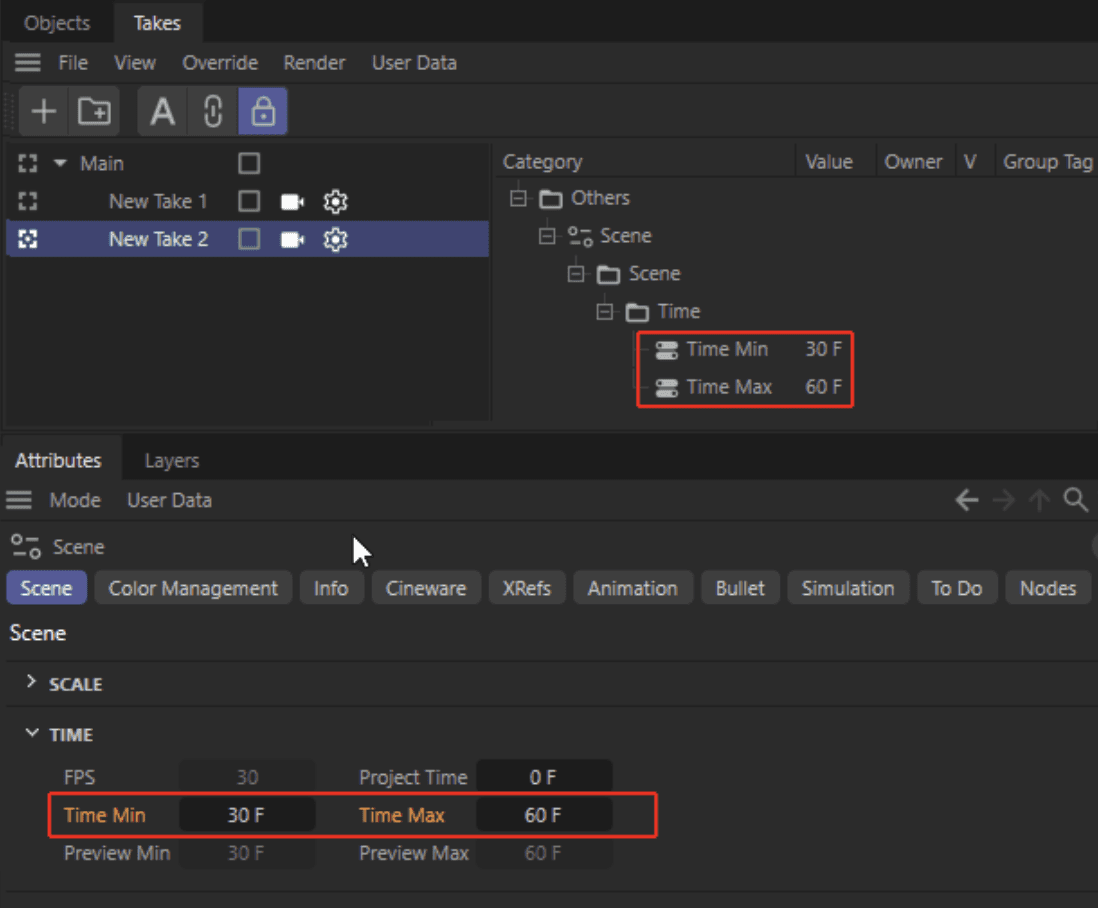
Confirm the active Take before every batch. Changes intended for a variation should not silently become shared changes in the Main Take.
Cinema 4D’s Take Manager displays the overrides associated with a selected Take. Use that information to verify that Claude changed the intended parameters rather than the underlying scene globally.
Also distinguish a parameter override from a structural edit. Creating objects, replacing node connections, and changing an existing parameter are different operations. Do not assume every requested difference can be represented by the same override mechanism.

Source: Maxon
Validate one variation before generating the rest
Start with a single approved row:
Create one named Take for the first approved variation. Apply only the agreed headline and material changes using supported operations. Preserve the Main Take, animation, lighting, and unrelated assignments. Report the overrides created and stop before processing additional rows.
Switch between the new Take and Main Take. Check the exact headline, material assignment, active camera, and relevant parameter values. Then render a low-resolution test from a representative frame.
If the text no longer fits, treat that as a separate adjustment requiring a defined solution, not permission to redesign the layout. Likewise, an unexpected color should trigger inspection of the material and rendering context rather than repeated guesses.
Once the sample passes, generate the remaining approved variations and read their settings back. Keep the mapping between variation IDs, Take names, and intended outputs available for the render stage.
Keep MoGraph Procedural While Adjusting the Motion
A variation should not require rebuilding the animation. If a product reveal depends on a Cloner, effectors, and Fields, preserve those controls so you can continue adjusting the result after Claude finishes.
Begin by identifying the generator, source objects, assigned effectors, and relevant animation tracks. Cinema 4D’s MCP tools support reading clone transforms and modifying exposed generator and effector parameters, but Claude should inspect the available properties rather than invent parameter names.
Change the control, not the generated result
Suppose one version needs a less pronounced spread during the reveal. The appropriate target might be an effector strength or a Field-controlled influence, not the individual clones.
Use a bounded request:
Inspect the product Cloner and its effectors. Identify which exposed controls produce the spread animation. Propose a reduced-spread variation while preserving the source objects, effector assignments, Fields, and existing keyframes. Do not make the generator editable or bake anything.
Have Claude explain whether the proposed change affects the entire animation or only a specific interval. Changing a constant strength value differs from editing an animated track. If the parameter has keyframes, expressions, or another driver, a single value update may not produce the intended behavior.
Approve the target and method before applying the change. Keep unrelated controls unchanged so the comparison remains meaningful.
Evaluate the motion at more than one frame
A correct pose at the midpoint does not establish that the animation works. Check the starting arrangement, the main transition, and the final state at identical frame numbers before and after the change.
Ask Claude to compare accessible clone transforms alongside viewport captures. Look for intersections, unintended scale changes, abrupt movement, and variations that alter the final product arrangement. Follow the frame checks with playback or a short preview sequence. Sparse samples can miss problems between frames.
Treat cache changes as a separate operation
An existing cache can affect what you see after changing procedural controls. Before diagnosing an apparently ineffective edit, inspect whether cached playback is active.
The MoGraph Cache can bake a defined range or the full animation. That does not make it interchangeable with every simulation cache in the project.
Do not clear or rebuild caches automatically. Confirm the cache type, range, storage, and intended delivery workflow first. Bake only after the procedural variation is approved, then verify the cached result with the same frames and preview checks.

Source: Maxon
Use Computer Use for the Checks That Need the Interface
Structured scene access can confirm a text value or camera assignment without establishing whether the composition works. Computer Use helps bridge that gap when Claude needs to inspect the interface or navigate a control outside the exposed MCP tools.
Use it for bounded checks, with a clear distinction between observing a problem and being authorized to fix it.
Check portrait framing and text collisions
A portrait output needs more than a different resolution. The product may leave the frame during its reveal, while a longer headline can overlap the logo.
Ask Claude to activate the approved Take and camera, inspect the intended output framing, and review several specified frames:
Check the portrait variation at the beginning, main reveal, and final hold. Report clipped product edges, headline overflow, and logo collisions. Do not move the camera, resize text, or change animation.
If a problem appears, approve a specific correction. A camera adjustment and a text-size change have different effects on the design.
Review references in Project Asset Inspector
The Project Asset Inspector lists external files used by the scene, including relevant textures and caches. It serves a different purpose from the Asset Browser, which helps locate and insert assets.
Have Claude inspect unresolved references and compare them with an approved project folder. The inspector can include assets from all Takes, so do not assume every listed file belongs to the active variation.
A matching filename is only a candidate. Ask Claude to flag ambiguous replacements and obtain approval before repathing. Refresh the listing afterward and check a rendered frame.

Source: Maxon
Compare variants in Redshift RenderView
For material variations, compare the same frame and camera with consistent render settings. Ask Claude to describe differences in reflections, roughness, displacement, and visible texture placement rather than simply declare that the new version “looks better.”
Keep the comparison controlled:
Review the approved light and dark material variants at frame 45. Identify unexpected differences beyond the intended color change. Do not adjust lighting, exposure, or material properties.
Screen review can reveal obvious issues, but it does not replace calibrated color evaluation or inspection of the underlying material graph.

Source: Maxon
Inspect a plugin dialog that MCP does not expose
Third-party plugin controls may require interface access. Have Claude identify the installed plugin and version, read the visible settings, and report what remains inaccessible.
Avoid letting it guess hidden options or substitute controls from another version. After an approved change, reopen the dialog and verify that the value persisted.
If a control is unclear, stop and consult the plugin’s documentation. Computer Use supplies an interaction method, not automatic knowledge of every interface.
Package and Render the Approved Variants
Once the variations pass review, convert them into a delivery manifest. Each entry should identify the Take, camera, render settings, frame range, output format, and destination. Include required passes or AOVs where relevant to the renderer.
Keep variation IDs consistent with filenames. A correctly rendered image is still the wrong deliverable if it uses another variation’s name or overwrites an approved output.
Check dependencies before queueing
Review the Project Asset Inspector for external textures and caches required by the approved Takes. Confirm that their locations are accessible from the environment that will perform the render.
If the project needs to move, use an appropriate asset-packaging workflow and verify the resulting project. Do not assume that saving the .c4d file alone includes every dependency, particularly plugin-specific resources.
Then ask Claude to prepare the jobs without launching the full render:
Prepare render jobs for the approved delivery manifest. Verify each Take, camera, frame range, resolution, format, required passes, and output path. Flag existing destination files. Do not start the full queue until I approve it.

Source: Maxon
Test what the final jobs will produce
Render representative frames and a short animation segment using the intended configuration. Check text, framing, material assignments, cached motion, and required compositing outputs. A beauty preview cannot verify that every requested AOV exists or contains the expected information.
Cinema 4D’s Render Queue manages rendering jobs, while Takes define scene variations. Confirm that each queued job uses the intended combination rather than assuming the currently visible Take determines every output.
After approval, launch the full render and monitor progress through the available tools or interface. When it finishes, verify file counts, dimensions, frame numbering, and sample images. Treat missing frames, inconsistent variants, and unexpected output names as delivery failures even if the queue reports completion.

Source: Maxon
Python, Undo, and the Limits of “Local”
Cinema 4D’s MCP toolset can handle many tasks without unrestricted code execution. Keep that distinction intact when Claude encounters an operation it cannot perform.
The Python permissions control two different capabilities. Allow exec_python Command permits direct Python execution inside Cinema 4D. Allow Python-Bearing Operations permits creating or modifying elements such as Python tags, generators, and effectors. Those elements can remain in the saved scene and execute when it is evaluated elsewhere.
Neither permission should be enabled simply to bypass an unexplained failure. Ask what operation requires it, inspect the proposed code, and consider who will later open or render the file. Custom scripts must also respect Cinema 4D’s threading rules; code valid in the Script Manager is not automatically safe inside a generator or expression.
Preserve a recovery point
Save a separate working version before consequential changes. Supported MCP operations can be grouped into undo steps, but a failed batch may leave earlier operations applied. Inspect the current scene before retrying. Undo should not be treated as recovery for overwritten files or other external side effects.
Keep access and data handling separate
Protect the authentication token and leave remote connections disabled unless deliberately required. Maxon documents additional risks for unencrypted remote access.
A local MCP connection describes the route between Claude’s client and Cinema 4D, not the model’s data handling. Scene information and screenshots can still enter Claude’s context. Limit access to relevant project information and review the AI provider’s settings before exposing confidential work.
Give Your Cinema 4D Workflow More Headroom With Vagon
Claude can organize variations and prepare render jobs, but the workstation still has to evaluate the scene. Dense MoGraph setups, high-resolution textures, and repeated Redshift previews can push a lightweight computer beyond a comfortable working pace.
Vagon Cloud Computer gives you access to a remote Windows workstation from your existing device. You can run Cinema 4D, Claude Desktop, and the built-in MCP server together in that environment, keeping the local connection on the same machine rather than exposing it across the network.
Choose performance resources for the actual project. Redshift GPU rendering needs compatible graphics hardware and sufficient video memory, while scene evaluation and other operations also depend on CPU performance and system RAM. A stronger GPU does not accelerate every part of Cinema 4D.
Before moving production work, confirm licensing, plugin compatibility, asset access, and Claude’s available permissions inside the cloud desktop. Test MCP and Computer Use separately with a representative scene.
The benefit is more capacity for the work around automation: navigating complex projects, checking variations, and producing render previews without replacing your current computer. Start with an approved test sequence, then scale the workstation to the demands of the project.
FAQs
Can Claude create material and text variations from a spreadsheet?
Yes, provided the data maps to supported scene parameters. Have Claude validate the rows, create one test variation, and verify its Take overrides before processing the rest.
Can Claude adjust Cloners, effectors, and Fields?
It can inspect and modify exposed MoGraph parameters through MCP. Coverage depends on the available tools and scene setup. Verify motion across several frames, not just one pose.
Can I undo changes made through MCP?
Supported scene changes can be undone. However, a failed batch may leave earlier steps applied, and Undo does not necessarily reverse external file operations. Save a separate working version first.
Can Claude prepare Redshift render jobs?
It can help configure supported settings and prepare jobs. Confirm the Take, camera, frame range, output paths, and required AOVs before approving the full render.
What if Claude connects but cannot perform a task?
Check the enabled tool groups, active document, and required capabilities. Ask Claude to explain the limitation before granting broader permissions or enabling Python.
One Cinema 4D animation can turn into twelve deliverables overnight. A client requests three product colors, two headlines, and both landscape and portrait versions. The geometry barely changes, but someone still has to manage material variations, check text placement, preserve the animation, and configure each output.
Claude can help with that preparation without reducing the project to a generated image. Starting with Cinema 4D 2026.4, Maxon’s built-in MCP server lets a compatible assistant work with native scene data. Through exposed tools, Claude can inspect the open document, adjust supported parameters, create Takes, and help prepare renders. The objects and settings remain available for further editing in Cinema 4D.
Computer Use offers a separate way to interact with the interface. It can help inspect dialogs and visible results, but MCP access does not automatically grant screen control.
This guide follows a variation workflow: connect Claude with appropriate permissions, translate a brief into specific scene changes, preserve procedural controls, and verify the outputs. The aim is to delegate repetitive work while keeping the look, motion, and final approval in your hands.
Source: Maxon
Cinema 4D Now Has a Built-In Route to Claude
You do not need to start by downloading a community plugin. In Cinema 4D 2026.4 and later, Maxon provides a built-in MCP server, with Claude Desktop among its officially supported clients. The server is disabled by default, so connecting Claude requires an explicit setup step.
Through this connection, Claude can request scene information and invoke exposed operations in the running application. It can inspect a hierarchy, read supported parameters, or create a Take for an approved variation. Cinema 4D performs the operations, leaving native scene data you can inspect and edit.
For motion design, that distinction matters. Adjusting a Cloner parameter is different from generating a picture of cloned objects. Creating a material variation should leave an actual assignment in the scene, not an image that merely resembles the intended result.
Match the access method to the task
MCP and Computer Use can contribute to the same workflow, but they provide different access:
Task | Useful starting point |
|---|---|
Identify objects, tags, and parameter values | MCP |
Apply defined variations through supported tools | MCP |
Navigate a dialog outside the exposed toolset | Computer Use |
Check framing or visible changes | Viewport capture or Computer Use |
A viewport image returned through MCP does not grant mouse and keyboard control. Conversely, screen access does not provide the same structured information as a scene query. Use the more precise route available, then check the result through an appropriate view or readback.
Third-party Cinema 4D MCP servers remain separate integrations. If one is already configured in Claude, disable it while testing the built-in server to avoid competing toolsets.
Without either connection, Claude can explain techniques and write Python, but it cannot establish what is currently in your open scene.
Establish the Connection With the Smallest Useful Permissions
Start with a test scene containing a named object, one material, and a camera. This gives you recognizable information to compare against Claude’s responses before opening a production project.
Enable the server and configure Claude Desktop
In Cinema 4D 2026.4 or later, open Preferences → MCP and enable Allow MCP Server. Keep the connection local. Remote Access is unnecessary when Cinema 4D and Claude Desktop run on the same computer.
Under MCP → Clients, select Claude Desktop and click Update Selected Client. Cinema 4D updates the client’s configuration with its server connection details. Fully exit Claude, including background processes that might retain the previous configuration, then reopen it. Cinema 4D should already be running with the server enabled.
Source: Maxon
Follow the current client configuration instructions for your installed version. Do not paste the generated configuration into a conversation: it contains authentication information.
Confirm that Claude is reading the active document
Make the first request explicitly read-only:
Inspect the active Cinema 4D document through MCP. Report its name, selected objects, hierarchy, current Take, renderer, frame rate, and frame range where available. Identify anything you cannot retrieve. Do not create, modify, save, close, or render anything.
Compare the response with the application. Select another object manually and ask Claude to read the selection again. A correct update is stronger evidence of live access than a generic “connection successful” message.
Source: Maxon
Use the MCP Toolset settings to enable only the groups needed for the task. Keep unrestricted Python execution disabled initially. If an operation is blocked, ask Claude to identify the missing capability and explain why it is necessary before expanding access. The Python permissions also distinguish direct code execution from creating scene elements that contain persistent Python.
Enable screen interaction separately
MCP registration does not authorize mouse and keyboard control. In a supported Claude Desktop experience, enable Computer Use in settings and approve Cinema 4D access when prompted. Anthropic currently documents the feature as beta for Pro and Max plans on Windows and macOS.
Test it with a limited instruction: describe the selected object’s visible Attribute Manager settings without changing values.
If either route fails, check the server state, client configuration, available tool groups, and active document. A blocking dialog or an outdated client process can also interrupt the workflow. Do not disable security protections to force a connection.
Finally, test MCP and screen access independently. Knowing which route works makes troubleshooting easier when a later operation is unavailable or produces an uncertain result.
Turn the Creative Brief Into a Scene Specification
Before asking Claude to generate variations, establish how the brief maps to the project. “Make three colors and two headlines” is not enough if the scene contains several text objects, shared materials, and existing Takes.
Use a specification that names the intended changes and what must remain untouched:
Inspect the scene for the product material, headline text, delivery cameras, and existing Takes. Map the requested variations to specific scene elements. Preserve the animation, lighting, and Main Take. Report ambiguous targets before proposing changes.
Claude should read the relevant hierarchy and parameters rather than infer targets from names alone. A material called “Product” might also be assigned to background objects. A visible headline might come from a text spline beneath an Extrude rather than the selected parent object.
Brief requirement | Scene target | Verification |
|---|---|---|
Three product colors | Approved material or exposed control | Test render of each color |
Two headlines | Identified text object | Exact text and visible fit |
Landscape and portrait outputs | Camera and render settings | Framing at each aspect ratio |
Define what stays consistent
Record the frame rate, animation range, units, renderer, and intended camera motion before making variants. If a User Data control drives several properties, changing the underlying objects directly could bypass the intended setup. Ask Claude to identify those controls and inspect accessible dependencies.
Also establish whether variations belong in the existing Take System or require new Takes. The active Take matters because the same parameter can have a different effective value in each variation.
Finish with a change plan, not immediate edits. It should name each target, specify its new value, and explain how the result will be checked. Treat unverified dependencies and unclear color definitions as questions to resolve before generating the full set.
Source: Maxon
Build Variations With Takes, Not a Pile of Scene Copies
For variations that share geometry and animation, the Take System can keep alternatives inside one Cinema 4D project. Instead of maintaining several nearly identical files, you store supported differences as overrides while preserving a common starting scene.
Claude can help construct those variations, but first define exactly how the supplied data should affect the project.
Map spreadsheet rows to explicit scene targets
A variation table might include an identifier, headline, approved color value, camera, and output setting. Each column needs a defined destination. Do not let Claude interpret “blue” as an arbitrary material color or treat a camera name as proof that the correct framing already exists.
Before creating anything, ask it to validate the input:
Check the variation table for duplicate identifiers, missing values, and unresolved scene targets. Show how each column maps to a Cinema 4D parameter. Do not create Takes or modify materials yet.
Resolve ambiguous entries before proceeding. If brand colors arrive as hexadecimal values, establish the intended color-space interpretation. A numerically correct value does not guarantee the expected rendered appearance under the scene’s lighting and color management.
Protect the Main Take
Confirm the active Take before every batch. Changes intended for a variation should not silently become shared changes in the Main Take.
Cinema 4D’s Take Manager displays the overrides associated with a selected Take. Use that information to verify that Claude changed the intended parameters rather than the underlying scene globally.
Also distinguish a parameter override from a structural edit. Creating objects, replacing node connections, and changing an existing parameter are different operations. Do not assume every requested difference can be represented by the same override mechanism.
Source: Maxon
Validate one variation before generating the rest
Start with a single approved row:
Create one named Take for the first approved variation. Apply only the agreed headline and material changes using supported operations. Preserve the Main Take, animation, lighting, and unrelated assignments. Report the overrides created and stop before processing additional rows.
Switch between the new Take and Main Take. Check the exact headline, material assignment, active camera, and relevant parameter values. Then render a low-resolution test from a representative frame.
If the text no longer fits, treat that as a separate adjustment requiring a defined solution, not permission to redesign the layout. Likewise, an unexpected color should trigger inspection of the material and rendering context rather than repeated guesses.
Once the sample passes, generate the remaining approved variations and read their settings back. Keep the mapping between variation IDs, Take names, and intended outputs available for the render stage.
Keep MoGraph Procedural While Adjusting the Motion
A variation should not require rebuilding the animation. If a product reveal depends on a Cloner, effectors, and Fields, preserve those controls so you can continue adjusting the result after Claude finishes.
Begin by identifying the generator, source objects, assigned effectors, and relevant animation tracks. Cinema 4D’s MCP tools support reading clone transforms and modifying exposed generator and effector parameters, but Claude should inspect the available properties rather than invent parameter names.
Change the control, not the generated result
Suppose one version needs a less pronounced spread during the reveal. The appropriate target might be an effector strength or a Field-controlled influence, not the individual clones.
Use a bounded request:
Inspect the product Cloner and its effectors. Identify which exposed controls produce the spread animation. Propose a reduced-spread variation while preserving the source objects, effector assignments, Fields, and existing keyframes. Do not make the generator editable or bake anything.
Have Claude explain whether the proposed change affects the entire animation or only a specific interval. Changing a constant strength value differs from editing an animated track. If the parameter has keyframes, expressions, or another driver, a single value update may not produce the intended behavior.
Approve the target and method before applying the change. Keep unrelated controls unchanged so the comparison remains meaningful.
Evaluate the motion at more than one frame
A correct pose at the midpoint does not establish that the animation works. Check the starting arrangement, the main transition, and the final state at identical frame numbers before and after the change.
Ask Claude to compare accessible clone transforms alongside viewport captures. Look for intersections, unintended scale changes, abrupt movement, and variations that alter the final product arrangement. Follow the frame checks with playback or a short preview sequence. Sparse samples can miss problems between frames.
Treat cache changes as a separate operation
An existing cache can affect what you see after changing procedural controls. Before diagnosing an apparently ineffective edit, inspect whether cached playback is active.
The MoGraph Cache can bake a defined range or the full animation. That does not make it interchangeable with every simulation cache in the project.
Do not clear or rebuild caches automatically. Confirm the cache type, range, storage, and intended delivery workflow first. Bake only after the procedural variation is approved, then verify the cached result with the same frames and preview checks.
Source: Maxon
Use Computer Use for the Checks That Need the Interface
Structured scene access can confirm a text value or camera assignment without establishing whether the composition works. Computer Use helps bridge that gap when Claude needs to inspect the interface or navigate a control outside the exposed MCP tools.
Use it for bounded checks, with a clear distinction between observing a problem and being authorized to fix it.
Check portrait framing and text collisions
A portrait output needs more than a different resolution. The product may leave the frame during its reveal, while a longer headline can overlap the logo.
Ask Claude to activate the approved Take and camera, inspect the intended output framing, and review several specified frames:
Check the portrait variation at the beginning, main reveal, and final hold. Report clipped product edges, headline overflow, and logo collisions. Do not move the camera, resize text, or change animation.
If a problem appears, approve a specific correction. A camera adjustment and a text-size change have different effects on the design.
Review references in Project Asset Inspector
The Project Asset Inspector lists external files used by the scene, including relevant textures and caches. It serves a different purpose from the Asset Browser, which helps locate and insert assets.
Have Claude inspect unresolved references and compare them with an approved project folder. The inspector can include assets from all Takes, so do not assume every listed file belongs to the active variation.
A matching filename is only a candidate. Ask Claude to flag ambiguous replacements and obtain approval before repathing. Refresh the listing afterward and check a rendered frame.
Source: Maxon
Compare variants in Redshift RenderView
For material variations, compare the same frame and camera with consistent render settings. Ask Claude to describe differences in reflections, roughness, displacement, and visible texture placement rather than simply declare that the new version “looks better.”
Keep the comparison controlled:
Review the approved light and dark material variants at frame 45. Identify unexpected differences beyond the intended color change. Do not adjust lighting, exposure, or material properties.
Screen review can reveal obvious issues, but it does not replace calibrated color evaluation or inspection of the underlying material graph.
Source: Maxon
Inspect a plugin dialog that MCP does not expose
Third-party plugin controls may require interface access. Have Claude identify the installed plugin and version, read the visible settings, and report what remains inaccessible.
Avoid letting it guess hidden options or substitute controls from another version. After an approved change, reopen the dialog and verify that the value persisted.
If a control is unclear, stop and consult the plugin’s documentation. Computer Use supplies an interaction method, not automatic knowledge of every interface.
Package and Render the Approved Variants
Once the variations pass review, convert them into a delivery manifest. Each entry should identify the Take, camera, render settings, frame range, output format, and destination. Include required passes or AOVs where relevant to the renderer.
Keep variation IDs consistent with filenames. A correctly rendered image is still the wrong deliverable if it uses another variation’s name or overwrites an approved output.
Check dependencies before queueing
Review the Project Asset Inspector for external textures and caches required by the approved Takes. Confirm that their locations are accessible from the environment that will perform the render.
If the project needs to move, use an appropriate asset-packaging workflow and verify the resulting project. Do not assume that saving the .c4d file alone includes every dependency, particularly plugin-specific resources.
Then ask Claude to prepare the jobs without launching the full render:
Prepare render jobs for the approved delivery manifest. Verify each Take, camera, frame range, resolution, format, required passes, and output path. Flag existing destination files. Do not start the full queue until I approve it.
Source: Maxon
Test what the final jobs will produce
Render representative frames and a short animation segment using the intended configuration. Check text, framing, material assignments, cached motion, and required compositing outputs. A beauty preview cannot verify that every requested AOV exists or contains the expected information.
Cinema 4D’s Render Queue manages rendering jobs, while Takes define scene variations. Confirm that each queued job uses the intended combination rather than assuming the currently visible Take determines every output.
After approval, launch the full render and monitor progress through the available tools or interface. When it finishes, verify file counts, dimensions, frame numbering, and sample images. Treat missing frames, inconsistent variants, and unexpected output names as delivery failures even if the queue reports completion.
Source: Maxon
Python, Undo, and the Limits of “Local”
Cinema 4D’s MCP toolset can handle many tasks without unrestricted code execution. Keep that distinction intact when Claude encounters an operation it cannot perform.
The Python permissions control two different capabilities. Allow exec_python Command permits direct Python execution inside Cinema 4D. Allow Python-Bearing Operations permits creating or modifying elements such as Python tags, generators, and effectors. Those elements can remain in the saved scene and execute when it is evaluated elsewhere.
Neither permission should be enabled simply to bypass an unexplained failure. Ask what operation requires it, inspect the proposed code, and consider who will later open or render the file. Custom scripts must also respect Cinema 4D’s threading rules; code valid in the Script Manager is not automatically safe inside a generator or expression.
Preserve a recovery point
Save a separate working version before consequential changes. Supported MCP operations can be grouped into undo steps, but a failed batch may leave earlier operations applied. Inspect the current scene before retrying. Undo should not be treated as recovery for overwritten files or other external side effects.
Keep access and data handling separate
Protect the authentication token and leave remote connections disabled unless deliberately required. Maxon documents additional risks for unencrypted remote access.
A local MCP connection describes the route between Claude’s client and Cinema 4D, not the model’s data handling. Scene information and screenshots can still enter Claude’s context. Limit access to relevant project information and review the AI provider’s settings before exposing confidential work.
Give Your Cinema 4D Workflow More Headroom With Vagon
Claude can organize variations and prepare render jobs, but the workstation still has to evaluate the scene. Dense MoGraph setups, high-resolution textures, and repeated Redshift previews can push a lightweight computer beyond a comfortable working pace.
Vagon Cloud Computer gives you access to a remote Windows workstation from your existing device. You can run Cinema 4D, Claude Desktop, and the built-in MCP server together in that environment, keeping the local connection on the same machine rather than exposing it across the network.
Choose performance resources for the actual project. Redshift GPU rendering needs compatible graphics hardware and sufficient video memory, while scene evaluation and other operations also depend on CPU performance and system RAM. A stronger GPU does not accelerate every part of Cinema 4D.
Before moving production work, confirm licensing, plugin compatibility, asset access, and Claude’s available permissions inside the cloud desktop. Test MCP and Computer Use separately with a representative scene.
The benefit is more capacity for the work around automation: navigating complex projects, checking variations, and producing render previews without replacing your current computer. Start with an approved test sequence, then scale the workstation to the demands of the project.
FAQs
Can Claude create material and text variations from a spreadsheet?
Yes, provided the data maps to supported scene parameters. Have Claude validate the rows, create one test variation, and verify its Take overrides before processing the rest.
Can Claude adjust Cloners, effectors, and Fields?
It can inspect and modify exposed MoGraph parameters through MCP. Coverage depends on the available tools and scene setup. Verify motion across several frames, not just one pose.
Can I undo changes made through MCP?
Supported scene changes can be undone. However, a failed batch may leave earlier steps applied, and Undo does not necessarily reverse external file operations. Save a separate working version first.
Can Claude prepare Redshift render jobs?
It can help configure supported settings and prepare jobs. Confirm the Take, camera, frame range, output paths, and required AOVs before approving the full render.
What if Claude connects but cannot perform a task?
Check the enabled tool groups, active document, and required capabilities. Ask Claude to explain the limitation before granting broader permissions or enabling Python.
Get Beyond Your Computer Performance
Run applications on your cloud computer with the latest generation hardware. No more crashes or lags.

Trial includes 1 hour usage + 7 days of storage.
Summarize with AI

Ready to focus on your creativity?
Vagon gives you the ability to create & render projects, collaborate, and stream applications with the power of the best hardware.

Vagon Blog
Run heavy applications on any device with
your personal computer on the cloud.
San Francisco, California
Solutions
Vagon Teams
Vagon Streams
Use Cases
Resources
Vagon Blog
How to Use KiCad With Claude: MCP & Computer Use Guide Meta
How to Use FreeCAD With Codex: MCP & Computer Use
How to Use FreeCAD With Claude: MCP & Computer Use
How to Use 3ds Max With Codex: MCP & Computer Use
How to Use Houdini With Claude: MCP & Computer Use
How to Use Cinema 4D With Claude: MCP & Computer Use
How to Use 3ds Max With Claude: MCP & Computer Use
How to Use DaVinci Resolve With Claude: MCP & Computer Use
How to Use Godot With Claude: MCP & Computer Use
Vagon Blog
Run heavy applications on any device with
your personal computer on the cloud.
San Francisco, California
Solutions
Vagon Teams
Vagon Streams
Use Cases
Resources
Vagon Blog
How to Use KiCad With Claude: MCP & Computer Use Guide Meta
How to Use FreeCAD With Codex: MCP & Computer Use
How to Use FreeCAD With Claude: MCP & Computer Use
How to Use 3ds Max With Codex: MCP & Computer Use
How to Use Houdini With Claude: MCP & Computer Use
How to Use Cinema 4D With Claude: MCP & Computer Use
How to Use 3ds Max With Claude: MCP & Computer Use
How to Use DaVinci Resolve With Claude: MCP & Computer Use
How to Use Godot With Claude: MCP & Computer Use
Vagon Blog
Run heavy applications on any device with
your personal computer on the cloud.
San Francisco, California
Solutions
Vagon Teams
Vagon Streams
Use Cases
Resources
Vagon Blog