Instant Connection for Pixel Streaming
— New Feature Automated Setup

How to Run GIMP on a Cloud Ubuntu Desktop (2026 Guide)
How to Run GIMP on a Cloud Ubuntu Desktop (2026 Guide)
How to Run GIMP on a Cloud Ubuntu Desktop (2026 Guide)
Table of Contents
Quick answer: To run GIMP in the cloud, launch a cloud Ubuntu desktop (for example on Vagon), install GIMP with sudo apt install gimp or from Flathub, and open it in a streamed desktop you can drive from any device. It's ideal for editing very large images, running batch jobs, or working on GIMP from a machine that can't run it comfortably, and you pay only for the hours you use.
Key Takeaways
GIMP is a free, powerful image editor, and a cloud desktop gives it more memory and CPU than a laptop for heavy edits.
It's especially useful for very large canvases, many layers, and batch processing, where local machines slow down.
A cloud desktop lets you run GIMP from any device, including an iPad or Chromebook that couldn't run it locally.
Every machine is an isolated VM you can reset, which is handy for testing plugins and scripts.
It's billed by the minute, ideal for focused editing sessions and a poor fit for leaving idle all day.
Persistent storage keeps your images, brushes, and plugins between sessions.
GIMP has a reputation as the image editor you settle for. Spend real time with it and that reputation falls apart, because it's genuinely powerful. Layers, masks, channels, a deep set of tools, scripting, and a plugin ecosystem that quietly does most of what people pay for elsewhere. Where it starts to hurt isn't the features. It's the moment you open a massive scanned image, stack thirty layers, and apply a heavy filter, and your laptop decides now is a good time to think about its life choices.
That's where running GIMP on a cloud Ubuntu desktop earns its place. You get a machine with more memory and more CPU than your laptop, GIMP runs on it, and the big edits stop crawling. When you're done, you shut the machine off. This guide covers when that's worth doing, how to set it up, how to tune GIMP so it uses all that extra power, and where a cloud machine is and isn't the right choice.
What GIMP Is And Who Uses It
GIMP, the GNU Image Manipulation Program, is a free and open-source raster image editor. It's the go-to alternative to expensive commercial editors, and it's capable of serious work: photo retouching, image composition, graphic design, digital painting, and more. It supports layers and masks, a full complement of selection and paint tools, color management, a scripting interface, and a large library of plugins and brushes.
The people who use it span a wide range. Photographers editing and retouching images. Designers creating graphics and web assets. Hobbyists and students who want a powerful editor without a subscription. Open-source enthusiasts who prefer free software. And anyone on Linux, where GIMP is a first-class citizen and one of the most-installed creative apps.
If you’re looking for a full Linux environment without setting up local hardware, this guide explains how to get an Ubuntu desktop in the cloud.
Definition: running GIMP in the cloud
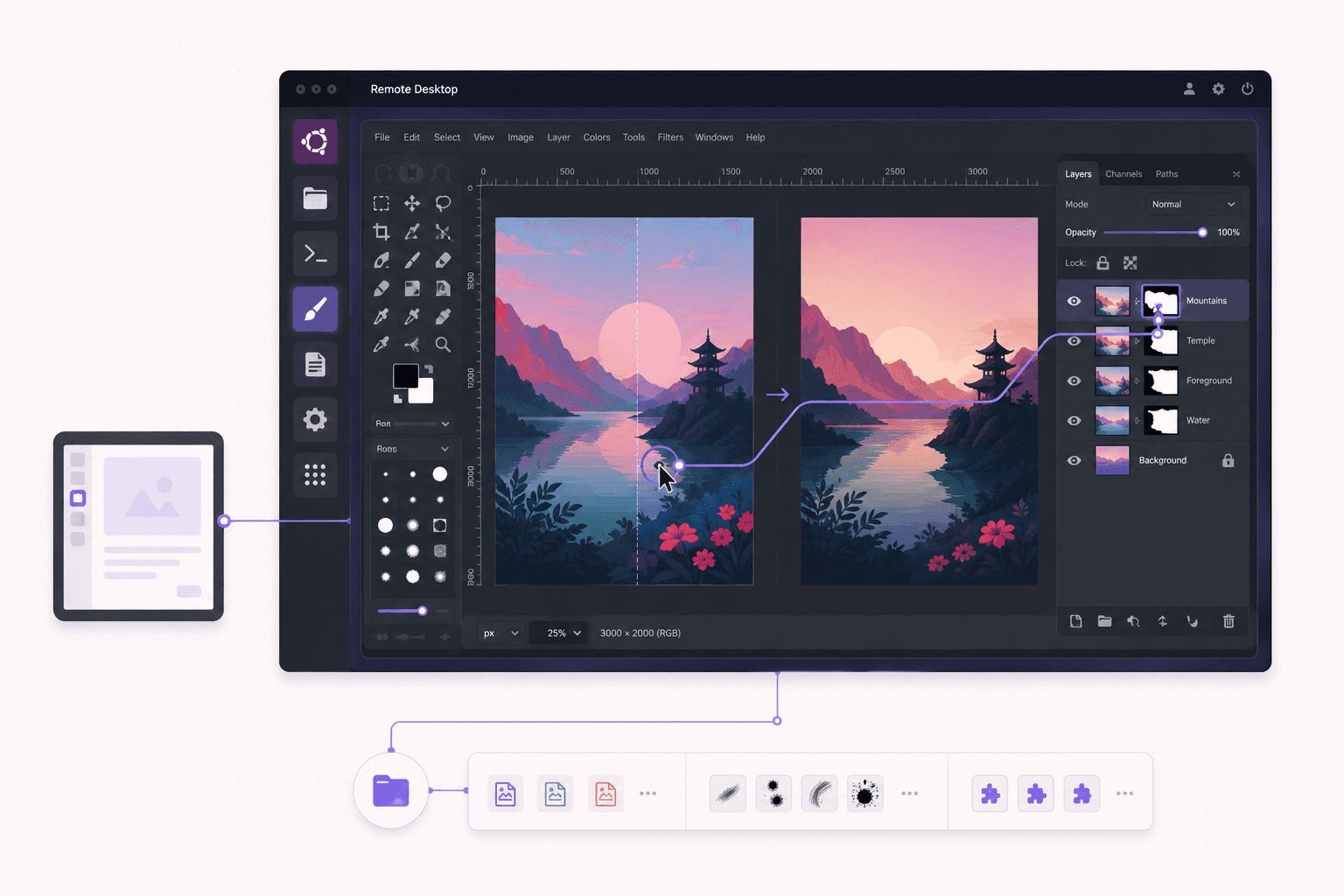
Running GIMP in the cloud means installing GIMP on a remote Ubuntu desktop and editing images there instead of on your local computer. You get more memory and processing power than a laptop for heavy edits, plus the ability to access GIMP from any device, while your own machine stays free.
Why Run GIMP On a Cloud Desktop
GIMP runs fine on most computers for everyday edits, so let's be specific about what the cloud actually adds, because it isn't for every situation.
More memory and CPU for heavy edits
This is the main reason. Image editing gets memory-hungry fast when you work with large images and many layers. A high-resolution scan, a big print-resolution design, or a composite with dozens of layers can push a laptop's memory to its limit, at which point everything slows down and filters take forever. A cloud machine with generous memory handles these comfortably, keeping GIMP responsive where a laptop would grind.
Batch processing without tying up your machine
GIMP can process images in batches through its scripting interface, resizing, converting, or applying edits to hundreds of files at once. That's a heavy, time-consuming job locally, and it monopolizes your machine while it runs. On a cloud desktop, you kick off the batch, let it run, and keep working on your own computer, or you close the tab and let it finish in the background.
Run GIMP from any device
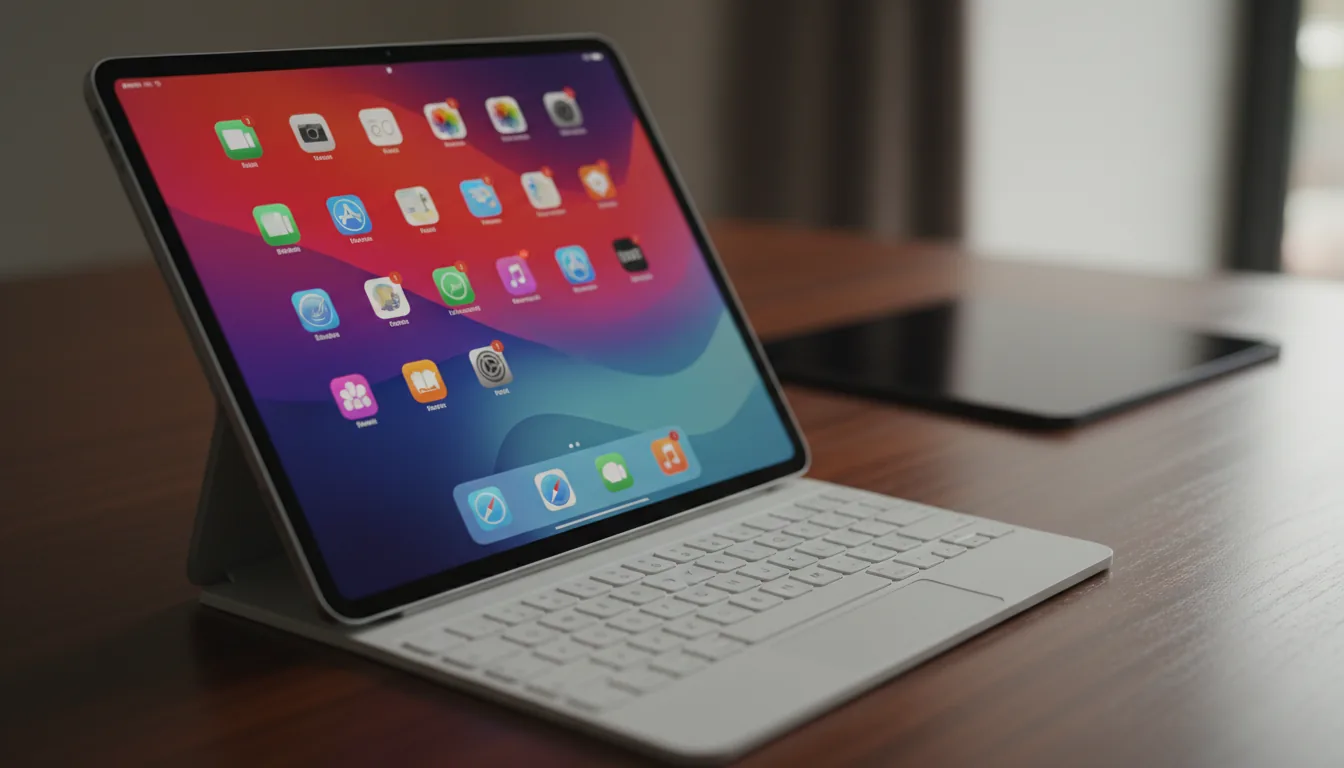
Because the desktop streams to you, you can run GIMP from a device that couldn't handle it locally. Edit on an iPad, a Chromebook, or an old laptop, with the actual work happening on a capable cloud machine. GIMP's full desktop interface, on a tablet, driven by a trackpad or touch.
A clean, disposable environment for plugins and scripts
GIMP's plugin and script ecosystem is great, but installing unfamiliar plugins or running scripts you found online carries some risk. On an isolated cloud VM, you can experiment freely and reset to a clean image if something goes wrong, without touching your real machine.
A consistent Linux GIMP setup
If you want a reliable, reproducible GIMP environment, a cloud Ubuntu desktop gives you one that's the same every time, independent of whatever's going on with your personal computer. With persistent storage, your brushes, plugins, and preferences stay put.
If you’re working from a tablet, you can learn how to run Ubuntu on an iPad and access a complete Linux desktop remotely.
When It's The Right Call, And When To Skip It
Let's be honest about the fit.
A cloud desktop is a burst tool, billed by the minute. It's the right call when you're doing heavy editing that strains your local machine, running batch jobs, working from a device that can't run GIMP well, or wanting an isolated environment. You spin it up, do focused work, and shut it down.
It's the wrong call for a couple of cases. If your edits are light and your current machine handles GIMP fine, you don't need the cloud, GIMP is free and runs on almost anything. And if you'd want an image editor available at a moment's notice all day every day, the per-minute model is less convenient than just having GIMP installed locally. The cloud shines specifically when the work is heavy or your device is limited, not for casual everyday touch-ups on a capable laptop.
What You'll Need
A Vagon account with a payment method.
An Ubuntu plan. GIMP doesn't require a GPU, so a plan without one is fine and cheaper; pick more memory if you work with very large images.
Optionally, persistent storage to keep your images, brushes, plugins, and preferences between sessions.
Step 1: Launch an Ubuntu machine
Create a computer on Vagon, choose Linux, and pick a plan. For GIMP, prioritize memory over GPU, since image editing is memory-bound rather than GPU-bound. It boots in about 90 seconds.
Step 2: Install GIMP
The simplest path through the terminal:
For a more current version, install from Flathub:
If Vagon's Ubuntu template already includes GIMP, you can skip straight to opening it.
Step 3: Open GIMP and set up your workspace
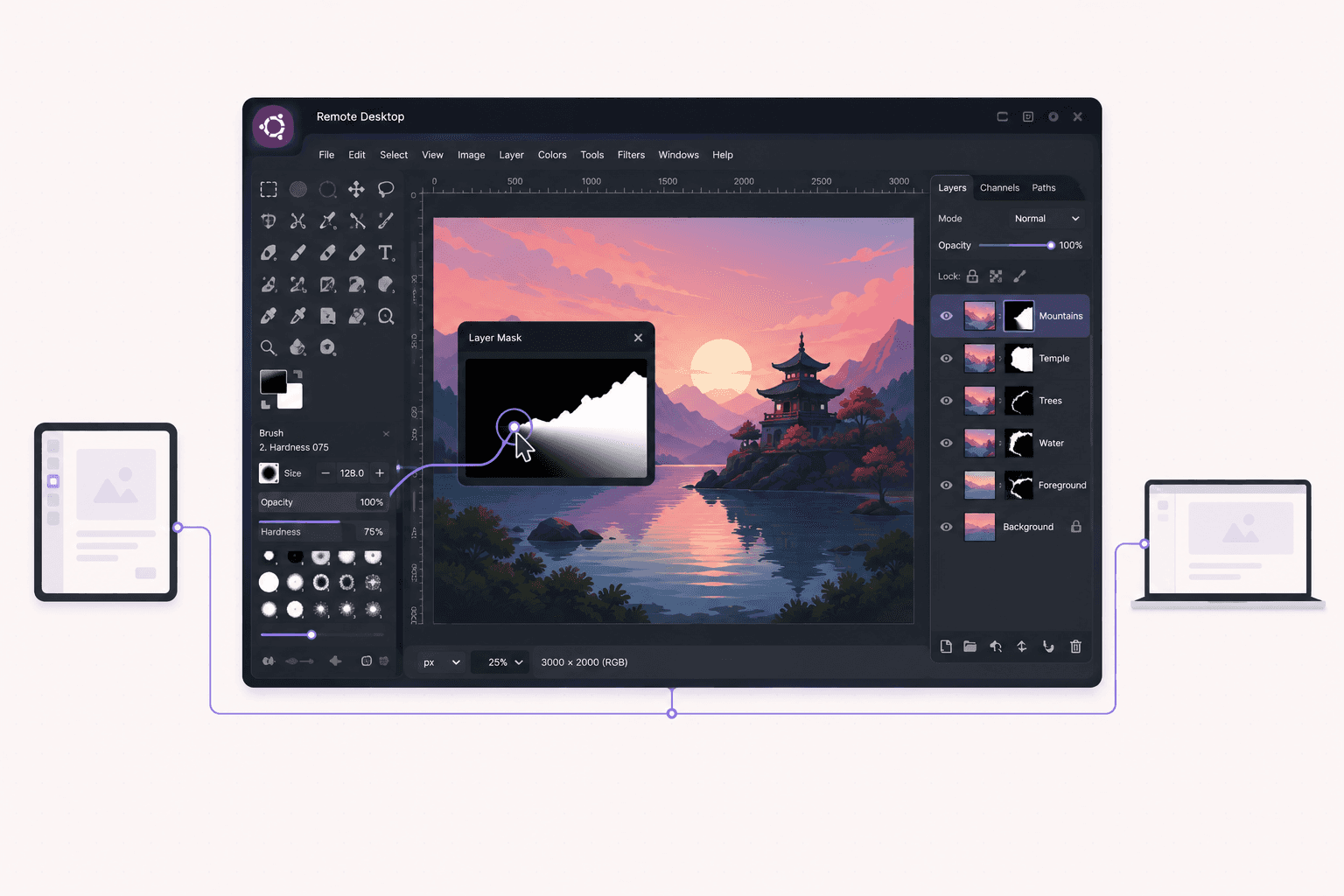
Launch GIMP from the applications menu or the terminal. Arrange your panels and, if you prefer the single-window mode, enable it under the Windows menu. On a streamed desktop with plenty of screen space, GIMP's multi-panel interface has room to breathe.
Step 4: Configure preferences and resources
Before diving in, adjust GIMP's resource settings to take advantage of the cloud machine's memory, which we'll cover in detail next.
Step 5: Add persistent storage for your setup
If you want your brushes, plugins, presets, and image library to persist between sessions, add persistent storage. Your GIMP configuration lives in your home directory, so with persistent storage it's exactly as you left it next time.
If you’re experimenting with private AI models, this guide walks through how to run Ollama in the cloud.
Tuning GIMP For Large Images And Performance
Here's where the extra power of a cloud machine actually pays off, because GIMP won't use it unless you tell it to.
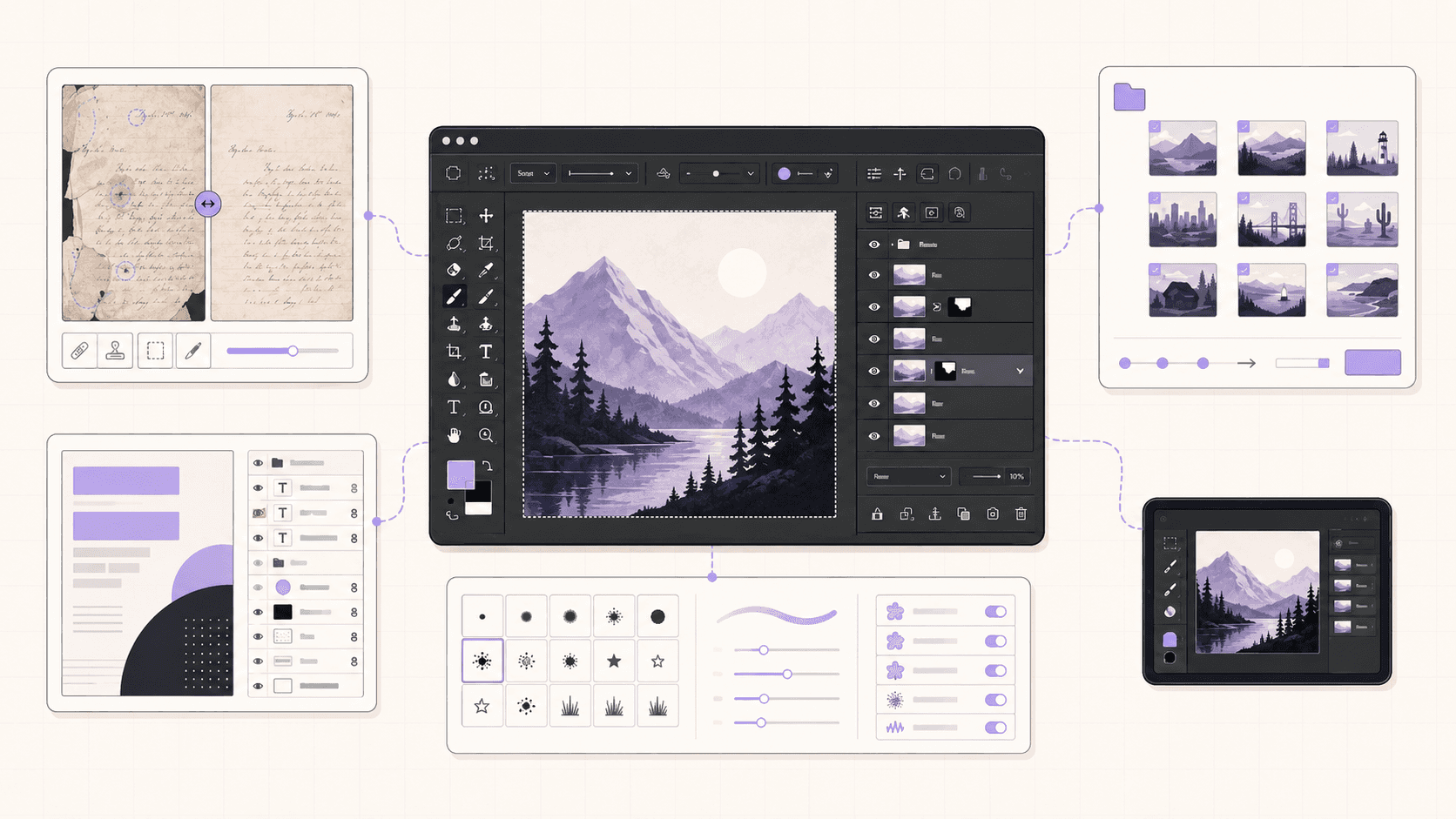
GIMP's performance settings live under Edit, then Preferences, then System Resources. The key settings to adjust:
Tile cache size. This is how much memory GIMP uses to hold image data before spilling to disk. On a cloud machine with generous memory, raise this substantially so GIMP keeps large images in fast memory rather than swapping. This single setting makes the biggest difference for large-image work.
Maximum new image size. Raise this so GIMP doesn't warn you when creating the large canvases you now have the memory to handle.
Number of processors to use. Set this to use the cores your cloud machine offers, so GIMP parallelizes work where it can.
Swap location. Ensure GIMP's swap directory is on fast storage, so that when it does need to spill, it's not a bottleneck.
With these tuned to your machine's resources, GIMP on a well-specced cloud desktop feels dramatically snappier on the heavy work that bogs down a laptop. Large filters apply faster, big composites stay responsive, and you spend less time watching progress bars.
Beyond settings, a few habits help with large images: flatten or merge layers you're done with to free memory, work at the resolution you actually need rather than an excessive one, and use layer groups to keep complex projects organized so GIMP isn't juggling more than necessary.
Installing Plugins, Brushes, And Scripts
Much of GIMP's power comes from its extensibility, and a cloud desktop is a comfortable place to build out a full setup.
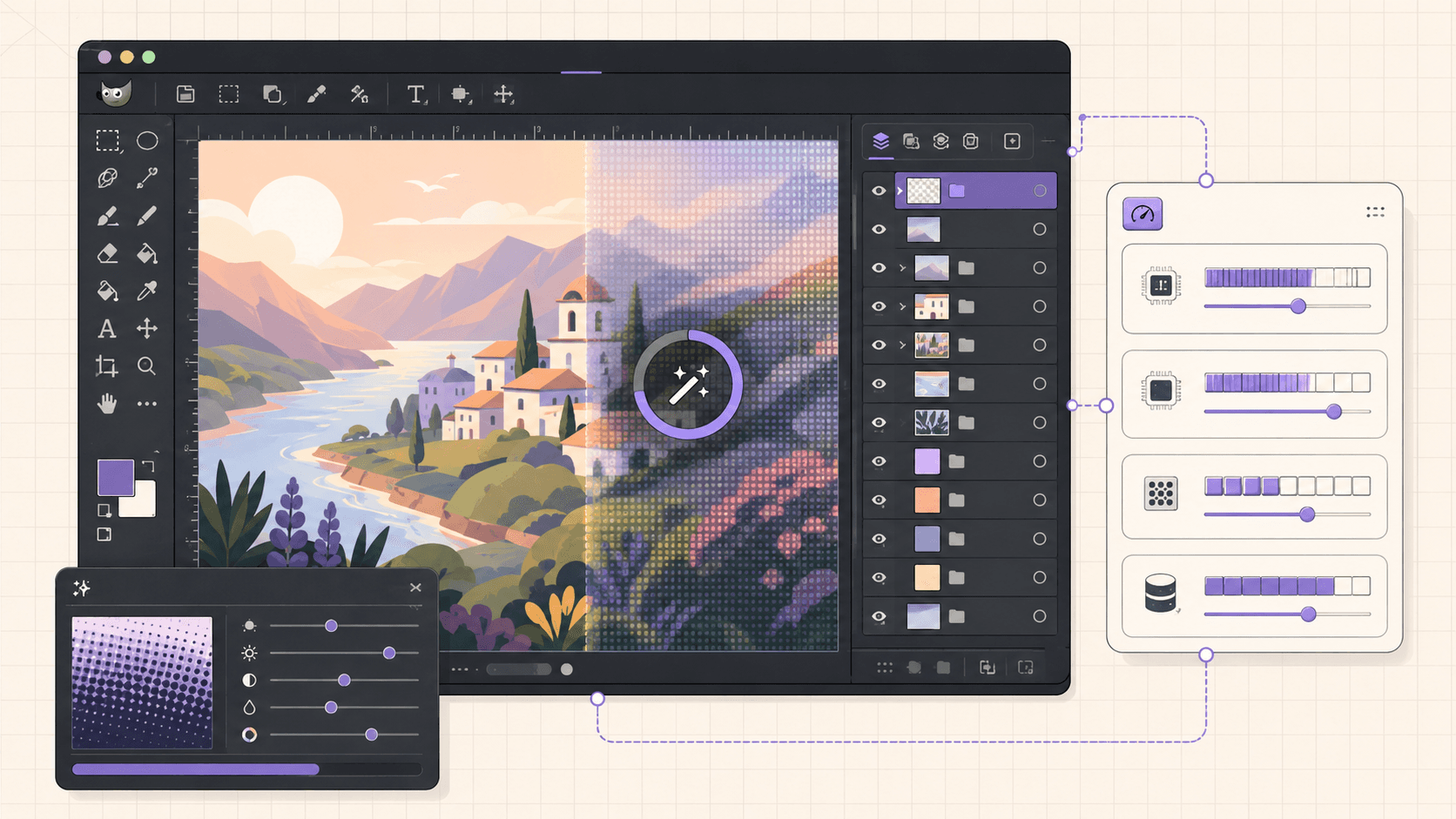
GIMP supports plugins and scripts written in its scripting languages, along with downloadable brushes, patterns, gradients, and palettes. You install these by placing them in the appropriate folders under GIMP's configuration directory, which you can reach through the file manager or the terminal. Popular additions include plugins that add filters and effects, resynthesizer-style tools for content-aware work, and large brush packs for digital painting.
The advantage of doing this on an isolated cloud machine is that you can experiment with unfamiliar plugins and scripts without worrying about your main system. If a script misbehaves or a plugin causes trouble, you reset the machine. And with persistent storage, once you've assembled a plugin and brush collection you like, it stays ready for every session, so you're not rebuilding your toolkit each time.
If you’re building node-based image generation workflows, here’s how to run ComfyUI in the cloud with access to more powerful GPUs.
Batch Processing With GIMP From The Command Line
One of GIMP's underused strengths is batch processing, and it's a workflow a cloud machine handles beautifully.
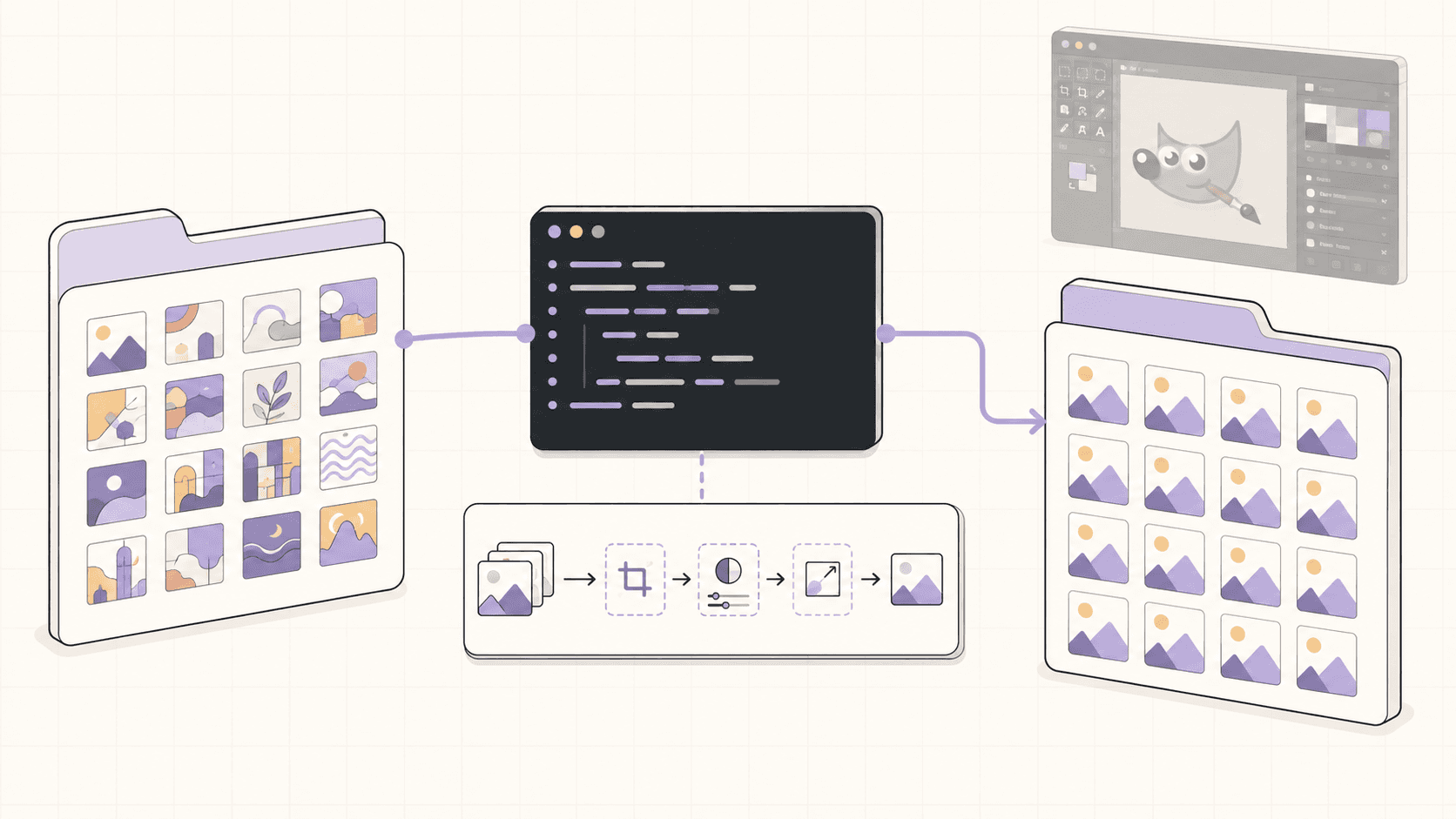
GIMP can run headlessly from the command line, executing scripts across many files without opening the interface. This lets you automate repetitive edits: resizing a folder of images, converting formats in bulk, applying the same filter or watermark to hundreds of files, or exporting a batch to a specific size and format. You write a script describing the operations, then run GIMP in batch mode pointing at your files.
On a cloud desktop, this shines because you can start a large batch job, let it run on a capable machine, and either keep working elsewhere or let it finish in the background. A batch that would tie up your laptop for an hour runs on the cloud machine while your own computer stays free. Combined with per-minute billing, the pattern is efficient: kick off the batch, let it complete, and shut the machine down when it's done. For anyone who regularly processes large volumes of images, this alone can justify a cloud setup.
GIMP Versus Commercial Editors: What To Expect
If you're coming from a commercial editor, it helps to know honestly where GIMP matches it and where it differs, because that shapes what you'll do on your cloud machine.
GIMP handles the core of image editing extremely well. Layers, masks, and channels are all there. The selection tools, including free select, fuzzy select, and select-by-color, are capable. Retouching tools like clone, heal, and smudge cover most photo-repair needs. Color adjustment through curves, levels, hue-saturation, and color balance is thorough. Filters and effects are plentiful, and the plugin ecosystem extends them further. For a large share of real editing work, GIMP does the job.
Where GIMP differs is in some workflow conveniences and a few specialized features. Its non-destructive editing model has historically been less seamless than some commercial tools, though it has improved, so a common approach is to duplicate layers before destructive edits and keep your working file with layers intact. Some advanced features found in premium software, certain automated selections or specialized retouching aids, either aren't present or come via plugins rather than built in. The interface is different, so muscle memory from another editor takes a little adjustment.
The honest summary is that GIMP is a genuinely capable editor that covers the vast majority of what most people need, at zero license cost. Running it on a cloud desktop doesn't change its feature set, but it does remove the hardware limitation, so you can bring GIMP's full power to bear on large, heavy projects that a laptop would struggle with. If your work depends on a specific premium-only feature, check that GIMP or a plugin covers it; otherwise, you'll likely find GIMP does more than its reputation suggests.
If you’re working on demanding 3D scenes or rendering projects, this guide explains how to run Blender on a cloud GPU with Ubuntu.
Working Non-Destructively And Managing Complex Projects
A little discipline around how you structure an edit makes GIMP far more pleasant, especially on the large projects a cloud machine enables.
The core habit is to preserve your ability to undo and revise. Rather than editing a layer directly in a way you can't reverse, duplicate it first and edit the copy, so the original stays intact underneath. Use layer masks instead of erasing, since a mask hides pixels non-destructively and can be repainted at any time. Group related layers so a complex composite stays organized and you can toggle whole sections on and off. Name your layers, because a thirty-layer project with generic names is a maze.
Save your working file in GIMP's native format, which preserves all your layers, masks, paths, and channels, and only export to a flattened format like PNG or JPEG when you need the final image. This separation, a layered working file plus flattened exports, means you can always come back and revise. On a cloud machine with persistent storage, keep those working files on the persistent volume so your in-progress projects wait for you across sessions.
These practices matter more as projects grow, and the whole reason to use a cloud machine is often that your projects are large. A well-organized, non-destructive GIMP project is easier to work with, easier to revise, and easier on the machine's memory, which keeps everything responsive.
If you’re testing private or open-source AI models, you can also learn how to run a local LLM on Ubuntu in the cloud.
A Practical First Session, Walked Through
If you're setting up GIMP on a cloud desktop for a real project, here's what a productive first session looks like once the machine is running.
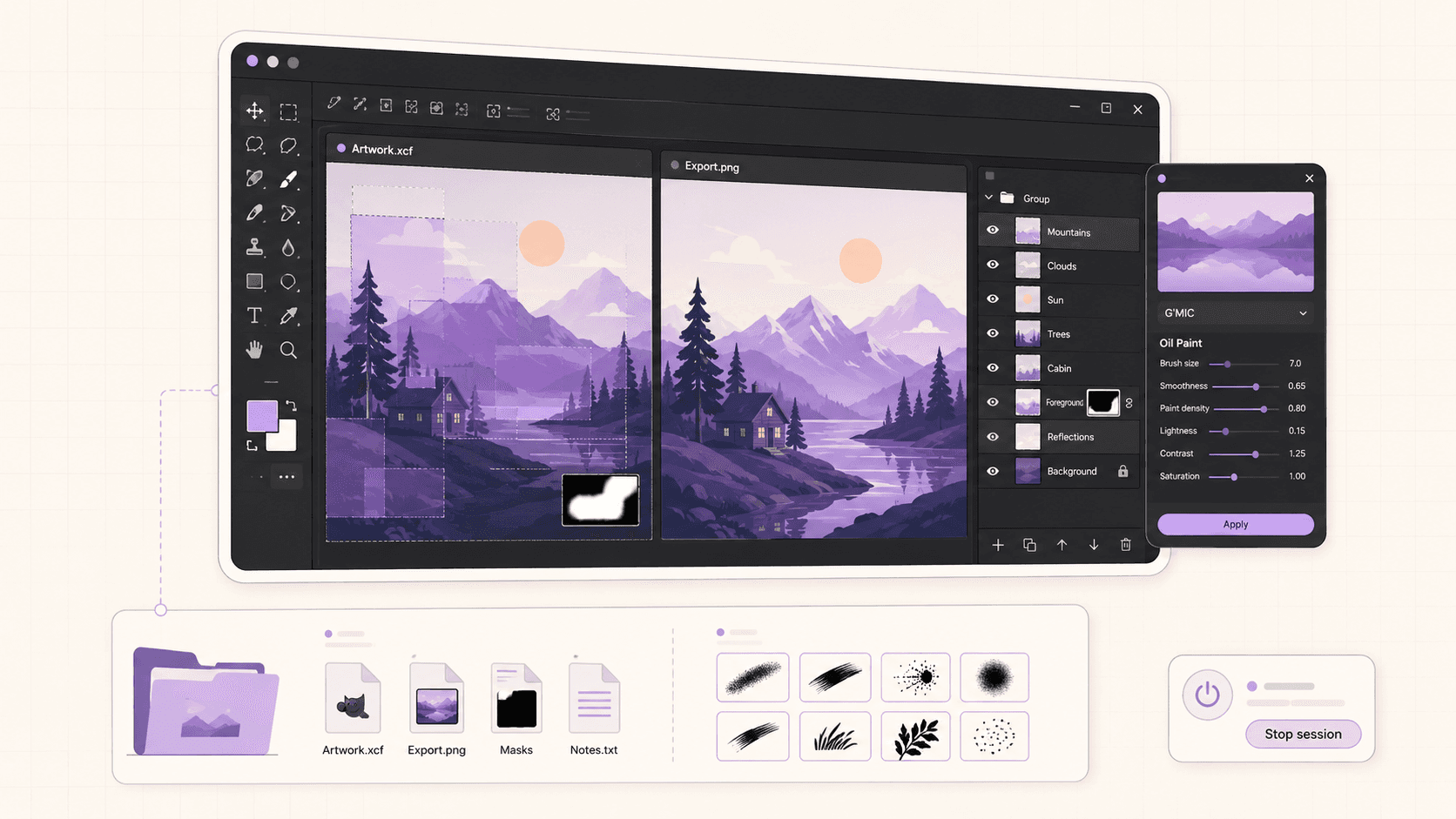
Start by tuning the resource settings as covered earlier, since that's what unlocks the cloud machine's power for GIMP. Then bring your images onto the machine, ideally onto persistent storage if you'll return to the project. Open your main image and set up your workspace the way you like it, whether that's single-window mode or the multi-panel layout, taking advantage of the streamed desktop's screen space.
From there, work as you normally would, but lean into the extra headroom. Open the large files you'd hesitate to touch on a laptop. Stack the layers your composite actually needs without watching memory anxiously. Apply the heavy filters that would make a laptop crawl. If you have a batch of images to process, set up your batch script and let it run while you continue on something else. The point of the session is to do the heavy work that your local machine makes painful, quickly and smoothly, on hardware that has room for it.
When you finish, export your final images, make sure your working files are saved to persistent storage, and shut the machine down. Next session, with persistent storage, your project, brushes, and plugins are all exactly where you left them, and you pick up immediately.
Getting Files In And Out
A real editing workflow means getting images onto the machine and finished work back off, and a full desktop gives you flexible options.
To bring images in, use the browser to download from cloud storage, drag files through the file manager, clone a repository of assets, or pull them with wget from the terminal. For large photo libraries you work with repeatedly, persistent storage is the clean answer, so your images simply live on the machine.
To get finished work out, download the exported files through the browser or file manager, or sync them to your own cloud storage with a command-line tool. For large batches of high-resolution exports, keep an eye on outbound data transfer beyond the included amount, though typical editing rarely approaches it.
If you want more visibility into what an autonomous workflow is doing, this guide shows how to watch your AI agent work on a cloud desktop.
Cost Breakdown
Your cost is the machine's running time billed by the minute, plus optional persistent storage (about five dollars per 50GB per month) if you want your setup and images to persist, plus outbound transfer beyond the included 10GB per month, which mainly matters for very large exports.
Because GIMP doesn't need a GPU, you can run it on an affordable plan without one, which keeps costs low. The honest framing: for heavy editing sessions and batch jobs where your laptop struggles, a cloud desktop is efficient and you only pay for active hours. For light everyday edits on a capable machine, GIMP is free and local is simpler. Shut the machine down when you're done, since the meter stops when the machine stops.
Real-World Use Cases
The photographer with huge files. You're retouching high-resolution images or large scans, and your laptop chokes on the memory load. A cloud machine with generous memory keeps GIMP responsive.
The designer running a batch export. You need to process hundreds of images to consistent sizes and formats. A cloud desktop runs the batch while your own machine stays free.
The iPad or Chromebook user. You want GIMP's full desktop power on a device that can't run it locally. A streamed cloud desktop delivers exactly that.
The plugin experimenter. You want to try unfamiliar plugins and scripts safely. An isolated, resettable VM is the ideal sandbox.
The Linux hobbyist. You want a consistent, powerful GIMP environment in the cloud, ready whenever you need it, without depending on your personal machine's state.
Troubleshooting
#1. GIMP feels slow on large images
Raise the tile cache size in System Resources so GIMP keeps more image data in memory, and make sure you allocated a plan with enough memory for your image sizes. Flatten layers you're finished with to free memory.
#2. A plugin or script isn't working
Confirm it's in the correct GIMP configuration folder and compatible with your GIMP version. Because you're on a disposable VM, you can also reset to a clean image and reinstall more carefully if an experiment went wrong.
#3. The interface is laggy
That's usually your connection to the streamed desktop, not GIMP itself. Lower the stream resolution or move to a better network.
#4. My brushes and plugins are gone next session
You didn't add persistent storage, so the machine reset to a clean image. Add persistent storage to keep your GIMP setup between sessions.
If you’re comparing platforms for remote GPU workloads, our Vagon vs. RunPod comparison can help you decide which option fits your workflow.
Automating GIMP Beyond Simple Batches
Batch processing is the entry point, but GIMP's scripting goes further, and a cloud machine is a natural home for automation because it can run jobs without tying up your own computer.
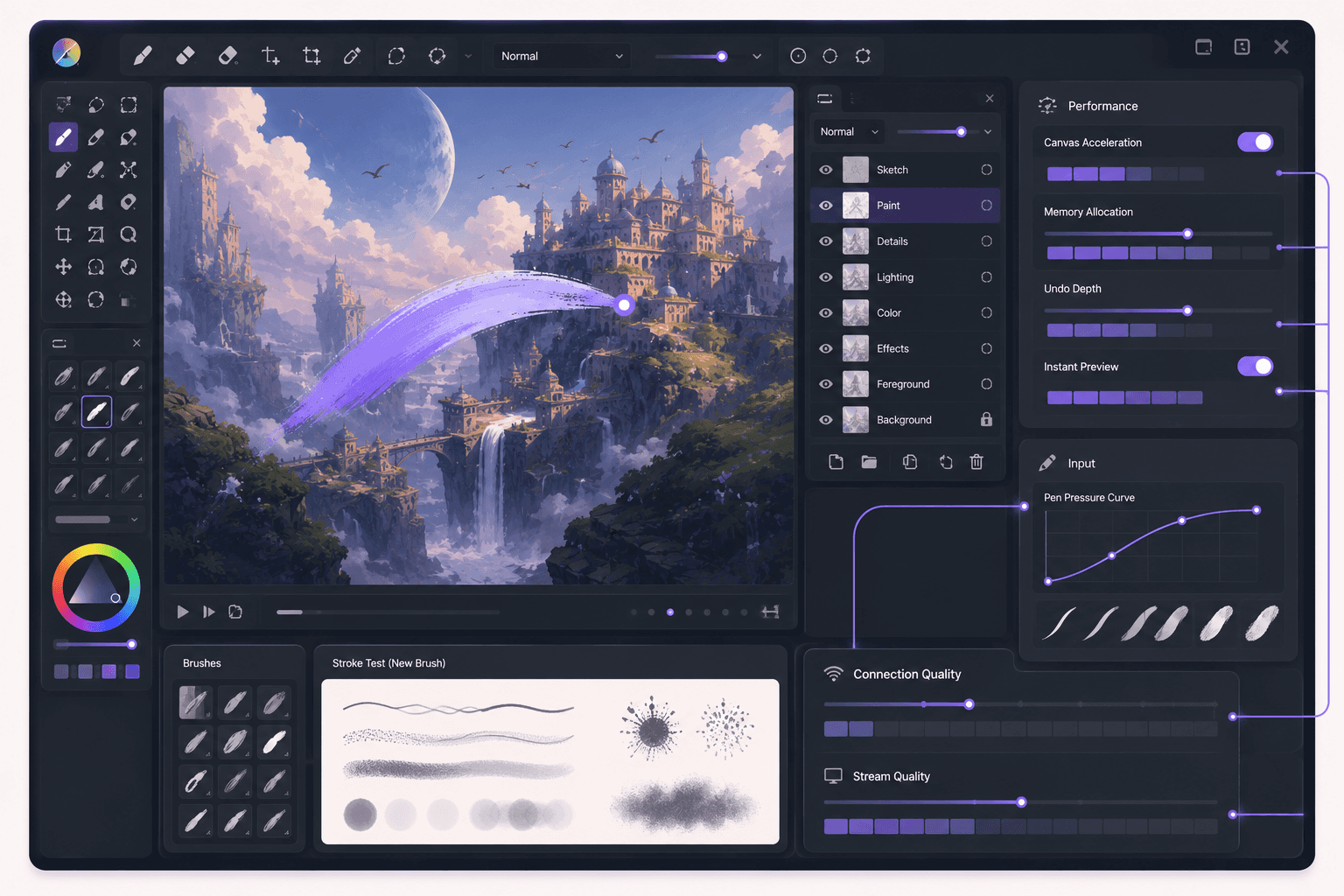
GIMP exposes its functionality through a scripting interface, which means almost anything you can do by hand, you can script. Beyond simple resize-and-convert batches, you can build scripts that composite multiple images together, apply a series of edits in a defined order, generate variations of an image, or produce assets to a precise specification. If you regularly create images that follow a repeatable recipe, thumbnails with a consistent treatment, product images with a standard crop and watermark, social assets at fixed sizes, scripting turns an hour of manual work into a command you run.
On a cloud desktop, these scripts can run as focused jobs: you launch the machine, run the script over your inputs, collect the outputs, and shut down. Because the machine is disposable and reproducible, you can also keep your automation scripts and their dependencies on persistent storage, so your whole pipeline is ready whenever you spin up. For anyone producing images at volume, this combination of GIMP's scripting and a cloud machine's on-demand power is genuinely productive, and it's the kind of workflow that's awkward to run on a laptop you also need for everything else.
The learning curve for scripting is real but modest for simple jobs, and the payoff compounds every time you run a script instead of doing the work by hand. Even a handful of small automation scripts for your common tasks can save meaningful time.
So, Should You?
GIMP is a genuinely powerful, free image editor, and a cloud Ubuntu desktop gives it the memory and processing power to handle the heavy work that bogs down a laptop, plus the ability to run it from any device and batch-process images without tying up your own machine. Tune GIMP's resource settings to use the cloud machine's power, keep your setup on persistent storage, work in focused sessions, and shut the machine down when you're done.
Give your heaviest edits room to breathe. Create a Vagon account, launch an Ubuntu machine, install GIMP, and you'll be editing in a few minutes.
Frequently Asked Questions
Is GIMP free to use in the cloud?
Yes. GIMP is free and open-source software, so there's no license cost. On a cloud desktop, you only pay for the machine's running time, not for GIMP itself.
Does GIMP need a GPU?
No. GIMP is primarily memory and CPU bound, so a plan without a GPU is fine and cheaper. Prioritize memory if you work with very large images.
Can I run GIMP on an iPad through the cloud?
Yes. Because the desktop is streamed, you can run GIMP's full interface on an iPad or Chromebook, with the actual work happening on the cloud machine. A trackpad or mouse makes it more comfortable.
Will my GIMP setup persist between sessions?
Only if you add persistent storage. With it, your brushes, plugins, presets, and preferences wait for you. Without it, treat each session as a fresh install.
Can I batch process images with GIMP in the cloud?
Yes, and it's a great fit. GIMP can run headlessly from the command line to process many files at once, and a cloud machine handles large batches while your own computer stays free.
How much memory should I choose for GIMP?
It depends on your image sizes. For everyday work, a modest plan is fine. For high-resolution images, large scans, or heavy multi-layer composites, choose a plan with more memory, since image editing is memory-intensive.
Is GIMP hard to use compared to commercial editors?
GIMP has a learning curve and a somewhat different interface, but it's genuinely powerful once you're familiar with it. The cloud doesn't change how GIMP works; it just gives it more resources and lets you run it anywhere.
Can I use GIMP plugins and scripts I find online?
Yes. Place them in GIMP's configuration folders. An isolated cloud VM is a safe place to try unfamiliar plugins, since you can reset if something misbehaves.
How do I keep costs down?
Run GIMP on a plan without a GPU, work in focused sessions, add persistent storage so setup is fast, and shut the machine down when you're done.
Can multiple people use the same GIMP machine?
A Vagon computer is a single desktop. For teams needing managed machines for multiple people, Vagon Teams provides multi-seat management. For personal use, one machine is the normal setup.
Can I run the latest version of GIMP in the cloud?
Yes. You can install the version in Ubuntu's repositories with apt, or get a more current release from Flathub with Flatpak. On a cloud desktop you have full control over which version you install, just as you would on any Linux machine.
Does editing feel responsive over a streamed desktop?
For most editing, yes, especially on a good connection where the stream runs smoothly. Precise work like detailed masking benefits from a trackpad or mouse rather than touch. The heavy processing happens on the cloud machine, so filters and large operations are actually faster than on a weak laptop.
Can I open my existing GIMP projects on the cloud machine?
Yes. Bring your working files onto the machine through the browser, file manager, or a sync tool, and open them in GIMP. They're the same files, so nothing needs converting. Keeping them on persistent storage means they stay available across sessions.
Is my work private on a cloud machine?
Each machine is an isolated VM with an encrypted connection, so your session is separate from others. As with any remote environment, keep sensitive material managed sensibly and reset the machine when you're done if you'd rather leave nothing behind.
What's the benefit over just using GIMP locally?
If your local machine already runs GIMP comfortably for your work, there's little benefit. The cloud helps specifically when your edits are heavy enough to strain your machine, when you're batch-processing large volumes, or when you want to run GIMP from a device that can't handle it locally.
Quick answer: To run GIMP in the cloud, launch a cloud Ubuntu desktop (for example on Vagon), install GIMP with sudo apt install gimp or from Flathub, and open it in a streamed desktop you can drive from any device. It's ideal for editing very large images, running batch jobs, or working on GIMP from a machine that can't run it comfortably, and you pay only for the hours you use.
Key Takeaways
GIMP is a free, powerful image editor, and a cloud desktop gives it more memory and CPU than a laptop for heavy edits.
It's especially useful for very large canvases, many layers, and batch processing, where local machines slow down.
A cloud desktop lets you run GIMP from any device, including an iPad or Chromebook that couldn't run it locally.
Every machine is an isolated VM you can reset, which is handy for testing plugins and scripts.
It's billed by the minute, ideal for focused editing sessions and a poor fit for leaving idle all day.
Persistent storage keeps your images, brushes, and plugins between sessions.
GIMP has a reputation as the image editor you settle for. Spend real time with it and that reputation falls apart, because it's genuinely powerful. Layers, masks, channels, a deep set of tools, scripting, and a plugin ecosystem that quietly does most of what people pay for elsewhere. Where it starts to hurt isn't the features. It's the moment you open a massive scanned image, stack thirty layers, and apply a heavy filter, and your laptop decides now is a good time to think about its life choices.
That's where running GIMP on a cloud Ubuntu desktop earns its place. You get a machine with more memory and more CPU than your laptop, GIMP runs on it, and the big edits stop crawling. When you're done, you shut the machine off. This guide covers when that's worth doing, how to set it up, how to tune GIMP so it uses all that extra power, and where a cloud machine is and isn't the right choice.
What GIMP Is And Who Uses It
GIMP, the GNU Image Manipulation Program, is a free and open-source raster image editor. It's the go-to alternative to expensive commercial editors, and it's capable of serious work: photo retouching, image composition, graphic design, digital painting, and more. It supports layers and masks, a full complement of selection and paint tools, color management, a scripting interface, and a large library of plugins and brushes.
The people who use it span a wide range. Photographers editing and retouching images. Designers creating graphics and web assets. Hobbyists and students who want a powerful editor without a subscription. Open-source enthusiasts who prefer free software. And anyone on Linux, where GIMP is a first-class citizen and one of the most-installed creative apps.
If you’re looking for a full Linux environment without setting up local hardware, this guide explains how to get an Ubuntu desktop in the cloud.
Definition: running GIMP in the cloud
Running GIMP in the cloud means installing GIMP on a remote Ubuntu desktop and editing images there instead of on your local computer. You get more memory and processing power than a laptop for heavy edits, plus the ability to access GIMP from any device, while your own machine stays free.
Why Run GIMP On a Cloud Desktop
GIMP runs fine on most computers for everyday edits, so let's be specific about what the cloud actually adds, because it isn't for every situation.
More memory and CPU for heavy edits
This is the main reason. Image editing gets memory-hungry fast when you work with large images and many layers. A high-resolution scan, a big print-resolution design, or a composite with dozens of layers can push a laptop's memory to its limit, at which point everything slows down and filters take forever. A cloud machine with generous memory handles these comfortably, keeping GIMP responsive where a laptop would grind.
Batch processing without tying up your machine
GIMP can process images in batches through its scripting interface, resizing, converting, or applying edits to hundreds of files at once. That's a heavy, time-consuming job locally, and it monopolizes your machine while it runs. On a cloud desktop, you kick off the batch, let it run, and keep working on your own computer, or you close the tab and let it finish in the background.
Run GIMP from any device
Because the desktop streams to you, you can run GIMP from a device that couldn't handle it locally. Edit on an iPad, a Chromebook, or an old laptop, with the actual work happening on a capable cloud machine. GIMP's full desktop interface, on a tablet, driven by a trackpad or touch.
A clean, disposable environment for plugins and scripts
GIMP's plugin and script ecosystem is great, but installing unfamiliar plugins or running scripts you found online carries some risk. On an isolated cloud VM, you can experiment freely and reset to a clean image if something goes wrong, without touching your real machine.
A consistent Linux GIMP setup
If you want a reliable, reproducible GIMP environment, a cloud Ubuntu desktop gives you one that's the same every time, independent of whatever's going on with your personal computer. With persistent storage, your brushes, plugins, and preferences stay put.
If you’re working from a tablet, you can learn how to run Ubuntu on an iPad and access a complete Linux desktop remotely.
When It's The Right Call, And When To Skip It
Let's be honest about the fit.
A cloud desktop is a burst tool, billed by the minute. It's the right call when you're doing heavy editing that strains your local machine, running batch jobs, working from a device that can't run GIMP well, or wanting an isolated environment. You spin it up, do focused work, and shut it down.
It's the wrong call for a couple of cases. If your edits are light and your current machine handles GIMP fine, you don't need the cloud, GIMP is free and runs on almost anything. And if you'd want an image editor available at a moment's notice all day every day, the per-minute model is less convenient than just having GIMP installed locally. The cloud shines specifically when the work is heavy or your device is limited, not for casual everyday touch-ups on a capable laptop.
What You'll Need
A Vagon account with a payment method.
An Ubuntu plan. GIMP doesn't require a GPU, so a plan without one is fine and cheaper; pick more memory if you work with very large images.
Optionally, persistent storage to keep your images, brushes, plugins, and preferences between sessions.
Step 1: Launch an Ubuntu machine
Create a computer on Vagon, choose Linux, and pick a plan. For GIMP, prioritize memory over GPU, since image editing is memory-bound rather than GPU-bound. It boots in about 90 seconds.
Step 2: Install GIMP
The simplest path through the terminal:
For a more current version, install from Flathub:
If Vagon's Ubuntu template already includes GIMP, you can skip straight to opening it.
Step 3: Open GIMP and set up your workspace
Launch GIMP from the applications menu or the terminal. Arrange your panels and, if you prefer the single-window mode, enable it under the Windows menu. On a streamed desktop with plenty of screen space, GIMP's multi-panel interface has room to breathe.
Step 4: Configure preferences and resources
Before diving in, adjust GIMP's resource settings to take advantage of the cloud machine's memory, which we'll cover in detail next.
Step 5: Add persistent storage for your setup
If you want your brushes, plugins, presets, and image library to persist between sessions, add persistent storage. Your GIMP configuration lives in your home directory, so with persistent storage it's exactly as you left it next time.
If you’re experimenting with private AI models, this guide walks through how to run Ollama in the cloud.
Tuning GIMP For Large Images And Performance
Here's where the extra power of a cloud machine actually pays off, because GIMP won't use it unless you tell it to.
GIMP's performance settings live under Edit, then Preferences, then System Resources. The key settings to adjust:
Tile cache size. This is how much memory GIMP uses to hold image data before spilling to disk. On a cloud machine with generous memory, raise this substantially so GIMP keeps large images in fast memory rather than swapping. This single setting makes the biggest difference for large-image work.
Maximum new image size. Raise this so GIMP doesn't warn you when creating the large canvases you now have the memory to handle.
Number of processors to use. Set this to use the cores your cloud machine offers, so GIMP parallelizes work where it can.
Swap location. Ensure GIMP's swap directory is on fast storage, so that when it does need to spill, it's not a bottleneck.
With these tuned to your machine's resources, GIMP on a well-specced cloud desktop feels dramatically snappier on the heavy work that bogs down a laptop. Large filters apply faster, big composites stay responsive, and you spend less time watching progress bars.
Beyond settings, a few habits help with large images: flatten or merge layers you're done with to free memory, work at the resolution you actually need rather than an excessive one, and use layer groups to keep complex projects organized so GIMP isn't juggling more than necessary.
Installing Plugins, Brushes, And Scripts
Much of GIMP's power comes from its extensibility, and a cloud desktop is a comfortable place to build out a full setup.
GIMP supports plugins and scripts written in its scripting languages, along with downloadable brushes, patterns, gradients, and palettes. You install these by placing them in the appropriate folders under GIMP's configuration directory, which you can reach through the file manager or the terminal. Popular additions include plugins that add filters and effects, resynthesizer-style tools for content-aware work, and large brush packs for digital painting.
The advantage of doing this on an isolated cloud machine is that you can experiment with unfamiliar plugins and scripts without worrying about your main system. If a script misbehaves or a plugin causes trouble, you reset the machine. And with persistent storage, once you've assembled a plugin and brush collection you like, it stays ready for every session, so you're not rebuilding your toolkit each time.
If you’re building node-based image generation workflows, here’s how to run ComfyUI in the cloud with access to more powerful GPUs.
Batch Processing With GIMP From The Command Line
One of GIMP's underused strengths is batch processing, and it's a workflow a cloud machine handles beautifully.
GIMP can run headlessly from the command line, executing scripts across many files without opening the interface. This lets you automate repetitive edits: resizing a folder of images, converting formats in bulk, applying the same filter or watermark to hundreds of files, or exporting a batch to a specific size and format. You write a script describing the operations, then run GIMP in batch mode pointing at your files.
On a cloud desktop, this shines because you can start a large batch job, let it run on a capable machine, and either keep working elsewhere or let it finish in the background. A batch that would tie up your laptop for an hour runs on the cloud machine while your own computer stays free. Combined with per-minute billing, the pattern is efficient: kick off the batch, let it complete, and shut the machine down when it's done. For anyone who regularly processes large volumes of images, this alone can justify a cloud setup.
GIMP Versus Commercial Editors: What To Expect
If you're coming from a commercial editor, it helps to know honestly where GIMP matches it and where it differs, because that shapes what you'll do on your cloud machine.
GIMP handles the core of image editing extremely well. Layers, masks, and channels are all there. The selection tools, including free select, fuzzy select, and select-by-color, are capable. Retouching tools like clone, heal, and smudge cover most photo-repair needs. Color adjustment through curves, levels, hue-saturation, and color balance is thorough. Filters and effects are plentiful, and the plugin ecosystem extends them further. For a large share of real editing work, GIMP does the job.
Where GIMP differs is in some workflow conveniences and a few specialized features. Its non-destructive editing model has historically been less seamless than some commercial tools, though it has improved, so a common approach is to duplicate layers before destructive edits and keep your working file with layers intact. Some advanced features found in premium software, certain automated selections or specialized retouching aids, either aren't present or come via plugins rather than built in. The interface is different, so muscle memory from another editor takes a little adjustment.
The honest summary is that GIMP is a genuinely capable editor that covers the vast majority of what most people need, at zero license cost. Running it on a cloud desktop doesn't change its feature set, but it does remove the hardware limitation, so you can bring GIMP's full power to bear on large, heavy projects that a laptop would struggle with. If your work depends on a specific premium-only feature, check that GIMP or a plugin covers it; otherwise, you'll likely find GIMP does more than its reputation suggests.
If you’re working on demanding 3D scenes or rendering projects, this guide explains how to run Blender on a cloud GPU with Ubuntu.
Working Non-Destructively And Managing Complex Projects
A little discipline around how you structure an edit makes GIMP far more pleasant, especially on the large projects a cloud machine enables.
The core habit is to preserve your ability to undo and revise. Rather than editing a layer directly in a way you can't reverse, duplicate it first and edit the copy, so the original stays intact underneath. Use layer masks instead of erasing, since a mask hides pixels non-destructively and can be repainted at any time. Group related layers so a complex composite stays organized and you can toggle whole sections on and off. Name your layers, because a thirty-layer project with generic names is a maze.
Save your working file in GIMP's native format, which preserves all your layers, masks, paths, and channels, and only export to a flattened format like PNG or JPEG when you need the final image. This separation, a layered working file plus flattened exports, means you can always come back and revise. On a cloud machine with persistent storage, keep those working files on the persistent volume so your in-progress projects wait for you across sessions.
These practices matter more as projects grow, and the whole reason to use a cloud machine is often that your projects are large. A well-organized, non-destructive GIMP project is easier to work with, easier to revise, and easier on the machine's memory, which keeps everything responsive.
If you’re testing private or open-source AI models, you can also learn how to run a local LLM on Ubuntu in the cloud.
A Practical First Session, Walked Through
If you're setting up GIMP on a cloud desktop for a real project, here's what a productive first session looks like once the machine is running.
Start by tuning the resource settings as covered earlier, since that's what unlocks the cloud machine's power for GIMP. Then bring your images onto the machine, ideally onto persistent storage if you'll return to the project. Open your main image and set up your workspace the way you like it, whether that's single-window mode or the multi-panel layout, taking advantage of the streamed desktop's screen space.
From there, work as you normally would, but lean into the extra headroom. Open the large files you'd hesitate to touch on a laptop. Stack the layers your composite actually needs without watching memory anxiously. Apply the heavy filters that would make a laptop crawl. If you have a batch of images to process, set up your batch script and let it run while you continue on something else. The point of the session is to do the heavy work that your local machine makes painful, quickly and smoothly, on hardware that has room for it.
When you finish, export your final images, make sure your working files are saved to persistent storage, and shut the machine down. Next session, with persistent storage, your project, brushes, and plugins are all exactly where you left them, and you pick up immediately.
Getting Files In And Out
A real editing workflow means getting images onto the machine and finished work back off, and a full desktop gives you flexible options.
To bring images in, use the browser to download from cloud storage, drag files through the file manager, clone a repository of assets, or pull them with wget from the terminal. For large photo libraries you work with repeatedly, persistent storage is the clean answer, so your images simply live on the machine.
To get finished work out, download the exported files through the browser or file manager, or sync them to your own cloud storage with a command-line tool. For large batches of high-resolution exports, keep an eye on outbound data transfer beyond the included amount, though typical editing rarely approaches it.
If you want more visibility into what an autonomous workflow is doing, this guide shows how to watch your AI agent work on a cloud desktop.
Cost Breakdown
Your cost is the machine's running time billed by the minute, plus optional persistent storage (about five dollars per 50GB per month) if you want your setup and images to persist, plus outbound transfer beyond the included 10GB per month, which mainly matters for very large exports.
Because GIMP doesn't need a GPU, you can run it on an affordable plan without one, which keeps costs low. The honest framing: for heavy editing sessions and batch jobs where your laptop struggles, a cloud desktop is efficient and you only pay for active hours. For light everyday edits on a capable machine, GIMP is free and local is simpler. Shut the machine down when you're done, since the meter stops when the machine stops.
Real-World Use Cases
The photographer with huge files. You're retouching high-resolution images or large scans, and your laptop chokes on the memory load. A cloud machine with generous memory keeps GIMP responsive.
The designer running a batch export. You need to process hundreds of images to consistent sizes and formats. A cloud desktop runs the batch while your own machine stays free.
The iPad or Chromebook user. You want GIMP's full desktop power on a device that can't run it locally. A streamed cloud desktop delivers exactly that.
The plugin experimenter. You want to try unfamiliar plugins and scripts safely. An isolated, resettable VM is the ideal sandbox.
The Linux hobbyist. You want a consistent, powerful GIMP environment in the cloud, ready whenever you need it, without depending on your personal machine's state.
Troubleshooting
#1. GIMP feels slow on large images
Raise the tile cache size in System Resources so GIMP keeps more image data in memory, and make sure you allocated a plan with enough memory for your image sizes. Flatten layers you're finished with to free memory.
#2. A plugin or script isn't working
Confirm it's in the correct GIMP configuration folder and compatible with your GIMP version. Because you're on a disposable VM, you can also reset to a clean image and reinstall more carefully if an experiment went wrong.
#3. The interface is laggy
That's usually your connection to the streamed desktop, not GIMP itself. Lower the stream resolution or move to a better network.
#4. My brushes and plugins are gone next session
You didn't add persistent storage, so the machine reset to a clean image. Add persistent storage to keep your GIMP setup between sessions.
If you’re comparing platforms for remote GPU workloads, our Vagon vs. RunPod comparison can help you decide which option fits your workflow.
Automating GIMP Beyond Simple Batches
Batch processing is the entry point, but GIMP's scripting goes further, and a cloud machine is a natural home for automation because it can run jobs without tying up your own computer.
GIMP exposes its functionality through a scripting interface, which means almost anything you can do by hand, you can script. Beyond simple resize-and-convert batches, you can build scripts that composite multiple images together, apply a series of edits in a defined order, generate variations of an image, or produce assets to a precise specification. If you regularly create images that follow a repeatable recipe, thumbnails with a consistent treatment, product images with a standard crop and watermark, social assets at fixed sizes, scripting turns an hour of manual work into a command you run.
On a cloud desktop, these scripts can run as focused jobs: you launch the machine, run the script over your inputs, collect the outputs, and shut down. Because the machine is disposable and reproducible, you can also keep your automation scripts and their dependencies on persistent storage, so your whole pipeline is ready whenever you spin up. For anyone producing images at volume, this combination of GIMP's scripting and a cloud machine's on-demand power is genuinely productive, and it's the kind of workflow that's awkward to run on a laptop you also need for everything else.
The learning curve for scripting is real but modest for simple jobs, and the payoff compounds every time you run a script instead of doing the work by hand. Even a handful of small automation scripts for your common tasks can save meaningful time.
So, Should You?
GIMP is a genuinely powerful, free image editor, and a cloud Ubuntu desktop gives it the memory and processing power to handle the heavy work that bogs down a laptop, plus the ability to run it from any device and batch-process images without tying up your own machine. Tune GIMP's resource settings to use the cloud machine's power, keep your setup on persistent storage, work in focused sessions, and shut the machine down when you're done.
Give your heaviest edits room to breathe. Create a Vagon account, launch an Ubuntu machine, install GIMP, and you'll be editing in a few minutes.
Frequently Asked Questions
Is GIMP free to use in the cloud?
Yes. GIMP is free and open-source software, so there's no license cost. On a cloud desktop, you only pay for the machine's running time, not for GIMP itself.
Does GIMP need a GPU?
No. GIMP is primarily memory and CPU bound, so a plan without a GPU is fine and cheaper. Prioritize memory if you work with very large images.
Can I run GIMP on an iPad through the cloud?
Yes. Because the desktop is streamed, you can run GIMP's full interface on an iPad or Chromebook, with the actual work happening on the cloud machine. A trackpad or mouse makes it more comfortable.
Will my GIMP setup persist between sessions?
Only if you add persistent storage. With it, your brushes, plugins, presets, and preferences wait for you. Without it, treat each session as a fresh install.
Can I batch process images with GIMP in the cloud?
Yes, and it's a great fit. GIMP can run headlessly from the command line to process many files at once, and a cloud machine handles large batches while your own computer stays free.
How much memory should I choose for GIMP?
It depends on your image sizes. For everyday work, a modest plan is fine. For high-resolution images, large scans, or heavy multi-layer composites, choose a plan with more memory, since image editing is memory-intensive.
Is GIMP hard to use compared to commercial editors?
GIMP has a learning curve and a somewhat different interface, but it's genuinely powerful once you're familiar with it. The cloud doesn't change how GIMP works; it just gives it more resources and lets you run it anywhere.
Can I use GIMP plugins and scripts I find online?
Yes. Place them in GIMP's configuration folders. An isolated cloud VM is a safe place to try unfamiliar plugins, since you can reset if something misbehaves.
How do I keep costs down?
Run GIMP on a plan without a GPU, work in focused sessions, add persistent storage so setup is fast, and shut the machine down when you're done.
Can multiple people use the same GIMP machine?
A Vagon computer is a single desktop. For teams needing managed machines for multiple people, Vagon Teams provides multi-seat management. For personal use, one machine is the normal setup.
Can I run the latest version of GIMP in the cloud?
Yes. You can install the version in Ubuntu's repositories with apt, or get a more current release from Flathub with Flatpak. On a cloud desktop you have full control over which version you install, just as you would on any Linux machine.
Does editing feel responsive over a streamed desktop?
For most editing, yes, especially on a good connection where the stream runs smoothly. Precise work like detailed masking benefits from a trackpad or mouse rather than touch. The heavy processing happens on the cloud machine, so filters and large operations are actually faster than on a weak laptop.
Can I open my existing GIMP projects on the cloud machine?
Yes. Bring your working files onto the machine through the browser, file manager, or a sync tool, and open them in GIMP. They're the same files, so nothing needs converting. Keeping them on persistent storage means they stay available across sessions.
Is my work private on a cloud machine?
Each machine is an isolated VM with an encrypted connection, so your session is separate from others. As with any remote environment, keep sensitive material managed sensibly and reset the machine when you're done if you'd rather leave nothing behind.
What's the benefit over just using GIMP locally?
If your local machine already runs GIMP comfortably for your work, there's little benefit. The cloud helps specifically when your edits are heavy enough to strain your machine, when you're batch-processing large volumes, or when you want to run GIMP from a device that can't handle it locally.
Get Beyond Your Computer Performance
Run applications on your cloud computer with the latest generation hardware. No more crashes or lags.
Trial includes 1 hour usage + 7 days of storage.
Summarize with AI

Ready to focus on your creativity?
Vagon gives you the ability to create & render projects, collaborate, and stream applications with the power of the best hardware.

Vagon Blog


Run heavy applications on any device with
your personal computer on the cloud.
San Francisco, California
Solutions
Vagon Teams
Vagon Streams
Use Cases
Resources
Vagon Blog
How to Automate Blender Tasks With GPT-6 Astra
GPT-6 Astra Blender Unreal Engine Workflow: Playable 3D
Reference Image to 3D Scene With GPT-6 Astra & Blender
What Is Application Streaming? How It Works in 2026
Best Digital Twin Platforms & Software (2026)
Best 3D Product Configurator Software in 2026
VDI Solutions Compared: How to Choose the Right VDI Solution
Citrix Pricing: License Cost and Hidden Hardware Expenses
Persistent VDI: Setup, Costs, and Trade-offs
Vagon Blog
Run heavy applications on any device with
your personal computer on the cloud.
San Francisco, California
Solutions
Vagon Teams
Vagon Streams
Use Cases
Resources
Vagon Blog
How to Automate Blender Tasks With GPT-6 Astra
GPT-6 Astra Blender Unreal Engine Workflow: Playable 3D
Reference Image to 3D Scene With GPT-6 Astra & Blender
What Is Application Streaming? How It Works in 2026
Best Digital Twin Platforms & Software (2026)
Best 3D Product Configurator Software in 2026
VDI Solutions Compared: How to Choose the Right VDI Solution
Citrix Pricing: License Cost and Hidden Hardware Expenses
Persistent VDI: Setup, Costs, and Trade-offs
Vagon Blog
Run heavy applications on any device with
your personal computer on the cloud.
San Francisco, California
Solutions
Vagon Teams
Vagon Streams
Use Cases
Resources
Vagon Blog