Instant Connection for Pixel Streaming
— New Feature Automated Setup

How to Run Windows on an iPad: 4 Best Ways (2026)
How to Run Windows on an iPad: 4 Best Ways (2026)
How to Run Windows on an iPad: 4 Best Ways (2026)
Table of Contents
You downloaded the file. You tapped it. And your iPad just sat there blinking at you, like you'd asked it to do something rude.
No "open with." No install prompt. Just a .exe your iPad has no clue what to do with.
If you've hit that wall, you've probably already searched how to run Windows on an iPad and come away more confused than when you started. So here's the bad news up front: you can't install Windows on an iPad. Not natively, not with a workaround. Apple silicon, locked to iPadOS, no boot menu, no way in. Microsoft's own forums say the same.
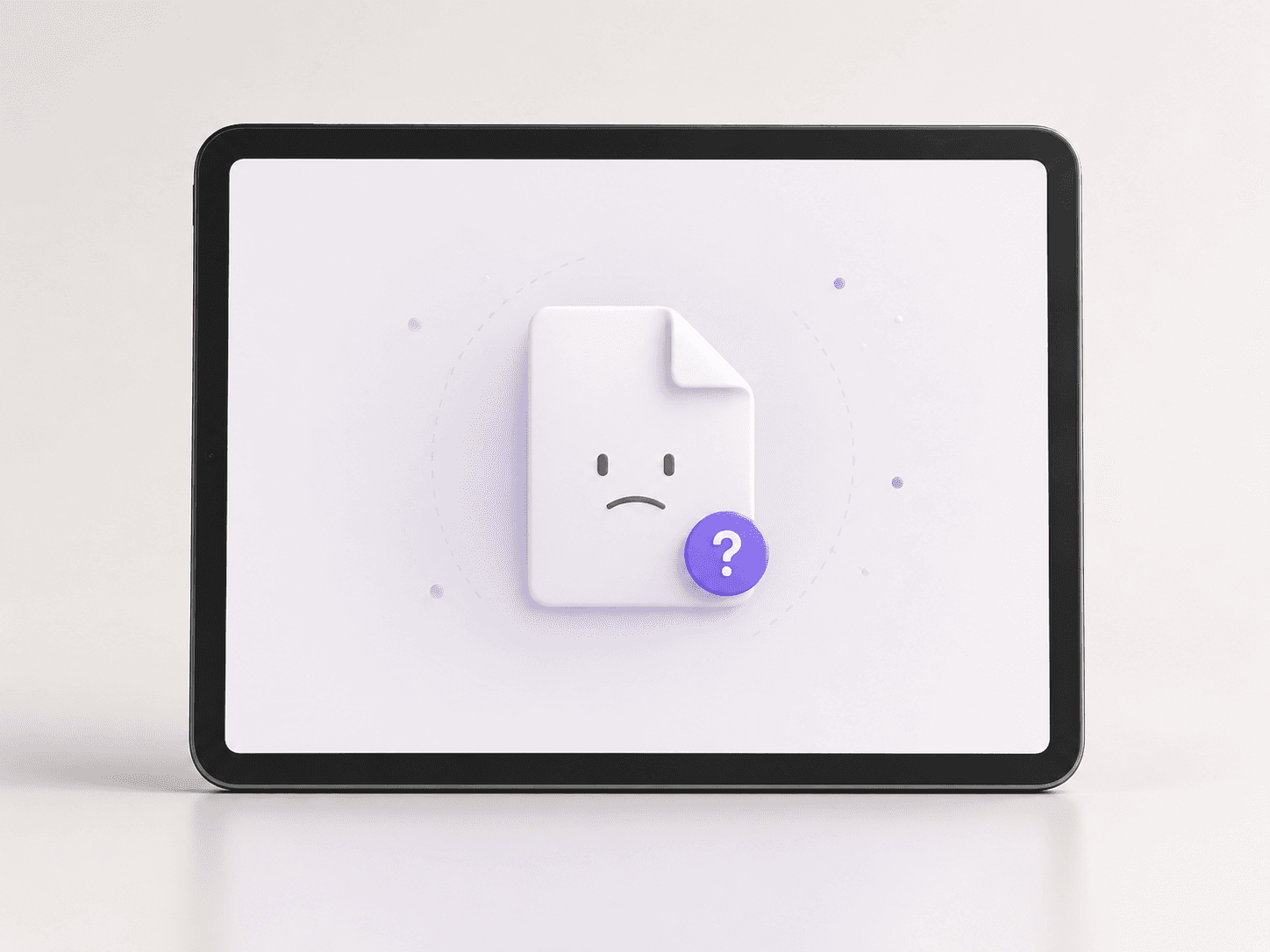
But "can't install" isn't "can't run." You can absolutely get a full Windows desktop on your iPad, File Explorer, Steam, that ancient app your job won't retire. It just doesn't live on the iPad itself.
That's the whole game. Stop trying to put Windows on the device, start thinking about where it actually runs, and you've got four options. They're not equally good, and by the end you'll know which one is yours.
Before we get into each one, here's the whole landscape on a single screen. If you only read this far, the table still answers your question.
Method | Cost | Needs a PC? | Real GPU? | Best for |
Remote into your own PC | Free | Yes | Your PC's | People who already own a capable Windows PC |
Emulation (UTM) | Free | No | No | Tinkering, retro Windows, bragging rights |
Windows 365 | ~$28–66/mo | No | Not on base plans | All-day office work |
On-demand cloud PC | Pay per minute | No | Yes | Heavy or creative work, AI tools, in bursts |
Notice the pattern already. Every free option has a string attached, every fixed-cost option has a ceiling, and only one row has no "but" in it. We'll get there.
Now let's go through them properly, because the table tells you what to pick and the sections below tell you why.
Remote into the PC you already own
If there's a Windows machine sitting at home, you've basically already paid for the best version of Windows-on-iPad. You just stream it.
How it works
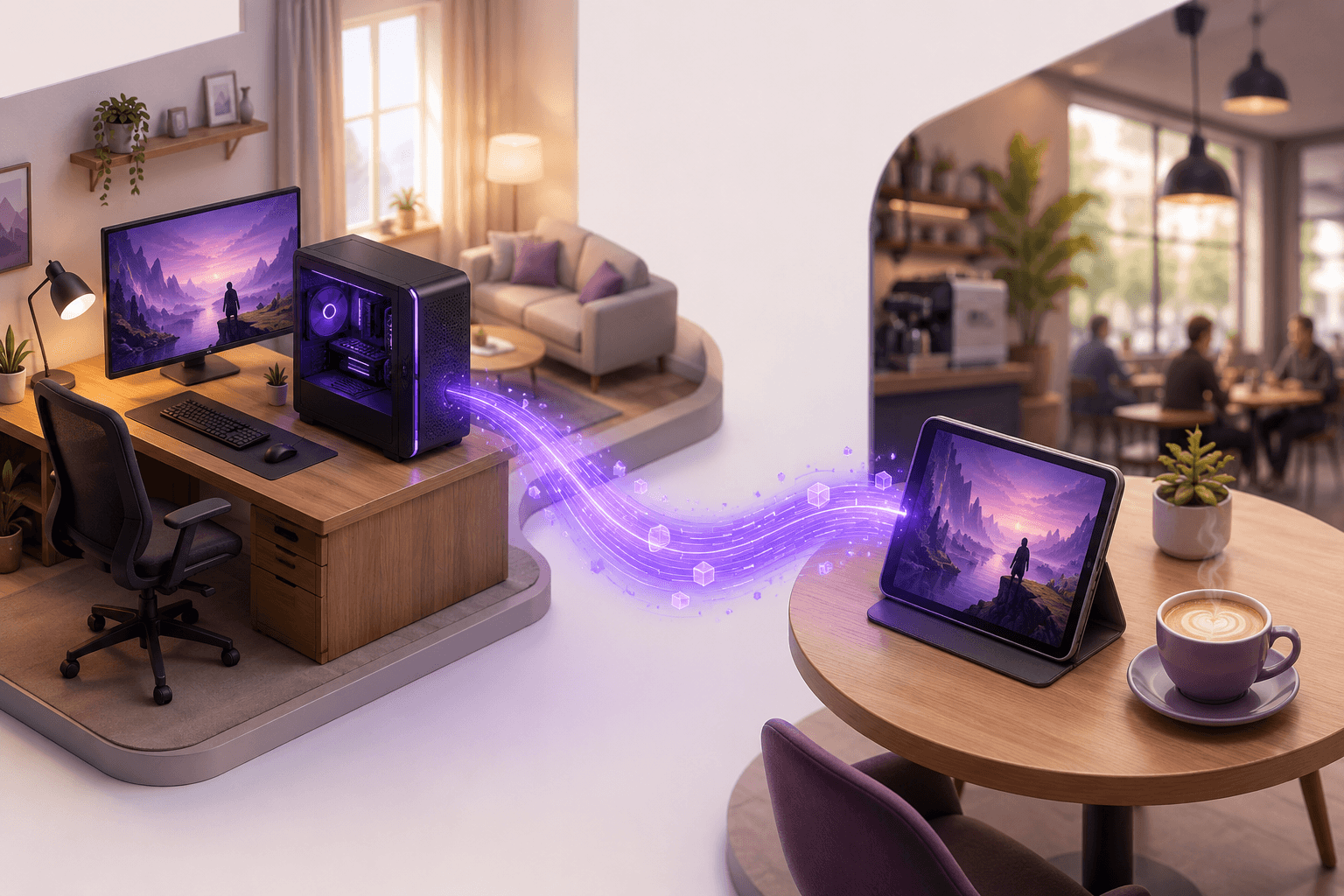
Your PC does the actual work back home. Your iPad becomes a window into it: you see the desktop, you tap and type, the commands fly over the internet, the screen streams back. Your gaming rig with its chunky GPU runs the heavy stuff while you're in a café with a Magic Keyboard. The iPad is just the glass.
Start with Microsoft's own tool, and here's the part that trips everyone up: it's not called Remote Desktop anymore. Microsoft rebranded it to Windows App, which is a confusingly generic name for something pretty specific. Install it from the App Store, point it at your home PC, you're in. Free, official, and it handles keyboard and mouse properly.
Want less fuss? Chrome Remote Desktop does nearly the same thing. Install it on the PC, sign into the same Google account in a browser tab on your iPad, connect. Less polished, but hard to beat for zero cost and five minutes of setup.
The catch
Your PC has to be awake and online. Every time. A machine that's asleep, or that your roommate shut off, or that dropped Wi-Fi in a storm is a machine you can't reach. You can rig around this with Wake-on-LAN, but now you're configuring router settings on a Tuesday night, and that's a different kind of evening.
Then there's latency. On the same fast connection, it feels almost local. The moment your internet gets flaky, everything turns to syrup, cursor lagging behind your finger, video stuttering, gaming basically off the table. And it lives or dies on the upload speed at your PC's end, not the download speed on your iPad. People always check the wrong number.
Best for
Anyone who already owns a capable Windows PC and just wants it on the move. You pay nothing extra, you rent no hardware, you borrow the computer you already have. If that's you, go set it up.
If you don't own a PC, or you don't want to babysit one, keep reading.
If you're here because you specifically want to edit photos, here's the honest path: running Photoshop on an iPad needs real graphics power, which emulation can't give you.
Emulate Windows right on the iPad
This is the tinkerer's path. For people who don't want Windows because they need it, but because someone said they couldn't have it, and that's reason enough.
How it works
Your iPad pretends to be PC hardware, then runs Windows on top of that pretend hardware. No remote PC, no internet required, no monthly bill. It all happens right there on the device. Sounds like the dream: real Windows, fully offline, totally free. Hold that thought.
The app you'll hear about is UTM, and it comes in two flavors that matter enormously. The App Store version is UTM SE, where SE politely stands for "slow edition." That's not a joke, it's the actual name, and it's accurate. It translates Windows instructions the slow, careful way. Boot times drag. Some systems won't even launch.
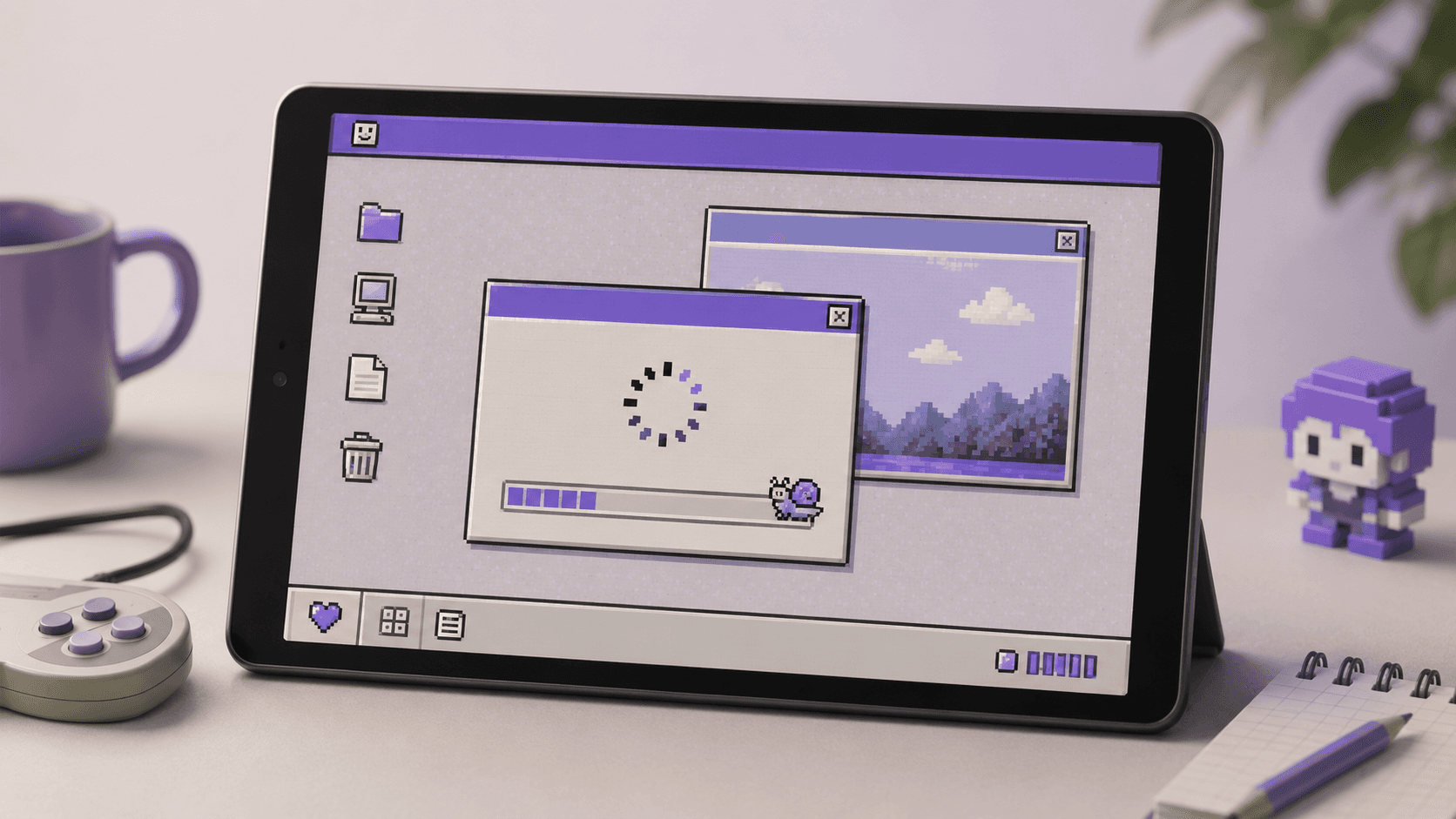
The fast version, the one that approaches usable speed, has to be sideloaded through an alternative app store like AltStore, plus a helper that switches on the speed boost behind the scenes. Last year a developer got Windows 11 running on an M2 iPad Air this exact way and called it "quite decent."
The iPadOS 26 problem
Here's the part most guides skip. iPadOS 26 broke that speed boost. Again. Apple removed the underlying mechanism it relies on, and the community workarounds have narrowed to the point where they mostly only work on devices four years old or older. Bought a shiny new iPad? The fast path is largely closed to you. You're back to the slow edition, watching a progress bar.
The no-GPU ceiling
Even when it works, there's a hard wall: no graphics acceleration. No DirectX, no OpenGL, nothing. Modern Windows games are out. Most modern creative apps are out. What's left is old, lightweight software. People run Windows XP this way to play the bundled pinball game, and honestly, that's the perfect summary of what this path is good for.
Best for
Learning, tinkering, and saying "I got Windows running on my iPad" at a party where people care about that. It's a genuinely cool hack. But for getting actual work done, it'll frustrate you within the hour.
It's a fun afternoon pretending to be a solution. The next two paths are the actual solutions.
If you're a 3D artist, this is how people actually run Blender on an iPad without owning a workstation.
Rent Windows from Microsoft with Windows 365
If remote desktop is borrowing a PC you own, and emulation is faking one, Windows 365 is renting a real one that lives in Microsoft's data center.
How it works
Microsoft keeps a full Windows 11 desktop running for you in the cloud, and you connect from your iPad through the same Windows App you'd use to stream your own PC. No PC at home doing the work. Microsoft is the PC at home now.
When it's running, it's a properly good experience. Your desktop stays exactly as you left it, apps open, files in place, because it never really shuts down between sessions. Close the iPad, reopen it an hour later, you're right back where you were.

What it costs
Pricing got friendlier this year, and most articles are quoting stale numbers. Microsoft cut Windows 365 prices by 20% on May 1, 2026. Business tiers now run roughly $28 to $56 per user per month: around $31 for two cores and 4GB of RAM, $41 for 8GB, $66 at the top for four cores and 16GB. Fixed price, fixed specs, same bill every month.
The catches
That "same bill every month" is doing a lot of work in that sentence. Three things to know before you commit:
You pay whether you use it or not. Touch it once or live in it daily, the bill is identical. Great for everyday use, wasteful for twice-a-week use.
It's built for businesses. Signing up means creating a business account, not just tapping "buy" with your Apple ID. Anyone can do it, but it feels like provisioning a work machine, because that's what it is.
No GPU on the base plans. Smooth for documents, browsers, and light apps. The moment you want 4K video, 3D, AI work, or real gaming, the entry tiers run out of road. GPU tiers exist, but they sit in the enterprise lane with enterprise pricing.
Best for
The office worker. If your Windows needs are documents, email, a browser, and that one internal tool the company won't drop, Windows 365 is clean and reliable.
But if your reason for wanting Windows involves the words "render," "edit," "game," or "GPU," you've quietly walked past these plans into a different category of need. That category has its own path. It's the last one, and it's the one most people are actually looking for.
And if you're in motion design, the same setup is what makes running After Effects on an iPad genuinely workable.
Run real Windows on your iPad with Vagon Cloud Computer
Look back at the other three paths and you'll notice each one left the same hole. Remote desktop needs a PC you own. Emulation can't touch a GPU. Windows 365 charges you monthly and taps out before the heavy work starts.
So what if you want a genuinely powerful Windows machine, with a real graphics card, that you only pay for when you actually use it?
That's Vagon Cloud Computer. And for most people who landed on this question for a real reason, it's the answer.
How it works
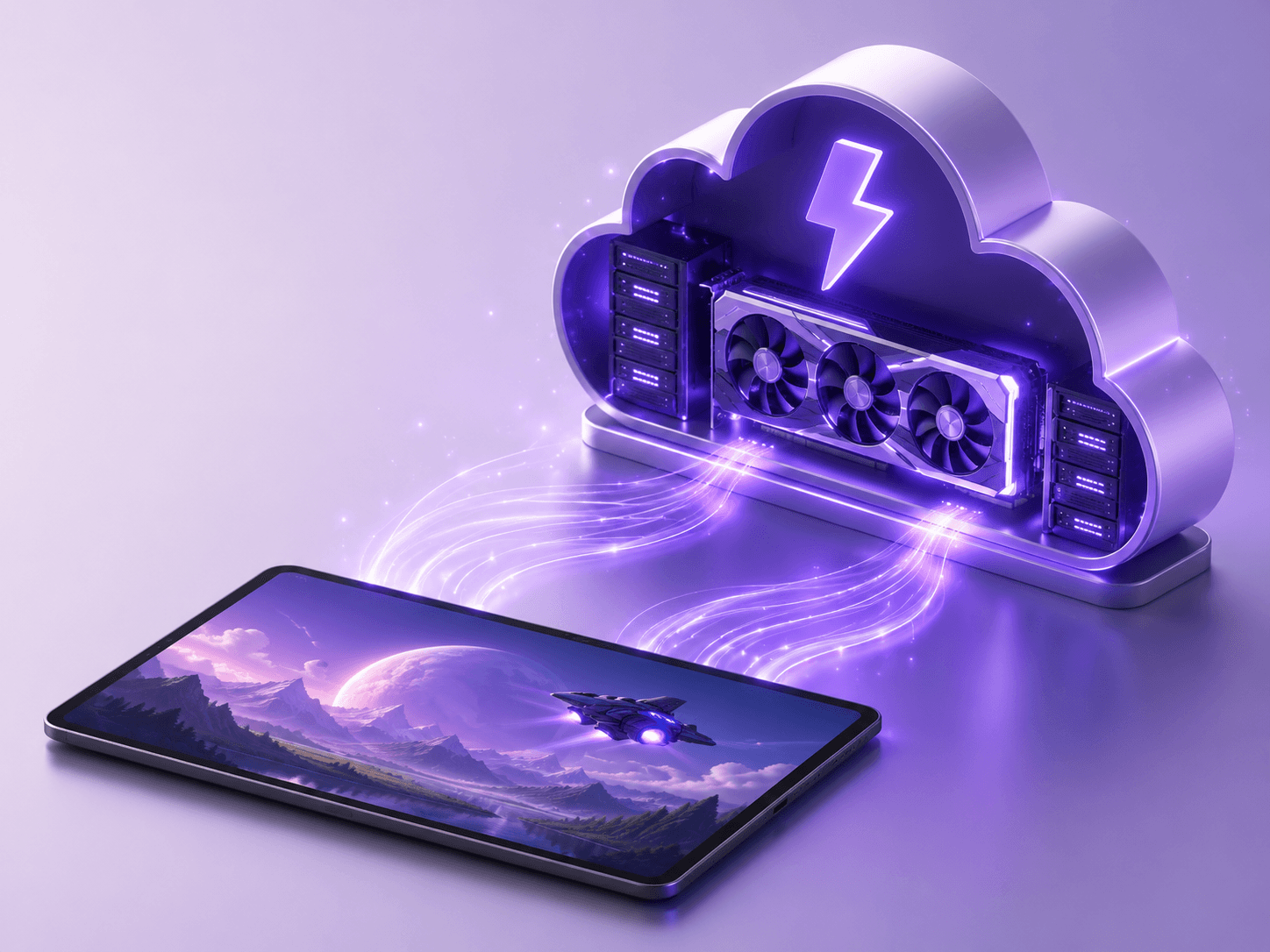
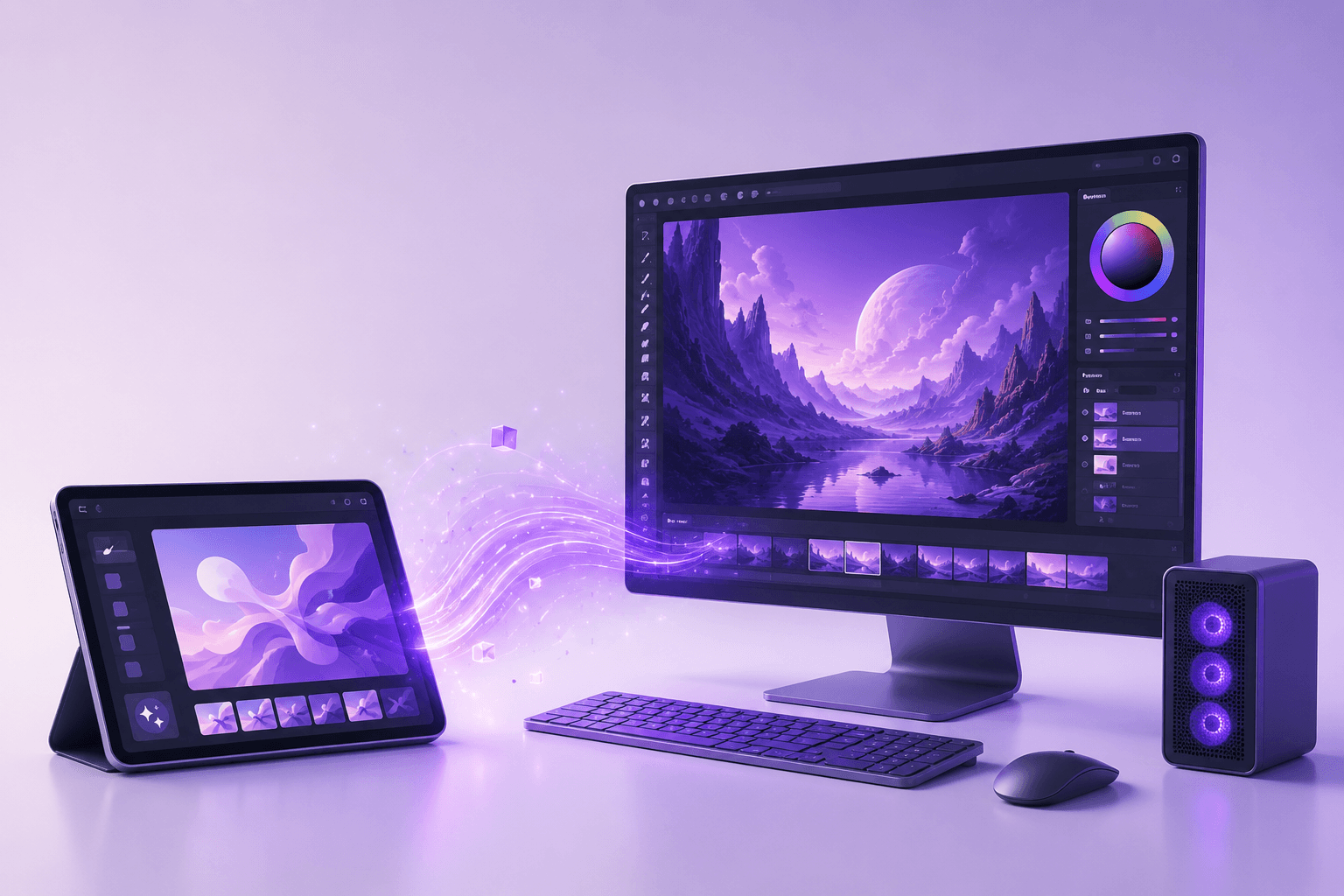
You spin up a high-performance Windows machine in the cloud, do your thing, and shut it down when you're done. You're billed for the minutes you use, not the calendar. Vagon's machines come with actual GPUs, the kind that render video, drive 3D scenes, run AI and ML workloads, and play games that would make an emulator burst into tears. Open it in a browser tab or the Vagon app on your iPad, and you're working on hardware no tablet could physically hold.
Why Vagon beats the alternatives
Go back through the catches from every other path. Vagon doesn't have them:
No PC to babysit (unlike streaming your own machine). Nothing at home to keep awake or online. Your Vagon machine is always there when you are.
A real GPU (unlike emulation). Actual graphics power, so real creative apps and games run, not just Windows XP pinball.
Pay per minute, not per month (unlike Windows 365). You're charged for the time you use, not for a desktop sitting idle. And you can switch performance tiers whenever you want, keeping the same desktop, files, and apps every time.
No business account. You sign up like a normal person, not like an IT department.
Need a modest machine for an hour, then ten times the power for a render? Switch tiers mid-session, and your whole setup follows you.
The AI angle
Here's the moment a lot of iPad users hit. You've been using AI image or video tools, the browser-based ones, and you've reached the point where you need real desktop software to finish the job: a proper editor, a 3D app, something that wants a GPU and a Windows environment.
An iPad alone can't get you there. A monthly cloud PC with no GPU can't either. But a full Windows desktop on Vagon, with a graphics card, spun up for the two hours you need it, can. Then you walk away instead of paying for it to sit idle until next month.
The honest tradeoffs
I promised tradeoffs in every section, so here they are. Vagon's pay-per-use model is brilliant for work that comes in bursts, and pricier if you're running a powerful machine eight hours a day, every day, where a flat monthly plan might win. And like every cloud option here, it lives on your internet connection. A solid link feels close to local. A bad one feels like wading through mud. No magic escapes physics.
Best for
The exact thing most people mean when they ask how to run Windows on an iPad: "I want to do something my iPad can't, without buying a whole separate computer."
With Vagon, you rent the power, exactly when you need it, on the device already in your hands.
If you're an architect or engineer, this is the moment that matters, it's exactly how you'd run AutoCAD on an iPad for real drawings instead of just viewing them.
So which one should you actually pick?
Four paths, one of them is yours. Here's the short version:
You already own a capable Windows PC → Remote into it with Windows App or Chrome Remote Desktop. It's free, and you've already paid for the hard part.
You just want to tinker or relive Windows XP → Emulate with UTM. Go in knowing it's a hobby, not a workflow.
You live in Office, email, and a browser all day → Windows 365. Predictable, reliable, no GPU drama because you don't need one.
You need real power without owning a PC → Vagon Cloud Computer. The machine's always there, the GPU's real, and you only pay for the minutes you use.
You do creative, 3D, or AI work on your iPad → Vagon again. It's the only path on this list that won't hit a wall the second the work gets heavy.
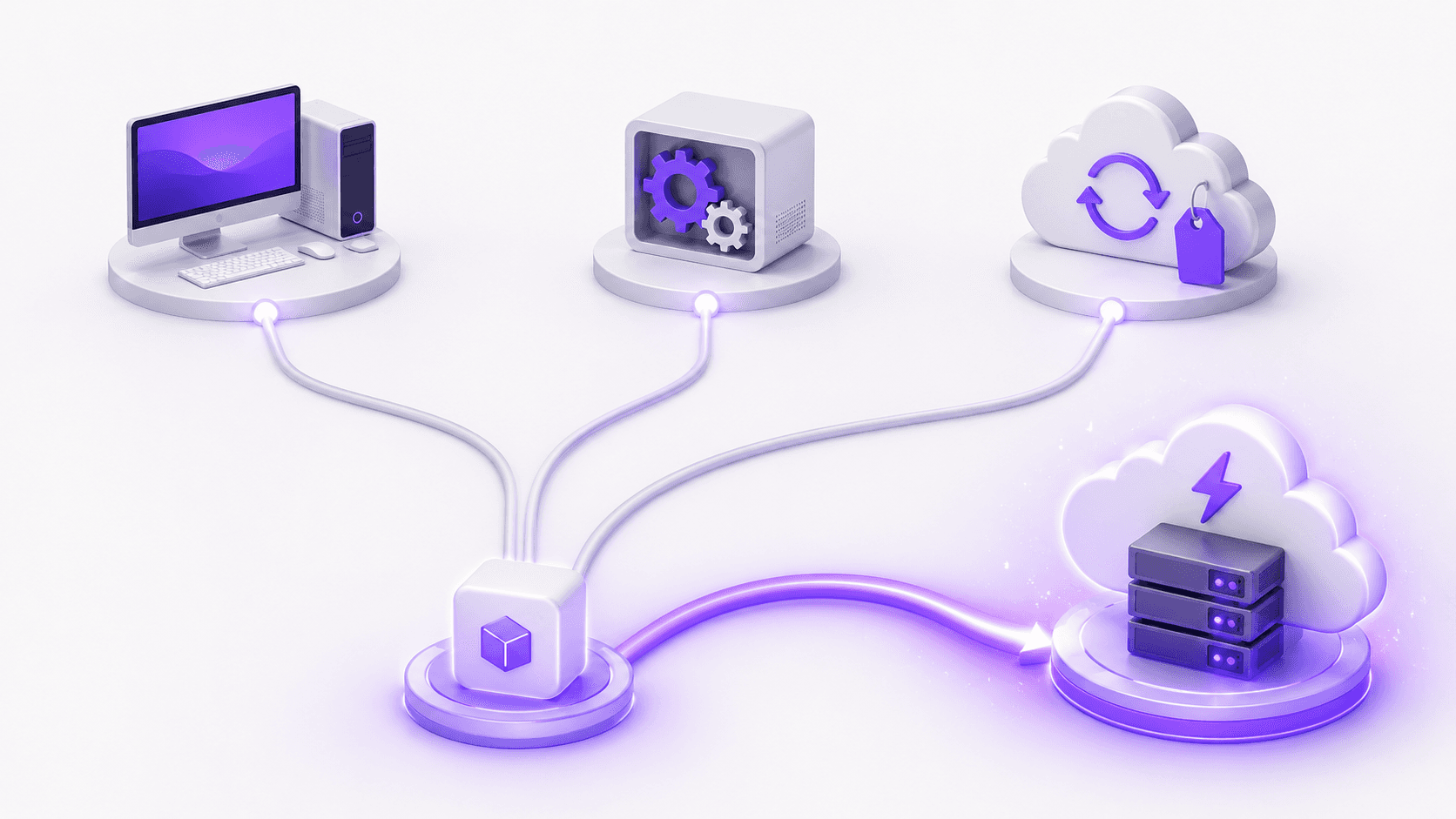
Notice the bottom two both land in the same place. That's not an accident. The moment "run Windows on my iPad" means actually doing something demanding, the free and fixed-price options drop away, and renting real power on demand is what's left standing.
If you're still unsure, ask yourself one question: do I want Windows to exist on my iPad, or do I want to get something done with it? The first question has a lot of answers. The second mostly has one.
Mistakes to avoid
A few traps that catch people, gathered from doing this the hard way.
Expecting emulation to be usable. The single most common letdown. People watch a slick demo video, install UTM, and expect a real PC. What they get is a slideshow. Emulation is for fun and learning, not for finishing a project on a deadline.
Paying monthly for Windows you barely touch. Windows 365 makes sense if you're in it every day. If you need Windows twice a week, you're renting an empty apartment. Match the billing model to how you actually work: occasional or bursty use is exactly where pay-per-minute wins.
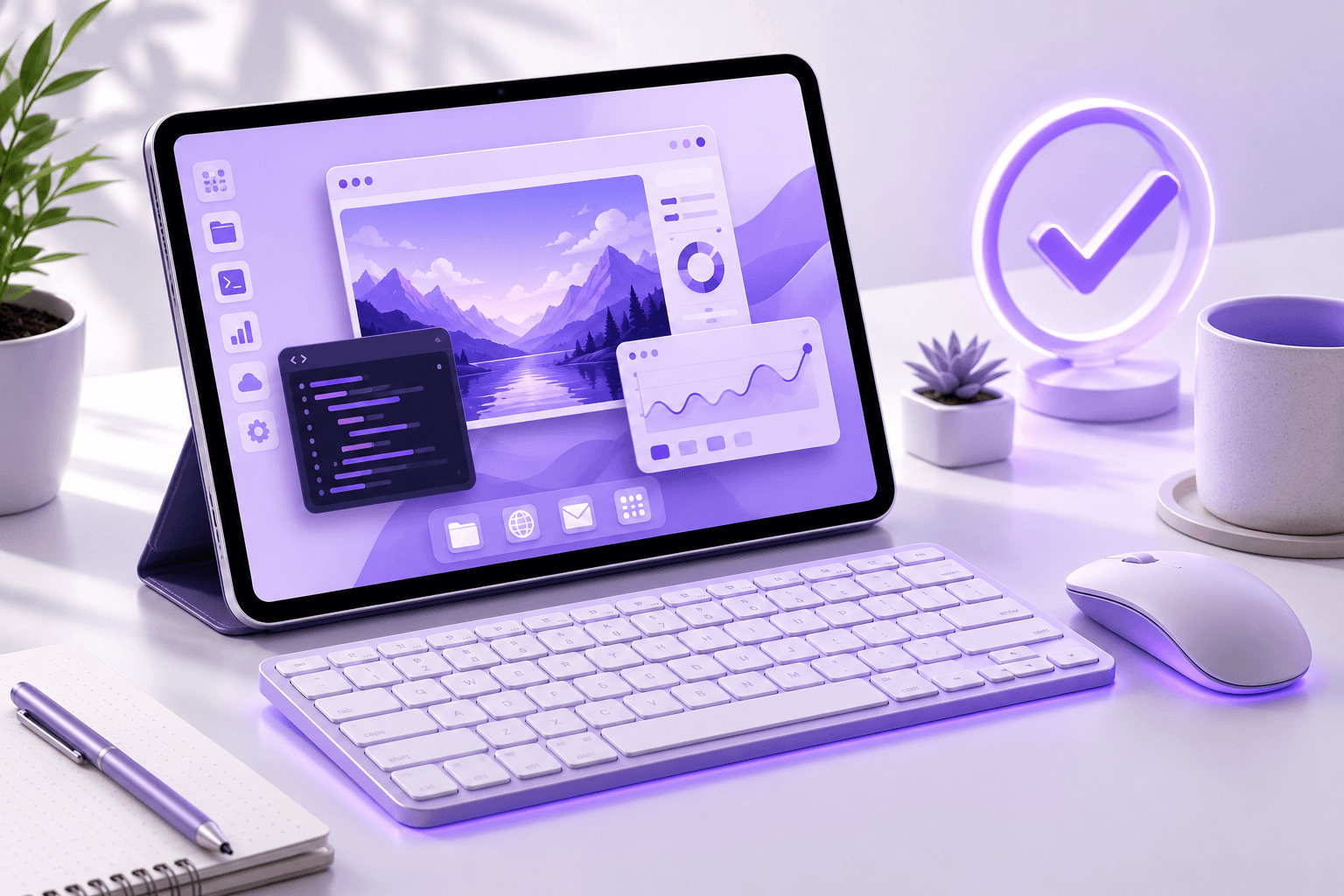
Blaming your iPad for lag that's really your connection. Every cloud method, remote desktop, Windows 365, Vagon, depends on your internet. When things feel sluggish, the iPad is almost never the problem. Check your connection first, and remember it's the upload speed at the source that usually matters, not your download.
Skipping a proper keyboard and mouse. Windows was not designed for finger taps. Trying to drive a desktop with touch alone will make any of these paths feel broken. A Bluetooth keyboard and trackpad or mouse turns "barely workable" into "genuinely productive," and it's the cheapest upgrade you'll make.
And if you're working in BIM, the same goes for using Revit on an iPad, the heavy lifting happens in the cloud, not on the tablet.
The bottom line
You can't put Windows on an iPad. You've made peace with that by now. But you can absolutely run a full Windows desktop from one, and the right way depends entirely on what you're trying to do.
Own a good PC already? Stream it. Just tinkering? Emulate it and have fun. Stuck in Office all day? Windows 365 will do the job quietly.
But if you came here because your iPad keeps running into a wall, the file that won't open, the app that won't install, the render your tablet can't handle, then you don't need a workaround. You need a real Windows machine, and Vagon Cloud Computer gives you one without buying a second computer or babysitting hardware at home. Real power, a real GPU, and you only pay for the minutes you actually use.
Spin one up, do the thing your iPad couldn't, and close the tab when you're done. That's about as close to "Windows on an iPad" as anyone's going to get. And honestly? It's better than the real thing.
FAQs
1. Can you install Windows directly on an iPad?
No. iPads run on Apple silicon and are locked to iPadOS, with no boot menu or way to swap the operating system. You can run a full Windows desktop from your iPad through remote desktop, emulation, or a cloud PC, but it never lives on the device itself.
2. Is there a free way to run Windows on an iPad?
Two, actually. If you own a Windows PC, you can stream it for free with Microsoft's Windows App or Chrome Remote Desktop. And UTM lets you emulate Windows on the iPad at no cost, though it's slow and has no graphics acceleration. Free works if you already own a PC or just want to tinker. For real power without either, you pay for what you use.
3. Can you play Windows games on an iPad?
Only through a path with a real GPU. Emulation can't run modern games at all, and Windows 365's base plans have no graphics power. Streaming from a gaming PC you own works if the PC is on and your connection is fast. A GPU cloud PC like Vagon Cloud Computer runs them without needing a PC at home.
4. Can an iPad run Windows 11?
Not natively. People have emulated Windows 11 on an iPad using UTM, but iPadOS 26 broke the speed workaround it relies on, so on newer iPads it's painfully slow. For an actual Windows 11 desktop that's usable, a cloud PC is the practical route.
5. What's the difference between Windows 365 and Vagon Cloud Computer?
Windows 365 is a fixed monthly subscription with set specs and no GPU on the base plans, built for everyday office work. Vagon is pay-per-minute with real GPU power and switchable performance, built for heavy or bursty work like editing, 3D, and AI. Office all day, Windows 365. Power when you need it, Vagon.
6. Do I need a keyboard and mouse?
You'll want them. Windows wasn't designed for finger taps, and a Bluetooth keyboard plus a trackpad or mouse is the difference between "barely workable" and genuinely productive, whichever method you choose.
7. Is using a cloud PC on an iPad secure?
Generally yes. With a cloud PC, your files and work stay in the data center rather than on the tablet, so nothing sensitive is stored locally on a device you might lose. As always, use a strong account password and a trusted network.
You downloaded the file. You tapped it. And your iPad just sat there blinking at you, like you'd asked it to do something rude.
No "open with." No install prompt. Just a .exe your iPad has no clue what to do with.
If you've hit that wall, you've probably already searched how to run Windows on an iPad and come away more confused than when you started. So here's the bad news up front: you can't install Windows on an iPad. Not natively, not with a workaround. Apple silicon, locked to iPadOS, no boot menu, no way in. Microsoft's own forums say the same.
But "can't install" isn't "can't run." You can absolutely get a full Windows desktop on your iPad, File Explorer, Steam, that ancient app your job won't retire. It just doesn't live on the iPad itself.
That's the whole game. Stop trying to put Windows on the device, start thinking about where it actually runs, and you've got four options. They're not equally good, and by the end you'll know which one is yours.
Before we get into each one, here's the whole landscape on a single screen. If you only read this far, the table still answers your question.
Method | Cost | Needs a PC? | Real GPU? | Best for |
Remote into your own PC | Free | Yes | Your PC's | People who already own a capable Windows PC |
Emulation (UTM) | Free | No | No | Tinkering, retro Windows, bragging rights |
Windows 365 | ~$28–66/mo | No | Not on base plans | All-day office work |
On-demand cloud PC | Pay per minute | No | Yes | Heavy or creative work, AI tools, in bursts |
Notice the pattern already. Every free option has a string attached, every fixed-cost option has a ceiling, and only one row has no "but" in it. We'll get there.
Now let's go through them properly, because the table tells you what to pick and the sections below tell you why.
Remote into the PC you already own
If there's a Windows machine sitting at home, you've basically already paid for the best version of Windows-on-iPad. You just stream it.
How it works
Your PC does the actual work back home. Your iPad becomes a window into it: you see the desktop, you tap and type, the commands fly over the internet, the screen streams back. Your gaming rig with its chunky GPU runs the heavy stuff while you're in a café with a Magic Keyboard. The iPad is just the glass.
Start with Microsoft's own tool, and here's the part that trips everyone up: it's not called Remote Desktop anymore. Microsoft rebranded it to Windows App, which is a confusingly generic name for something pretty specific. Install it from the App Store, point it at your home PC, you're in. Free, official, and it handles keyboard and mouse properly.
Want less fuss? Chrome Remote Desktop does nearly the same thing. Install it on the PC, sign into the same Google account in a browser tab on your iPad, connect. Less polished, but hard to beat for zero cost and five minutes of setup.
The catch
Your PC has to be awake and online. Every time. A machine that's asleep, or that your roommate shut off, or that dropped Wi-Fi in a storm is a machine you can't reach. You can rig around this with Wake-on-LAN, but now you're configuring router settings on a Tuesday night, and that's a different kind of evening.
Then there's latency. On the same fast connection, it feels almost local. The moment your internet gets flaky, everything turns to syrup, cursor lagging behind your finger, video stuttering, gaming basically off the table. And it lives or dies on the upload speed at your PC's end, not the download speed on your iPad. People always check the wrong number.
Best for
Anyone who already owns a capable Windows PC and just wants it on the move. You pay nothing extra, you rent no hardware, you borrow the computer you already have. If that's you, go set it up.
If you don't own a PC, or you don't want to babysit one, keep reading.
If you're here because you specifically want to edit photos, here's the honest path: running Photoshop on an iPad needs real graphics power, which emulation can't give you.
Emulate Windows right on the iPad
This is the tinkerer's path. For people who don't want Windows because they need it, but because someone said they couldn't have it, and that's reason enough.
How it works
Your iPad pretends to be PC hardware, then runs Windows on top of that pretend hardware. No remote PC, no internet required, no monthly bill. It all happens right there on the device. Sounds like the dream: real Windows, fully offline, totally free. Hold that thought.
The app you'll hear about is UTM, and it comes in two flavors that matter enormously. The App Store version is UTM SE, where SE politely stands for "slow edition." That's not a joke, it's the actual name, and it's accurate. It translates Windows instructions the slow, careful way. Boot times drag. Some systems won't even launch.
The fast version, the one that approaches usable speed, has to be sideloaded through an alternative app store like AltStore, plus a helper that switches on the speed boost behind the scenes. Last year a developer got Windows 11 running on an M2 iPad Air this exact way and called it "quite decent."
The iPadOS 26 problem
Here's the part most guides skip. iPadOS 26 broke that speed boost. Again. Apple removed the underlying mechanism it relies on, and the community workarounds have narrowed to the point where they mostly only work on devices four years old or older. Bought a shiny new iPad? The fast path is largely closed to you. You're back to the slow edition, watching a progress bar.
The no-GPU ceiling
Even when it works, there's a hard wall: no graphics acceleration. No DirectX, no OpenGL, nothing. Modern Windows games are out. Most modern creative apps are out. What's left is old, lightweight software. People run Windows XP this way to play the bundled pinball game, and honestly, that's the perfect summary of what this path is good for.
Best for
Learning, tinkering, and saying "I got Windows running on my iPad" at a party where people care about that. It's a genuinely cool hack. But for getting actual work done, it'll frustrate you within the hour.
It's a fun afternoon pretending to be a solution. The next two paths are the actual solutions.
If you're a 3D artist, this is how people actually run Blender on an iPad without owning a workstation.
Rent Windows from Microsoft with Windows 365
If remote desktop is borrowing a PC you own, and emulation is faking one, Windows 365 is renting a real one that lives in Microsoft's data center.
How it works
Microsoft keeps a full Windows 11 desktop running for you in the cloud, and you connect from your iPad through the same Windows App you'd use to stream your own PC. No PC at home doing the work. Microsoft is the PC at home now.
When it's running, it's a properly good experience. Your desktop stays exactly as you left it, apps open, files in place, because it never really shuts down between sessions. Close the iPad, reopen it an hour later, you're right back where you were.
What it costs
Pricing got friendlier this year, and most articles are quoting stale numbers. Microsoft cut Windows 365 prices by 20% on May 1, 2026. Business tiers now run roughly $28 to $56 per user per month: around $31 for two cores and 4GB of RAM, $41 for 8GB, $66 at the top for four cores and 16GB. Fixed price, fixed specs, same bill every month.
The catches
That "same bill every month" is doing a lot of work in that sentence. Three things to know before you commit:
You pay whether you use it or not. Touch it once or live in it daily, the bill is identical. Great for everyday use, wasteful for twice-a-week use.
It's built for businesses. Signing up means creating a business account, not just tapping "buy" with your Apple ID. Anyone can do it, but it feels like provisioning a work machine, because that's what it is.
No GPU on the base plans. Smooth for documents, browsers, and light apps. The moment you want 4K video, 3D, AI work, or real gaming, the entry tiers run out of road. GPU tiers exist, but they sit in the enterprise lane with enterprise pricing.
Best for
The office worker. If your Windows needs are documents, email, a browser, and that one internal tool the company won't drop, Windows 365 is clean and reliable.
But if your reason for wanting Windows involves the words "render," "edit," "game," or "GPU," you've quietly walked past these plans into a different category of need. That category has its own path. It's the last one, and it's the one most people are actually looking for.
And if you're in motion design, the same setup is what makes running After Effects on an iPad genuinely workable.
Run real Windows on your iPad with Vagon Cloud Computer
Look back at the other three paths and you'll notice each one left the same hole. Remote desktop needs a PC you own. Emulation can't touch a GPU. Windows 365 charges you monthly and taps out before the heavy work starts.
So what if you want a genuinely powerful Windows machine, with a real graphics card, that you only pay for when you actually use it?
That's Vagon Cloud Computer. And for most people who landed on this question for a real reason, it's the answer.
How it works
You spin up a high-performance Windows machine in the cloud, do your thing, and shut it down when you're done. You're billed for the minutes you use, not the calendar. Vagon's machines come with actual GPUs, the kind that render video, drive 3D scenes, run AI and ML workloads, and play games that would make an emulator burst into tears. Open it in a browser tab or the Vagon app on your iPad, and you're working on hardware no tablet could physically hold.
Why Vagon beats the alternatives
Go back through the catches from every other path. Vagon doesn't have them:
No PC to babysit (unlike streaming your own machine). Nothing at home to keep awake or online. Your Vagon machine is always there when you are.
A real GPU (unlike emulation). Actual graphics power, so real creative apps and games run, not just Windows XP pinball.
Pay per minute, not per month (unlike Windows 365). You're charged for the time you use, not for a desktop sitting idle. And you can switch performance tiers whenever you want, keeping the same desktop, files, and apps every time.
No business account. You sign up like a normal person, not like an IT department.
Need a modest machine for an hour, then ten times the power for a render? Switch tiers mid-session, and your whole setup follows you.
The AI angle
Here's the moment a lot of iPad users hit. You've been using AI image or video tools, the browser-based ones, and you've reached the point where you need real desktop software to finish the job: a proper editor, a 3D app, something that wants a GPU and a Windows environment.
An iPad alone can't get you there. A monthly cloud PC with no GPU can't either. But a full Windows desktop on Vagon, with a graphics card, spun up for the two hours you need it, can. Then you walk away instead of paying for it to sit idle until next month.
The honest tradeoffs
I promised tradeoffs in every section, so here they are. Vagon's pay-per-use model is brilliant for work that comes in bursts, and pricier if you're running a powerful machine eight hours a day, every day, where a flat monthly plan might win. And like every cloud option here, it lives on your internet connection. A solid link feels close to local. A bad one feels like wading through mud. No magic escapes physics.
Best for
The exact thing most people mean when they ask how to run Windows on an iPad: "I want to do something my iPad can't, without buying a whole separate computer."
With Vagon, you rent the power, exactly when you need it, on the device already in your hands.
If you're an architect or engineer, this is the moment that matters, it's exactly how you'd run AutoCAD on an iPad for real drawings instead of just viewing them.
So which one should you actually pick?
Four paths, one of them is yours. Here's the short version:
You already own a capable Windows PC → Remote into it with Windows App or Chrome Remote Desktop. It's free, and you've already paid for the hard part.
You just want to tinker or relive Windows XP → Emulate with UTM. Go in knowing it's a hobby, not a workflow.
You live in Office, email, and a browser all day → Windows 365. Predictable, reliable, no GPU drama because you don't need one.
You need real power without owning a PC → Vagon Cloud Computer. The machine's always there, the GPU's real, and you only pay for the minutes you use.
You do creative, 3D, or AI work on your iPad → Vagon again. It's the only path on this list that won't hit a wall the second the work gets heavy.
Notice the bottom two both land in the same place. That's not an accident. The moment "run Windows on my iPad" means actually doing something demanding, the free and fixed-price options drop away, and renting real power on demand is what's left standing.
If you're still unsure, ask yourself one question: do I want Windows to exist on my iPad, or do I want to get something done with it? The first question has a lot of answers. The second mostly has one.
Mistakes to avoid
A few traps that catch people, gathered from doing this the hard way.
Expecting emulation to be usable. The single most common letdown. People watch a slick demo video, install UTM, and expect a real PC. What they get is a slideshow. Emulation is for fun and learning, not for finishing a project on a deadline.
Paying monthly for Windows you barely touch. Windows 365 makes sense if you're in it every day. If you need Windows twice a week, you're renting an empty apartment. Match the billing model to how you actually work: occasional or bursty use is exactly where pay-per-minute wins.
Blaming your iPad for lag that's really your connection. Every cloud method, remote desktop, Windows 365, Vagon, depends on your internet. When things feel sluggish, the iPad is almost never the problem. Check your connection first, and remember it's the upload speed at the source that usually matters, not your download.
Skipping a proper keyboard and mouse. Windows was not designed for finger taps. Trying to drive a desktop with touch alone will make any of these paths feel broken. A Bluetooth keyboard and trackpad or mouse turns "barely workable" into "genuinely productive," and it's the cheapest upgrade you'll make.
And if you're working in BIM, the same goes for using Revit on an iPad, the heavy lifting happens in the cloud, not on the tablet.
The bottom line
You can't put Windows on an iPad. You've made peace with that by now. But you can absolutely run a full Windows desktop from one, and the right way depends entirely on what you're trying to do.
Own a good PC already? Stream it. Just tinkering? Emulate it and have fun. Stuck in Office all day? Windows 365 will do the job quietly.
But if you came here because your iPad keeps running into a wall, the file that won't open, the app that won't install, the render your tablet can't handle, then you don't need a workaround. You need a real Windows machine, and Vagon Cloud Computer gives you one without buying a second computer or babysitting hardware at home. Real power, a real GPU, and you only pay for the minutes you actually use.
Spin one up, do the thing your iPad couldn't, and close the tab when you're done. That's about as close to "Windows on an iPad" as anyone's going to get. And honestly? It's better than the real thing.
FAQs
1. Can you install Windows directly on an iPad?
No. iPads run on Apple silicon and are locked to iPadOS, with no boot menu or way to swap the operating system. You can run a full Windows desktop from your iPad through remote desktop, emulation, or a cloud PC, but it never lives on the device itself.
2. Is there a free way to run Windows on an iPad?
Two, actually. If you own a Windows PC, you can stream it for free with Microsoft's Windows App or Chrome Remote Desktop. And UTM lets you emulate Windows on the iPad at no cost, though it's slow and has no graphics acceleration. Free works if you already own a PC or just want to tinker. For real power without either, you pay for what you use.
3. Can you play Windows games on an iPad?
Only through a path with a real GPU. Emulation can't run modern games at all, and Windows 365's base plans have no graphics power. Streaming from a gaming PC you own works if the PC is on and your connection is fast. A GPU cloud PC like Vagon Cloud Computer runs them without needing a PC at home.
4. Can an iPad run Windows 11?
Not natively. People have emulated Windows 11 on an iPad using UTM, but iPadOS 26 broke the speed workaround it relies on, so on newer iPads it's painfully slow. For an actual Windows 11 desktop that's usable, a cloud PC is the practical route.
5. What's the difference between Windows 365 and Vagon Cloud Computer?
Windows 365 is a fixed monthly subscription with set specs and no GPU on the base plans, built for everyday office work. Vagon is pay-per-minute with real GPU power and switchable performance, built for heavy or bursty work like editing, 3D, and AI. Office all day, Windows 365. Power when you need it, Vagon.
6. Do I need a keyboard and mouse?
You'll want them. Windows wasn't designed for finger taps, and a Bluetooth keyboard plus a trackpad or mouse is the difference between "barely workable" and genuinely productive, whichever method you choose.
7. Is using a cloud PC on an iPad secure?
Generally yes. With a cloud PC, your files and work stay in the data center rather than on the tablet, so nothing sensitive is stored locally on a device you might lose. As always, use a strong account password and a trusted network.
Get Beyond Your Computer Performance
Run applications on your cloud computer with the latest generation hardware. No more crashes or lags.
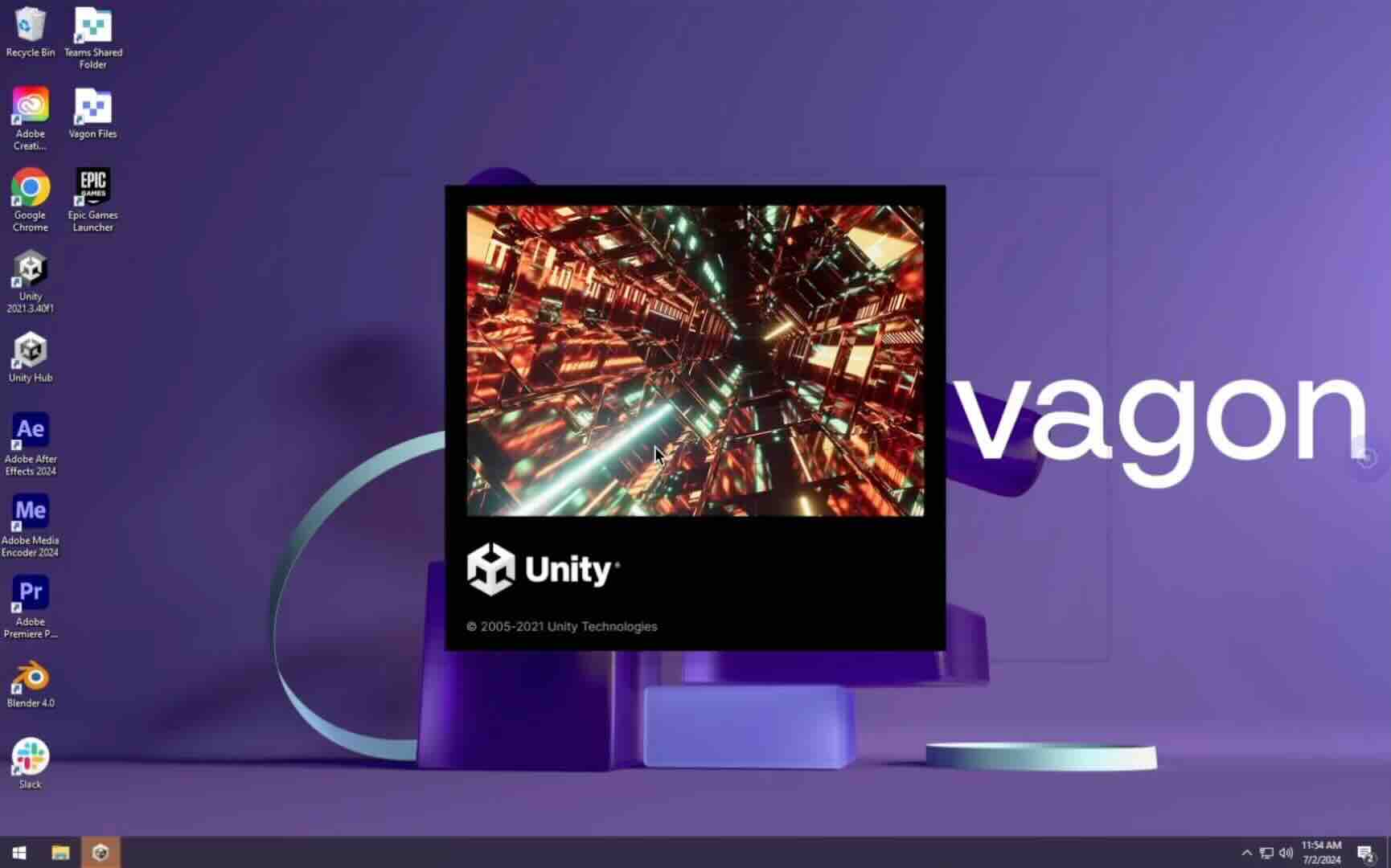
Trial includes 1 hour usage + 7 days of storage.
Summarize with AI

Ready to focus on your creativity?
Vagon gives you the ability to create & render projects, collaborate, and stream applications with the power of the best hardware.

Vagon Blog


Run heavy applications on any device with
your personal computer on the cloud.
San Francisco, California
Solutions
Vagon Teams
Vagon Streams
Use Cases
Resources
Vagon Blog
The First 30 Minutes in Blender 3D: A Practical Workflow Guide
What’s New in Godot 4.7? Key Features, Upgrades, and Workflow Improvements
What Slows Down Blender 3D Projects?
What Slows Down Adobe Photoshop Projects?
The First 30 Minutes in Adobe Photoshop: A Practical Workflow Guide
Before You Start in Adobe Photoshop: A Practical Setup Checklist
What’s New in Unreal Engine 5.8? Key Features and Upgrade Advice
How to Run Windows on an iPad: 4 Best Ways (2026)
How to Run Windows on Mac: Every Method Tested (2026)
Vagon Blog
Run heavy applications on any device with
your personal computer on the cloud.
San Francisco, California
Solutions
Vagon Teams
Vagon Streams
Use Cases
Resources
Vagon Blog
The First 30 Minutes in Blender 3D: A Practical Workflow Guide
What’s New in Godot 4.7? Key Features, Upgrades, and Workflow Improvements
What Slows Down Blender 3D Projects?
What Slows Down Adobe Photoshop Projects?
The First 30 Minutes in Adobe Photoshop: A Practical Workflow Guide
Before You Start in Adobe Photoshop: A Practical Setup Checklist
What’s New in Unreal Engine 5.8? Key Features and Upgrade Advice
How to Run Windows on an iPad: 4 Best Ways (2026)
How to Run Windows on Mac: Every Method Tested (2026)
Vagon Blog
Run heavy applications on any device with
your personal computer on the cloud.
San Francisco, California
Solutions
Vagon Teams
Vagon Streams
Use Cases
Resources
Vagon Blog