Instant Connection for Pixel Streaming
— New Feature Automated Setup

What’s New in Unreal Engine 5.8? Key Features and Upgrade Advice
What’s New in Unreal Engine 5.8? Key Features and Upgrade Advice
GameDevelopment
What’s New in Unreal Engine 5.8? Key Features and Upgrade Advice
Table of Contents
Unreal Engine doesn’t have a “can it look good?” problem anymore.
UE5 can already render ridiculous worlds: dense forests, cinematic interiors, scanned assets, MetaHumans, massive cities, all of it. The harder question is whether you can build with it every day without losing hours to shader waits, heavy scenes, broken performance budgets, and projects that only run well on one expensive workstation.
That’s why Unreal Engine 5.8 is interesting.
It’s not exciting because it makes UE5 “next-gen.” That phrase has been tired for years. UE 5.8 matters because it focuses on practical production pain: terrain, vegetation, scalable lighting, AI-assisted workflows, and iteration speed.
Some features look genuinely useful. Mesh Terrain could help with more flexible landscapes. The Procedural Vegetation Editor should make natural environments faster to block out. Lumen Lite might be the one many teams actually ship with, especially when performance matters more than perfect lighting. MegaLights becoming more production-ready is worth watching too.
But don’t upgrade just because the release sounds impressive.
Experimental features are still experimental. Plugins can break. A scene that feels fine in the editor can fall apart in a packaged build. So this guide looks at UE 5.8 from a practical angle: what changed, who should care, what to test, and where to be careful before trusting it in a real project.
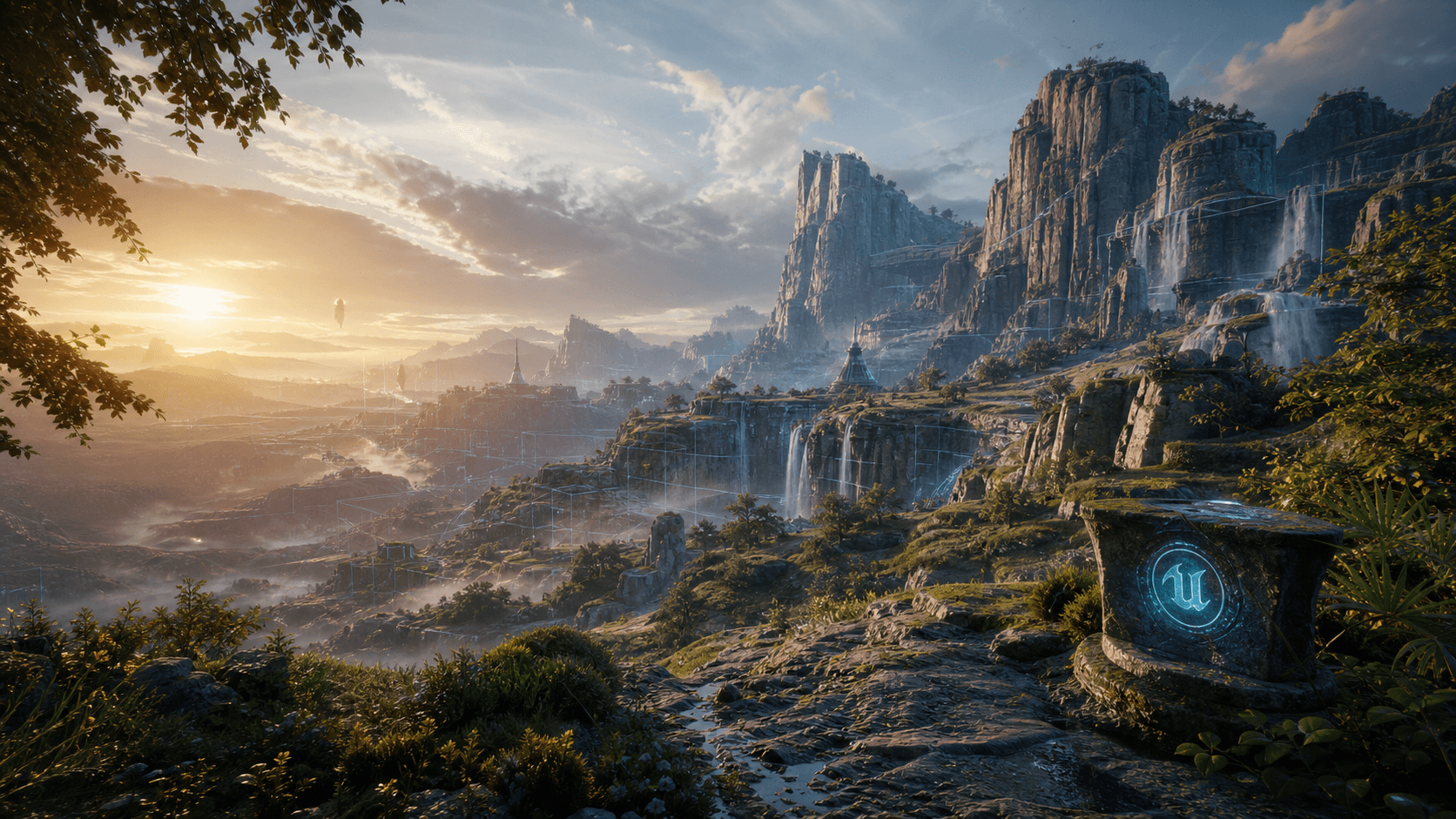
If you’re comparing recent engine updates, you may also want to read our breakdown of the Unreal Engine 5.7 update, since a lot of UE 5.8’s value makes more sense when you look at how Epic has been improving world-building and rendering over the last few releases.
Quick Summary: What Changed in UE 5.8
Unreal Engine 5.8 is not built around one giant feature. It’s more of a workflow update, with several changes aimed at helping teams build larger scenes, light them more affordably, and iterate with less friction.
Here are the main updates worth paying attention to:
Mesh Terrain: an experimental system for building large terrain as fully 3D mesh geometry.
Procedural Vegetation Editor: an experimental tool for generating trees, grass, bushes, and other foliage with more scene awareness.
Lumen Lite: a lower-cost global illumination option that keeps more of the Lumen look while improving performance.
MegaLights: a more production-ready path for scenes with lots of dynamic lights.
Fog and atmosphere improvements: useful for scenes where depth, haze, and light scattering matter.
MCP plugin: a bridge between Unreal Engine and LLM tools, so AI assistants can work with more project context.
Shader and iteration improvements: less flashy than the headline features, but potentially more important for daily production work.
The pattern is pretty clear. UE 5.8 is trying to make ambitious Unreal projects less painful to build and test.
That doesn’t mean every project should move immediately. The biggest world-building features are still experimental, and performance-related features need proper testing in your own scenes. Not just Epic’s demos. Not only the editor viewport. Your actual project, packaged and profiled.
#1. Mesh Terrain
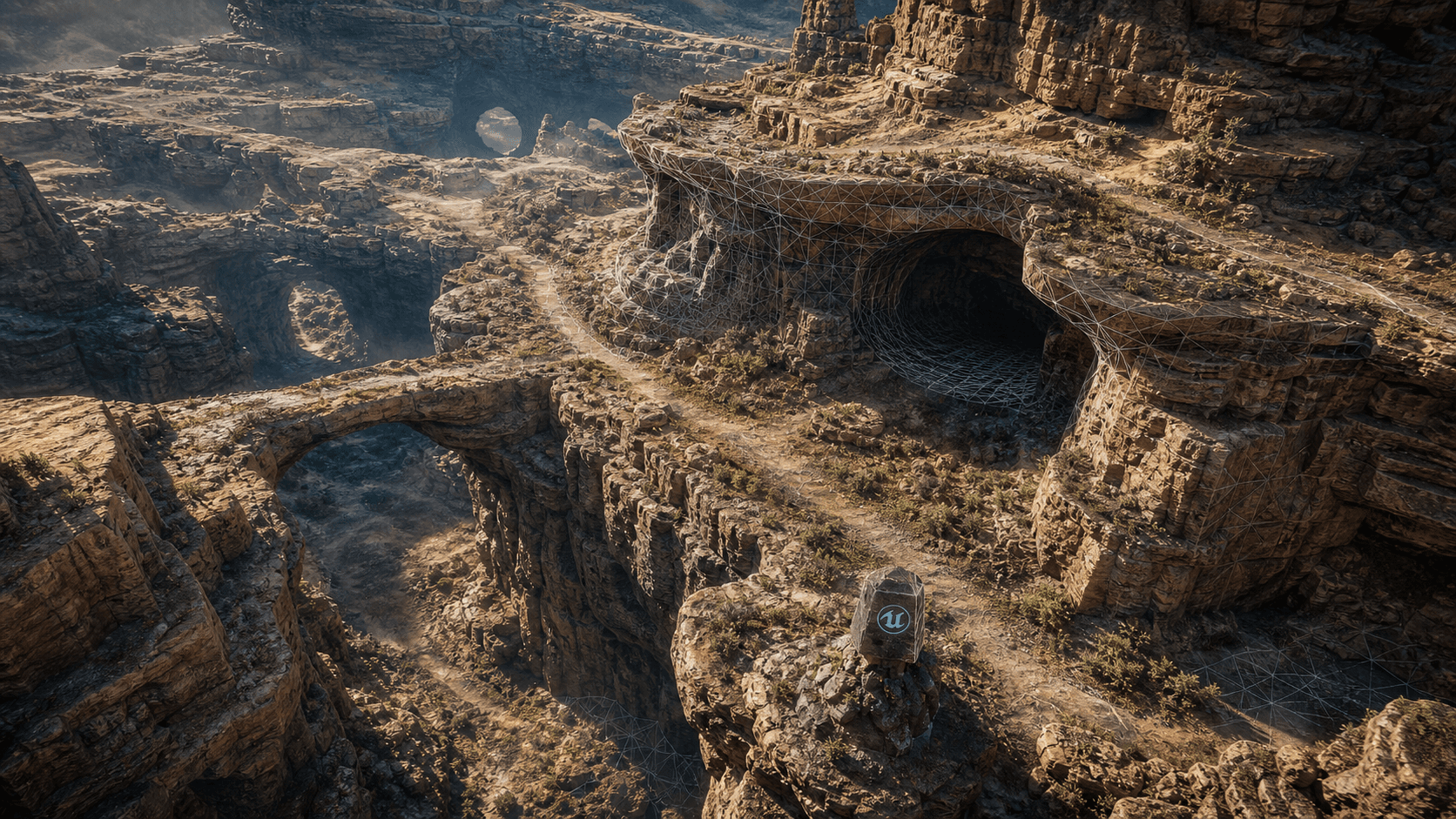
Mesh Terrain is one of the more interesting UE 5.8 additions because it touches a problem Unreal users have been working around for years: terrain is rarely as simple as a flat heightfield with hills on it.
Real environments are messier. Cliffs fold over. Caves cut through mountains. Roads carve into slopes. Riverbanks erode in weird ways. Open worlds need verticality, not just elevation. Traditional landscape tools can handle a lot, but the moment you want more complex 3D shapes, you often end up mixing landscape systems, static meshes, sculpted assets, and custom workflows.
Mesh Terrain points toward a cleaner version of that future. Instead of thinking about terrain only as a height-based surface, it gives teams a way to approach large landscapes as actual 3D mesh geometry. That could make a real difference for projects with mountains, caves, overhangs, broken terrain, layered paths, or dense natural spaces where the environment needs to feel sculpted rather than painted onto a plane.
Where it could actually help
The obvious use case is open-world production, but smaller teams should pay attention too.
If you’re making a compact but highly vertical level, like a canyon, a sci-fi dig site, a ruined cliffside village, or a cave system, Mesh Terrain could eventually make those spaces less painful to build and revise. It could also help visualization teams that need more natural landforms around architecture, roads, resorts, campuses, or infrastructure projects.
The real appeal is iteration. Terrain changes often become expensive once multiple systems depend on them. If Mesh Terrain makes it easier to reshape believable landforms without patching together several workflows, that’s meaningful.
The part I’d test before trusting it
Big caution here: Mesh Terrain is experimental.
Experimental terrain tech is not something to casually drop into a project that’s six months from shipping. Terrain affects too many systems: collision, navigation, foliage placement, world partitioning, streaming, lighting, save data, physics, and performance. If it breaks, it doesn’t break quietly.
Before using it seriously, test:
collision and player movement
navigation
foliage placement
world partitioning and streaming
lighting behavior
physics interactions
packaged build performance
memory and frame time in a dense scene
Don’t just fly around in the editor and decide it’s fine. The editor lies sometimes. Politely, but still.
Treat Mesh Terrain as a prototype tool first. Use it to explore what your next terrain workflow might look like, then decide after the boring tests pass.
#2. Procedural Vegetation Editor
Hand-placing foliage is one of those tasks that sounds peaceful until you’ve done it for the 900th time.
A few trees? Fine. A forest path? Still fine. A whole biome with grass, reeds, shrubs, fallen branches, young trees, old trees, exposed roots, mossy rocks, and enough variation to avoid looking like a copy-paste crime scene? That’s where procedural tools stop feeling optional.
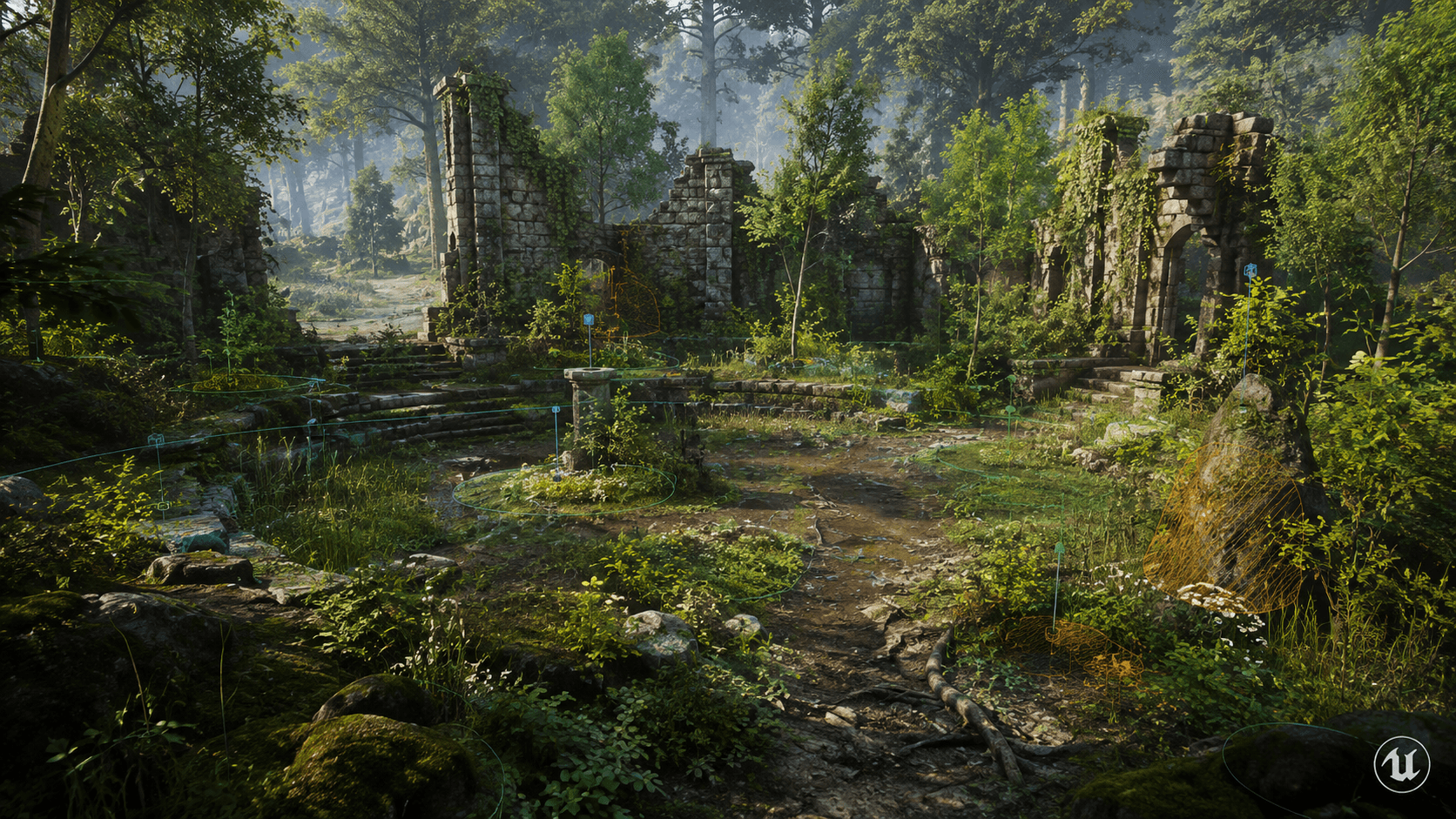
UE 5.8’s Procedural Vegetation Editor is aimed at that problem. The idea isn’t just to scatter plants across a surface. Unreal has had ways to do that for a long time. What makes this more interesting is the promise of vegetation that responds to the existing scene: light, nearby meshes, competing vegetation, and the natural logic of where plants should grow.
Bad procedural foliage is easy to spot. It looks even. Too even. Trees grow where they shouldn’t. Grass ignores shade. Bushes clip through walls. Plants appear in perfect distributions that no real place has ever agreed to.
A better procedural vegetation workflow should help environment artists reach a believable first pass faster. Imagine blocking out an abandoned courtyard, a forest ruin, or a riverside path, then letting the tool fill in the first layer of plant life around your shapes. You still art-direct the important areas, but you’re not starting from an empty world every time.

Faster first passes, not final forests
The best use case here is speed with direction.
Use it for early biome blocking, background vegetation, large natural spaces, and fast mood tests. If you’re building an open-world prototype, it can help you answer useful questions earlier: does this valley feel dense enough, does the trail read clearly, does the ruin feel abandoned, does the lighting still work once vegetation is in?
That’s valuable. A blank terrain tells you almost nothing. A rough vegetation pass gives you something to react to.
But the goal shouldn’t be “click once and ship the forest.” That’s how you get technically impressive scenes with no taste.
The cleanup work doesn’t disappear
You still need to check collision. You still need to watch memory, overdraw, Nanite cost, wind animation, shadowing, streaming, and how the vegetation behaves when the player moves through it.
Also, someone still needs to delete the tree growing through the doorway.
Before trusting a procedural vegetation pass, test:
density in gameplay areas
memory and VRAM use
collision and traversal
overdraw in grass-heavy views
wind animation cost
shadow cost
readability of paths, enemies, objects, and entrances
packaged performance, not just editor performance
The Procedural Vegetation Editor should make the first 70% faster. The last 30% still belongs to artists. That’s where the scene gets its rhythm, memory, and personality.
#3. Lumen Lite
Lumen Lite might be the least dramatic UE 5.8 feature and the one I’d test first.
Lighting quality is usually where UE5 projects start dreaming big. Performance is where those dreams get negotiated down. Full Lumen can look fantastic, but it isn’t cheap. If your project targets high-end PCs only, maybe that’s fine. Most teams don’t have that luxury.
Lumen Lite is meant to keep much of the visual benefit of Lumen while reducing the cost of global illumination. In plain English: you still get a more dynamic, modern lighting feel, but with a better shot at hitting usable frame rates on lower-end hardware.
That matters.
In older Unreal workflows, dropping lighting settings too far could mean losing the thing that made the scene feel good in the first place. You’d get performance back, but the atmosphere changed. Interiors flattened out. Indirect light felt wrong. Reflections got rough. Suddenly the “optimized” version of the game looked like a different art direction.
Lumen Lite is interesting because it tries to avoid that cliff. Not perfect lighting. Not free lighting. But a middle ground that may be good enough for real shipping settings.
If lighting performance is already one of your bottlenecks, it’s worth pairing Lumen Lite tests with broader Unreal optimization work. We have a separate guide on how to make Unreal Engine render faster, which covers the kind of project-level checks Lumen Lite won’t solve by itself.

A better middle ground for scalable lighting
Lumen Lite is especially relevant if you’re targeting lower-end hardware, handheld PCs, console performance modes, or interactive visualization experiences that need to run smoothly outside a perfect workstation setup.
It also matters for teams that care about scalability. A high-end lighting mode is useful, but most real projects need multiple quality levels. Players, clients, students, and reviewers won’t all have the same GPU. If Lumen Lite gives teams a more acceptable middle option, that can change how they build their lighting presets.
The best case is simple: keep enough of the UE5 lighting feel while giving up less visual quality than older low or medium settings.
Don’t benchmark it from one pretty angle
The mistake is assuming Lumen Lite automatically solves performance. It doesn’t. It only changes part of the rendering cost.
If your scene is heavy because of skeletal meshes, Niagara, shadows, foliage density, texture memory, Blueprint tick, or bad streaming behavior, Lumen Lite won’t rescue you.
Test it in your heaviest scenes and compare:
visual quality
GPU frame time
reflections
indoor lighting
outdoor lighting
character lighting
worst-case camera angles
frame pacing
packaged build performance
Don’t only look at average FPS. A project that averages 60 FPS but stutters every few seconds still feels bad. Unreal users know this pain too well.
Lumen Lite won’t replace careful optimization, but it gives teams another practical setting to work with. And practical matters. Practical ships.
If you’re targeting lower-end machines, cloud setups, or less predictable review hardware, you may also want to look at how to run Unreal Engine on a low-end device without rebuilding your whole workflow around one local workstation.
#4. MegaLights
MegaLights is for the moment when your scene needs a lot of lights, and the old tricks start getting ugly.
You know the kind of scene. A rainy street at night with shop signs, car headlights, windows, street lamps, police lights, wet reflections, and small practical lights everywhere. Or a sci-fi corridor packed with panels, screens, warning lamps, doors, and little animated light sources that make the space feel alive. Or a cinematic interior where every lamp in the room should actually contribute to the mood instead of being a decorative mesh with a fake glow.
Traditionally, that kind of lighting setup comes with compromises. You fake some lights. You bake what you can. You turn off shadows where nobody will notice. You use emissive materials for the feeling of light without paying for real illumination. You cheat aggressively, because real-time lighting has a budget and it does not care about your art direction.
MegaLights is meant to make scenes with lots of dynamic lights more practical. That doesn’t mean you can throw infinite lights into a level and walk away. It means UE 5.8 gives teams a better path for scenes where light count used to become a hard creative limit.

More real lights, fewer ugly cheats
The most obvious use cases are night city environments, dense interiors, horror scenes, sci-fi sets, cinematic sequences, virtual production, product visualization, and stylized games that use light as part of the visual language.
In those scenes, light count isn’t just a technical detail. It affects composition. A city street feels dead if the signs, windows, vehicles, and street lamps don’t contribute to the space. A sci-fi hallway feels fake if all those little panels glow but don’t actually shape the lighting. A product configurator can lose realism fast if the lighting rig is too simplified.
MegaLights should give artists more room to build those scenes honestly.
Production-ready still needs profiling
The important word is “practical,” not “free.”
Even if MegaLights is moving into production-ready territory, you still need to profile it per scene. Light count, shadow settings, materials, reflections, fog, translucency, and camera movement all change the cost. A feature can be production-ready and still hurt your frame time if you use it carelessly.
Test it on a scene where your current lighting setup feels compromised. Not your cleanest demo scene. Pick the annoying one: too many small lights, weird shadow tradeoffs, or fake emissive tricks you’ve been pretending are fine.
Then compare:
visual quality
GPU frame time
shadow behavior
reflection quality
performance with fog or atmosphere enabled
scalability settings
packaged build performance
Also check how it behaves when the camera moves quickly. Some lighting features look great in still shots and become less charming when the player sprints through the scene.
MegaLights can give artists more freedom, but it doesn’t remove the need for lighting discipline. Good lighting is still about hierarchy, contrast, focus, and restraint. More lights can help a scene. They can also turn it into visual soup.
#5. MCP Plugin
The MCP plugin is probably the most controversial UE 5.8 feature, even if it’s not the loudest one visually.
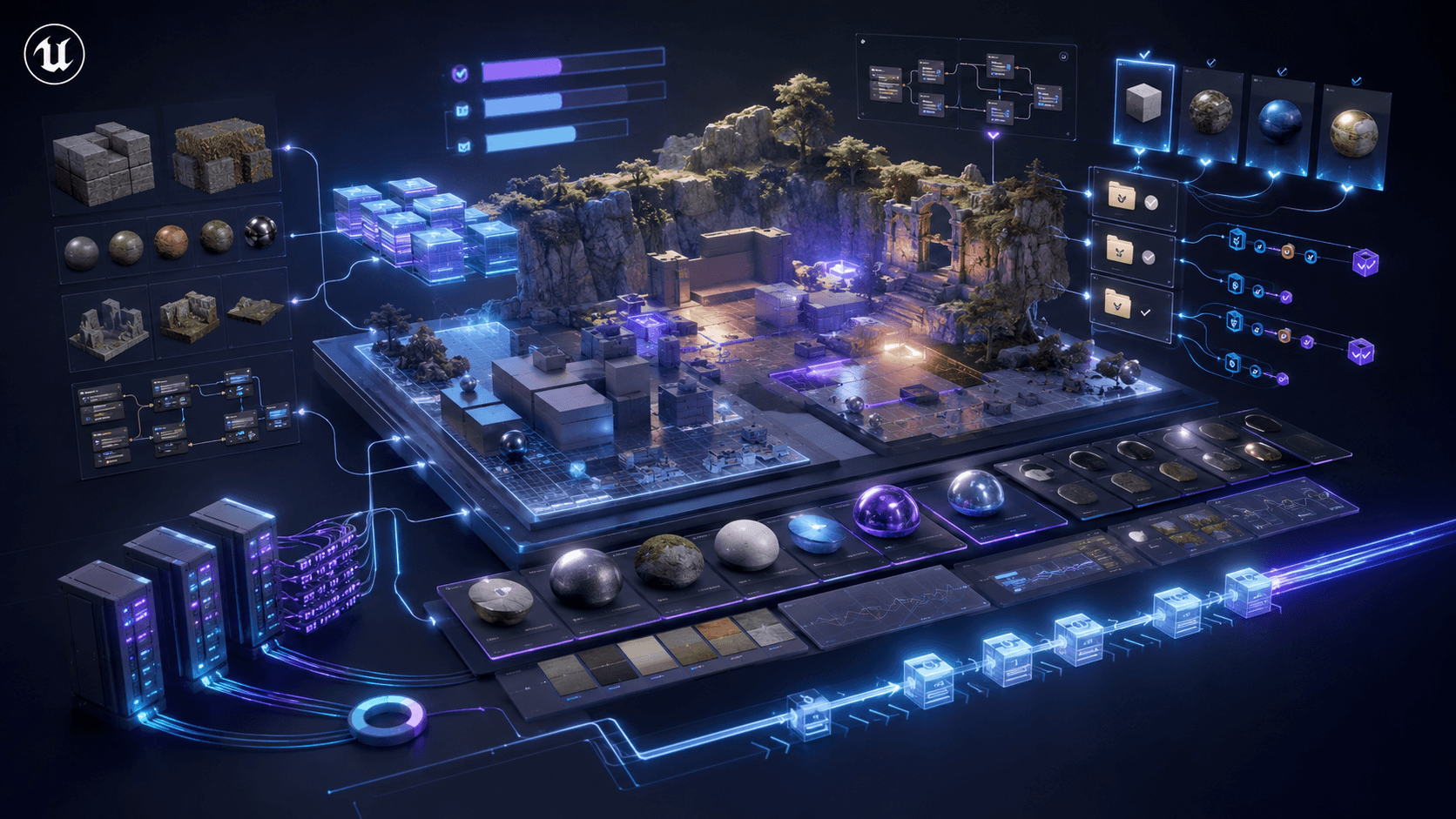
MCP stands for Model Context Protocol. In simple terms, it gives AI tools a cleaner way to connect with Unreal Engine and understand more about your project. Instead of treating an LLM like a separate chat window where you paste random snippets, the goal is to let it work with actual engine and project context.
That could be useful. Very useful, in the right places.
Unreal projects collect a lot of tedious problems: messy Blueprints, naming inconsistencies, unused assets, repetitive C++ changes, half-finished test maps, old materials, broken references, scripts nobody wants to touch, and small refactors that keep getting delayed because nobody has time. AI assistance can help with that kind of work, especially when the task is specific and easy to inspect.
If you’re already testing AI-assisted production workflows, our guide to AI assistants for Unreal Engine is a useful companion read before you let any tool touch a real project.
Useful for boring tasks, risky for big decisions
Good uses for MCP-style workflows might include:
finding unused or badly named assets
helping refactor C++ or Blueprint-adjacent logic
generating first-pass automation tests
summarizing project structure for a new team member
creating editor utility scripts
checking repeated setup mistakes
helping document internal tools
suggesting optimization passes based on known project patterns
The important phrase is “easy to inspect.”
If an AI tool changes 300 files and nobody understands why, that’s not productivity. That’s a future bug report wearing a nice hat. The best AI-assisted workflows are narrow, reviewable, and boring. Ask it to help with things where you can quickly tell whether the output is right or wrong.
Keep the work reviewable
Be much more cautious with creative or architectural decisions. Don’t ask an LLM to design your combat system. Don’t let it invent your asset pipeline. Don’t let it rewrite core gameplay code without a human who deeply understands the project reviewing every line.
And please don’t treat generated content as automatically production-ready.
AI can produce plausible nonsense with incredible confidence. Unreal users already have enough ways to create technical debt. We don’t need a faster one.
The smart approach is to use AI assistance where it saves time without stealing judgment. Repetitive tasks? Good. Documentation? Often useful. First-pass code suggestions? Sometimes. Final gameplay architecture, art direction, narrative tone, or optimization strategy? Keep experienced humans in charge.
For UE 5.8 users, the MCP plugin is less about “AI will build my game” and more about giving teams a new interface for project-aware assistance. That’s a meaningful difference. One is fantasy. The other might actually save you an afternoon.
The Quiet Win: Faster Iteration
Shader compilation is not the kind of feature that looks good in a trailer.
Nobody posts a dramatic reveal video where a developer clicks “open project,” waits less than usual, and quietly gets back to work. But if you’ve spent real time in Unreal, you know how much iteration speed matters. Waiting is not neutral. It breaks focus. It turns small tasks into half-day tasks. It makes artists hesitate before testing changes because they know the engine might punish them for curiosity.
So when UE 5.8 brings shader compilation and iteration improvements, it’s worth taking seriously.
A lighting feature might sell the release, but compile-time improvements can change the rhythm of a team. If five people each save 20 minutes a day, that’s not a tiny improvement. Across a month, it becomes real production time. More importantly, it changes behavior. People test more. They compare more. They take smaller risks because the feedback loop isn’t so painful.
This matters especially for material-heavy projects, large environment teams, virtual production scenes with many lookdev passes, marketplace-heavy projects with lots of shader permutations, and studios that frequently switch branches or package builds.
Before moving a real project to UE 5.8, measure the boring things:
cold project open time
shader compile time after a clean pull
material edit feedback time
packaged build time
cook time
editor responsiveness in your heaviest map
branch switch recovery time
derived data cache behavior
Those numbers tell you whether the upgrade helps your actual workflow, not just your benchmark scene.
And don’t test on one perfect machine. Test on the hardware your team really uses. The lead technical artist’s workstation is probably not the same machine as the junior environment artist’s laptop or the producer’s review setup.
Shader improvements won’t get the same attention as Mesh Terrain or Lumen Lite, but they may be what your team feels every single day. That kind of improvement is easy to underestimate until you go back to the slower version. Then you notice immediately.
If your team is trying to speed up day-to-day work, small workflow habits still matter too. Our list of Unreal Engine shortcuts is worth keeping nearby, especially for artists and designers who spend hours in the editor.
Should You Upgrade to Unreal Engine 5.8?
Not every Unreal project should move to UE 5.8 at the same speed.
If you’re prototyping, experimenting, or still early in production, UE 5.8 is probably worth testing soon. The new features are aimed at exactly the kinds of problems that show up when a project is still flexible: terrain direction, vegetation workflows, lighting targets, performance budgets, and tool experiments.
Upgrade sooner if you’re working on:
open-world environments
vertical landscapes with cliffs, caves, or layered terrain
foliage-heavy scenes
architectural or product visualization
cinematic lighting setups
virtual production environments
lower-end hardware targets
AI-assisted internal tooling
projects where shader iteration is a daily pain
In those cases, testing UE 5.8 early gives you useful information. Even if you don’t migrate immediately, you’ll learn whether Mesh Terrain, Procedural Vegetation Editor, Lumen Lite, MegaLights, or MCP workflows could shape your pipeline later.
But if you’re close to shipping, be careful.
A late-engine upgrade can eat weeks in ways that are hard to predict. Plugin issues. Packaging problems. Lighting changes. Performance shifts. Strange Blueprint warnings. Build pipeline fixes. A “simple migration” can become a tour of every fragile corner of the project.
Wait, or at least move very slowly, if:
your project is near release
your team depends on plugins that haven’t been validated for UE 5.8
you use custom engine changes
your current lighting pipeline is heavily tuned
your build system is fragile
your platform certification timeline is tight
your team can’t afford migration churn right now
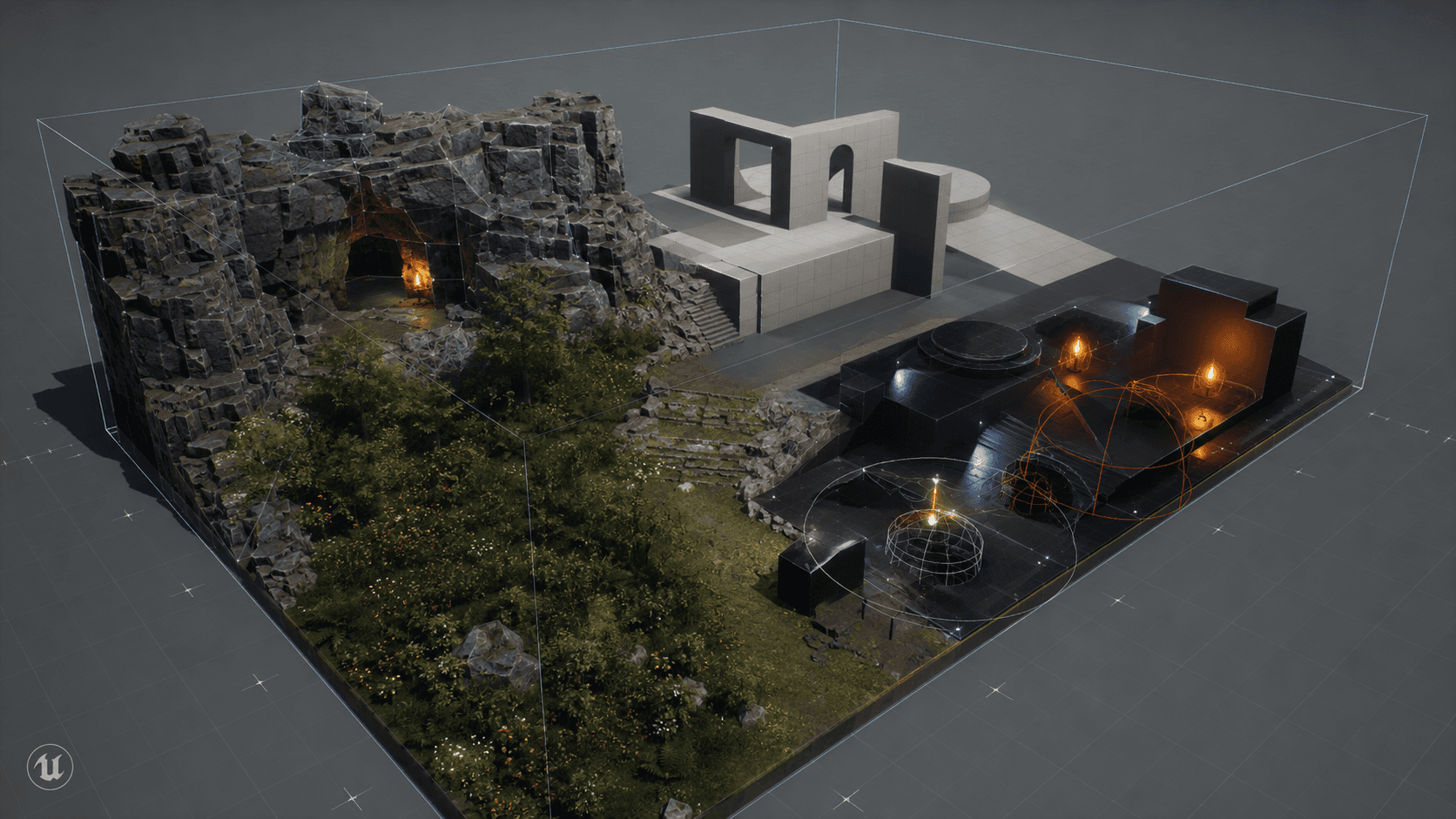
There’s also a middle option: test UE 5.8 without committing to it.
Create a branch. Move one map. Benchmark one feature. Ask one technical artist to evaluate Lumen Lite or MegaLights. Let an environment artist test the Procedural Vegetation Editor on a copy of a biome. Keep the experiment contained.
That approach gives you signal without turning your whole project into a migration project.
The best upgrade decision is tied to your bottleneck. If terrain is painful, test Mesh Terrain. If lighting cost is painful, test Lumen Lite. If vegetation takes too long, test the Procedural Vegetation Editor. If no UE 5.8 feature solves a problem you actually have, there’s no shame in waiting.
New engine versions are tools, not personality tests. You don’t get extra points for upgrading first. You get results for upgrading when the benefits are real.
If your project depends heavily on Marketplace tools, it’s worth checking your Unreal Engine assets and plugins before moving the whole project to UE 5.8.
Where Vagon Cloud Computer Fits
UE 5.8 can help you create heavier, richer Unreal experiences faster. That’s exciting, but it also creates a practical problem.
At some point, someone needs to open the project, run the scene, review the experience, or show it to a client. And not everyone has the workstation for that.
This comes up a lot with Unreal work. A scene might run beautifully on the artist’s desktop, then struggle on a teammate’s laptop. A client might want to review an interactive walkthrough, but sending a huge build is annoying. A stakeholder might need to inspect a product configurator, virtual production scene, or AI-assisted environment without installing half the pipeline first.
That’s where Vagon Cloud Computer makes sense.
Instead of depending only on local hardware, Vagon gives users access to powerful cloud computers that can run demanding creative applications through the browser. For Unreal users, that can help in a few practical ways:
working on heavy UE projects from a lighter device
reviewing scenes without moving a workstation around
presenting interactive Unreal experiences to clients or teammates
testing AI-generated or procedurally built environments on stronger hardware
keeping hardware access more consistent across a distributed team
This is especially relevant after UE 5.8 because the new tools encourage bigger scenes. Mesh Terrain, procedural vegetation, richer lighting, and AI-assisted workflows can all speed up creation, but they can also raise the hardware bar. Vagon helps remove some of that friction when the project becomes too heavy for the machine in front of you.
It’s not a replacement for optimization. You still need clean assets, sane lighting settings, good profiling habits, and proper packaged-build testing.
But it can make Unreal work easier to access and share. And that matters. A great UE scene trapped on one powerful workstation is useful, but a scene that teammates, clients, or end users can actually experience is much more valuable.
If local hardware is already limiting your scenes, using Unreal Engine on a cloud computer can be a practical way to keep heavy projects accessible without forcing every teammate or reviewer onto the same workstation setup.
Final Take
Unreal Engine 5.8 is worth paying attention to because it focuses on problems Unreal users actually feel.
Terrain is hard. Vegetation is time-consuming. Lighting is expensive. Shader waits are frustrating. AI workflows are messy but increasingly hard to ignore. Sharing heavy interactive projects is still more painful than it should be.
UE 5.8 doesn’t magically solve all of that. No engine update does. Mesh Terrain and the Procedural Vegetation Editor are still experimental. Lumen Lite still needs real benchmarks. MegaLights still needs lighting discipline. MCP still needs human review. Faster shader iteration still depends on the project, the team, and the hardware around it.
So the smart move isn’t “upgrade because it’s new.”
The smart move is to test the features that match your bottlenecks. If your landscapes feel limited, try Mesh Terrain. If foliage eats too much production time, test the Procedural Vegetation Editor. If lighting cost is holding you back, benchmark Lumen Lite. If your team loses hours to repetitive project tasks, experiment carefully with MCP. If your local machine is becoming the bottleneck, consider whether a cloud computer can make the work easier to run and share.
That’s the real story of UE 5.8. Not a revolution. Not a magic button. A practical update with tools that could save time, if you test them honestly.
If you’re deciding how to deliver an Unreal project on the web, this comparison of Pixel Streaming vs WebGL vs WebGPU for Unreal Engine web deployment is a good next step after you’ve tested the project locally.
FAQs
1. Is Unreal Engine 5.8 worth upgrading to?
Yes, but only if the new features solve a problem you actually have. If you’re prototyping open worlds, testing foliage-heavy environments, optimizing lighting, or exploring AI-assisted workflows, UE 5.8 is worth trying. If your project is close to shipping, test it on a branch first and move carefully.
2. Is Mesh Terrain production-ready?
Not yet. Mesh Terrain is experimental, so treat it as a prototype tool first. It may be useful for testing more flexible terrain workflows, especially for cliffs, caves, overhangs, and vertical spaces, but you should validate collision, navigation, streaming, foliage, memory, and packaged performance before using it in a serious project.
3. What is the Procedural Vegetation Editor best for?
It’s best for fast first passes on forests, biomes, ruins, paths, and large natural spaces. It can help you block out vegetation faster, but it doesn’t replace environment art direction. You still need to clean up density, collision, shadows, wind, memory, and readability.
4. What is Lumen Lite in UE 5.8?
Lumen Lite is a lower-cost global illumination option designed to keep more of the Lumen look while improving performance. It’s useful for teams targeting lower-end hardware, handheld PCs, console performance modes, or interactive experiences where smooth frame rates matter.
5. Does Lumen Lite fix UE5 performance issues?
No. It can help with lighting cost, but it won’t fix every performance problem. If your scene is heavy because of foliage, shadows, Niagara, skeletal meshes, textures, Blueprint tick, streaming, or poor asset setup, you still need proper optimization.
6. What is the MCP plugin used for?
The MCP plugin lets AI tools connect with Unreal Engine and understand more project context. It can help with inspectable tasks like documentation, editor utility scripts, asset cleanup, refactoring suggestions, test scaffolding, and project analysis. It should not be trusted blindly with core gameplay systems or creative direction.
7. Can Vagon Cloud Computer run Unreal Engine projects?
Yes. Vagon Cloud Computer gives users access to powerful cloud machines that can run demanding creative applications, including Unreal Engine workflows. It can be useful when your local device struggles with heavy scenes or when you need to review and share interactive Unreal experiences more easily.
8. Should I use Vagon instead of optimizing my Unreal project?
No. Vagon can help you access stronger hardware and share heavy experiences more easily, but it doesn’t replace good Unreal habits. You still need profiling, clean assets, sensible lighting settings, tested scalability options, and packaged-build validation.
Unreal Engine doesn’t have a “can it look good?” problem anymore.
UE5 can already render ridiculous worlds: dense forests, cinematic interiors, scanned assets, MetaHumans, massive cities, all of it. The harder question is whether you can build with it every day without losing hours to shader waits, heavy scenes, broken performance budgets, and projects that only run well on one expensive workstation.
That’s why Unreal Engine 5.8 is interesting.
It’s not exciting because it makes UE5 “next-gen.” That phrase has been tired for years. UE 5.8 matters because it focuses on practical production pain: terrain, vegetation, scalable lighting, AI-assisted workflows, and iteration speed.
Some features look genuinely useful. Mesh Terrain could help with more flexible landscapes. The Procedural Vegetation Editor should make natural environments faster to block out. Lumen Lite might be the one many teams actually ship with, especially when performance matters more than perfect lighting. MegaLights becoming more production-ready is worth watching too.
But don’t upgrade just because the release sounds impressive.
Experimental features are still experimental. Plugins can break. A scene that feels fine in the editor can fall apart in a packaged build. So this guide looks at UE 5.8 from a practical angle: what changed, who should care, what to test, and where to be careful before trusting it in a real project.
If you’re comparing recent engine updates, you may also want to read our breakdown of the Unreal Engine 5.7 update, since a lot of UE 5.8’s value makes more sense when you look at how Epic has been improving world-building and rendering over the last few releases.
Quick Summary: What Changed in UE 5.8
Unreal Engine 5.8 is not built around one giant feature. It’s more of a workflow update, with several changes aimed at helping teams build larger scenes, light them more affordably, and iterate with less friction.
Here are the main updates worth paying attention to:
Mesh Terrain: an experimental system for building large terrain as fully 3D mesh geometry.
Procedural Vegetation Editor: an experimental tool for generating trees, grass, bushes, and other foliage with more scene awareness.
Lumen Lite: a lower-cost global illumination option that keeps more of the Lumen look while improving performance.
MegaLights: a more production-ready path for scenes with lots of dynamic lights.
Fog and atmosphere improvements: useful for scenes where depth, haze, and light scattering matter.
MCP plugin: a bridge between Unreal Engine and LLM tools, so AI assistants can work with more project context.
Shader and iteration improvements: less flashy than the headline features, but potentially more important for daily production work.
The pattern is pretty clear. UE 5.8 is trying to make ambitious Unreal projects less painful to build and test.
That doesn’t mean every project should move immediately. The biggest world-building features are still experimental, and performance-related features need proper testing in your own scenes. Not just Epic’s demos. Not only the editor viewport. Your actual project, packaged and profiled.
#1. Mesh Terrain
Mesh Terrain is one of the more interesting UE 5.8 additions because it touches a problem Unreal users have been working around for years: terrain is rarely as simple as a flat heightfield with hills on it.
Real environments are messier. Cliffs fold over. Caves cut through mountains. Roads carve into slopes. Riverbanks erode in weird ways. Open worlds need verticality, not just elevation. Traditional landscape tools can handle a lot, but the moment you want more complex 3D shapes, you often end up mixing landscape systems, static meshes, sculpted assets, and custom workflows.
Mesh Terrain points toward a cleaner version of that future. Instead of thinking about terrain only as a height-based surface, it gives teams a way to approach large landscapes as actual 3D mesh geometry. That could make a real difference for projects with mountains, caves, overhangs, broken terrain, layered paths, or dense natural spaces where the environment needs to feel sculpted rather than painted onto a plane.
Where it could actually help
The obvious use case is open-world production, but smaller teams should pay attention too.
If you’re making a compact but highly vertical level, like a canyon, a sci-fi dig site, a ruined cliffside village, or a cave system, Mesh Terrain could eventually make those spaces less painful to build and revise. It could also help visualization teams that need more natural landforms around architecture, roads, resorts, campuses, or infrastructure projects.
The real appeal is iteration. Terrain changes often become expensive once multiple systems depend on them. If Mesh Terrain makes it easier to reshape believable landforms without patching together several workflows, that’s meaningful.
The part I’d test before trusting it
Big caution here: Mesh Terrain is experimental.
Experimental terrain tech is not something to casually drop into a project that’s six months from shipping. Terrain affects too many systems: collision, navigation, foliage placement, world partitioning, streaming, lighting, save data, physics, and performance. If it breaks, it doesn’t break quietly.
Before using it seriously, test:
collision and player movement
navigation
foliage placement
world partitioning and streaming
lighting behavior
physics interactions
packaged build performance
memory and frame time in a dense scene
Don’t just fly around in the editor and decide it’s fine. The editor lies sometimes. Politely, but still.
Treat Mesh Terrain as a prototype tool first. Use it to explore what your next terrain workflow might look like, then decide after the boring tests pass.
#2. Procedural Vegetation Editor
Hand-placing foliage is one of those tasks that sounds peaceful until you’ve done it for the 900th time.
A few trees? Fine. A forest path? Still fine. A whole biome with grass, reeds, shrubs, fallen branches, young trees, old trees, exposed roots, mossy rocks, and enough variation to avoid looking like a copy-paste crime scene? That’s where procedural tools stop feeling optional.
UE 5.8’s Procedural Vegetation Editor is aimed at that problem. The idea isn’t just to scatter plants across a surface. Unreal has had ways to do that for a long time. What makes this more interesting is the promise of vegetation that responds to the existing scene: light, nearby meshes, competing vegetation, and the natural logic of where plants should grow.
Bad procedural foliage is easy to spot. It looks even. Too even. Trees grow where they shouldn’t. Grass ignores shade. Bushes clip through walls. Plants appear in perfect distributions that no real place has ever agreed to.
A better procedural vegetation workflow should help environment artists reach a believable first pass faster. Imagine blocking out an abandoned courtyard, a forest ruin, or a riverside path, then letting the tool fill in the first layer of plant life around your shapes. You still art-direct the important areas, but you’re not starting from an empty world every time.
Faster first passes, not final forests
The best use case here is speed with direction.
Use it for early biome blocking, background vegetation, large natural spaces, and fast mood tests. If you’re building an open-world prototype, it can help you answer useful questions earlier: does this valley feel dense enough, does the trail read clearly, does the ruin feel abandoned, does the lighting still work once vegetation is in?
That’s valuable. A blank terrain tells you almost nothing. A rough vegetation pass gives you something to react to.
But the goal shouldn’t be “click once and ship the forest.” That’s how you get technically impressive scenes with no taste.
The cleanup work doesn’t disappear
You still need to check collision. You still need to watch memory, overdraw, Nanite cost, wind animation, shadowing, streaming, and how the vegetation behaves when the player moves through it.
Also, someone still needs to delete the tree growing through the doorway.
Before trusting a procedural vegetation pass, test:
density in gameplay areas
memory and VRAM use
collision and traversal
overdraw in grass-heavy views
wind animation cost
shadow cost
readability of paths, enemies, objects, and entrances
packaged performance, not just editor performance
The Procedural Vegetation Editor should make the first 70% faster. The last 30% still belongs to artists. That’s where the scene gets its rhythm, memory, and personality.
#3. Lumen Lite
Lumen Lite might be the least dramatic UE 5.8 feature and the one I’d test first.
Lighting quality is usually where UE5 projects start dreaming big. Performance is where those dreams get negotiated down. Full Lumen can look fantastic, but it isn’t cheap. If your project targets high-end PCs only, maybe that’s fine. Most teams don’t have that luxury.
Lumen Lite is meant to keep much of the visual benefit of Lumen while reducing the cost of global illumination. In plain English: you still get a more dynamic, modern lighting feel, but with a better shot at hitting usable frame rates on lower-end hardware.
That matters.
In older Unreal workflows, dropping lighting settings too far could mean losing the thing that made the scene feel good in the first place. You’d get performance back, but the atmosphere changed. Interiors flattened out. Indirect light felt wrong. Reflections got rough. Suddenly the “optimized” version of the game looked like a different art direction.
Lumen Lite is interesting because it tries to avoid that cliff. Not perfect lighting. Not free lighting. But a middle ground that may be good enough for real shipping settings.
If lighting performance is already one of your bottlenecks, it’s worth pairing Lumen Lite tests with broader Unreal optimization work. We have a separate guide on how to make Unreal Engine render faster, which covers the kind of project-level checks Lumen Lite won’t solve by itself.
A better middle ground for scalable lighting
Lumen Lite is especially relevant if you’re targeting lower-end hardware, handheld PCs, console performance modes, or interactive visualization experiences that need to run smoothly outside a perfect workstation setup.
It also matters for teams that care about scalability. A high-end lighting mode is useful, but most real projects need multiple quality levels. Players, clients, students, and reviewers won’t all have the same GPU. If Lumen Lite gives teams a more acceptable middle option, that can change how they build their lighting presets.
The best case is simple: keep enough of the UE5 lighting feel while giving up less visual quality than older low or medium settings.
Don’t benchmark it from one pretty angle
The mistake is assuming Lumen Lite automatically solves performance. It doesn’t. It only changes part of the rendering cost.
If your scene is heavy because of skeletal meshes, Niagara, shadows, foliage density, texture memory, Blueprint tick, or bad streaming behavior, Lumen Lite won’t rescue you.
Test it in your heaviest scenes and compare:
visual quality
GPU frame time
reflections
indoor lighting
outdoor lighting
character lighting
worst-case camera angles
frame pacing
packaged build performance
Don’t only look at average FPS. A project that averages 60 FPS but stutters every few seconds still feels bad. Unreal users know this pain too well.
Lumen Lite won’t replace careful optimization, but it gives teams another practical setting to work with. And practical matters. Practical ships.
If you’re targeting lower-end machines, cloud setups, or less predictable review hardware, you may also want to look at how to run Unreal Engine on a low-end device without rebuilding your whole workflow around one local workstation.
#4. MegaLights
MegaLights is for the moment when your scene needs a lot of lights, and the old tricks start getting ugly.
You know the kind of scene. A rainy street at night with shop signs, car headlights, windows, street lamps, police lights, wet reflections, and small practical lights everywhere. Or a sci-fi corridor packed with panels, screens, warning lamps, doors, and little animated light sources that make the space feel alive. Or a cinematic interior where every lamp in the room should actually contribute to the mood instead of being a decorative mesh with a fake glow.
Traditionally, that kind of lighting setup comes with compromises. You fake some lights. You bake what you can. You turn off shadows where nobody will notice. You use emissive materials for the feeling of light without paying for real illumination. You cheat aggressively, because real-time lighting has a budget and it does not care about your art direction.
MegaLights is meant to make scenes with lots of dynamic lights more practical. That doesn’t mean you can throw infinite lights into a level and walk away. It means UE 5.8 gives teams a better path for scenes where light count used to become a hard creative limit.
More real lights, fewer ugly cheats
The most obvious use cases are night city environments, dense interiors, horror scenes, sci-fi sets, cinematic sequences, virtual production, product visualization, and stylized games that use light as part of the visual language.
In those scenes, light count isn’t just a technical detail. It affects composition. A city street feels dead if the signs, windows, vehicles, and street lamps don’t contribute to the space. A sci-fi hallway feels fake if all those little panels glow but don’t actually shape the lighting. A product configurator can lose realism fast if the lighting rig is too simplified.
MegaLights should give artists more room to build those scenes honestly.
Production-ready still needs profiling
The important word is “practical,” not “free.”
Even if MegaLights is moving into production-ready territory, you still need to profile it per scene. Light count, shadow settings, materials, reflections, fog, translucency, and camera movement all change the cost. A feature can be production-ready and still hurt your frame time if you use it carelessly.
Test it on a scene where your current lighting setup feels compromised. Not your cleanest demo scene. Pick the annoying one: too many small lights, weird shadow tradeoffs, or fake emissive tricks you’ve been pretending are fine.
Then compare:
visual quality
GPU frame time
shadow behavior
reflection quality
performance with fog or atmosphere enabled
scalability settings
packaged build performance
Also check how it behaves when the camera moves quickly. Some lighting features look great in still shots and become less charming when the player sprints through the scene.
MegaLights can give artists more freedom, but it doesn’t remove the need for lighting discipline. Good lighting is still about hierarchy, contrast, focus, and restraint. More lights can help a scene. They can also turn it into visual soup.
#5. MCP Plugin
The MCP plugin is probably the most controversial UE 5.8 feature, even if it’s not the loudest one visually.
MCP stands for Model Context Protocol. In simple terms, it gives AI tools a cleaner way to connect with Unreal Engine and understand more about your project. Instead of treating an LLM like a separate chat window where you paste random snippets, the goal is to let it work with actual engine and project context.
That could be useful. Very useful, in the right places.
Unreal projects collect a lot of tedious problems: messy Blueprints, naming inconsistencies, unused assets, repetitive C++ changes, half-finished test maps, old materials, broken references, scripts nobody wants to touch, and small refactors that keep getting delayed because nobody has time. AI assistance can help with that kind of work, especially when the task is specific and easy to inspect.
If you’re already testing AI-assisted production workflows, our guide to AI assistants for Unreal Engine is a useful companion read before you let any tool touch a real project.
Useful for boring tasks, risky for big decisions
Good uses for MCP-style workflows might include:
finding unused or badly named assets
helping refactor C++ or Blueprint-adjacent logic
generating first-pass automation tests
summarizing project structure for a new team member
creating editor utility scripts
checking repeated setup mistakes
helping document internal tools
suggesting optimization passes based on known project patterns
The important phrase is “easy to inspect.”
If an AI tool changes 300 files and nobody understands why, that’s not productivity. That’s a future bug report wearing a nice hat. The best AI-assisted workflows are narrow, reviewable, and boring. Ask it to help with things where you can quickly tell whether the output is right or wrong.
Keep the work reviewable
Be much more cautious with creative or architectural decisions. Don’t ask an LLM to design your combat system. Don’t let it invent your asset pipeline. Don’t let it rewrite core gameplay code without a human who deeply understands the project reviewing every line.
And please don’t treat generated content as automatically production-ready.
AI can produce plausible nonsense with incredible confidence. Unreal users already have enough ways to create technical debt. We don’t need a faster one.
The smart approach is to use AI assistance where it saves time without stealing judgment. Repetitive tasks? Good. Documentation? Often useful. First-pass code suggestions? Sometimes. Final gameplay architecture, art direction, narrative tone, or optimization strategy? Keep experienced humans in charge.
For UE 5.8 users, the MCP plugin is less about “AI will build my game” and more about giving teams a new interface for project-aware assistance. That’s a meaningful difference. One is fantasy. The other might actually save you an afternoon.
The Quiet Win: Faster Iteration
Shader compilation is not the kind of feature that looks good in a trailer.
Nobody posts a dramatic reveal video where a developer clicks “open project,” waits less than usual, and quietly gets back to work. But if you’ve spent real time in Unreal, you know how much iteration speed matters. Waiting is not neutral. It breaks focus. It turns small tasks into half-day tasks. It makes artists hesitate before testing changes because they know the engine might punish them for curiosity.
So when UE 5.8 brings shader compilation and iteration improvements, it’s worth taking seriously.
A lighting feature might sell the release, but compile-time improvements can change the rhythm of a team. If five people each save 20 minutes a day, that’s not a tiny improvement. Across a month, it becomes real production time. More importantly, it changes behavior. People test more. They compare more. They take smaller risks because the feedback loop isn’t so painful.
This matters especially for material-heavy projects, large environment teams, virtual production scenes with many lookdev passes, marketplace-heavy projects with lots of shader permutations, and studios that frequently switch branches or package builds.
Before moving a real project to UE 5.8, measure the boring things:
cold project open time
shader compile time after a clean pull
material edit feedback time
packaged build time
cook time
editor responsiveness in your heaviest map
branch switch recovery time
derived data cache behavior
Those numbers tell you whether the upgrade helps your actual workflow, not just your benchmark scene.
And don’t test on one perfect machine. Test on the hardware your team really uses. The lead technical artist’s workstation is probably not the same machine as the junior environment artist’s laptop or the producer’s review setup.
Shader improvements won’t get the same attention as Mesh Terrain or Lumen Lite, but they may be what your team feels every single day. That kind of improvement is easy to underestimate until you go back to the slower version. Then you notice immediately.
If your team is trying to speed up day-to-day work, small workflow habits still matter too. Our list of Unreal Engine shortcuts is worth keeping nearby, especially for artists and designers who spend hours in the editor.
Should You Upgrade to Unreal Engine 5.8?
Not every Unreal project should move to UE 5.8 at the same speed.
If you’re prototyping, experimenting, or still early in production, UE 5.8 is probably worth testing soon. The new features are aimed at exactly the kinds of problems that show up when a project is still flexible: terrain direction, vegetation workflows, lighting targets, performance budgets, and tool experiments.
Upgrade sooner if you’re working on:
open-world environments
vertical landscapes with cliffs, caves, or layered terrain
foliage-heavy scenes
architectural or product visualization
cinematic lighting setups
virtual production environments
lower-end hardware targets
AI-assisted internal tooling
projects where shader iteration is a daily pain
In those cases, testing UE 5.8 early gives you useful information. Even if you don’t migrate immediately, you’ll learn whether Mesh Terrain, Procedural Vegetation Editor, Lumen Lite, MegaLights, or MCP workflows could shape your pipeline later.
But if you’re close to shipping, be careful.
A late-engine upgrade can eat weeks in ways that are hard to predict. Plugin issues. Packaging problems. Lighting changes. Performance shifts. Strange Blueprint warnings. Build pipeline fixes. A “simple migration” can become a tour of every fragile corner of the project.
Wait, or at least move very slowly, if:
your project is near release
your team depends on plugins that haven’t been validated for UE 5.8
you use custom engine changes
your current lighting pipeline is heavily tuned
your build system is fragile
your platform certification timeline is tight
your team can’t afford migration churn right now
There’s also a middle option: test UE 5.8 without committing to it.
Create a branch. Move one map. Benchmark one feature. Ask one technical artist to evaluate Lumen Lite or MegaLights. Let an environment artist test the Procedural Vegetation Editor on a copy of a biome. Keep the experiment contained.
That approach gives you signal without turning your whole project into a migration project.
The best upgrade decision is tied to your bottleneck. If terrain is painful, test Mesh Terrain. If lighting cost is painful, test Lumen Lite. If vegetation takes too long, test the Procedural Vegetation Editor. If no UE 5.8 feature solves a problem you actually have, there’s no shame in waiting.
New engine versions are tools, not personality tests. You don’t get extra points for upgrading first. You get results for upgrading when the benefits are real.
If your project depends heavily on Marketplace tools, it’s worth checking your Unreal Engine assets and plugins before moving the whole project to UE 5.8.
Where Vagon Cloud Computer Fits
UE 5.8 can help you create heavier, richer Unreal experiences faster. That’s exciting, but it also creates a practical problem.
At some point, someone needs to open the project, run the scene, review the experience, or show it to a client. And not everyone has the workstation for that.
This comes up a lot with Unreal work. A scene might run beautifully on the artist’s desktop, then struggle on a teammate’s laptop. A client might want to review an interactive walkthrough, but sending a huge build is annoying. A stakeholder might need to inspect a product configurator, virtual production scene, or AI-assisted environment without installing half the pipeline first.
That’s where Vagon Cloud Computer makes sense.
Instead of depending only on local hardware, Vagon gives users access to powerful cloud computers that can run demanding creative applications through the browser. For Unreal users, that can help in a few practical ways:
working on heavy UE projects from a lighter device
reviewing scenes without moving a workstation around
presenting interactive Unreal experiences to clients or teammates
testing AI-generated or procedurally built environments on stronger hardware
keeping hardware access more consistent across a distributed team
This is especially relevant after UE 5.8 because the new tools encourage bigger scenes. Mesh Terrain, procedural vegetation, richer lighting, and AI-assisted workflows can all speed up creation, but they can also raise the hardware bar. Vagon helps remove some of that friction when the project becomes too heavy for the machine in front of you.
It’s not a replacement for optimization. You still need clean assets, sane lighting settings, good profiling habits, and proper packaged-build testing.
But it can make Unreal work easier to access and share. And that matters. A great UE scene trapped on one powerful workstation is useful, but a scene that teammates, clients, or end users can actually experience is much more valuable.
If local hardware is already limiting your scenes, using Unreal Engine on a cloud computer can be a practical way to keep heavy projects accessible without forcing every teammate or reviewer onto the same workstation setup.
Final Take
Unreal Engine 5.8 is worth paying attention to because it focuses on problems Unreal users actually feel.
Terrain is hard. Vegetation is time-consuming. Lighting is expensive. Shader waits are frustrating. AI workflows are messy but increasingly hard to ignore. Sharing heavy interactive projects is still more painful than it should be.
UE 5.8 doesn’t magically solve all of that. No engine update does. Mesh Terrain and the Procedural Vegetation Editor are still experimental. Lumen Lite still needs real benchmarks. MegaLights still needs lighting discipline. MCP still needs human review. Faster shader iteration still depends on the project, the team, and the hardware around it.
So the smart move isn’t “upgrade because it’s new.”
The smart move is to test the features that match your bottlenecks. If your landscapes feel limited, try Mesh Terrain. If foliage eats too much production time, test the Procedural Vegetation Editor. If lighting cost is holding you back, benchmark Lumen Lite. If your team loses hours to repetitive project tasks, experiment carefully with MCP. If your local machine is becoming the bottleneck, consider whether a cloud computer can make the work easier to run and share.
That’s the real story of UE 5.8. Not a revolution. Not a magic button. A practical update with tools that could save time, if you test them honestly.
If you’re deciding how to deliver an Unreal project on the web, this comparison of Pixel Streaming vs WebGL vs WebGPU for Unreal Engine web deployment is a good next step after you’ve tested the project locally.
FAQs
1. Is Unreal Engine 5.8 worth upgrading to?
Yes, but only if the new features solve a problem you actually have. If you’re prototyping open worlds, testing foliage-heavy environments, optimizing lighting, or exploring AI-assisted workflows, UE 5.8 is worth trying. If your project is close to shipping, test it on a branch first and move carefully.
2. Is Mesh Terrain production-ready?
Not yet. Mesh Terrain is experimental, so treat it as a prototype tool first. It may be useful for testing more flexible terrain workflows, especially for cliffs, caves, overhangs, and vertical spaces, but you should validate collision, navigation, streaming, foliage, memory, and packaged performance before using it in a serious project.
3. What is the Procedural Vegetation Editor best for?
It’s best for fast first passes on forests, biomes, ruins, paths, and large natural spaces. It can help you block out vegetation faster, but it doesn’t replace environment art direction. You still need to clean up density, collision, shadows, wind, memory, and readability.
4. What is Lumen Lite in UE 5.8?
Lumen Lite is a lower-cost global illumination option designed to keep more of the Lumen look while improving performance. It’s useful for teams targeting lower-end hardware, handheld PCs, console performance modes, or interactive experiences where smooth frame rates matter.
5. Does Lumen Lite fix UE5 performance issues?
No. It can help with lighting cost, but it won’t fix every performance problem. If your scene is heavy because of foliage, shadows, Niagara, skeletal meshes, textures, Blueprint tick, streaming, or poor asset setup, you still need proper optimization.
6. What is the MCP plugin used for?
The MCP plugin lets AI tools connect with Unreal Engine and understand more project context. It can help with inspectable tasks like documentation, editor utility scripts, asset cleanup, refactoring suggestions, test scaffolding, and project analysis. It should not be trusted blindly with core gameplay systems or creative direction.
7. Can Vagon Cloud Computer run Unreal Engine projects?
Yes. Vagon Cloud Computer gives users access to powerful cloud machines that can run demanding creative applications, including Unreal Engine workflows. It can be useful when your local device struggles with heavy scenes or when you need to review and share interactive Unreal experiences more easily.
8. Should I use Vagon instead of optimizing my Unreal project?
No. Vagon can help you access stronger hardware and share heavy experiences more easily, but it doesn’t replace good Unreal habits. You still need profiling, clean assets, sensible lighting settings, tested scalability options, and packaged-build validation.
Get Beyond Your Computer Performance
Run applications on your cloud computer with the latest generation hardware. No more crashes or lags.

Trial includes 1 hour usage + 7 days of storage.
Summarize with AI

Ready to focus on your creativity?
Vagon gives you the ability to create & render projects, collaborate, and stream applications with the power of the best hardware.

Vagon Blog



Run heavy applications on any device with
your personal computer on the cloud.
San Francisco, California
Solutions
Vagon Teams
Vagon Streams
Use Cases
Resources
Vagon Blog
The First 30 Minutes in Blender 3D: A Practical Workflow Guide
What’s New in Godot 4.7? Key Features, Upgrades, and Workflow Improvements
What Slows Down Blender 3D Projects?
What Slows Down Adobe Photoshop Projects?
The First 30 Minutes in Adobe Photoshop: A Practical Workflow Guide
Before You Start in Adobe Photoshop: A Practical Setup Checklist
What’s New in Unreal Engine 5.8? Key Features and Upgrade Advice
How to Run Windows on an iPad: 4 Best Ways (2026)
How to Run Windows on Mac: Every Method Tested (2026)
Vagon Blog
Run heavy applications on any device with
your personal computer on the cloud.
San Francisco, California
Solutions
Vagon Teams
Vagon Streams
Use Cases
Resources
Vagon Blog
The First 30 Minutes in Blender 3D: A Practical Workflow Guide
What’s New in Godot 4.7? Key Features, Upgrades, and Workflow Improvements
What Slows Down Blender 3D Projects?
What Slows Down Adobe Photoshop Projects?
The First 30 Minutes in Adobe Photoshop: A Practical Workflow Guide
Before You Start in Adobe Photoshop: A Practical Setup Checklist
What’s New in Unreal Engine 5.8? Key Features and Upgrade Advice
How to Run Windows on an iPad: 4 Best Ways (2026)
How to Run Windows on Mac: Every Method Tested (2026)
Vagon Blog
Run heavy applications on any device with
your personal computer on the cloud.
San Francisco, California
Solutions
Vagon Teams
Vagon Streams
Use Cases
Resources
Vagon Blog