Instant Connection for Pixel Streaming
— New Feature Automated Setup

What Slows Down After Effects Projects?
What Slows Down After Effects Projects?
VideoProduction
What Slows Down After Effects Projects?
Table of Contents
After Effects rarely becomes slow because of one single layer or one bad effect.
It usually happens in layers. Literally and technically. A 4K clip here. A nested comp there. A few adjustment layers, a glow, some blur, a color grade, a couple of expressions, motion blur, maybe a 3D camera, and suddenly the preview that felt fine ten minutes ago starts crawling frame by frame.
That’s the frustrating part. After Effects slowdown often feels sudden, but it usually builds quietly.
And no, the answer is not always “purge cache and restart.” Sometimes that helps. Sometimes it buys you five minutes and then the same project starts dragging again because the real problem is still sitting inside the comp.
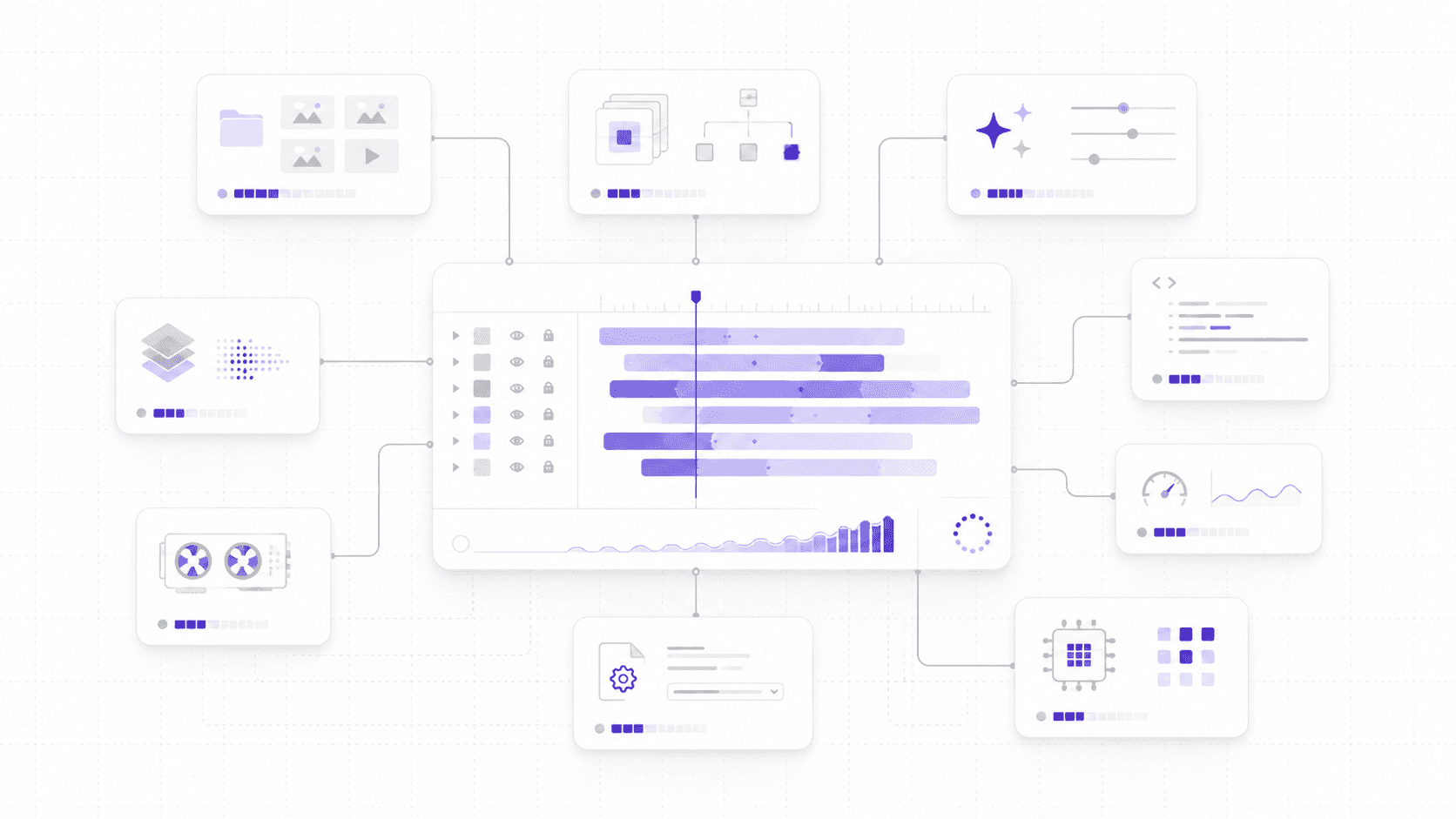
This guide is a practical diagnosis guide for After Effects users who want to understand what’s actually slowing their projects down. Not a generic performance checklist that tells you to close apps, clear cache, and hope for the best.
We’ll look at the usual suspects: project structure, footage formats, codecs, nested comps, effects, expressions, previews, disk cache, GPU acceleration, render settings, hardware limits, and the point where using Vagon Cloud Computer makes more sense than forcing a heavy motion graphics project through a local machine that is already struggling.
#1. Heavy compositions
An After Effects comp can look simple and still be doing a ridiculous amount of work.
That’s one of the first things I’d check when a project starts slowing down. Not the fanciest plugin. Not the GPU. The comp itself.
A few text layers, some shape layers, a background video, and a logo animation may not look scary. But if the comp is 4K, the timeline is two minutes long, half the layers are precomps, and there are hidden alternates sitting around “just in case,” After Effects has a lot more to calculate than the viewer sees.
Layer count matters. Every layer can bring transforms, masks, effects, blending modes, mattes, parenting, expressions, and timing into the frame. One layer is easy. Fifty layers can still be fine. Two hundred layers with nested comps and effects? That’s a different conversation.
Comp dimensions matter too. A 1920 x 1080 comp and a 3840 x 2160 comp are not asking for the same workload. If the final output is 1080p, but the entire project is built at 4K with high-resolution assets and full-res previews, you may be making After Effects work harder than it needs to during the creative stage.

Long timelines can also slow things down, especially when the comp is full of footage, time remapping, expressions, and effects that need to evaluate across many frames. After Effects is not just looking at the frame in front of you. Depending on the setup, it may need to understand what came before, what is nested inside, and what has to be cached.
Hidden layers are another classic. Turning off the eyeball helps, but it does not mean the project is clean. Old versions, unused footage, abandoned text treatments, hidden adjustment layers, and backup comps can still make the project harder to manage. Even when they do not directly render, they add clutter and make troubleshooting slower.
Nested comps are useful, but they can hide weight. A precomp might look like one clean layer in your main timeline, but inside it there may be dozens of layers, effects, expressions, and footage items. Then that precomp is nested again. And again.
That’s how a clean-looking main comp becomes a maze.
I’m not against precomps. They are essential. But if you are using precomps to hide chaos instead of organize work, the project will eventually make you pay for it.
A good first check:
Is the comp larger than the final output needs to be?
Are there too many old versions or hidden layers?
Are precomps organized or just buried?
Is the timeline longer than it needs to be?
Are heavy layers visible when you do not need them?
Are you previewing at full resolution too early?
After Effects can handle complex comps. But it cannot guess which parts of the mess are intentional. If the composition feels heavier than it looks, it probably is.
If your project keeps getting heavier than your setup can comfortably handle, it may also be worth comparing After Effects alternatives to see whether another tool fits your workflow better.
#2. Footage and codecs
Sometimes the slowest part of an After Effects project is not the animation.
It’s the footage.
This is especially true when the project is full of H.264 or H.265 clips. Those formats are great for delivery because they keep file sizes small. They are not always great for heavy post-production work because they are highly compressed. After Effects may need to decode more information than you expect just to show you a frame.
That’s why a small video file can still feel awful to work with.
A 200 MB H.264 clip might look lighter than a larger ProRes file on your drive, but the compressed file can require more decoding work during preview. The ProRes file may be bigger, but it is often easier for editing and compositing tools to process. File size and playback comfort are not the same thing.
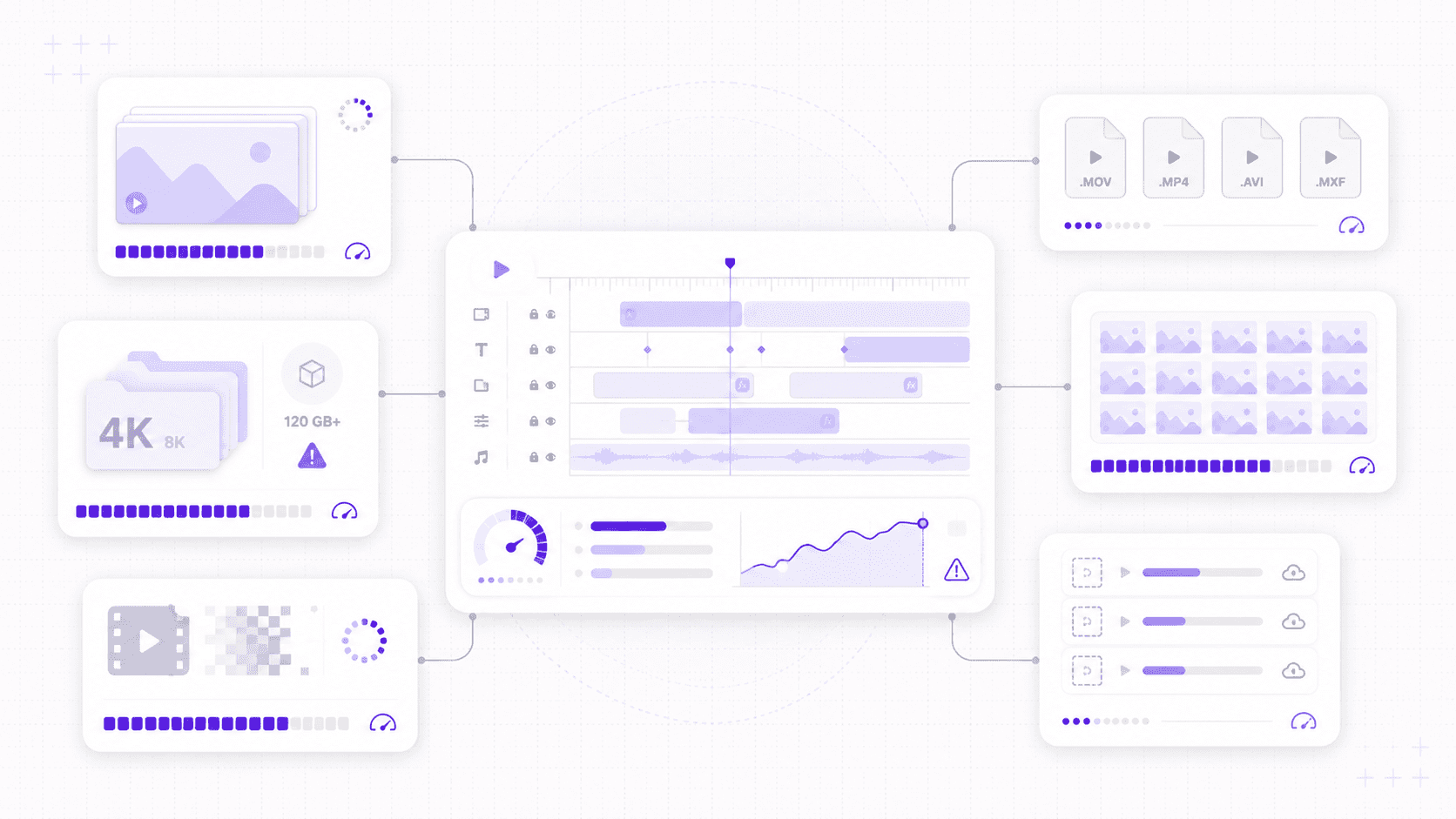
H.265 can be even more demanding. It is efficient, yes. It is also more complex to decode. If you are layering multiple H.265 clips, adding effects, using time remapping, and previewing at high resolution, the project can slow down quickly.
Variable frame rate footage is another one I don’t trust in motion graphics projects. Screen recordings, phone videos, webcam clips, and some downloaded footage can use variable frame rates. They may play fine in a media player, then behave strangely in After Effects: audio drift, choppy previews, weird timing, or inconsistent frame interpretation.
If a clip feels suspicious, transcode it.
Large image sequences can cause their own problems. They are common in VFX, 3D renders, animation, and compositing workflows, and they can be great. But they also ask a lot from storage. If the sequence is sitting on a slow external drive, network volume, or synced folder, After Effects has to read many individual files quickly. That can become a storage bottleneck.
High-resolution stills are easy to overlook too. You do not need a 9000-pixel-wide image sitting inside a 1080p comp unless you are pushing in, reframing, or preserving detail for a reason. Huge stills can make transforms, previews, effects, and RAM usage heavier than necessary.
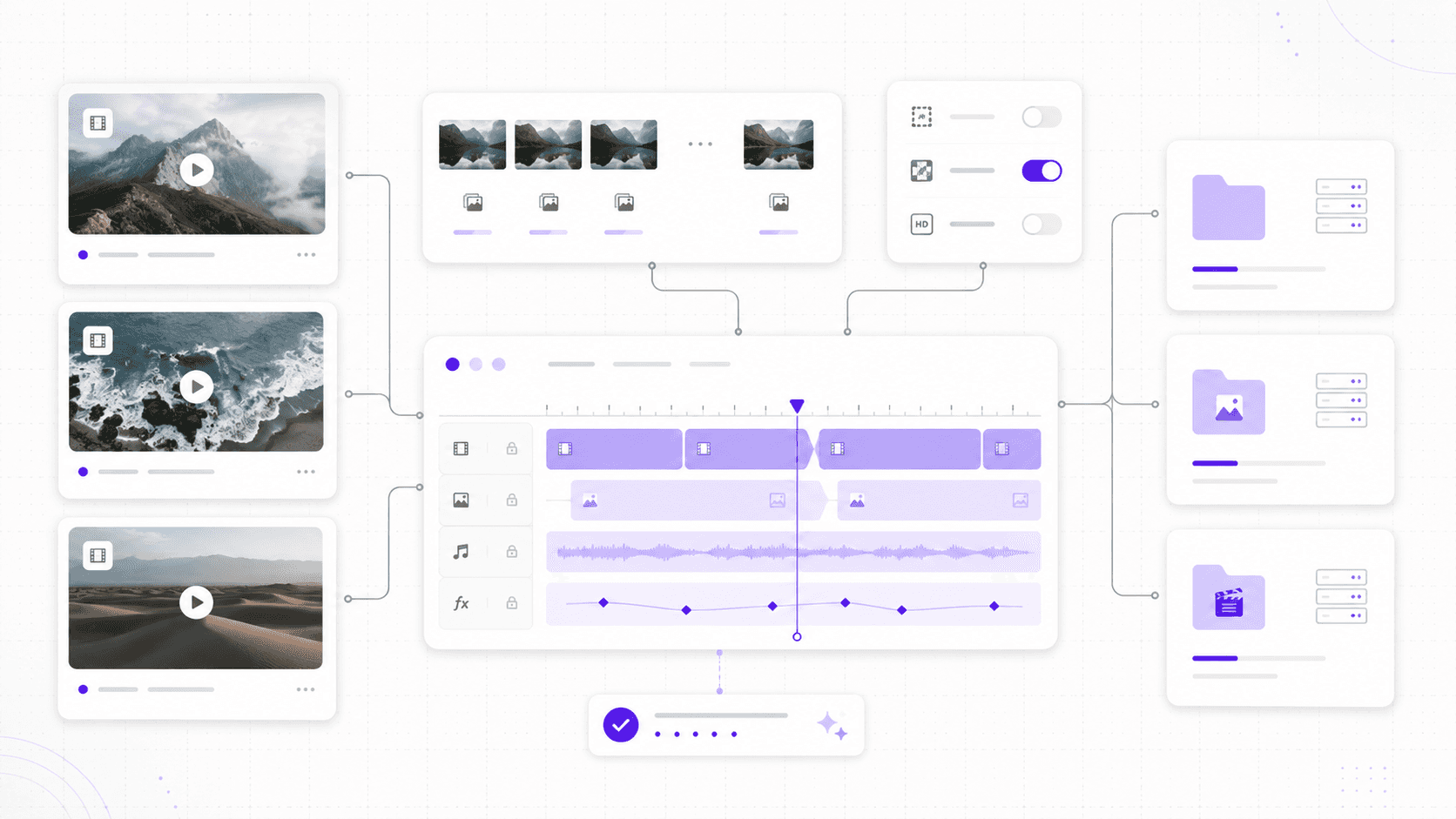
Media location matters. A project linked to footage across Downloads, Desktop, an external drive, cloud storage, and a shared folder is not just messy. It is fragile. Missing files, slow reads, relinking issues, and background sync can all make the project feel worse.
This is where proxies or optimized media can help.
You do not always need to work with the final-quality file during animation and layout. Lower-resolution proxies, intraframe codecs like ProRes or DNxHR, or pre-rendered sections can make previewing much smoother. The final render can still use the high-quality source when needed.
Look for:
H.264 or H.265 footage used heavily in comps
Variable frame rate clips from phones or screen recordings
Huge still images used at small sizes
Image sequences on slow storage
Footage linked from messy or unreliable folders
Missing files or cloud-synced media
Clips that should be transcoded or proxied
The boring truth: After Effects is often only as smooth as the media you feed it.
A clean comp with difficult footage can still feel slow. A messy comp with difficult footage? That’s where previews go to suffer.
#3. Effects stack
Effects in After Effects can feel harmless because they’re so easy to add.
A blur here. Glow there. Lumetri Color on top. Maybe a noise reduction pass, a keyer, a displacement map, a drop shadow, and one third-party plugin that makes everything look nicer but also makes the preview collapse into a slideshow.
The problem is not that effects are bad. The problem is that effects run over time. Every frame has to be processed, and every layer with effects becomes another thing After Effects needs to calculate before it can show you the result.
Some effects are cheap. Some are not.
Blurs can get expensive fast, especially at high values or on large layers. Glow often looks simple but can add a lot of processing, especially when stacked or applied across adjustment layers. Noise reduction is famously heavy because it needs to analyze detail across frames. Keying can also be demanding, especially if you are cleaning edges, applying multiple mattes, or working with high-resolution footage.
Particles, distortions, warps, and simulations can add another layer of pain. They may look like one effect in the Effect Controls panel, but underneath, they can be generating thousands of visual changes frame by frame.
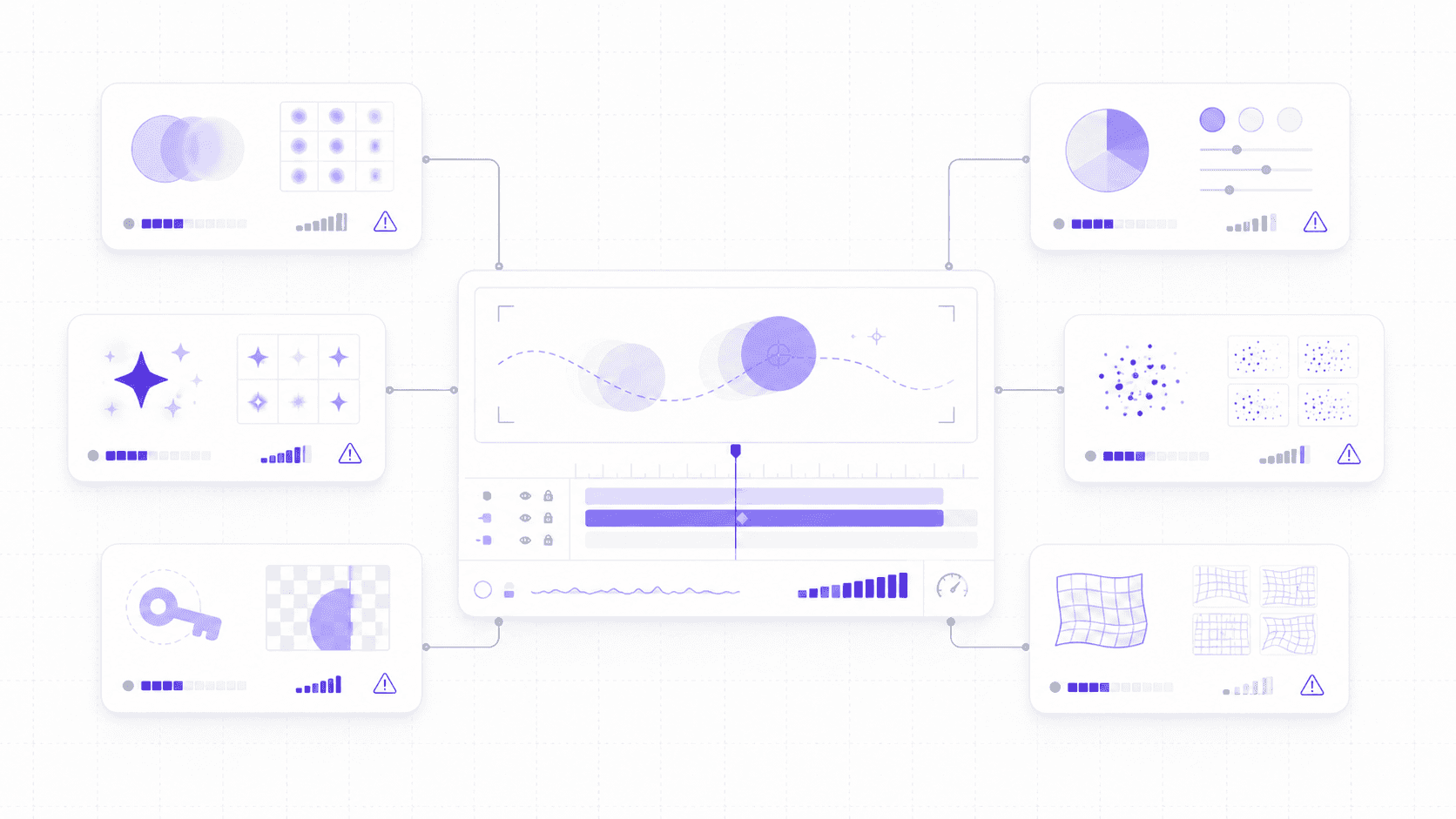
Adjustment layers deserve a special warning.
They are convenient because one layer can affect everything below it. They are also dangerous for performance for exactly the same reason. A blur, color grade, glow, or stylized treatment on an adjustment layer may be touching dozens of layers underneath. It might not feel like much when you add it, but it can change the cost of the entire comp.
Third-party plugins are the wild card. Some are beautifully optimized. Some are not. Some behave well until you stack them with motion blur, high-resolution footage, 3D layers, or nested comps. If a project suddenly slows down after one plugin gets added, test that plugin before blaming the whole machine.
GPU acceleration helps, but it is not a magic switch.
Adobe does support GPU-accelerated effects and features in After Effects, and those can help a lot when the effect is designed to use the GPU. But not every effect is GPU-friendly, and GPU acceleration does not erase the cost of heavy footage, huge comps, expressions, disk cache problems, or inefficient project structure.
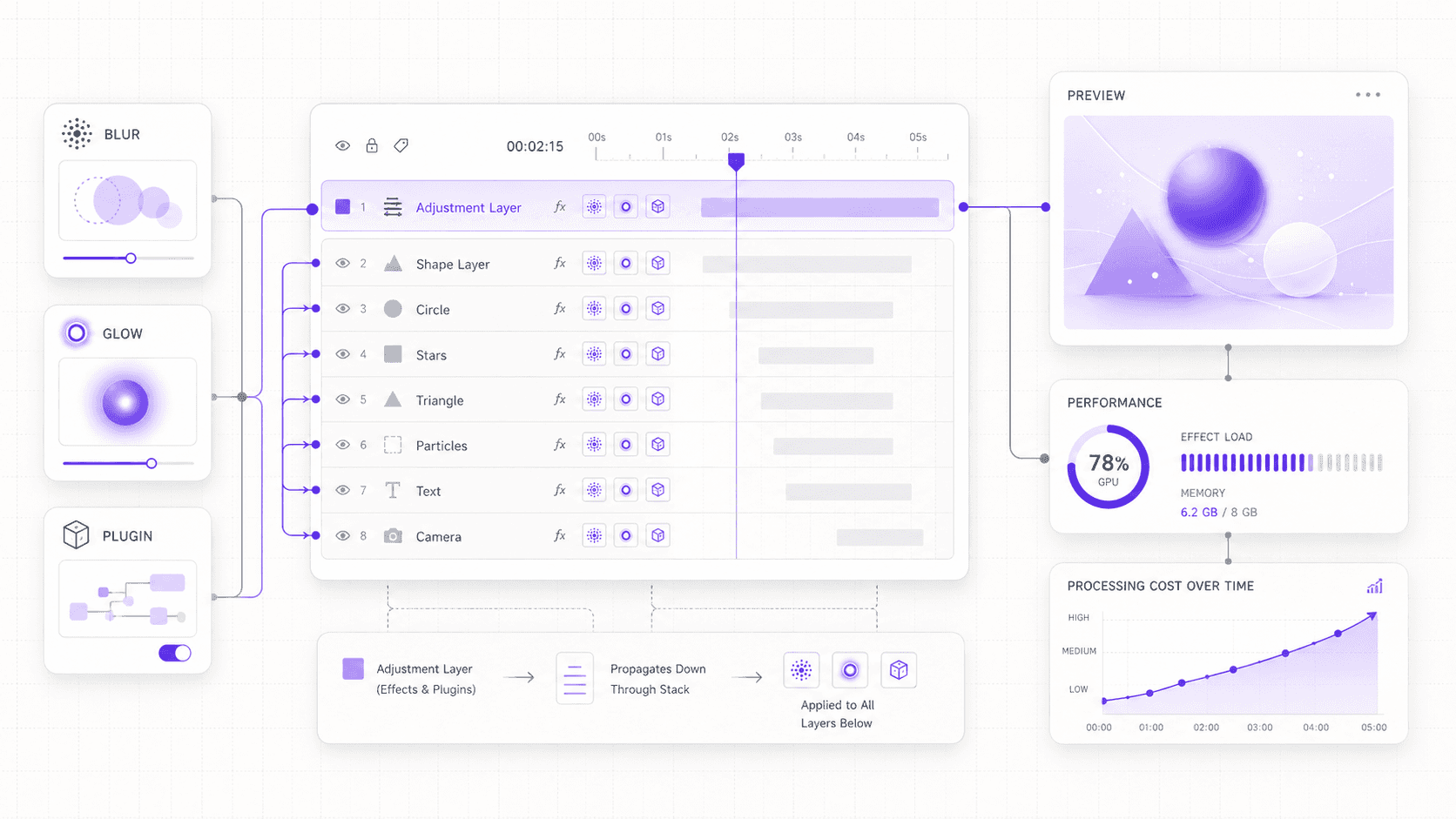
I’d treat effects like creative decisions with a performance cost.
Keep the ones that matter. Temporarily disable the ones you do not need while blocking animation. Pre-render heavy sections when the look is approved. Avoid putting expensive effects on adjustment layers that touch the entire comp unless that is truly necessary.
A quick effect check:
Are heavy effects applied before the animation is locked?
Are adjustment layers processing more layers than needed?
Are multiple blurs, glows, or color effects stacked together?
Is noise reduction running during every preview?
Are third-party plugins causing the slowdown?
Can approved effects be pre-rendered?
Can some effects stay disabled until final review?
The goal is not to stop using effects. That would be a very boring After Effects project.
The goal is to stop previewing final-quality processing while you are still making rough creative decisions.
If you are trying to work from a lighter device, you can also check how to run Adobe After Effects on a Chromebook without depending on local hardware alone.
#4. Expressions and precomps
Expressions can make an After Effects project feel smart.
They can also make it feel slow.
A simple wiggle expression is usually fine. A few linked sliders are fine. A clean text rig can save hours. But when a template has dozens of expressions calculating every frame, referencing other layers, reading source rectangles, driving shape paths, controlling time remaps, and chaining through multiple precomps, After Effects has more to evaluate than the timeline suggests.
That’s the tricky part. Expression cost is often invisible.
You may only see one animated title layer. Underneath, that title could be connected to controllers, pick-whipped properties, text animators, shape layers, and precomps. Every frame, After Effects needs to solve the logic behind that setup before it can show you the result.
I like expressions when they replace repetitive manual work. I get suspicious when they become a tiny software project inside a motion graphics file.
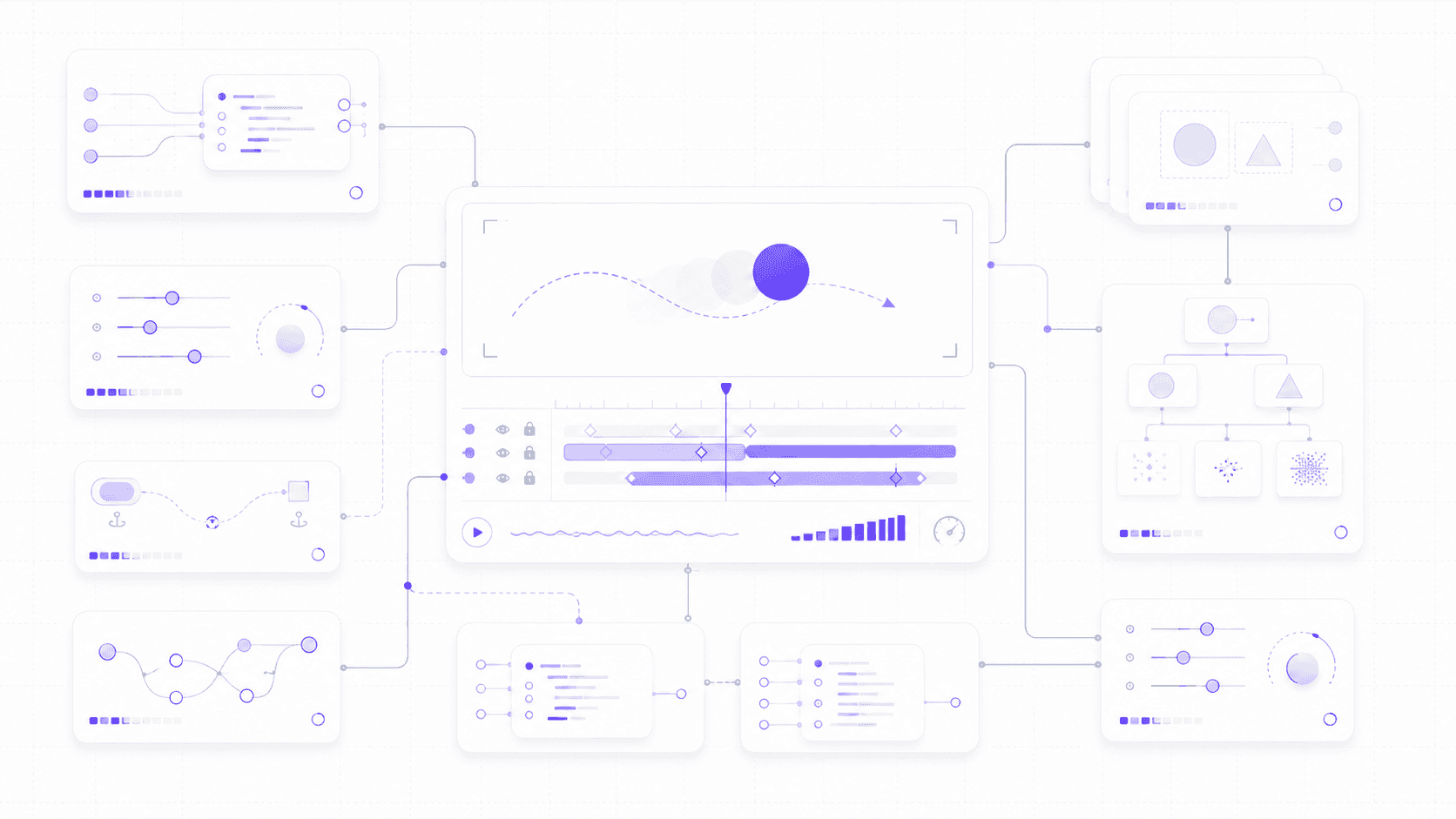
Precomps have a similar personality.
Used well, precomps organize work. They let you group related layers, separate sections, reuse animation, and keep the main comp readable. Used badly, they become storage units for problems you did not want to look at.
A main comp might look clean because everything is tucked into five precomps. But each precomp might contain nested precomps, expressions, effects, masks, mattes, and time remapping. Then one of those precomps is used five times across the timeline. Suddenly one “simple” layer is not simple at all.
Collapse Transformations can add confusion too. It is useful when you want to preserve vector sharpness, 3D behavior, or nested transformations. But it can also change how After Effects evaluates the comp. If you turn it on without understanding why, troubleshooting can get harder.
Time remapping is another area where projects get sneaky. Retimed footage, stretched precomps, loop expressions, reversed layers, and frame blending can all make previews heavier. Again, none of this is wrong. It just means After Effects has to work harder to know which frame should appear when.
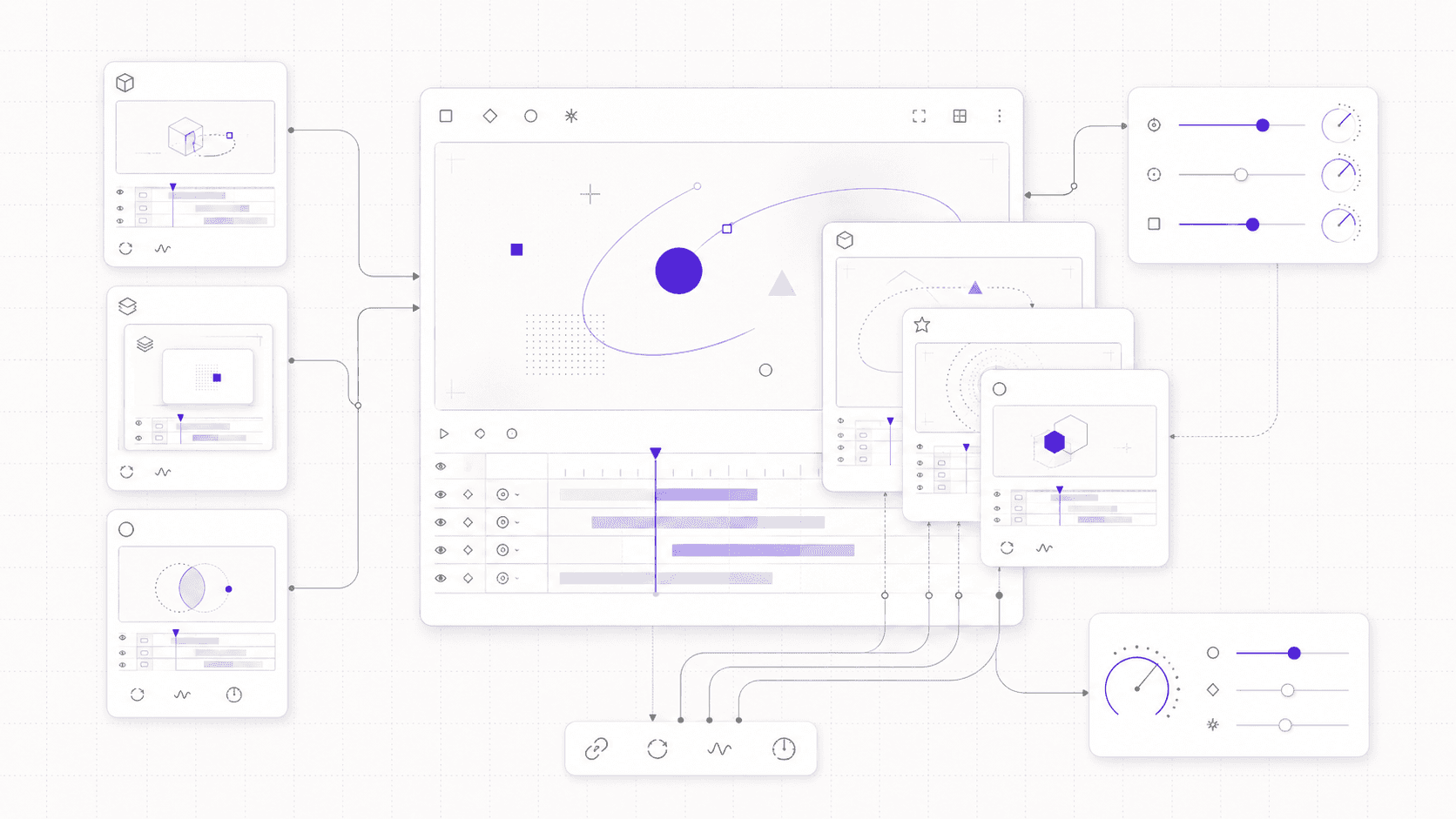
A good rule: if a precomp is used repeatedly, make sure it is not carrying unnecessary weight.
Open it. Check what is inside. Remove dead layers. Disable effects you do not need. Pre-render it if the animation is locked. Simplify expressions if they are overbuilt. If a template came from somewhere else, inspect the rig before assuming it is efficient.
Look for:
Expressions that reference many layers or properties
Text rigs with lots of per-frame calculations
Deeply nested precomps
Repeated precomps with heavy effects inside
Time remapping, looping, or frame blending
Collapse Transformations used without a clear reason
Old controller layers that no longer do anything useful
Expressions and precomps are not the enemy. They are some of the best tools in After Effects.
But they hide work. And hidden work is exactly what makes a project feel slower than it looks.
If your workflow includes mobile editing or reviewing projects away from your desk, here are the best ways to run Adobe After Effects on iPad.
#5. Preview and disk cache
After Effects previews are built on patience, RAM, and cache.
Mostly cache.
When you hit play, After Effects is not simply “playing a video” the way a media player does. It may need to calculate layers, effects, expressions, masks, mattes, footage, color, motion blur, and nested comps before it can show you a smooth preview. Once frames are calculated, they can be stored so playback gets easier.
That is why caching matters so much.
RAM preview is the first part people notice. If there is not enough memory available, After Effects cannot keep as many frames ready for playback. You might get only a short section playing smoothly before it has to stop, recalculate, or drop frames. This is especially common with high-resolution comps, long timelines, and heavy effects.
Disk cache is the other half of the story.
Adobe recommends enabling disk cache and giving it as much space as possible, ideally on a fast drive. That advice is not glamorous, but it is real. When After Effects cannot keep everything in RAM, disk cache gives it another place to store preview frames and intermediate data.
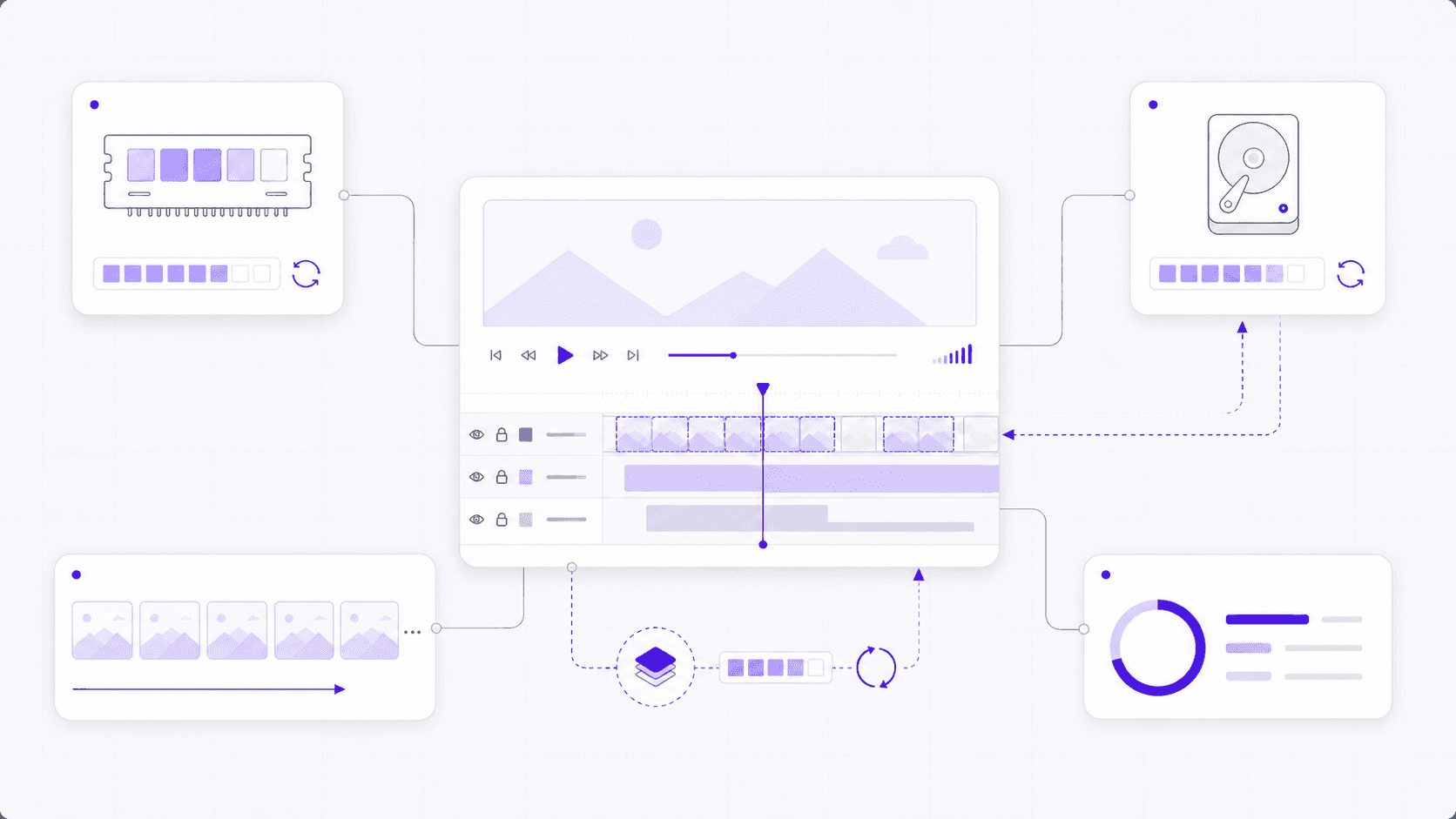
The drive matters. A lot.
A fast internal SSD is very different from an old external hard drive or a nearly full system disk. If disk cache sits on slow storage, previews can feel worse than they should. If the cache drive is almost full, After Effects has less room to store useful data. If the cache is competing with footage, exports, downloads, and system files, performance can get inconsistent.
Cache size matters too. If the disk cache is too small for the kind of projects you work on, After Effects may keep throwing away cached frames and recalculating them. That is the performance version of cleaning your desk by pushing everything onto the floor.
There is also a newer behavior worth knowing: After Effects can use cached frames from disk to help previews when RAM is not enough. That is useful, but it also makes disk speed and cache health even more important.
Purging cache can help when the cache is stale, corrupted, or full of old junk. But I think people reach for it too early. If the underlying cache setup is bad, purging just resets the problem.
Before you purge and pray, check:
Is disk cache enabled?
Is the cache on a fast SSD?
Is there enough free space?
Is the cache size large enough for your projects?
Is footage also sitting on slow storage?
Are you previewing at full resolution too early?
Are other apps eating the RAM After Effects needs?
Preview performance is not only about the comp. It is about where After Effects is allowed to store the work it has already done.
If that storage is slow, small, or crowded, After Effects keeps paying the same cost again and again.
#6. 3D layers and motion blur
The moment you turn a 2D After Effects comp into a 3D scene, the performance math changes.
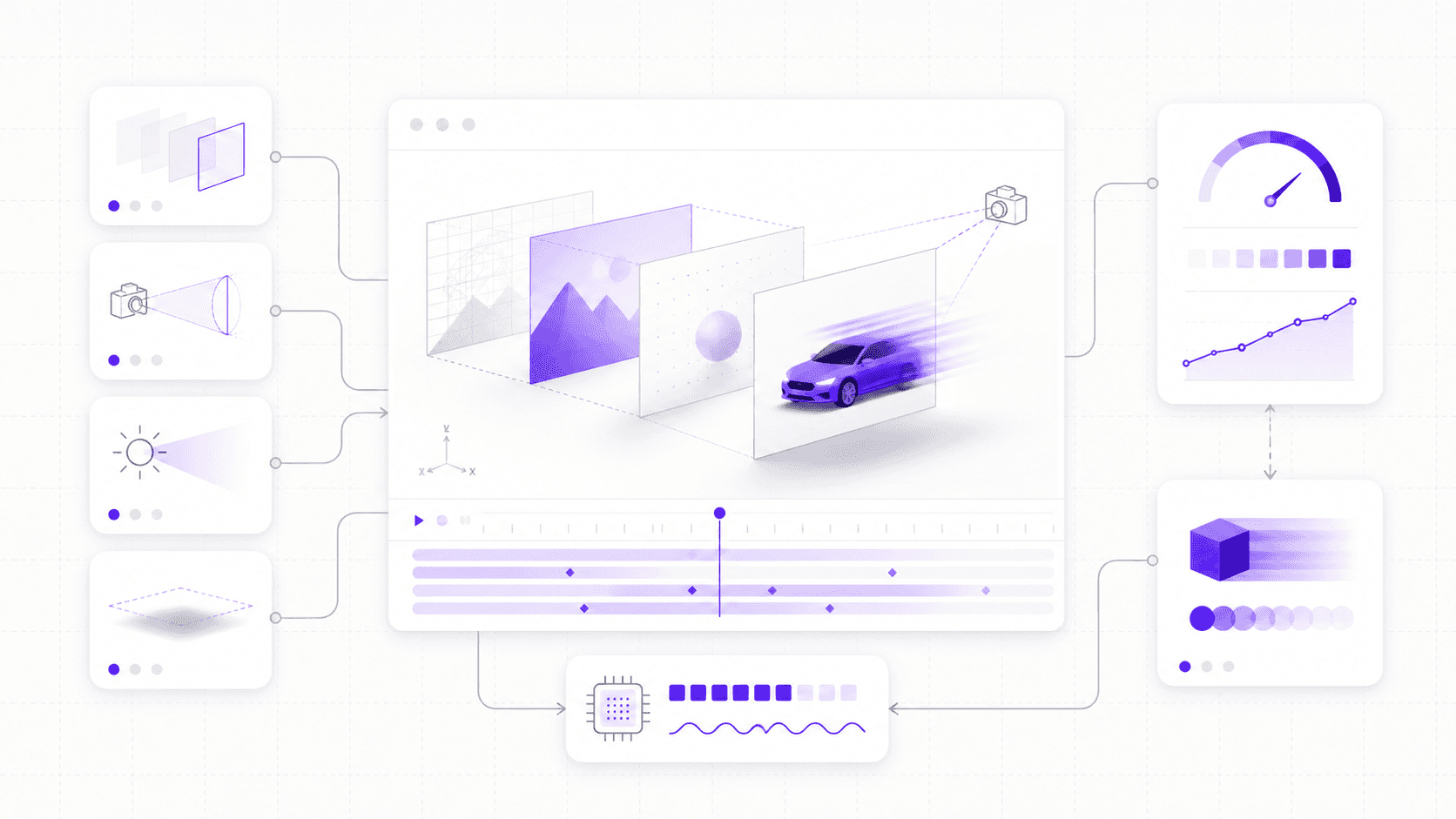
Not always dramatically. A few 3D text layers and a simple camera move can be totally fine. But once you add stacked 3D layers, lights, shadows, depth of field, motion blur, ambient occlusion, 3D renderers, and nested comps, previews can slow down quickly.
3D layers ask After Effects to think in space. Position, rotation, scale, camera perspective, layer order, intersections, lights, shadows, and depth all become part of the calculation. That is more work than moving flat layers around a 2D timeline.
Cameras add another layer of evaluation. A camera move might look simple, but every frame changes the view of the scene. If the comp has many 3D layers, high-resolution textures, depth of field, and motion blur, After Effects has to calculate how all of that appears from the camera’s point of view.
Lights are useful, but they are not free. Shadows can be especially expensive. Soft shadows, multiple lights, large layers, and high-resolution comps can all make previews heavier. Ambient occlusion and more advanced 3D render options can add even more pressure.
Then there is motion blur.
Motion blur makes animation feel better. I use it constantly. But turning it on too early can make a project feel heavier right away because After Effects has to calculate blur across movement, not just show the clean layer at each frame.
That cost gets bigger with fast motion, many layers, nested comps, and effects. If every layer has motion blur enabled while you are still blocking timing, you may be previewing more quality than you need.
Depth of field works the same way. It can make camera moves feel polished and cinematic, but it can also slow previews while you are still trying to decide if the move works at all.
A practical approach: work rough, preview clean, polish later.
Keep 3D layers organized. Use draft settings when possible. Disable shadows while blocking. Turn off motion blur until timing is close. Use lower preview resolution. If the camera move is approved, then bring back the expensive visual details.
Check for:
Too many 3D layers active at once
Shadows enabled during rough animation
Motion blur turned on before timing is locked
Depth of field active during layout work
Large 2D layers used as 3D planes
Nested comps inside 3D scenes
3D render settings pushed too high too early
The point is not to avoid 3D in After Effects. That would miss half the fun.
The point is to stop treating 3D settings like harmless checkboxes. They change how much work After Effects has to do every frame.
For GPU-related slowdowns, it helps to understand how to use GPU on Adobe After Effects and which parts of the workflow actually benefit from acceleration.
#7. Render settings
Render settings are where people accidentally turn a working project into a waiting room.
It usually starts innocently. Full resolution previews because you want to see the details. High bit depth because quality matters. Motion blur left on. Frame blending enabled. Best quality everywhere. A heavy export format. Maybe Media Encoder running in the background while you keep working.
Each choice makes sense in isolation. Together, they can make the project feel much slower than it needs to be during the creative stage.
Preview settings and final render settings should not always be the same.
When you are still adjusting timing, layout, type, transitions, or rough animation, you probably do not need full-resolution previews. Half or quarter resolution can be enough to judge motion and structure. If you need to inspect a detail, switch up briefly, check it, then go back down.
Bit depth is another one. Working in 16 bpc or 32 bpc can matter for certain color, compositing, glow, blur, and VFX workflows. But not every motion graphics project needs high bit depth from minute one. Higher bit depth can increase processing cost, especially with effects and large comps.
Frame blending can help with retimed footage, but it also adds work. If you are not actively judging retimed motion, keep it off until needed. Same with motion blur. Same with depth of field. Same with expensive export settings.
Export format choices matter too.
A delivery codec like H.264 may be great for the final file you upload, but it is not always the best intermediate format when you are moving between tools or checking heavy sections. Sometimes rendering a high-quality intermediate, image sequence, or pre-rendered comp makes the rest of the workflow smoother.
Render Queue and Media Encoder also behave differently in real work. Media Encoder is convenient when you need to keep working or export multiple delivery formats, but it does not magically make a heavy comp lightweight. If the After Effects project is slow because of effects, expressions, footage, or 3D settings, the export still has to process all of that.
A better habit is to separate preview quality from delivery quality.
Use lighter settings while deciding. Use heavier settings when the decision is worth the cost.
A useful render settings check:
Are previews set to full resolution too early?
Is high bit depth necessary for this project?
Is motion blur enabled before timing is locked?
Is frame blending active when you are not judging retimed footage?
Are you exporting directly from a very heavy comp without pre-rendering approved sections?
Are you using delivery codecs where intermediate files would be smoother?
Are final-quality settings being used for rough creative decisions?
After Effects gives you a lot of quality controls. The trick is not turning them all on just because they exist.
The final render can be expensive. The whole working process does not need to be.
If your project mixes motion graphics with 3D-heavy scenes, this Blender vs After Effects comparison can help clarify which tool should handle each part of the workflow.
#8. Consider Vagon Cloud Computer
Sometimes the project is not badly built. It is just too heavy for the machine underneath it.
That can be hard to admit, because After Effects may still technically run. The project opens. The timeline loads. You can scrub if you wait. You can preview a few frames at a time. You can render eventually.
But that is not the same as having a comfortable workspace.
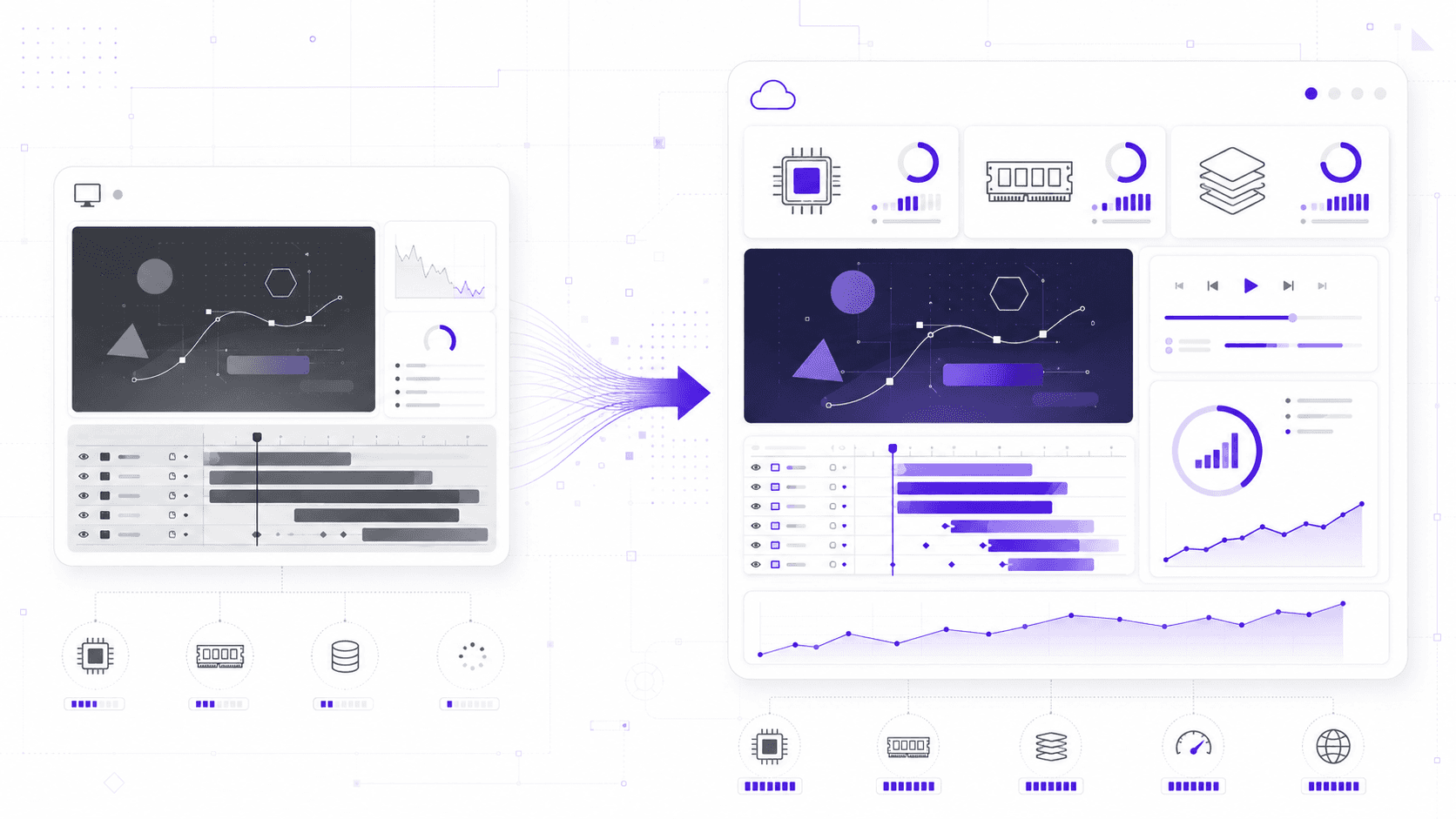
A serious After Effects project can push several parts of a computer at once: RAM for previews, CPU for processing, GPU for accelerated effects and display work, storage for cache and footage, and thermal headroom for longer sessions. If any of those areas are weak, the whole workflow starts feeling fragile.
This is especially common on lightweight laptops. They can be excellent for writing, editing docs, reviewing cuts, or making smaller graphics. But a motion design project with 4K footage, nested comps, third-party effects, expressions, motion blur, and long previews can become a different kind of workload.
You feel it in small ways first. The preview range gets shorter. Fans get louder. The cache fills faster. The UI hesitates. Effects take longer to update. You stop testing ideas because each preview costs too much patience.
That is the real problem. Slow hardware does not only slow output. It changes creative behavior.
This is where Vagon Cloud Computer can make sense.
Instead of forcing a heavy After Effects project through a local machine that is already struggling, you can run the workflow on a powerful cloud computer and access it from the device you already have. That can help when you are working with large footage, heavy comps, long timelines, demanding effects, or remote setups where you need a consistent environment.
I would not say every After Effects project needs cloud computing. A simple lower-third, short social animation, or small explainer graphic may run perfectly fine locally.
But if After Effects technically works and still feels awful, that is the line to notice.
Vagon Cloud Computer is worth considering when:
Your previews are too short to judge motion properly
You are working with 4K or higher footage
Your project uses heavy effects, expressions, or nested comps
Disk cache and storage speed are becoming bottlenecks
Your laptop overheats or throttles during longer sessions
You need a consistent After Effects workspace across devices
You want to keep working remotely without depending only on local hardware
The best time to move is usually before the project becomes painful. Once a file is full of footage, cache, plugins, and renders, changing workflow gets more annoying.
A better workspace will not fix a messy comp. But it can remove the machine as the thing holding the project back.
If hardware is the main bottleneck, you can also review our guide to finding the best laptops and prebuilt PCs for Adobe After Effects.
After Effects slowdown checklist
You do not need to inspect every setting every time After Effects drops a frame.
But when the same project keeps lagging, previews get shorter, renders crawl, or the timeline feels heavier than it should, it helps to check the usual pressure points in one place. Most After Effects slowdowns are not mysterious. They come from familiar areas stacking up.
Area | What to check |
Composition | Layer count, comp size, timeline length, hidden layers, adjustment layers, and nested comps. |
Footage | Codec, resolution, frame rate, image sequences, proxies, linked media, and where the footage is stored. |
Effects | Blur, glow, keying, particles, color correction, third-party plugins, and effects applied through adjustment layers. |
Expressions | Complex rigs, pick-whip chains, per-frame calculations, time remapping, and expression-heavy templates. |
Cache | RAM usage, disk cache size, cache location, free storage, preview resolution, and whether the cache drive is fast enough. |
3D and motion | 3D layers, cameras, lights, shadows, motion blur, depth of field, frame blending, and large 3D planes. |
Hardware | RAM, GPU memory, CPU, storage speed, overheating, throttling, and whether Vagon Cloud Computer would be smoother. |
The point is not to make every After Effects project tiny. That would be a boring way to work.
The point is to know where the weight is coming from. Keep the effects that matter. Use full-resolution previews when they help. Turn on motion blur when you actually need to judge motion blur. Cache on fast storage. Use proxies when the footage is fighting you. Pre-render sections when the look is approved.
And if the project has clearly outgrown your local machine, be honest about that too.
A slow After Effects project is usually not one problem. It is a pile of small decisions, some creative, some technical, all adding up inside the same timeline. The earlier you notice them, the easier they are to fix.
If upgrading your local machine is not the right move, running After Effects on a cloud computer can give heavy projects more GPU, memory, and storage headroom when you need it.
FAQs
1. Why is After Effects preview so slow?
After Effects previews are slow when the comp has too much to calculate before playback. That can include large comp dimensions, many layers, heavy footage, effects, expressions, motion blur, 3D layers, nested comps, and limited RAM or disk cache space. Unlike a video player, After Effects often has to build frames before it can play them smoothly. If preview is slow, try lowering preview resolution, shortening the work area, disabling heavy effects temporarily, using proxies, checking disk cache, and hiding layers you do not need while working.
2. Does After Effects use CPU or GPU more?
After Effects uses both, but not equally for every task. The CPU handles a lot of general processing, expressions, compositing, and frame calculations. The GPU helps with certain accelerated effects, previews, display work, and some rendering tasks depending on the project and settings. A stronger GPU can help, but it will not fix everything. RAM, CPU, storage speed, footage codec, effects, and cache setup can matter just as much.
3. Why does After Effects use so much RAM?
After Effects uses RAM to store frames for preview and keep project data available while you work. The heavier the comp, the more memory it needs. High-resolution footage, long timelines, large comps, many layers, effects, expressions, and 3D settings can all increase RAM pressure. If there is not enough RAM, previews become shorter and After Effects may rely more on disk cache. That is why motion graphics work often benefits from more memory than basic video playback or simple editing.
4. Does disk cache make After Effects faster?
Yes, when it is set up well. Disk cache lets After Effects store calculated frames and data on a drive, so it does not always have to recalculate the same work. A fast SSD with enough free space can make previews smoother and reduce repeated processing. A small, slow, or nearly full cache drive can have the opposite effect. Cache helps most when it has room to work.
5. Do effects and plugins slow down After Effects?
They can. Some effects are light. Others, like heavy blurs, glows, keying, noise reduction, particles, distortions, and certain third-party plugins, can add a lot of per-frame processing. Adjustment layers can make this worse because they affect everything below them. If a project slows down suddenly, disable effects one by one and check whether one plugin or adjustment layer is causing most of the slowdown.
6. Why is H.264 slow in After Effects?
H.264 is designed for efficient delivery, not necessarily smooth compositing. It keeps file sizes small by using heavy compression, which means After Effects may need to decode more information while previewing and processing frames. H.265 can be even more demanding. For smoother work, proxies or intraframe codecs like ProRes or DNxHR are often easier to handle during editing, compositing, and motion graphics work.
7. When should I use Vagon Cloud Computer for After Effects?
Use Vagon Cloud Computer when the project needs more power than your local machine can comfortably provide. That might mean 4K or higher footage, heavy comps, demanding effects, lots of expressions, long previews, large disk cache needs, or a laptop that overheats during longer sessions. It can also help if you need a consistent After Effects workspace across devices or want to work remotely without depending only on local hardware. For simple animations and lightweight comps, local may be enough. For heavier After Effects projects, moving to Vagon Cloud Computer early can make the workflow smoother.
After Effects rarely becomes slow because of one single layer or one bad effect.
It usually happens in layers. Literally and technically. A 4K clip here. A nested comp there. A few adjustment layers, a glow, some blur, a color grade, a couple of expressions, motion blur, maybe a 3D camera, and suddenly the preview that felt fine ten minutes ago starts crawling frame by frame.
That’s the frustrating part. After Effects slowdown often feels sudden, but it usually builds quietly.
And no, the answer is not always “purge cache and restart.” Sometimes that helps. Sometimes it buys you five minutes and then the same project starts dragging again because the real problem is still sitting inside the comp.
This guide is a practical diagnosis guide for After Effects users who want to understand what’s actually slowing their projects down. Not a generic performance checklist that tells you to close apps, clear cache, and hope for the best.
We’ll look at the usual suspects: project structure, footage formats, codecs, nested comps, effects, expressions, previews, disk cache, GPU acceleration, render settings, hardware limits, and the point where using Vagon Cloud Computer makes more sense than forcing a heavy motion graphics project through a local machine that is already struggling.
#1. Heavy compositions
An After Effects comp can look simple and still be doing a ridiculous amount of work.
That’s one of the first things I’d check when a project starts slowing down. Not the fanciest plugin. Not the GPU. The comp itself.
A few text layers, some shape layers, a background video, and a logo animation may not look scary. But if the comp is 4K, the timeline is two minutes long, half the layers are precomps, and there are hidden alternates sitting around “just in case,” After Effects has a lot more to calculate than the viewer sees.
Layer count matters. Every layer can bring transforms, masks, effects, blending modes, mattes, parenting, expressions, and timing into the frame. One layer is easy. Fifty layers can still be fine. Two hundred layers with nested comps and effects? That’s a different conversation.
Comp dimensions matter too. A 1920 x 1080 comp and a 3840 x 2160 comp are not asking for the same workload. If the final output is 1080p, but the entire project is built at 4K with high-resolution assets and full-res previews, you may be making After Effects work harder than it needs to during the creative stage.
Long timelines can also slow things down, especially when the comp is full of footage, time remapping, expressions, and effects that need to evaluate across many frames. After Effects is not just looking at the frame in front of you. Depending on the setup, it may need to understand what came before, what is nested inside, and what has to be cached.
Hidden layers are another classic. Turning off the eyeball helps, but it does not mean the project is clean. Old versions, unused footage, abandoned text treatments, hidden adjustment layers, and backup comps can still make the project harder to manage. Even when they do not directly render, they add clutter and make troubleshooting slower.
Nested comps are useful, but they can hide weight. A precomp might look like one clean layer in your main timeline, but inside it there may be dozens of layers, effects, expressions, and footage items. Then that precomp is nested again. And again.
That’s how a clean-looking main comp becomes a maze.
I’m not against precomps. They are essential. But if you are using precomps to hide chaos instead of organize work, the project will eventually make you pay for it.
A good first check:
Is the comp larger than the final output needs to be?
Are there too many old versions or hidden layers?
Are precomps organized or just buried?
Is the timeline longer than it needs to be?
Are heavy layers visible when you do not need them?
Are you previewing at full resolution too early?
After Effects can handle complex comps. But it cannot guess which parts of the mess are intentional. If the composition feels heavier than it looks, it probably is.
If your project keeps getting heavier than your setup can comfortably handle, it may also be worth comparing After Effects alternatives to see whether another tool fits your workflow better.
#2. Footage and codecs
Sometimes the slowest part of an After Effects project is not the animation.
It’s the footage.
This is especially true when the project is full of H.264 or H.265 clips. Those formats are great for delivery because they keep file sizes small. They are not always great for heavy post-production work because they are highly compressed. After Effects may need to decode more information than you expect just to show you a frame.
That’s why a small video file can still feel awful to work with.
A 200 MB H.264 clip might look lighter than a larger ProRes file on your drive, but the compressed file can require more decoding work during preview. The ProRes file may be bigger, but it is often easier for editing and compositing tools to process. File size and playback comfort are not the same thing.
H.265 can be even more demanding. It is efficient, yes. It is also more complex to decode. If you are layering multiple H.265 clips, adding effects, using time remapping, and previewing at high resolution, the project can slow down quickly.
Variable frame rate footage is another one I don’t trust in motion graphics projects. Screen recordings, phone videos, webcam clips, and some downloaded footage can use variable frame rates. They may play fine in a media player, then behave strangely in After Effects: audio drift, choppy previews, weird timing, or inconsistent frame interpretation.
If a clip feels suspicious, transcode it.
Large image sequences can cause their own problems. They are common in VFX, 3D renders, animation, and compositing workflows, and they can be great. But they also ask a lot from storage. If the sequence is sitting on a slow external drive, network volume, or synced folder, After Effects has to read many individual files quickly. That can become a storage bottleneck.
High-resolution stills are easy to overlook too. You do not need a 9000-pixel-wide image sitting inside a 1080p comp unless you are pushing in, reframing, or preserving detail for a reason. Huge stills can make transforms, previews, effects, and RAM usage heavier than necessary.
Media location matters. A project linked to footage across Downloads, Desktop, an external drive, cloud storage, and a shared folder is not just messy. It is fragile. Missing files, slow reads, relinking issues, and background sync can all make the project feel worse.
This is where proxies or optimized media can help.
You do not always need to work with the final-quality file during animation and layout. Lower-resolution proxies, intraframe codecs like ProRes or DNxHR, or pre-rendered sections can make previewing much smoother. The final render can still use the high-quality source when needed.
Look for:
H.264 or H.265 footage used heavily in comps
Variable frame rate clips from phones or screen recordings
Huge still images used at small sizes
Image sequences on slow storage
Footage linked from messy or unreliable folders
Missing files or cloud-synced media
Clips that should be transcoded or proxied
The boring truth: After Effects is often only as smooth as the media you feed it.
A clean comp with difficult footage can still feel slow. A messy comp with difficult footage? That’s where previews go to suffer.
#3. Effects stack
Effects in After Effects can feel harmless because they’re so easy to add.
A blur here. Glow there. Lumetri Color on top. Maybe a noise reduction pass, a keyer, a displacement map, a drop shadow, and one third-party plugin that makes everything look nicer but also makes the preview collapse into a slideshow.
The problem is not that effects are bad. The problem is that effects run over time. Every frame has to be processed, and every layer with effects becomes another thing After Effects needs to calculate before it can show you the result.
Some effects are cheap. Some are not.
Blurs can get expensive fast, especially at high values or on large layers. Glow often looks simple but can add a lot of processing, especially when stacked or applied across adjustment layers. Noise reduction is famously heavy because it needs to analyze detail across frames. Keying can also be demanding, especially if you are cleaning edges, applying multiple mattes, or working with high-resolution footage.
Particles, distortions, warps, and simulations can add another layer of pain. They may look like one effect in the Effect Controls panel, but underneath, they can be generating thousands of visual changes frame by frame.
Adjustment layers deserve a special warning.
They are convenient because one layer can affect everything below it. They are also dangerous for performance for exactly the same reason. A blur, color grade, glow, or stylized treatment on an adjustment layer may be touching dozens of layers underneath. It might not feel like much when you add it, but it can change the cost of the entire comp.
Third-party plugins are the wild card. Some are beautifully optimized. Some are not. Some behave well until you stack them with motion blur, high-resolution footage, 3D layers, or nested comps. If a project suddenly slows down after one plugin gets added, test that plugin before blaming the whole machine.
GPU acceleration helps, but it is not a magic switch.
Adobe does support GPU-accelerated effects and features in After Effects, and those can help a lot when the effect is designed to use the GPU. But not every effect is GPU-friendly, and GPU acceleration does not erase the cost of heavy footage, huge comps, expressions, disk cache problems, or inefficient project structure.
I’d treat effects like creative decisions with a performance cost.
Keep the ones that matter. Temporarily disable the ones you do not need while blocking animation. Pre-render heavy sections when the look is approved. Avoid putting expensive effects on adjustment layers that touch the entire comp unless that is truly necessary.
A quick effect check:
Are heavy effects applied before the animation is locked?
Are adjustment layers processing more layers than needed?
Are multiple blurs, glows, or color effects stacked together?
Is noise reduction running during every preview?
Are third-party plugins causing the slowdown?
Can approved effects be pre-rendered?
Can some effects stay disabled until final review?
The goal is not to stop using effects. That would be a very boring After Effects project.
The goal is to stop previewing final-quality processing while you are still making rough creative decisions.
If you are trying to work from a lighter device, you can also check how to run Adobe After Effects on a Chromebook without depending on local hardware alone.
#4. Expressions and precomps
Expressions can make an After Effects project feel smart.
They can also make it feel slow.
A simple wiggle expression is usually fine. A few linked sliders are fine. A clean text rig can save hours. But when a template has dozens of expressions calculating every frame, referencing other layers, reading source rectangles, driving shape paths, controlling time remaps, and chaining through multiple precomps, After Effects has more to evaluate than the timeline suggests.
That’s the tricky part. Expression cost is often invisible.
You may only see one animated title layer. Underneath, that title could be connected to controllers, pick-whipped properties, text animators, shape layers, and precomps. Every frame, After Effects needs to solve the logic behind that setup before it can show you the result.
I like expressions when they replace repetitive manual work. I get suspicious when they become a tiny software project inside a motion graphics file.
Precomps have a similar personality.
Used well, precomps organize work. They let you group related layers, separate sections, reuse animation, and keep the main comp readable. Used badly, they become storage units for problems you did not want to look at.
A main comp might look clean because everything is tucked into five precomps. But each precomp might contain nested precomps, expressions, effects, masks, mattes, and time remapping. Then one of those precomps is used five times across the timeline. Suddenly one “simple” layer is not simple at all.
Collapse Transformations can add confusion too. It is useful when you want to preserve vector sharpness, 3D behavior, or nested transformations. But it can also change how After Effects evaluates the comp. If you turn it on without understanding why, troubleshooting can get harder.
Time remapping is another area where projects get sneaky. Retimed footage, stretched precomps, loop expressions, reversed layers, and frame blending can all make previews heavier. Again, none of this is wrong. It just means After Effects has to work harder to know which frame should appear when.
A good rule: if a precomp is used repeatedly, make sure it is not carrying unnecessary weight.
Open it. Check what is inside. Remove dead layers. Disable effects you do not need. Pre-render it if the animation is locked. Simplify expressions if they are overbuilt. If a template came from somewhere else, inspect the rig before assuming it is efficient.
Look for:
Expressions that reference many layers or properties
Text rigs with lots of per-frame calculations
Deeply nested precomps
Repeated precomps with heavy effects inside
Time remapping, looping, or frame blending
Collapse Transformations used without a clear reason
Old controller layers that no longer do anything useful
Expressions and precomps are not the enemy. They are some of the best tools in After Effects.
But they hide work. And hidden work is exactly what makes a project feel slower than it looks.
If your workflow includes mobile editing or reviewing projects away from your desk, here are the best ways to run Adobe After Effects on iPad.
#5. Preview and disk cache
After Effects previews are built on patience, RAM, and cache.
Mostly cache.
When you hit play, After Effects is not simply “playing a video” the way a media player does. It may need to calculate layers, effects, expressions, masks, mattes, footage, color, motion blur, and nested comps before it can show you a smooth preview. Once frames are calculated, they can be stored so playback gets easier.
That is why caching matters so much.
RAM preview is the first part people notice. If there is not enough memory available, After Effects cannot keep as many frames ready for playback. You might get only a short section playing smoothly before it has to stop, recalculate, or drop frames. This is especially common with high-resolution comps, long timelines, and heavy effects.
Disk cache is the other half of the story.
Adobe recommends enabling disk cache and giving it as much space as possible, ideally on a fast drive. That advice is not glamorous, but it is real. When After Effects cannot keep everything in RAM, disk cache gives it another place to store preview frames and intermediate data.
The drive matters. A lot.
A fast internal SSD is very different from an old external hard drive or a nearly full system disk. If disk cache sits on slow storage, previews can feel worse than they should. If the cache drive is almost full, After Effects has less room to store useful data. If the cache is competing with footage, exports, downloads, and system files, performance can get inconsistent.
Cache size matters too. If the disk cache is too small for the kind of projects you work on, After Effects may keep throwing away cached frames and recalculating them. That is the performance version of cleaning your desk by pushing everything onto the floor.
There is also a newer behavior worth knowing: After Effects can use cached frames from disk to help previews when RAM is not enough. That is useful, but it also makes disk speed and cache health even more important.
Purging cache can help when the cache is stale, corrupted, or full of old junk. But I think people reach for it too early. If the underlying cache setup is bad, purging just resets the problem.
Before you purge and pray, check:
Is disk cache enabled?
Is the cache on a fast SSD?
Is there enough free space?
Is the cache size large enough for your projects?
Is footage also sitting on slow storage?
Are you previewing at full resolution too early?
Are other apps eating the RAM After Effects needs?
Preview performance is not only about the comp. It is about where After Effects is allowed to store the work it has already done.
If that storage is slow, small, or crowded, After Effects keeps paying the same cost again and again.
#6. 3D layers and motion blur
The moment you turn a 2D After Effects comp into a 3D scene, the performance math changes.
Not always dramatically. A few 3D text layers and a simple camera move can be totally fine. But once you add stacked 3D layers, lights, shadows, depth of field, motion blur, ambient occlusion, 3D renderers, and nested comps, previews can slow down quickly.
3D layers ask After Effects to think in space. Position, rotation, scale, camera perspective, layer order, intersections, lights, shadows, and depth all become part of the calculation. That is more work than moving flat layers around a 2D timeline.
Cameras add another layer of evaluation. A camera move might look simple, but every frame changes the view of the scene. If the comp has many 3D layers, high-resolution textures, depth of field, and motion blur, After Effects has to calculate how all of that appears from the camera’s point of view.
Lights are useful, but they are not free. Shadows can be especially expensive. Soft shadows, multiple lights, large layers, and high-resolution comps can all make previews heavier. Ambient occlusion and more advanced 3D render options can add even more pressure.
Then there is motion blur.
Motion blur makes animation feel better. I use it constantly. But turning it on too early can make a project feel heavier right away because After Effects has to calculate blur across movement, not just show the clean layer at each frame.
That cost gets bigger with fast motion, many layers, nested comps, and effects. If every layer has motion blur enabled while you are still blocking timing, you may be previewing more quality than you need.
Depth of field works the same way. It can make camera moves feel polished and cinematic, but it can also slow previews while you are still trying to decide if the move works at all.
A practical approach: work rough, preview clean, polish later.
Keep 3D layers organized. Use draft settings when possible. Disable shadows while blocking. Turn off motion blur until timing is close. Use lower preview resolution. If the camera move is approved, then bring back the expensive visual details.
Check for:
Too many 3D layers active at once
Shadows enabled during rough animation
Motion blur turned on before timing is locked
Depth of field active during layout work
Large 2D layers used as 3D planes
Nested comps inside 3D scenes
3D render settings pushed too high too early
The point is not to avoid 3D in After Effects. That would miss half the fun.
The point is to stop treating 3D settings like harmless checkboxes. They change how much work After Effects has to do every frame.
For GPU-related slowdowns, it helps to understand how to use GPU on Adobe After Effects and which parts of the workflow actually benefit from acceleration.
#7. Render settings
Render settings are where people accidentally turn a working project into a waiting room.
It usually starts innocently. Full resolution previews because you want to see the details. High bit depth because quality matters. Motion blur left on. Frame blending enabled. Best quality everywhere. A heavy export format. Maybe Media Encoder running in the background while you keep working.
Each choice makes sense in isolation. Together, they can make the project feel much slower than it needs to be during the creative stage.
Preview settings and final render settings should not always be the same.
When you are still adjusting timing, layout, type, transitions, or rough animation, you probably do not need full-resolution previews. Half or quarter resolution can be enough to judge motion and structure. If you need to inspect a detail, switch up briefly, check it, then go back down.
Bit depth is another one. Working in 16 bpc or 32 bpc can matter for certain color, compositing, glow, blur, and VFX workflows. But not every motion graphics project needs high bit depth from minute one. Higher bit depth can increase processing cost, especially with effects and large comps.
Frame blending can help with retimed footage, but it also adds work. If you are not actively judging retimed motion, keep it off until needed. Same with motion blur. Same with depth of field. Same with expensive export settings.
Export format choices matter too.
A delivery codec like H.264 may be great for the final file you upload, but it is not always the best intermediate format when you are moving between tools or checking heavy sections. Sometimes rendering a high-quality intermediate, image sequence, or pre-rendered comp makes the rest of the workflow smoother.
Render Queue and Media Encoder also behave differently in real work. Media Encoder is convenient when you need to keep working or export multiple delivery formats, but it does not magically make a heavy comp lightweight. If the After Effects project is slow because of effects, expressions, footage, or 3D settings, the export still has to process all of that.
A better habit is to separate preview quality from delivery quality.
Use lighter settings while deciding. Use heavier settings when the decision is worth the cost.
A useful render settings check:
Are previews set to full resolution too early?
Is high bit depth necessary for this project?
Is motion blur enabled before timing is locked?
Is frame blending active when you are not judging retimed footage?
Are you exporting directly from a very heavy comp without pre-rendering approved sections?
Are you using delivery codecs where intermediate files would be smoother?
Are final-quality settings being used for rough creative decisions?
After Effects gives you a lot of quality controls. The trick is not turning them all on just because they exist.
The final render can be expensive. The whole working process does not need to be.
If your project mixes motion graphics with 3D-heavy scenes, this Blender vs After Effects comparison can help clarify which tool should handle each part of the workflow.
#8. Consider Vagon Cloud Computer
Sometimes the project is not badly built. It is just too heavy for the machine underneath it.
That can be hard to admit, because After Effects may still technically run. The project opens. The timeline loads. You can scrub if you wait. You can preview a few frames at a time. You can render eventually.
But that is not the same as having a comfortable workspace.
A serious After Effects project can push several parts of a computer at once: RAM for previews, CPU for processing, GPU for accelerated effects and display work, storage for cache and footage, and thermal headroom for longer sessions. If any of those areas are weak, the whole workflow starts feeling fragile.
This is especially common on lightweight laptops. They can be excellent for writing, editing docs, reviewing cuts, or making smaller graphics. But a motion design project with 4K footage, nested comps, third-party effects, expressions, motion blur, and long previews can become a different kind of workload.
You feel it in small ways first. The preview range gets shorter. Fans get louder. The cache fills faster. The UI hesitates. Effects take longer to update. You stop testing ideas because each preview costs too much patience.
That is the real problem. Slow hardware does not only slow output. It changes creative behavior.
This is where Vagon Cloud Computer can make sense.
Instead of forcing a heavy After Effects project through a local machine that is already struggling, you can run the workflow on a powerful cloud computer and access it from the device you already have. That can help when you are working with large footage, heavy comps, long timelines, demanding effects, or remote setups where you need a consistent environment.
I would not say every After Effects project needs cloud computing. A simple lower-third, short social animation, or small explainer graphic may run perfectly fine locally.
But if After Effects technically works and still feels awful, that is the line to notice.
Vagon Cloud Computer is worth considering when:
Your previews are too short to judge motion properly
You are working with 4K or higher footage
Your project uses heavy effects, expressions, or nested comps
Disk cache and storage speed are becoming bottlenecks
Your laptop overheats or throttles during longer sessions
You need a consistent After Effects workspace across devices
You want to keep working remotely without depending only on local hardware
The best time to move is usually before the project becomes painful. Once a file is full of footage, cache, plugins, and renders, changing workflow gets more annoying.
A better workspace will not fix a messy comp. But it can remove the machine as the thing holding the project back.
If hardware is the main bottleneck, you can also review our guide to finding the best laptops and prebuilt PCs for Adobe After Effects.
After Effects slowdown checklist
You do not need to inspect every setting every time After Effects drops a frame.
But when the same project keeps lagging, previews get shorter, renders crawl, or the timeline feels heavier than it should, it helps to check the usual pressure points in one place. Most After Effects slowdowns are not mysterious. They come from familiar areas stacking up.
Area | What to check |
Composition | Layer count, comp size, timeline length, hidden layers, adjustment layers, and nested comps. |
Footage | Codec, resolution, frame rate, image sequences, proxies, linked media, and where the footage is stored. |
Effects | Blur, glow, keying, particles, color correction, third-party plugins, and effects applied through adjustment layers. |
Expressions | Complex rigs, pick-whip chains, per-frame calculations, time remapping, and expression-heavy templates. |
Cache | RAM usage, disk cache size, cache location, free storage, preview resolution, and whether the cache drive is fast enough. |
3D and motion | 3D layers, cameras, lights, shadows, motion blur, depth of field, frame blending, and large 3D planes. |
Hardware | RAM, GPU memory, CPU, storage speed, overheating, throttling, and whether Vagon Cloud Computer would be smoother. |
The point is not to make every After Effects project tiny. That would be a boring way to work.
The point is to know where the weight is coming from. Keep the effects that matter. Use full-resolution previews when they help. Turn on motion blur when you actually need to judge motion blur. Cache on fast storage. Use proxies when the footage is fighting you. Pre-render sections when the look is approved.
And if the project has clearly outgrown your local machine, be honest about that too.
A slow After Effects project is usually not one problem. It is a pile of small decisions, some creative, some technical, all adding up inside the same timeline. The earlier you notice them, the easier they are to fix.
If upgrading your local machine is not the right move, running After Effects on a cloud computer can give heavy projects more GPU, memory, and storage headroom when you need it.
FAQs
1. Why is After Effects preview so slow?
After Effects previews are slow when the comp has too much to calculate before playback. That can include large comp dimensions, many layers, heavy footage, effects, expressions, motion blur, 3D layers, nested comps, and limited RAM or disk cache space. Unlike a video player, After Effects often has to build frames before it can play them smoothly. If preview is slow, try lowering preview resolution, shortening the work area, disabling heavy effects temporarily, using proxies, checking disk cache, and hiding layers you do not need while working.
2. Does After Effects use CPU or GPU more?
After Effects uses both, but not equally for every task. The CPU handles a lot of general processing, expressions, compositing, and frame calculations. The GPU helps with certain accelerated effects, previews, display work, and some rendering tasks depending on the project and settings. A stronger GPU can help, but it will not fix everything. RAM, CPU, storage speed, footage codec, effects, and cache setup can matter just as much.
3. Why does After Effects use so much RAM?
After Effects uses RAM to store frames for preview and keep project data available while you work. The heavier the comp, the more memory it needs. High-resolution footage, long timelines, large comps, many layers, effects, expressions, and 3D settings can all increase RAM pressure. If there is not enough RAM, previews become shorter and After Effects may rely more on disk cache. That is why motion graphics work often benefits from more memory than basic video playback or simple editing.
4. Does disk cache make After Effects faster?
Yes, when it is set up well. Disk cache lets After Effects store calculated frames and data on a drive, so it does not always have to recalculate the same work. A fast SSD with enough free space can make previews smoother and reduce repeated processing. A small, slow, or nearly full cache drive can have the opposite effect. Cache helps most when it has room to work.
5. Do effects and plugins slow down After Effects?
They can. Some effects are light. Others, like heavy blurs, glows, keying, noise reduction, particles, distortions, and certain third-party plugins, can add a lot of per-frame processing. Adjustment layers can make this worse because they affect everything below them. If a project slows down suddenly, disable effects one by one and check whether one plugin or adjustment layer is causing most of the slowdown.
6. Why is H.264 slow in After Effects?
H.264 is designed for efficient delivery, not necessarily smooth compositing. It keeps file sizes small by using heavy compression, which means After Effects may need to decode more information while previewing and processing frames. H.265 can be even more demanding. For smoother work, proxies or intraframe codecs like ProRes or DNxHR are often easier to handle during editing, compositing, and motion graphics work.
7. When should I use Vagon Cloud Computer for After Effects?
Use Vagon Cloud Computer when the project needs more power than your local machine can comfortably provide. That might mean 4K or higher footage, heavy comps, demanding effects, lots of expressions, long previews, large disk cache needs, or a laptop that overheats during longer sessions. It can also help if you need a consistent After Effects workspace across devices or want to work remotely without depending only on local hardware. For simple animations and lightweight comps, local may be enough. For heavier After Effects projects, moving to Vagon Cloud Computer early can make the workflow smoother.
Get Beyond Your Computer Performance
Run applications on your cloud computer with the latest generation hardware. No more crashes or lags.
Trial includes 1 hour usage + 7 days of storage.
Summarize with AI

Ready to focus on your creativity?
Vagon gives you the ability to create & render projects, collaborate, and stream applications with the power of the best hardware.

Vagon Blog



Run heavy applications on any device with
your personal computer on the cloud.
San Francisco, California
Solutions
Vagon Teams
Vagon Streams
Use Cases
Resources
Vagon Blog
What Slows Down After Effects Projects?
The First 30 Minutes in Blender 3D: A Practical Workflow Guide
What’s New in Godot 4.7? Key Features, Upgrades, and Workflow Improvements
What Slows Down Blender 3D Projects?
What Slows Down Adobe Photoshop Projects?
The First 30 Minutes in Adobe Photoshop: A Practical Workflow Guide
Before You Start in Adobe Photoshop: A Practical Setup Checklist
What’s New in Unreal Engine 5.8? Key Features and Upgrade Advice
How to Run Windows on an iPad: 4 Best Ways (2026)
Vagon Blog
Run heavy applications on any device with
your personal computer on the cloud.
San Francisco, California
Solutions
Vagon Teams
Vagon Streams
Use Cases
Resources
Vagon Blog
What Slows Down After Effects Projects?
The First 30 Minutes in Blender 3D: A Practical Workflow Guide
What’s New in Godot 4.7? Key Features, Upgrades, and Workflow Improvements
What Slows Down Blender 3D Projects?
What Slows Down Adobe Photoshop Projects?
The First 30 Minutes in Adobe Photoshop: A Practical Workflow Guide
Before You Start in Adobe Photoshop: A Practical Setup Checklist
What’s New in Unreal Engine 5.8? Key Features and Upgrade Advice
How to Run Windows on an iPad: 4 Best Ways (2026)
Vagon Blog
Run heavy applications on any device with
your personal computer on the cloud.
San Francisco, California
Solutions
Vagon Teams
Vagon Streams
Use Cases
Resources
Vagon Blog